PocketCFO
Track spending, budgets, bills and debts, and see what is safe to spend today.
Google Play pageDownload APK v1.3 · 3.9 MB
Early access on Google Play closed testing. You need to be on the tester list first: see how to join.
A closer look.
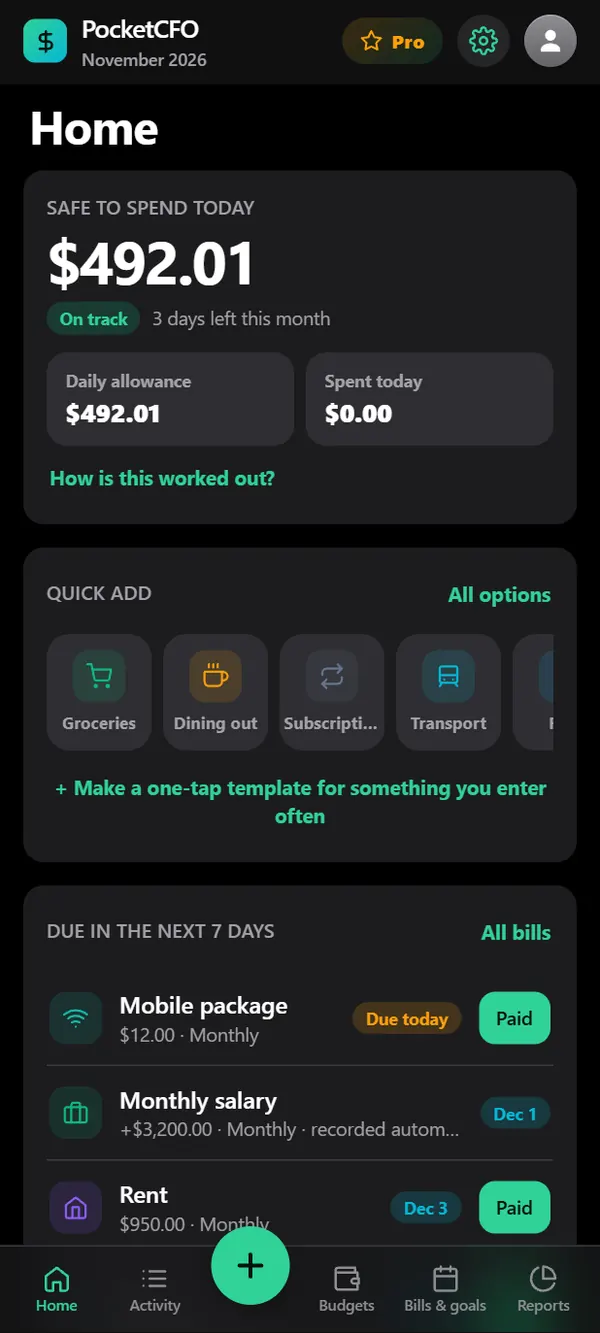
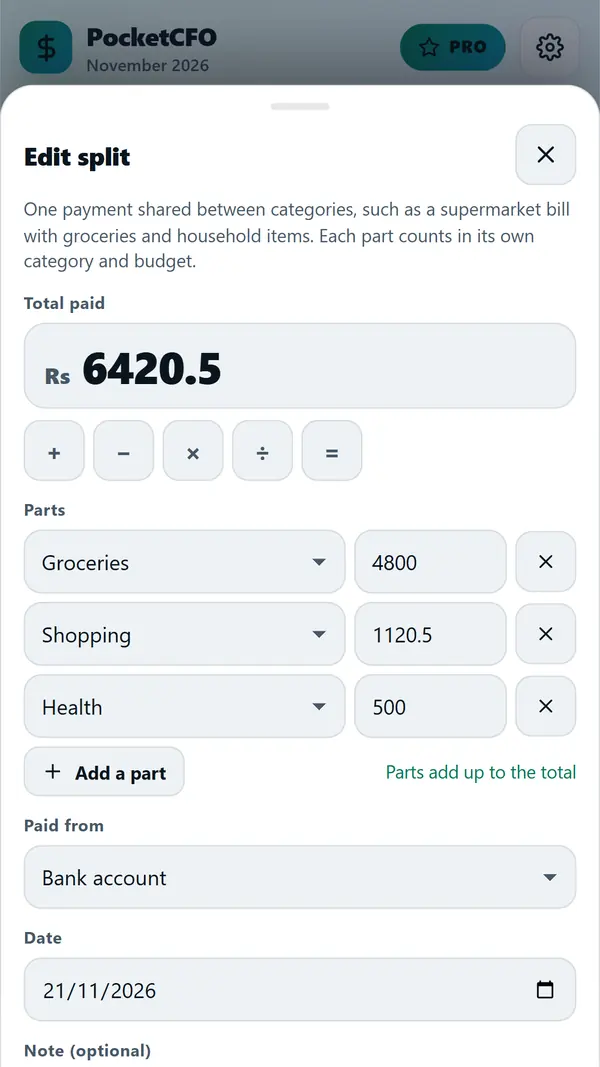
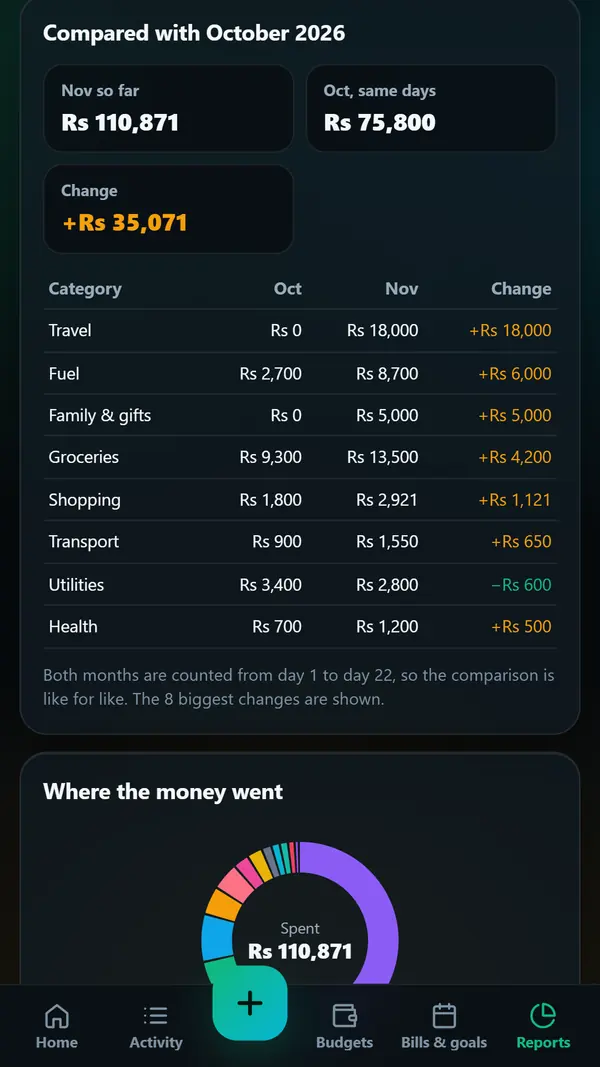
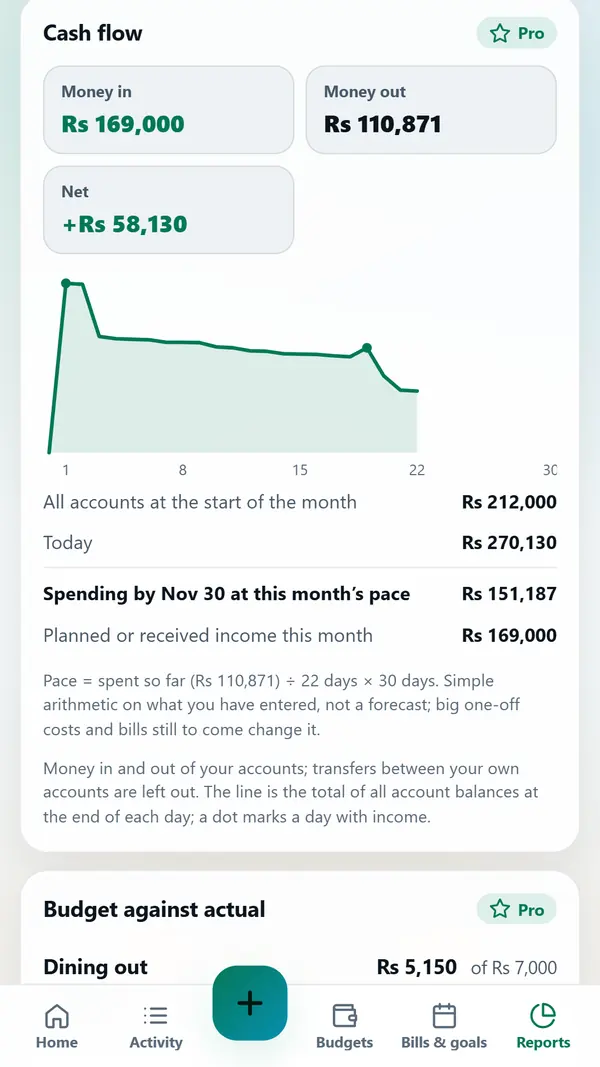
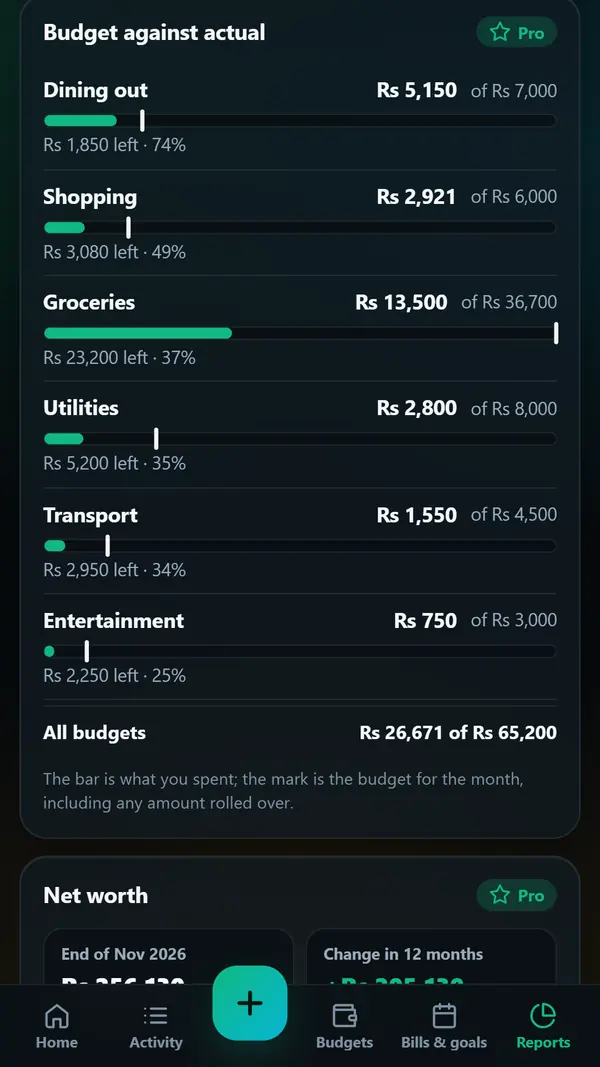
PocketCFO is a simple budget planner and expense tracker for everyday money. Add an expense in seconds, give categories a monthly budget, keep bills and savings goals in one place, and see one clear number each morning: how much is safe to spend today.
What's new in version 1.3
New in version 1.3, along with a refreshed design and the optional Bright Loop Account. Early-access testers get it through Google Play.
30-day cash-flow forecast with low-balance warning
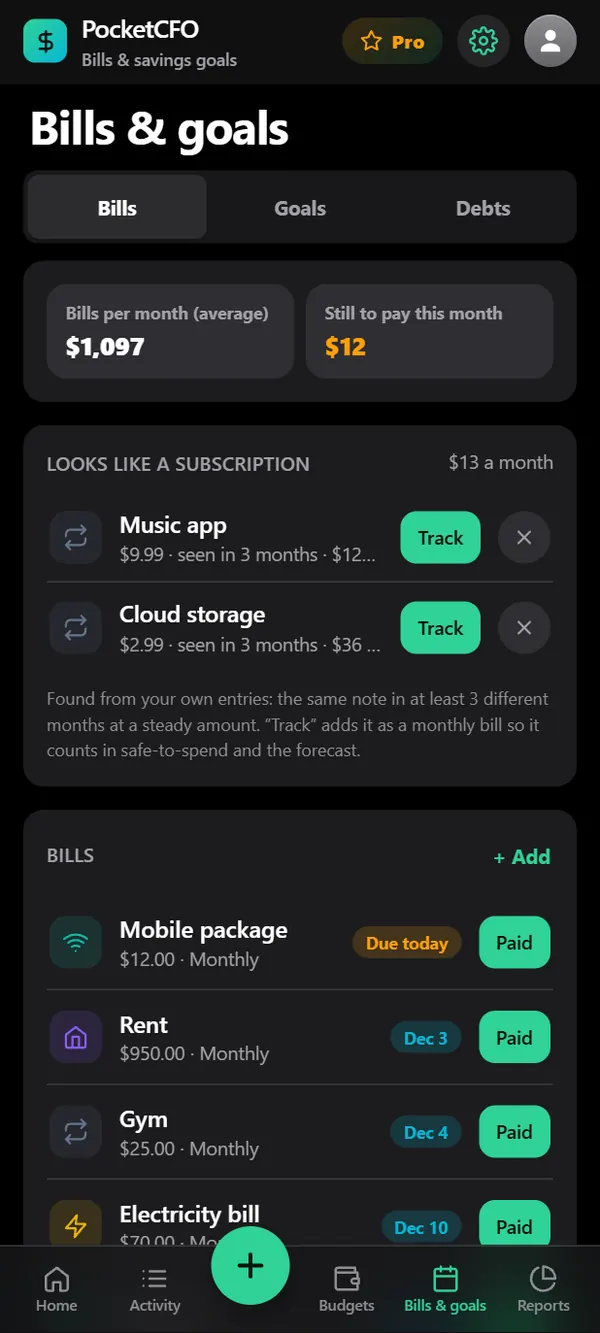
Subscription finder
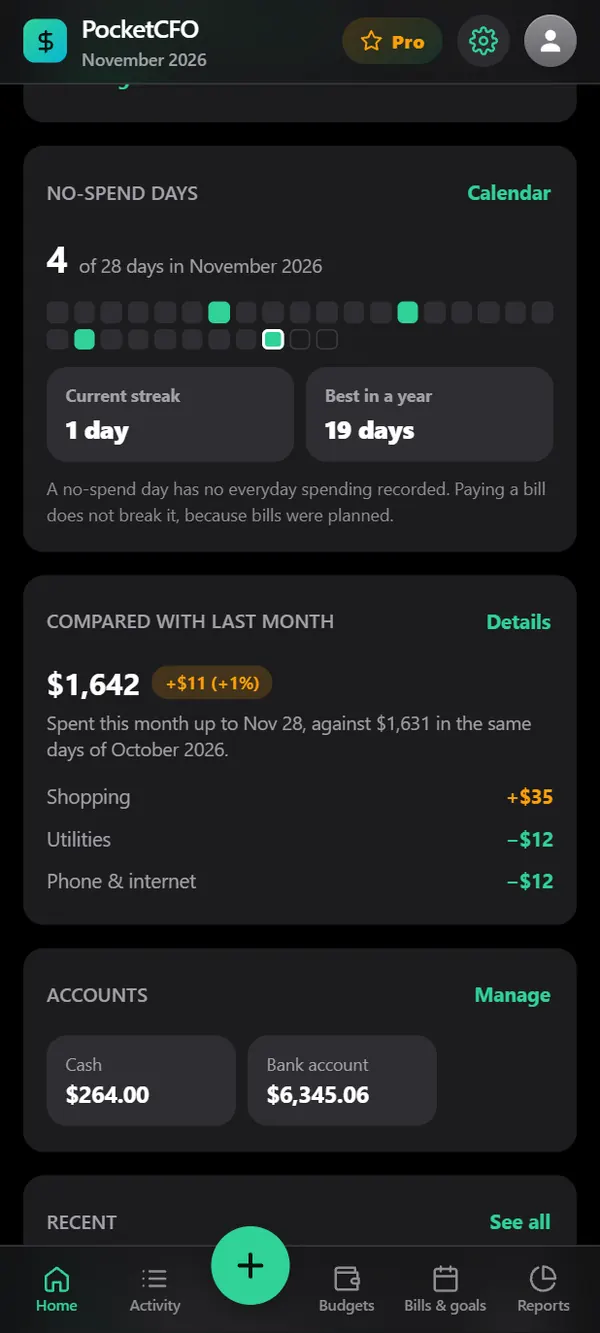
No-spend day streaks
Money health score
Feature tour.
Every feature in PocketCFO, and what it does for you. Items marked Pro are part of the optional subscription.
Everyday entry
- Fast entry
- Add expenses, income and transfers between accounts from the + button.
- Calculator amount box
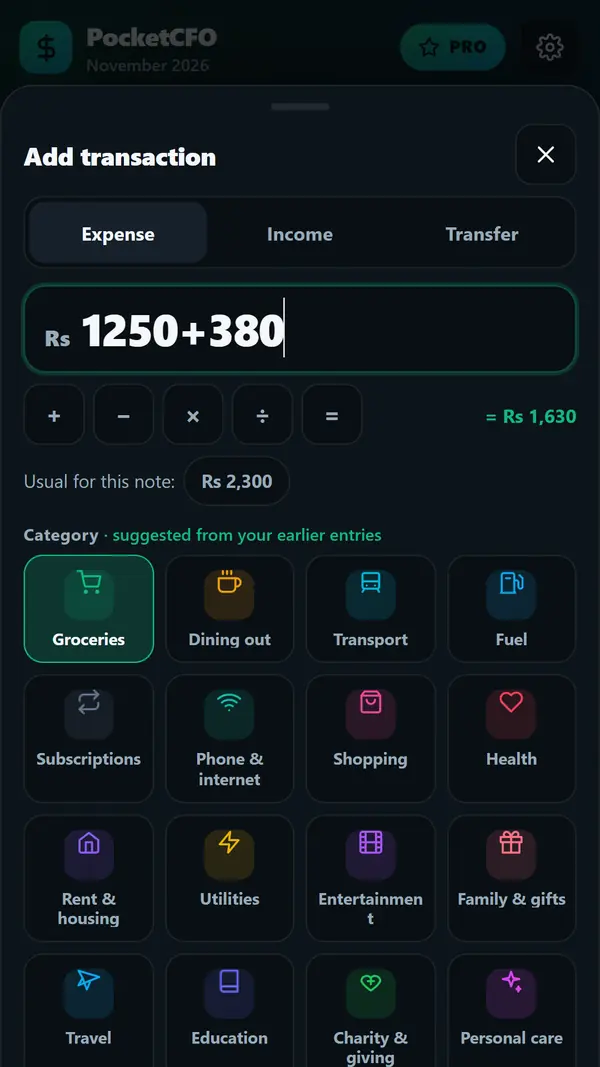
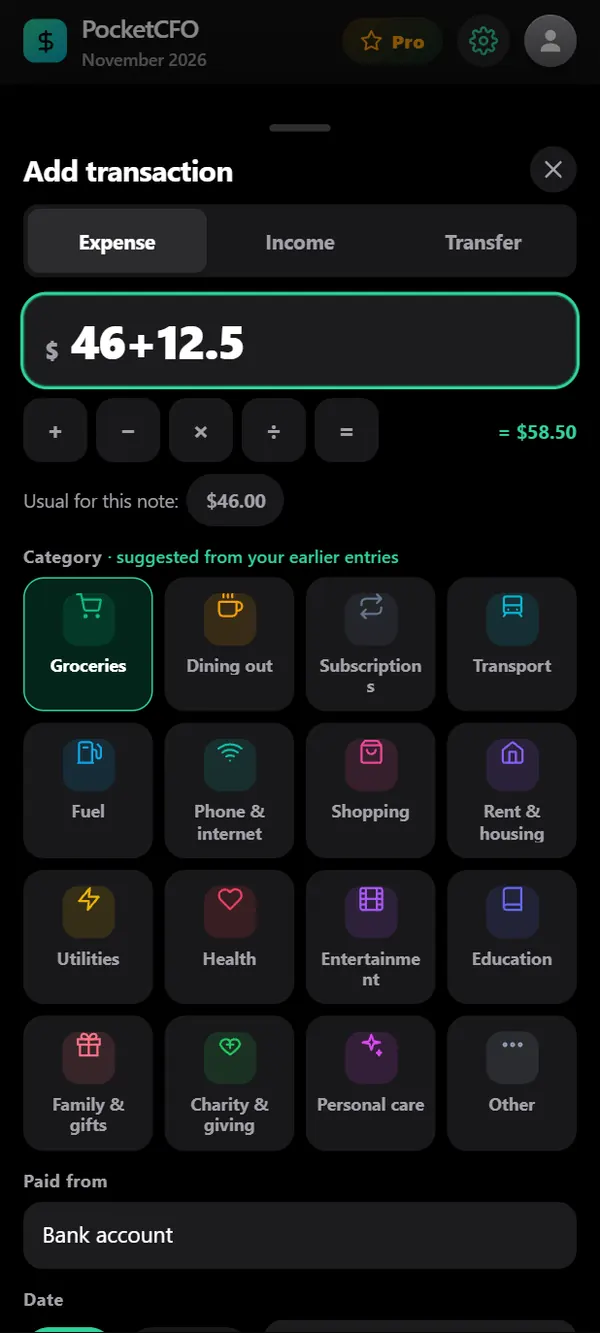
- Type sums like 450+120 or use the + − × ÷ keys.
- Suggestions from your entries
- The category for a familiar note and your usual amounts are suggested as you type.
- Quick add templates
- One-tap templates on Home for things you enter often (up to 3 on the free plan).
- Tags, filters and search
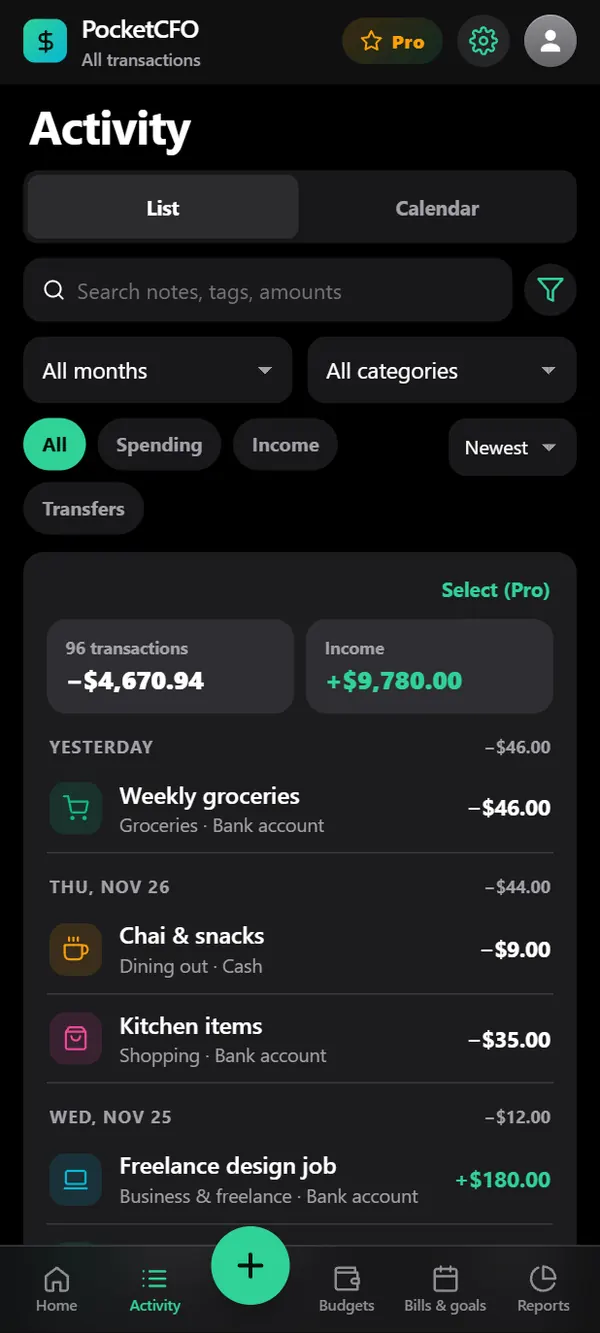
- Tag entries, then search notes, tags and amounts and filter Activity by month, category and type.
- Calendar view
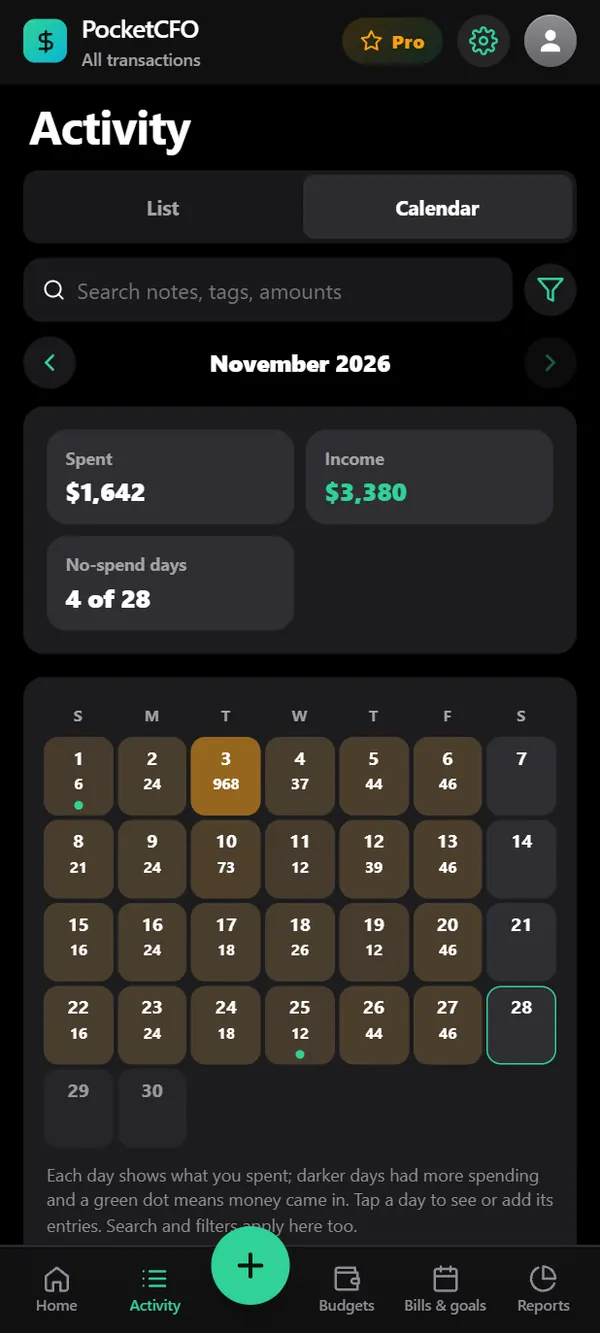
- Activity has a calendar that shades each day by spending and marks income.
Planning
- Safe to spend today
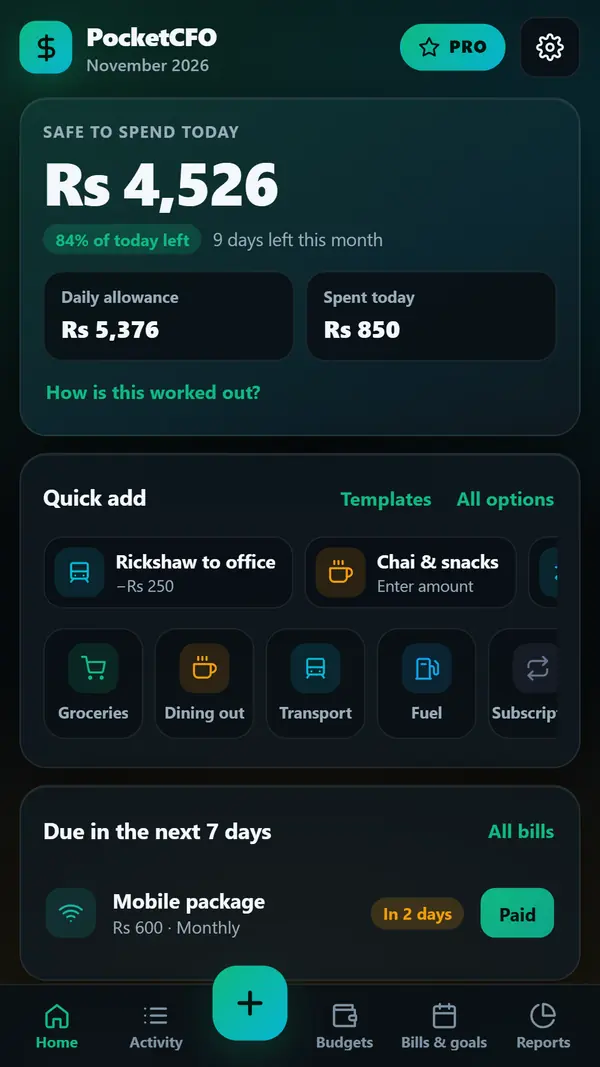
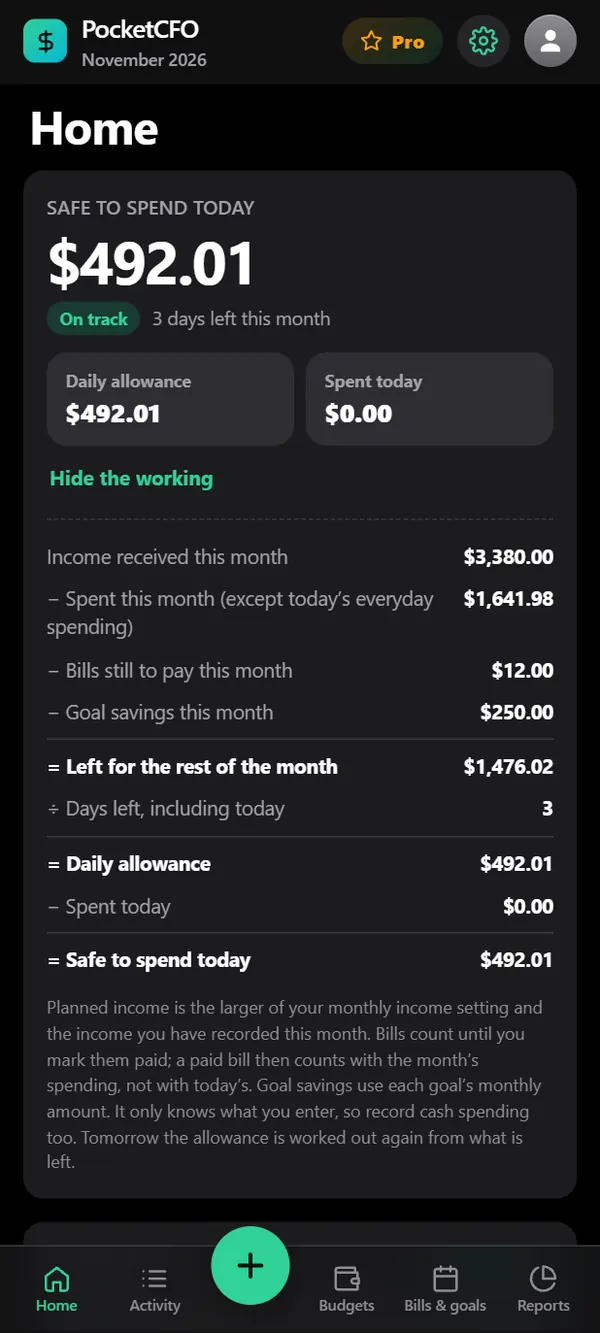
- Your monthly income minus spending, bills still to pay and goal savings, divided by the days left. Tap How is this worked out? to see every line.
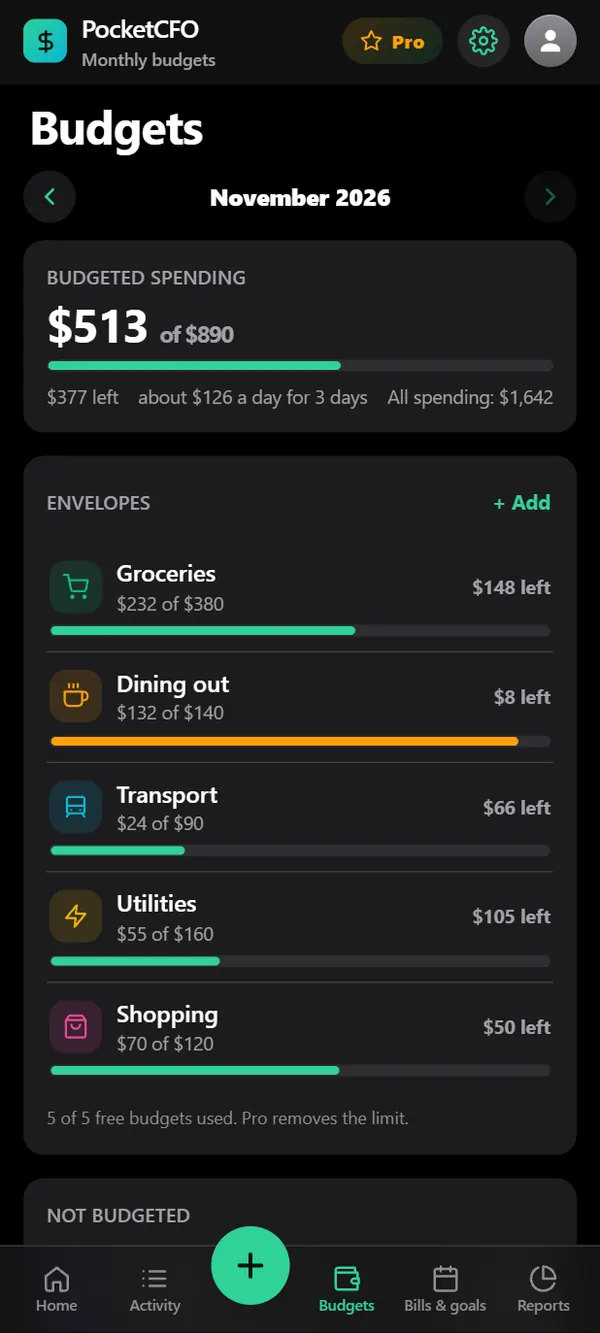
- Budgets like envelopes
- Monthly budgets per category with what is left and a per-day amount (up to 5 budgets free).
- Bills and subscriptions
- See what is due this week; salary and fixed bills can be recorded automatically on their date, with Skip this one.
- Savings goals
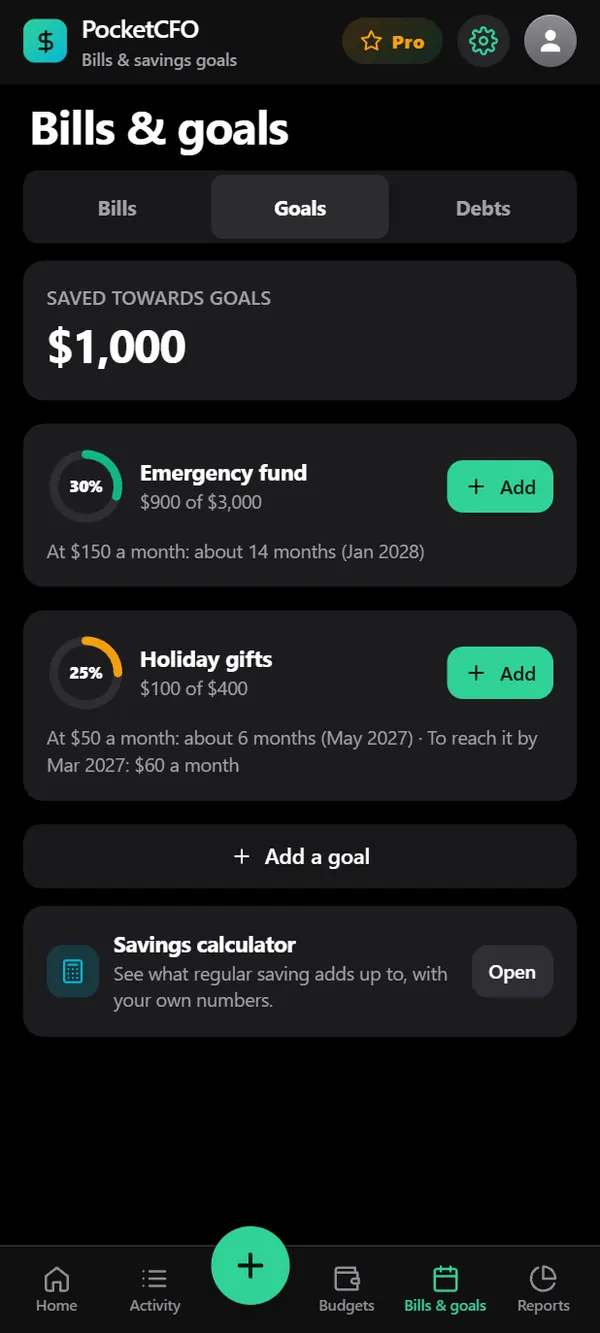
- Track progress towards each goal with a time estimate at your monthly amount, plus a savings calculator.
- Subscription finder
- Spots notes that repeat in at least 3 months at a steady amount and lets you track them as bills.
Looking ahead
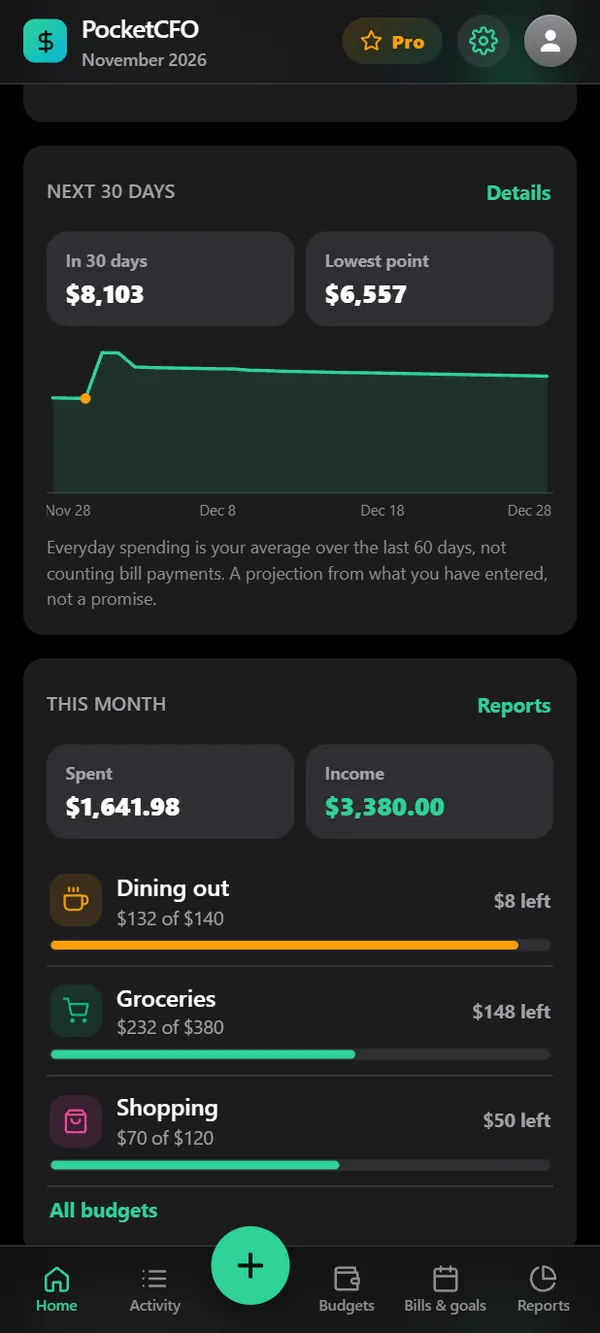
- 30-day forecast
- Projects your total balance for the next 30 days and warns if it would go below zero.
- No-spend days
- Counts days with no everyday spending, with your current streak and best in a year.
- Compare with last month
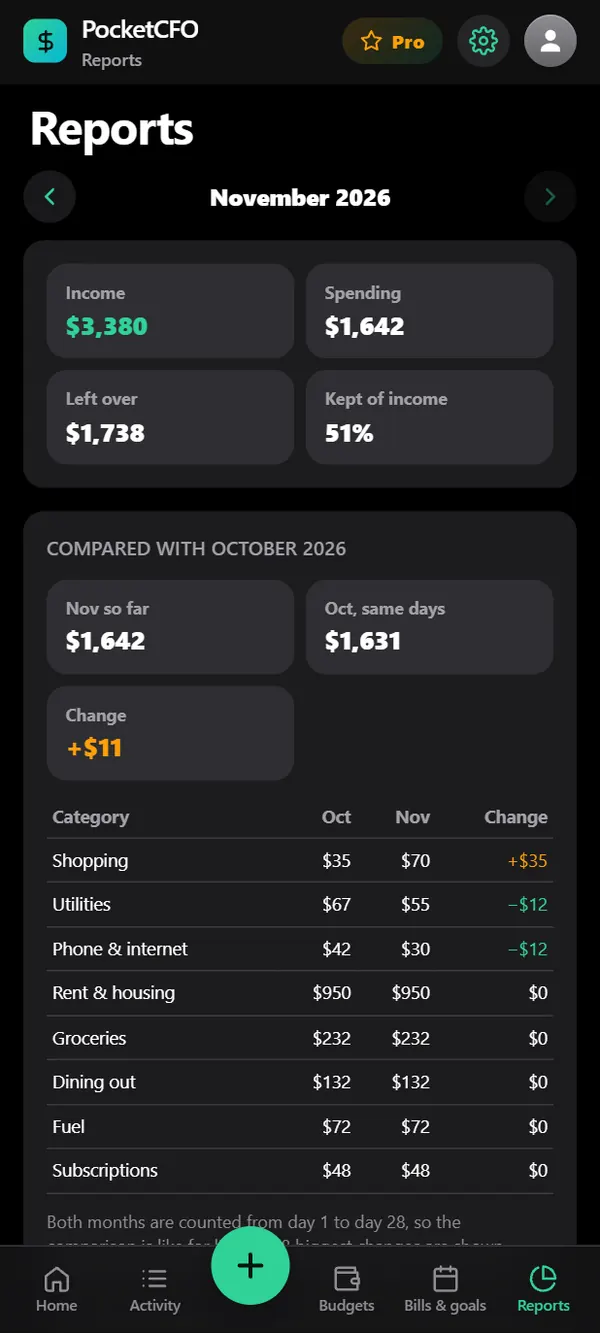
- This month against the same days of last month, by category.
Reports
- Monthly reports
- Income, spending by category and by day, and your biggest expenses.
- Money health
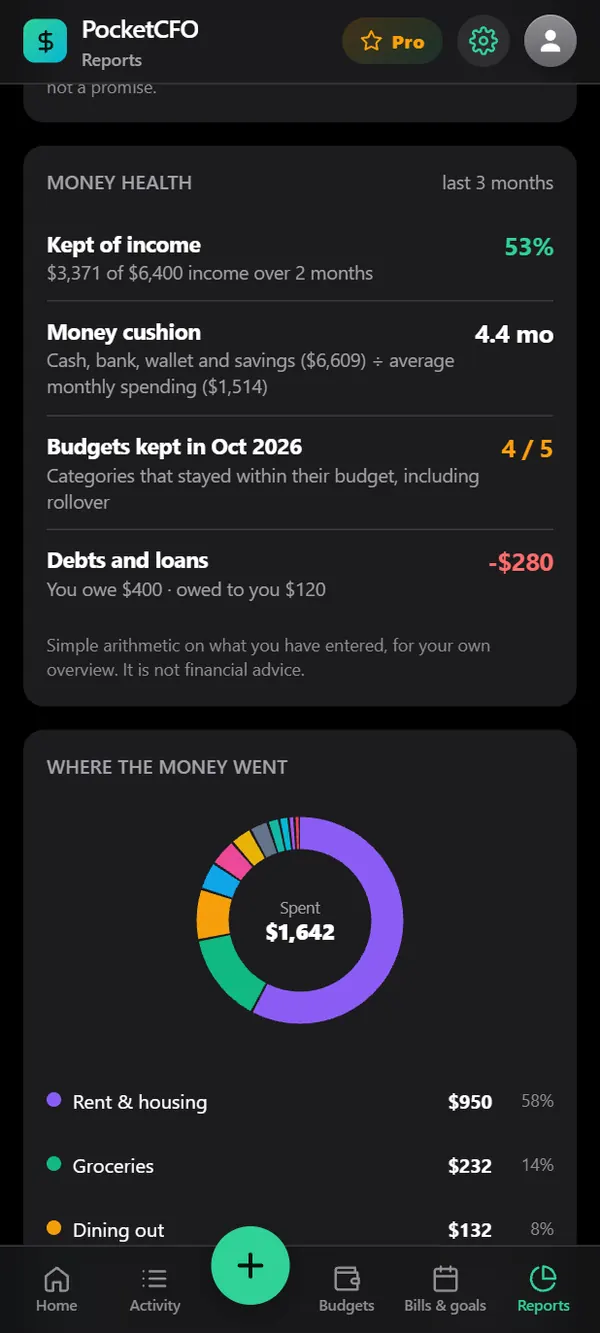
- How much of your income you kept, your money cushion in months, budgets kept and debts, from what you entered.
PocketCFO Pro
- Unlimited budgets, accounts and templates Pro
- The free plan has 5 budgets, 2 accounts and 3 templates.
- Split transactions Pro
- Share one payment, like a supermarket bill, between categories.
- Budget rollover Pro
- Unspent budget carries into next month.
- Debts and loans Pro
- Track what you owe or are owed, with repayments.
- Bulk edit Pro
- Select many transactions to change or delete at once.
- Bank CSV import and CSV export Pro
- Import your bank's statement file with a preview and duplicates skipped, and export all transactions to a spreadsheet.
- Advanced reports Pro
- Cash flow with spending pace, budget against actual, net worth over 12 months, spending by tag, 12-month and category trends, and year totals.
Your app, your data
- Home cards
- Show, hide and reorder the cards on Home.
- Categories and currency
- 19 ready-made categories plus your own, and every currency, with your phone's picked automatically.
- Backup and restore
- Save all your data to a file and restore it on any phone. Undo for deletes, dark and light themes, works offline.
Full store description
Safe to spend today, with the working shown
Your monthly income, minus what you have spent, the bills still to pay and your goal savings, divided by the days left in the month. Tap "How is this worked out?" to see every line.
Everyday features (free)
- Fast entry for expenses, income and transfers between accounts
- Amount fields work like a calculator: type 450+120 or use the + − × ÷ keys
- Suggestions from your own entries: the category for a familiar note, and your usual amounts
- One-tap templates in Quick add for things you enter often (up to 3)
- Home screen cards you can show, hide and reorder
- Compare this month with last month, day for day, by category
- 19 ready-made categories, plus your own with icons and colours
- Monthly budgets that work like envelopes, with a per-day amount (up to 5 budgets)
- Bills and subscriptions with what is due this week; salary and fixed bills recorded automatically on their date, with skip
- Calendar view, tags, filters and search
- Savings goals with progress and a time estimate
- Reports: income, spending by category and by day, biggest expenses
- Undo for deletes, dark and light themes, works offline, keyboard shortcuts
- Every currency, with your phone's currency picked automatically
- Back up all your data to a file and restore it on any phone
How to use PocketCFO.
Step-by-step walkthroughs of the main tasks, with screens from the current version.
1Add an expenseRecord what you spent in a few taps, with the amount box doing the sums.
- Step 1
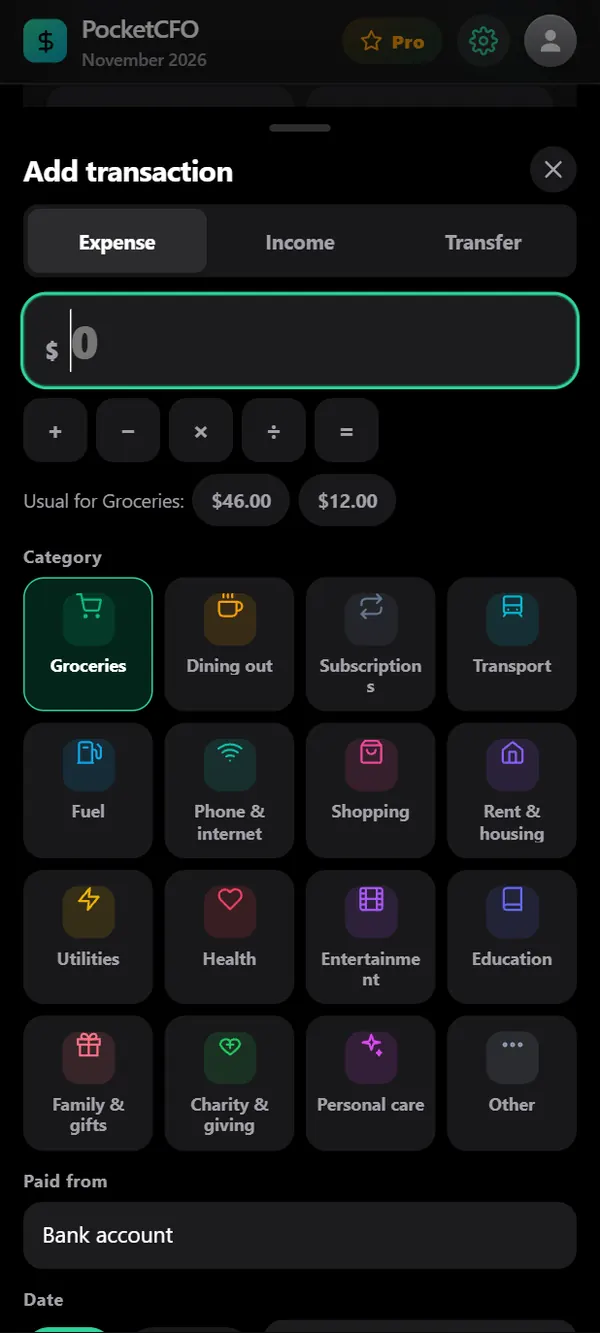
Tap the green + button. Choose Expense, Income or Transfer at the top.
- Step 2
Type the amount. It works like a calculator: type 46+12.5 or use the + − × ÷ keys and the total is shown. Add a note and PocketCFO suggests the category and your usual amount from earlier entries.
- Step 3
Check the account and date, then tap Save. For things you enter often, tap a tile under Quick add on Home instead, or make your own one-tap template.
2See what is safe to spend todayOne daily number that already allows for bills and savings.
- Step 1
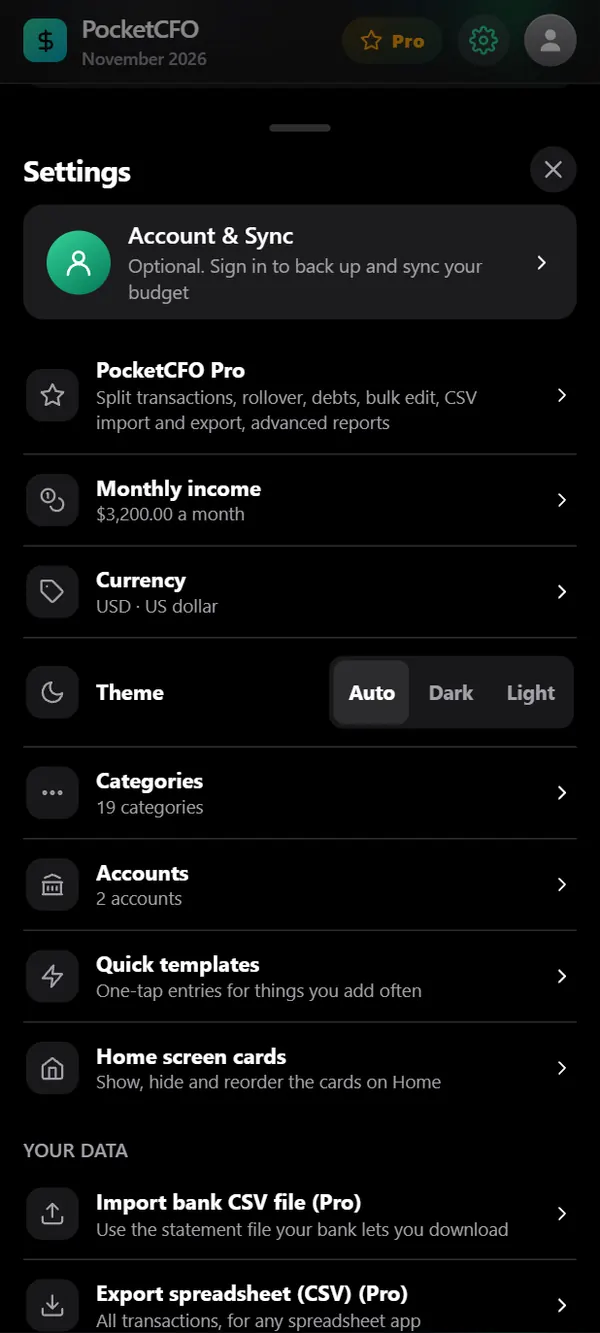
Open Settings and set your Monthly income.
- Step 2
Safe to spend today on Home shows what you can spend today and how many days are left this month.
- Step 3
Tap How is this worked out? to see every line: income, minus what you have spent, the bills still to pay and your goal savings, divided by the days left.
3Set monthly budgetsGive categories an envelope and see what is left each day.
- Step 1
Open Budgets and tap + Add to give a category a monthly amount. The free plan has up to 5 budgets.
- Step 2
Each envelope shows what you spent of the budget and what is left; the top card shows about how much you can spend per day for the rest of the month.
- Step 3
Home shows your budgets for this month too, under This month.
4Track bills and find forgotten subscriptionsKeep bills in one place and catch repeat payments you entered by hand.
- Step 1
Open Bills & goals. Add bills with + Add and tap Paid when you pay one.
- Step 2
Looks like a subscription lists notes that appear in at least 3 different months at a steady amount. Tap Track to add one as a monthly bill, or × to hide it.
- Step 3
Switch to Goals to save towards something: each goal shows its progress and about how long it will take at your monthly amount.
5Look ahead and build no-spend streaksSee where your balance is heading over 30 days and count days without spending.
- Step 1
On Home, Next 30 days projects your total balance from your bills, recurring income and average everyday spending, with the lowest point. If it would drop below zero, a warning shows the date.
- Step 2
No-spend days counts the days this month with no everyday spending, your current streak and your best in a year. Paying a bill does not break a streak.
- Step 3
Tap Calendar to see each day's spending and the month's no-spend days in Activity.
6Read your reports and money healthCheck income, spending and a simple health snapshot each month.
- Step 1
Open Reports to see income, spending, what was left over and how much of your income you kept, plus this month against the same days of last month.
- Step 2
Scroll to Money health: how much of your income you kept over 3 months, how many months your money would cover, how many budgets you kept and your debts.
- Step 3
Activity lists every transaction with search, month, category and type filters.
Free, with optional Pro.
Download PocketCFO free. Pro is optional and billed by Google Play, which shows the price before you confirm.
PocketCFO Pro (optional subscription)
- Unlimited budgets, accounts and templates (free: 5 budgets, 2 accounts, 3 templates)
- Split transactions: share one payment, like a supermarket bill, between categories
- Budget rollover: unspent budget carries into next month
- Debts and loans you owe or are owed, with repayments
- Bulk edit: change or delete many transactions at once
- Import your bank's CSV statement file, with a preview and duplicates skipped
- Export all transactions to a CSV spreadsheet
- Advanced reports: cash flow with the month's spending pace, budget against actual, net worth over 12 months, spending by tag, 12-month trend, category trends and year totals
Pro is a monthly or yearly subscription through Google Play. The price, and any trial offer, is shown in the app before you buy. It renews until you cancel in Google Play > Payments & subscriptions. Everything in the free list stays free.
Manage or cancel subscriptions in Google Play > Payments & subscriptions. Purchases and Restore purchases
Try it now.
Open PocketCFO right here in your browser, or download the Android app file directly.
Open in browser
The full PocketCFO app, running in a new tab. Nothing to install.
Some phone-only features, such as purchases, notifications, sharing and camera scanning, work only in the Android app. Anything you do in the browser is saved in that browser only, unless you sign in to the Bright Loop Account.
Download the APK
Install PocketCFO on an Android phone without Google Play.
- Version
- 1.3
- Size
- 3.9 MB
- SHA-256
18a1bdfd3f43dec03b02f5180c6326bc2ab0d8709580252338f0fbcf1611a035
An APK installed from this website can't be updated from Google Play later. To switch to Google Play, uninstall it and install from Play. Your data only comes with you if you back it up with the Bright Loop Account first. How to install an APK
Requirements & details.
- Requires
- Android 7.0 or later
- Size
- 3.9 MB
- Version
- 1.3
- Price
- Free, optional Pro subscription
- Internet
- Not required
- Account
- Optional Bright Loop Account
- Ads
- None
- Category
- Money
- Developer
- Bright Loop (Google Play: Bright Loop Games)
- Availability
- Early access (Google Play closed testing)
- Web version
- Open in browser
How to get PocketCFO.
PocketCFO is in early access through Google Play closed testing. It takes about two minutes.
- Ask to join the tester listEarly access runs as a Google Play closed test, so your Google account must be on the tester list before the opt-in link works. Send us the Gmail address you use on Google Play and we'll add you.
- Open the opt-in linkOn your Android phone, signed in to the same Google account, open the PocketCFO early access link.
- Tap "Become a tester"Google Play confirms that you've joined the test.
- Install from Google PlayTap the "download it on Google Play" link on that page, or open the Google Play page, then tap Install. Updates arrive through Google Play like any other app.
- Tell us what you thinkEarly access means your feedback shapes the next update. Email rehman@mindum.dev any time.
Link not working? See Troubleshooting or the full early access guide.
Account & sync.
Optional. PocketCFO works fully without an account. Sign in to the free Bright Loop Account to back up your PocketCFO data and keep it in sync across your phones.
What syncs
- Expenses, income and categories
- Budgets, bills and debts
- Settings
What stays on this phone
- Your Pro status (Google Play restores it)
Account & Sync is part of PocketCFO 1.3. Look for it at the top of Settings.
Privacy.
PocketCFO keeps your data on your phone. No ads and no analytics.
Private by design
No account needed, no sign-in, no ads, no analytics. PocketCFO does not connect to your bank and never asks for bank details: you enter your own numbers or import a file you chose. Your data stays on your phone and leaves it only when you export or share a file.
If you sign in
The Bright Loop Account is optional. If you sign in, PocketCFO backs up the records listed under Account & sync to your account so you can restore them on another phone. Photos and files are never uploaded, and you can export or delete your cloud data at any time.
Read the full Privacy Policy.
Tips.
- Record cash spending too: safe to spend and the forecast only know what you enter.
- Write the same note for repeat purchases, like "Weekly groceries"; PocketCFO then suggests the category and your usual amount.
- Bills count against safe to spend until you mark them paid, so tap Paid when you pay one.
- Turn off Home cards you do not use in Settings > Home screen cards to keep Home short.
- Hide a subscription suggestion with × if it is everyday spending; it will not be suggested again.
Troubleshooting.
Safe to spend looks too high.
Set your Monthly income in Settings, add your bills and record cash spending; the number only knows what you enter.
The forecast card says it needs more data.
It appears once you have a few weeks of spending, or bills and recurring income, entered.
A suggested subscription is really everyday spending.
Tap × next to it to hide it for good.
I cannot add another budget.
The free plan allows 5 budgets. Remove one you no longer need, or use Pro for unlimited budgets.
My data did not come across to a new phone.
Save a backup file in Settings on the old phone and restore it on the new one.
Questions.
How is safe to spend today worked out?
Planned income (the larger of your monthly income setting and the income recorded this month), minus what you have spent this month, the bills still to pay and your goal savings for the month, divided by the days left including today, minus what you spent today. Tap How is this worked out? on Home to see your own numbers.
How does the 30-day forecast work?
It starts from your account balances, adds bills and recurring income on their dates and takes off your average everyday spending over the last 60 days (bill payments not counted). It is a projection from what you entered, not a promise.
What counts as a no-spend day?
A day with no everyday spending recorded. Paying a bill does not break it, because bills were planned.
How does the subscription finder decide what to show?
It looks for the same note in at least 3 different months at a steady amount, seen in the last 45 days, that is not already a bill. More than about two a month counts as everyday spending and is skipped.
Is Money health a score or advice?
Neither. It is simple arithmetic on what you entered over the last 3 months: the share of income you kept, months of spending your money would cover, budgets kept and debts.
What is limited on the free plan?
Up to 5 budgets, 2 accounts and 3 quick templates. Split transactions, rollover, debts, bulk edit, CSV import and export and the advanced reports are part of Pro.
Does PocketCFO connect to my bank?
No. You enter your own numbers, or with Pro import a CSV statement file that you downloaded from your bank.
Is PocketCFO free?
Yes. PocketCFO is free to download and use. PocketCFO Pro is an optional monthly or yearly subscription through Google Play that adds the extras listed under Free and Pro. Google Play shows the price, and any trial, before you confirm.
Why can't I find PocketCFO on Google Play?
PocketCFO is in early access (a Google Play closed test), so it only appears for people on the tester list. Follow the steps under How to get it. Once it becomes public, anyone can install it from Google Play.
Does PocketCFO work offline?
Yes. PocketCFO works without an internet connection. You only need a connection for optional things like Bright Loop Account sync and Google Play purchases.
Do I need an account?
No. PocketCFO works fully without one. The Bright Loop Account is optional and adds cloud backup and sync across your phones.
How do I move to a new phone?
Sign in to your Bright Loop Account on the new phone and choose "Use Cloud Data", or export a backup file on the old phone and restore it on the new one. Photos and files only move with a backup file. Pro comes back with Restore purchases. See Move to a new phone.
How do I restore a purchase?
Make sure your phone uses the same Google account you bought with, open PocketCFO and tap Restore purchases. Google Play checks your purchases and PocketCFO unlocks what you own. More about purchases.
Can I use PocketCFO in a browser?
Yes. Tap Open in browser to run it in a new tab. Some phone-only features, such as purchases, notifications, sharing and camera scanning, work only in the Android app, and anything you do there is saved in that browser.
Can I install it without Google Play?
Yes, with the APK on this page (version 1.3, 3.9 MB). An APK install can't be updated from Google Play later; see Install an APK on Android.
What do I need to run it?
Android 7.0 or later, or any modern browser for the web version.
Is it available on iPhone?
There's no iPhone app at the moment. PocketCFO is made for Android, but you can open the web version in Safari.
Get help with PocketCFO
Email rehman@mindum.dev. Include your phone model, Android version and what happened, and we'll take it from there.
Help Centre
Step-by-step guides for early access, sync, backups, purchases and moving phones. Visit the Help Centre
More apps you might like.
SubZero
Track subscriptions, bills and EMIs: due reminders, calendar, savings, budgets.

SplitMate
Split bills with flatmates, trips and family in any currency. Settle up fast.
InvoiceSnap
Make invoices, quotes and receipts as PDF. Track paid, unpaid and overdue.
SafeKeep
Passport, ID, insurance & warranty expiry reminders. Private, kept on your phone