SubZero
Track subscriptions, bills and EMIs: due reminders, calendar, savings, budgets.
Google Play pageDownload APK v1.5 · 3.9 MB
Early access on Google Play closed testing. You need to be on the tester list first: see how to join.
A closer look.
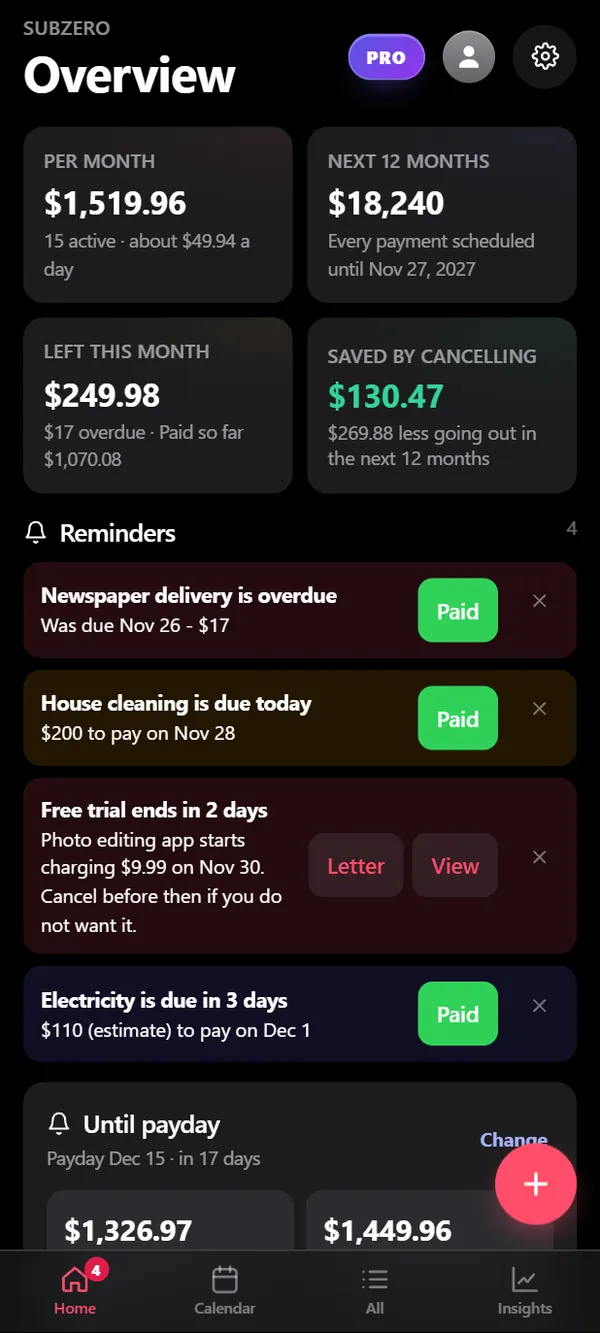
SubZero keeps every recurring payment in one place: subscriptions, utility bills, phone and internet, rent, school fees, insurance, loans and EMIs. Add each one once and see what is due, what it costs per month and per year, and what you save by cancelling what you no longer use.
Made for real household budgets in any country: any currency, weekly to yearly or custom cycles, and bills whose amount changes every month, like electricity.
What's new in version 1.5
New in version 1.5, along with a refreshed design and the optional Bright Loop Account. Early-access testers get it through Google Play.
Export payments to your calendar (.ics) with reminders
Payday planner: what's due before payday
Shared plans: your share and what others owe
Feature tour.
Every feature in SubZero, and what it does for you. Items marked Pro are part of the optional subscription.
Adding payments
- Quick add in one line
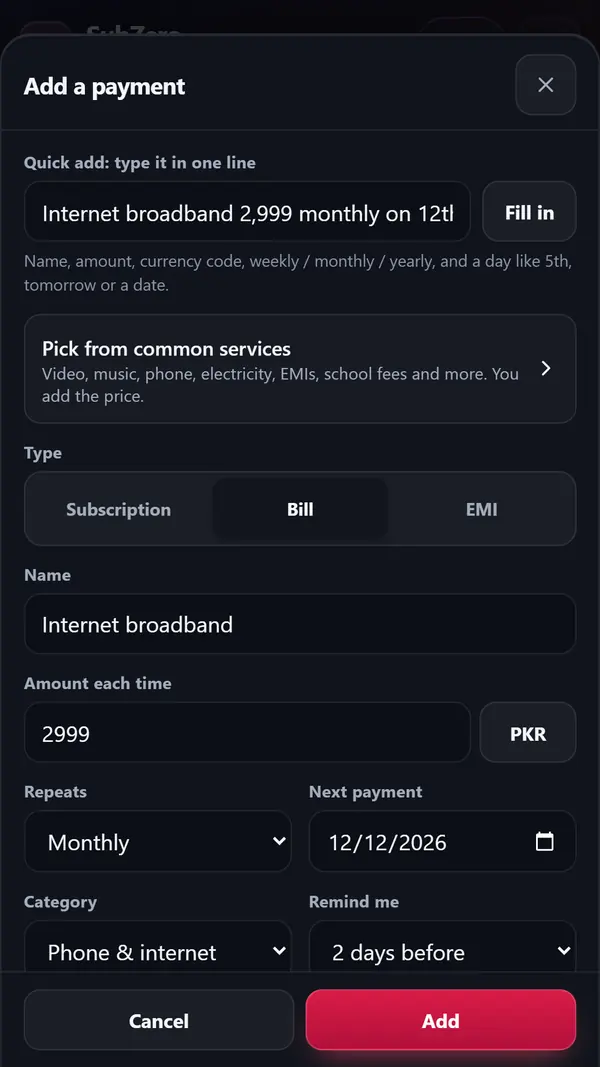
- Type something like "Music 9.99 monthly on 5th" and tap Fill in; the form fills itself and you check it before adding.
- Common services
- Pick from generic services like video streaming, electricity, mobile postpaid or school fees. You always enter your own price.
- Subscriptions, bills and EMIs
- Weekly, monthly, every 3 or 6 months, yearly or a custom cycle, in any currency. Bills can use Amount varies, for things like electricity.
- EMI tracking
- For loans and instalments, enter the total number of payments to see payments made, payments left and the amount left to pay.
- Payment method per item
- Note which card or account pays each item, filter the list by card and see monthly totals per card in Insights.
Due dates and reminders
- Overview totals
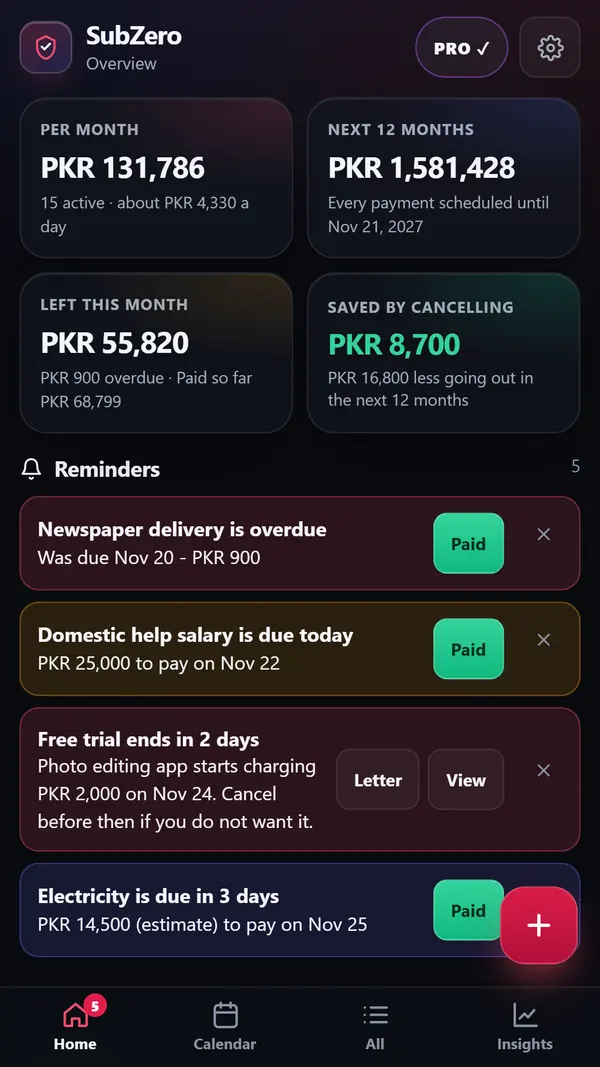
- Per month, next 12 months, left to pay this month and saved by cancelling, at the top of the Overview.
- In-app reminders
- Reminders before payments and before free trials charge, plus overdue alerts, appear on the Overview with a badge. No notification permission is needed.
- Payment calendar
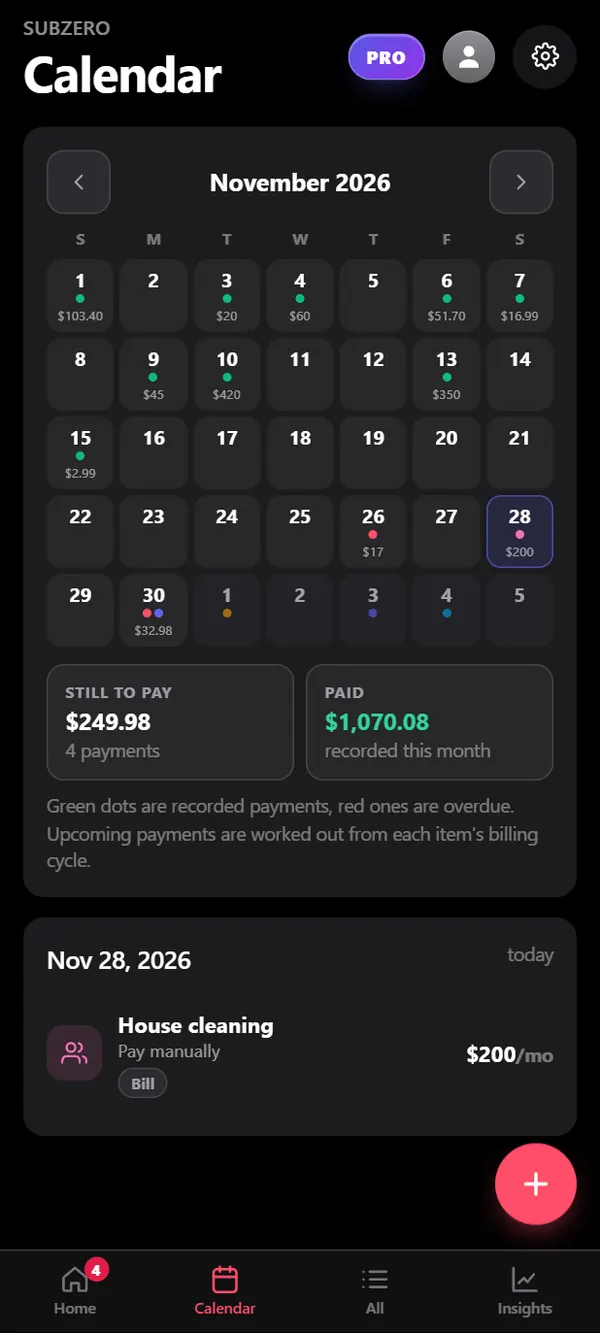
- A month view with the amount due each day, and what is still to pay and already paid this month.
- Mark as paid
- Record each payment with the real amount and date; automatic payments move forward on their own.
- Payday planner
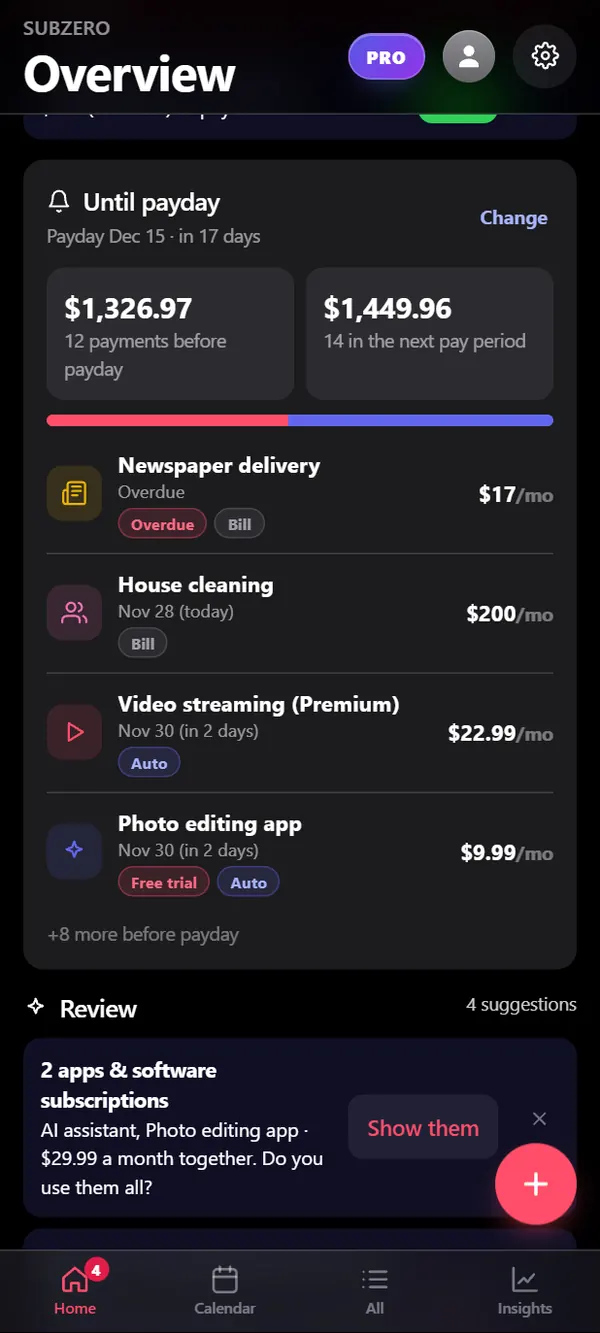
- Set your payday and the Overview shows what is due before your next salary and what the following pay period needs.
- Calendar export (.ics)
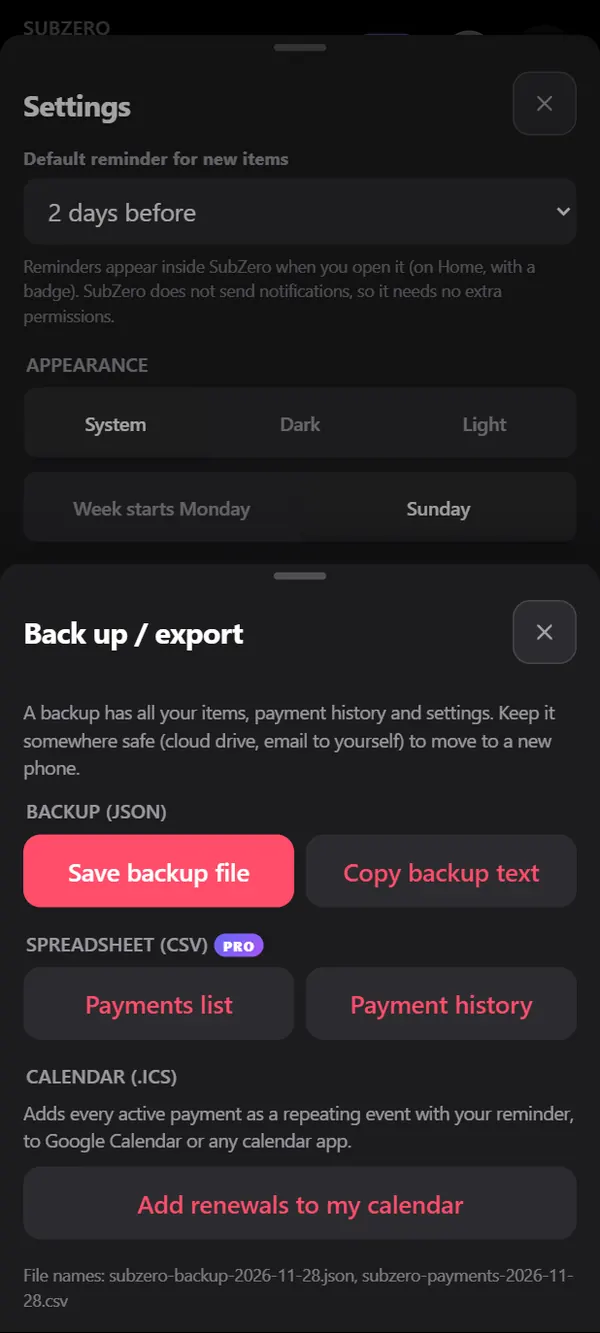
- Add every active payment, or just one, to Google Calendar or any calendar app as a repeating event with your reminder.
Saving money
- Review suggestions
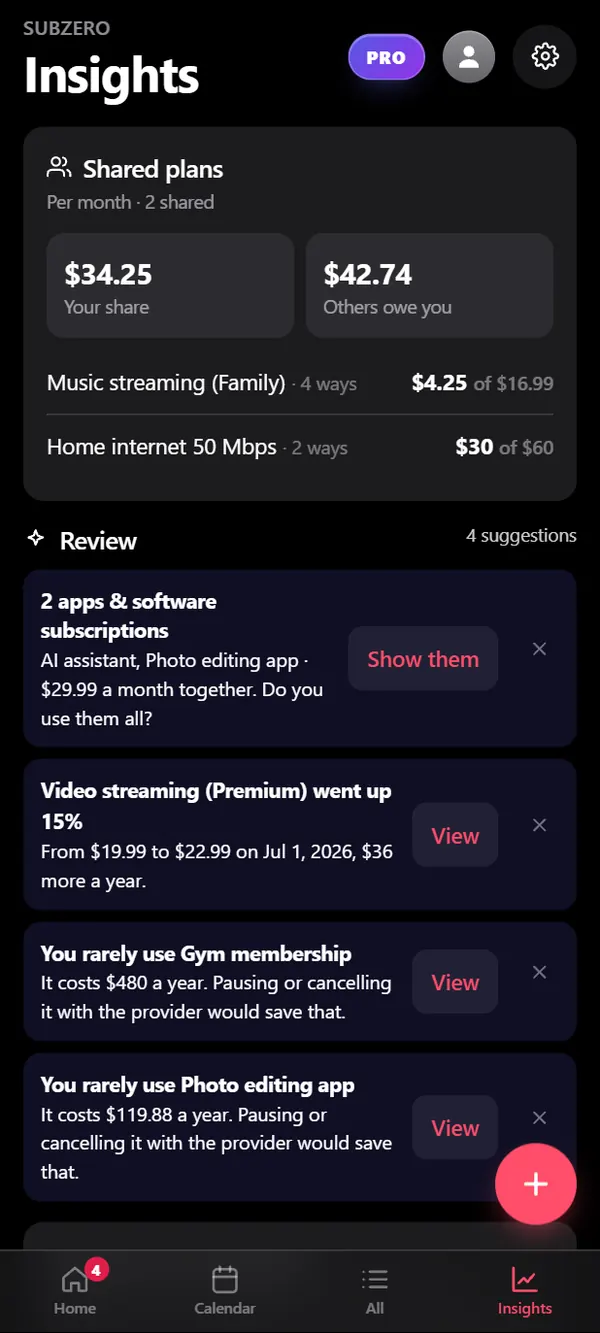
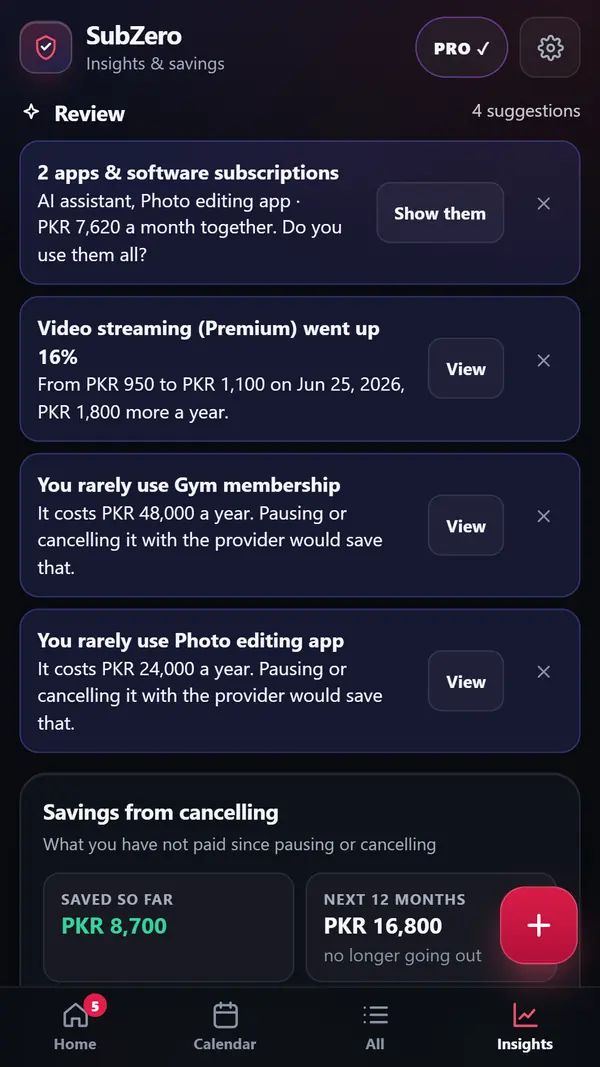
- From your own list: overlapping services in one category, price rises, subscriptions you rarely use and long pauses.
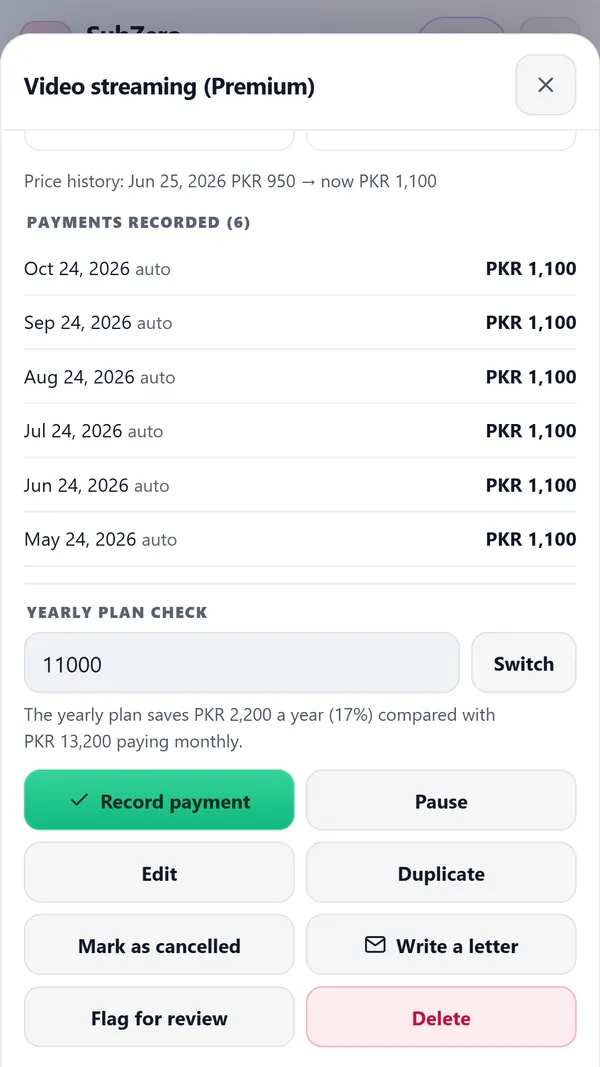
- Yearly plan check
- Type the yearly price you were offered and compare it with paying monthly; tap Switch to change the item to yearly.
- Letter writer
- Cancellation, stop-renewal, pause, refund and stop-auto-debit letters that you copy and send yourself.
- Price history and savings
- Every item keeps its price changes, and paused or cancelled items show what you saved.
- Shared plans
- Set "Shared with" on a family plan or split bill to see your share and what others owe you each month.
Insights
- Spending history
- A month-by-month chart of what you recorded as paid, with each month's biggest payments.
- Where it goes
- Monthly cost by category and by payment method, plus your biggest costs.
SubZero Pro
- Multiple currencies Pro
- Track items in other currencies, converted with exchange rates you enter.
- Category budgets Pro
- Monthly limits per category, with an alert when you go over.
- 12-month forecast Pro
- See your heavy months before they arrive.
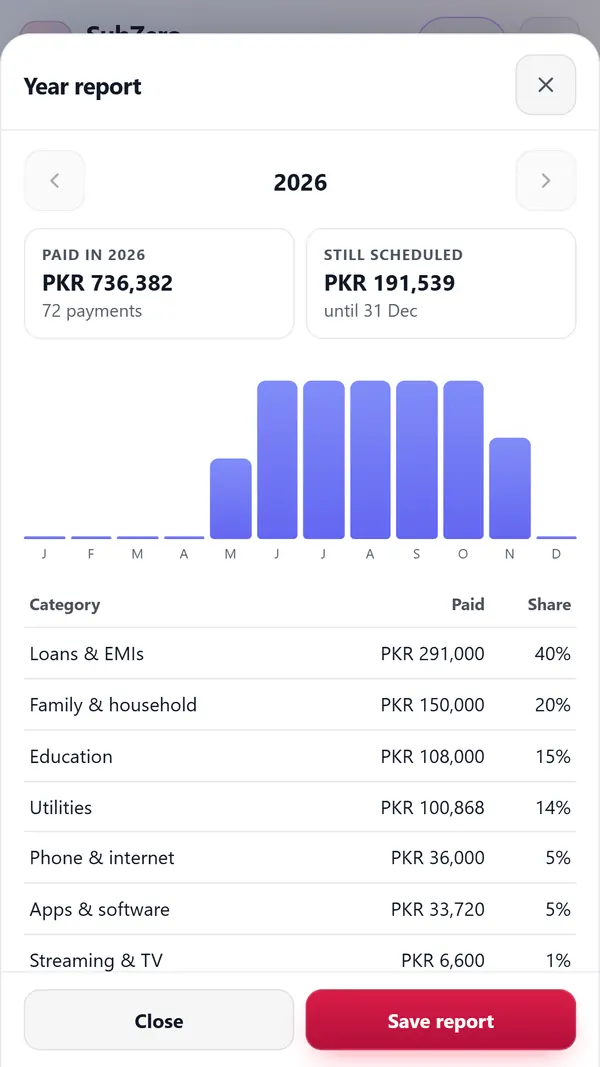
- Year report Pro
- A printable summary of any year by month, category and payment, with price changes and what you stopped.
- Value check Pro
- Estimated cost per use from how often you say you use each subscription.
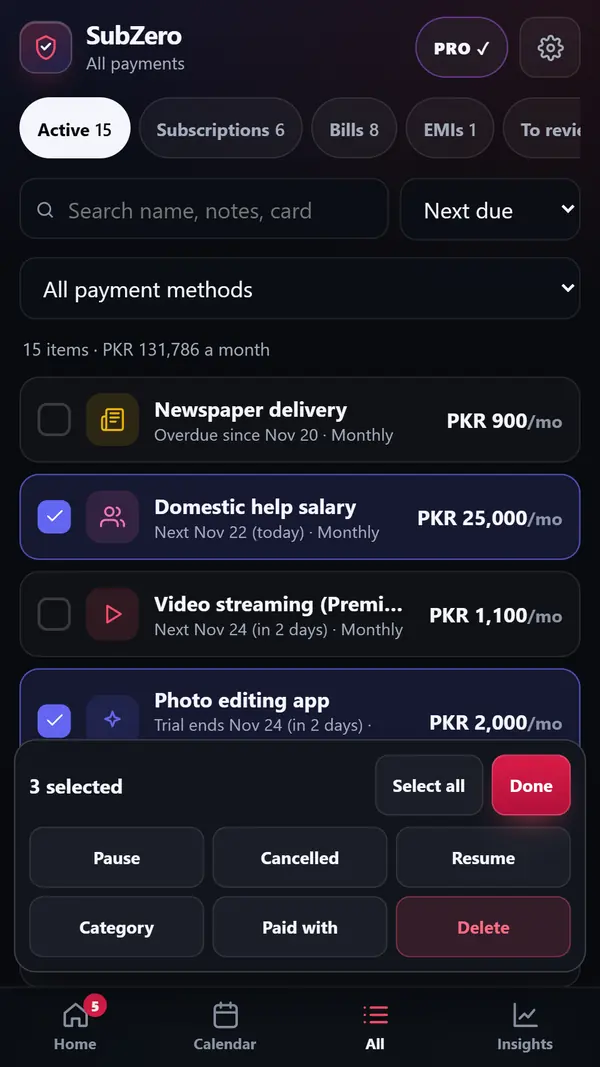
- Bulk edit Pro
- Select several items to pause, cancel, resume, re-categorise, set the card or delete at once, with undo.
- Your own categories Pro
- Add categories such as Office, Parents or Car.
- Spreadsheet import and export Pro
- Import payments from a CSV file with automatic column matching and a duplicate check, and export your list and payment history as CSV.
Your data
- Backup and restore
- Save a JSON backup file or copy it as text, and restore it on a new phone.
- Search, filters and notes
- Search by name, notes or card, sort the list, add categories and notes, duplicate items and undo changes.
- Private by design
- SubZero does not connect to your bank or cards and never pays or cancels anything for you. Choose a dark, light or system theme.
Full store description
What you get for free
- Unlimited subscriptions, bills and EMIs
- Quick add in one line: type "Music 9.99 monthly on 5th" and the form fills itself, or pick from common services. You enter your own price.
- Clear totals: per month, next 12 months, left to pay this month, saved by cancelling
- Review suggestions from your own list: overlapping services in one category, price rises, subscriptions you rarely use and long pauses
- Yearly plan check: type the yearly price you were offered and see what switching would save
- Payment calendar, in-app reminders before payments and before free trials charge, and overdue alerts
- Mark bills as paid, with the real amount for bills that vary
- EMI tracking: payments made, payments left, amount left to pay
- Price history for every item, and paused and cancelled history with what you saved
- Letter writer: cancellation, stop-renewal, pause, refund and stop-auto-debit letters you send yourself
- Spending history chart of what you recorded as paid
- Payment method per item, a filter by card and monthly totals per card
- Search, filters, categories, notes, duplicate, backup and restore (JSON), undo, dark and light themes
How to use SubZero.
Step-by-step walkthroughs of the main tasks, with screens from the current version.
1Add a subscription or billAdd a recurring payment in one line, or start from a list of common services.
- Step 1
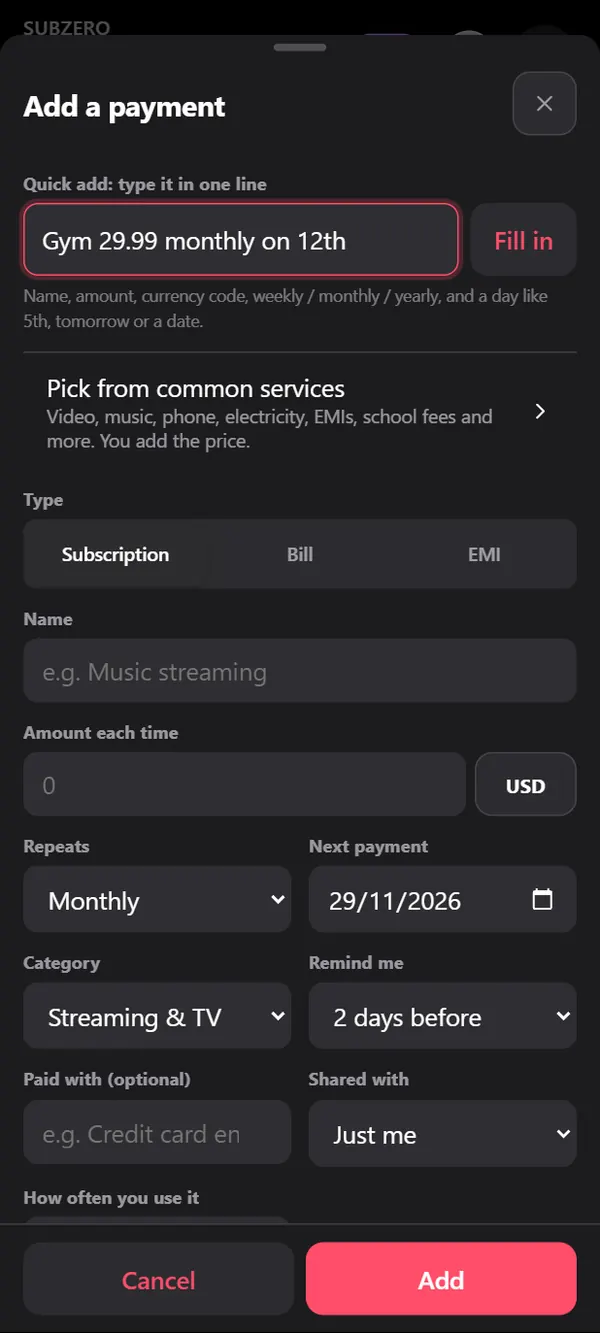
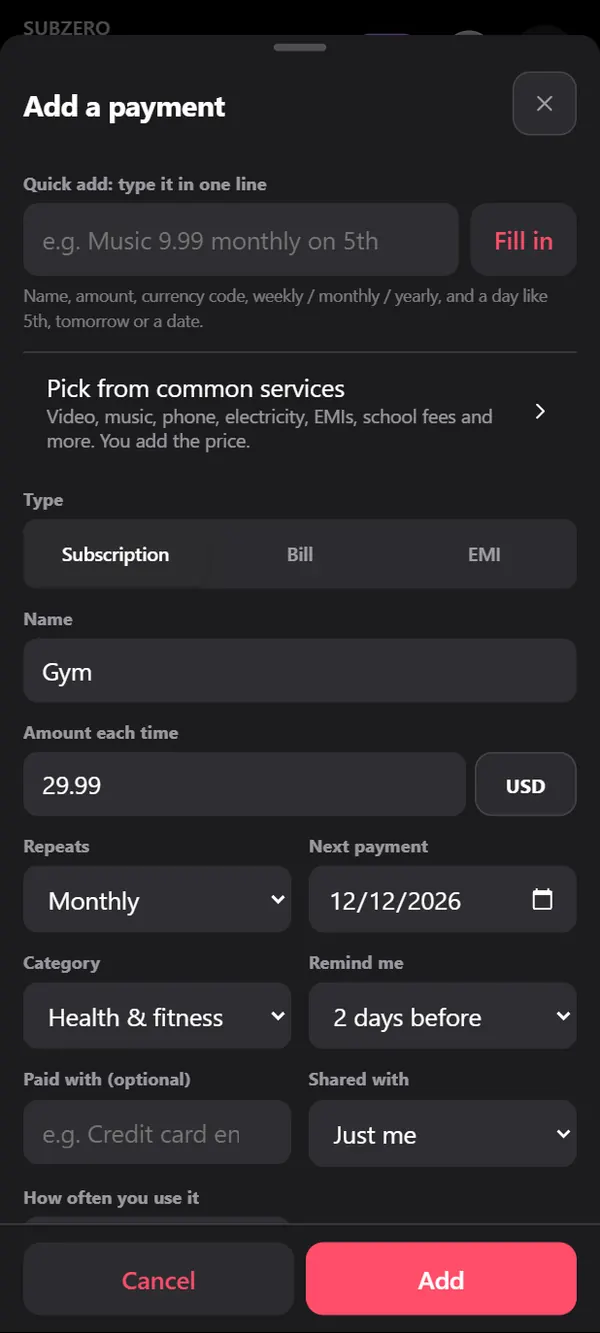
Tap the red + button. In Quick add: type it in one line, type the payment, for example "Gym 29.99 monthly on 12th".
- Step 2
Tap Fill in. The name, amount, repeat, next payment date and category are filled in for you. Check them, choose a reminder, then tap Add.
- Step 3
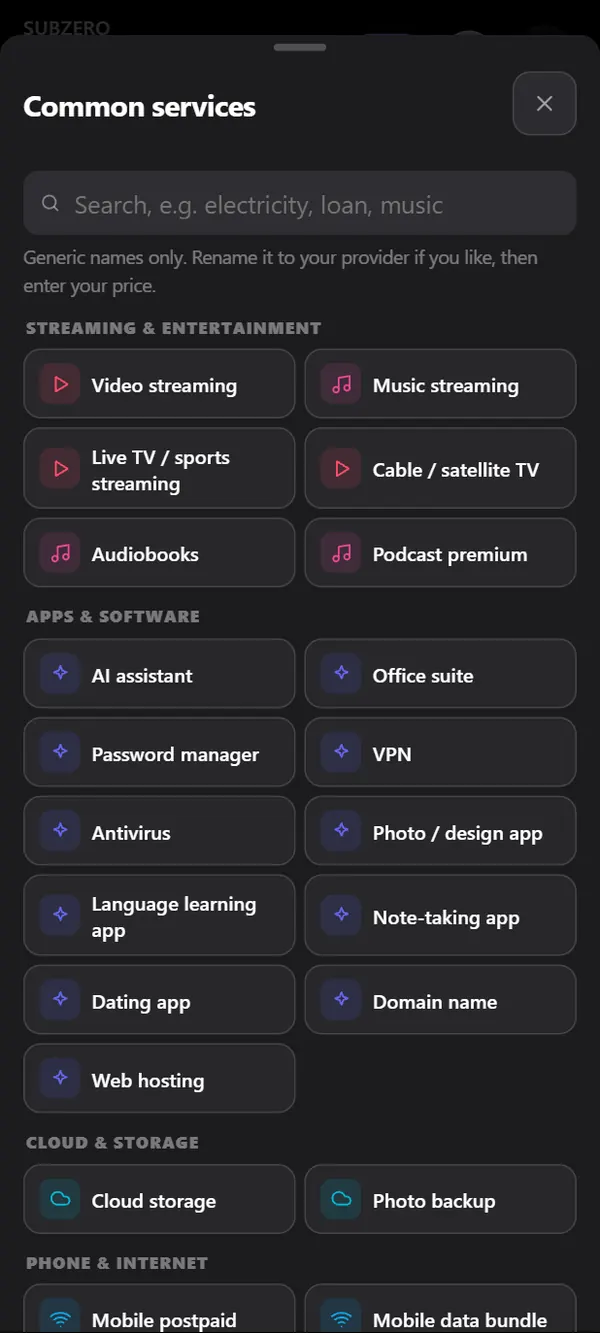
Prefer a list? Tap Pick from common services, choose a generic service such as Video streaming or Electricity, and enter your own price.
- Step 4
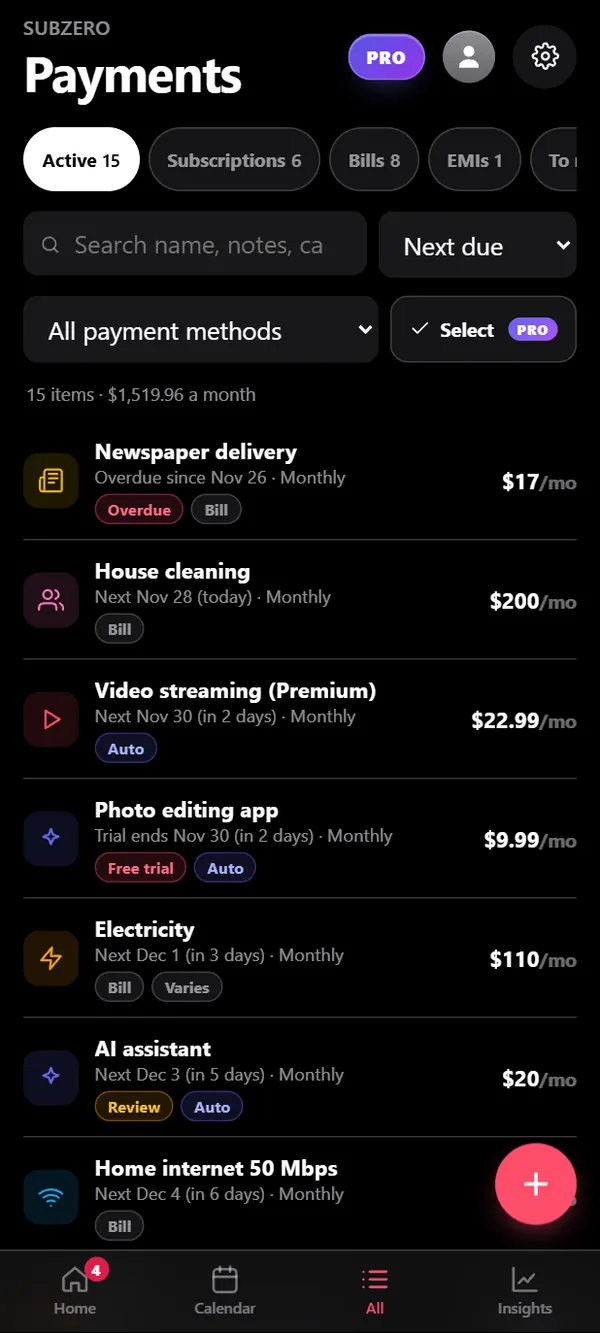
Your payment now shows in All, with filters for Subscriptions, Bills, EMIs, To review and Paused & cancelled.
2Record a bill as paidKeep track of what you actually paid, including bills whose amount changes each month.
- Step 1
Payments that are due or overdue appear under Reminders on the Overview. Tap Paid on a reminder to record it.
- Step 2
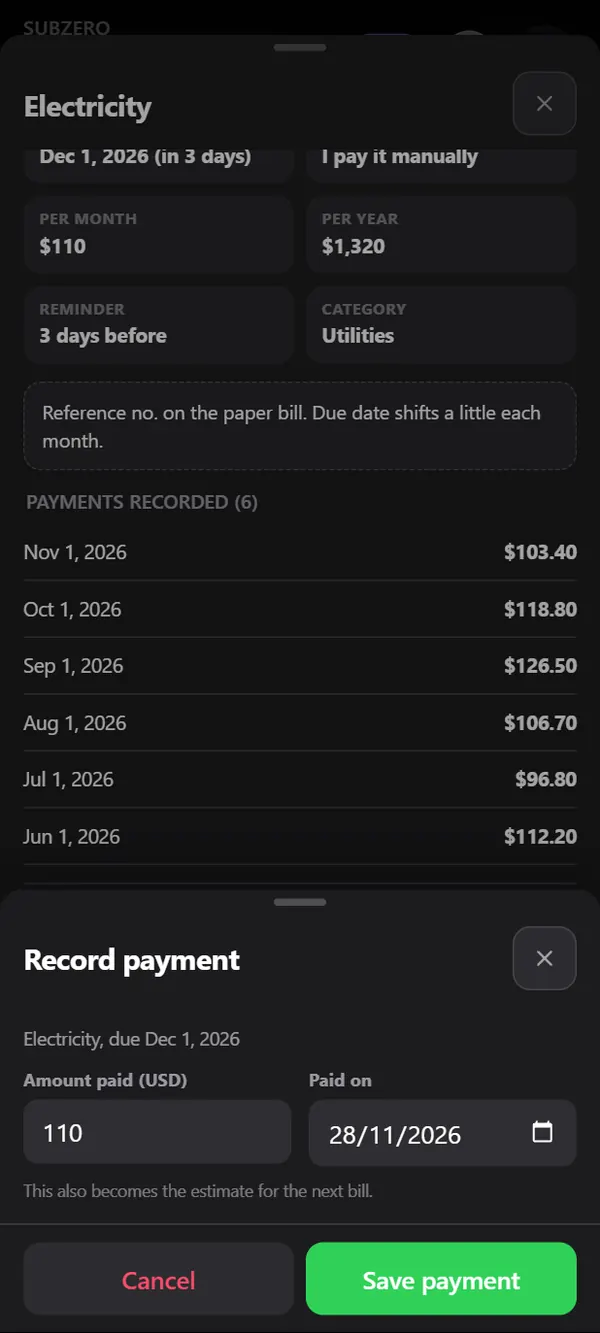
Or open the bill from All and tap Mark as paid. Enter the real amount and the date, then tap Save payment. For a bill that varies, this amount also becomes the estimate for the next one.
- Step 3
Open Calendar to see each day's payments: green dots are recorded payments and red ones are overdue, with Still to pay and Paid for the month.
3Plan around paydaySee how much goes out before your next salary and how much the next pay period needs.
- Step 1
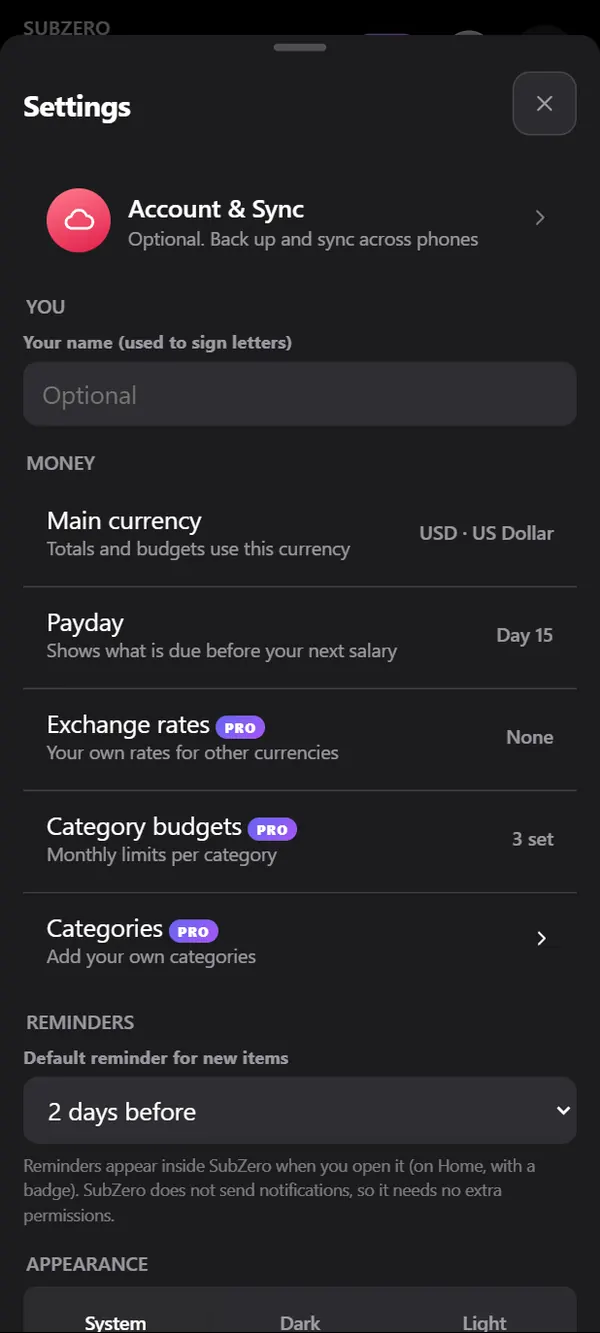
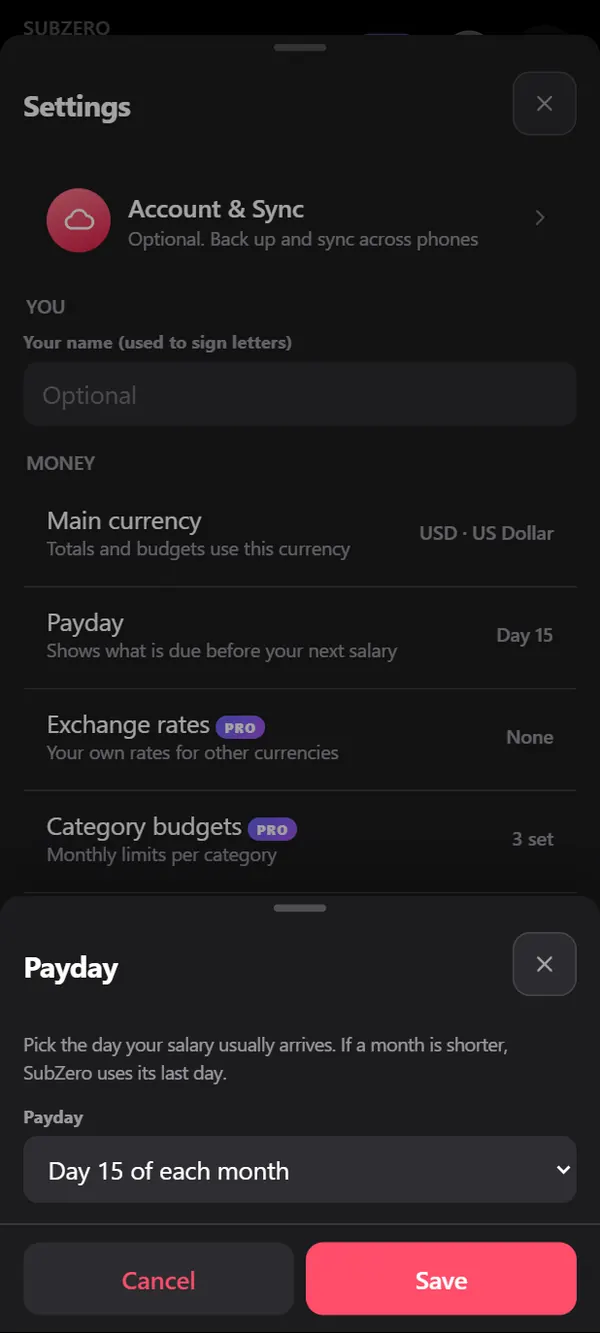
Open Settings (the gear icon) and tap Payday.
- Step 2
Pick the day your salary usually arrives and tap Save. If a month is shorter, SubZero uses its last day.
- Step 3
The Overview now shows Until payday: the total due before payday, what the next pay period needs, and the payments coming up before then.
4Split a family plan or shared billMark a plan as shared to see your own share and what others owe you.
- Step 1
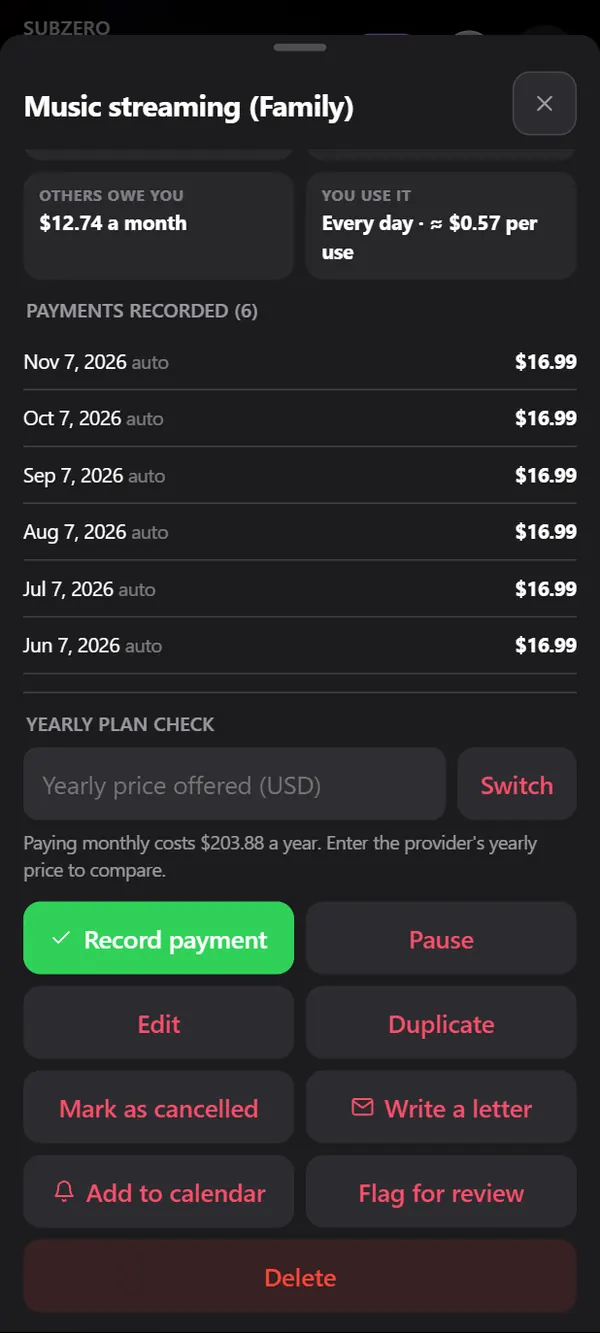
Open the payment from All and tap Edit.
- Step 2
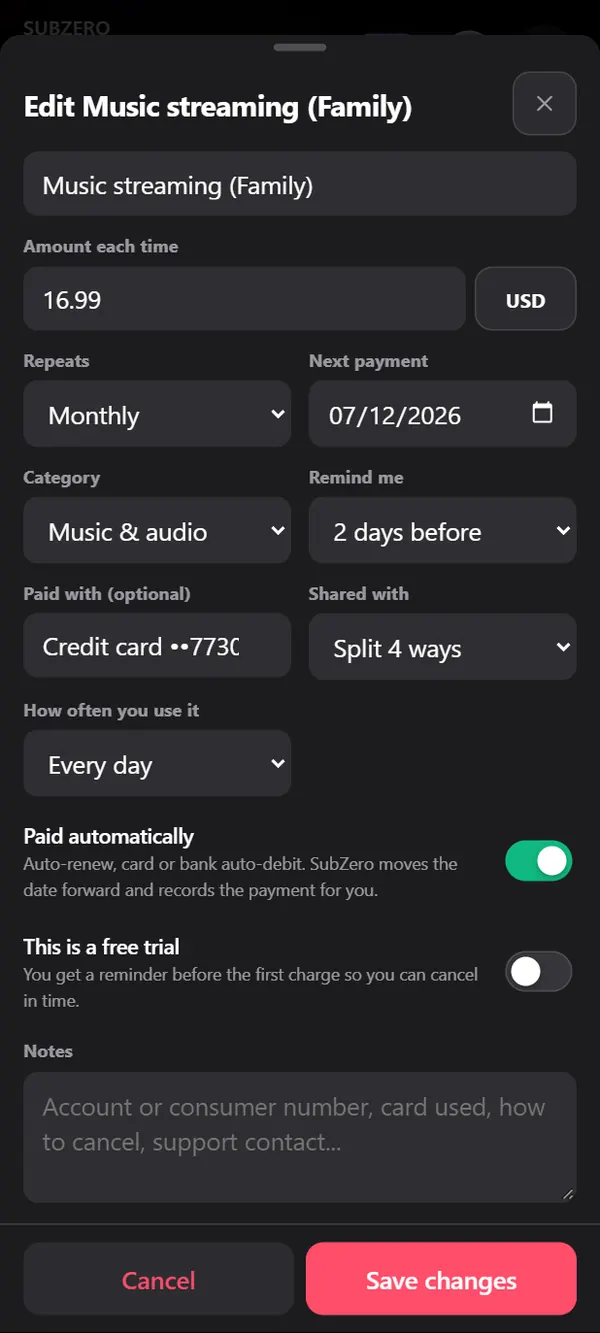
Set Shared with to the number of people, for example Split 4 ways, and tap Save changes.
- Step 3
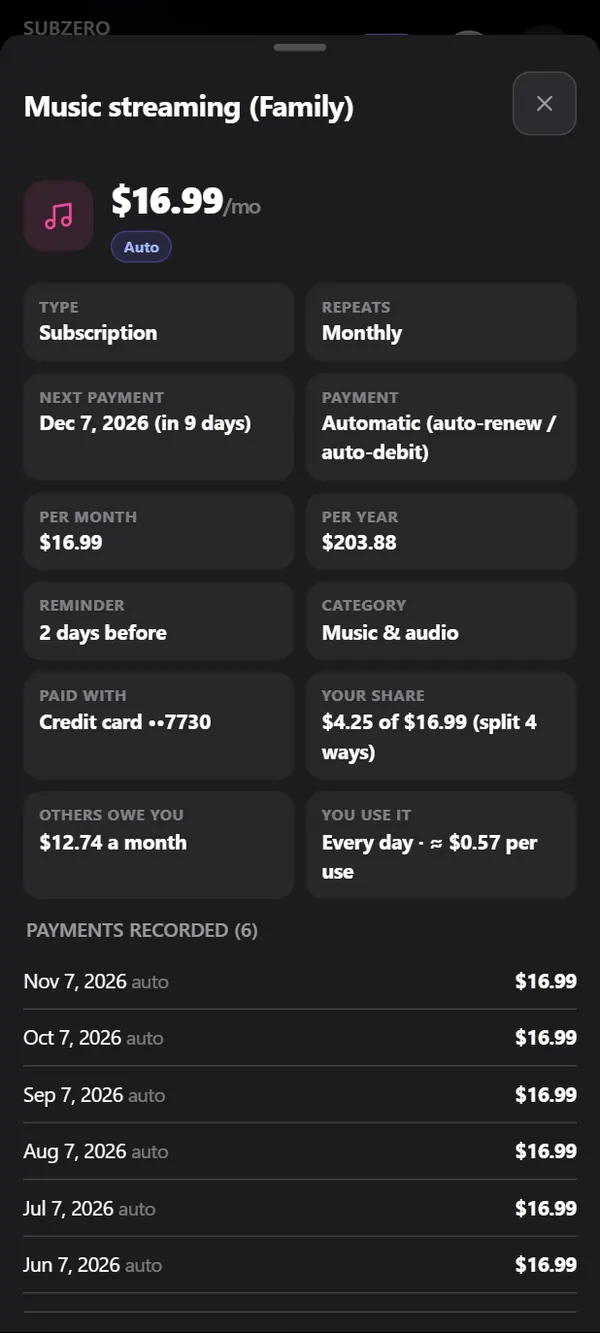
The payment now shows Your share and Others owe you. Your totals still show the full amount you pay.
- Step 4
Insights lists every shared plan with your share and what others owe you each month.
5Add renewals to your calendarExport payments as repeating calendar events (.ics) with your reminders.
- Step 1
Open Settings and tap Back up / export.
- Step 2
Under Calendar (.ics), tap Add renewals to my calendar. SubZero makes one file with every active payment as a repeating event; open it with Google Calendar or another calendar app.
- Step 3
To add just one payment, open it and tap Add to calendar.
6Cancel something you no longer useGet a ready-made letter, then track what cancelling saves you.
- Step 1
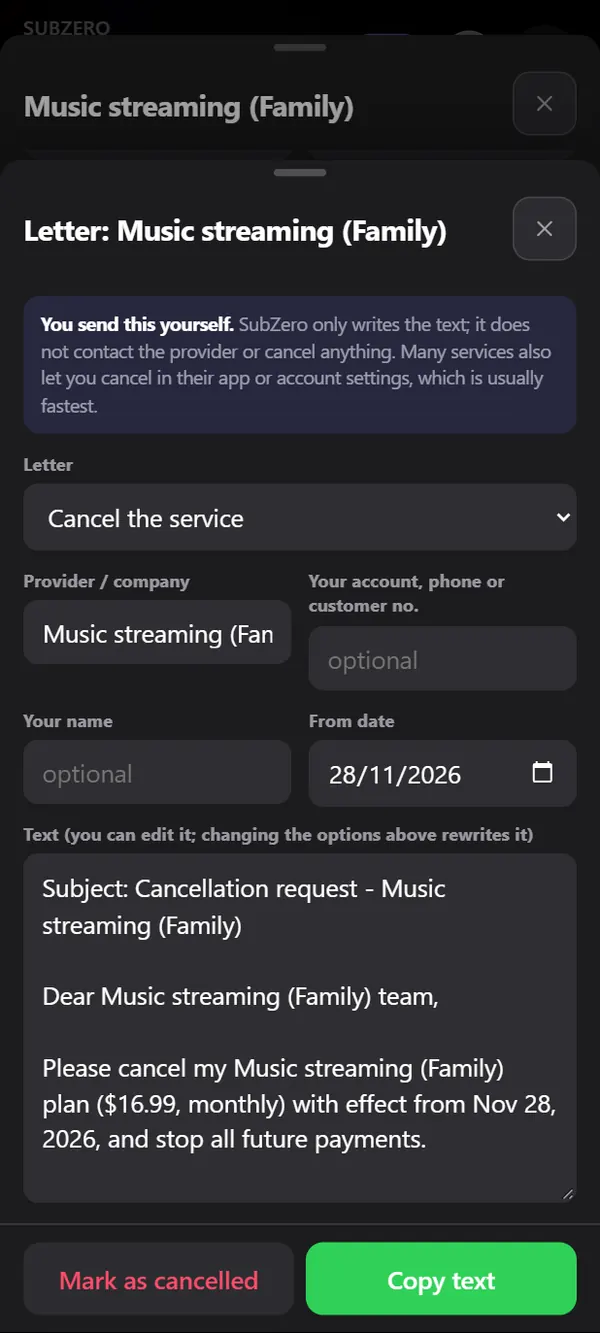
Open the payment and tap Write a letter.
- Step 2
Choose the letter (cancel, stop automatic renewal, pause, refund or stop an auto-debit), add your account number and name if you like, then tap Copy text and send it yourself.
- Step 3
Once the provider confirms, tap Mark as cancelled. The Overview shows what you have Saved by cancelling.
Free, with optional Pro.
Download SubZero free. Pro is optional and billed by Google Play, which shows the price before you confirm.
SubZero Pro (optional subscription)
- Multiple currencies, converted with exchange rates you enter
- Category budgets with an alert when you go over
- 12-month forecast showing your heavy months in advance
- Year report: a printable summary of any year by month, category and payment, with price changes and what you stopped
- Value check: estimated cost per use from how often you use each subscription
- Bulk edit: pause, cancel, resume, re-categorise, set the card or delete several items at once (with undo)
- Your own categories
- Spreadsheet import (CSV) with automatic column matching and duplicate check, and CSV export of your list and payment history
Pro is a monthly or yearly subscription through Google Play. The price and any introductory offer are shown in the app as Google Play provides them. It renews until you cancel it in Google Play > Payments & subscriptions.
Manage or cancel subscriptions in Google Play > Payments & subscriptions. Purchases and Restore purchases
Try it now.
Open SubZero right here in your browser, or download the Android app file directly.
Open in browser
The full SubZero app, running in a new tab. Nothing to install.
Some phone-only features, such as purchases, notifications, sharing and camera scanning, work only in the Android app. Anything you do in the browser is saved in that browser only, unless you sign in to the Bright Loop Account.
Download the APK
Install SubZero on an Android phone without Google Play.
- Version
- 1.5
- Size
- 3.9 MB
- SHA-256
53b9060e82c50f325d5a6f8910eee82b88ebefc16f22fc9bc7b910b6a01815b3
An APK installed from this website can't be updated from Google Play later. To switch to Google Play, uninstall it and install from Play. Your data only comes with you if you back it up with the Bright Loop Account first. How to install an APK
Requirements & details.
- Requires
- Android 7.0 or later
- Size
- 3.9 MB
- Version
- 1.5
- Price
- Free, optional Pro subscription
- Internet
- Only for optional sync and purchases
- Account
- Optional Bright Loop Account
- Ads
- None
- Category
- Money
- Developer
- Bright Loop (Google Play: Bright Loop Games)
- Availability
- Early access (Google Play closed testing)
- Web version
- Open in browser
How to get SubZero.
SubZero is in early access through Google Play closed testing. It takes about two minutes.
- Ask to join the tester listEarly access runs as a Google Play closed test, so your Google account must be on the tester list before the opt-in link works. Send us the Gmail address you use on Google Play and we'll add you.
- Open the opt-in linkOn your Android phone, signed in to the same Google account, open the SubZero early access link.
- Tap "Become a tester"Google Play confirms that you've joined the test.
- Install from Google PlayTap the "download it on Google Play" link on that page, or open the Google Play page, then tap Install. Updates arrive through Google Play like any other app.
- Tell us what you thinkEarly access means your feedback shapes the next update. Email rehman@mindum.dev any time.
Link not working? See Troubleshooting or the full early access guide.
Account & sync.
Optional. SubZero works fully without an account. Sign in to the free Bright Loop Account to back up your SubZero data and keep it in sync across your phones.
What syncs
- Subscriptions, bills and EMIs
- Payment history
- Settings
What stays on this phone
- Your Pro status (Google Play restores it)
Account & Sync is part of SubZero 1.5. Look for it at the top of Settings.
Privacy.
SubZero keeps your data on your phone. No ads and no analytics.
Honest and private
SubZero does not connect to your bank, cards or any service, and never cancels or pays anything for you. You enter your own payments. Everything stays on your phone: no account needed, no ads, no analytics. Reminders appear inside the app, so no notification permission is needed. SubZero is an organiser, not financial advice.
If you sign in
The Bright Loop Account is optional. If you sign in, SubZero backs up the records listed under Account & sync to your account so you can restore them on another phone. Photos and files are never uploaded, and you can export or delete your cloud data at any time.
Read the full Privacy Policy.
Tips.
- In Quick add you can include a currency code and a day, for example "Rent 1200 monthly on 1st". Check the filled-in form before tapping Add.
- Turn on Amount varies for electricity, gas and similar bills. When you record the real amount, it becomes the estimate for the next bill.
- Turn on "This is a free trial" when you add a trial; SubZero reminds you before the first charge.
- Set "How often you use it" on subscriptions so SubZero can point out the ones you rarely use.
- Save a backup file from Settings > Back up / export before you change phones.
Troubleshooting.
A payment shows as overdue but I already paid it.
Tap Paid on the reminder, or open the item and tap Mark as paid (Record payment for subscriptions) with the date you paid.
Quick add filled in the wrong date or category.
Quick add is a starting point. Change the fields in the form before tapping Add, or edit the item later.
The Until payday card is not on the Overview.
Open Settings > Payday and pick a day. With Payday set to Off, the Overview shows a Payday planner prompt instead.
Calendar events did not appear after exporting.
The export makes an .ics file. Open it with your calendar app (or pick the calendar app when the share menu opens) and confirm the import there.
A Pro screen opens when I tap Select, budgets or the year report.
Those are part of SubZero Pro. Everything else, including unlimited payments, stays free.
Questions.
Does SubZero send notifications?
No. Reminders appear inside SubZero on the Overview, with a badge on Home, when you open the app, so it needs no notification permission. If you want alerts from your phone, use Add renewals to my calendar and let your calendar app remind you.
Does SubZero cancel subscriptions or pay bills for me?
No. It does not connect to your bank, cards or any service. The letter writer gives you text to send yourself, and you mark items as paid or cancelled.
How does the payday planner work?
Set your payday in Settings > Payday. The Overview then adds up everything due from today until your next payday, and what falls due in the pay period after that. If a month has fewer days, its last day is used.
If I split a family plan, do my totals change?
No. Totals keep showing the full amount you pay. The item and the Shared plans card in Insights show your share and what others owe you.
What does the calendar export contain?
One repeating event per active payment, starting on its next due date, with your reminder as an alert. EMIs stop after the payments left. It is a file you open in your calendar app; SubZero does not change your calendar directly.
How do I track a bill whose amount changes?
Turn on Amount varies for it, then use Mark as paid and enter the real amount each time. The calendar and spending history use what you recorded.
Can I move my data to a new phone?
Yes. Save a backup file in Settings > Back up / export, then use Restore from backup on the new phone.
Is SubZero free?
Yes. SubZero is free to download and use. SubZero Pro is an optional monthly or yearly subscription through Google Play that adds the extras listed under Free and Pro. Google Play shows the price, and any trial, before you confirm.
Why can't I find SubZero on Google Play?
SubZero is in early access (a Google Play closed test), so it only appears for people on the tester list. Follow the steps under How to get it. Once it becomes public, anyone can install it from Google Play.
Do I need an account?
No. SubZero works fully without one. The Bright Loop Account is optional and adds cloud backup and sync across your phones.
How do I move to a new phone?
Sign in to your Bright Loop Account on the new phone and choose "Use Cloud Data", or export a backup file on the old phone and restore it on the new one. Photos and files only move with a backup file. Pro comes back with Restore purchases. See Move to a new phone.
How do I restore a purchase?
Make sure your phone uses the same Google account you bought with, open SubZero and tap Restore purchases. Google Play checks your purchases and SubZero unlocks what you own. More about purchases.
Can I use SubZero in a browser?
Yes. Tap Open in browser to run it in a new tab. Some phone-only features, such as purchases, notifications, sharing and camera scanning, work only in the Android app, and anything you do there is saved in that browser.
Can I install it without Google Play?
Yes, with the APK on this page (version 1.5, 3.9 MB). An APK install can't be updated from Google Play later; see Install an APK on Android.
What do I need to run it?
Android 7.0 or later, or any modern browser for the web version.
Is it available on iPhone?
There's no iPhone app at the moment. SubZero is made for Android, but you can open the web version in Safari.
Get help with SubZero
Email rehman@mindum.dev. Include your phone model, Android version and what happened, and we'll take it from there.
Help Centre
Step-by-step guides for early access, sync, backups, purchases and moving phones. Visit the Help Centre
More apps you might like.

SplitMate
Split bills with flatmates, trips and family in any currency. Settle up fast.
PocketCFO
Track spending, budgets, bills and debts, and see what is safe to spend today.
InvoiceSnap
Make invoices, quotes and receipts as PDF. Track paid, unpaid and overdue.
EchoNote
Talk or type your day. Tasks, due dates, ideas and mood are picked out for you.