SafeKeep
Passport, ID, insurance & warranty expiry reminders. Private, kept on your phone
Google Play pageDownload APK v1.3 · 4.0 MB
Early access on Google Play closed testing. You need to be on the tester list first: see how to join.
A closer look.
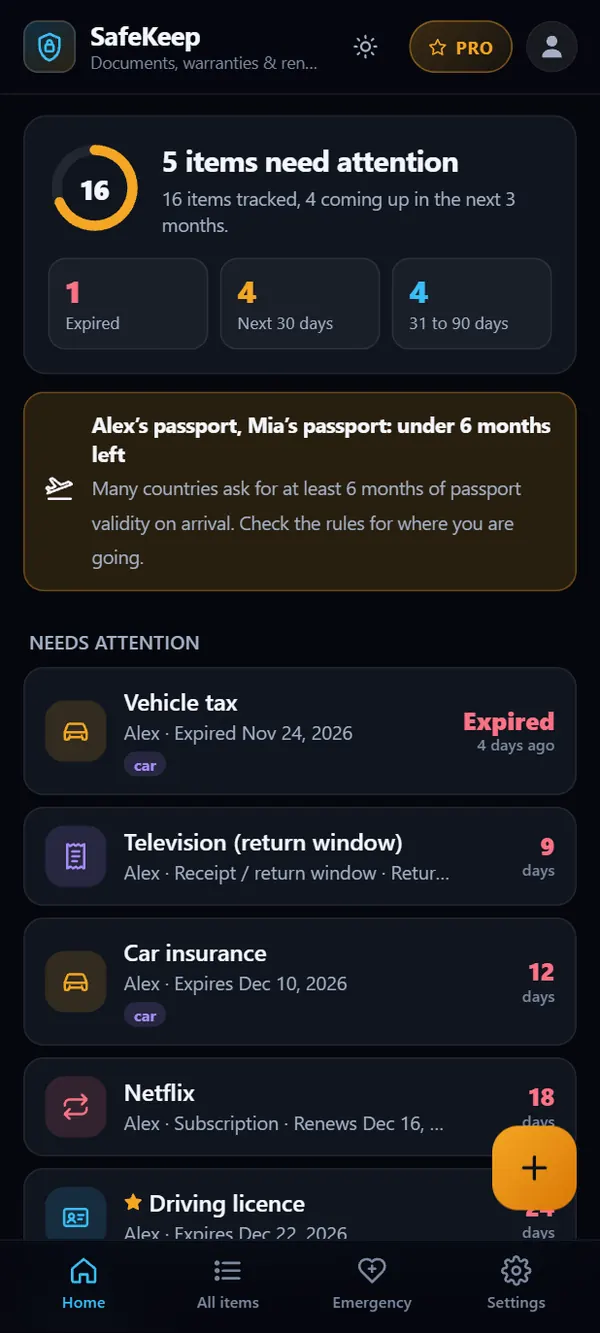
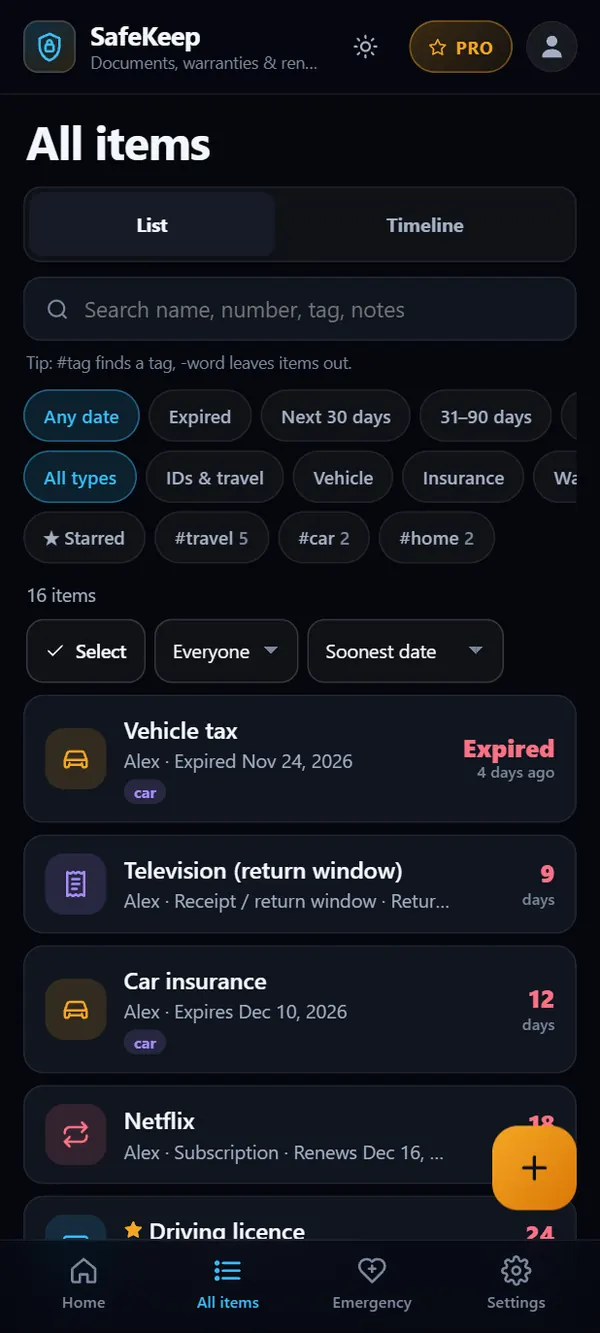
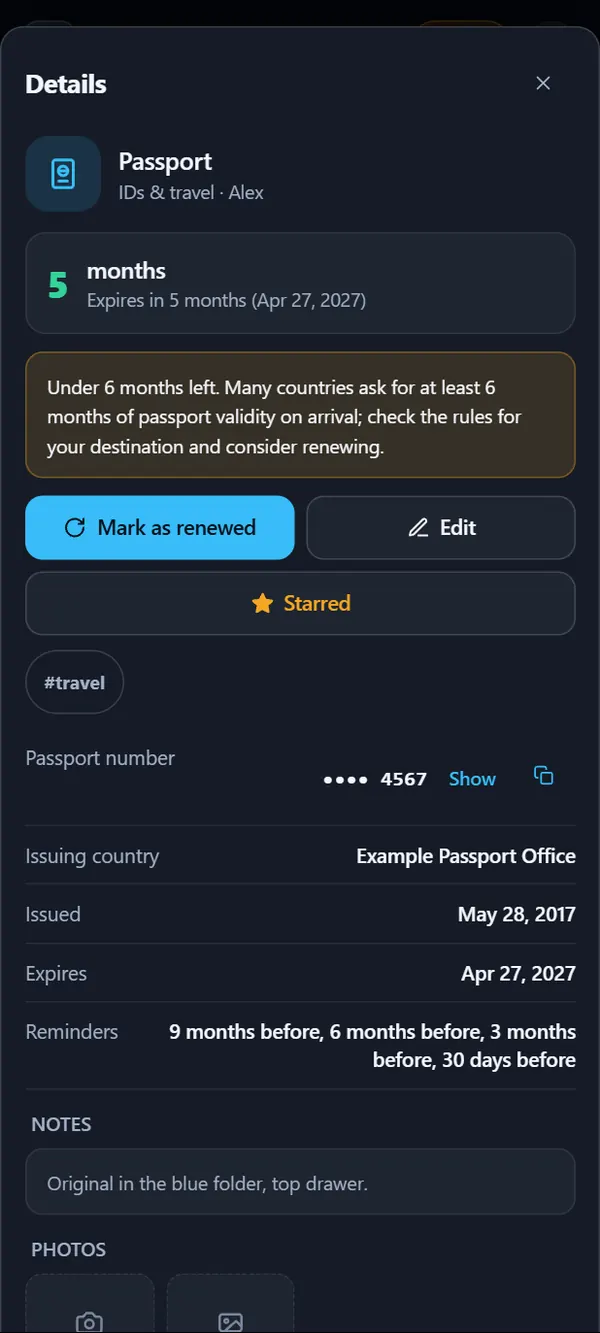
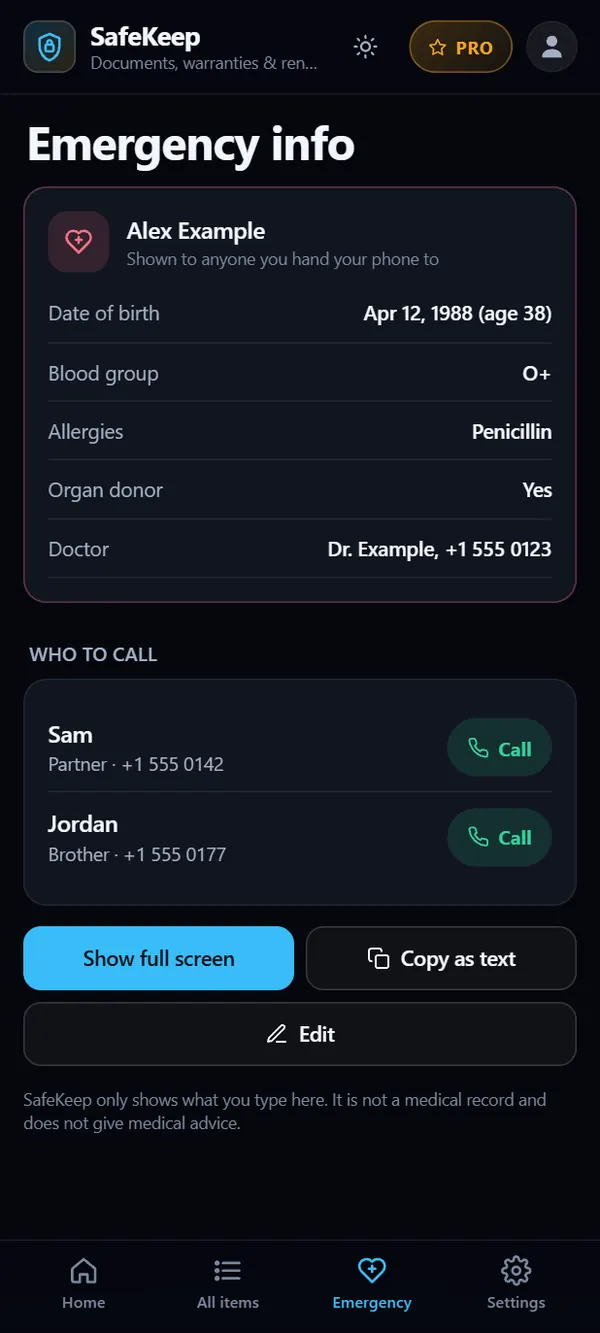
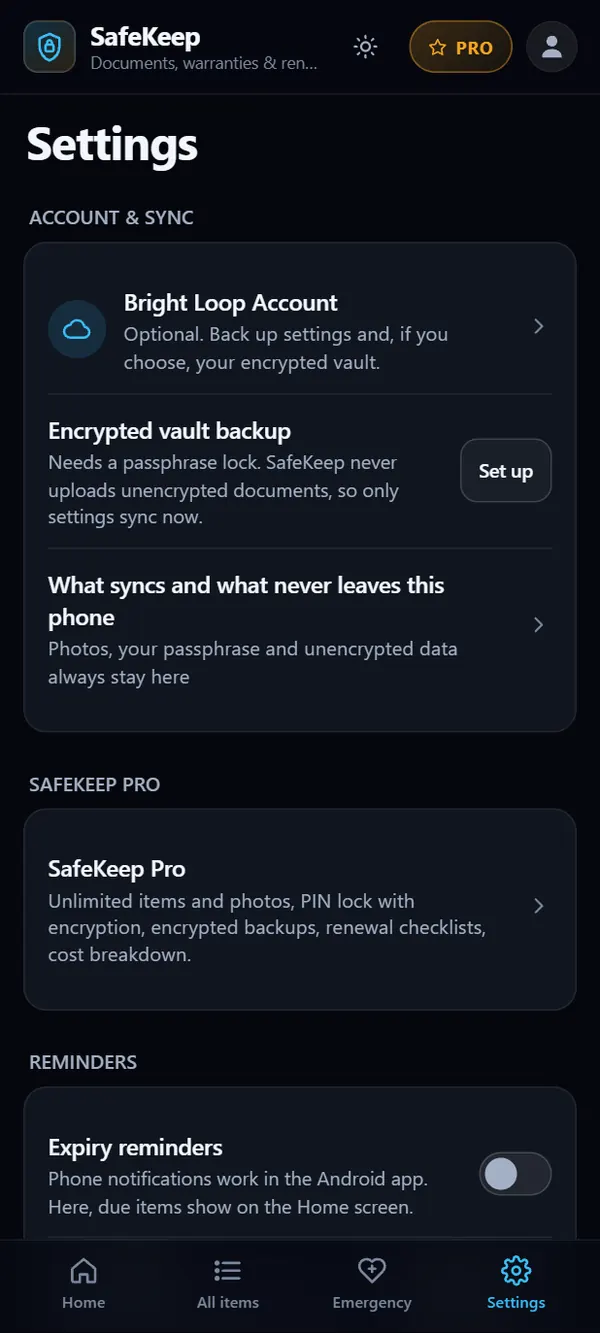
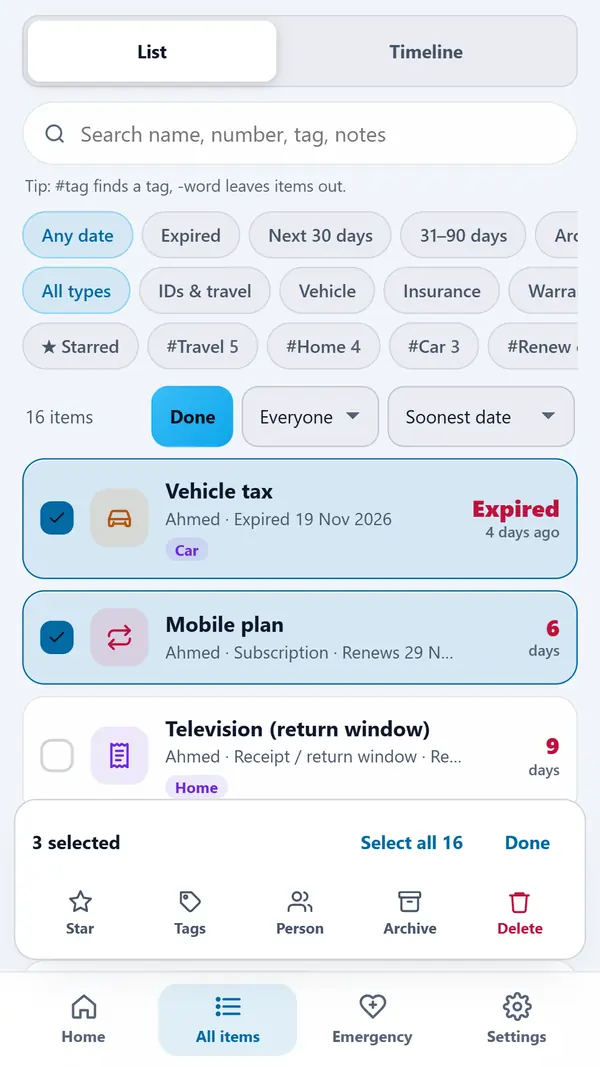
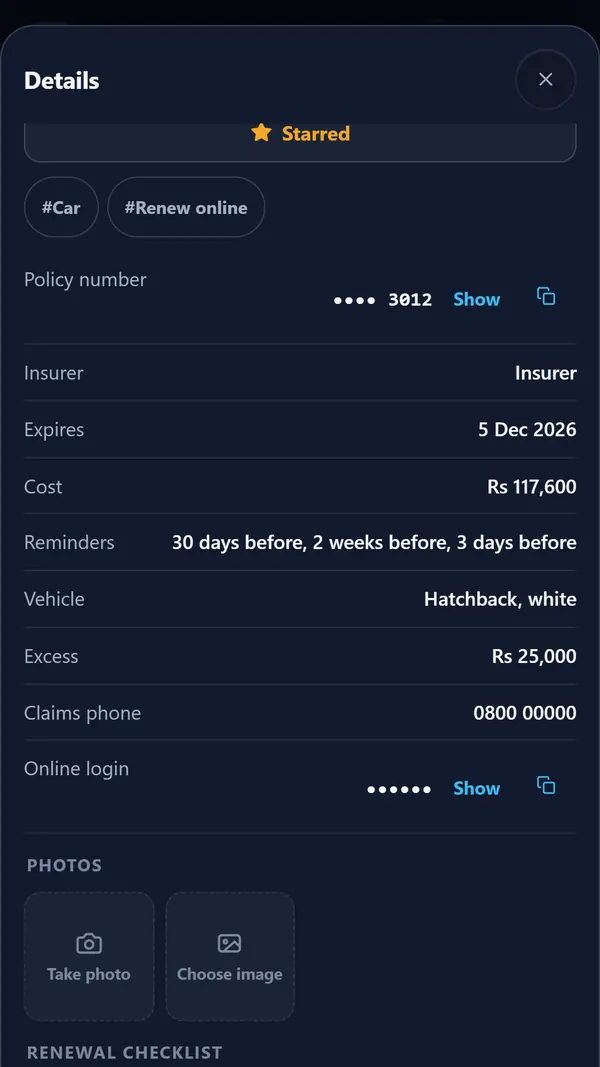
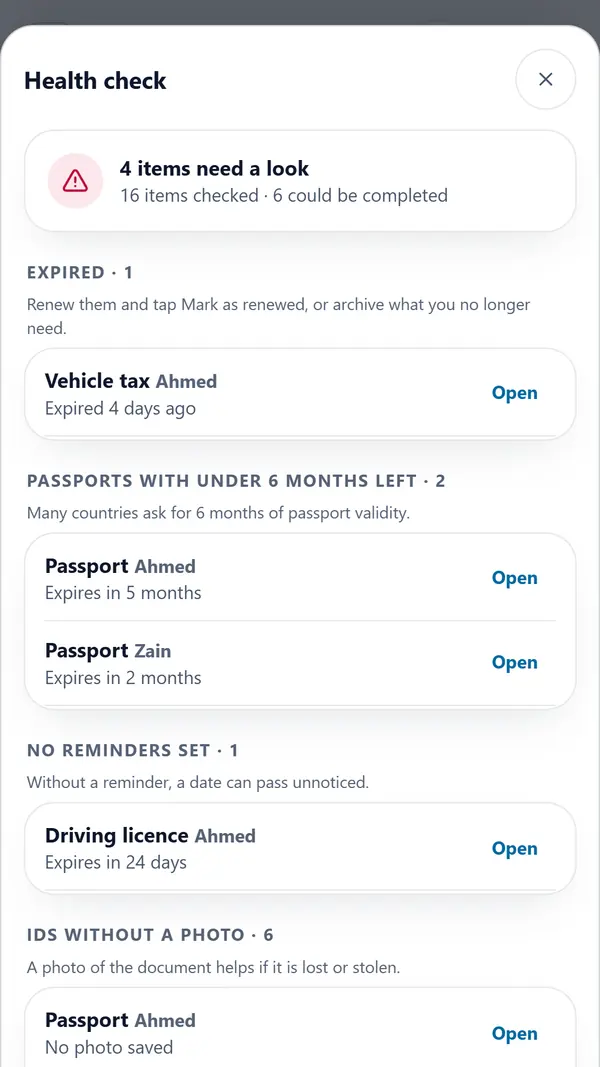
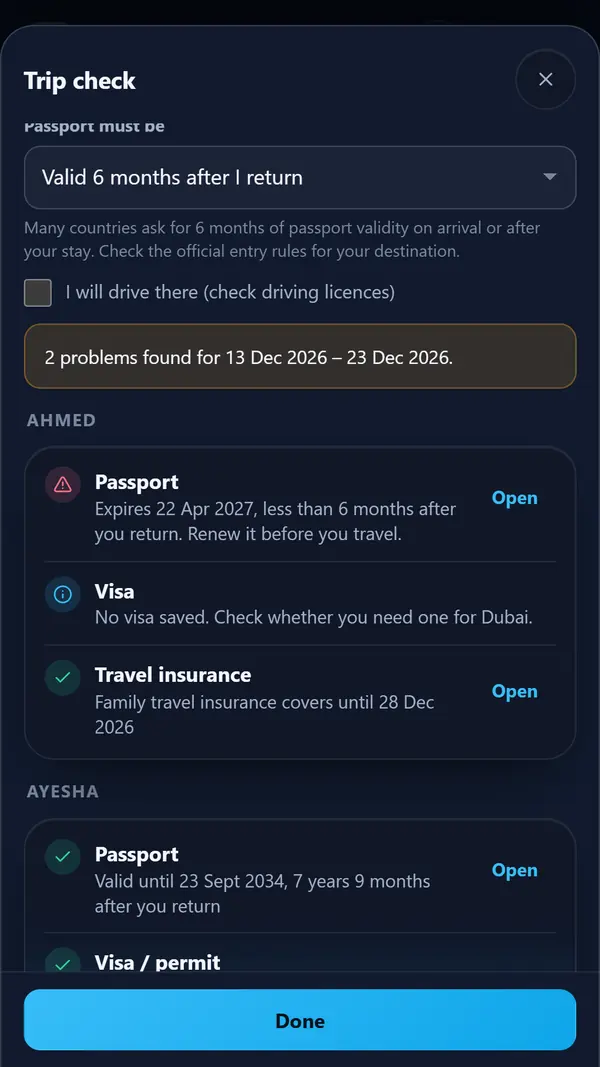
SafeKeep tracks the dates on your papers so nothing expires by surprise: passports, ID cards, driving licences, visas, insurance, vehicle papers, warranties, return windows, leases and subscriptions.
Add an item once and SafeKeep counts down to its date and sends a phone notification before it, for example 9, 6 and 3 months before a passport expires. Keep a photo with each item. Add family members to see whose passport or ID needs renewing.
What's new in version 1.3
New in version 1.3, along with a refreshed design and the optional Bright Loop Account. Early-access testers get it through Google Play.
Encrypted vault backup (end-to-end, passphrase-protected)
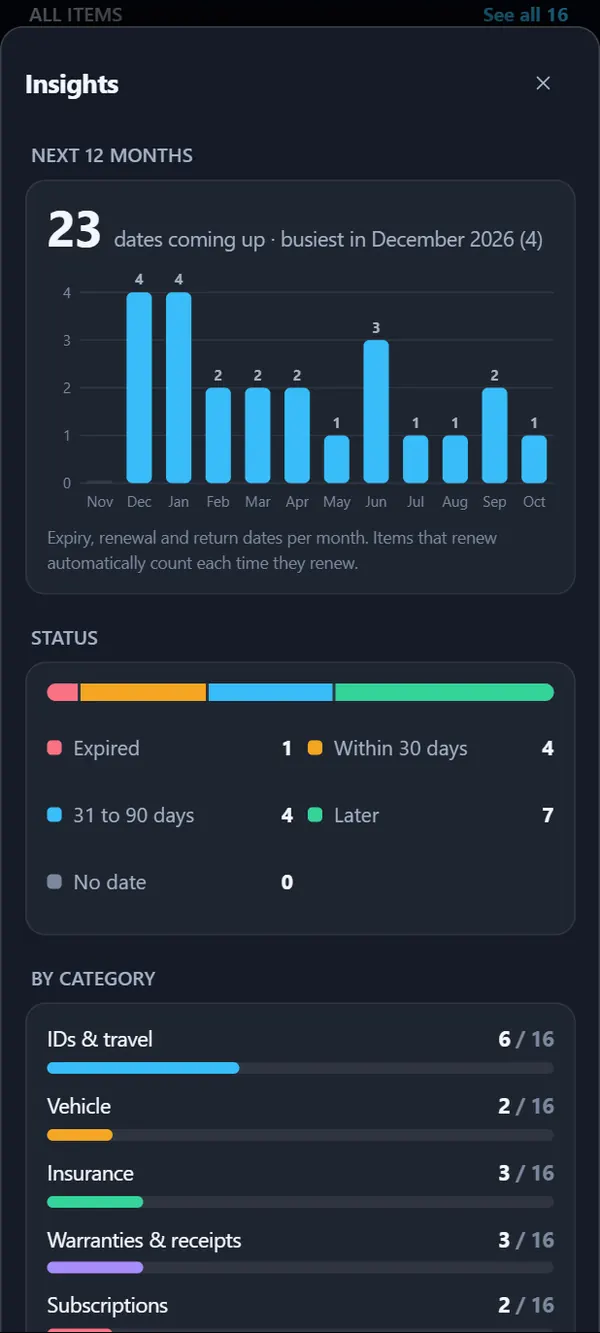
Insights with 12-month expiry chart
Recently Deleted (30 days)
Calendar export with alarms
Backup reminder
Feature tour.
Every feature in SafeKeep, and what it does for you. Items marked Pro are part of the optional subscription.
Tracking your papers
- Every kind of dated paper
- Passports, ID cards, driving licences, visas, health, car, home, life and travel insurance, vehicle registration, tax and inspection, warranties, return windows, subscriptions, memberships, leases and certificates.
- Countdowns and an expiring-soon list
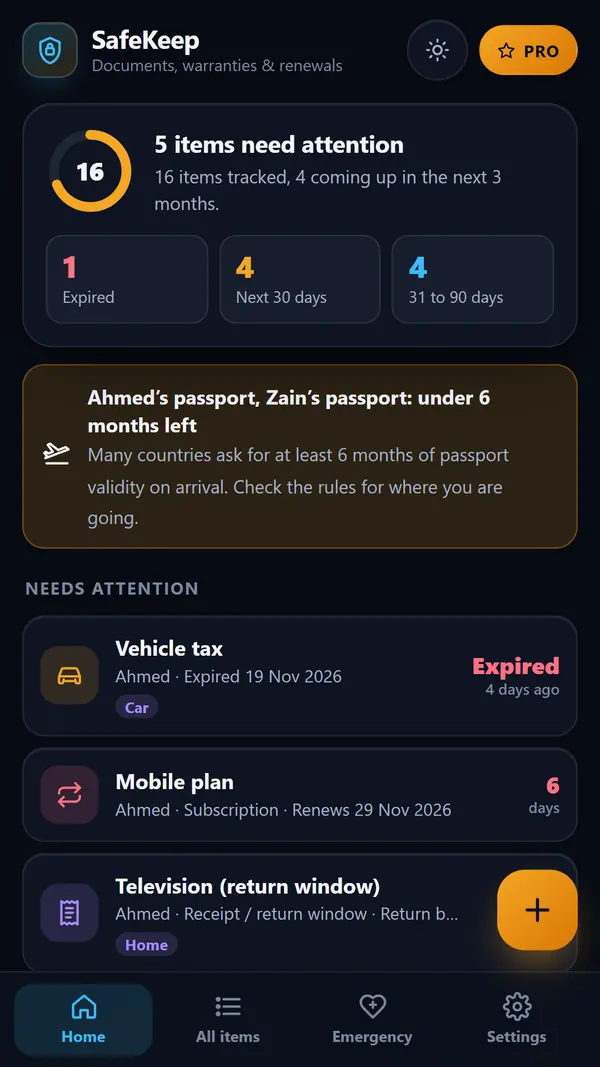
- Home shows what needs attention now and what is coming in the next 3 months, with expired, next 30 days and 31 to 90 days counts.
- Up to 20 items free
- The free version tracks up to 20 items; archived items do not count. Pro removes the limit.
- Family members
- Add people under Settings > People and set who each item belongs to, then filter lists by person.
- Photos
- Attach photos of the front, back or receipt, taken with the camera or picked from the gallery in the Android app. Free: 5 photos in total. Pro: up to 6 photos per item.
- Stars, tags and search
- Star the papers you need most to keep them on Home. Search finds names, numbers, notes and tags; #tag finds a tag and -word leaves items out.
- Select many at once
- Tap Select in All items to star, tag, move to a person, archive or delete several items together, with undo.
- Archive
- Archive things you no longer need reminders for, like a sold car. They leave lists and reminders but stay in backups.
Reminders and renewals
- Expiry reminders
- Phone notifications on the reminder days you pick for each item, at the time of day you set in Settings. Notifications need the Android app.
- Mark as renewed
- Quick +1, +5 or +10 years or a date of your choice, with the old dates kept in a renewal history.
- Auto-renewing subscriptions
- Subscriptions and policies marked as renewing automatically move to their next date by themselves.
- Renewal checklists Pro
- Suggested steps for each type, such as getting photos and booking an appointment, that you can tick off or edit.
- Calendar export with alarms
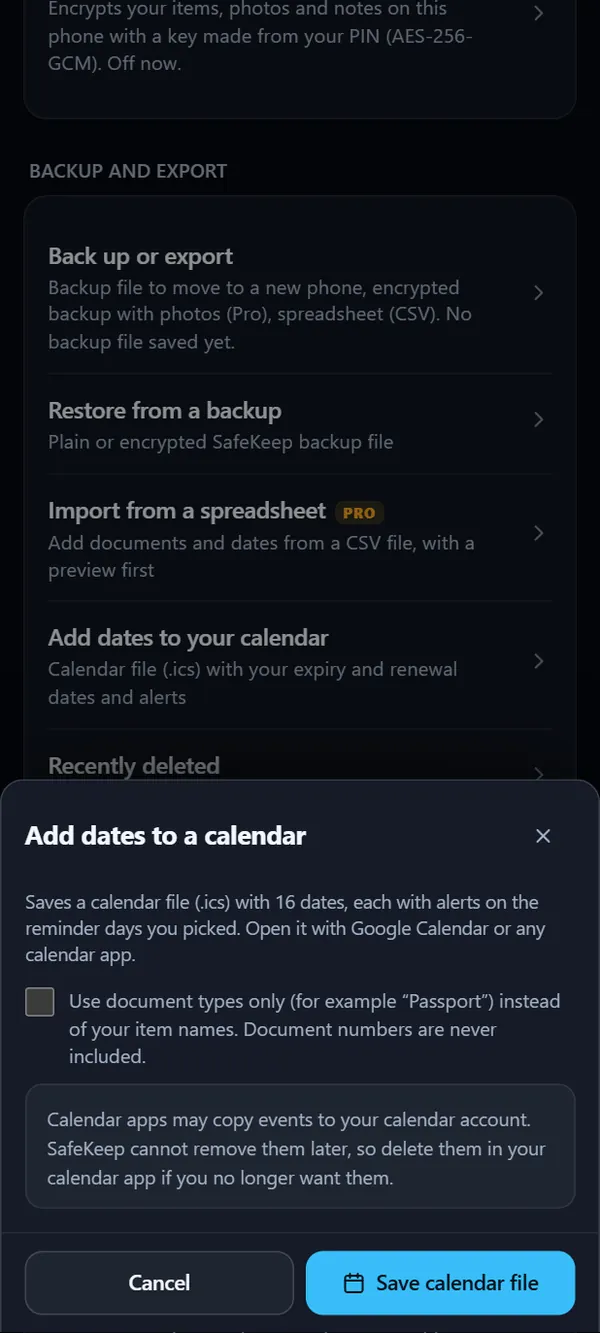
- Save your expiry and renewal dates as a .ics calendar file with alerts on your reminder days. You can use document types instead of item names, and numbers are never included.
Planning and insights
- Insights
- A 12-month chart of expiry and renewal dates with the busiest month, plus status, category, person and completeness breakdowns, worked out on the phone.
- Timeline
- All items by month with the renewal costs you entered.
- Renewal costs by month, type and person Pro
- Home shows the total for the next 12 months; Pro adds the month-by-month chart and breakdowns.
- Trip check
- Enter your travel dates and who is going to see whose passport, visa, travel insurance or driving licence is not valid enough.
- Health check Pro
- Finds expired papers, passports with under 6 months left, possible duplicates and items missing reminders, numbers or photos. Checked on the phone.
Emergency info
- Emergency info card (ICE)
- Blood group, allergies, medicines, doctor and up to 3 contacts with one-tap calling. Show it full screen or copy it as text. It shows only what you type and is not medical advice.
- On the lock screen
- With the lock on, you can let the card open from the lock screen. That card alone is then stored unencrypted.
Privacy and encryption
- PIN or passphrase lock with encryption Pro
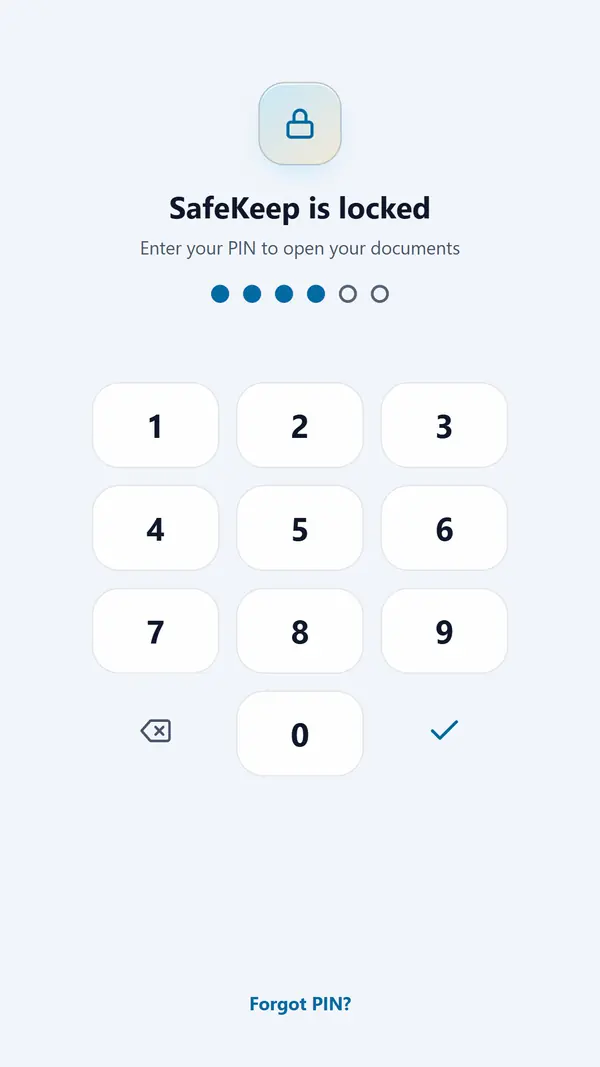
- Everything you enter, including photos, is encrypted with AES-256-GCM using a key made from your PIN or passphrase (PBKDF2-SHA256, 600,000 rounds). The PIN is never stored, so a forgotten one cannot be recovered.
- Private notifications
- While the lock is on, reminder notifications do not name the document.
- Extra fields with hidden values Pro
- Add fields such as model, policy holder or support phone, with suggestions per type, and hide sensitive values until you tap Show.
- Encrypted vault backup
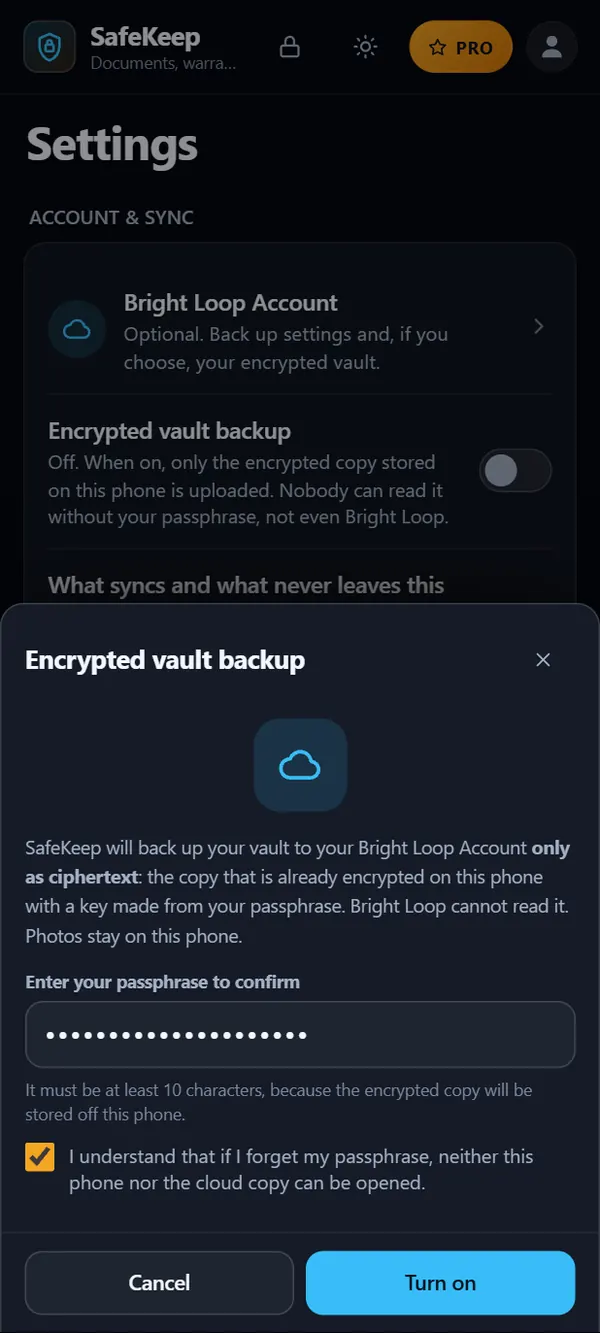
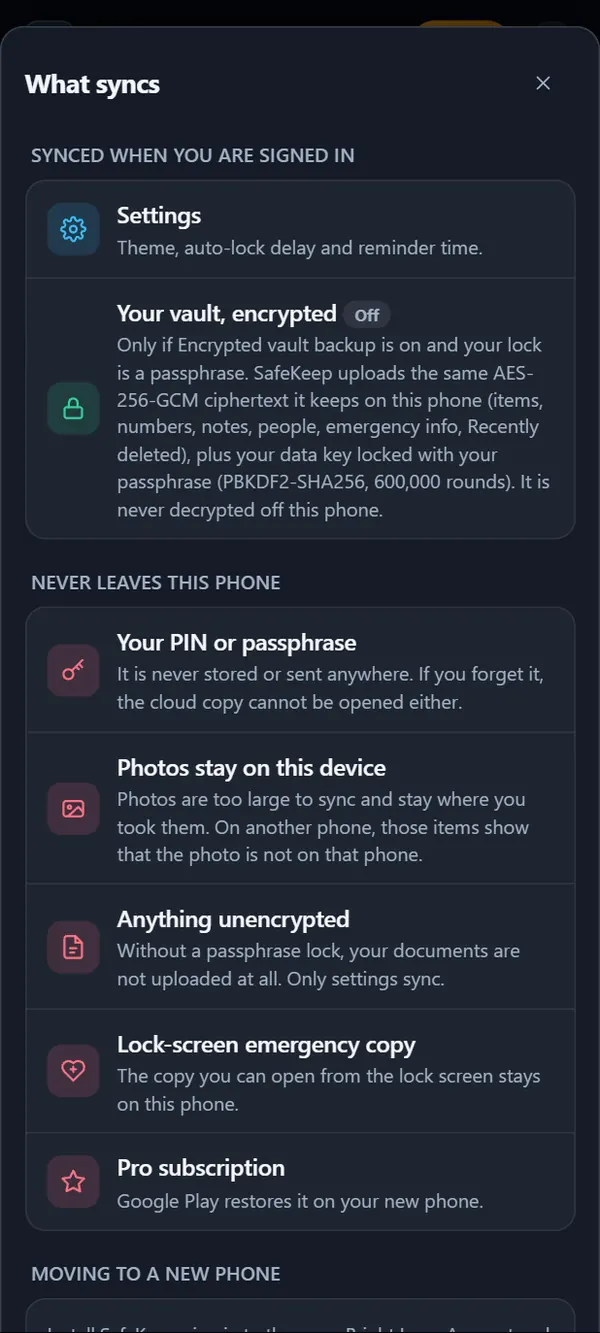
- Optional. With a passphrase lock of at least 10 characters, SafeKeep uploads only the ciphertext already stored on the phone, plus the data key locked with your passphrase, to your Bright Loop Account. It is never decrypted off the phone and photos are not uploaded.
- No ads, no analytics
- Without the optional account, nothing leaves the phone. SafeKeep does not connect to any office, insurer or shop.
Backup and moving data
- Backup file and CSV export
- A plain backup file (not encrypted, without photos) to restore on this or a new phone, and a spreadsheet export.
- Encrypted backup with photos Pro
- A backup file that includes photos, locked with a passphrase you choose (AES-256-GCM).
- Backup reminder
- Home reminds you when no backup file has been saved for 90 days, unless the encrypted vault is backed up to your account.
- Recently deleted
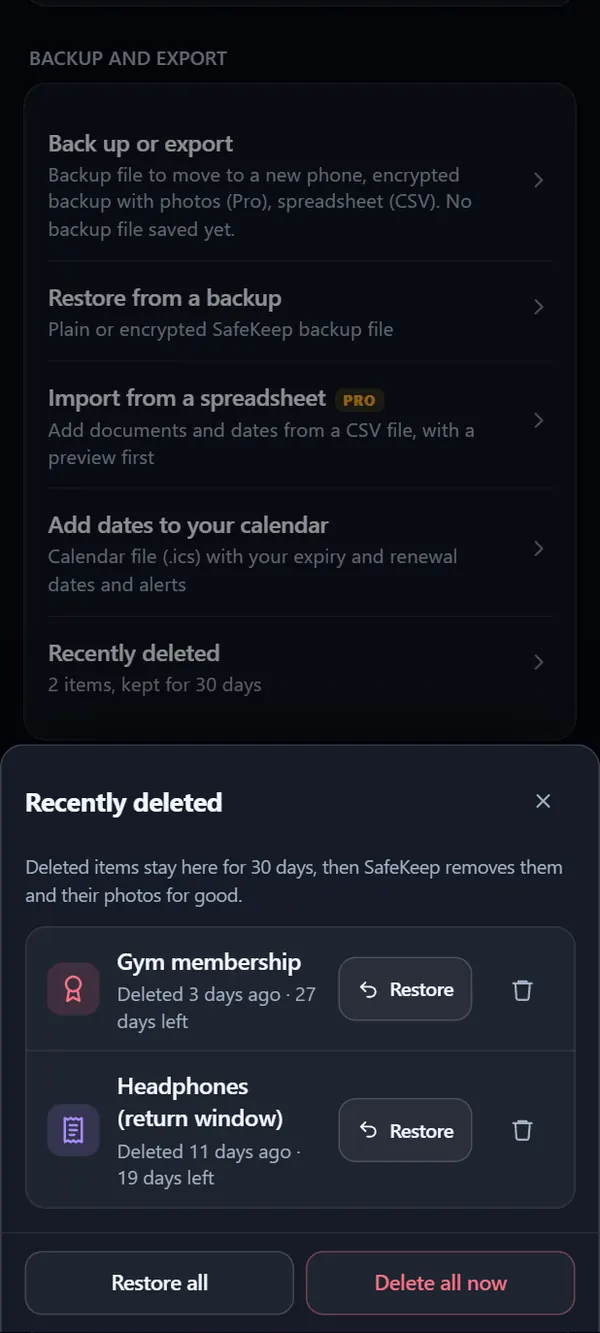
- Deleted items stay for 30 days, so you can restore them one by one or all at once.
- Import from a spreadsheet Pro
- Add documents and dates from a CSV file, with a preview and duplicate check first.
- Dark and light themes
- Auto, Dark or Light in Settings, or the sun and moon button at the top.
Full store description
Included without a subscription
- Up to 20 items with countdowns, an expiring-soon list and search
- Expiry reminders as phone notifications, at the time of day you choose
- Stars: keep the papers you need most at the top of Home
- Tags with filters, and search that understands #tag and -word
- Select many items to star, tag, move to a person, archive or delete at once, with undo
- "Mark as renewed" with quick +1, +5 or +10 years and a renewal history
- Auto-renewing subscriptions move to their next date by themselves
- Timeline by month with the renewal costs you entered
- Trip check: whose passport, visa or travel insurance is not valid enough for your trip
- Archive, emergency info card (ICE) with one-tap calling, up to 5 photos
- Backup file, CSV export, dark and light themes
How to use SafeKeep.
Step-by-step walkthroughs of the main tasks, with screens from the current version.
1Add a document and its remindersTrack a passport, licence, policy, warranty or subscription so SafeKeep counts down and reminds you before its date.
- Step 1
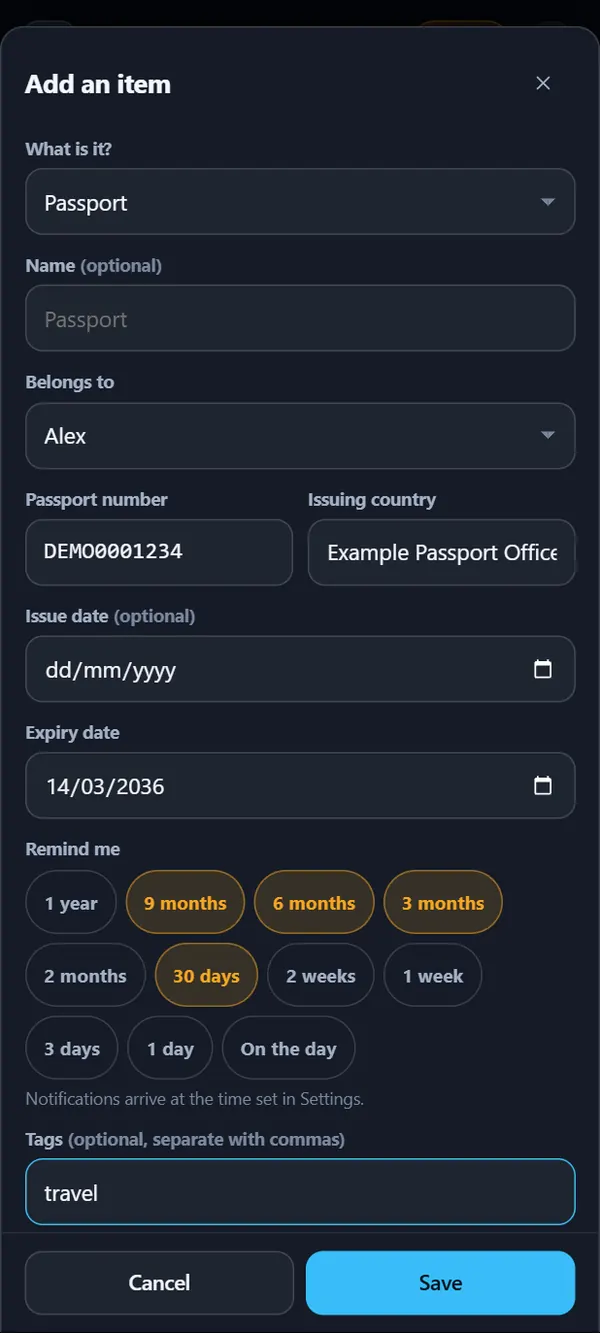
On Home, tap the orange + button.
- Step 2
Under What is it? pick the type, for example Passport. Add the number, who issued it and the Expiry date. Use Belongs to for a family member's papers.
- Step 3
Under Remind me, tap the days you want a notification, for example 9, 6 and 3 months before. Add tags such as travel or car if you like, then tap Save.
- Step 4
Tap the item in any list to see its countdown, the masked number (tap Show to see it), notes and photos.
2Mark a document as renewedMove an item to its new date after you renew it, keeping the old date in its history.
- Step 1
Open the item from Home or All items.
- Step 2
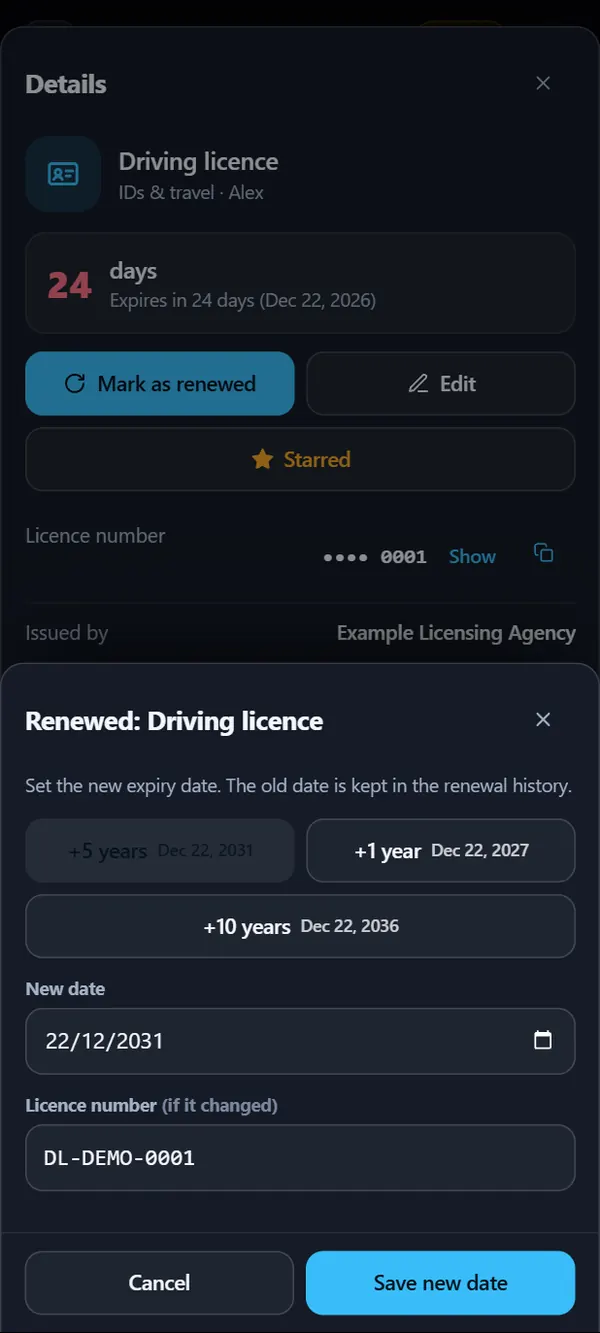
Tap Mark as renewed.
- Step 3
Tap +1 year, +5 years or +10 years, or type the date under New date. If the number changed, type the new one, then tap Save new date.
3See what is coming up with InsightsFind the busy months and the gaps in your records.
- Step 1
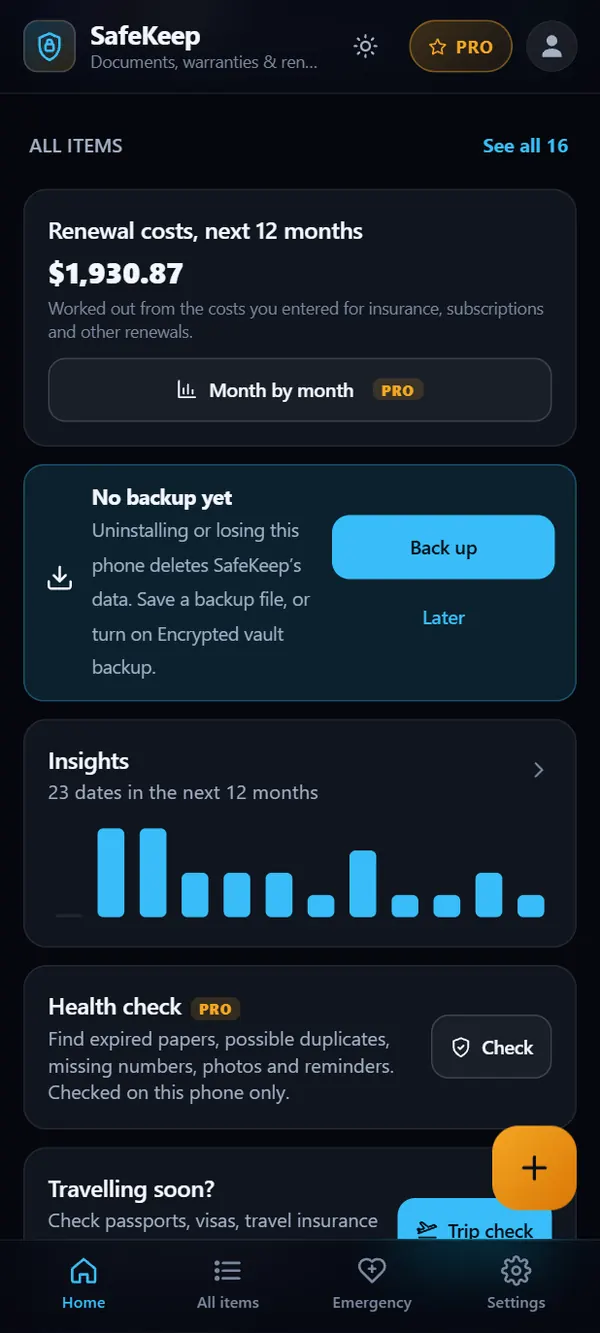
On Home, scroll down to the Insights card. Its small chart shows the next 12 months.
- Step 2
Tap the card. The chart counts every expiry, renewal and return date per month; items that renew automatically count each time they renew.
- Step 3
Below the chart, Status, By category, By person and Completeness show what is expired, who owns what and which items lack a number, photo or reminder. Tap a status to open those items.
- Step 4
For a month-by-month list, open All items and switch to Timeline.
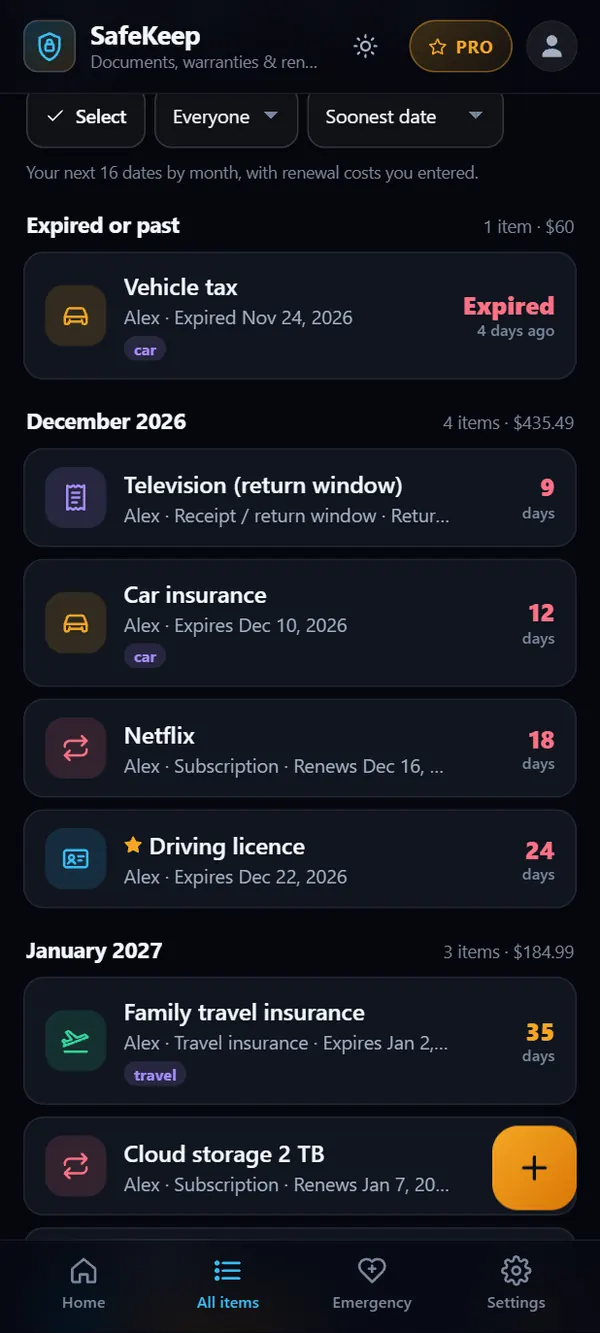
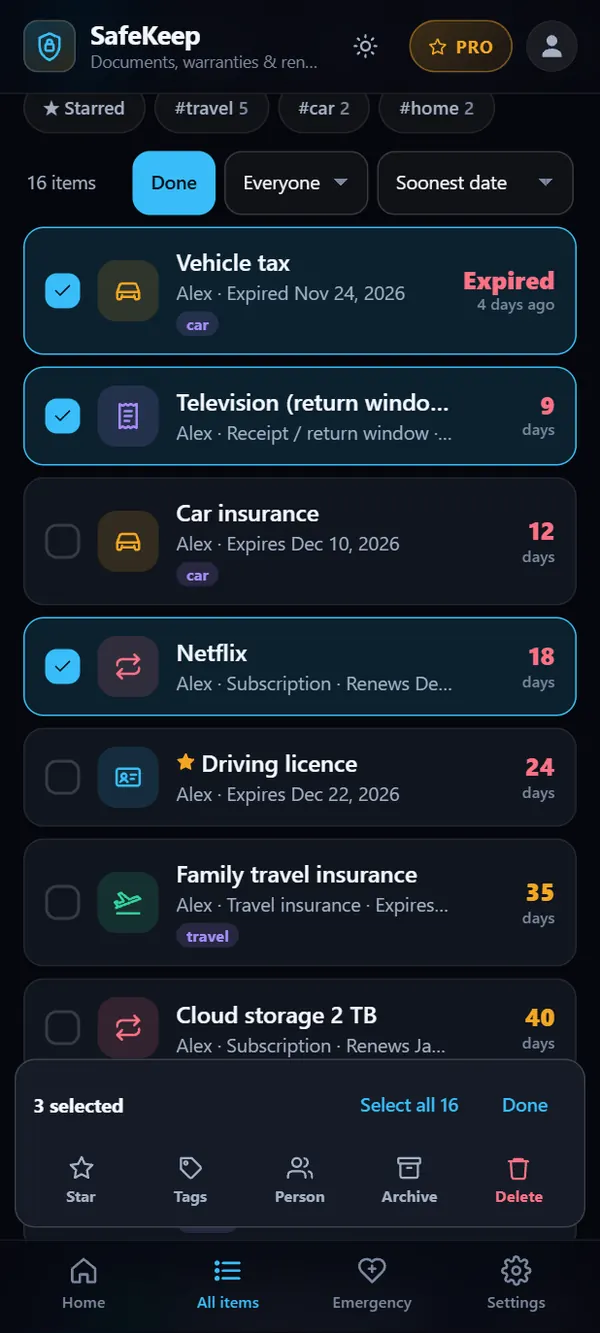
4Delete items and get them backClean up several items at once, with 30 days to change your mind.
- Step 1
In All items, tap Select and tick the items. The bar at the bottom can Star, Tags, Person, Archive or Delete them.
- Step 2
After Delete, tap Undo on the message straight away, or later go to Settings.
- Step 3
Under Backup and export, tap Recently deleted. Tap Restore on an item, or Restore all. Items left here are removed for good after 30 days.
5Back up and add dates to your calendarKeep a copy of your data off the phone and put your dates in your usual calendar.
- Step 1
When there is no recent backup, Home shows a reminder. Tap Back up (or Later to hide it for 30 days).
- Step 2
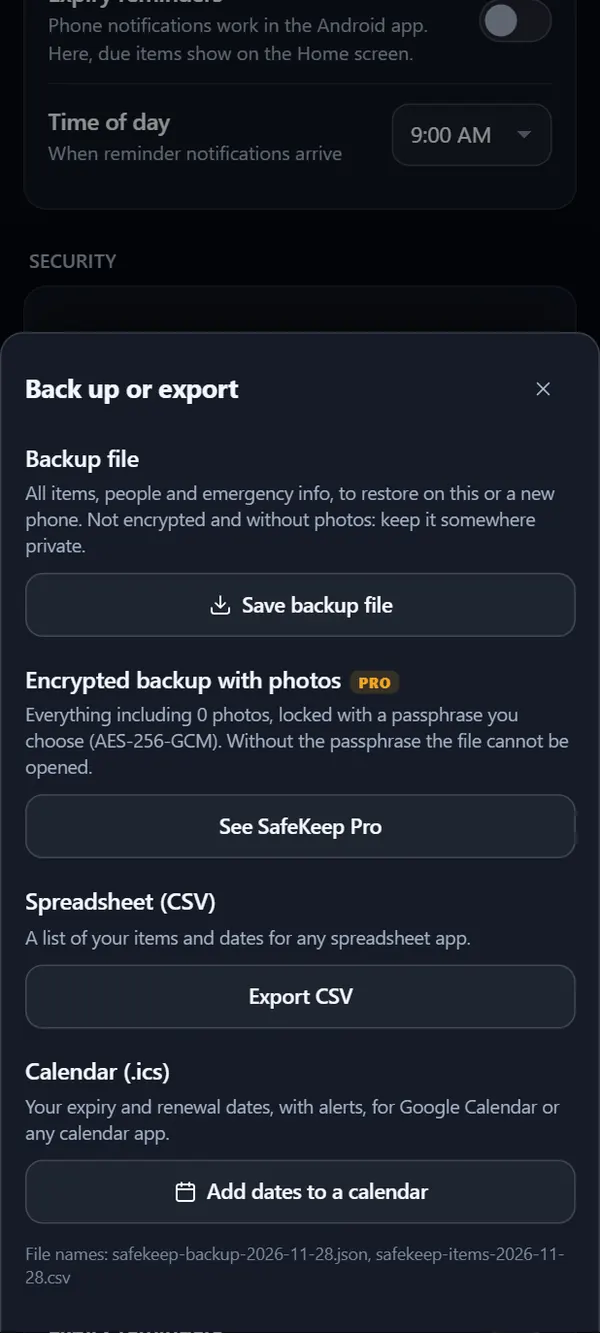
Choose Save backup file (a plain, unencrypted file without photos) or, with Pro, an Encrypted backup with photos protected by a passphrase you choose.
- Step 3
Tap Add dates to a calendar. Tick the box to use document types only (for example "Passport") instead of your item names, then tap Save calendar file and open it in your calendar app.
6Encrypt your data and back up the vault (Pro)Turn on the lock so your data is encrypted on the phone, then optionally keep an end-to-end encrypted copy in your Bright Loop Account.
- Step 1
In Settings, next to Encrypted vault backup, tap Set up (or tap PIN lock and encryption under Security). The lock is part of SafeKeep Pro.
- Step 2
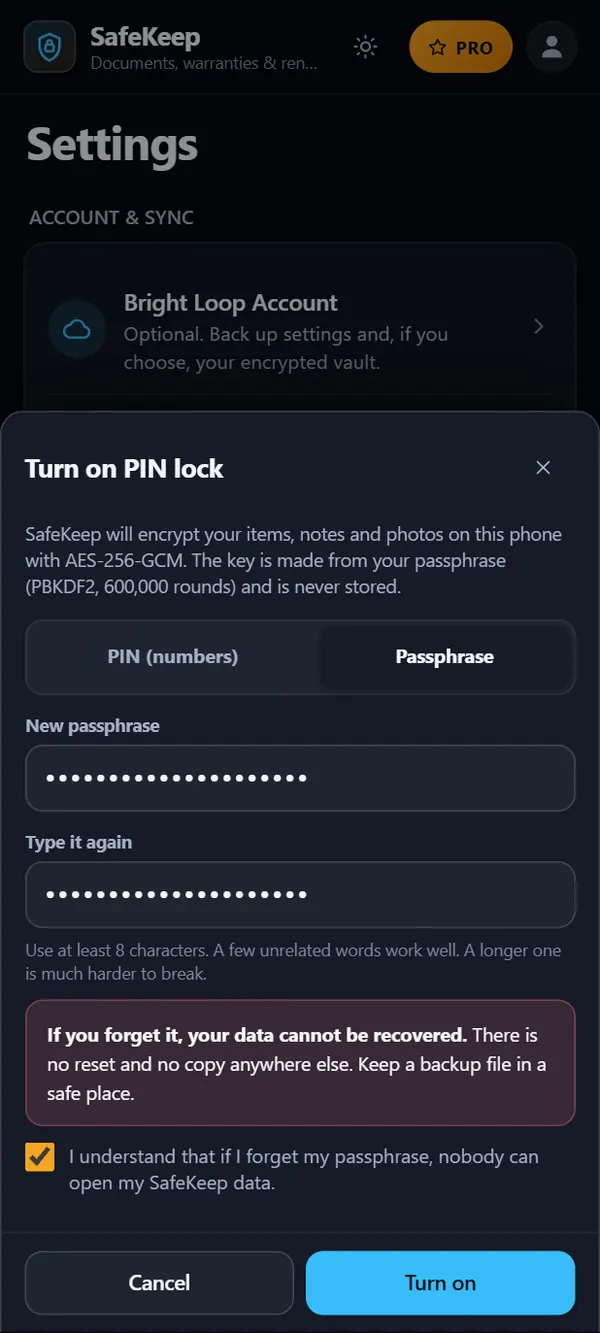
Choose Passphrase, type it twice, tick the box that you understand it cannot be recovered, and tap Turn on. SafeKeep encrypts everything on the phone.
- Step 3
Switch on Encrypted vault backup, enter your passphrase (at least 10 characters), tick the box and tap Turn on. Then sign in to your Bright Loop Account to upload it.
- Step 4
Tap What syncs and what never leaves this phone to see exactly what is uploaded. Photos, your passphrase and anything unencrypted stay on the phone.
- Step 5
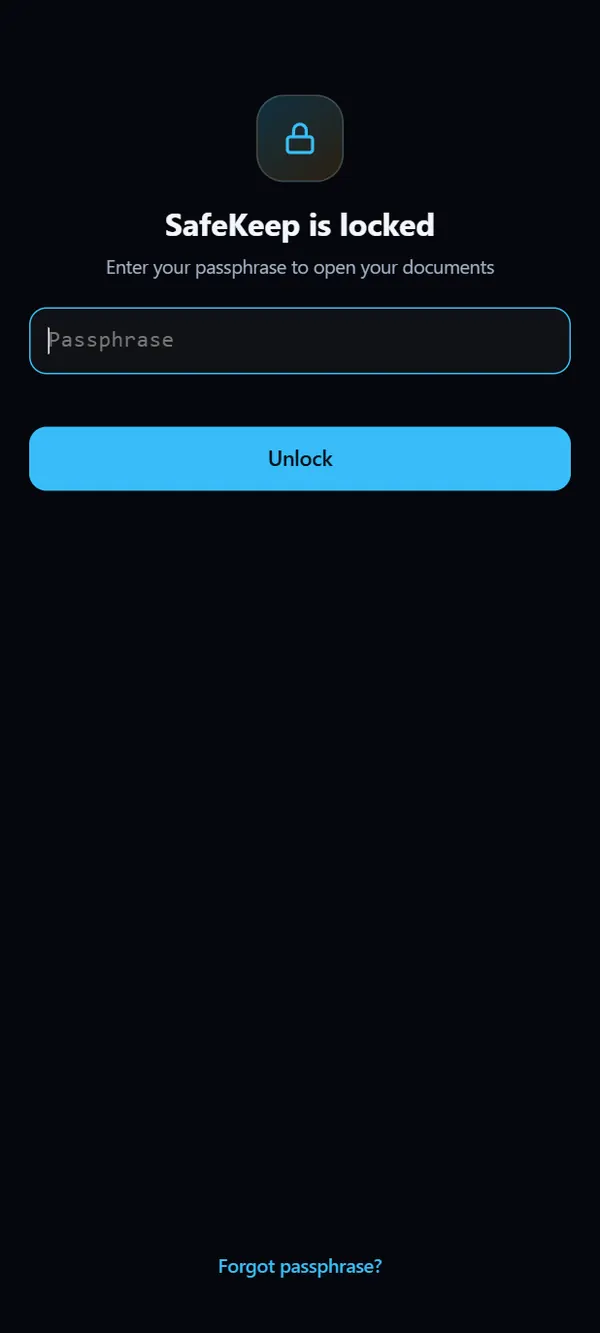
From now on SafeKeep opens only with your passphrase.
Free, with optional Pro.
Download SafeKeep free. Pro is optional and billed by Google Play, which shows the price before you confirm.
SafeKeep Pro (optional subscription)
- Unlimited items, and up to 6 photos per item
- PIN or passphrase lock with encryption (see below)
- Encrypted backup file including photos, protected by a passphrase you choose
- Renewal checklists with suggested steps
- Renewal costs month by month, by type and by person
- Extra fields on any item (model, policy holder, support phone), with suggestions per type and values you can hide until you tap Show
- Health check: expired papers, passports under 6 months, possible duplicates, missing reminders, numbers or photos, checked on your phone
- Import from a spreadsheet (CSV) with a preview and duplicate check
Pro is a monthly or yearly Google Play subscription; the app shows the price and any offer from Google Play. It renews until you cancel it in Google Play > Payments & subscriptions. If Pro ends, nothing is deleted.
Manage or cancel subscriptions in Google Play > Payments & subscriptions. Purchases and Restore purchases
Try it now.
Open SafeKeep right here in your browser, or download the Android app file directly.
Open in browser
The full SafeKeep app, running in a new tab. Nothing to install.
Some phone-only features, such as purchases, notifications, sharing and camera scanning, work only in the Android app. Anything you do in the browser is saved in that browser only, unless you sign in to the Bright Loop Account.
Download the APK
Install SafeKeep on an Android phone without Google Play.
- Version
- 1.3
- Size
- 4.0 MB
- SHA-256
93e5a80e785aeab8c53c7ff368fce7c65033359582a2a252118f1405b0569074
An APK installed from this website can't be updated from Google Play later. To switch to Google Play, uninstall it and install from Play. Your data only comes with you if you back it up with the Bright Loop Account first. How to install an APK
Requirements & details.
- Requires
- Android 7.0 or later
- Size
- 4.0 MB
- Version
- 1.3
- Price
- Free, optional Pro subscription
- Internet
- Only for optional sync and purchases
- Account
- Optional Bright Loop Account
- Ads
- None
- Category
- Productivity, Security
- Developer
- Bright Loop (Google Play: Bright Loop Games)
- Availability
- Early access (Google Play closed testing)
- Web version
- Open in browser
How to get SafeKeep.
SafeKeep is in early access through Google Play closed testing. It takes about two minutes.
- Ask to join the tester listEarly access runs as a Google Play closed test, so your Google account must be on the tester list before the opt-in link works. Send us the Gmail address you use on Google Play and we'll add you.
- Open the opt-in linkOn your Android phone, signed in to the same Google account, open the SafeKeep early access link.
- Tap "Become a tester"Google Play confirms that you've joined the test.
- Install from Google PlayTap the "download it on Google Play" link on that page, or open the Google Play page, then tap Install. Updates arrive through Google Play like any other app.
- Tell us what you thinkEarly access means your feedback shapes the next update. Email rehman@mindum.dev any time.
Link not working? See Troubleshooting or the full early access guide.
Account & sync.
Optional. SafeKeep works fully without an account. Sign in to the free Bright Loop Account to back up your SafeKeep data and keep it in sync across your phones.
What syncs
- Your vault, only as an end-to-end encrypted copy locked with your passphrase. Bright Loop cannot read it
What stays on this phone
- Photos of your documents
- Anything not encrypted
- Your passphrase: it never leaves the phone
Account & Sync is part of SafeKeep 1.3. Look for it at the top of Settings.
Privacy.
SafeKeep keeps your data on your phone. No ads and no analytics.
What is encrypted, and when
Without the PIN lock, data is kept in the app's private storage on the phone, not encrypted. With the PIN lock on, everything you enter (items, numbers, notes, tags, stars, extra fields, people, emergency info, photos) is encrypted with AES-256-GCM using a key made from your PIN (PBKDF2, 600,000 rounds). The PIN is never stored; if you forget it, the data cannot be recovered. While locked, reminder notifications do not name the document. If you choose to show the emergency card on the lock screen, that card alone is kept unencrypted.
Private by design
No account needed, no ads, no analytics, no uploads. The emergency card shows only what you type and is not medical advice. SafeKeep does not connect to any office, insurer or shop; you enter your own dates.
If you sign in
The Bright Loop Account is optional. If you sign in, SafeKeep backs up the records listed under Account & sync to your account so you can restore them on another phone. Photos and files are never uploaded, and you can export or delete your cloud data at any time.
Read the full Privacy Policy.
Tips.
- Give passports a 9-month reminder: many countries want 6 months of validity left when you arrive, and renewing takes time.
- In search, type #travel to see only items tagged travel, or add -mia to leave out anything mentioning Mia.
- Star the three or four papers you reach for most; starred items stay on Home.
- When you export a calendar file, tick "Use document types only" if your calendar syncs to an online account.
- Archive things you sold or cancelled instead of deleting them: they stop reminding you but stay in your backups.
- Run Trip check a few weeks before you travel, so there is still time to renew a passport or buy travel insurance.
Troubleshooting.
I don't get reminder notifications
Check that Expiry reminders is on in Settings and that Android allows SafeKeep to send notifications. Each item only reminds you on the days ticked under Remind me.
The lock screen says to wait before trying again
After 5 wrong attempts SafeKeep makes you wait, starting at 30 seconds and growing up to 15 minutes. Wait and try again carefully.
I can't switch on Encrypted vault backup
It needs a passphrase lock, not a numeric PIN, and the passphrase must be at least 10 characters. Tap Switch next to Encrypted vault backup, or Change passphrase under Security, first.
Photos are missing on my new phone
Photos never sync with the vault backup. Use the encrypted backup file with photos (Pro) to move them.
I can't add more items
The free version tracks up to 20 items. Archive what you no longer need, or upgrade to Pro for unlimited items.
Questions.
Is my data encrypted?
Only when the PIN or passphrase lock (Pro) is on. Without it, data is kept in the app's private storage on the phone, not encrypted. With it, items, numbers, notes, tags, extra fields, people, emergency info and photos are encrypted with AES-256-GCM using a key made from your PIN or passphrase.
What happens if I forget my PIN or passphrase?
The data cannot be recovered by anyone, because the PIN is never stored. You can erase SafeKeep and restore from a backup file if you saved one.
What does Encrypted vault backup upload?
Only the AES-256-GCM ciphertext already stored on your phone and your data key locked with your passphrase. It needs a passphrase lock of at least 10 characters and a Bright Loop Account. Photos, your passphrase and anything unencrypted are never uploaded.
Is the normal backup file encrypted?
No. The plain backup file contains your items, people and emergency info without photos and without encryption, so keep it somewhere private. The encrypted backup with photos is part of Pro.
What goes into the calendar file?
Each dated item's name (or just its type if you tick the box), its date, the provider and alerts on your reminder days. Document numbers are never included.
How long do deleted items stay in Recently deleted?
30 days. After that SafeKeep removes them and their photos for good.
Does SafeKeep check my documents with the authorities or my insurer?
No. You enter your own dates; SafeKeep does not connect to any office, insurer or shop.
Is SafeKeep free?
Yes. SafeKeep is free to download and use. SafeKeep Pro is an optional monthly or yearly subscription through Google Play that adds the extras listed under Free and Pro. Google Play shows the price, and any trial, before you confirm.
Why can't I find SafeKeep on Google Play?
SafeKeep is in early access (a Google Play closed test), so it only appears for people on the tester list. Follow the steps under How to get it. Once it becomes public, anyone can install it from Google Play.
Do I need an account?
No. SafeKeep works fully without one. The Bright Loop Account is optional and adds cloud backup and sync across your phones.
How do I move to a new phone?
Sign in to your Bright Loop Account on the new phone and choose "Use Cloud Data", or export a backup file on the old phone and restore it on the new one. Photos and files only move with a backup file. Pro comes back with Restore purchases. See Move to a new phone.
How do I restore a purchase?
Make sure your phone uses the same Google account you bought with, open SafeKeep and tap Restore purchases. Google Play checks your purchases and SafeKeep unlocks what you own. More about purchases.
Can I use SafeKeep in a browser?
Yes. Tap Open in browser to run it in a new tab. Some phone-only features, such as purchases, notifications, sharing and camera scanning, work only in the Android app, and anything you do there is saved in that browser.
Can I install it without Google Play?
Yes, with the APK on this page (version 1.3, 4.0 MB). An APK install can't be updated from Google Play later; see Install an APK on Android.
What do I need to run it?
Android 7.0 or later, or any modern browser for the web version.
Is it available on iPhone?
There's no iPhone app at the moment. SafeKeep is made for Android, but you can open the web version in Safari.
Get help with SafeKeep
Email rehman@mindum.dev. Include your phone model, Android version and what happened, and we'll take it from there.
Help Centre
Step-by-step guides for early access, sync, backups, purchases and moving phones. Visit the Help Centre
More apps you might like.
EchoNote
Talk or type your day. Tasks, due dates, ideas and mood are picked out for you.
Unplug
Pomodoro focus timer with offline background sounds, daily goals and a heatmap
KeyForge
2-step verification codes and strong password generator. Offline, PIN locked.
DocClean
Scan documents, receipts and ID cards to PDF. Crop, straighten, clean. Offline.