
SplitMate
Split bills with flatmates, trips and family in any currency. Settle up fast.
Google Play pageDownload APK v1.5 · 3.9 MB
Early access on Google Play closed testing. You need to be on the tester list first: see how to join.

A closer look.
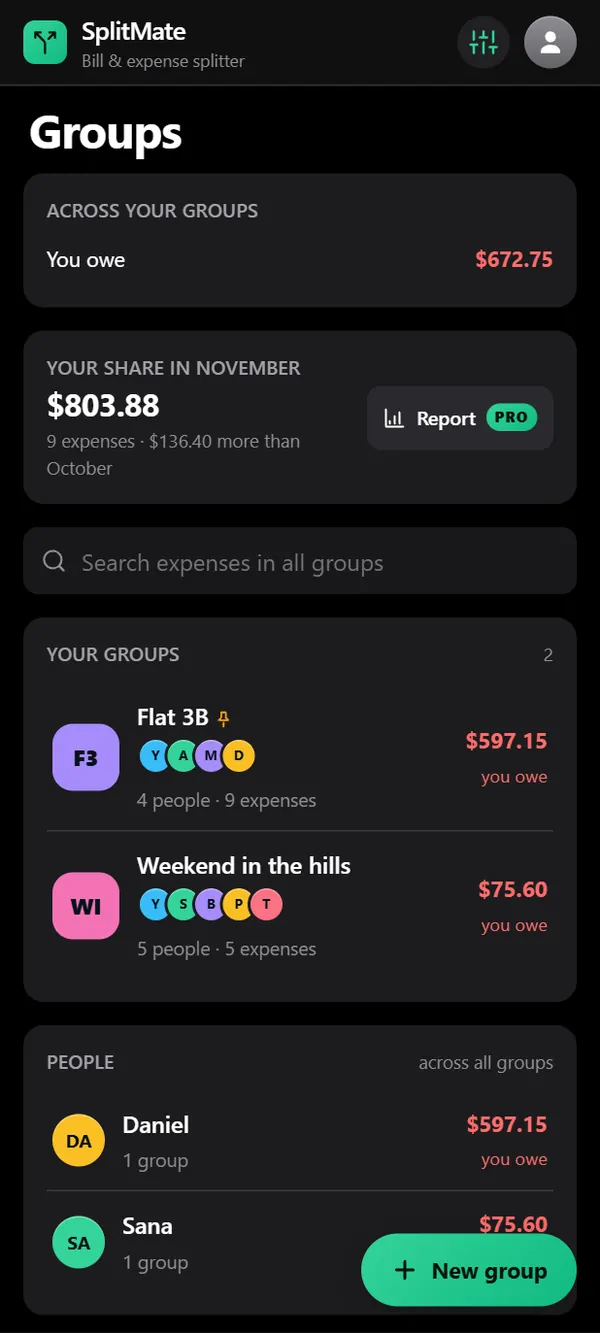
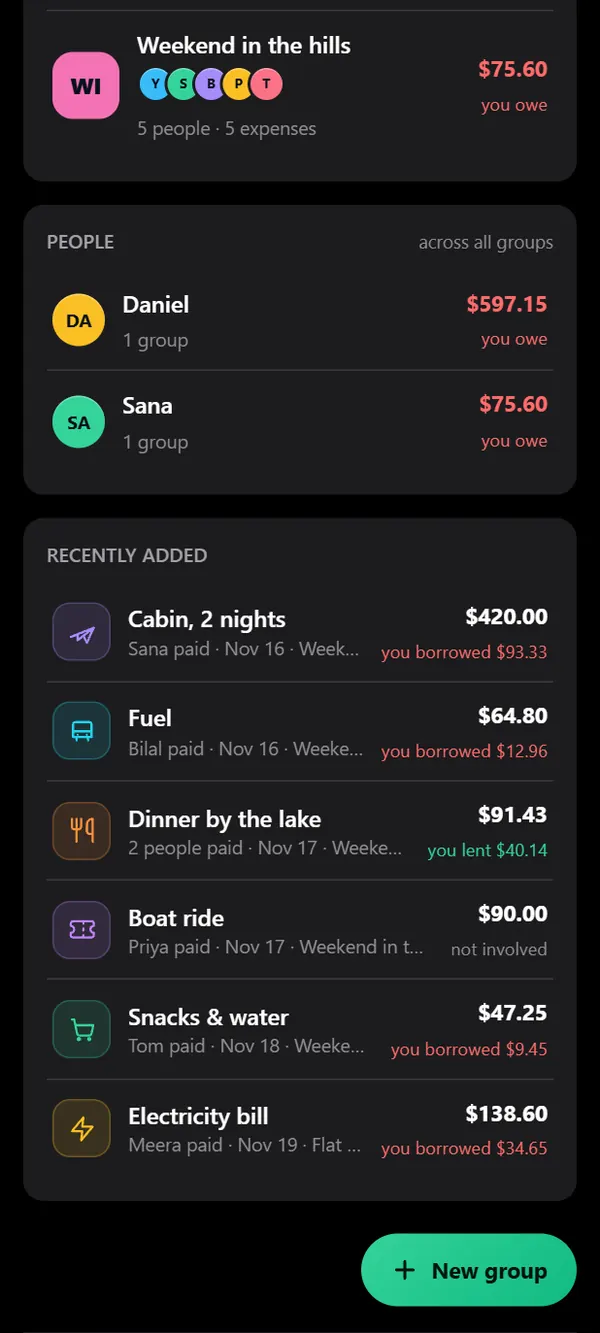
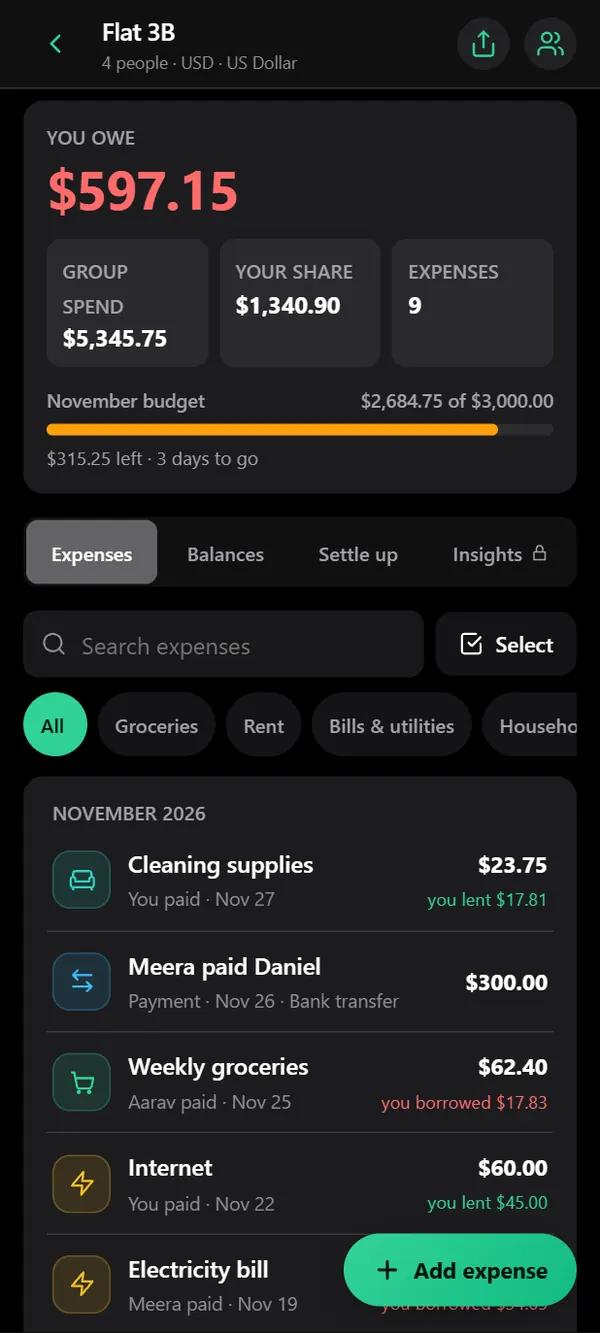
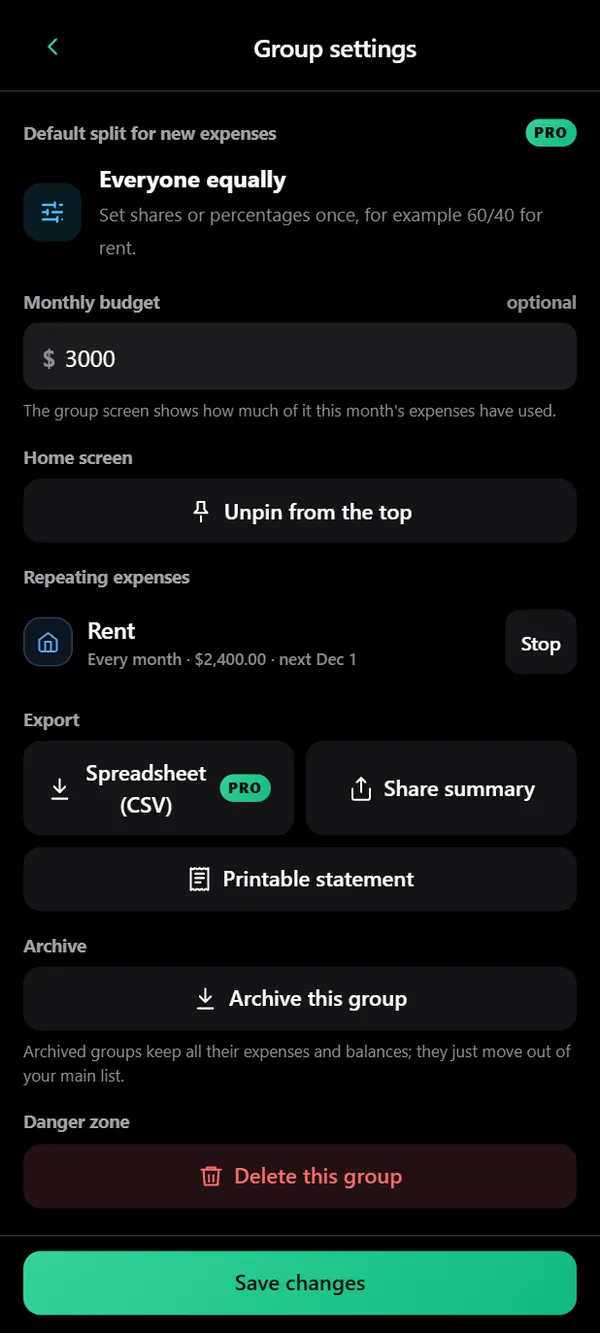
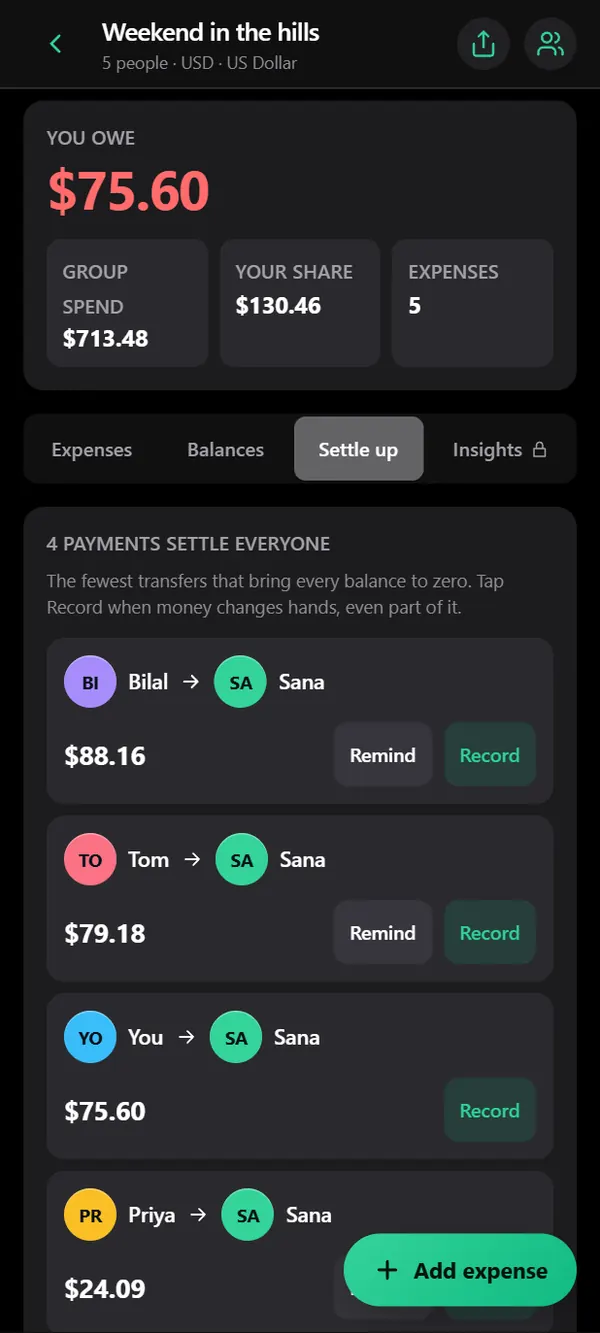
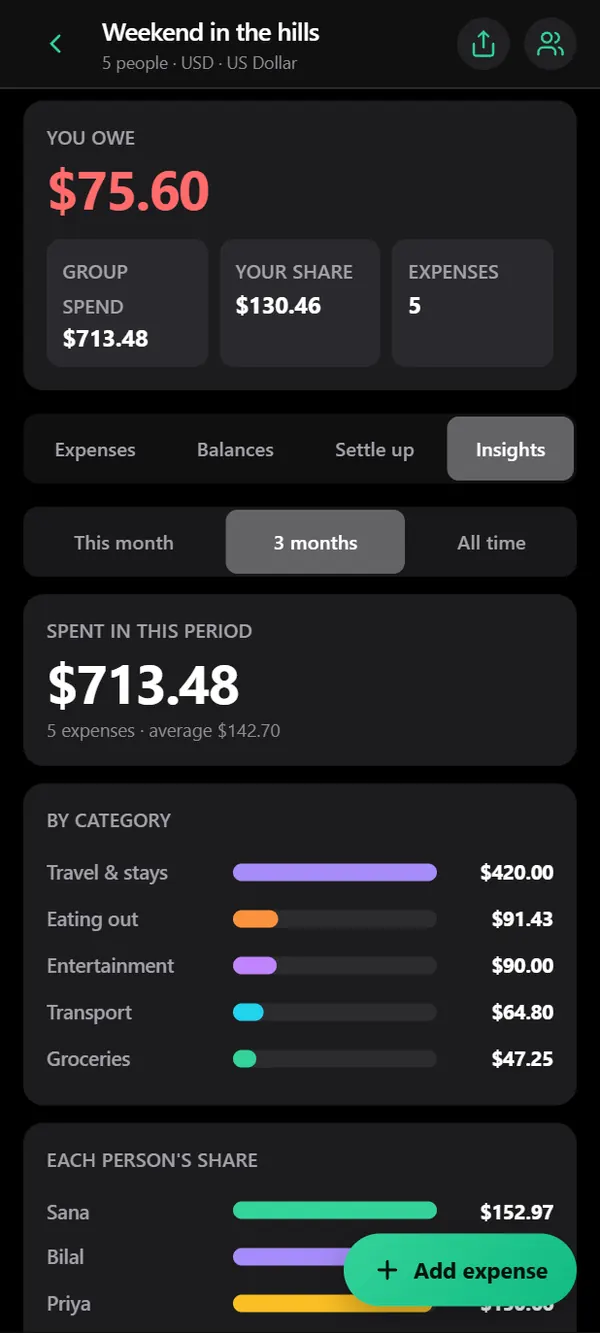
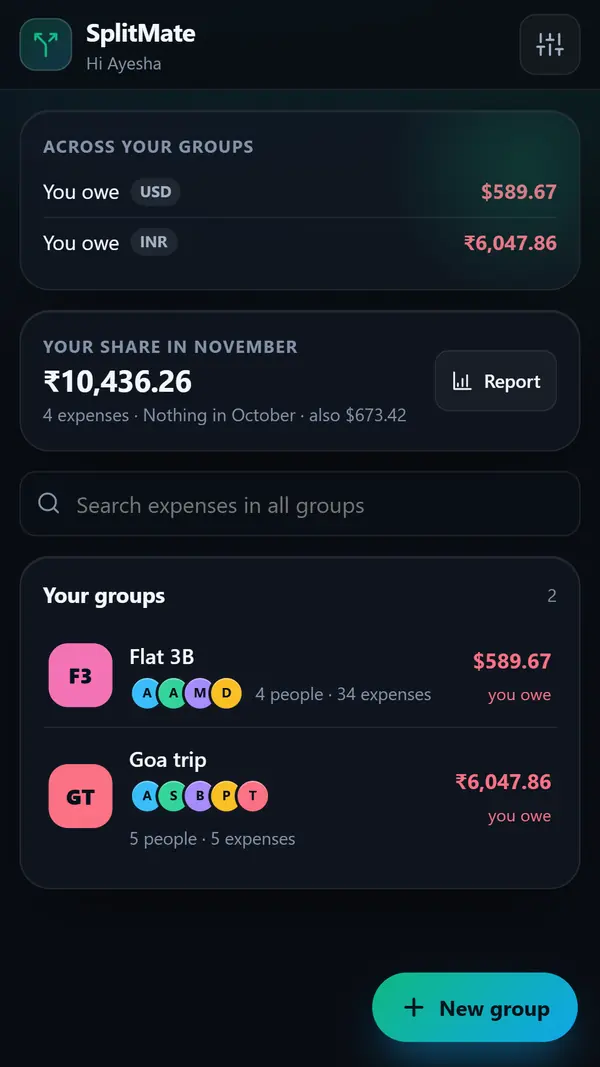
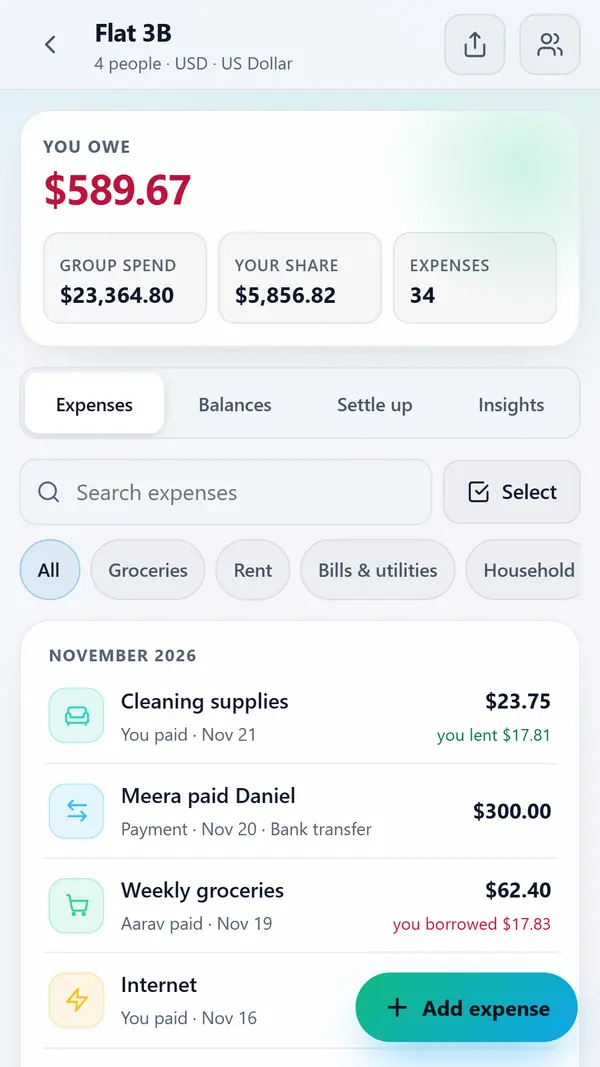
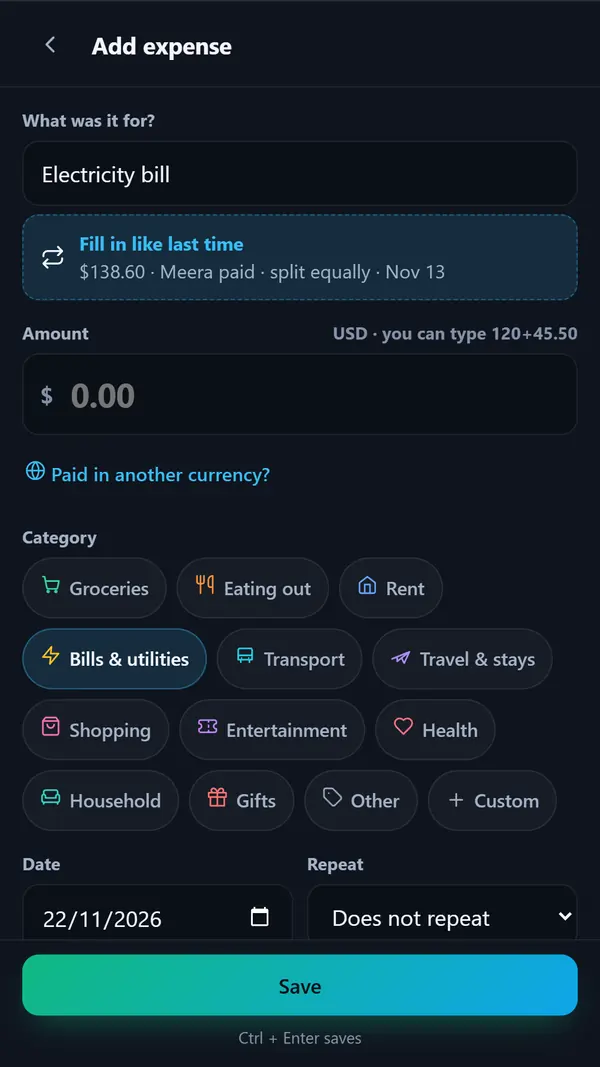
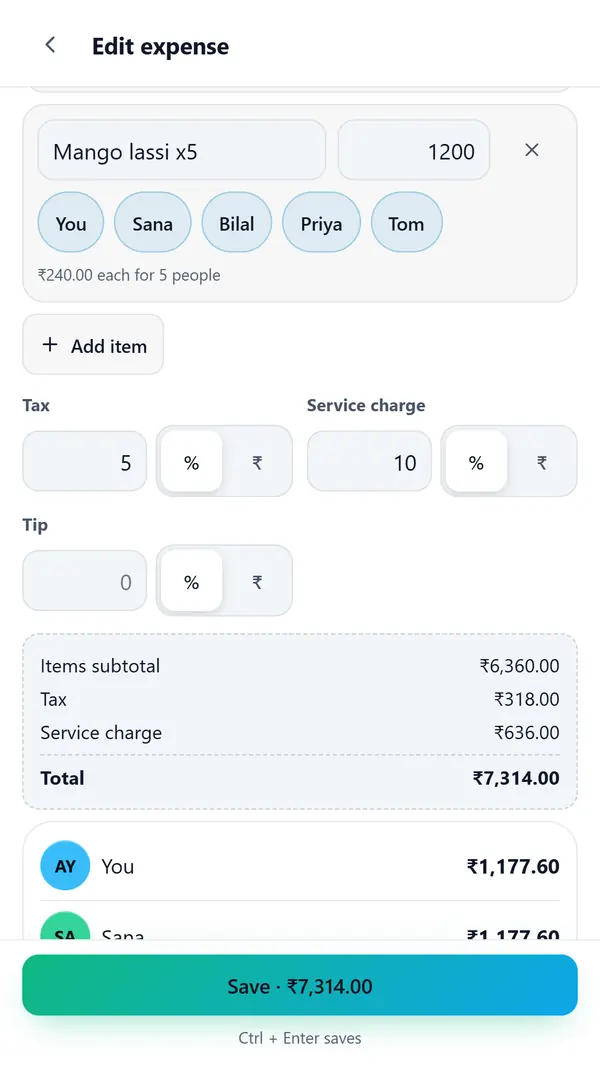
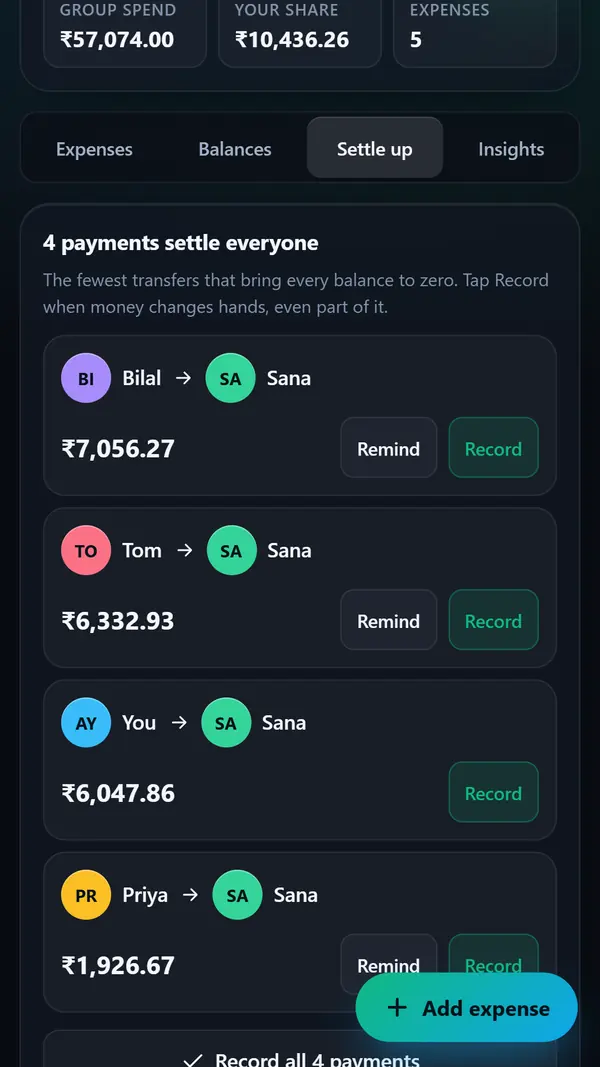
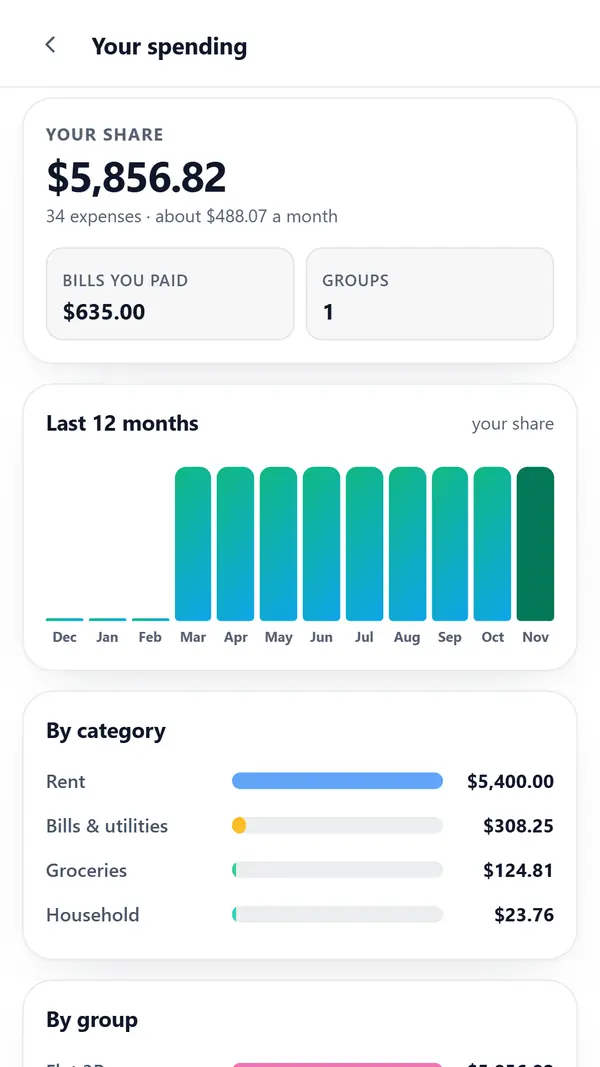
SplitMate is a group bill and expense splitter for flatmates, trips, couples and families. Log what was spent, choose how to split it, and SplitMate works out who owes whom, down to the last cent, paisa or yen.
What's new in version 1.5
New in version 1.5, along with a refreshed design and the optional Bright Loop Account. Early-access testers get it through Google Play.
People card: who owes whom across all groups
Monthly budget per group
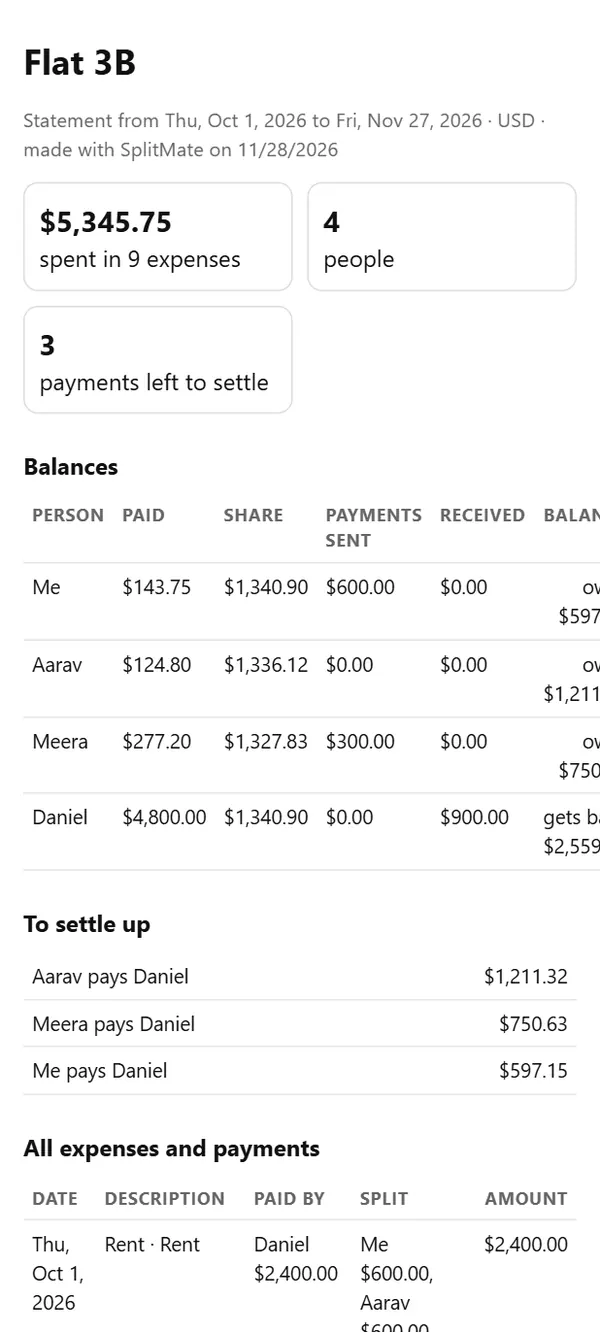
Printable group statement
Pin groups
Recently added across groups
Feature tour.
Every feature in SplitMate, and what it does for you. Items marked Pro are part of the optional subscription.
Splitting
- Split any way
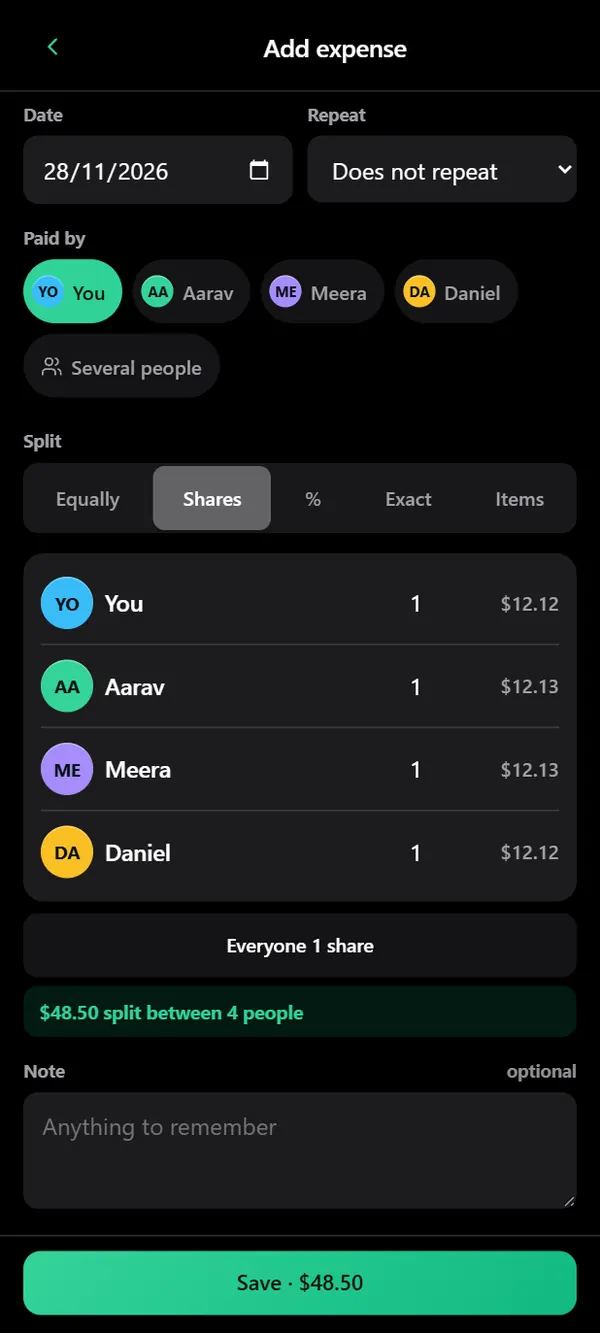
- Equally, by shares (2 for a couple, 1 for a guest), by percentage or by exact amounts.
- Item by item
- Tick who had each item on a receipt, then add tax, service and tip; extras are shared in proportion.
- Several payers
- Enter what each person put in when more than one person paid.
- Sums in the amount box
- Type 120+45.50 and SplitMate adds it up.
Settling up
- Fewest payments
- SplitMate finds the smallest number of transfers that brings every balance to exactly zero.
- Remind and record
- Send a friendly reminder, record a payment in full or in part, or record all suggested payments at once, with undo.
- Share a summary
- Share a clear summary of who pays whom to any chat app.
- Printable group statement
- Save a statement with balances, settle-up payments and every expense, ready to print or save as PDF.
Across your groups
- People card
- Each person's balance with you across all groups, taken from each group's settle-up plan.
- Recently added
- The latest expenses from every group on the Groups screen.
- Your share this month
- A home card shows your share of spending this month next to last month.
- Search everything
- Search expenses in all groups from the Groups screen, or within one group.
- Pin groups
- Pin the groups you use most to the top of your list.
Faster entry
- Quick add from recent
- Tap a recent expense like Rent and SplitMate fills in the amount, payer and split from last time.
- Category suggestions
- The category is suggested from your past expenses as you type.
- Select several
- Change the category or date of several expenses, or delete them, with undo.
- Repeating expenses
- Rent, bills and subscriptions are added on their due date.
Groups and data
- Monthly budget per group
- Set a monthly budget and the group screen shows what this month's expenses have used and the days to go.
- Unlimited groups and people
- Each group has its own currency, from all world currencies. Archive finished groups.
- Backup and restore
- Export all groups as a JSON backup, import it or paste backup text on a new phone. Light and dark themes, works offline.
SplitMate Pro
- Spending insights Pro
- Totals by category, month and person for each group.
- Your spending report Pro
- Your own share across all groups, with 12 months, categories, groups and your biggest shares.
- Default split per group Pro
- Set shares or percentages once, such as 60/40 for rent.
- Other currencies Pro
- Enter expenses paid in another currency with your own exchange rate.
- Spreadsheet export and import Pro
- CSV export and import, including sheets with one column per person.
- Custom categories Pro
- Your own categories with an emoji.
Full store description
Split any way you need
- Equally, by shares (2 for a couple, 1 for a guest), by percentage or by exact amounts
- Item by item from a receipt: tick who had each dish, then add tax, service and tip. Extras are shared in proportion.
- Several people paid? Enter what each person put in.
- Type sums in the amount box, such as 120+45.50
Settle up in the fewest payments
SplitMate finds the smallest number of transfers that brings every balance to exactly zero. Send a friendly reminder, record a payment in full or in part, or record all suggested payments at once (with undo). SplitMate only keeps track of who paid what; it does not connect to banks or send money.
Faster entry from your own history
- Quick add: tap a recent expense like Rent and SplitMate fills in the amount, payer and split from last time
- The category is suggested from your past expenses as you type
- Select several expenses to change their category or date, or delete them (with undo)
- A home card shows your share of spending this month next to last month
Made for everyday use
- Unlimited groups and people, each group in its own currency (all world currencies)
- Repeating expenses for rent, bills and subscriptions, added on the due date
- Categories, search across all groups, and each person's history
- Share a clear summary of who pays whom to any chat app
- Archive finished groups, undo for deletes, light and dark themes, works offline
- Backup and restore: move all your data to a new phone
How to use SplitMate.
Step-by-step walkthroughs of the main tasks, with screens from the current version.
1Add a shared expenseLog what was spent, who paid and who shares it.
- Step 1
Open a group and tap Add expense.
- Step 2
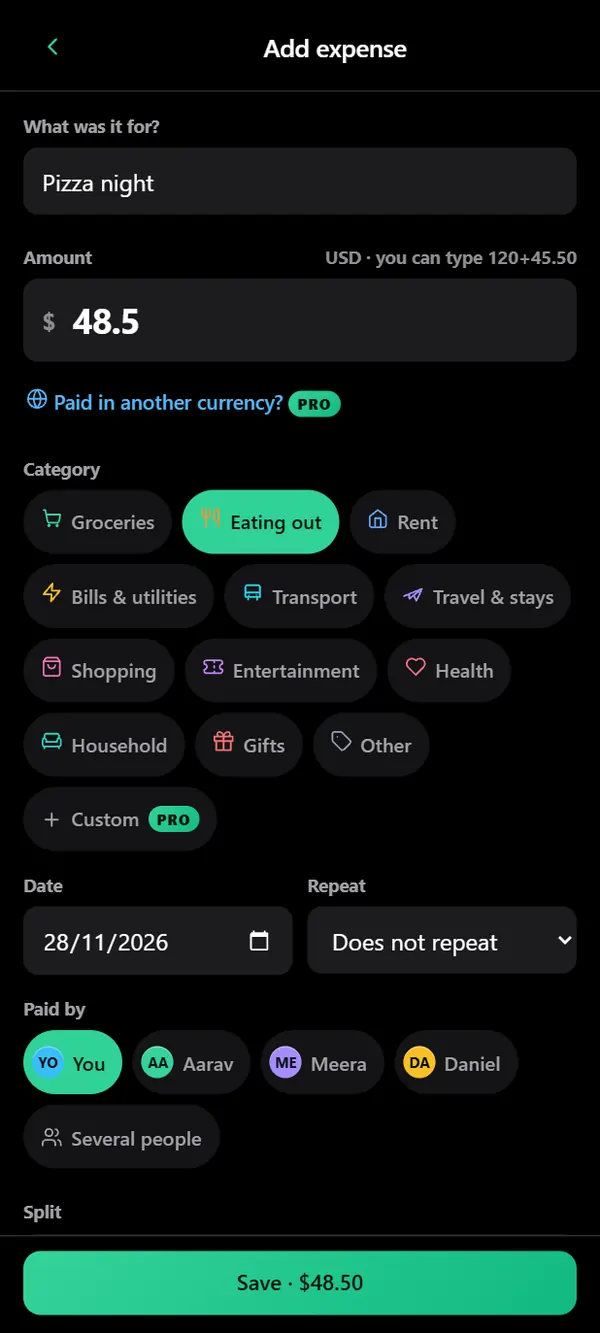
Under What was it for? type a title, then the amount. You can type a sum such as 36+12.50. Pick a category and the date, and choose a Repeat option for rent or bills.
- Step 3
Under Paid by, tap who paid, or Several people if more than one person put money in.
- Step 4
Under Split, choose Equally, Shares, %, Exact or Items, adjust the people, then tap Save.
2Split a restaurant bill item by itemTick who had each dish and share tax, service and tip in proportion.
- Step 1
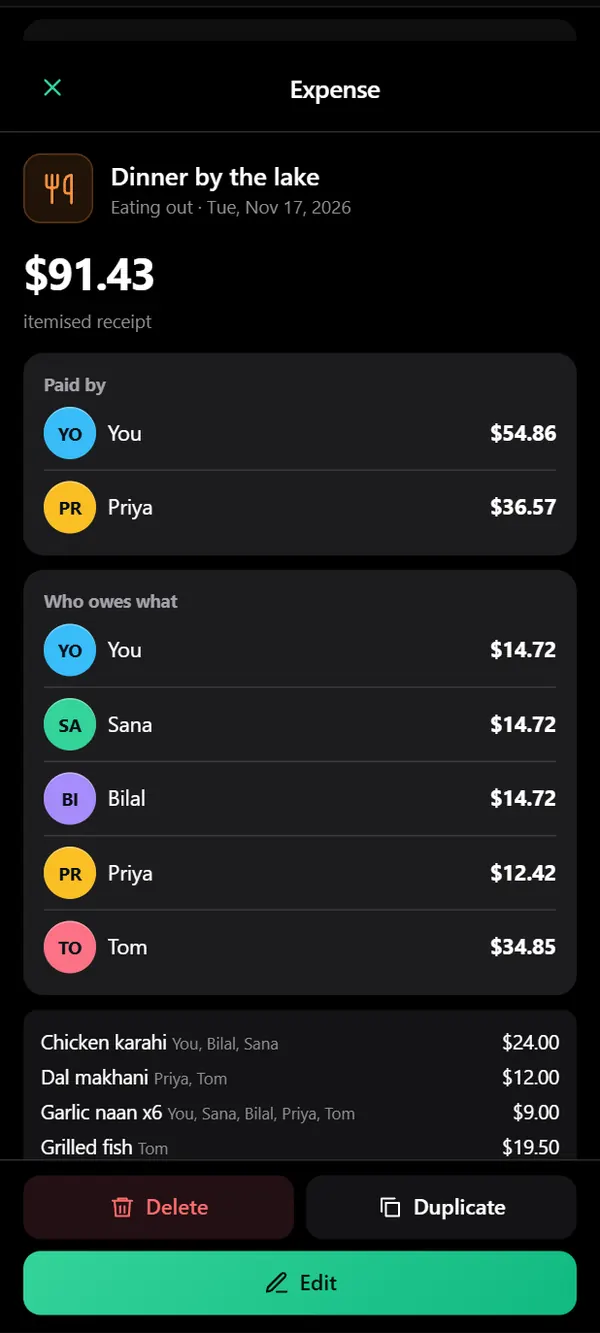
Open the group, tap Add expense, type a title such as Dinner and choose who paid. If two people paid part each, tap Several people and enter what each put in.
- Step 2
Choose Items under Split and add each line from the receipt with its price.
- Step 3
Tick who had each item, add tax, service or tip, and save. The saved expense shows who paid, who owes what and every item.
3Settle upClear every balance in the fewest payments and record them.
- Step 1
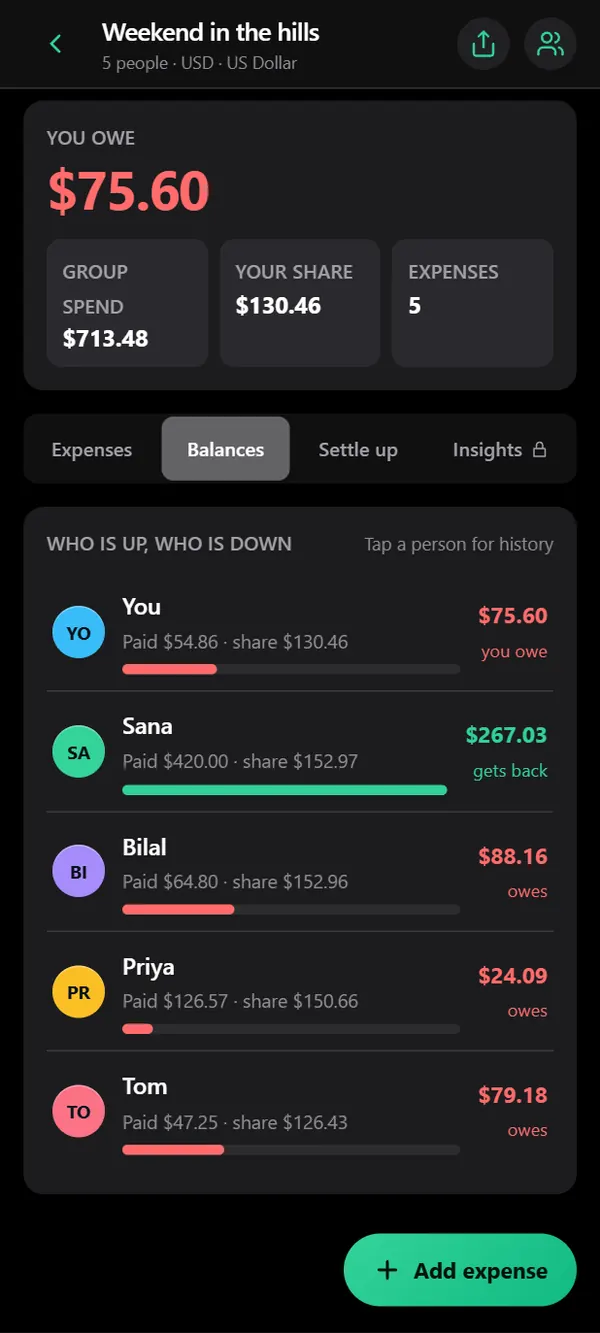
Open the group and tap Balances to see who is up and who is down, with what each person paid and their share.
- Step 2
Tap Settle up. SplitMate lists the fewest transfers that bring every balance to zero.
- Step 3
Tap Remind to send a friendly message, or Record when money changes hands, even part of it. Record all records every suggested payment at once, with undo.
4See who owes whom across all groupsUse the People card on the Groups screen.
- Step 1
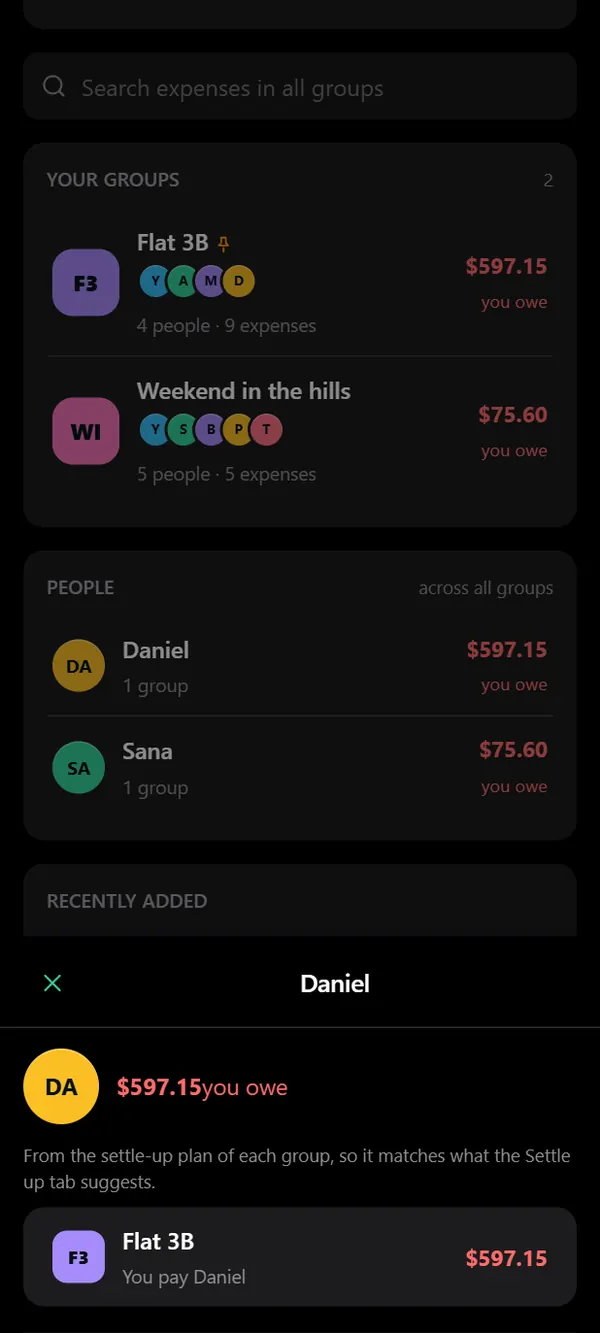
The Groups screen shows what you owe or are owed across your groups, and each group with your balance.
- Step 2
Scroll to People to see each person across all groups, then Recently added for the latest expenses from every group.
- Step 3
Tap a person to see, group by group, who pays whom. The amounts match each group's Settle up plan.
5Set a monthly budget and pin a groupKeep an eye on a flat or household's spending each month.
- Step 1
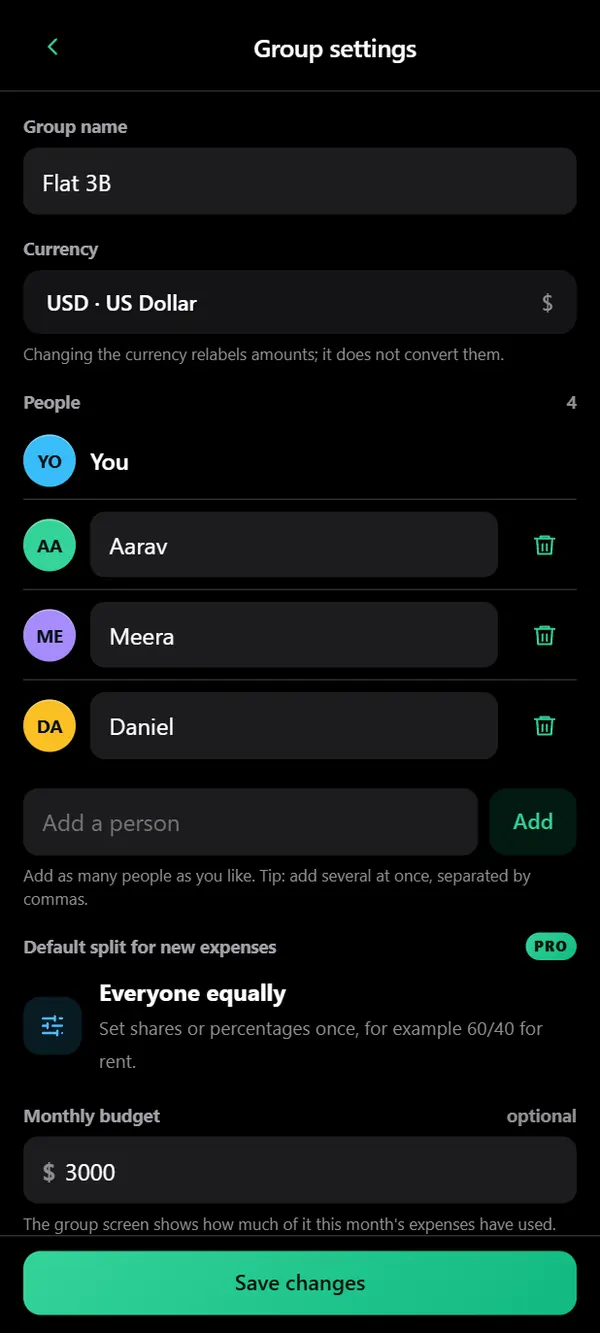
Open the group and tap Group settings (the people icon), or tap the budget bar.
- Step 2
Type a Monthly budget and tap Pin to the top of your groups under Home screen to keep the group first. Tap Save changes.
- Step 3
The group screen now shows this month's spending against the budget and the days to go.
6Save a printable group statementMake a clean summary of balances, settle-up payments and every expense.
- Step 1
Open the group. The Settle up tab has a Statement button below the suggested payments.
- Step 2
Or open Group settings and tap Printable statement under Export.
- Step 3
SplitMate saves an HTML statement with totals, each person's balance, the payments to settle up and all expenses. Open it to print it or save it as a PDF.
Free, with optional Pro.
Download SplitMate free. Pro is optional and billed by Google Play, which shows the price before you confirm.
SplitMate Pro (optional subscription)
Everything above is included without a subscription. Pro adds:
- Spending insights: totals by category, month and person for each group
- Your spending report: your own share across all groups, with 12 months, categories, groups and your biggest shares
- Default split per group: set shares or percentages once, such as 60/40 for rent
- Expenses in other currencies, with your own exchange rate, converted exactly
- Spreadsheet export and import (CSV), including sheets with one column per person
- Custom categories with your own emoji
Pro is a monthly or yearly subscription through Google Play. The price, and any trial Google Play offers you, is shown in the app before you subscribe. It renews until you cancel; cancel any time in Google Play > Payments & subscriptions.
Manage or cancel subscriptions in Google Play > Payments & subscriptions. Purchases and Restore purchases
Try it now.
Open SplitMate right here in your browser, or download the Android app file directly.
Open in browser
The full SplitMate app, running in a new tab. Nothing to install.
Some phone-only features, such as purchases, notifications, sharing and camera scanning, work only in the Android app. Anything you do in the browser is saved in that browser only, unless you sign in to the Bright Loop Account.
Download the APK
Install SplitMate on an Android phone without Google Play.
- Version
- 1.5
- Size
- 3.9 MB
- SHA-256
3f369dcbe5d7f3eb4f75380b3f5ec903de44b123243c39c051e75b2ca93acea8
An APK installed from this website can't be updated from Google Play later. To switch to Google Play, uninstall it and install from Play. Your data only comes with you if you back it up with the Bright Loop Account first. How to install an APK
Requirements & details.
- Requires
- Android 7.0 or later
- Size
- 3.9 MB
- Version
- 1.5
- Price
- Free, optional Pro subscription
- Internet
- Not required
- Account
- Optional Bright Loop Account
- Ads
- None
- Category
- Money
- Developer
- Bright Loop (Google Play: Bright Loop Games)
- Availability
- Early access (Google Play closed testing)
- Web version
- Open in browser
How to get SplitMate.
SplitMate is in early access through Google Play closed testing. It takes about two minutes.
- Ask to join the tester listEarly access runs as a Google Play closed test, so your Google account must be on the tester list before the opt-in link works. Send us the Gmail address you use on Google Play and we'll add you.
- Open the opt-in linkOn your Android phone, signed in to the same Google account, open the SplitMate early access link.
- Tap "Become a tester"Google Play confirms that you've joined the test.
- Install from Google PlayTap the "download it on Google Play" link on that page, or open the Google Play page, then tap Install. Updates arrive through Google Play like any other app.
- Tell us what you thinkEarly access means your feedback shapes the next update. Email rehman@mindum.dev any time.
Link not working? See Troubleshooting or the full early access guide.
Account & sync.
Optional. SplitMate works fully without an account. Sign in to the free Bright Loop Account to back up your SplitMate data and keep it in sync across your phones.
What syncs
- Groups, people and expenses
- Settle-up history and budgets
- Settings
What stays on this phone
- Your Pro status (Google Play restores it)
Account & Sync is part of SplitMate 1.5. Look for it at the top of Settings.
Privacy.
SplitMate keeps your data on your phone. No ads and no analytics.
Private by design
No account needed, no sign-up. Your groups and expenses are stored only on your phone. No ads, no analytics, nothing uploaded. The only network use is Google Play for the optional subscription.
If you sign in
The Bright Loop Account is optional. If you sign in, SplitMate backs up the records listed under Account & sync to your account so you can restore them on another phone. Photos and files are never uploaded, and you can export or delete your cloud data at any time.
Read the full Privacy Policy.
Tips.
- Use Shares for uneven splits that stay the same: 2 shares for a couple and 1 for a single person.
- Record part payments as they happen; the Settle up plan updates to what is left.
- Set rent or bills to repeat so they are added on the due date without retyping.
- Pin your flat or family group so it is always first on the Groups screen.
- Archive a trip group when everyone has settled; it keeps all its expenses and balances.
Troubleshooting.
The split does not add up to the total.
With Exact, % or Items, adjust the amounts until the summary under the split matches the total; SplitMate shows how much is still to assign.
A balance looks wrong after someone paid back.
Record the payment on the Settle up tab (or with Record a payment), including part payments.
I cannot find an old trip.
It may be archived. Archived groups keep all their expenses and balances; look for them at the end of the Groups screen.
Insights or the Report button opens the Pro screen.
Spending insights and your spending report are part of SplitMate Pro. Splitting, settling up and everything else listed under free stays free.
Questions.
How does SplitMate work out who pays whom?
It adds up what each person paid and their share of every expense, then finds the fewest transfers that bring every balance to exactly zero.
Does SplitMate send money or connect to my bank?
No. It only keeps track of who paid what. When someone pays, tap Record to note it.
What does the People card show?
Each person you share groups with and the total between you across all groups, taken from each group's Settle up plan so the numbers match.
How does the monthly group budget work?
Type a Monthly budget in Group settings. The group screen then shows this month's expenses against it, what is left and the days to go. Payments between people do not count as spending.
What is in the printable statement?
The group's total spending, number of people, each person's paid amount, share and balance, the payments still needed to settle up, and a list of all expenses and payments. It is saved as an HTML file you can open, print or save as PDF.
Can a group use a different currency?
Yes. Each group has its own currency. Changing it relabels the amounts; it does not convert them. With Pro you can enter a single expense in another currency with your own exchange rate.
How do I move my groups to a new phone?
In Settings, tap Export backup and keep the file, then use Import backup (or Paste backup text) on the new phone.
Is SplitMate free?
Yes. SplitMate is free to download and use. SplitMate Pro is an optional monthly or yearly subscription through Google Play that adds the extras listed under Free and Pro. Google Play shows the price, and any trial, before you confirm.
Why can't I find SplitMate on Google Play?
SplitMate is in early access (a Google Play closed test), so it only appears for people on the tester list. Follow the steps under How to get it. Once it becomes public, anyone can install it from Google Play.
Does SplitMate work offline?
Yes. SplitMate works without an internet connection. You only need a connection for optional things like Bright Loop Account sync and Google Play purchases.
Do I need an account?
No. SplitMate works fully without one. The Bright Loop Account is optional and adds cloud backup and sync across your phones.
How do I move to a new phone?
Sign in to your Bright Loop Account on the new phone and choose "Use Cloud Data", or export a backup file on the old phone and restore it on the new one. Photos and files only move with a backup file. Pro comes back with Restore purchases. See Move to a new phone.
How do I restore a purchase?
Make sure your phone uses the same Google account you bought with, open SplitMate and tap Restore purchases. Google Play checks your purchases and SplitMate unlocks what you own. More about purchases.
Can I use SplitMate in a browser?
Yes. Tap Open in browser to run it in a new tab. Some phone-only features, such as purchases, notifications, sharing and camera scanning, work only in the Android app, and anything you do there is saved in that browser.
Can I install it without Google Play?
Yes, with the APK on this page (version 1.5, 3.9 MB). An APK install can't be updated from Google Play later; see Install an APK on Android.
What do I need to run it?
Android 7.0 or later, or any modern browser for the web version.
Is it available on iPhone?
There's no iPhone app at the moment. SplitMate is made for Android, but you can open the web version in Safari.
Get help with SplitMate
Email rehman@mindum.dev. Include your phone model, Android version and what happened, and we'll take it from there.
Help Centre
Step-by-step guides for early access, sync, backups, purchases and moving phones. Visit the Help Centre
More apps you might like.

SubZero
Track subscriptions, bills and EMIs: due reminders, calendar, savings, budgets.

PocketCFO
Track spending, budgets, bills and debts, and see what is safe to spend today.

InvoiceSnap
Make invoices, quotes and receipts as PDF. Track paid, unpaid and overdue.

IronOS
Log sets fast, supersets, progression hints, rest timer, 1RM and body stats