IronOS
Log sets fast, supersets, progression hints, rest timer, 1RM and body stats
Google Play pageDownload APK v1.3 · 3.9 MB
Early access on Google Play closed testing. You need to be on the tester list first: see how to join.
A closer look.
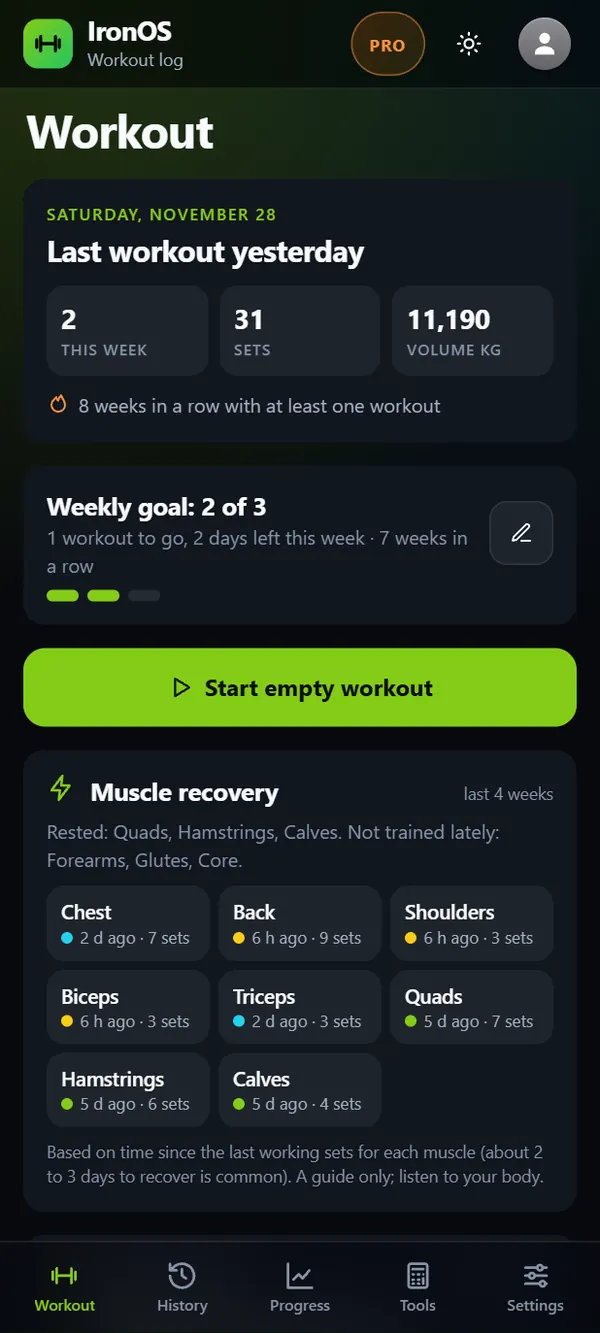
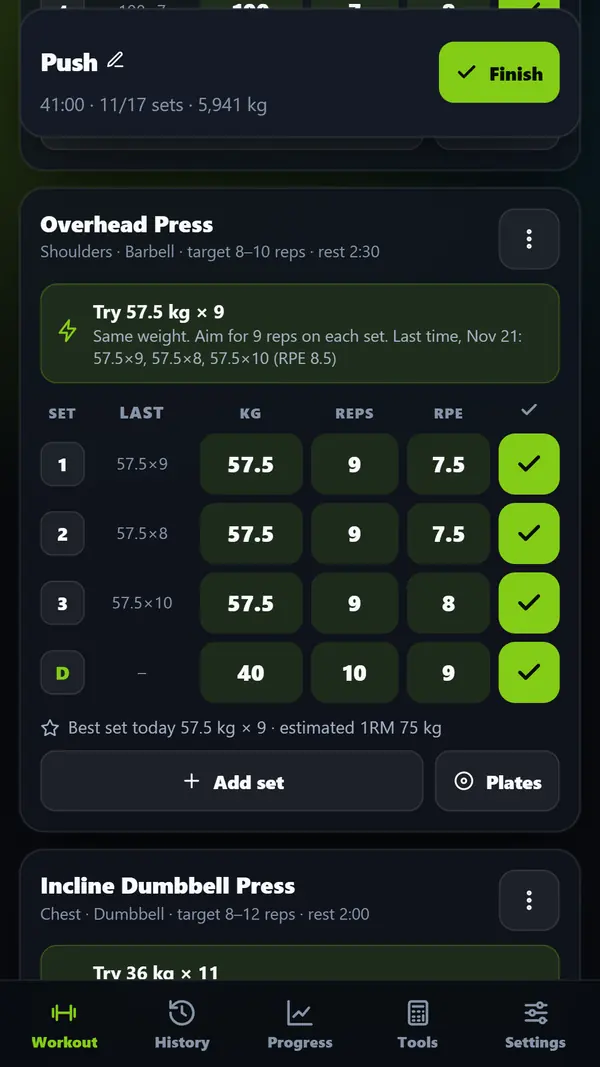
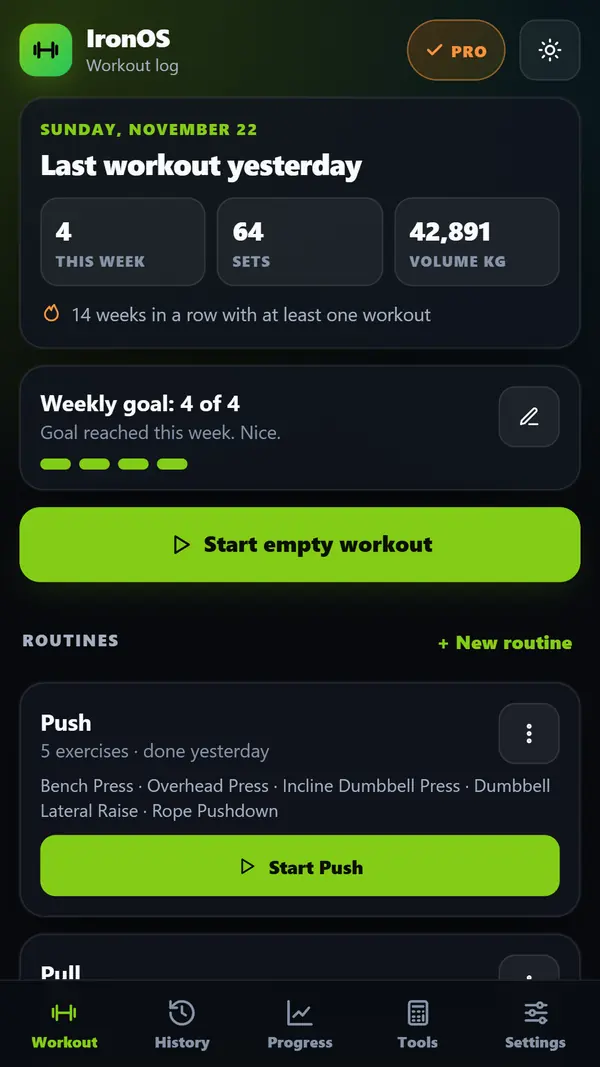
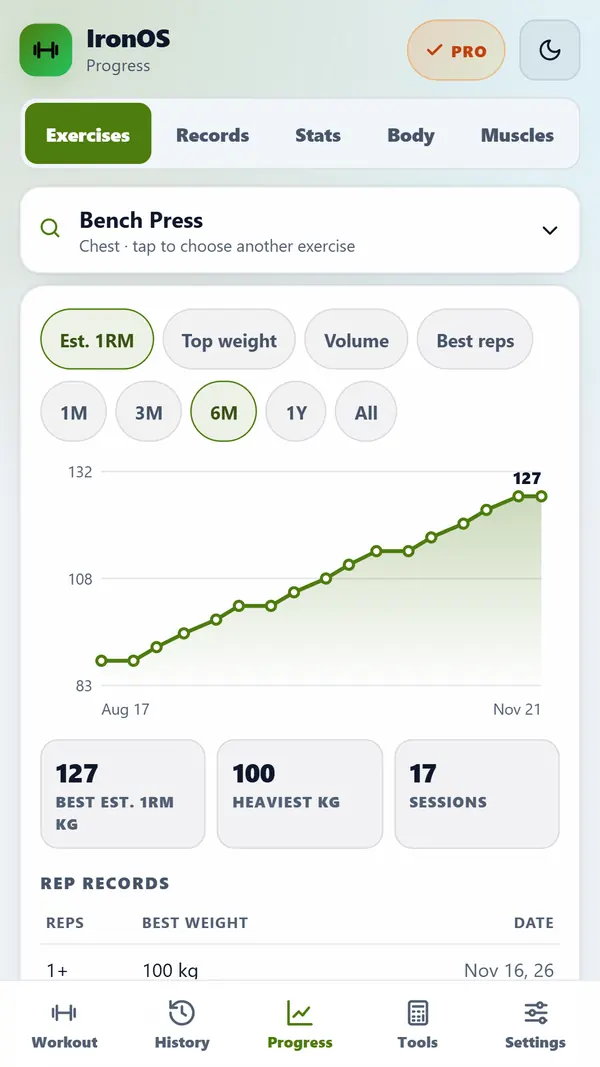
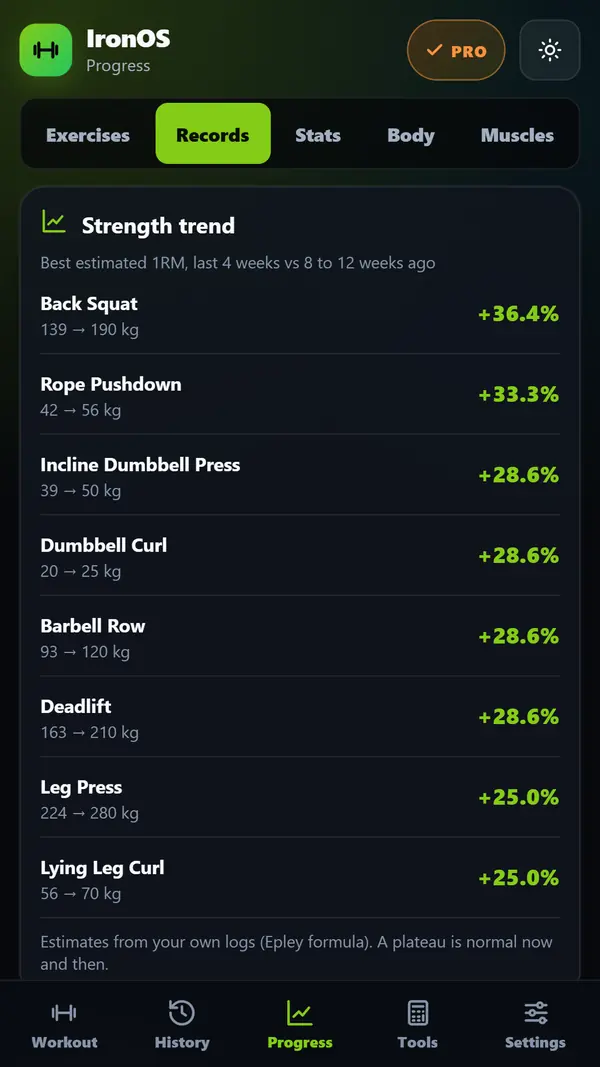
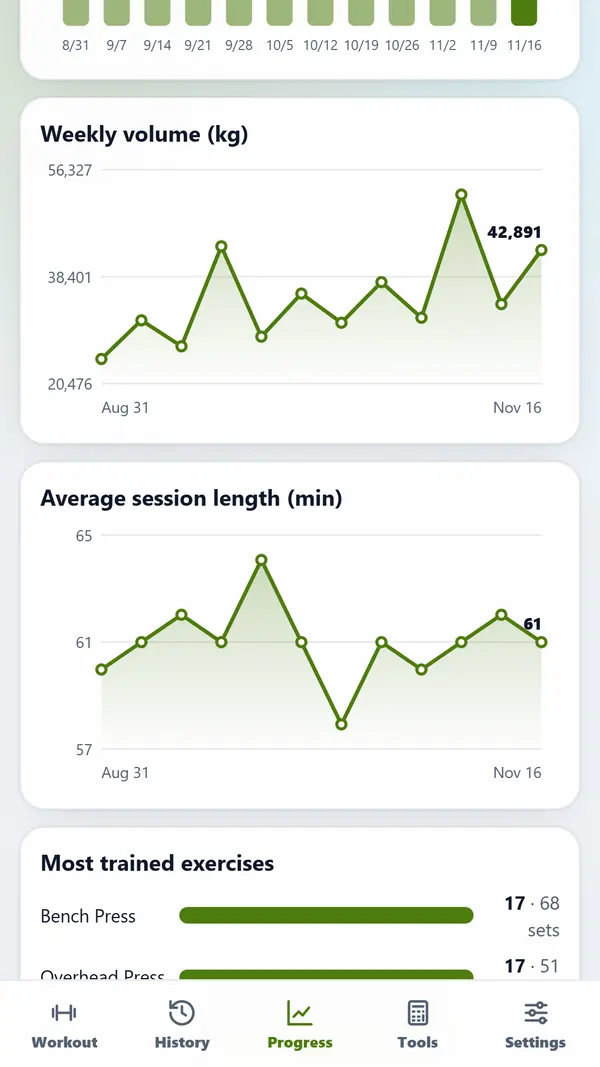
IronOS is a fast, private gym workout log for strength training and bodybuilding. Log weight, reps and RPE in a couple of taps, see exactly what you lifted last time, and get a simple progression hint for every exercise. Works offline, no account needed.
What's new in version 1.3
New in version 1.3, along with a refreshed design and the optional Bright Loop Account. Early-access testers get it through Google Play.
Muscle recovery status
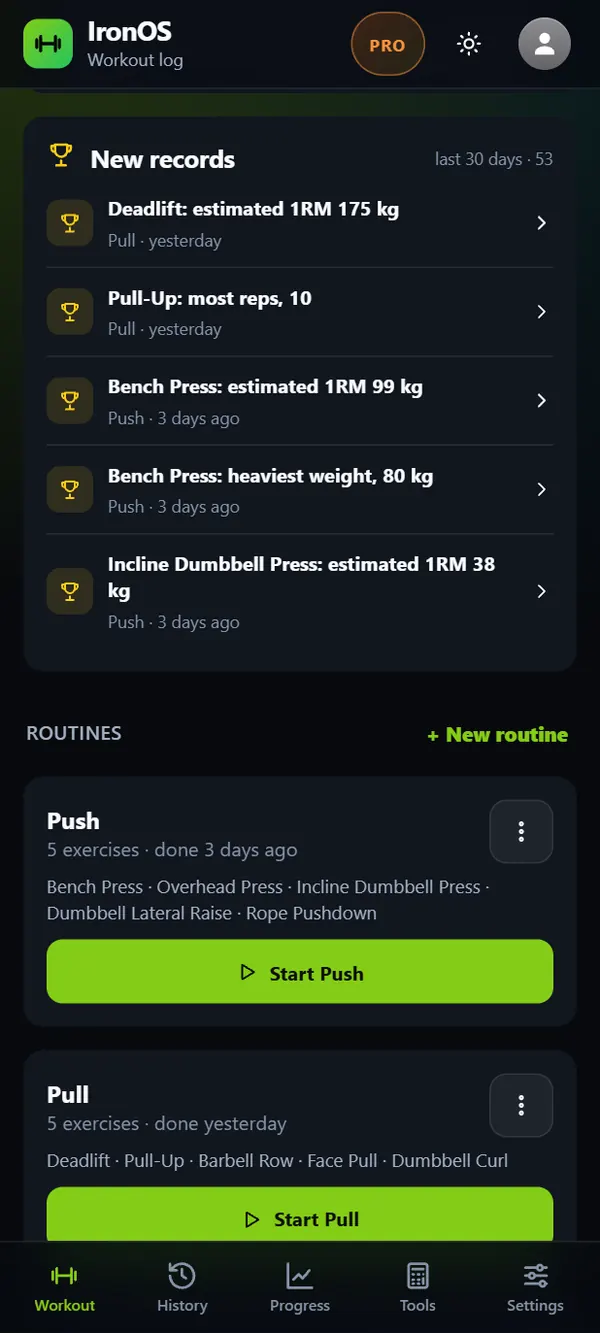
New personal records card
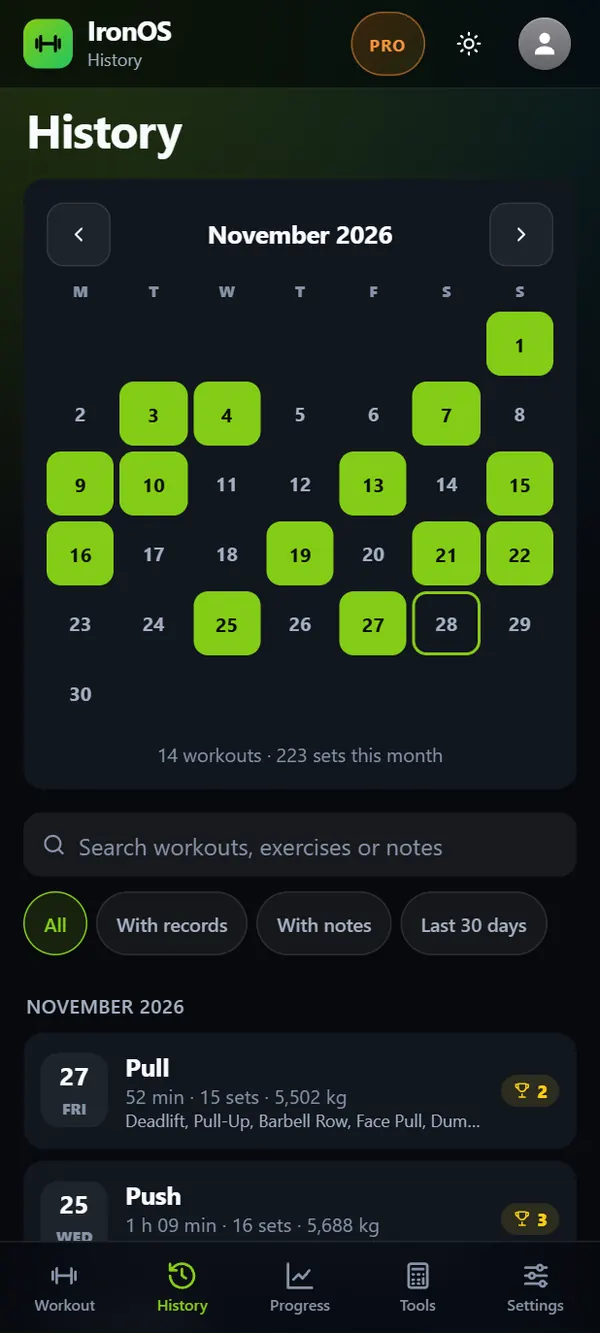
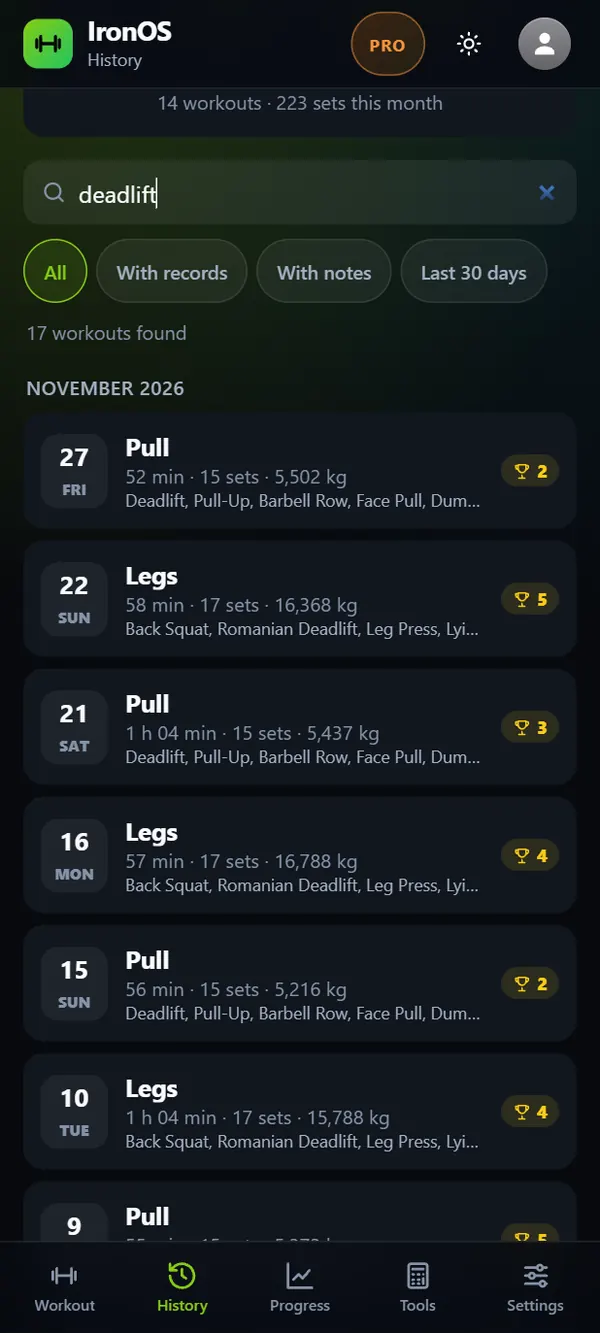
Searchable workout history
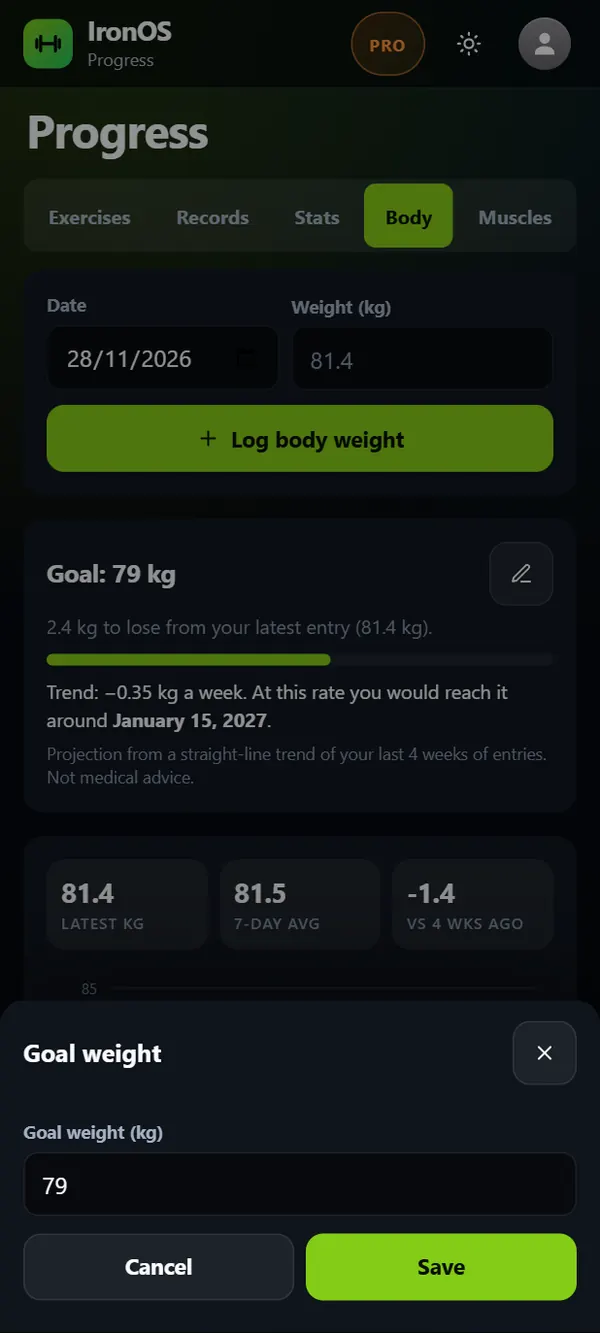
Goal weight with projected date
Auto theme
Feature tour.
Every feature in IronOS, and what it does for you. Items marked Pro are part of the optional subscription.
Fast set logging
- Last session beside every set
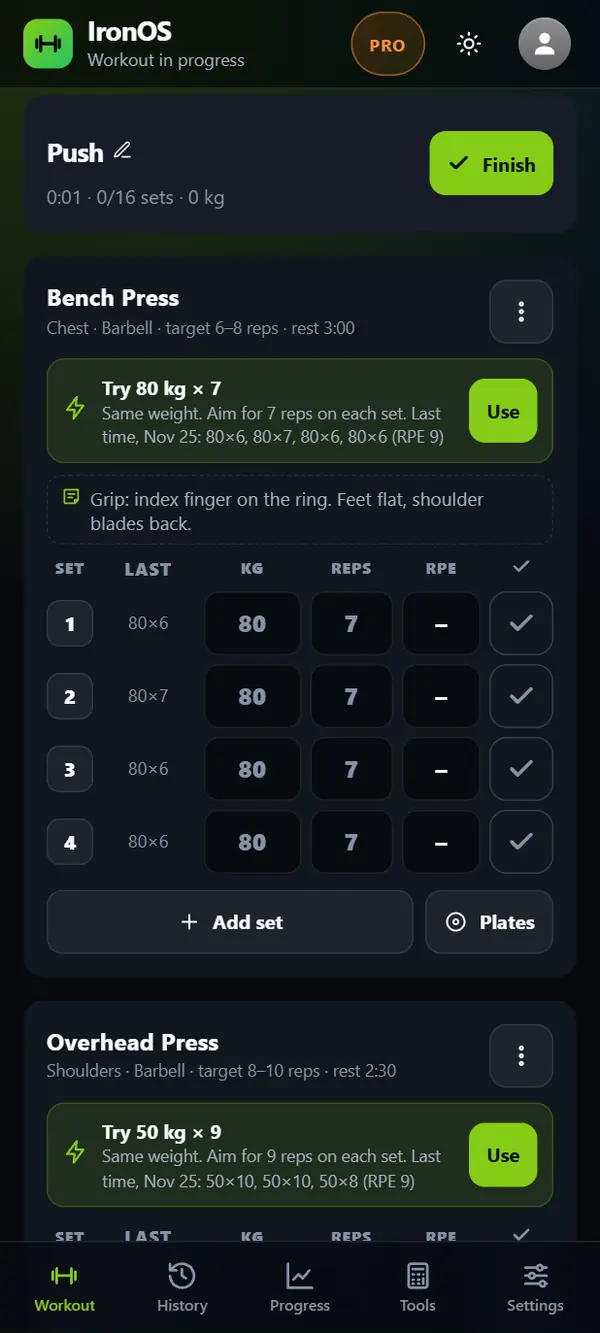
- Each set row shows what you lifted last time, so you know what to beat.
- Weight, reps and RPE
- Log weight, reps and an optional RPE from 6 to 10, and tick the set when done.
- Warm-up, drop and failure sets
- Tap a set number to mark it as a warm-up, drop set or set to failure, or to duplicate or delete it.
- Supersets
- Link exercises into a superset; the rest timer waits until the last exercise in the group.
- Pinned notes
- Pin a note to an exercise (seat height, grip, cues) and it shows every time you do it.
- Reorder, duplicate or delete with undo
- Move exercises up or down, replace them, and undo a deletion.
Progression and records
- Progressive overload hints
- Based on your last session, IronOS suggests adding a small step of weight, adding a rep, or repeating a very hard session. With a rep range it adds weight once you hit the top on every set.
- Estimated 1RM
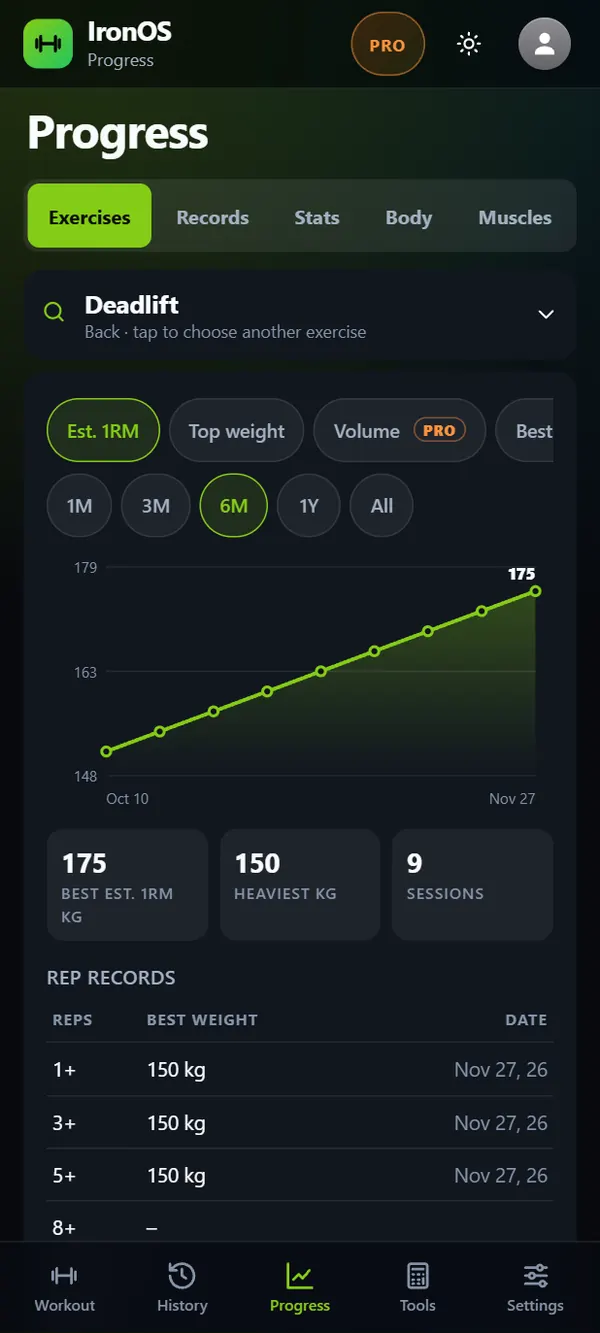
- An Epley-based estimated one-rep max per exercise, labelled as an estimate, with charts.
- Personal and rep records
- Records are flagged as you lift, with rep records for 1 to 12 reps for each exercise.
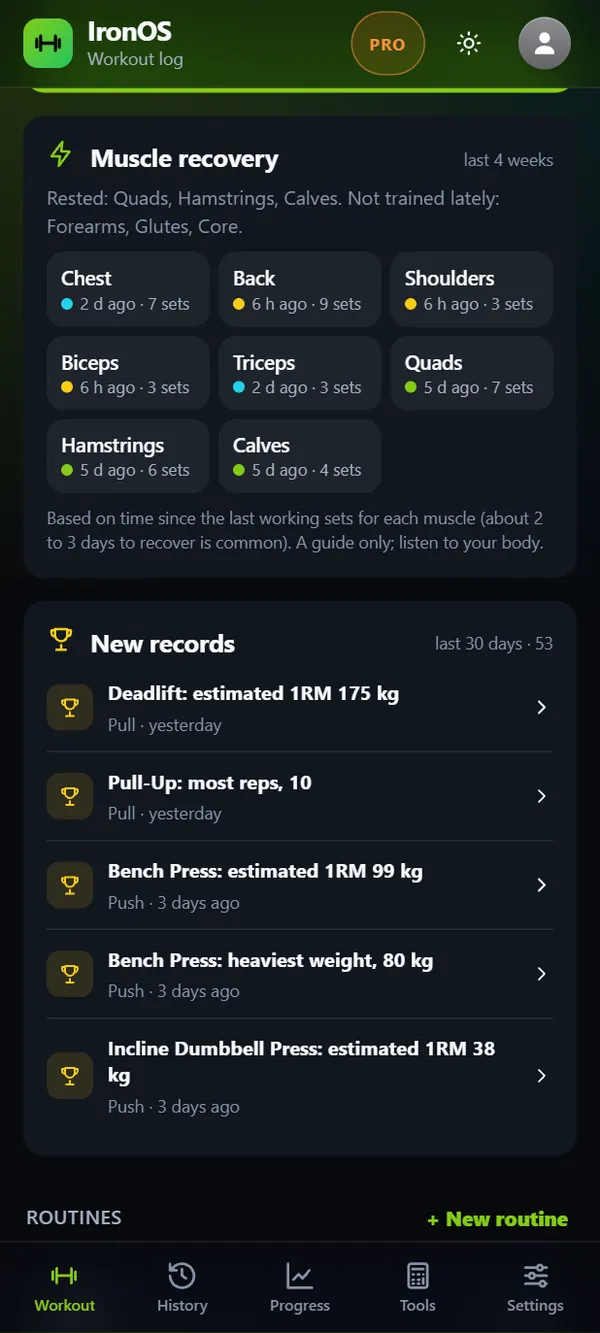
- New records card
- The Workout tab lists the records you set in the last 30 days; tap one to open that workout.
- Strength trend Pro
- Which lifts went up over the last 3 months and which have not set a new best for 6 weeks.
Routines and library
- 130+ exercises
- A library by muscle group and equipment, plus your own custom exercises.
- Routines
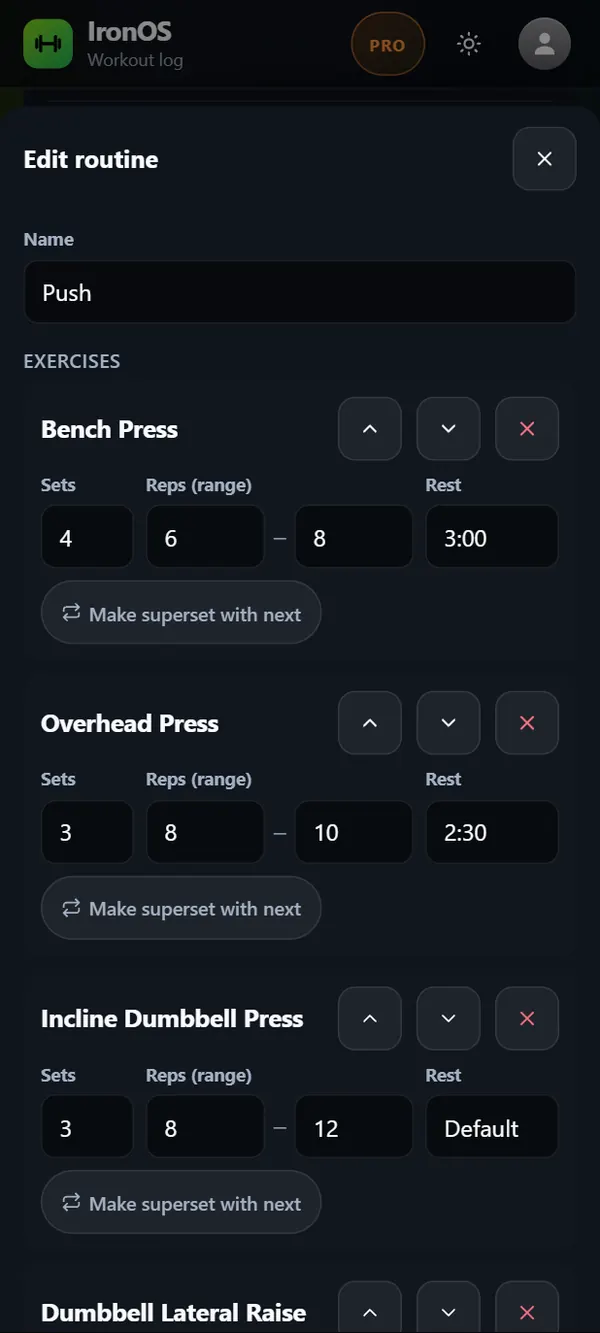
- Target sets, rep ranges, rest times and supersets per exercise. The free version keeps up to 4 routines.
- Starter plans
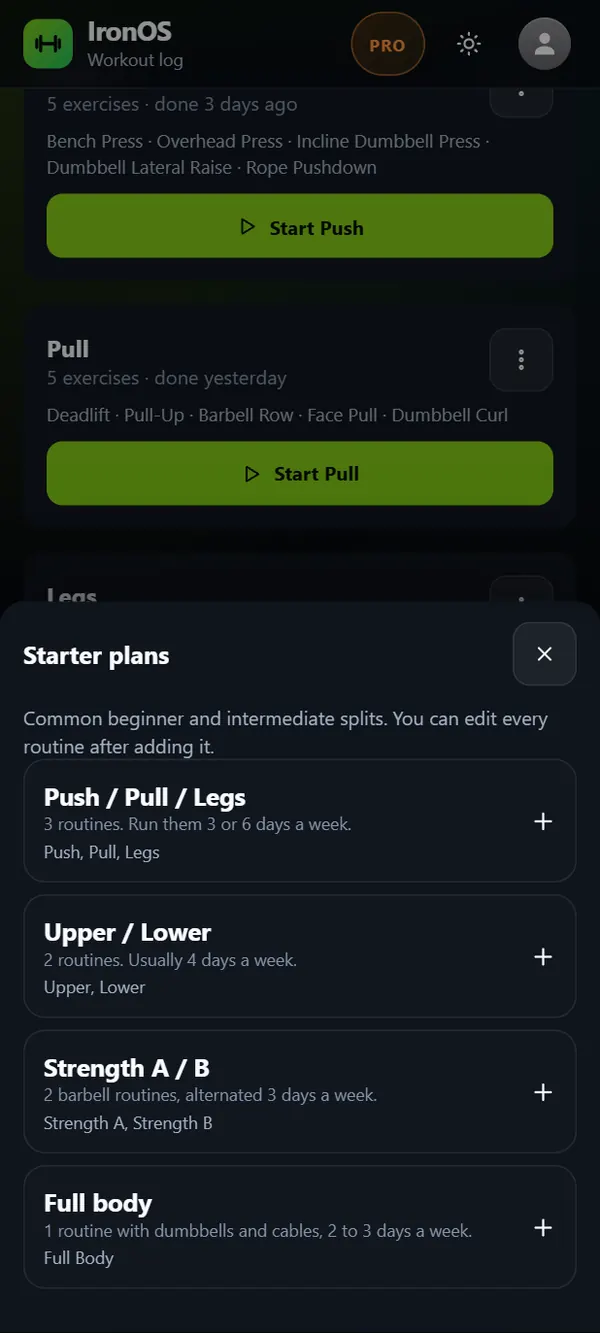
- Push / Pull / Legs, Upper / Lower, Strength A / B and Full body, all editable after you add them.
- Unlimited routines Pro
- Keep as many routines as you like.
- Warm-up set planner Pro
- Plans warm-up sets from the empty bar up and adds them to an exercise in one tap.
Training overview
- Muscle recovery
- Shows how long each muscle group has rested since its last working sets, marked Recovering, Nearly ready or Ready. A guide only.
- Weekly goal
- Set workouts per week; IronOS suggests a number from your recent weeks and counts weeks in a row that met it.
- Rest timer
- Starts when you tick a set, with −15 / +15 seconds, sound, vibration and an optional alert when rest ends.
- History calendar and search
- A calendar of training days with duration, sets and volume, plus search across workouts, exercises and notes, and filters for records, notes and the last 30 days.
- Training stats
- Workouts in total, this month, this year and per week, average session length and working sets.
- Training trends and muscle volume Pro
- Weekly volume and session length over 12 weeks, most trained exercises, records per month, and working sets per muscle group each week against your 4-week average.
- Volume and best-rep charts Pro
- Extra chart types for every exercise.
Body
- Body-weight log
- Log your weight and see it with a 7-day average trend.
- Goal weight with projected date
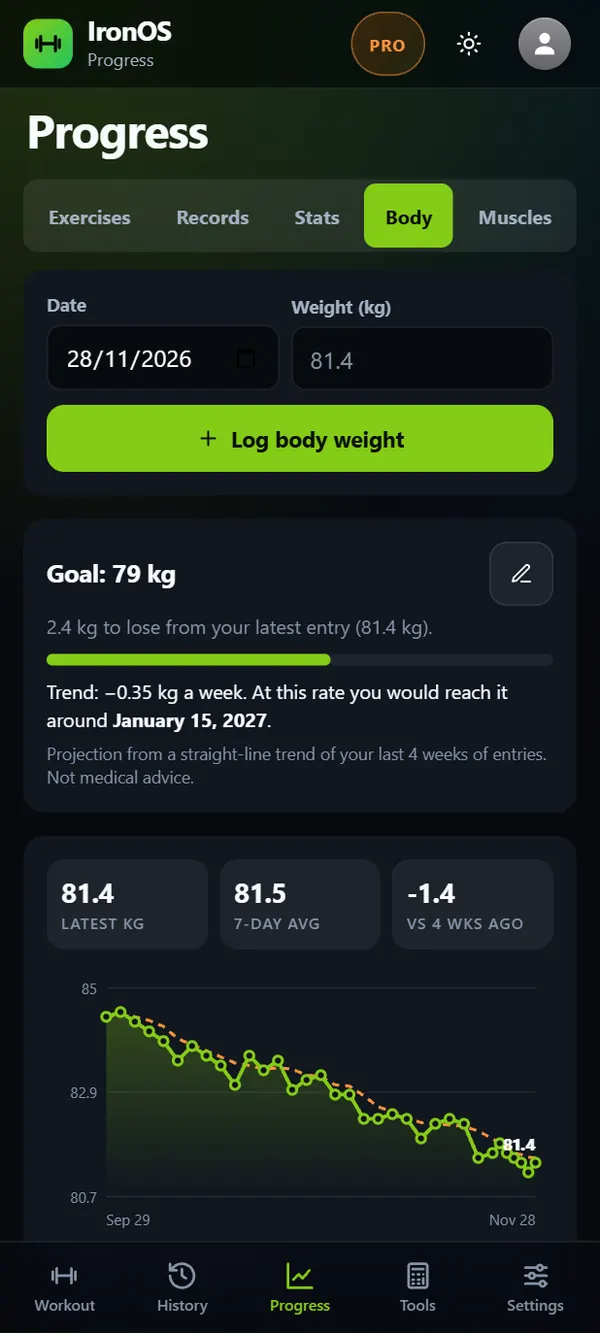
- Set a goal weight to see how far you are and, from a straight-line trend of your last 4 weeks, around when you could reach it.
- Measurements
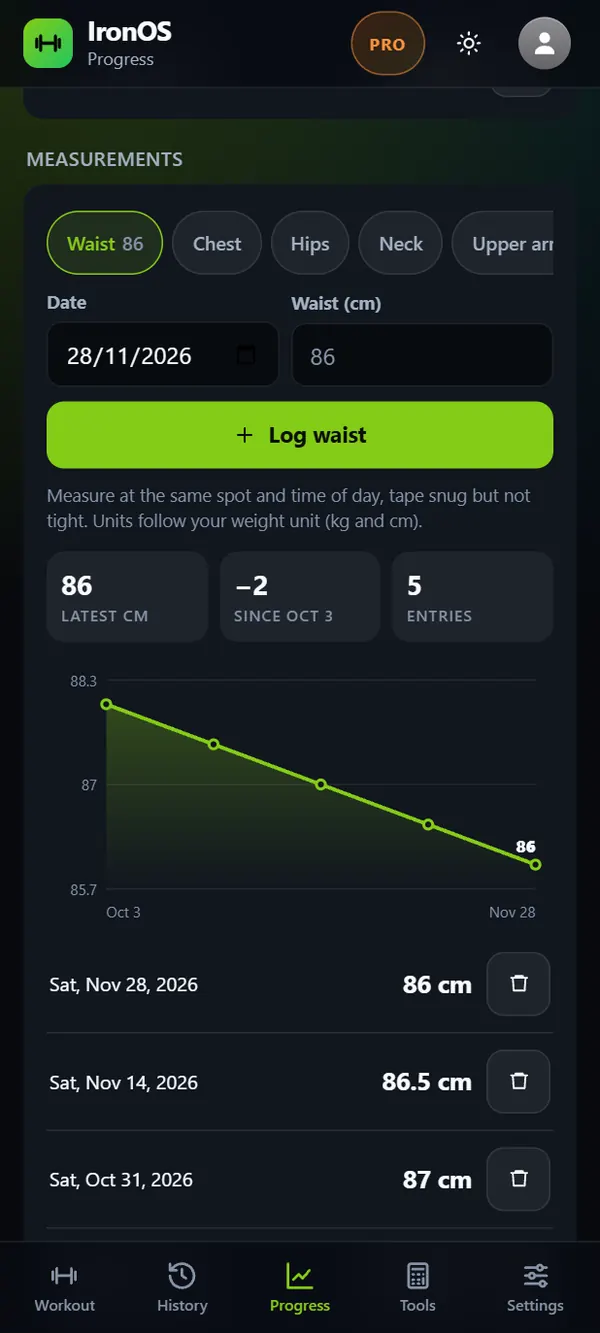
- Waist, chest, hips, neck, upper arm, thigh, calf and body fat (your own reading), each with a chart.
Tools, data and look
- Plate calculator
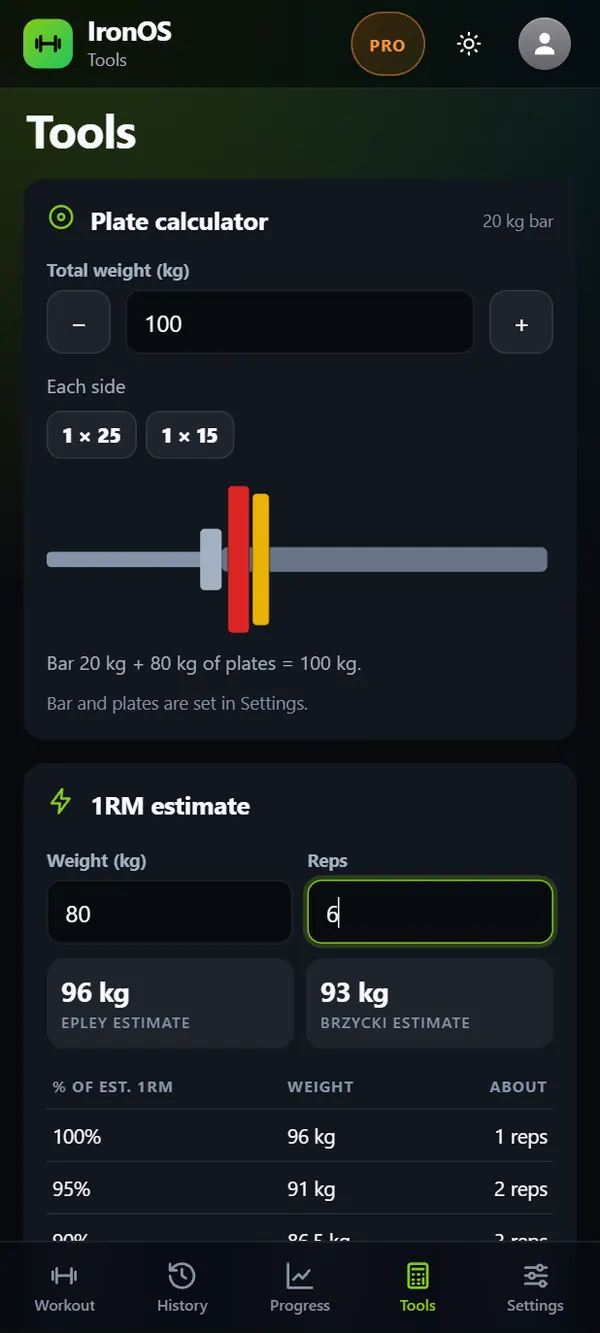
- Shows the plates per side for a total weight, using the bar and plates you set in Settings.
- 1RM calculator
- Enter a set you have done to get Epley and Brzycki estimates and a percentage table.
- CSV import
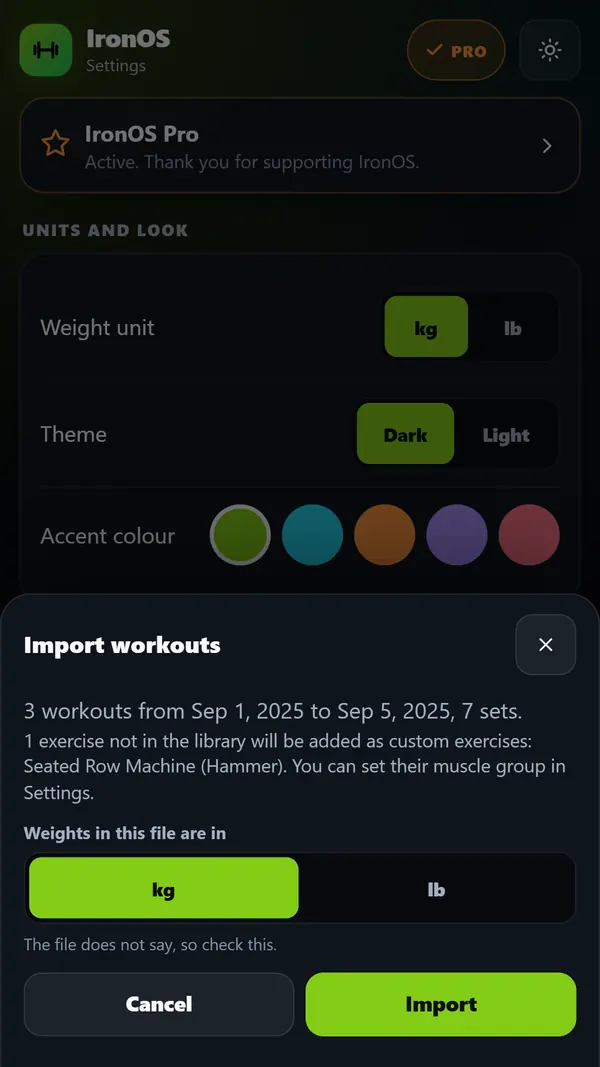
- Import history from another workout app's CSV export; unknown exercises become custom ones and duplicates are skipped.
- CSV export and backup
- Export every set, body weight and measurements as CSV, and back up everything to a file.
- Auto, Dark or Light theme
- Auto follows your phone's light or dark setting.
- Accent colours Pro
- Five accent colours for light and dark mode.
- Optional Bright Loop Account
- Sign in only if you want cloud backup and sync; IronOS works offline without an account.
Full store description
Fast set logging
- Each set shows what you did last session
- Weight, reps and RPE (6 to 10); mark warm-up, drop and to-failure sets
- Supersets: link exercises and the rest timer waits until the last one in the group
- Reorder, duplicate or delete with undo
- Pinned notes per exercise (seat height, grip, cues) that show every time you do it
Progressive overload hints
- Based on your last session: add a small step of weight, add a rep, or repeat a very hard session
- With a rep range (say 8 to 12), it adds weight once you hit the top on every set
Exercise library and routines
- 130+ exercises by muscle group, plus your own custom exercises
- Routines with target sets, rep ranges, rest times and supersets
- Starter plans you can edit: Push / Pull / Legs, Upper / Lower, Strength A / B, Full body
Weekly goal
- Set workouts per week; IronOS suggests a number from your recent weeks and counts weeks in a row that met it
Rest timer
- Starts when you tick a set, with plus or minus 15 seconds, sound, vibration and an optional alert
Progress, records and stats
- Estimated 1RM per exercise (Epley, labelled as an estimate) with charts
- Personal records flagged as you lift, and rep records for 1 to 12 reps
- Pro: strength trend, which lifts went up over 3 months and which stalled
- Training stats: workouts per week, month and year, session length
- History calendar with duration, sets and volume
Body
- Body-weight log with a 7-day average trend
- Measurements such as waist, arm and body fat (your own reading) with charts
Switching is easy
- Import your history from another workout app's CSV export; unknown exercises become custom ones and duplicates are skipped
Tools and data
- Plate calculator using the bar and plates you own, and a 1RM calculator
- Export every set, body weight and measurements as CSV; back up everything to a file
How to use IronOS.
Step-by-step walkthroughs of the main tasks, with screens from the current version.
1Log a workout from a routineStart a routine, log each set with last session and a progression hint beside it, and save the workout.
- Step 1
On the Workout tab, scroll to your routines and tap Start Push (or any routine). Tap Start empty workout if you want to build the session as you go.
- Step 2
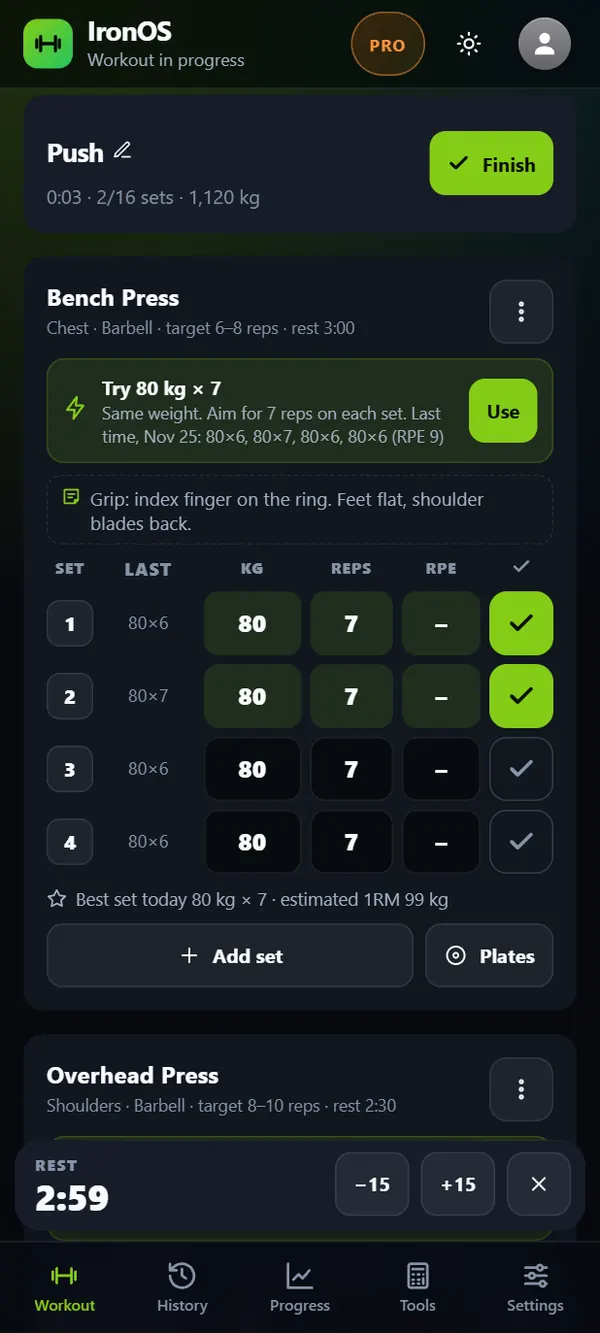
Each exercise shows what you lifted last time in the Last column, your pinned note, and a hint such as Try 80 kg × 7. Tap Use to fill every set with the suggestion.
- Step 3
Adjust weight, reps and RPE if needed, then tap the tick on each set. The rest timer starts at the bottom; use −15 / +15 to adjust it.
- Step 4
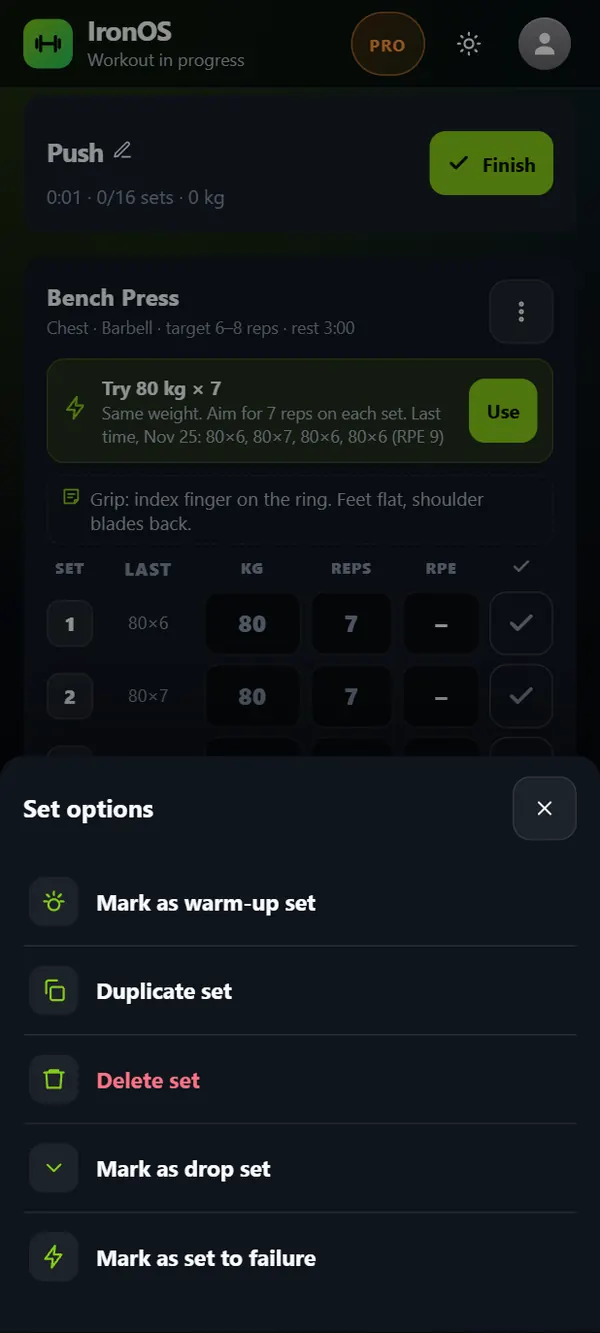
Tap a set number to mark it as a warm-up, drop set or set to failure, or to duplicate or delete it.
- Step 5
Tap Finish when you are done. The summary shows time, sets, volume and any new records.
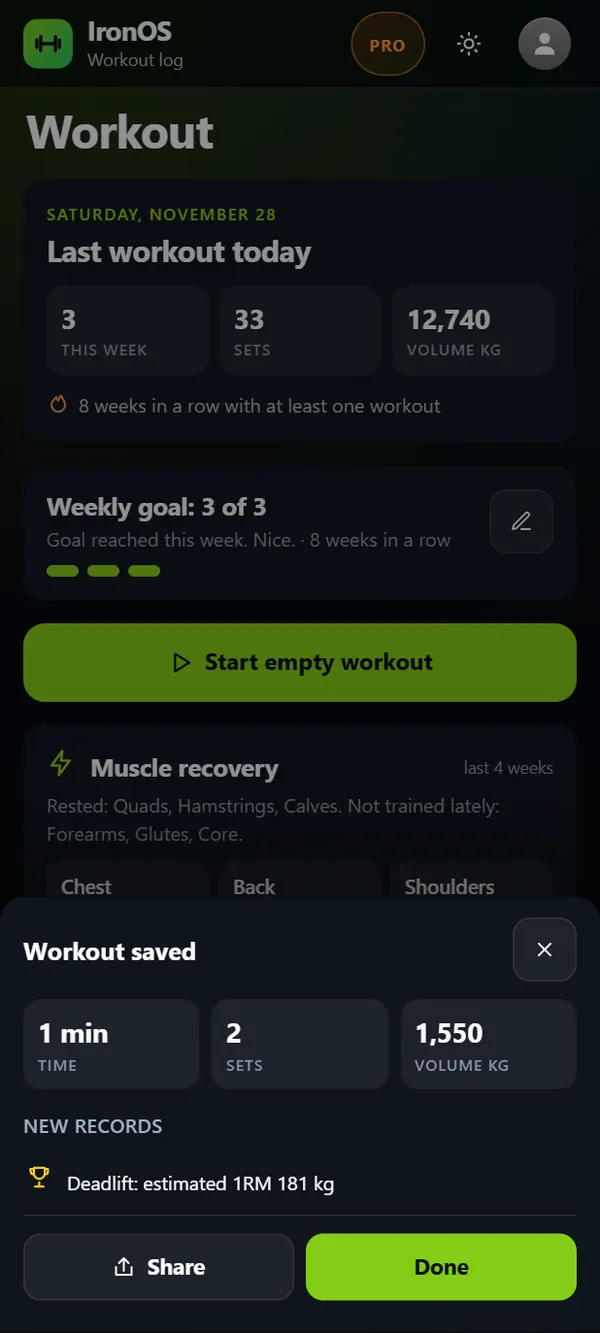
2Check recovery and recent recordsSee which muscles are rested and what records you set in the last 30 days before you pick a session.
- Step 1
Open the Workout tab. The top card shows workouts this week and your weekly goal progress.
- Step 2
Scroll to Muscle recovery. Each muscle group shows how long ago it got working sets, colour-coded as recovering, nearly ready or ready.
- Step 3
Below it, New records lists records from the last 30 days. Tap one to open that workout.
- Step 4
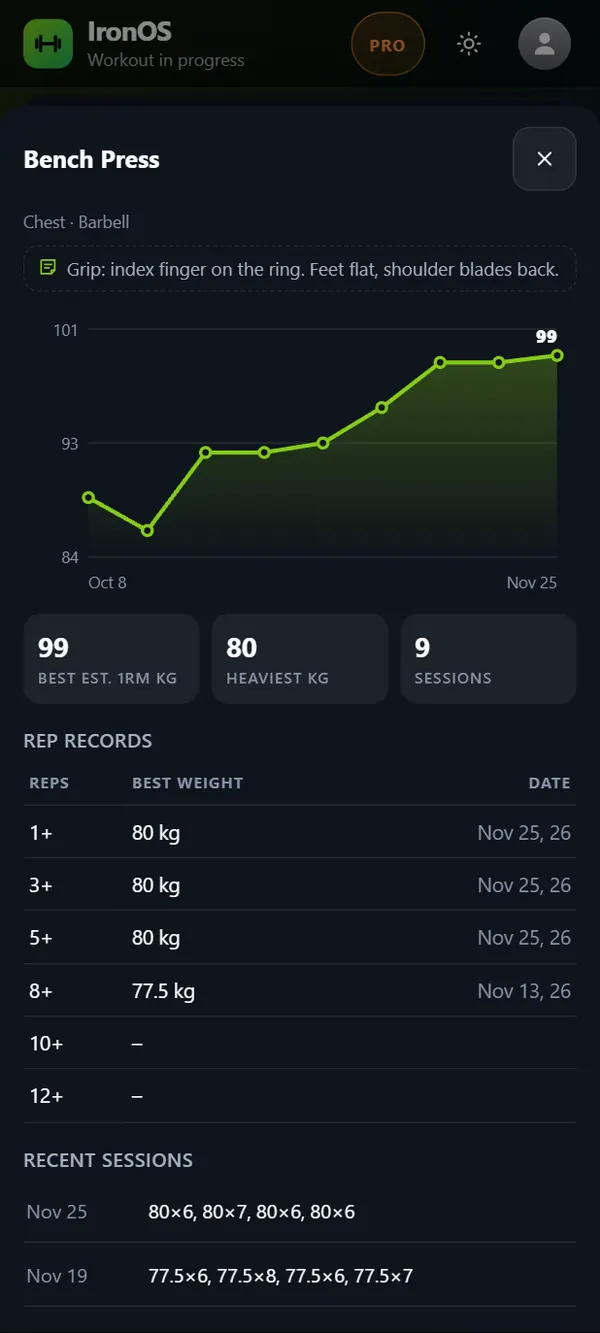
During a workout, tap an exercise name to see its chart, rep records and recent sessions.
3Find a past workoutUse the calendar, filters and search to find any session in your history.
- Step 1
Open the History tab. Days you trained are highlighted on the calendar, with the month total below.
- Step 2
Type in Search workouts, exercises or notes, or use the With records, With notes and Last 30 days filters.
- Step 3
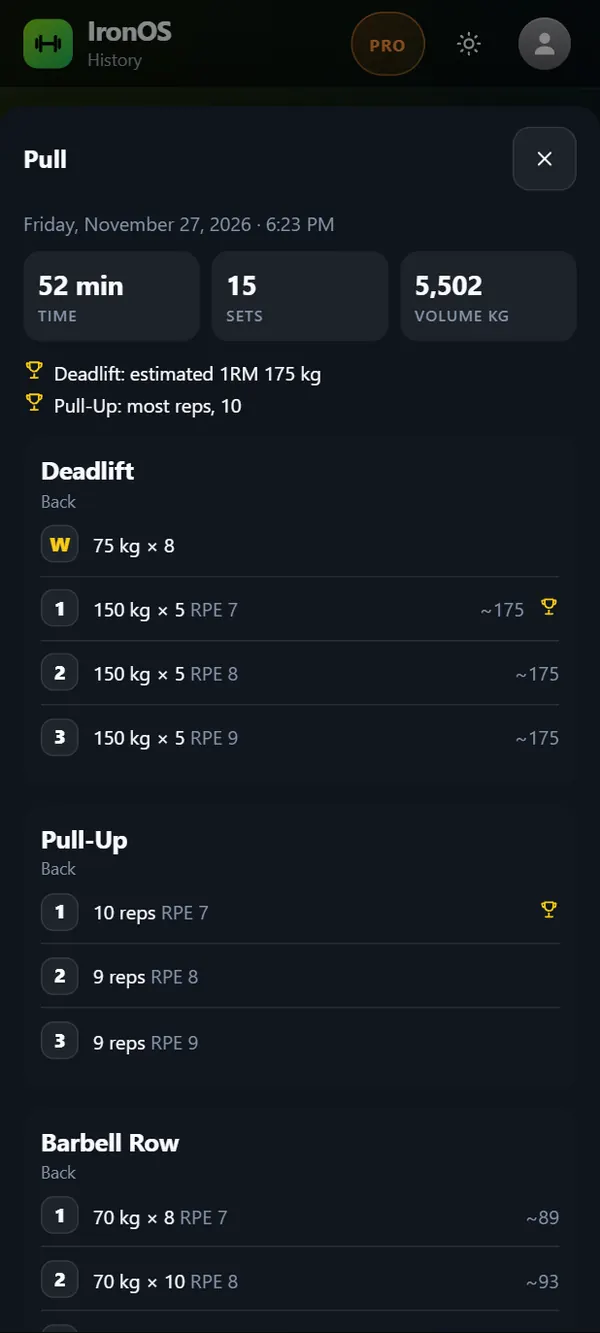
Tap a workout to see every set, RPE, estimated 1RM per set and the records it set.
4Track your strength progressFollow estimated 1RM and top weight for any exercise and see your best lifts.
- Step 1
Open the Progress tab. On Exercises, tap the exercise card to choose a lift, then pick Est. 1RM or Top weight and a range from 1M to All.
- Step 2
Below the chart you get your best estimated 1RM, heaviest weight, session count and rep records. The same view opens when you tap an exercise name during a workout.
- Step 3
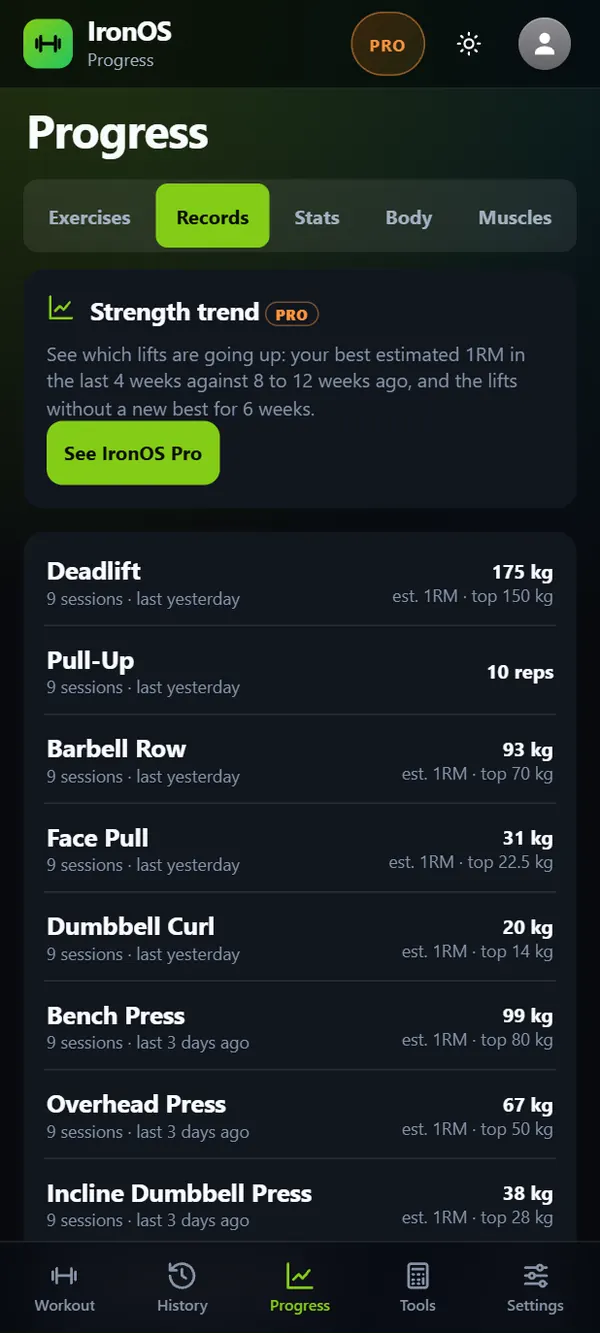
Switch to Records for the best lift of every exercise you have logged.
5Log body weight and set a goal weightTrack body weight with a 7-day average, set a goal and see a projected date.
- Step 1
Open Progress and choose Body. Enter today's weight and tap Log body weight.
- Step 2
Tap Set goal (or the pencil on the goal card), enter your goal weight and tap Save.
- Step 3
The goal card shows how far you are and, from your last 4 weeks of entries, roughly when you could reach it.
- Step 4
Scroll to Measurements, pick waist, upper arm, body fat or another measurement, and log it.
6Set up routines and preferencesAdd a starter plan, tune each routine and choose units, theme and rest timer.
- Step 1
On the Workout tab tap Add a starter plan and pick Push / Pull / Legs, Upper / Lower, Strength A / B or Full body.
- Step 2
Tap a routine name to edit it: sets, rep range and rest per exercise, order, and Make superset with next.
- Step 3
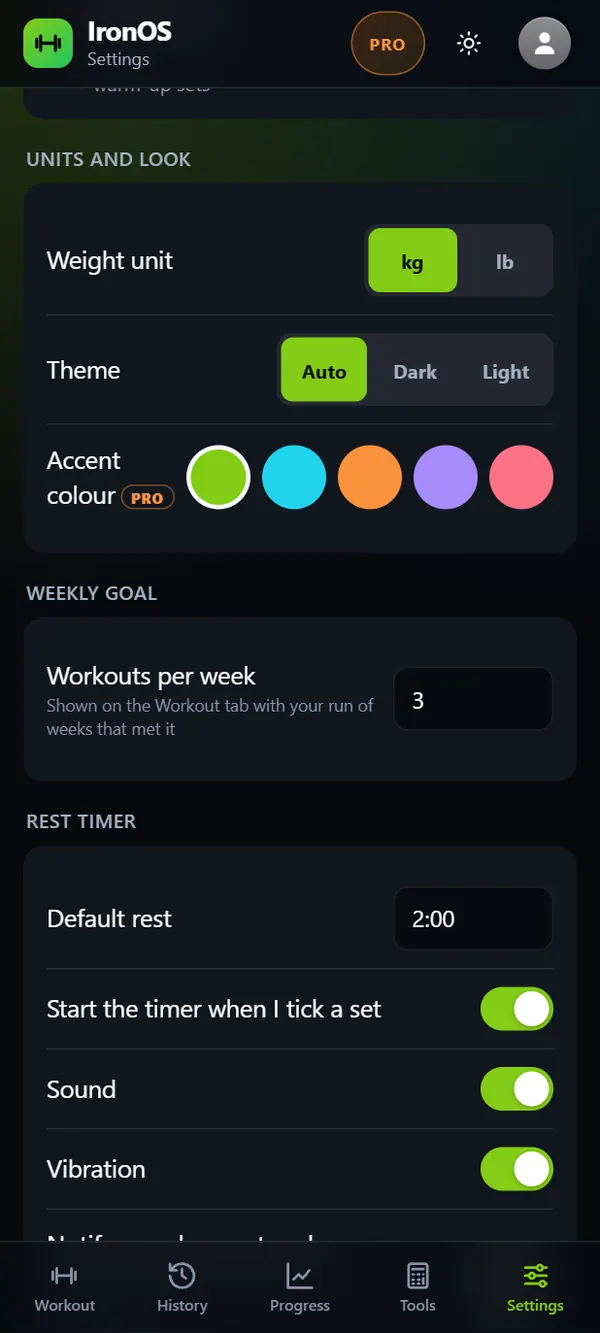
In Settings, choose kg or lb and the Auto, Dark or Light theme, then set workouts per week and your rest timer options.
- Step 4
The Tools tab has a plate calculator for the bar and plates you own and a 1RM estimate.
Free, with optional Pro.
Download IronOS free. Pro is optional and billed by Google Play, which shows the price before you confirm.
Free
- Unlimited workouts and history
- The full library and custom exercises
- Supersets
- Drop and failure sets
- Pinned notes
- A weekly goal
- Up to 4 routines
- Rest timer
- Progression hints
- Estimated 1RM
- Records
- 1RM and top-weight charts
- Training stats
- Body weight and measurements
- CSV import and export
- Backup
- Dark and light themes
IronOS Pro (optional subscription, monthly or yearly)
- Unlimited routines; strength trend; training trends (weekly volume, session length, most trained exercises, records per month); a weekly muscle volume report; volume and best-rep charts; a warm-up set planner; five accent colours
Prices and any trial are shown by Google Play. Renews until you cancel in Google Play.
Manage or cancel subscriptions in Google Play > Payments & subscriptions. Purchases and Restore purchases
Try it now.
Open IronOS right here in your browser, or download the Android app file directly.
Open in browser
The full IronOS app, running in a new tab. Nothing to install.
Some phone-only features, such as purchases, notifications, sharing and camera scanning, work only in the Android app. Anything you do in the browser is saved in that browser only, unless you sign in to the Bright Loop Account.
Download the APK
Install IronOS on an Android phone without Google Play.
- Version
- 1.3
- Size
- 3.9 MB
- SHA-256
ec80976f46a2c746626a3915edad711e0dc3b555ff97388dbedb8d3db7b7e40a
An APK installed from this website can't be updated from Google Play later. To switch to Google Play, uninstall it and install from Play. Your data only comes with you if you back it up with the Bright Loop Account first. How to install an APK
Requirements & details.
- Requires
- Android 7.0 or later
- Size
- 3.9 MB
- Version
- 1.3
- Price
- Free, optional Pro subscription
- Internet
- Not required
- Account
- Optional Bright Loop Account
- Ads
- None
- Category
- Health & Fitness
- Developer
- Bright Loop (Google Play: Bright Loop Games)
- Availability
- Early access (Google Play closed testing)
- Web version
- Open in browser
How to get IronOS.
IronOS is in early access through Google Play closed testing. It takes about two minutes.
- Ask to join the tester listEarly access runs as a Google Play closed test, so your Google account must be on the tester list before the opt-in link works. Send us the Gmail address you use on Google Play and we'll add you.
- Open the opt-in linkOn your Android phone, signed in to the same Google account, open the IronOS early access link.
- Tap "Become a tester"Google Play confirms that you've joined the test.
- Install from Google PlayTap the "download it on Google Play" link on that page, or open the Google Play page, then tap Install. Updates arrive through Google Play like any other app.
- Tell us what you thinkEarly access means your feedback shapes the next update. Email rehman@mindum.dev any time.
Link not working? See Troubleshooting or the full early access guide.
Account & sync.
Optional. IronOS works fully without an account. Sign in to the free Bright Loop Account to back up your IronOS data and keep it in sync across your phones.
What syncs
- Workouts, sets and personal records
- Routines, your own exercises and body stats
- Goals and settings
What stays on this phone
- A rest timer that is running
- Your Pro status (Google Play restores it)
Account & Sync is part of IronOS 1.3. Look for it at the top of Settings.
Privacy.
IronOS keeps your data on your phone. No ads and no analytics.
If you sign in
The Bright Loop Account is optional. If you sign in, IronOS backs up the records listed under Account & sync to your account so you can restore them on another phone. Photos and files are never uploaded, and you can export or delete your cloud data at any time.
Read the full Privacy Policy.
Tips.
- Set a rep range on routine exercises (for example 8 to 12): the hint only adds weight once you hit the top of the range on every set.
- Pin a note to exercises with machine settings, like seat height, so you never have to remember them.
- Use the Muscle recovery card to choose between routines: pick the one whose muscles show as ready.
- Set the bar and the plates you actually own in Settings so the plate calculator only uses plates you have.
- Weigh in at the same time of day and watch the 7-day average rather than single readings.
- Back up everything to a file before you change phones, or use the optional Bright Loop Account to sync.
Troubleshooting.
No progression hint on an exercise
Hints need an earlier session with ticked working sets for that exercise. Log it once and the hint appears next time.
A workout was not saved
Only ticked sets are saved. If no set is ticked, Finish offers to discard the workout, so tick each set as you complete it.
The rest timer did not alert me with the screen off
Turn on Notify me when rest ends in Settings and allow notifications. Android may deliver the alert a few seconds late.
The plate calculator suggests plates I do not have
In Settings, under Bar and plates, set your bar weight and the plates you own.
Cannot add another routine
The free version keeps up to 4 routines. Delete one you no longer use, or get IronOS Pro for unlimited routines.
Questions.
How does IronOS decide the progression hint?
It looks at your last session for that exercise and suggests a small weight step, one more rep, or repeating the weight if the last session was very hard. With a rep range, it adds weight once every set reached the top of the range.
Is the estimated 1RM my real max?
No. It is an Epley-formula estimate from sets of up to 12 reps, labelled as an estimate. Your tested max can differ with technique, fatigue and the day.
How is muscle recovery worked out?
From the time since the last working sets for each muscle group over the last 4 weeks: under 2 days shows Recovering, 2 to 3 days Nearly ready, and longer Ready. It is a guide only.
How is the goal weight date projected?
From a straight-line trend of your last 4 weeks of body-weight entries. It is an estimate, not medical advice.
Can I move my history from another workout app?
Yes. In Settings, choose Import workouts (CSV) and pick another app's CSV export or an IronOS CSV. Existing workouts are kept, duplicates are skipped and unknown exercises become custom ones.
Do warm-up sets count toward records and volume?
No. Records and volume use working sets; warm-ups are shown with a W and left out.
Can I switch between kg and lb?
Yes, in Settings under Units and look. Body measurements follow your weight unit (cm with kg).
What is in IronOS Pro?
Unlimited routines, strength trend, training trends, the weekly muscle volume report, volume and best-rep charts, the warm-up set planner and five accent colours. Everything else is free.
Is IronOS free?
Yes. IronOS is free to download and use. IronOS Pro is an optional monthly or yearly subscription through Google Play that adds the extras listed under Free and Pro. Google Play shows the price, and any trial, before you confirm.
Why can't I find IronOS on Google Play?
IronOS is in early access (a Google Play closed test), so it only appears for people on the tester list. Follow the steps under How to get it. Once it becomes public, anyone can install it from Google Play.
Does IronOS work offline?
Yes. IronOS works without an internet connection. You only need a connection for optional things like Bright Loop Account sync and Google Play purchases.
Do I need an account?
No. IronOS works fully without one. The Bright Loop Account is optional and adds cloud backup and sync across your phones.
How do I move to a new phone?
Sign in to your Bright Loop Account on the new phone and choose "Use Cloud Data", or export a backup file on the old phone and restore it on the new one. Photos and files only move with a backup file. Pro comes back with Restore purchases. See Move to a new phone.
How do I restore a purchase?
Make sure your phone uses the same Google account you bought with, open IronOS and tap Restore purchases. Google Play checks your purchases and IronOS unlocks what you own. More about purchases.
Can I use IronOS in a browser?
Yes. Tap Open in browser to run it in a new tab. Some phone-only features, such as purchases, notifications, sharing and camera scanning, work only in the Android app, and anything you do there is saved in that browser.
Can I install it without Google Play?
Yes, with the APK on this page (version 1.3, 3.9 MB). An APK install can't be updated from Google Play later; see Install an APK on Android.
What do I need to run it?
Android 7.0 or later, or any modern browser for the web version.
Is it available on iPhone?
There's no iPhone app at the moment. IronOS is made for Android, but you can open the web version in Safari.
Get help with IronOS
Email rehman@mindum.dev. Include your phone model, Android version and what happened, and we'll take it from there.
Help Centre
Step-by-step guides for early access, sync, backups, purchases and moving phones. Visit the Help Centre
More apps you might like.
SnapMacro
Calorie and macro counter with 600+ world foods, exercise log and fasting timer.
Drift
Bedtime calculator, weekly sleep schedule, sleep sounds, sleep diary and trends
RitualOS
Track habits and streaks, and run timed morning, evening and workout routines.
GlowOS
AM/PM skincare checklist, product shelf & wishlist, skin cycling, photo diary