EchoNote
Talk or type your day. Tasks, due dates, ideas and mood are picked out for you.
Google Play pageDownload APK v1.5 · 3.9 MB
Early access on Google Play closed testing. You need to be on the tester list first: see how to join.
A closer look.
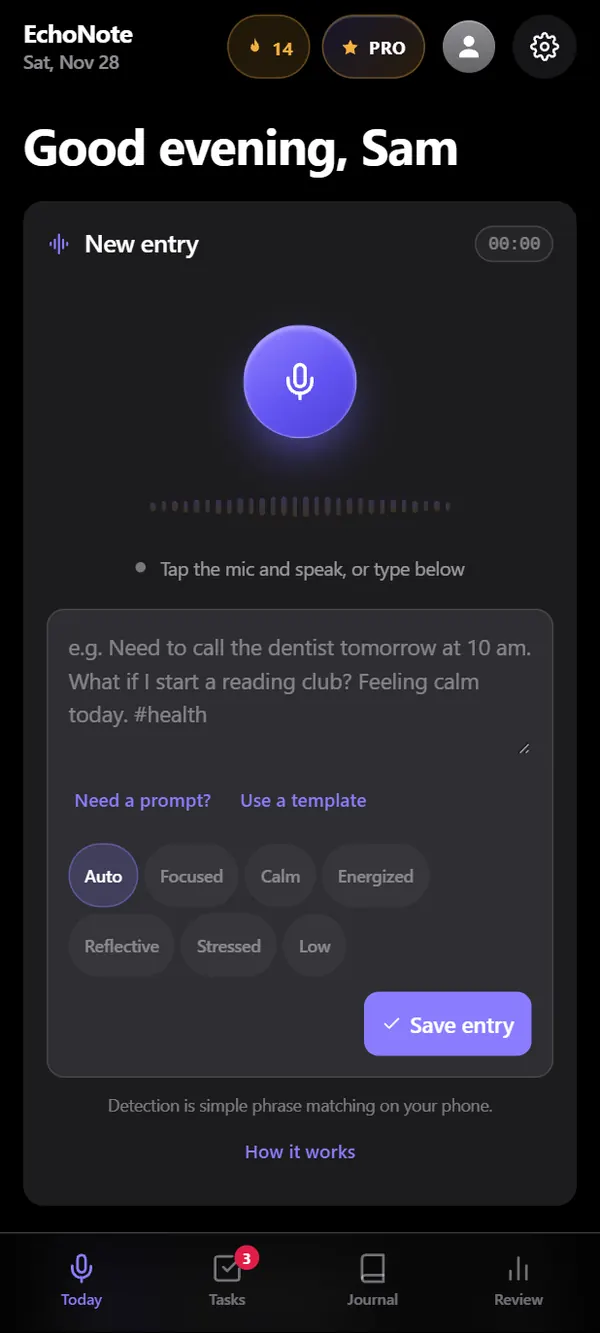
EchoNote is a voice journal and to-do list in one. Tap the mic, say what is on your mind, and your words appear as you speak. When you save, EchoNote keeps the entry and pulls out what you need to act on.
What's new in version 1.5
New in version 1.5, along with a refreshed design and the optional Bright Loop Account. Early-access testers get it through Google Play.
Recently Deleted (30 days) for entries and tasks
Daily writing goal with progress ring and streak
Checklists inside tasks
Auto appearance
Feature tour.
Every feature in EchoNote, and what it does for you. Items marked Pro are part of the optional subscription.
Capture
- Voice input with live text
- Tap the mic and your words appear as you speak, using your phone's own speech service. You can type at any time instead, and choose from 20+ speech languages in Settings.
- Phrase-based detection
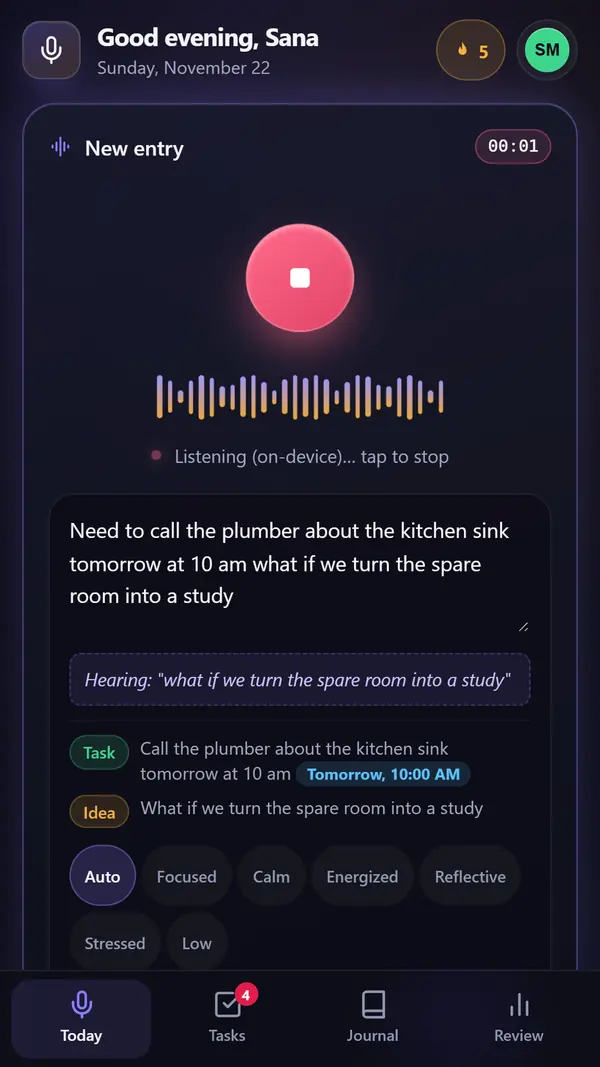
- Simple rules on your phone find tasks ("need to", "remind me to"), due dates ("tomorrow", "Friday", "at 3 pm"), ideas ("what if"), mood and #tags. It is not AI and nothing is uploaded.
- Live preview
- Before you save, the preview shows every task, due date, idea, mood and tag it found, so you can fix the text first.
- Prompts and templates
- Need a prompt? gives you a question to answer, and Use a template fills the box with one of five ready-made templates such as Daily reflection or Morning plan.
- Your own phrases and templates Pro
- Add your own trigger phrases that should count as a task or an idea, and write and save your own templates.
Tasks
- Today screen
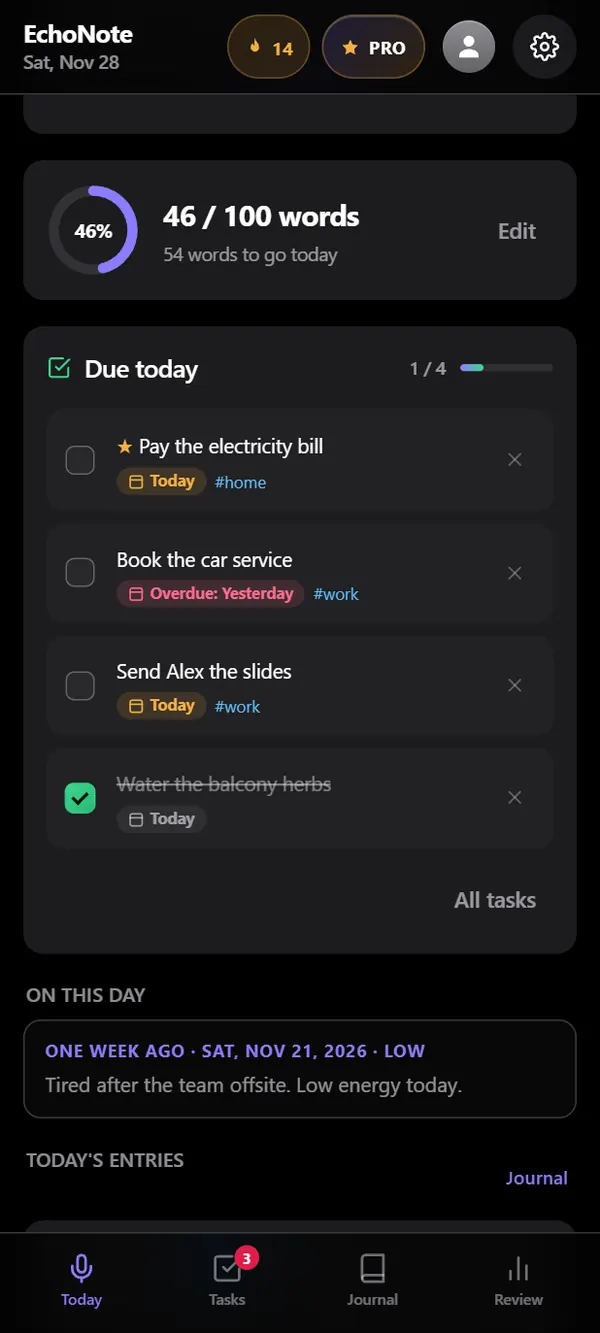
- Shows what is due today and overdue with a progress bar, plus today's entries and an "On this day" look back.
- Tasks by due date
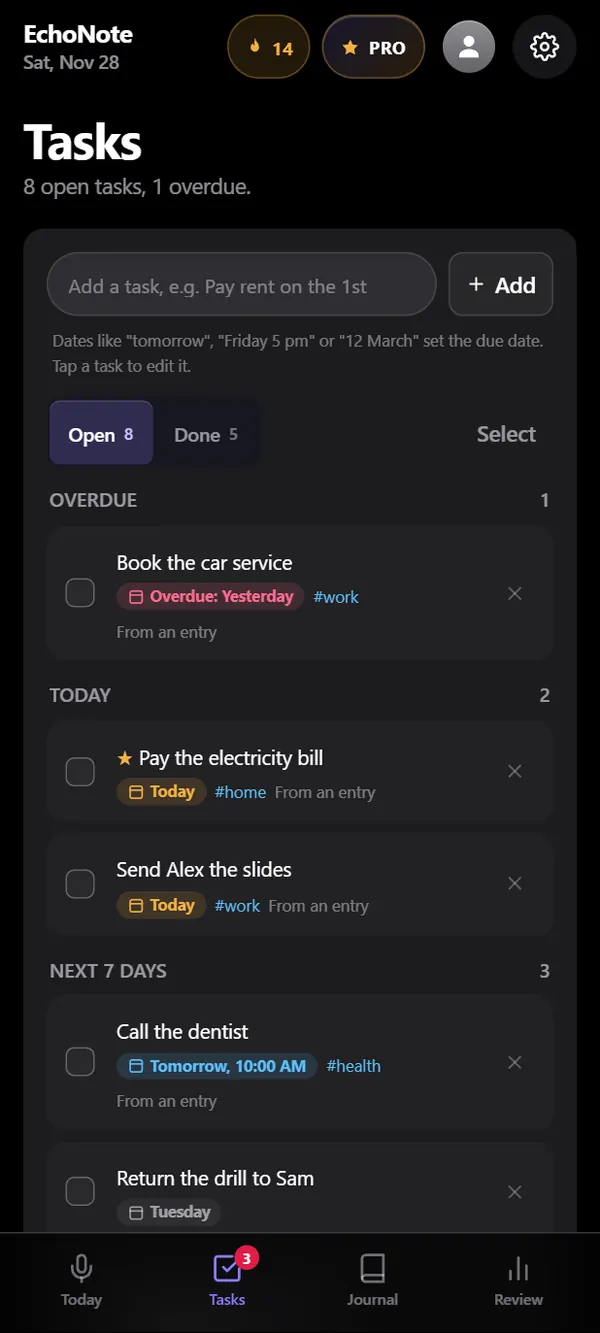
- Open tasks are grouped into Overdue, Today, Next 7 days, Later and No date. Mark a task important to keep it at the top.
- Checklists inside tasks
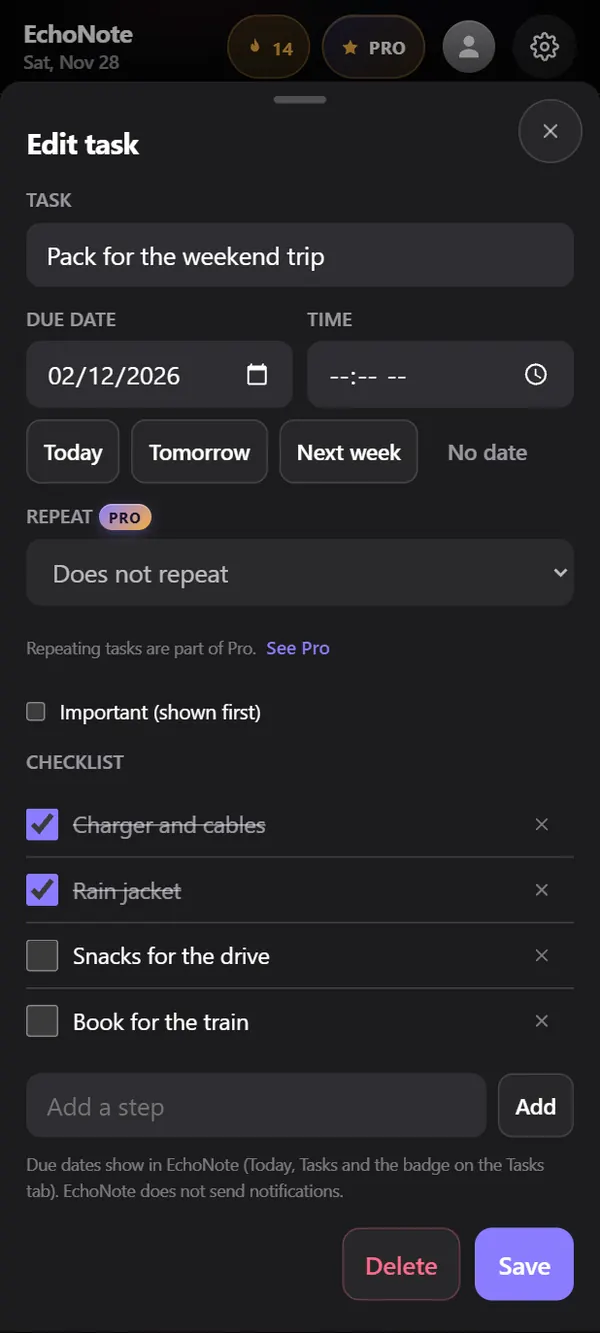
- Open a task and add up to 30 steps under Checklist. The task row shows how many steps are ticked, for example 2/4.
- Select several tasks
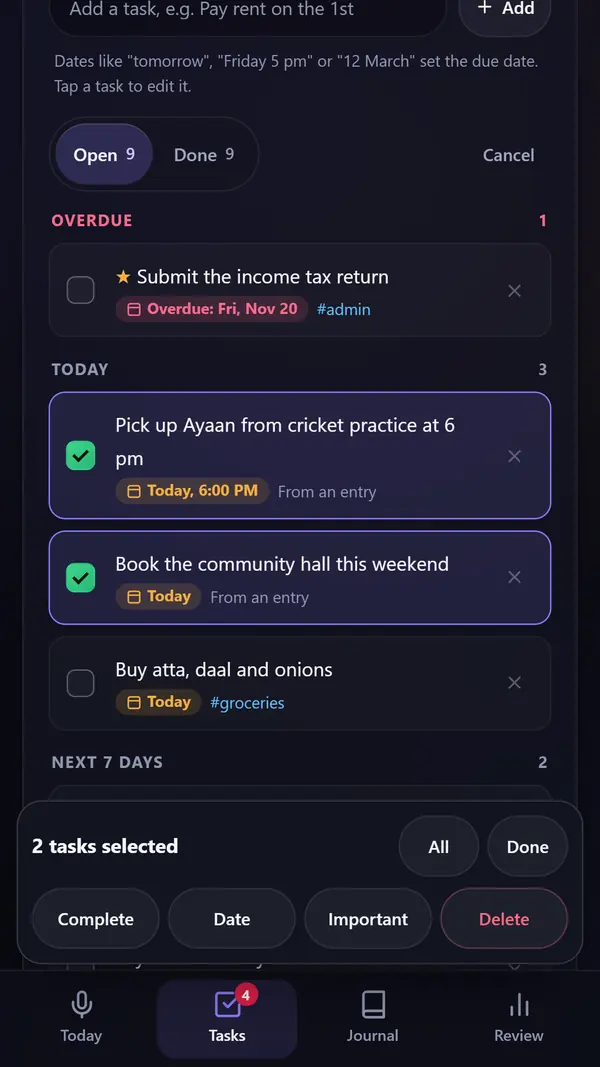
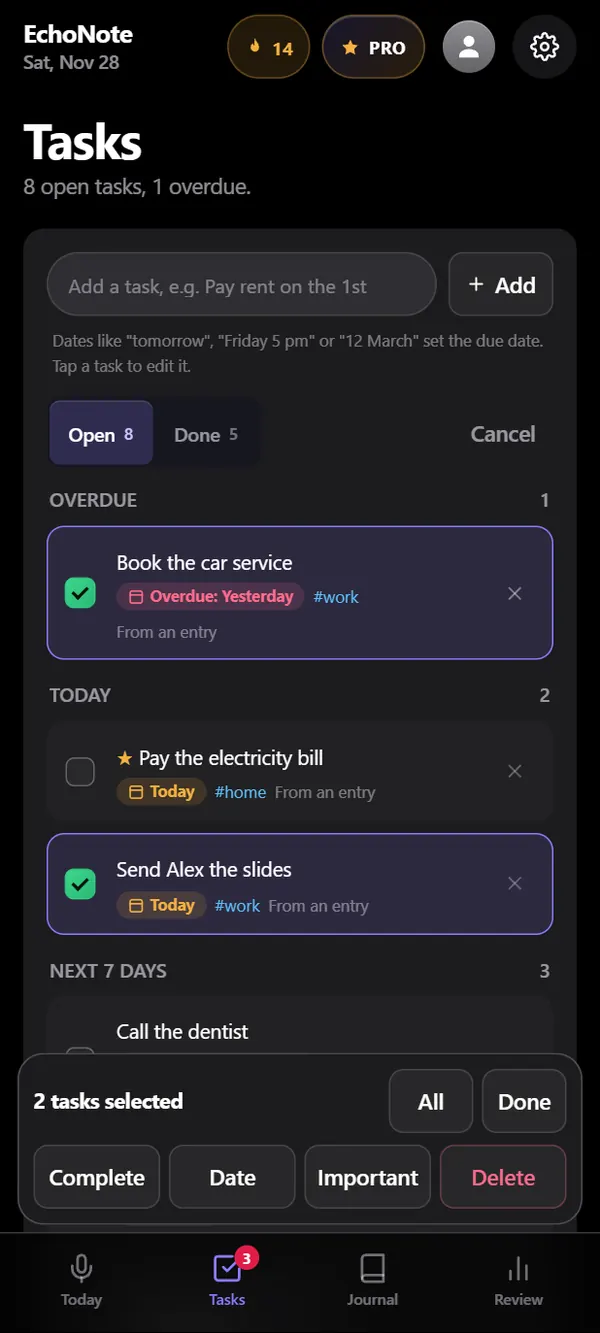
- Tap Select to complete, reschedule, mark important or delete many tasks at once, with Undo.
- Due dates without notifications
- Due dates show in the app and as a badge on the Tasks tab. EchoNote does not send notifications.
- Repeating tasks Pro
- Make a task repeat every day, every weekday, every week or every month.
Journal
- Search, filters and tags
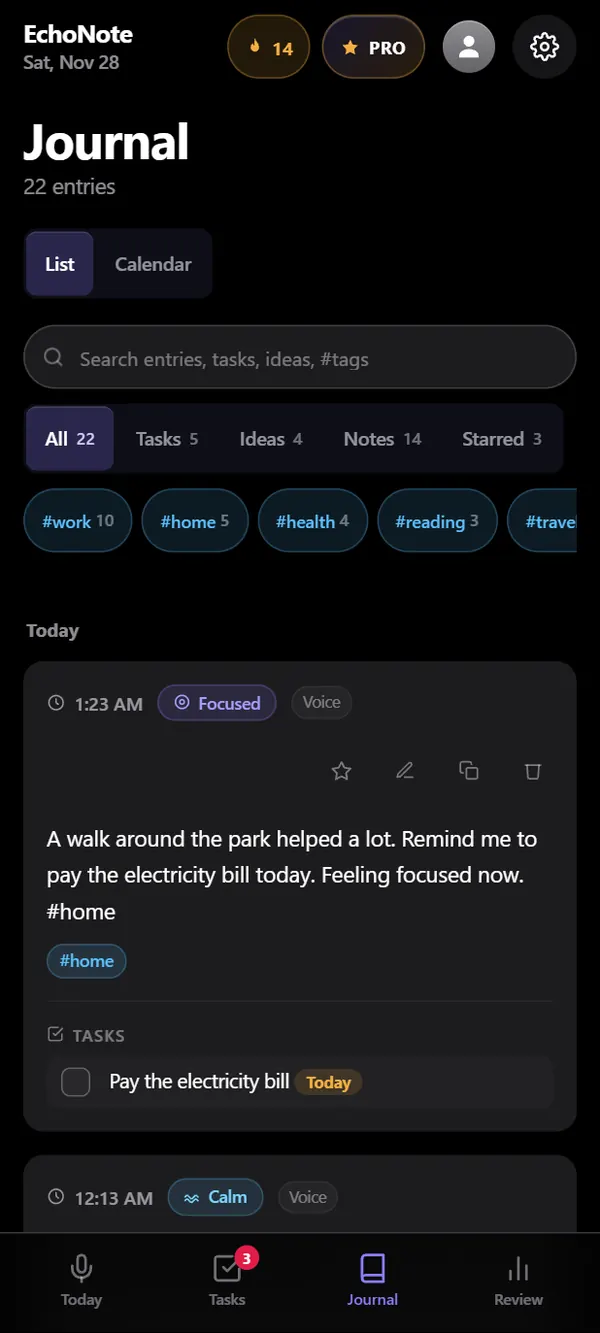
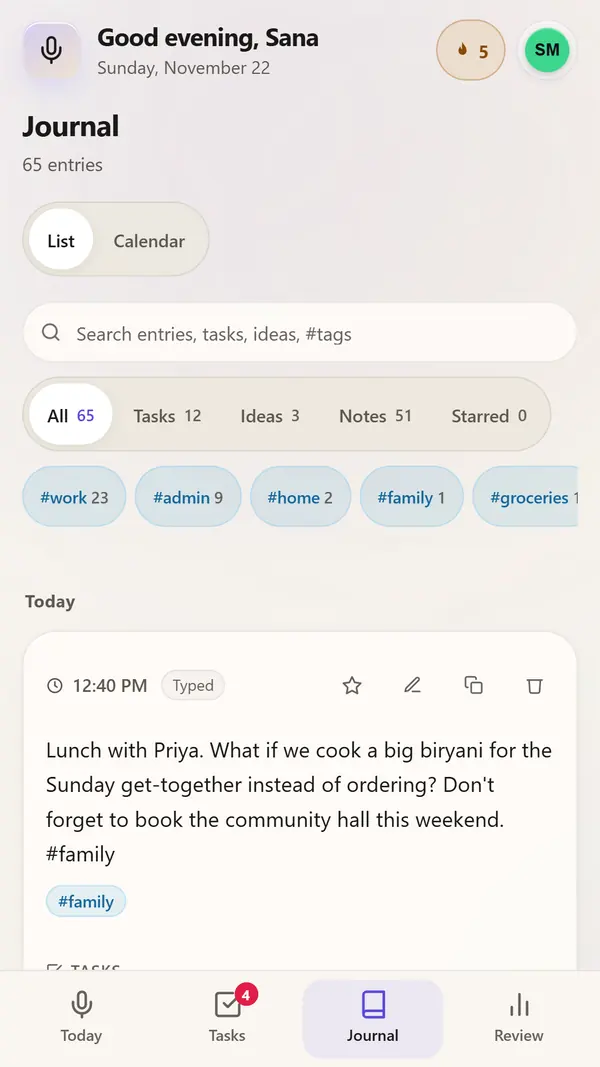
- Search entries, tasks, ideas and #tags, filter by Tasks, Ideas, Notes or Starred, and tap a tag chip to see related entries.
- Mood calendar
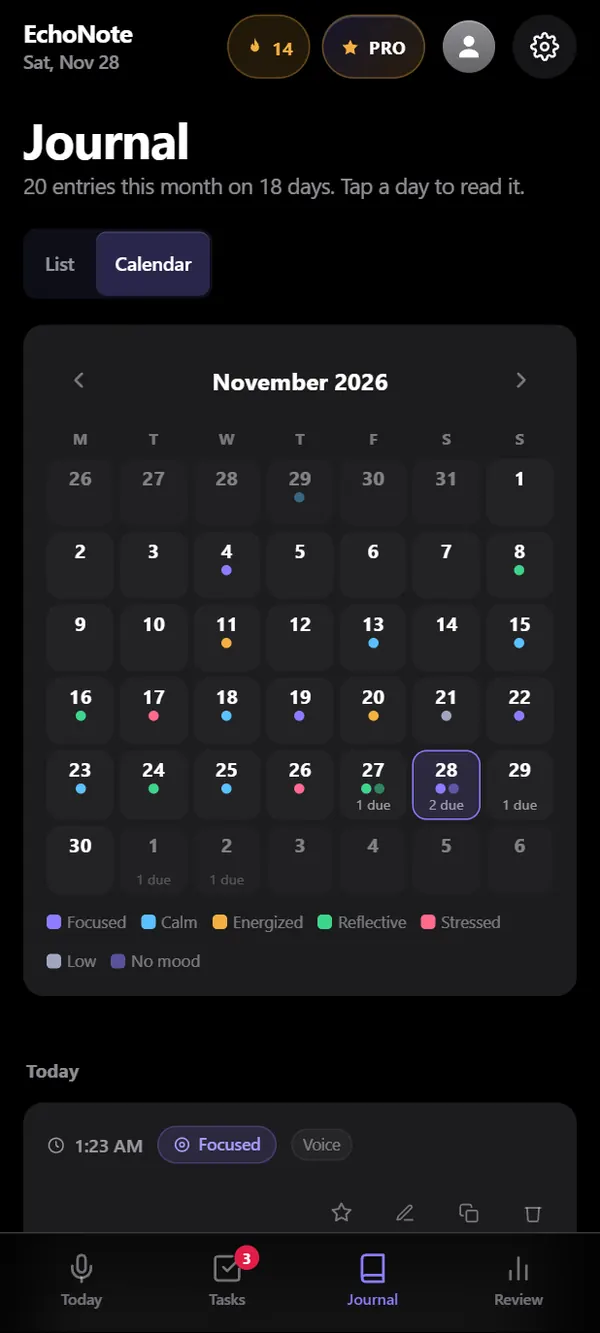
- The Calendar view colours each day by its main mood and shows how many tasks are due.
- On this day and starred entries
- Today shows what you wrote on this day in the past, and the star keeps favourite entries one tap away under Starred.
- Recently deleted
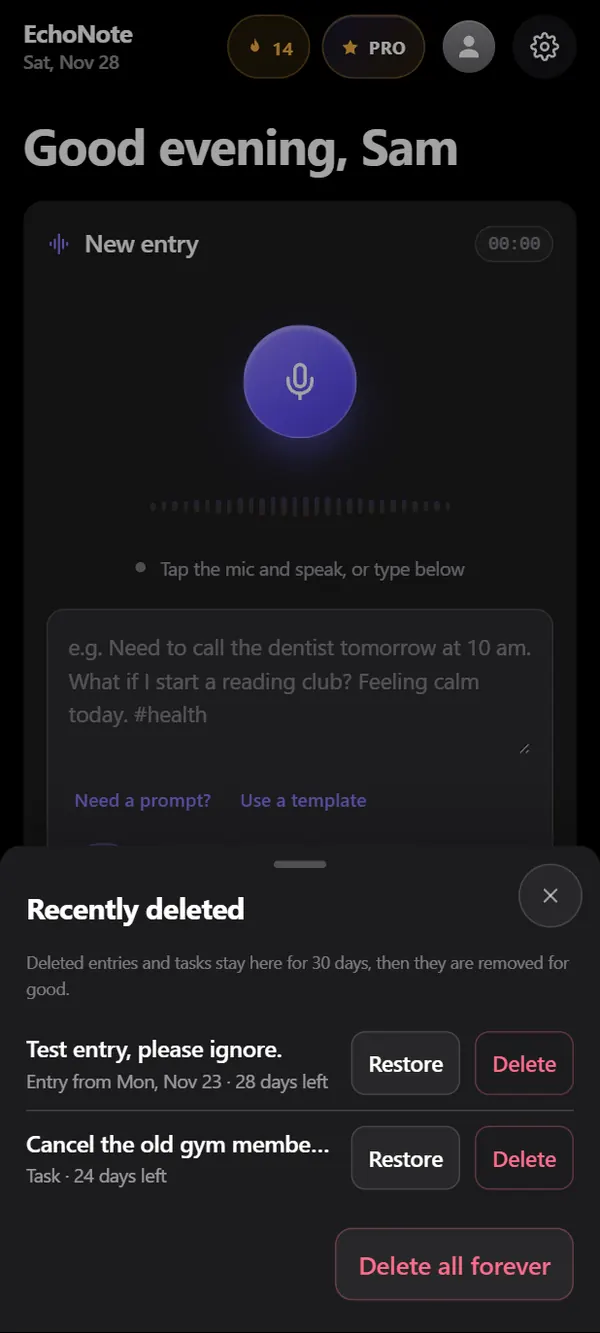
- Deleted entries and tasks are kept for 30 days under Settings > Recently deleted, where you can restore them or delete them for good.
Review and stats
- Weekly review
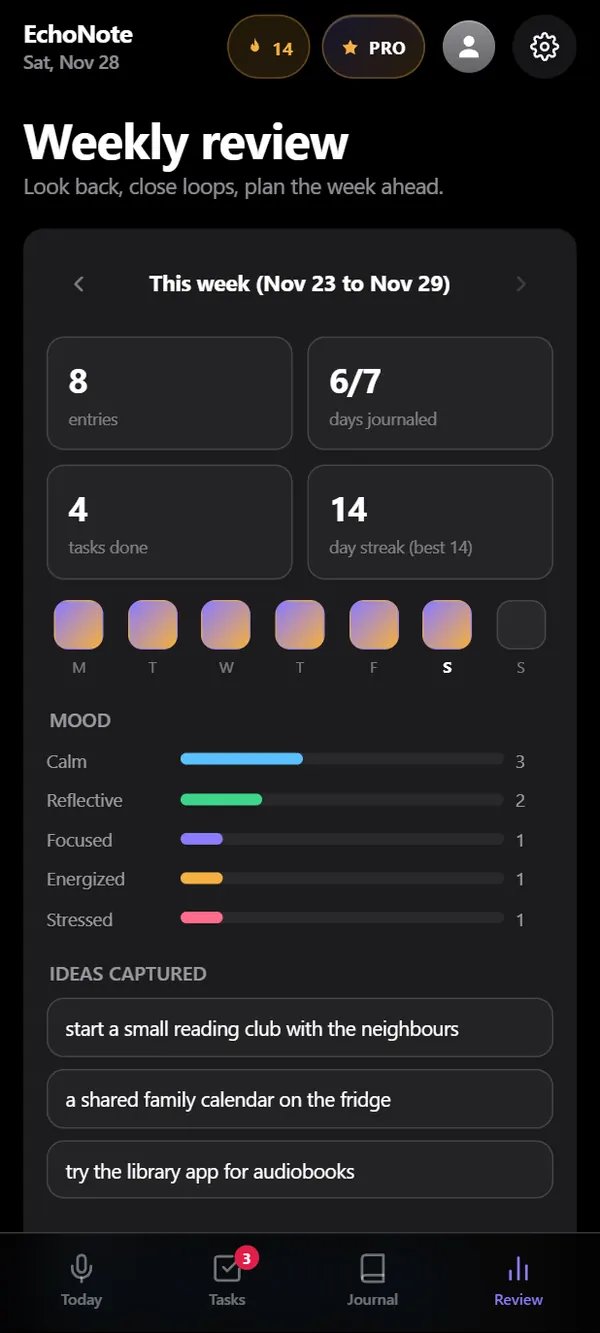
- Entries, days journaled, tasks done, streak, mood, ideas, top tags, open tasks and the week ahead. Copy it or share it.
- Daily writing goal
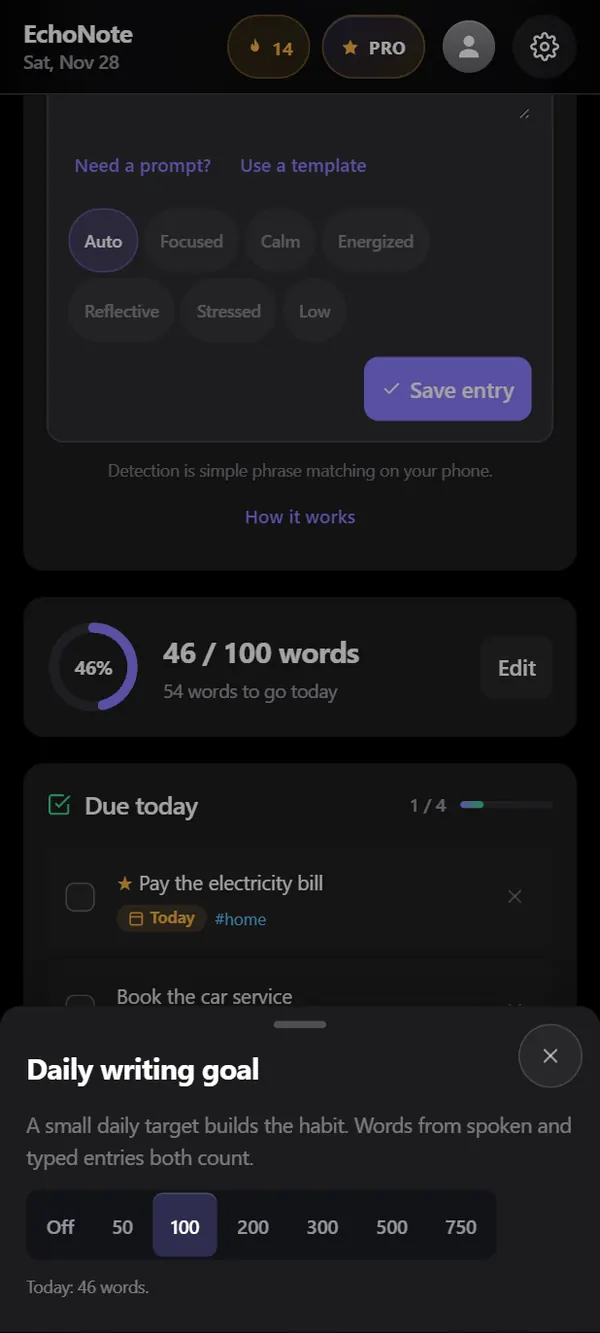
- Set a target from 50 to 750 words a day. A ring on Today fills as you write and counts the days in a row you meet it.
- Journaling streak and writing stats
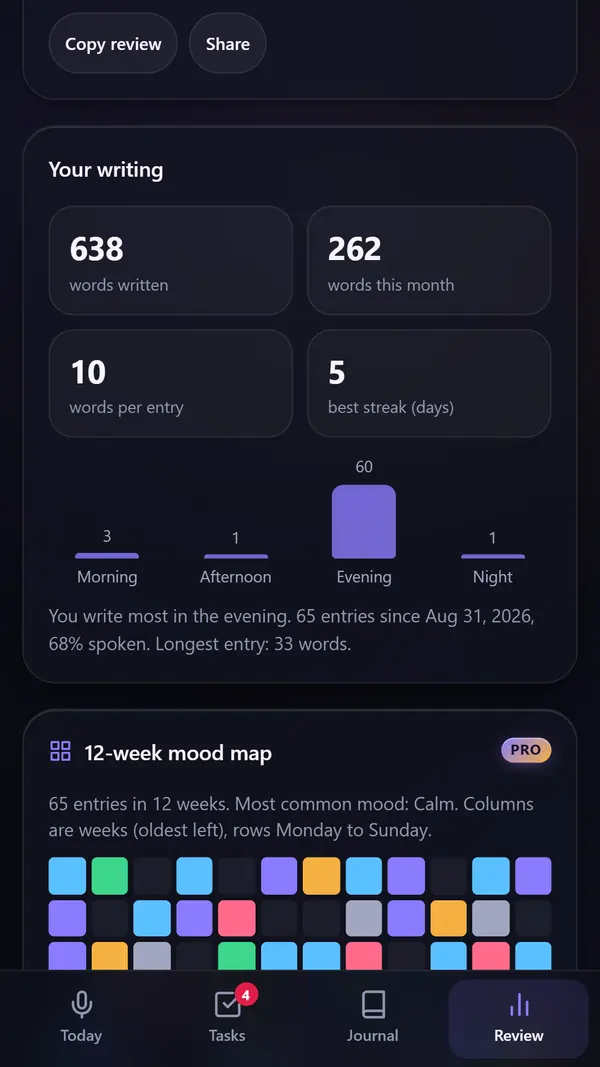
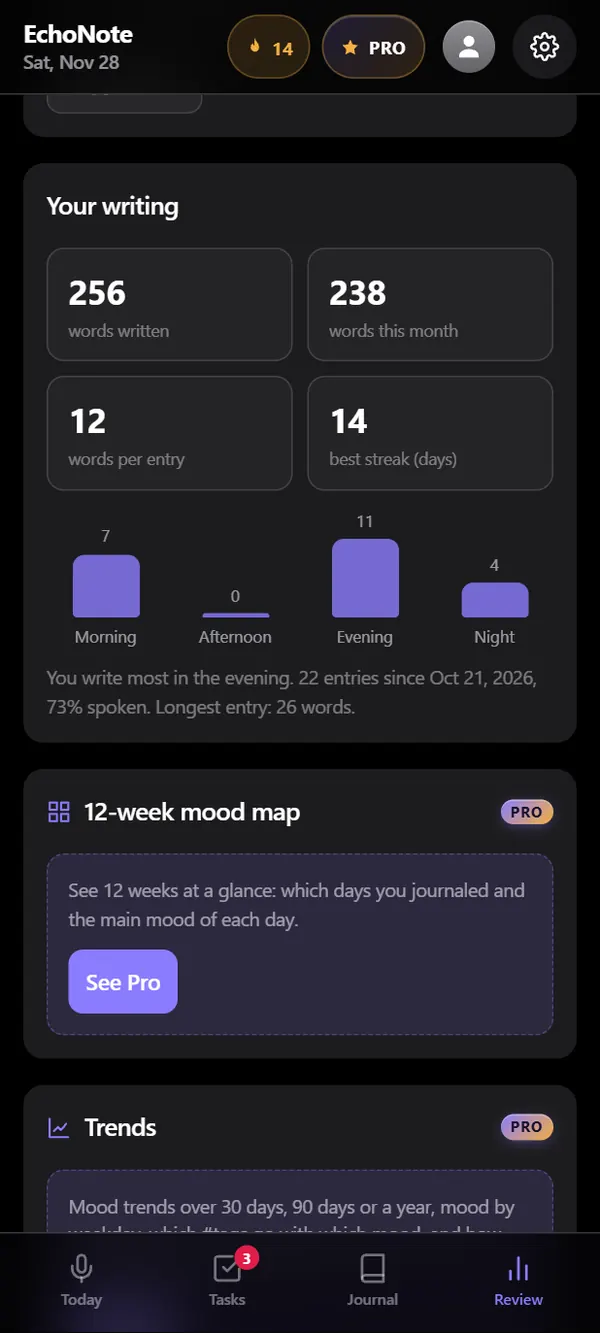
- Your streak counts days with at least one entry. Your writing shows words written, words per entry, best streak and when in the day you write most.
- Full review history and 12-week mood map Pro
- Free shows this week and last week; Pro lets you open any past week and adds a 12-week map of the days you journaled and their main mood.
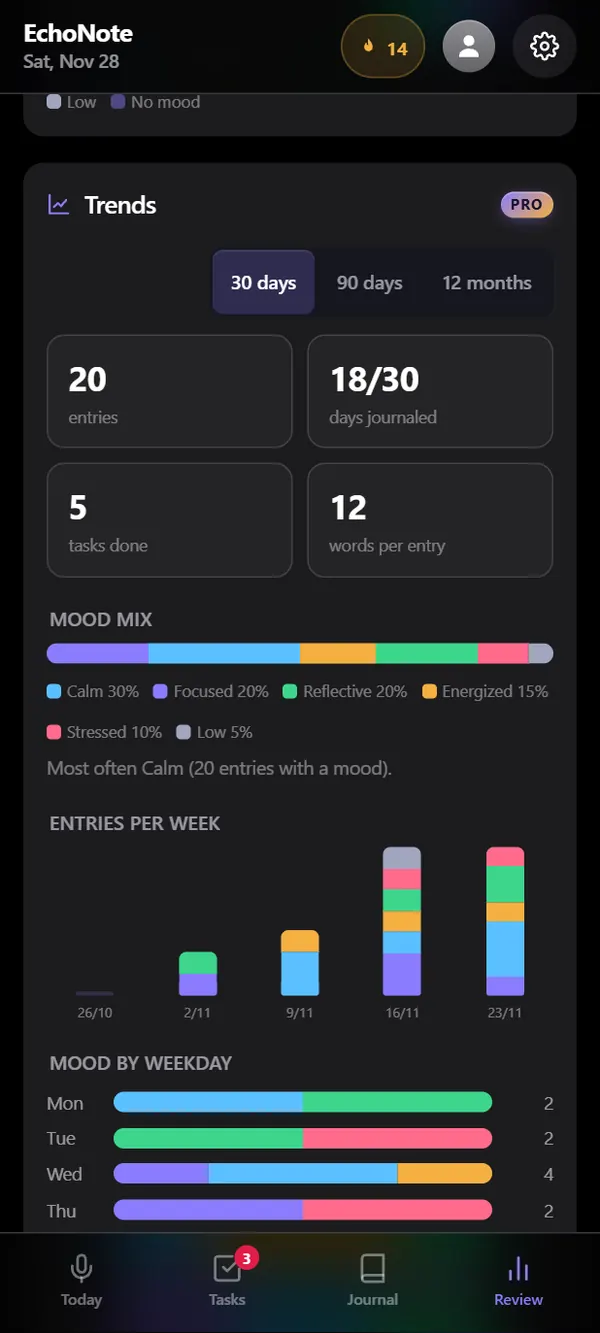
- Trends Pro
- Mood mix and entries over 30 days, 90 days or 12 months, mood by weekday, which tags go with which mood, and tasks done per week.
Privacy, look and backups
- PIN lock
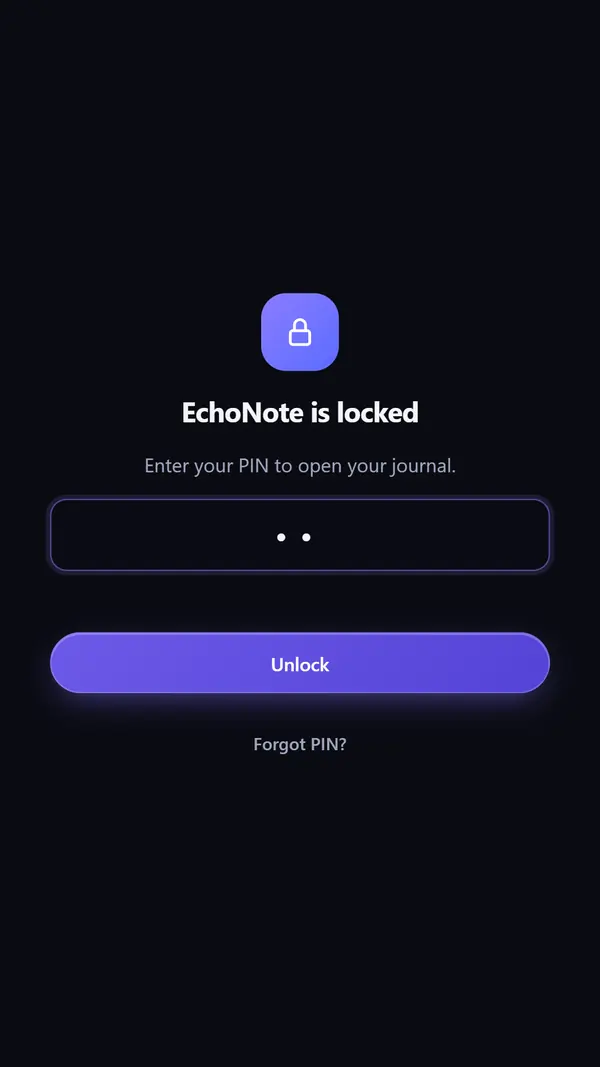
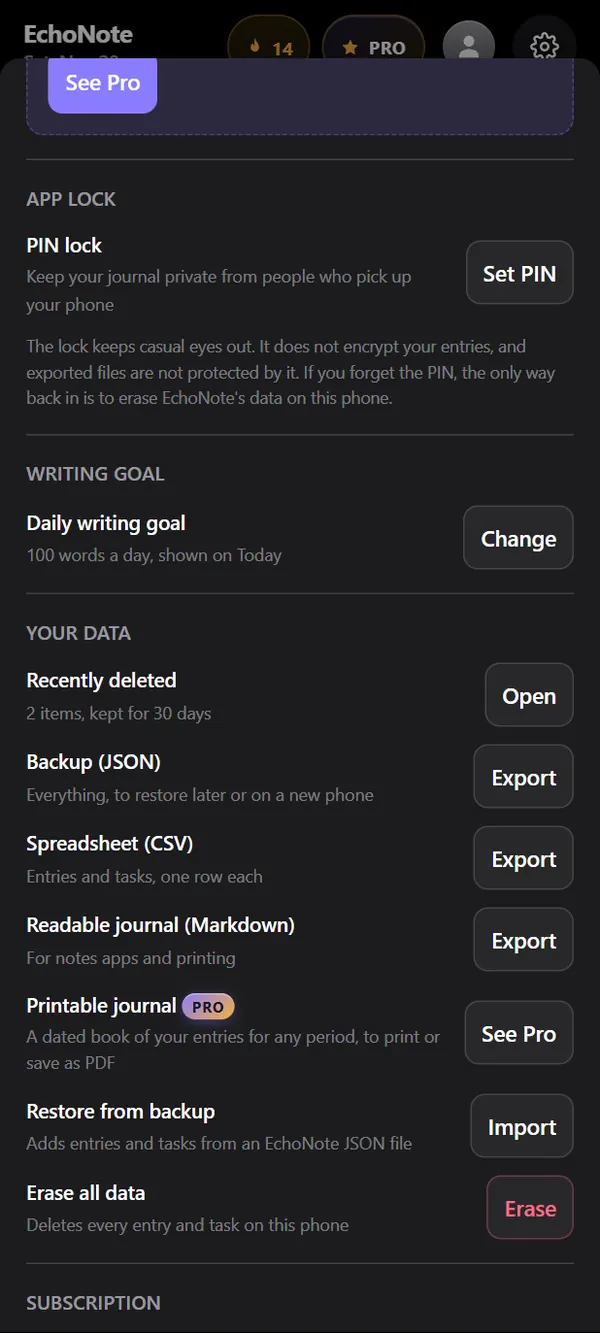
- An optional PIN keeps casual eyes out of your journal. It is not encryption, and if you forget it the only way back in is to erase EchoNote's data.
- Auto, light and dark appearance
- Choose Auto to follow your phone's light or dark setting, or pick Light or Dark yourself.
- Export and restore
- Export a JSON backup, a CSV spreadsheet or a readable Markdown journal, and restore entries and tasks from a backup file.
- Undo
- Deleting an entry or task, changing several tasks at once and erasing all data each show an Undo button for a few seconds.
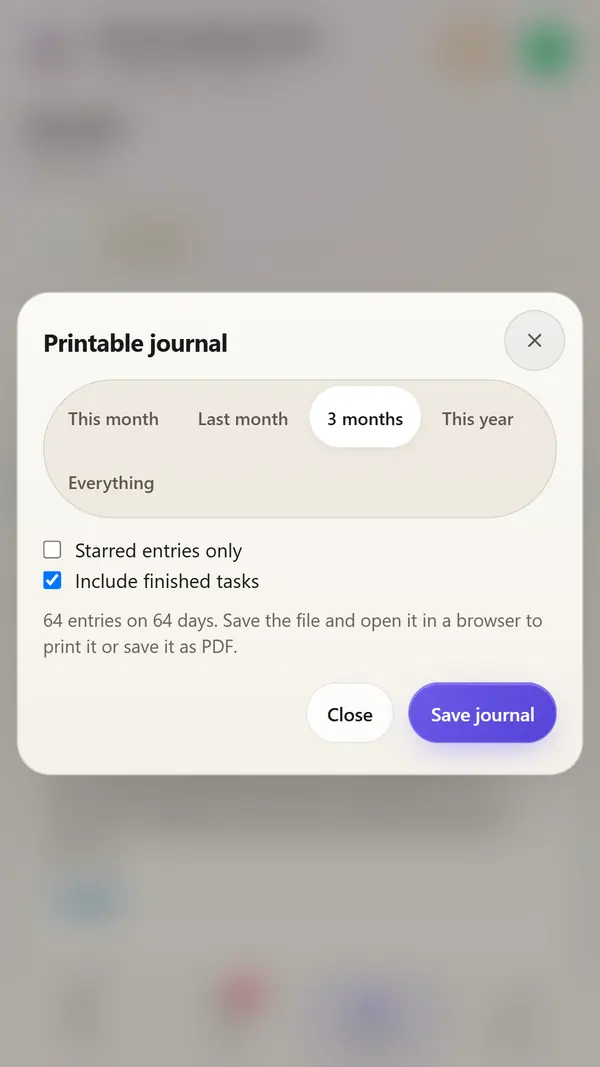
- Printable journal Pro
- Make a dated book of your entries for any month, year or period, with moods and finished tasks, to print or save as PDF.
Full store description
How it works
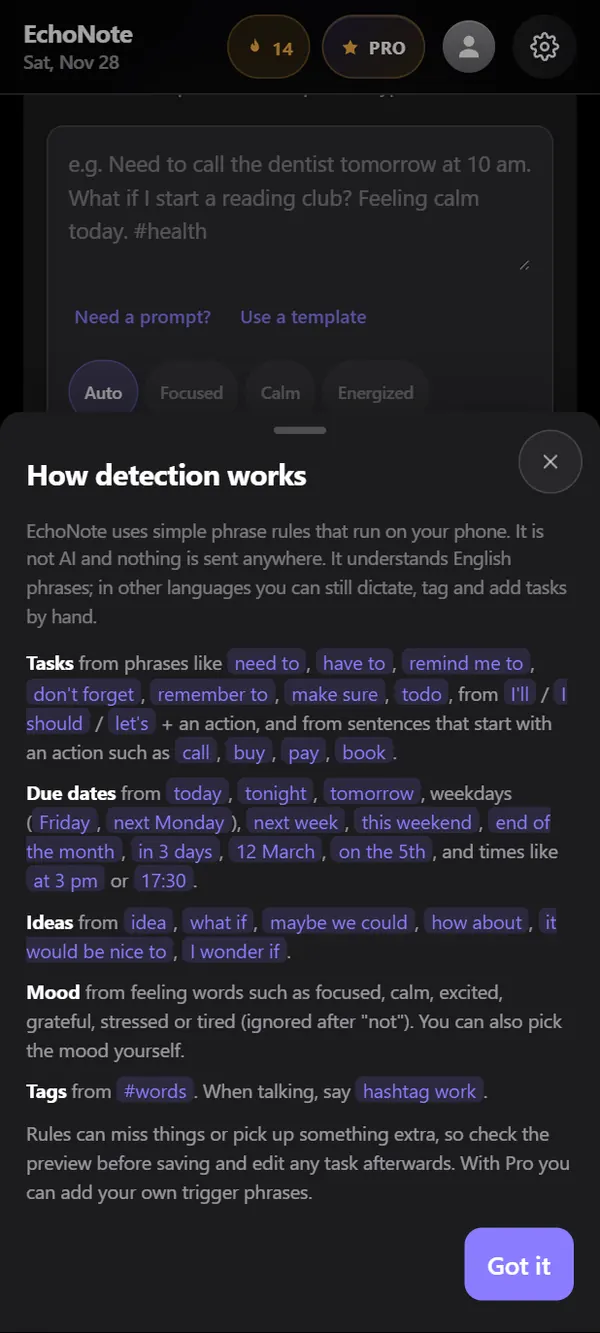
EchoNote uses simple phrase rules that run on your phone. It is not AI and nothing is uploaded.
- Tasks from phrases like "need to", "remind me to" or "don't forget", and sentences that start with an action such as "call" or "pay"
- Due dates from words like tomorrow, Friday, next Monday, in 3 days, 12 March or at 3 pm
- Ideas from "idea", "what if" or "how about"; mood from feeling words; tags from #words (say "hashtag work")
A live preview shows what was found before you save. Detection understands English phrases; you can dictate in other languages and add tasks by hand.
Everyday features (free)
- Voice input with live text, plus typing at any time, and writing prompts
- Today screen: what is due today and overdue, with progress
- Tasks grouped by Overdue, Today, Next 7 days, Later and No date; mark important ones to keep them on top
- Select several tasks to complete, reschedule, mark important or delete them at once, with undo
- Journal with search, filters and tag chips, a mood-coloured calendar, "On this day" and starred entries
- Five ready-made templates, a journaling streak and a weekly review you can copy or share
- Writing stats: words written, best streak and the time of day you write most
- Optional PIN lock so people who pick up your phone cannot read your journal (it keeps casual eyes out; it is not encryption)
- Undo, dark and light themes, 20+ speech languages
- Export a JSON backup, a CSV spreadsheet or a Markdown journal, and restore from a backup
EchoNote shows due dates in the app and as a badge; it does not send notifications.
How to use EchoNote.
Step-by-step walkthroughs of the main tasks, with screens from the current version.
1Capture an entry by voice or typingSay or type what is on your mind and let EchoNote pull out tasks, dates, ideas, mood and tags.
- Step 1
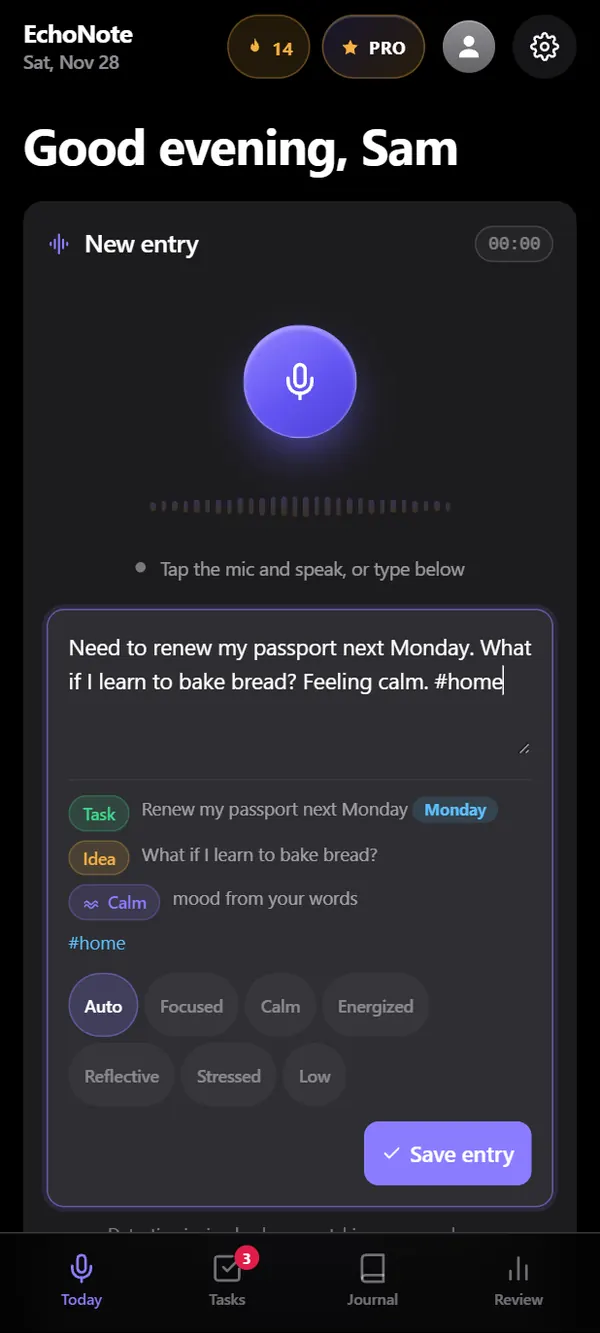
On Today, tap the mic and speak, or type in the box under it. Need a starting point? Tap Need a prompt? or Use a template.
- Step 2
Watch the live preview: it lists each Task with its due date, any Idea, the mood it picked up and your #tags. Pick a mood yourself if you prefer, or leave Auto.
- Step 3
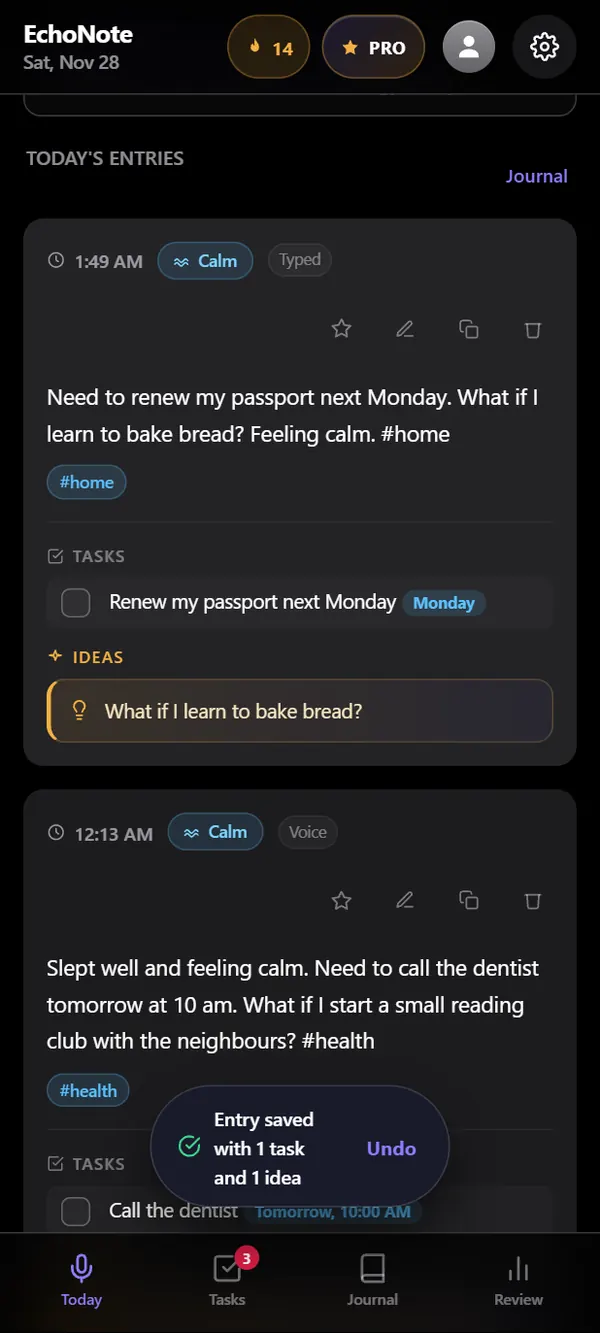
Tap Save entry. The entry appears under Today's entries with its tasks and ideas, and the tasks are added to your task list.
- Step 4
Not sure which phrases count? Tap How it works for the full list of task, date, idea, mood and tag rules.
2Manage your tasksSee everything by due date, add checklist steps and change several tasks at once.
- Step 1
Open the Tasks tab. Open tasks are grouped into Overdue, Today, Next 7 days, Later and No date; important ones are starred and shown first.
- Step 2
Tap a task to edit it: change the text, due date and time, tick Important (shown first), and add steps under Checklist with Add.
- Step 3
To change several tasks, tap Select, tick the tasks, then use Complete, Date, Important or Delete in the bar at the bottom. An Undo appears after each change.
3Set a daily writing goalPick a words-per-day target and follow it with the progress ring on Today.
- Step 1
Open Settings (the gear at the top) and find Writing goal. Tap Set goal (or Change).
- Step 2
Choose a number of words per day, from 50 to 750, or Off. Words from spoken and typed entries both count.
- Step 3
Back on Today, the ring shows how far you are and how many words are left; once you meet the goal on several days in a row it shows your goal streak. Tap Edit to change it.
4Bring back something you deletedRestore an entry or task from Recently deleted within 30 days.
- Step 1
Deleting an entry (the bin icon on its card) or a task shows Undo for a moment. After that it moves to Recently deleted.
- Step 2
Open Settings and scroll to Your data. Recently deleted shows how many items it holds.
- Step 3
Tap Open. Tap Restore next to an entry or task to put it back, or Delete to remove it for good. Items are removed automatically after 30 days.
5Browse and search your journalFind any entry by word, type, tag or day.
- Step 1
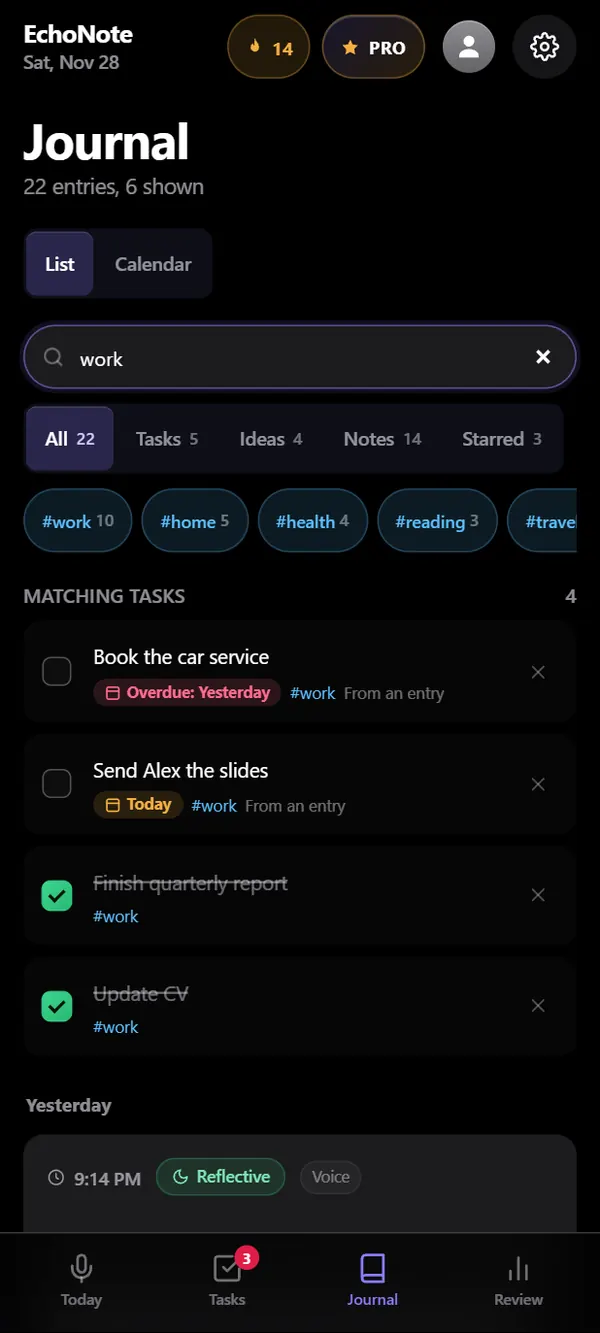
Open the Journal tab. Filter with All, Tasks, Ideas, Notes or Starred, or tap a #tag chip.
- Step 2
Type in the search box to find entries, tasks, ideas and #tags. Matching tasks are listed first.
- Step 3
Switch to Calendar to see each day coloured by its main mood, plus how many tasks are due. Tap a day to read it.
6Look back with the weekly reviewSee your week at a glance and spot patterns in your writing.
- Step 1
Open the Review tab. This week shows entries, days journaled, tasks done, your streak, mood, ideas captured, what is still open and what is coming up. Use the arrows to see last week.
- Step 2
Scroll to Your writing for words written, words per entry, your best streak and the time of day you write most.
- Step 3
With Pro, Trends adds mood mix, entries per week or month, mood by weekday, tags and mood, and tasks done over 30 days, 90 days or 12 months.
Free, with optional Pro.
Download EchoNote free. Pro is optional and billed by Google Play, which shows the price before you confirm.
EchoNote Pro (optional subscription)
- Repeating tasks: daily, weekdays, weekly or monthly
- Your own trigger phrases for tasks and ideas, and your own templates
- Full review history: any past week, plus a 12-week mood and journaling map
- Trends: mood mix and entries over 30 days, 90 days or 12 months, mood by weekday, tags and mood, tasks done per week
- Printable journal: a dated book of your entries for any month, year or period, with moods and finished tasks, to print or save as PDF
Pro is a monthly or yearly subscription through Google Play. The price (and any trial offer) is shown in the app before you buy. It renews until you cancel in Google Play > Payments & subscriptions. Everything in the free list stays free.
Manage or cancel subscriptions in Google Play > Payments & subscriptions. Purchases and Restore purchases
Try it now.
Open EchoNote right here in your browser, or download the Android app file directly.
Open in browser
The full EchoNote app, running in a new tab. Nothing to install.
Some phone-only features, such as purchases, notifications, sharing and camera scanning, work only in the Android app. Anything you do in the browser is saved in that browser only, unless you sign in to the Bright Loop Account.
Download the APK
Install EchoNote on an Android phone without Google Play.
- Version
- 1.5
- Size
- 3.9 MB
- SHA-256
cedd0369cfcd094800cd266414f745ec22aa2ff8da137e73a495f5cb29122ed1
An APK installed from this website can't be updated from Google Play later. To switch to Google Play, uninstall it and install from Play. Your data only comes with you if you back it up with the Bright Loop Account first. How to install an APK
Requirements & details.
- Requires
- Android 7.0 or later
- Size
- 3.9 MB
- Version
- 1.5
- Price
- Free, optional Pro subscription
- Internet
- Only for optional sync and purchases
- Account
- Optional Bright Loop Account
- Ads
- None
- Category
- Productivity
- Developer
- Bright Loop (Google Play: Bright Loop Games)
- Availability
- Early access (Google Play closed testing)
- Web version
- Open in browser
How to get EchoNote.
EchoNote is in early access through Google Play closed testing. It takes about two minutes.
- Ask to join the tester listEarly access runs as a Google Play closed test, so your Google account must be on the tester list before the opt-in link works. Send us the Gmail address you use on Google Play and we'll add you.
- Open the opt-in linkOn your Android phone, signed in to the same Google account, open the EchoNote early access link.
- Tap "Become a tester"Google Play confirms that you've joined the test.
- Install from Google PlayTap the "download it on Google Play" link on that page, or open the Google Play page, then tap Install. Updates arrive through Google Play like any other app.
- Tell us what you thinkEarly access means your feedback shapes the next update. Email rehman@mindum.dev any time.
Link not working? See Troubleshooting or the full early access guide.
Account & sync.
Optional. EchoNote works fully without an account. Sign in to the free Bright Loop Account to back up your EchoNote data and keep it in sync across your phones.
What syncs
- Journal entries and tasks
- Templates and Recently Deleted
- Profile and settings
What stays on this phone
- The PIN lock
- Your Pro status (Google Play restores it)
- Audio: EchoNote never records or keeps it
Account & Sync is part of EchoNote 1.5. Look for it at the top of Settings.
Privacy.
EchoNote keeps your data on your phone. No ads and no analytics.
Private by design
No account needed, no ads, no analytics. Your journal is stored on your phone only and leaves it only when you export or share. The microphone is used only while the mic button is on. Speech is turned into text by your phone's own speech recognition service (on-device when your phone supports it); EchoNote never records or keeps audio.
If you sign in
The Bright Loop Account is optional. If you sign in, EchoNote backs up the records listed under Account & sync to your account so you can restore them on another phone. Photos and files are never uploaded, and you can export or delete your cloud data at any time.
Read the full Privacy Policy.
Tips.
- Say "hashtag work" while dictating to add the #work tag.
- Put the date in the same sentence as the task, for example "Need to pay rent on the 1st", so the due date is picked up.
- Check the live preview before saving; if a task was missed, add it on the Tasks tab, or edit the entry and tick "Look for new tasks in the edited text".
- Star the entries you want to reread, then use the Starred filter in Journal.
- Export a JSON backup from Settings before you change phones; Restore from backup adds the entries and tasks back.
Troubleshooting.
The mic does not turn on or no text appears
Allow microphone access for EchoNote in your phone settings, and check that your phone has a speech recognition service. You can always type instead.
A task was not detected, or the wrong thing became a task
Detection is phrase based and can miss things. Check the preview before saving, add or edit tasks on the Tasks tab, or edit the entry and tick "Look for new tasks in the edited text".
A due date was not picked up
Use words EchoNote understands, such as tomorrow, Friday, next Monday, in 3 days, 12 March or at 3 pm, in the same sentence as the task. Or tap the task and set the date.
I forgot my PIN
The only way back in is to erase EchoNote's data on this phone, so export a backup regularly if you use the lock.
I deleted an entry by mistake
Tap Undo right away, or open Settings > Recently deleted and tap Restore within 30 days.
Questions.
Does EchoNote use AI to find my tasks?
No. It uses simple phrase rules that run on your phone, such as "need to", "remind me to" or sentences that start with "call" or "pay". Nothing is uploaded. Tap How it works on Today for the full list.
Does EchoNote record my voice?
No. Your phone's speech recognition service turns speech into text while the mic button is on, and EchoNote keeps only the text. It never records or stores audio.
Can I dictate in a language other than English?
Yes. Pick one of 20+ speech languages in Settings. Task, date and idea detection understands English phrases, so in other languages you add tasks by hand.
Will EchoNote remind me when a task is due?
No. Due dates show on Today, on the Tasks tab and as a badge on the Tasks icon, but EchoNote does not send notifications.
How long are deleted entries kept?
Deleted entries and tasks stay in Settings > Recently deleted for 30 days. You can restore them there, or delete them for good sooner.
What counts towards the daily writing goal?
Every word in the entries you save that day, whether you spoke or typed them.
Does the PIN lock encrypt my journal?
No. It keeps people who pick up your phone out of the app, but it does not encrypt your entries and exported files are not protected by it.
Is EchoNote free?
Yes. EchoNote is free to download and use. EchoNote Pro is an optional monthly or yearly subscription through Google Play that adds the extras listed under Free and Pro. Google Play shows the price, and any trial, before you confirm.
Why can't I find EchoNote on Google Play?
EchoNote is in early access (a Google Play closed test), so it only appears for people on the tester list. Follow the steps under How to get it. Once it becomes public, anyone can install it from Google Play.
Do I need an account?
No. EchoNote works fully without one. The Bright Loop Account is optional and adds cloud backup and sync across your phones.
How do I move to a new phone?
Sign in to your Bright Loop Account on the new phone and choose "Use Cloud Data", or export a backup file on the old phone and restore it on the new one. Photos and files only move with a backup file. Pro comes back with Restore purchases. See Move to a new phone.
How do I restore a purchase?
Make sure your phone uses the same Google account you bought with, open EchoNote and tap Restore purchases. Google Play checks your purchases and EchoNote unlocks what you own. More about purchases.
Can I use EchoNote in a browser?
Yes. Tap Open in browser to run it in a new tab. Some phone-only features, such as purchases, notifications, sharing and camera scanning, work only in the Android app, and anything you do there is saved in that browser.
Can I install it without Google Play?
Yes, with the APK on this page (version 1.5, 3.9 MB). An APK install can't be updated from Google Play later; see Install an APK on Android.
What do I need to run it?
Android 7.0 or later, or any modern browser for the web version.
Is it available on iPhone?
There's no iPhone app at the moment. EchoNote is made for Android, but you can open the web version in Safari.
Get help with EchoNote
Email rehman@mindum.dev. Include your phone model, Android version and what happened, and we'll take it from there.
Help Centre
Step-by-step guides for early access, sync, backups, purchases and moving phones. Visit the Help Centre
More apps you might like.
Unplug
Pomodoro focus timer with offline background sounds, daily goals and a heatmap
SafeKeep
Passport, ID, insurance & warranty expiry reminders. Private, kept on your phone
DocClean
Scan documents, receipts and ID cards to PDF. Crop, straighten, clean. Offline.
RitualOS
Track habits and streaks, and run timed morning, evening and workout routines.