DocClean
Scan documents, receipts and ID cards to PDF. Crop, straighten, clean. Offline.
Google Play pageDownload APK v1.3 · 3.9 MB
Early access on Google Play closed testing. You need to be on the tester list first: see how to join.
A closer look.
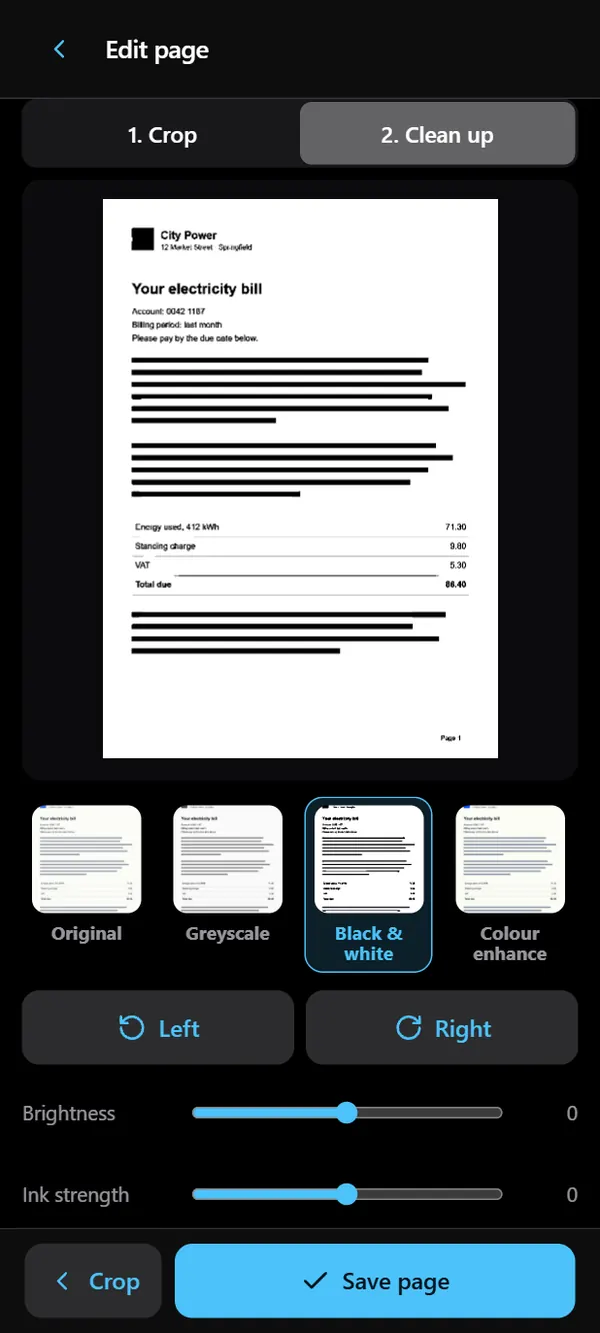
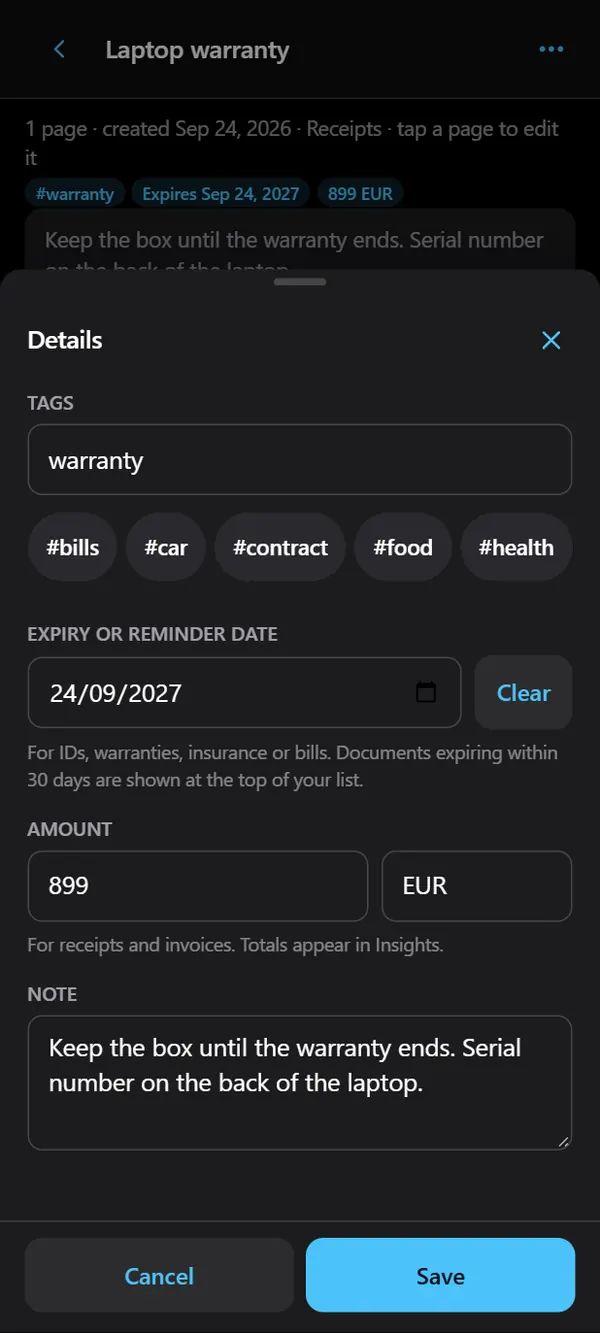
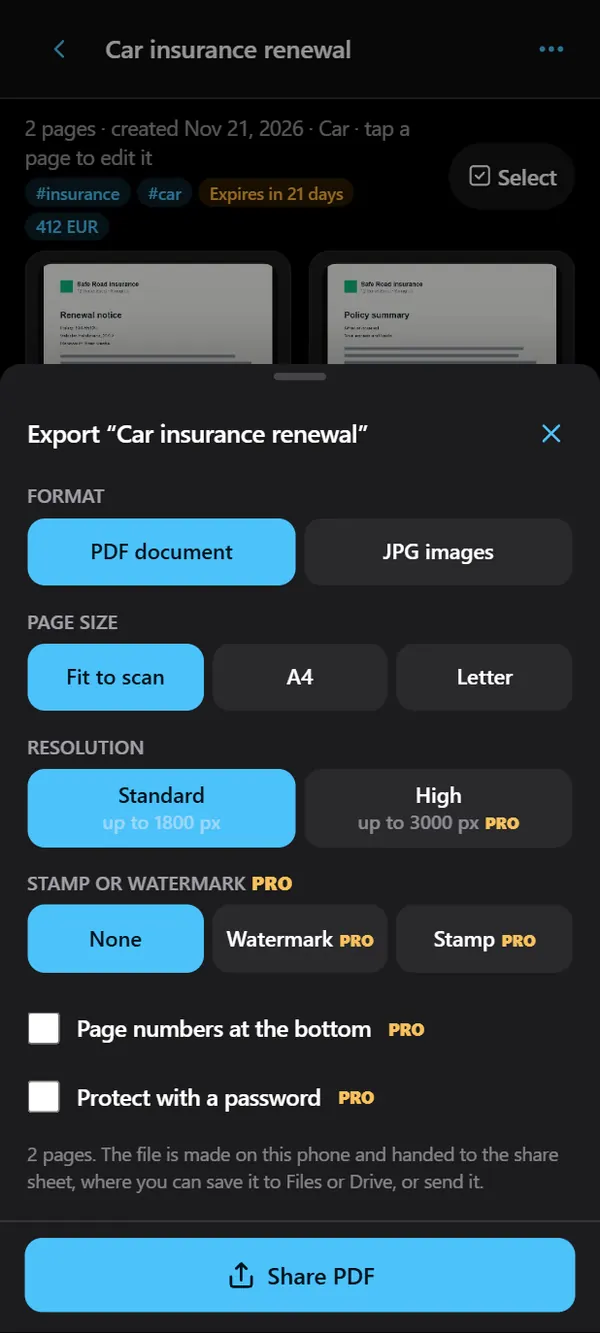
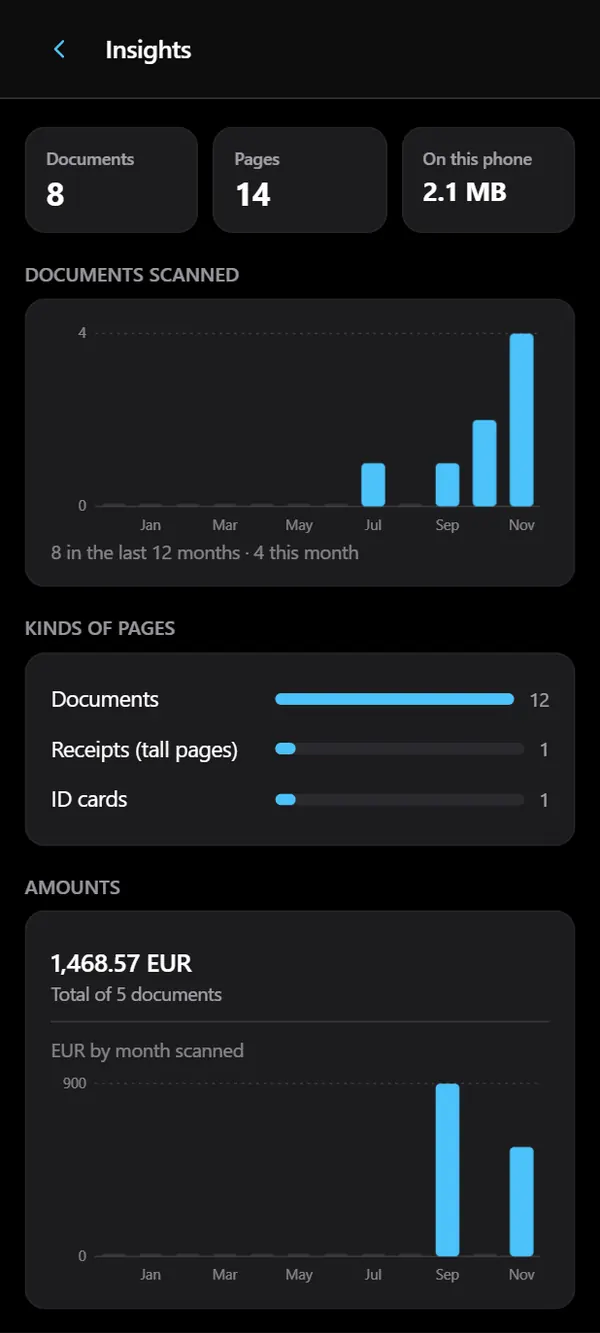
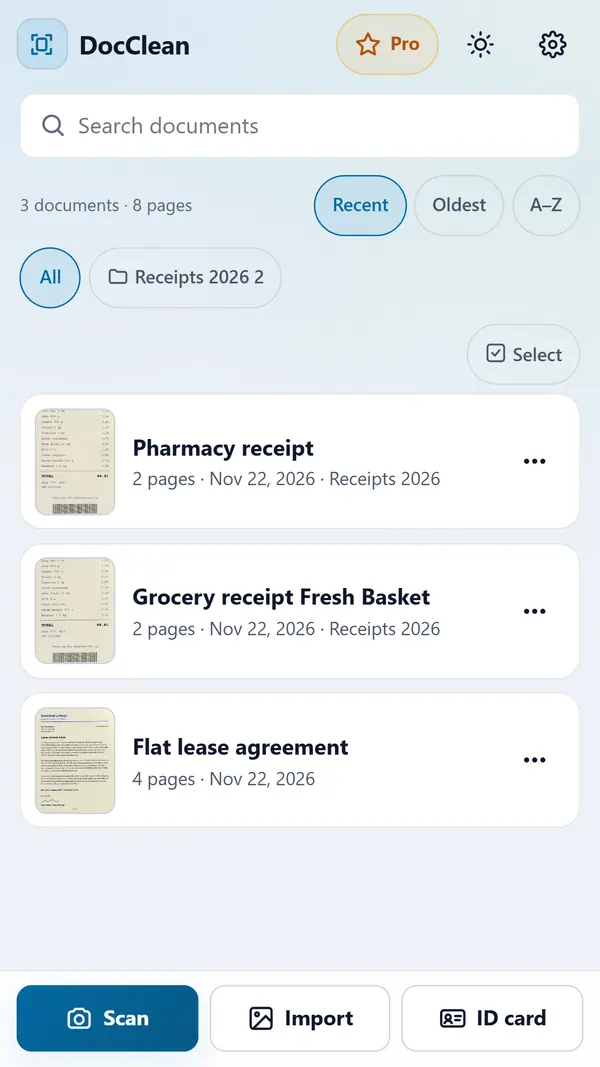
DocClean is a document scanner that turns photos of paper into clean, straight PDF files. Scan letters, forms, receipts, notes, certificates and ID cards with your phone camera, or import photos you already have, then share a multi-page PDF or JPG images in any chat or email app.
What's new in version 1.3
New in version 1.3, along with a refreshed design and the optional Bright Loop Account. Early-access testers get it through Google Play.
Tags, notes, expiry dates and amounts on documents
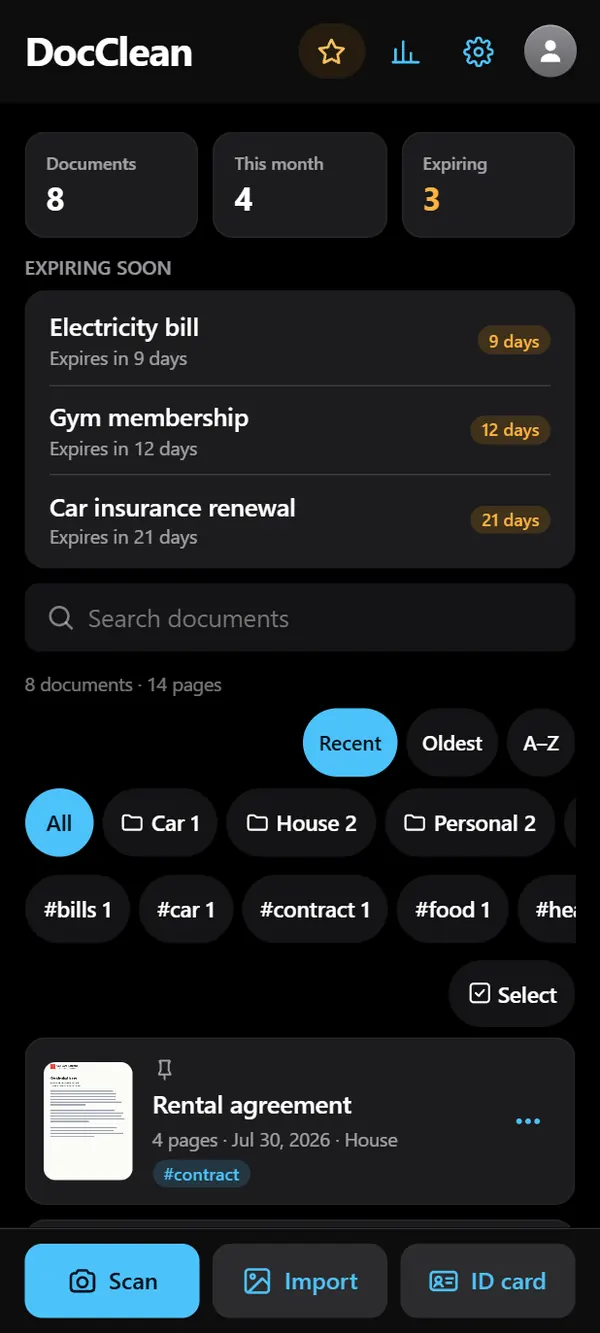
Expiring-soon list
Insights screen
CSV export
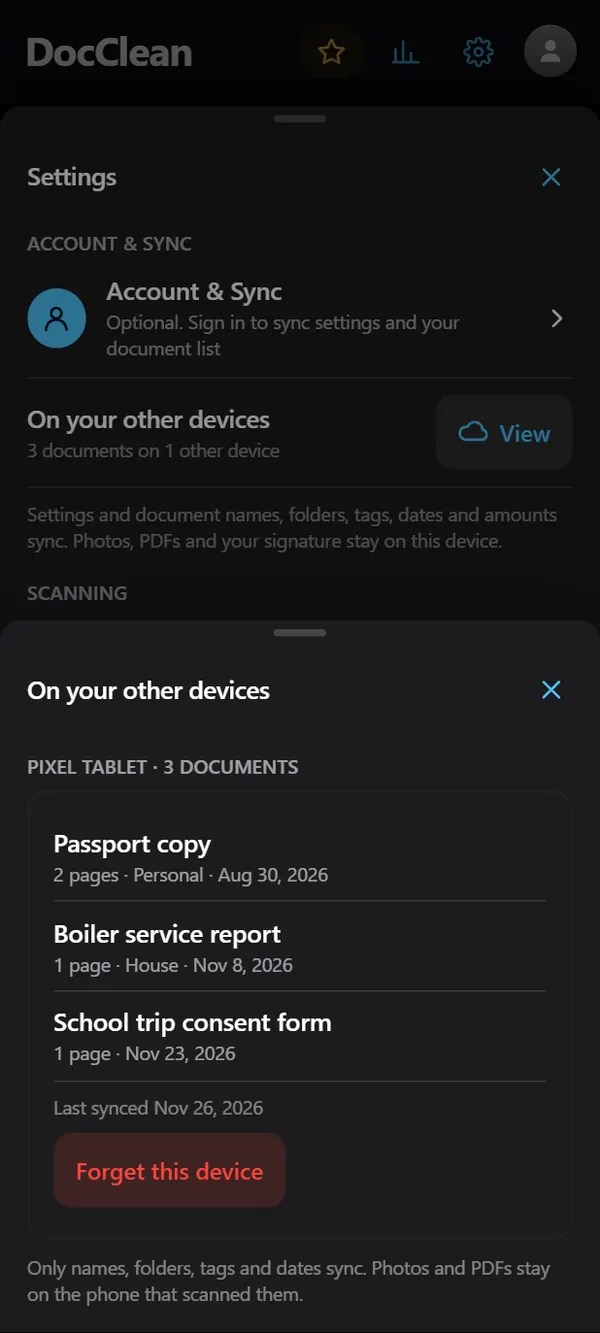
See documents on your other devices
Feature tour.
Every feature in DocClean, and what it does for you. Items marked Pro are part of the optional subscription.
Scan and straighten
- Camera or gallery
- Take a photo with your phone's camera app, or pick one or several photos you already have.
- Edge finding
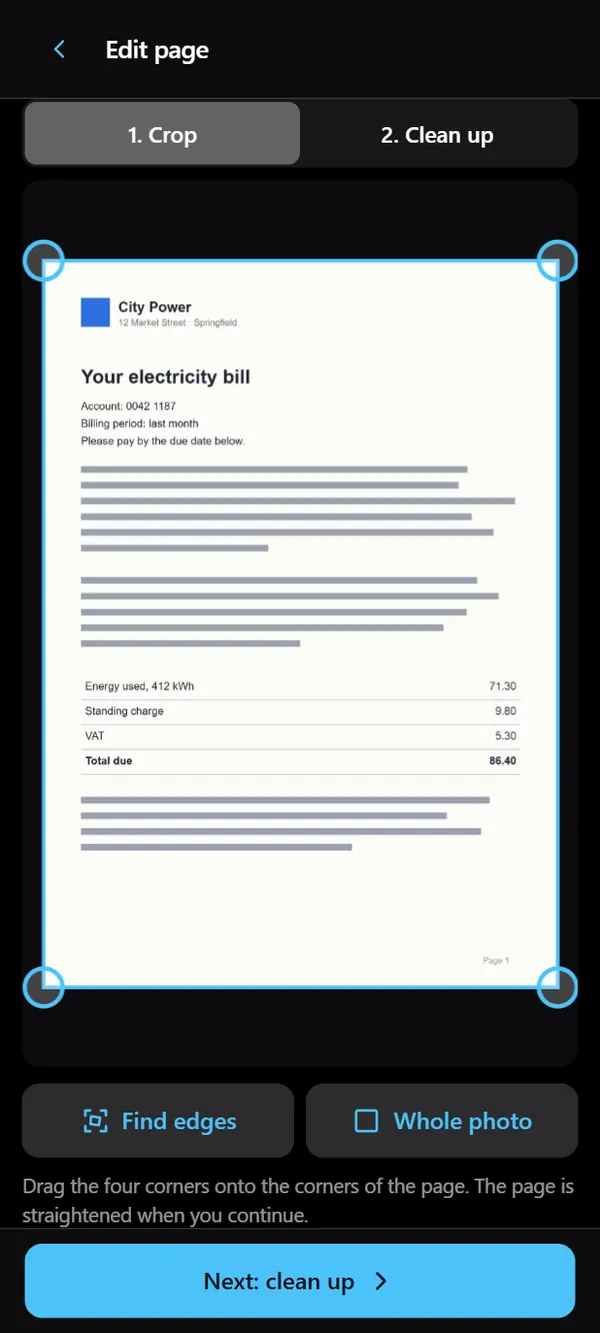
- DocClean looks for the page edges for you; it works best when the page lies on a darker, plain surface.
- Corner crop with a magnifier
- Drag the four corners onto the page, with a magnifier for exact placement.
- Perspective correction
- A photo taken at an angle becomes a flat, straight page.
Clean up every page
- Colour enhance
- Removes shadows and uneven light while keeping stamps and colour.
- Black & white
- Sharp text with an adaptive threshold, ideal for forms and contracts. Greyscale and Original are there too.
- Brightness and ink strength
- Sliders to fine-tune each page, plus rotation left or right.
Multi-page documents
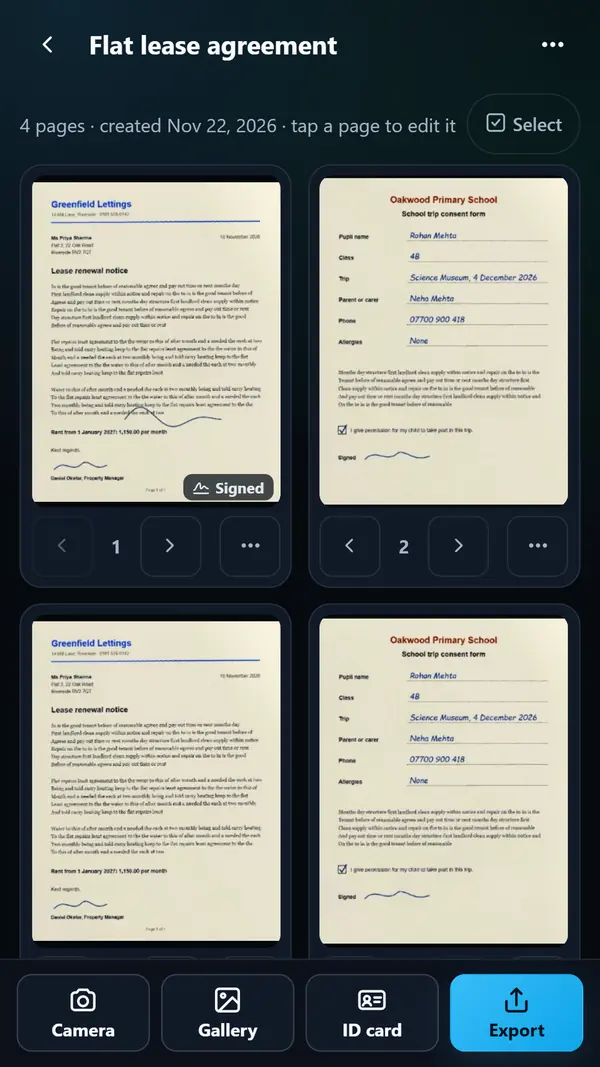
- Add, reorder, rotate and delete pages
- Add pages at any time, move them, rotate them or delete them, with Undo.
- ID card copy
- Scan the front and the back and both sides are placed on one A4 page, at actual card size or large.
- Folders and pins
- Folders such as Receipts, Tax or House with one-tap filters, and pinned documents at the top.
- Page selection and splitting
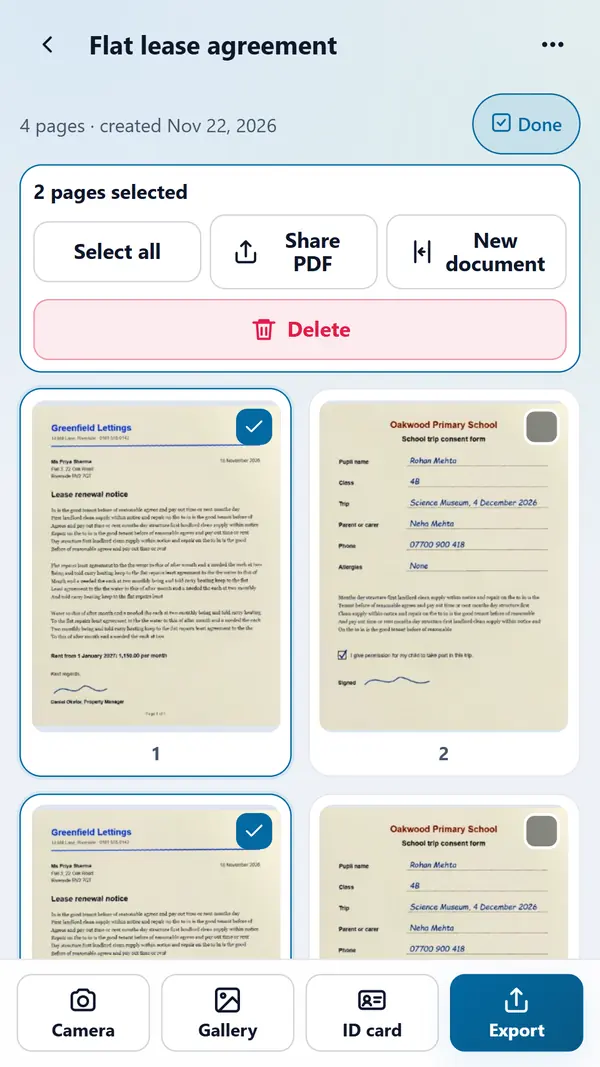
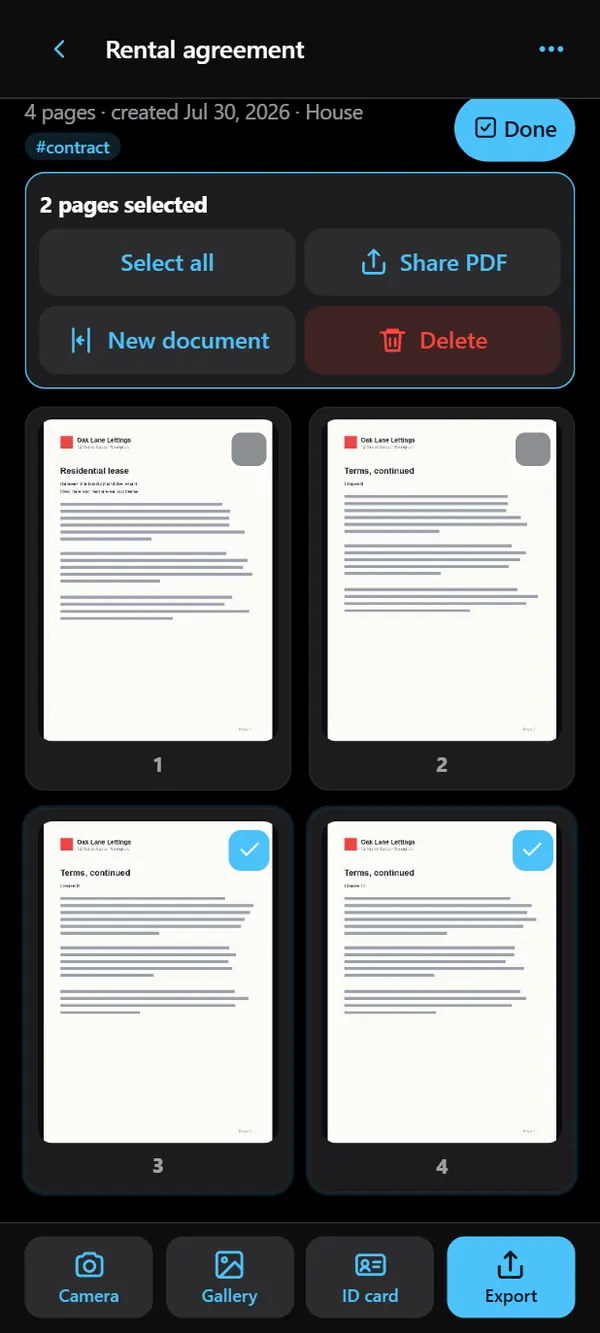
- Select pages to share them as their own PDF, split them into a new document or delete them.
- Smart names
- New scans are named Receipt, ID card or Document from their shape and go into the folder you have open.
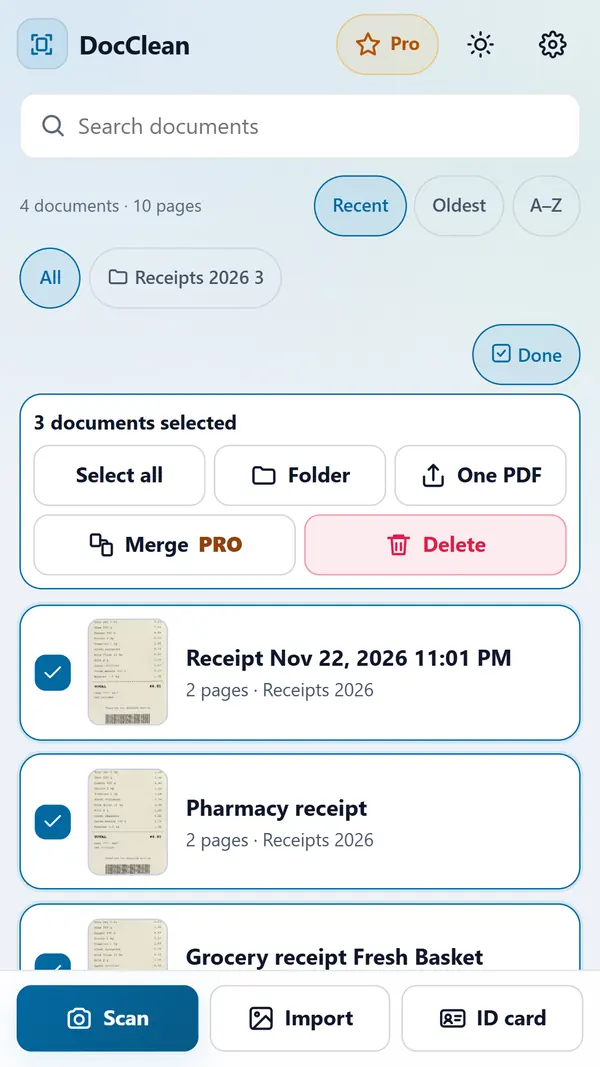
- Select several documents
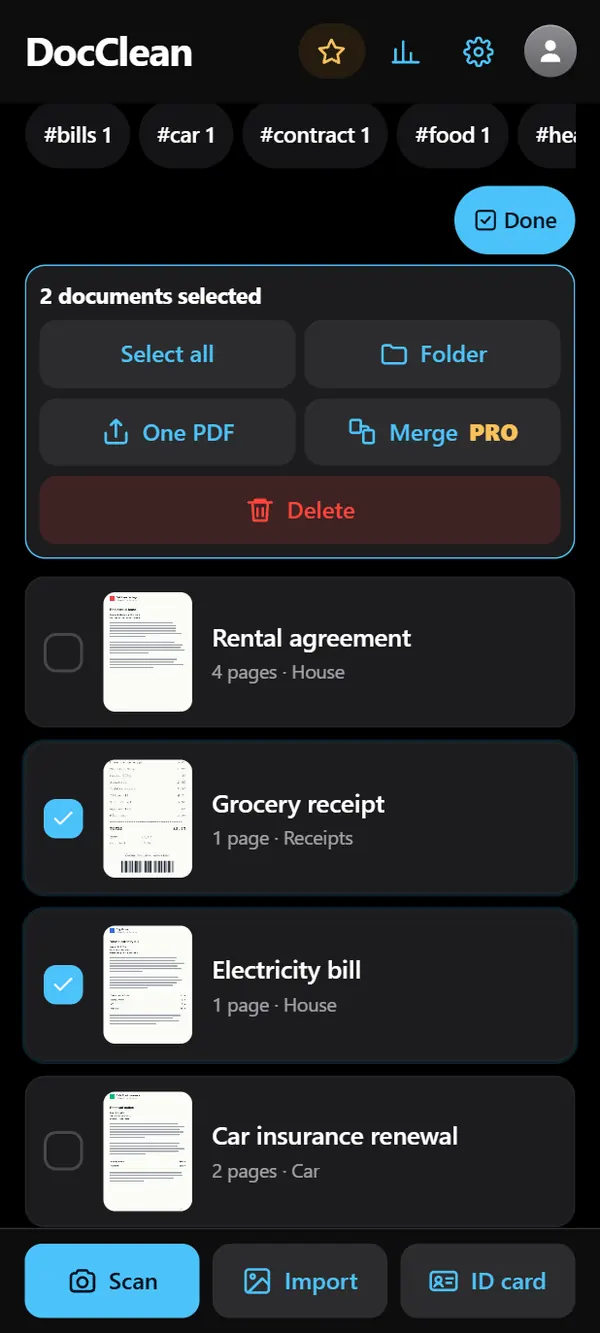
- Move, delete (with Undo) or share several documents as one PDF.
- Rename, search and sort
- Rename documents, search them, and sort by Recent, Oldest or A–Z.
Details, reminders and insights
- Tags, notes, expiry dates and amounts
- Add any of these to a document; tags become filter chips and amounts are totalled in Insights.
- Expiring soon
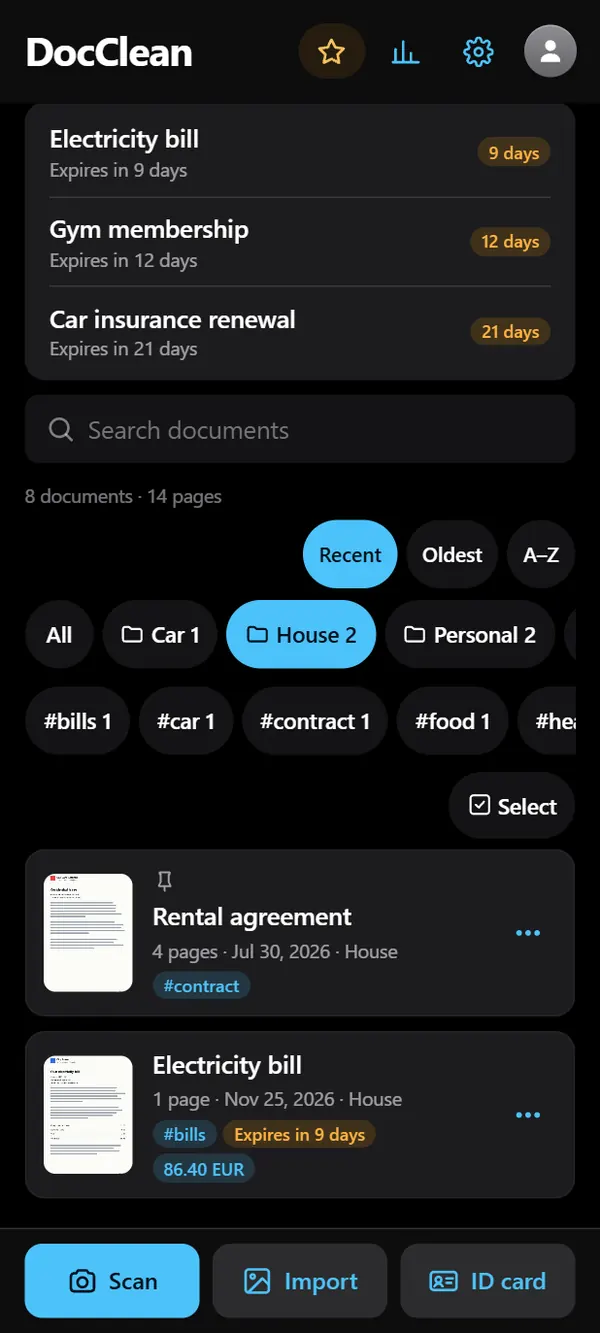
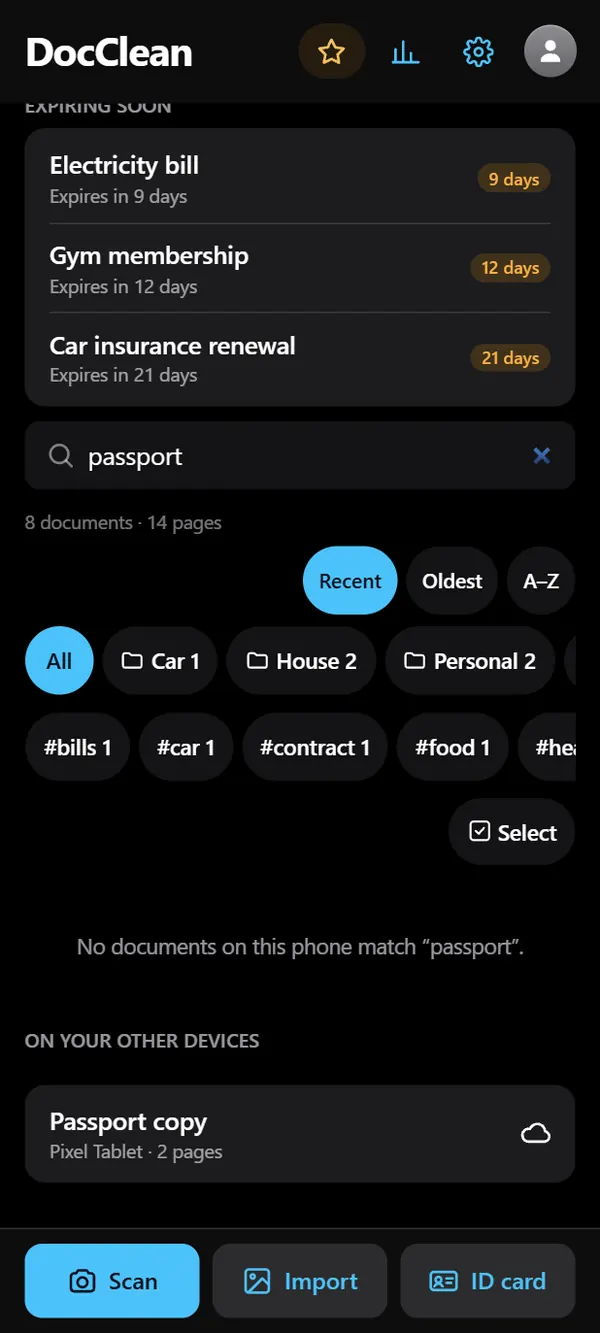
- Documents with an expiry or reminder date within 30 days are listed at the top of the home screen.
- Insights
- Documents scanned per month, kinds of pages, storage used on this phone and totals of your amounts.
- CSV export of your document list
- A spreadsheet of names, folders, tags, dates and amounts, without images.
- See documents on your other devices
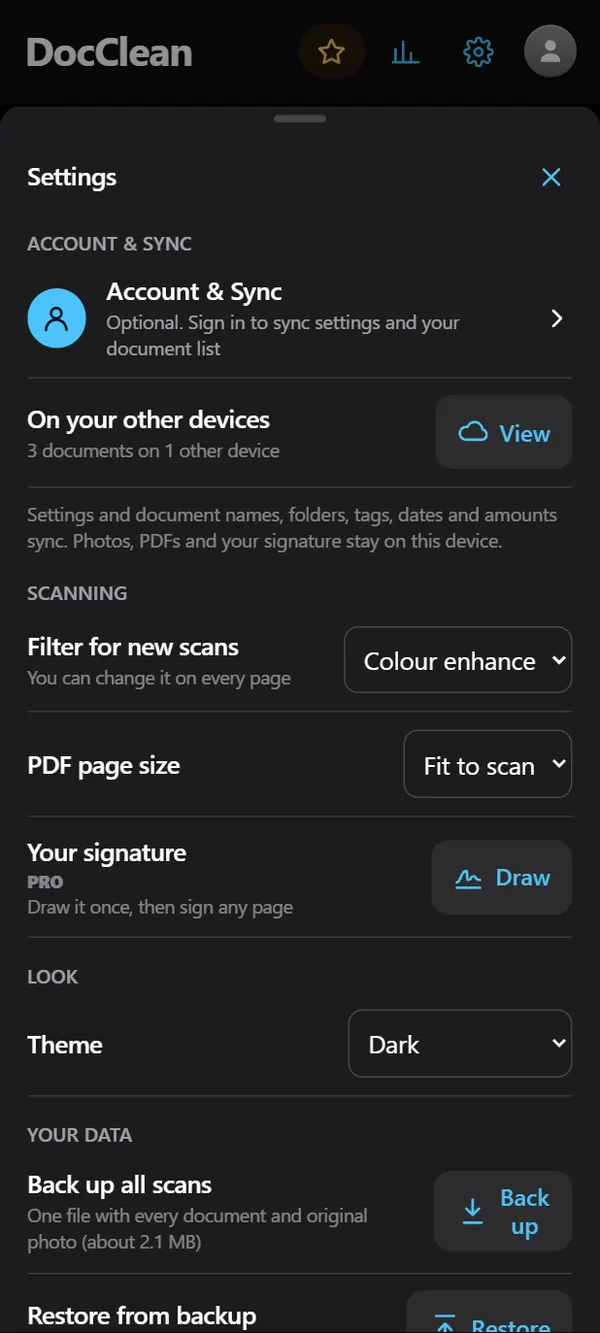
- With the optional Bright Loop Account, each phone's document list appears on your other phones. Only names and details sync; photos and PDFs stay where they were scanned.
Export and share
- Real PDF files
- Made on your phone, fit to scan, A4 or Letter page size, at standard resolution (up to 1800 px).
- JPG images
- Or export every page as a JPG image.
- Android share sheet
- Save to Files or Drive, or send by email or chat.
- Backup and restore
- One file with every document and original photo, to move your scans to a new phone.
DocClean Pro
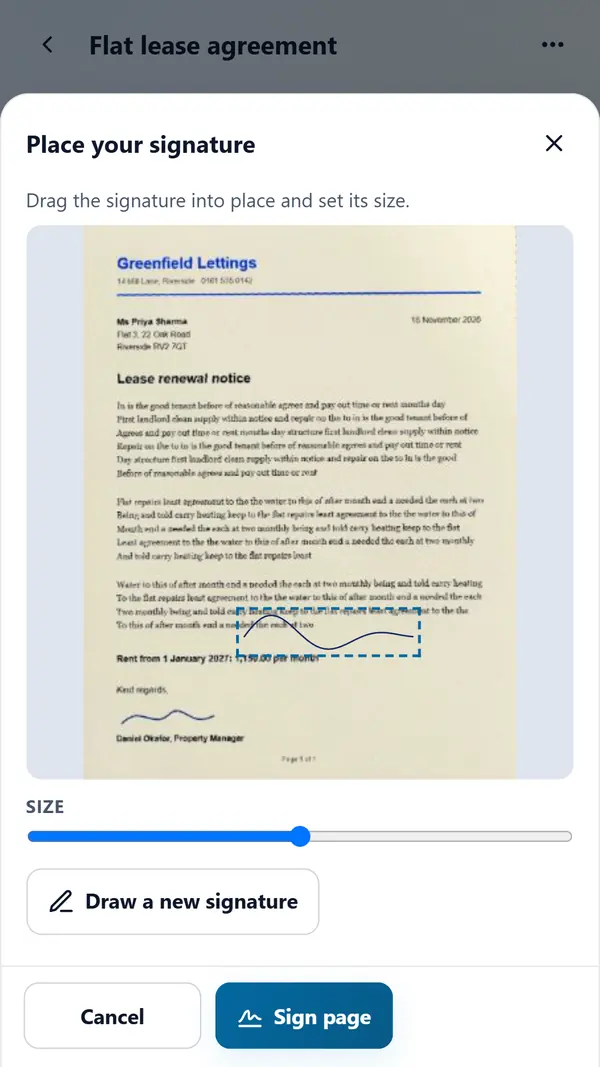
- Sign pages Pro
- Draw your signature once, then drag it into place on any page.
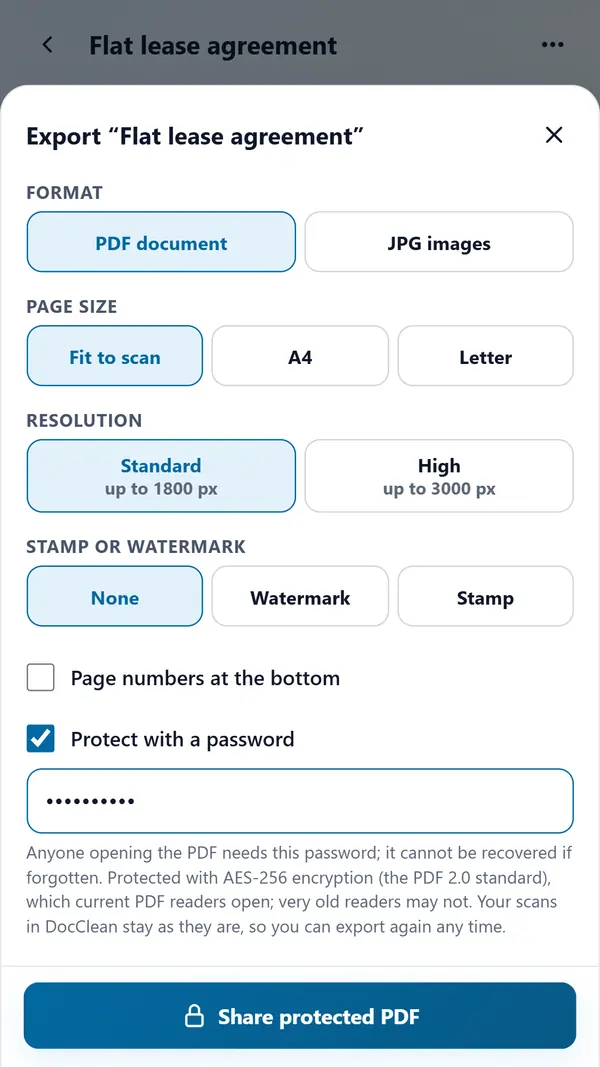
- Password-protected PDFs Pro
- AES-256 encryption (PDF 2.0 standard).
- High-resolution export Pro
- Up to 3000 px, about 250 dpi on A4.
- Stamp or watermark Pro
- Text such as COPY, CONFIDENTIAL or PAID on exported pages.
- Page numbers Pro
- Page numbers at the bottom of your PDFs.
- Merge documents Pro
- Combine documents into one, or add pages from another document.
Full store description
Scan and straighten
- Take a photo with your camera, or pick one or several photos from the gallery
- DocClean looks for the page edges for you; it works best when the page lies on a darker, plain surface
- Drag the four corners onto the page, with a magnifier for exact placement
- Perspective correction turns a photo taken at an angle into a flat, straight page
Clean up every page
- Colour enhance: removes shadows and uneven light, keeps stamps and colour
- Black & white: sharp text with an adaptive threshold, ideal for forms and contracts
- Brightness and ink strength sliders
Multi-page documents
- Add pages at any time, reorder them, rotate or delete them (with undo)
- ID card copy: scan the front and the back and both sides are placed on one A4 page, at actual card size or large
- Folders such as Receipts, Tax or House, with one-tap filters
- Select pages to share them as their own PDF, split them into a new document or delete them (with undo)
- New scans are named Receipt, ID card or Document from their shape and go into the folder you have open
- Select several documents to move, delete (with undo) or share as one PDF
- Rename, pin, search and sort documents
Export and share
- Real PDF files made on your phone: fit to scan, A4 or Letter page size
- Or export every page as a JPG image
- Share through the Android share sheet to save to Files or Drive, or send by email or chat
How to use DocClean.
Step-by-step walkthroughs of the main tasks, with screens from the current version.
1Scan and clean up a pageTurn a photo of paper into a flat, clean page.
- Step 1
On the home screen tap Scan to take a photo with your phone's camera app, Import to pick one or more photos, or ID card for both sides of a card. Inside a document, Camera and Gallery add pages to it.
- Step 2
In 1. Crop, DocClean looks for the page edges. Drag the four corners onto the corners of the page, or use Find edges or Whole photo. The page is straightened when you continue.
- Step 3
In 2. Clean up, pick Colour enhance, Black & white, Greyscale or Original, rotate with Left or Right, and adjust Brightness (and Ink strength for black and white). Tap Save page.
2Organise a documentReorder pages, change one page or split pages into a new document.
- Step 1
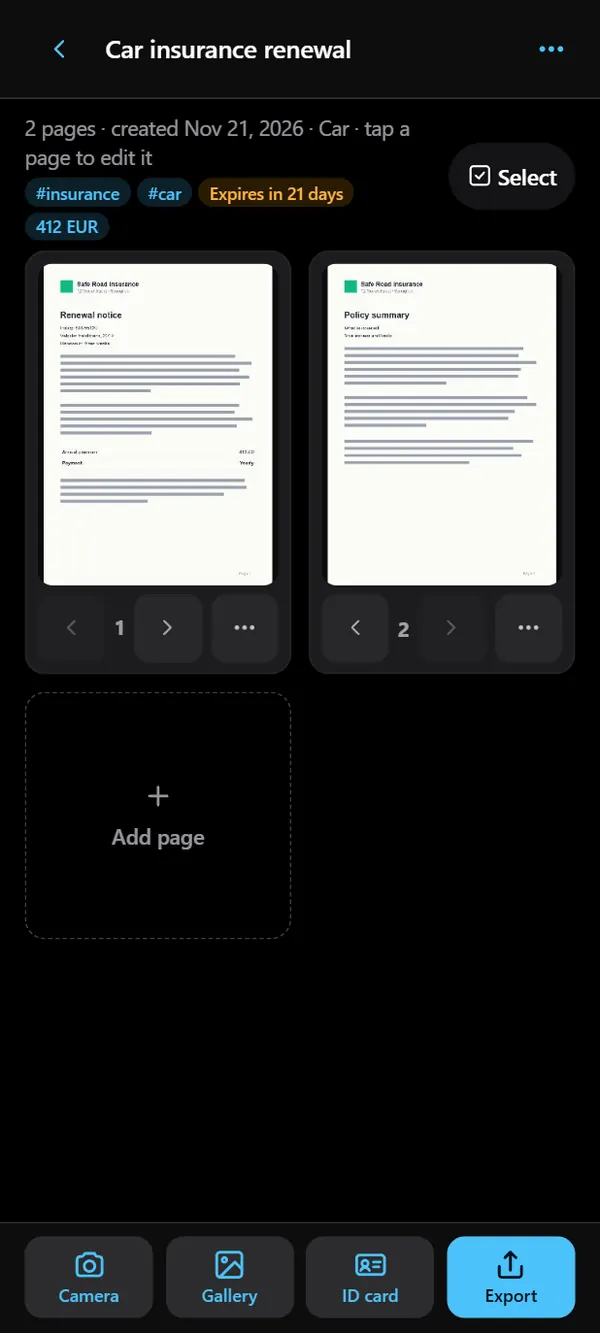
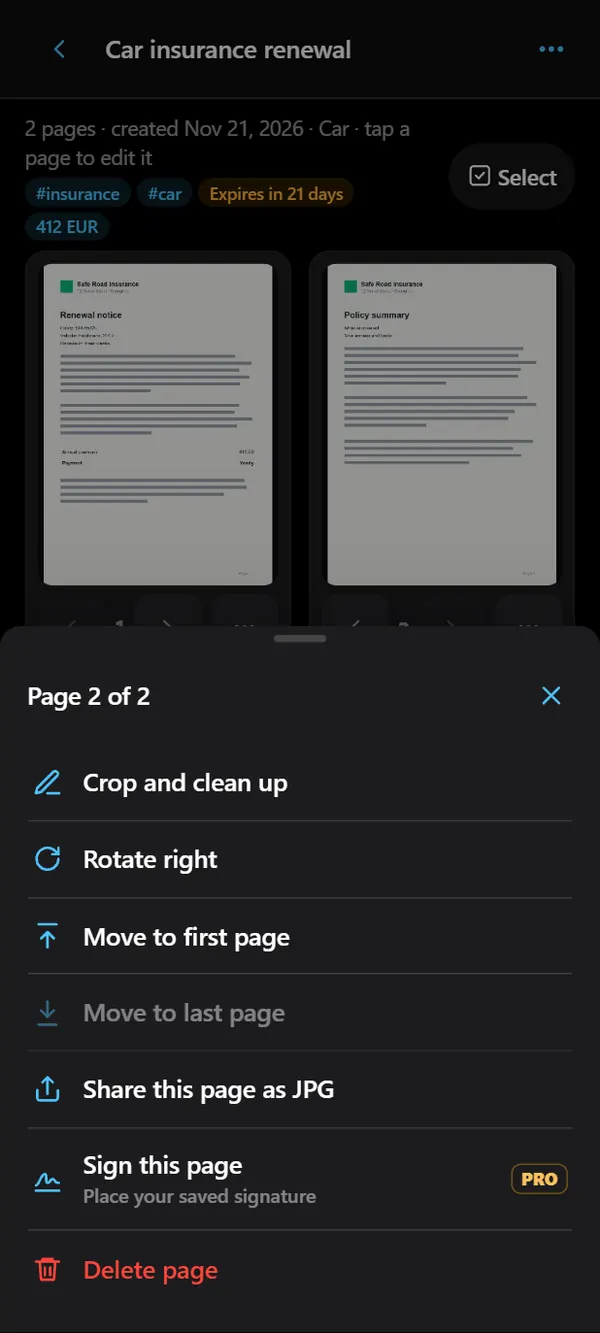
Open a document. Use the arrows under each page to move it, tap a page to edit it, or tap Add page.
- Step 2
Tap ... under a page for Crop and clean up, Rotate right, moving it to the first or last page, Share this page as JPG or Delete page.
- Step 3
Tap Select, pick pages, then Share PDF to share just those pages, New document to split them off, or Delete (with Undo).
3Add tags, notes, expiry dates and amountsKeep the details of a document with it and see what expires soon.
- Step 1
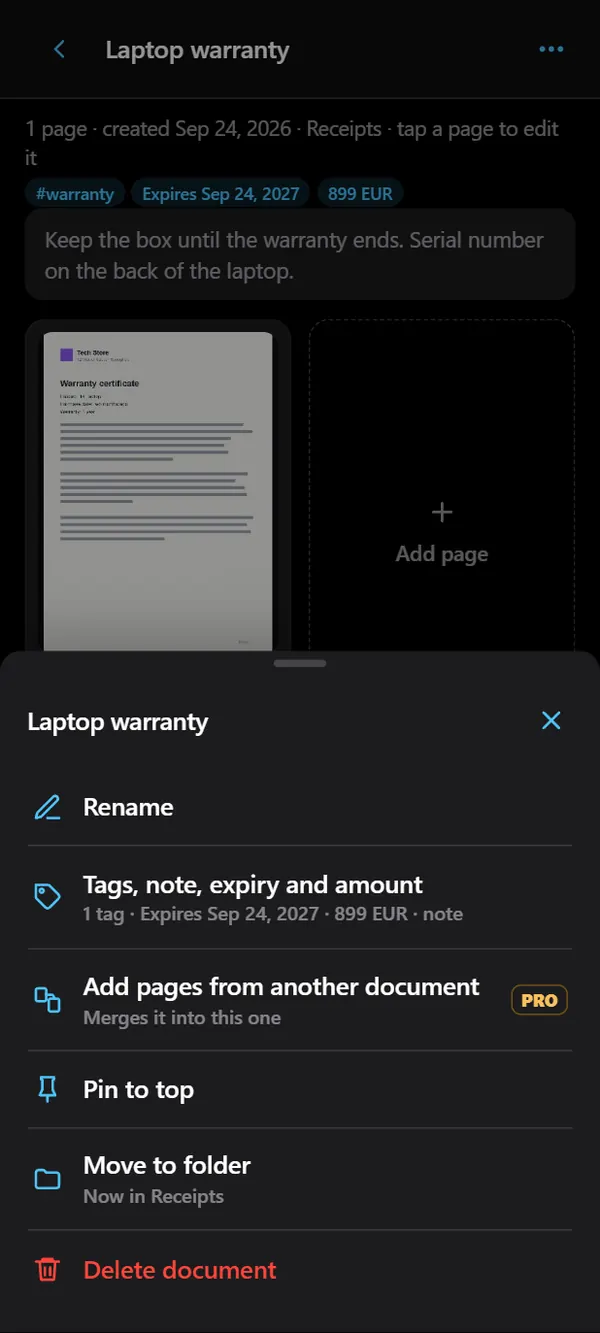
Open a document and tap ... at the top right for Rename, Tags, note, expiry and amount, Pin to top and Move to folder.
- Step 2
In Details, add tags, an Expiry or reminder date, an amount with its currency and a note. Tap Save.
- Step 3
Documents that expire within 30 days appear under Expiring soon at the top of the home screen; folder and #tag chips filter the list.
4Export and share as PDF or JPGMake a real PDF on your phone and send it anywhere.
- Step 1
In a document tap Export. Choose PDF document or JPG images, the page size (Fit to scan, A4 or Letter) and the resolution.
- Step 2
Tap Share PDF. The file is made on your phone and handed to the Android share sheet, where you can save it to Files or Drive or send it by email or chat.
- Step 3
To send several documents together, tap Select on the home screen, tick them and choose One PDF. Folder moves them and Delete removes them with Undo.
5Check Insights and your other devicesSee what you have scanned and what is on your other phones.
- Step 1
Tap the chart icon at the top for Insights: documents scanned per month, kinds of pages, storage used on this phone and the total of the amounts you entered.
- Step 2
If you are signed in to the optional Bright Loop Account on more than one phone, open Settings and tap View next to On your other devices.
- Step 3
You see the document list of each other phone. Only names and details sync; the pages stay on the phone that scanned them.
- Step 4
Search on the home screen also lists matching documents on your other devices.
6Back up and export your listMove your scans to a new phone or get a spreadsheet of your documents.
- Step 1
Tap the gear icon at the top of the home screen to open Settings.
- Step 2
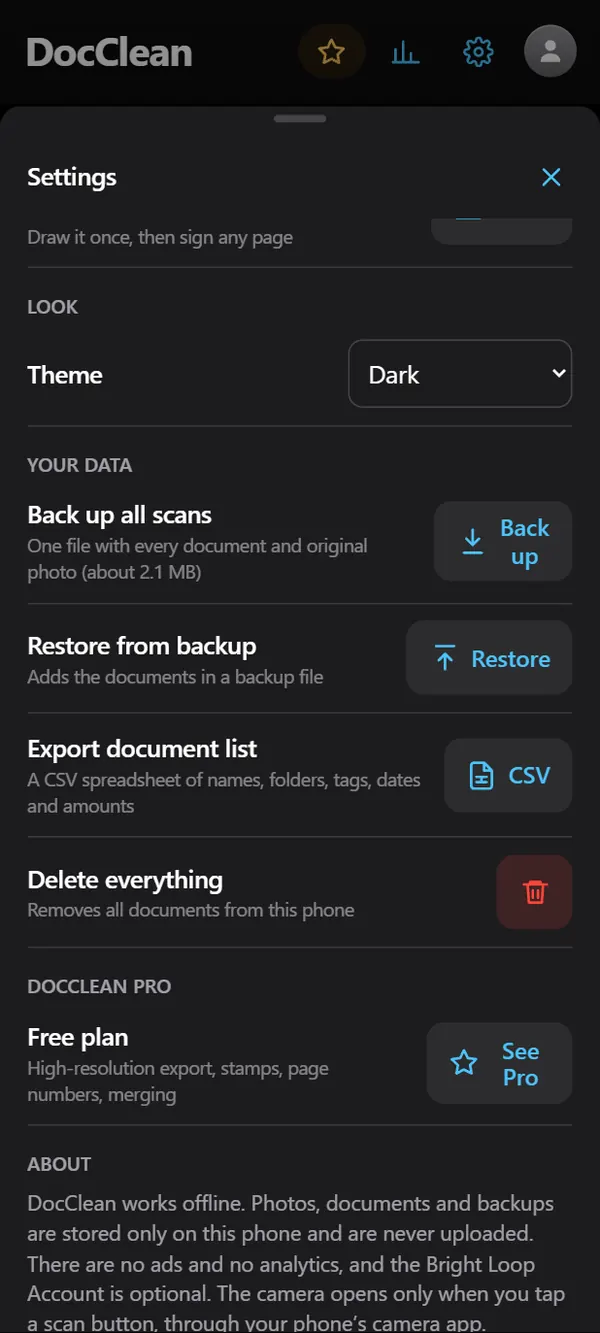
Scroll to Your data. Back up all scans saves one file with every document and original photo; Restore from backup adds the documents from such a file.
- Step 3
Export document list makes a CSV spreadsheet of names, folders, tags, dates and amounts (no images).
Free, with optional Pro.
Download DocClean free. Pro is optional and billed by Google Play, which shows the price before you confirm.
Free
Unlimited scans and documents, edge finding and corner crop with perspective correction, all four filters, rotation, ID card copies, folders, page selection and splitting, PDF and JPG export at standard resolution (up to 1800 px, about 150 dpi on A4), search, backup and restore. No watermark on your files.
DocClean Pro (optional subscription)
- Sign pages: draw your signature once, then drag it into place on any page
- Password-protected PDFs with AES-256 encryption (PDF 2.0 standard)
- High-resolution export, up to 3000 px (about 250 dpi on A4)
- Stamp or watermark text on exported pages, such as COPY, CONFIDENTIAL or PAID
- Page numbers in your PDFs
- Merge documents into one
Pro is a monthly or yearly subscription through Google Play. The price, and any trial Google Play offers you, is shown in the app before you subscribe. It renews until you cancel, and you can cancel any time in Google Play > Payments and subscriptions.
Manage or cancel subscriptions in Google Play > Payments & subscriptions. Purchases and Restore purchases
Try it now.
Open DocClean right here in your browser, or download the Android app file directly.
Open in browser
The full DocClean app, running in a new tab. Nothing to install.
Some phone-only features, such as purchases, notifications, sharing and camera scanning, work only in the Android app. Anything you do in the browser is saved in that browser only, unless you sign in to the Bright Loop Account.
Download the APK
Install DocClean on an Android phone without Google Play.
- Version
- 1.3
- Size
- 3.9 MB
- SHA-256
379a5f5387ff03f01b7737143933fda882d1509b0b8350f0b9092922576e296f
An APK installed from this website can't be updated from Google Play later. To switch to Google Play, uninstall it and install from Play. Your data only comes with you if you back it up with the Bright Loop Account first. How to install an APK
Requirements & details.
- Requires
- Android 7.0 or later
- Size
- 3.9 MB
- Version
- 1.3
- Price
- Free, optional Pro subscription
- Internet
- Not required
- Account
- Optional Bright Loop Account
- Ads
- None
- Category
- Productivity
- Developer
- Bright Loop (Google Play: Bright Loop Games)
- Availability
- Early access (Google Play closed testing)
- Web version
- Open in browser
How to get DocClean.
DocClean is in early access through Google Play closed testing. It takes about two minutes.
- Ask to join the tester listEarly access runs as a Google Play closed test, so your Google account must be on the tester list before the opt-in link works. Send us the Gmail address you use on Google Play and we'll add you.
- Open the opt-in linkOn your Android phone, signed in to the same Google account, open the DocClean early access link.
- Tap "Become a tester"Google Play confirms that you've joined the test.
- Install from Google PlayTap the "download it on Google Play" link on that page, or open the Google Play page, then tap Install. Updates arrive through Google Play like any other app.
- Tell us what you thinkEarly access means your feedback shapes the next update. Email rehman@mindum.dev any time.
Link not working? See Troubleshooting or the full early access guide.
Account & sync.
Optional. DocClean works fully without an account. Sign in to the free Bright Loop Account to back up your DocClean data and keep it in sync across your phones.
What syncs
- Document names, tags, notes, expiry dates and amounts, so you can see your list on other devices
What stays on this phone
- Scans, photos and PDFs
- Your signature
- Your Pro status (Google Play restores it)
Account & Sync is part of DocClean 1.3. Look for it at the top of Settings.
Privacy.
DocClean keeps your data on your phone. No ads and no analytics.
Private and offline
No account needed, no sign-up. Your photos and documents are stored only on your phone and are never uploaded. DocClean has no ads and no analytics. The camera opens only when you tap a scan button, through your phone's camera app. A backup file lets you move your scans to a new phone. DocClean does not read or recognise the text in your scans.
If you sign in
The Bright Loop Account is optional. If you sign in, DocClean backs up the records listed under Account & sync to your account so you can restore them on another phone. Photos and files are never uploaded, and you can export or delete your cloud data at any time.
Read the full Privacy Policy.
Tips.
- Put the page on a darker, plain surface before you scan; edge finding works much better.
- Use Black & white for forms and contracts, and Colour enhance when a stamp or signature colour matters.
- Give warranties, IDs and insurance an expiry date so they show up under Expiring soon.
- Open a folder before you scan: new scans go into the folder you have open.
- Back up all scans before changing phones; the backup file includes the original photos.
Troubleshooting.
The corners land in the wrong place
Scan on a darker, plain surface, then drag the corners onto the page yourself, or tap Whole photo to keep the full image.
Text looks faint or blotchy in Black & white
Raise Ink strength or lower Brightness on the Clean up step, or switch to Colour enhance or Greyscale.
The share sheet does not open
Sharing and saving PDFs use the Android share sheet in the app. Make sure an app such as Files, Drive or email is installed to receive the file.
I deleted a page or document by mistake
Tap Undo on the message that appears straight after deleting.
My scans are missing on my new phone
Photos never sync. On the old phone use Settings > Back up all scans, then Restore from backup on the new phone.
Questions.
Does DocClean read the text in my scans?
No. DocClean does not read or recognise text. Search works on document names, folders, tags and notes.
Are my scans uploaded anywhere?
No. Photos and documents are stored only on your phone. With the optional Bright Loop Account, only settings and document names and details (folders, tags, dates, amounts) sync; photos, PDFs and your signature stay on the phone.
What does the Expiring soon list show?
Documents whose expiry or reminder date is within the next 30 days, soonest first. Set the date in a document's Tags, note, expiry and amount.
How do I copy both sides of an ID card onto one page?
Tap ID card on the home screen or in a document and scan the front and the back. Both sides are placed on one A4 page, at actual card size or large.
Can I send only some pages of a document?
Yes. Open the document, tap Select, pick the pages and tap Share PDF. New document splits them off instead.
Why can't I open a document listed under my other devices?
Only its name and details sync; its pages stay on the phone that scanned it. Share it as a PDF from that phone, or back it up there and restore the backup here.
What resolution are free exports?
Standard resolution, up to 1800 px on the long side (about 150 dpi on A4), with no watermark. Pro adds high resolution up to 3000 px.
Is DocClean free?
Yes. DocClean is free to download and use. DocClean Pro is an optional monthly or yearly subscription through Google Play that adds the extras listed under Free and Pro. Google Play shows the price, and any trial, before you confirm.
Why can't I find DocClean on Google Play?
DocClean is in early access (a Google Play closed test), so it only appears for people on the tester list. Follow the steps under How to get it. Once it becomes public, anyone can install it from Google Play.
Does DocClean work offline?
Yes. DocClean works without an internet connection. You only need a connection for optional things like Bright Loop Account sync and Google Play purchases.
Do I need an account?
No. DocClean works fully without one. The Bright Loop Account is optional and adds cloud backup and sync across your phones.
How do I move to a new phone?
Sign in to your Bright Loop Account on the new phone and choose "Use Cloud Data", or export a backup file on the old phone and restore it on the new one. Photos and files only move with a backup file. Pro comes back with Restore purchases. See Move to a new phone.
How do I restore a purchase?
Make sure your phone uses the same Google account you bought with, open DocClean and tap Restore purchases. Google Play checks your purchases and DocClean unlocks what you own. More about purchases.
Can I use DocClean in a browser?
Yes. Tap Open in browser to run it in a new tab. Some phone-only features, such as purchases, notifications, sharing and camera scanning, work only in the Android app, and anything you do there is saved in that browser.
Can I install it without Google Play?
Yes, with the APK on this page (version 1.3, 3.9 MB). An APK install can't be updated from Google Play later; see Install an APK on Android.
What do I need to run it?
Android 7.0 or later, or any modern browser for the web version.
Is it available on iPhone?
There's no iPhone app at the moment. DocClean is made for Android, but you can open the web version in Safari.
Get help with DocClean
Email rehman@mindum.dev. Include your phone model, Android version and what happened, and we'll take it from there.
Help Centre
Step-by-step guides for early access, sync, backups, purchases and moving phones. Visit the Help Centre
More apps you might like.
EchoNote
Talk or type your day. Tasks, due dates, ideas and mood are picked out for you.
Unplug
Pomodoro focus timer with offline background sounds, daily goals and a heatmap
SafeKeep
Passport, ID, insurance & warranty expiry reminders. Private, kept on your phone
RitualOS
Track habits and streaks, and run timed morning, evening and workout routines.