Unplug
Pomodoro focus timer with offline background sounds, daily goals and a heatmap
Google Play pageDownload APK v1.5 · 4.0 MB
Early access on Google Play closed testing. You need to be on the tester list first: see how to join.
A closer look.
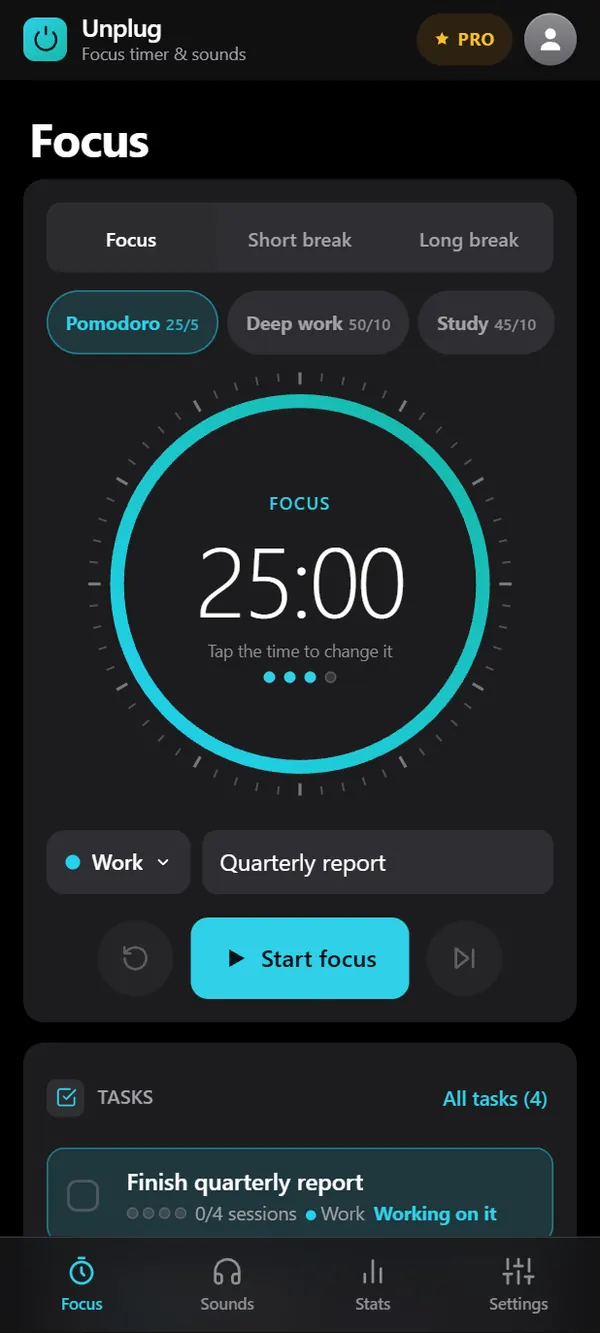
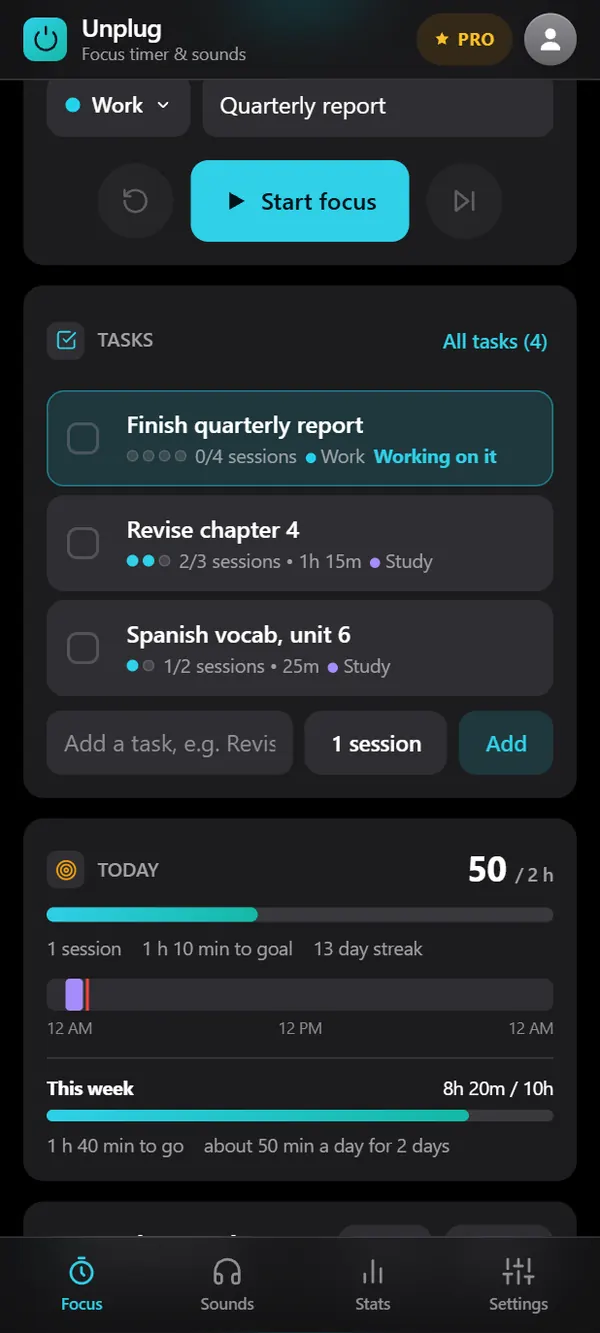
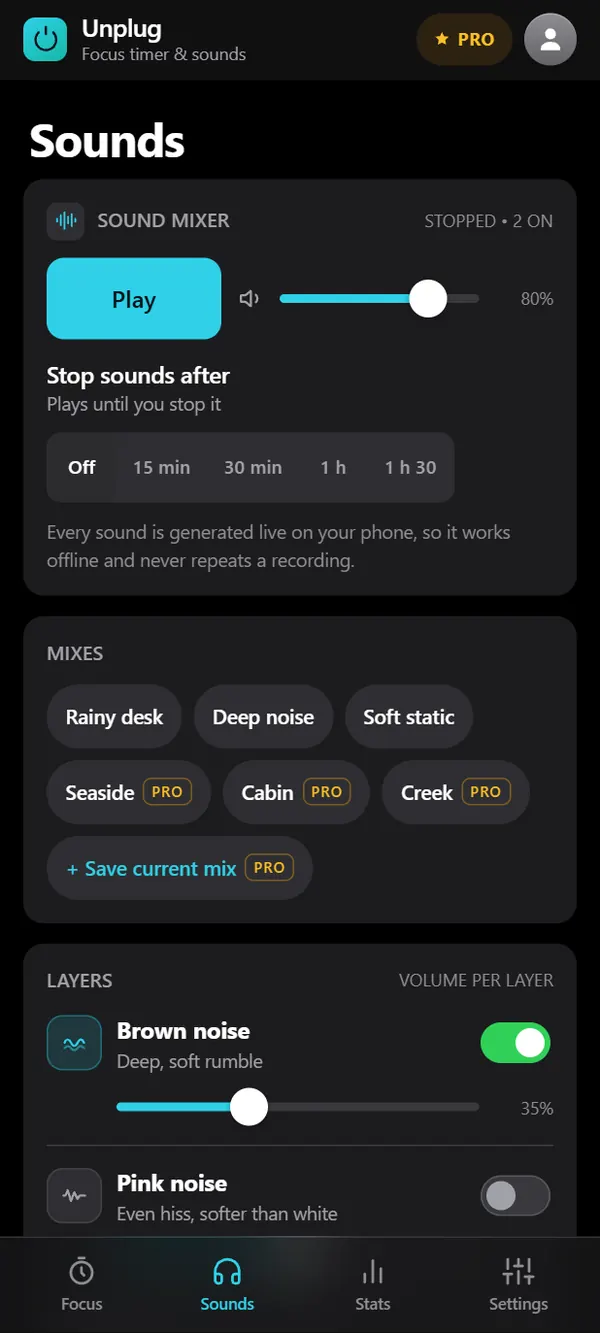
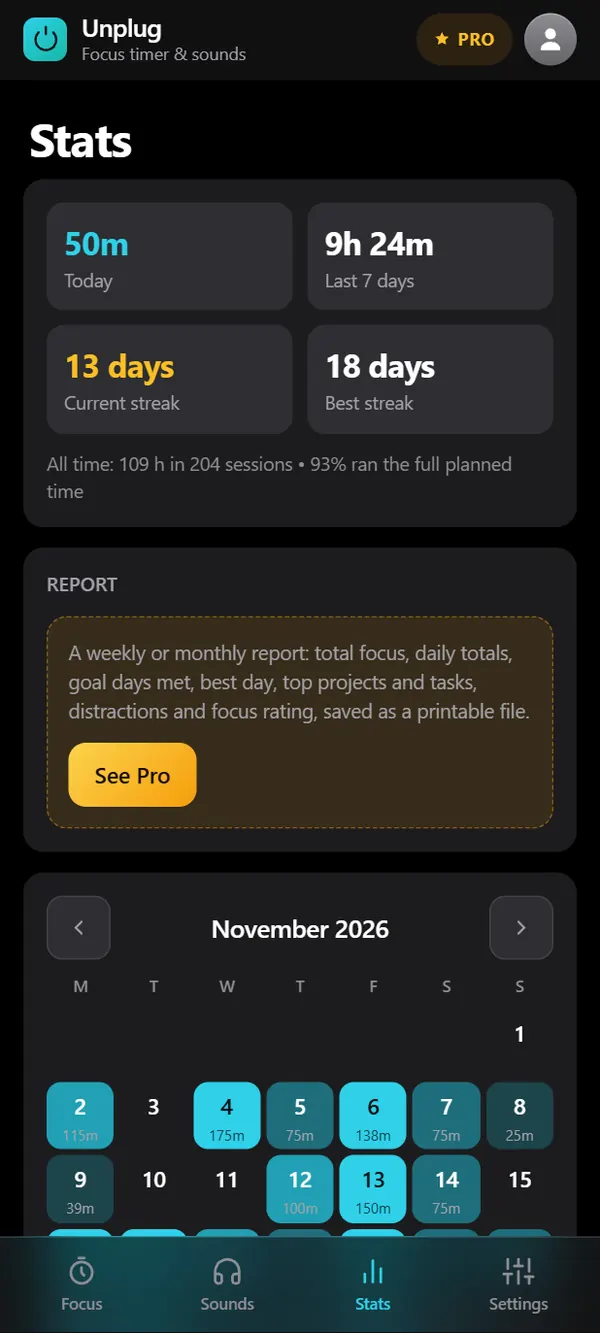
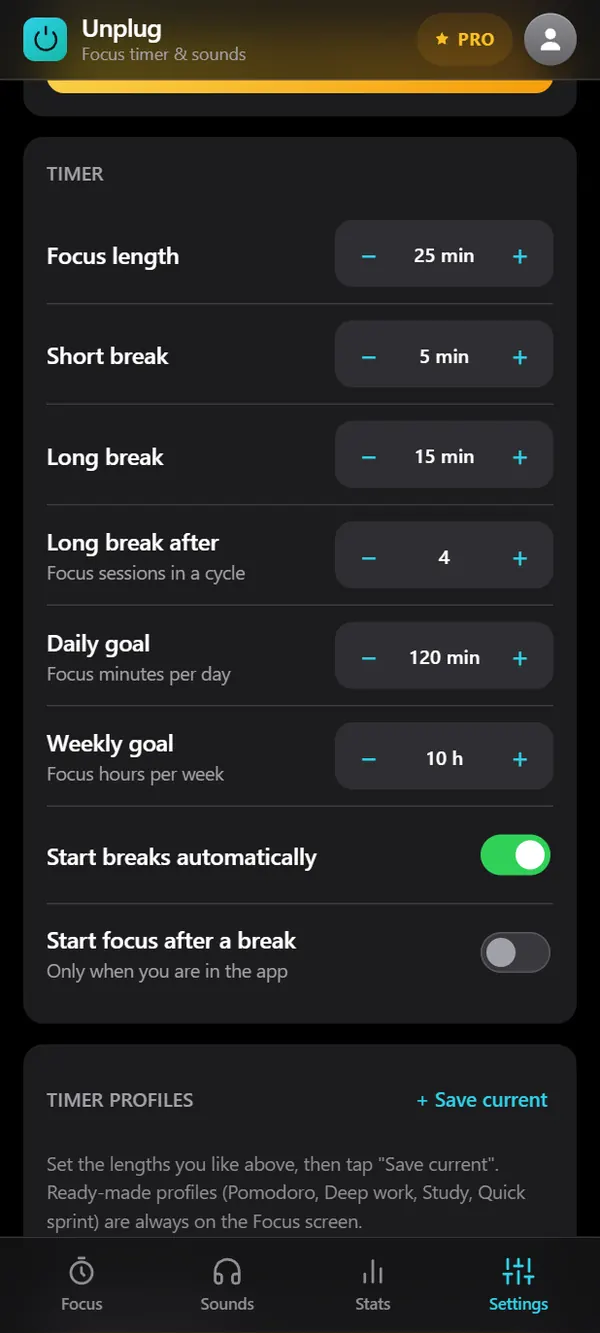
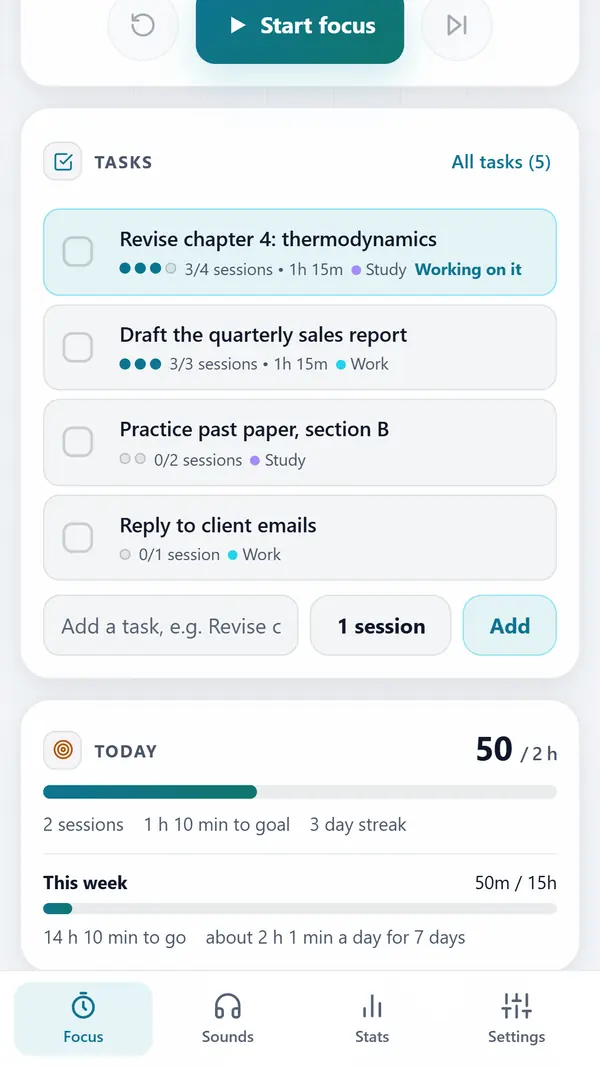
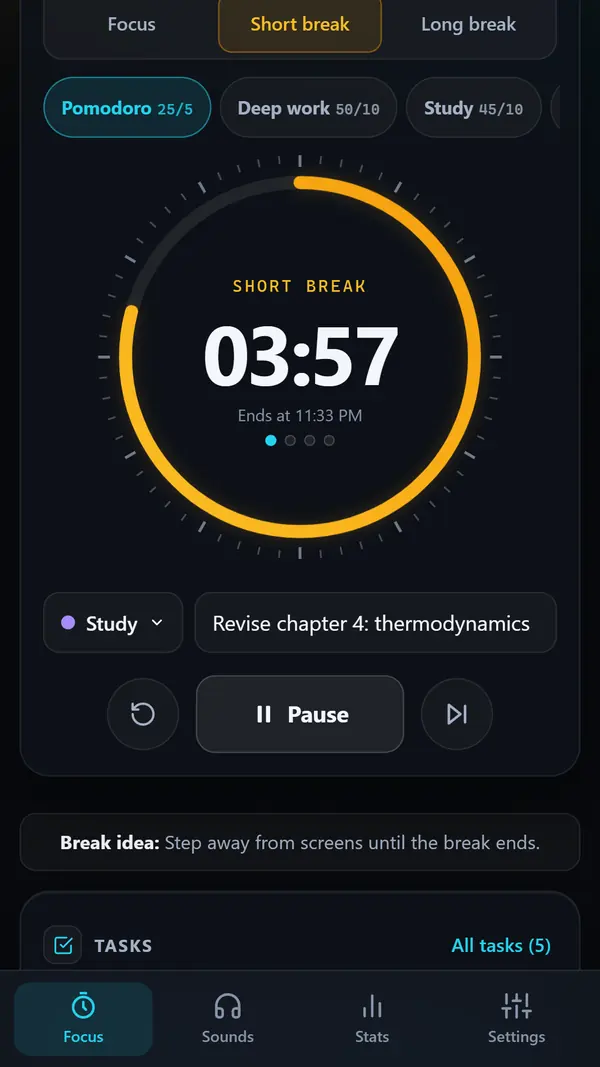
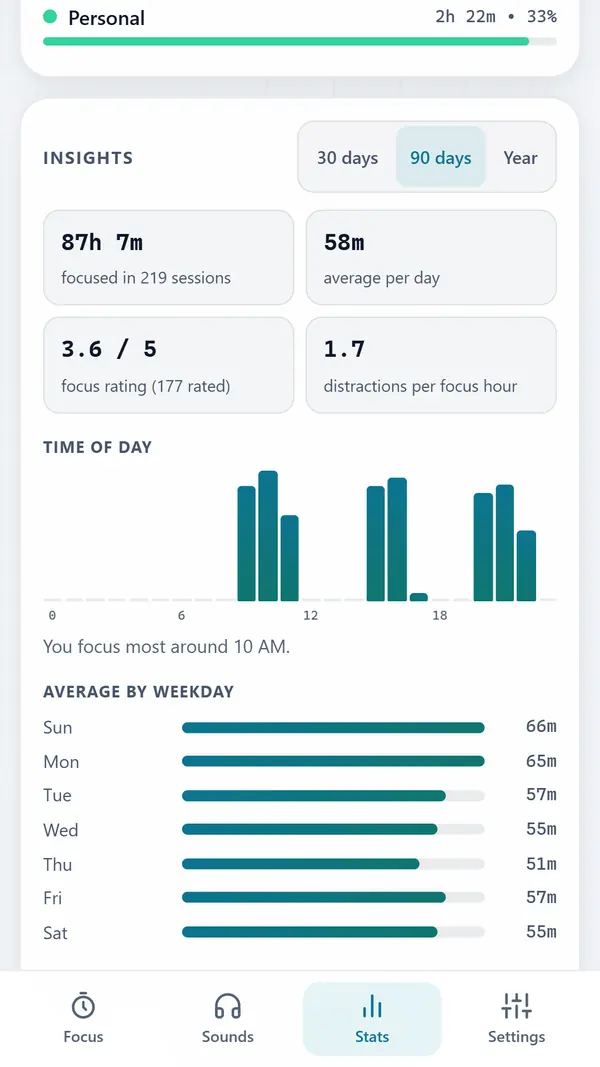
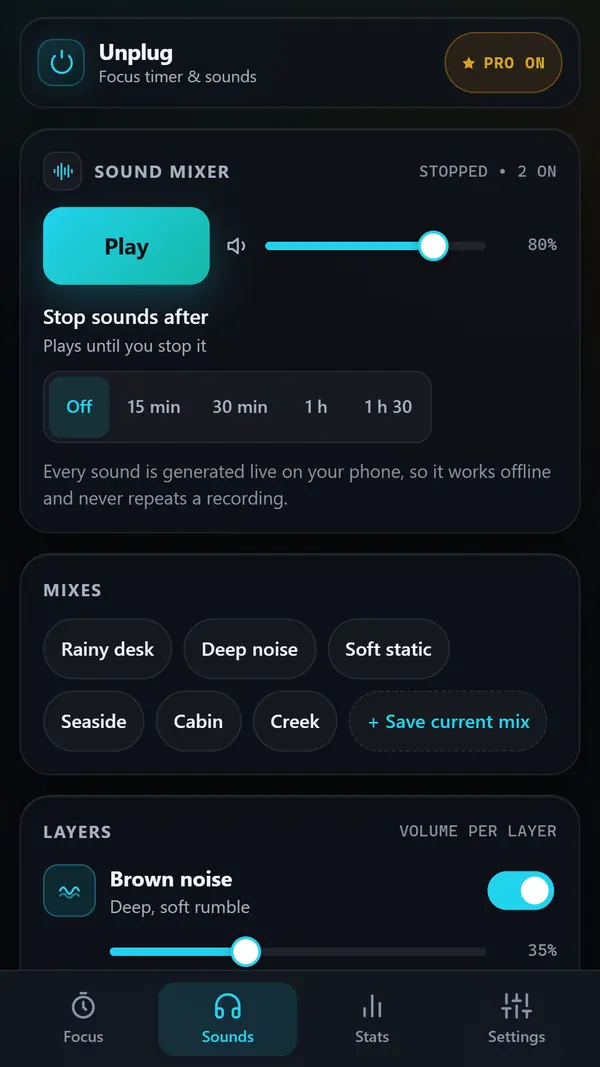
Unplug is a calm focus timer for study and work. Pick a length, press start and work in timed blocks with short breaks. Every finished block is saved, so your stats and heatmap show the focus time you really put in.
What's new in version 1.5
New in version 1.5, along with a refreshed design and the optional Bright Loop Account. Early-access testers get it through Google Play.
Month calendar of focus time; add forgotten sessions
History search, project filter and bulk edit with Undo
Session notes
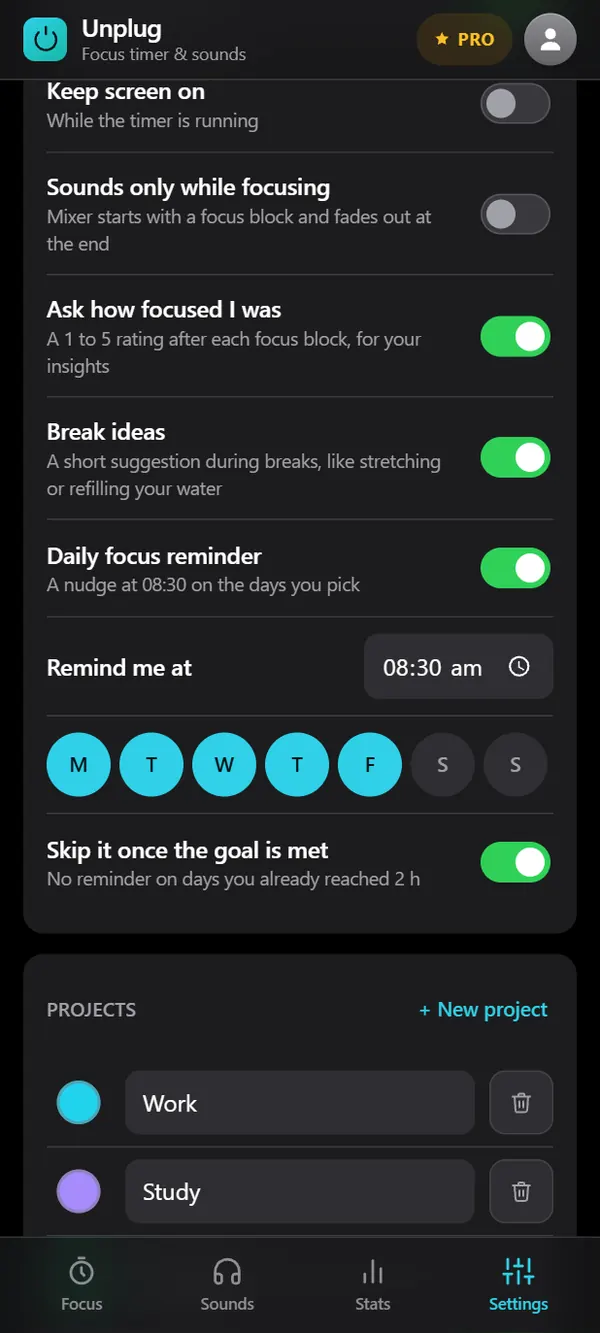
Daily focus reminder
Today's session timeline
Feature tour.
Every feature in Unplug, and what it does for you. Items marked Pro are part of the optional subscription.
Timer
- A timer you can trust
- The timer runs on the clock, so it stays right when you lock the screen or switch apps. A block that ended while you were away is saved with its real end time.
- Pomodoro or your own rhythm
- 25/5 Pomodoro, 50-minute deep work or any length from 1 to 240 minutes, with short and long breaks and optional auto-start.
- Timer profiles
- Switch between Pomodoro, Deep work, Study, Quick sprint or a profile you saved in one tap.
- Pause, finish early or skip a break
- Finishing early saves the real time and labels the session as ended early.
- Break ideas
- During breaks a short idea, like stretching or refilling your water, is shown. You can turn it off.
- Chime and notifications
- A soft chime when time is up, and an optional notification when a session ends (Android app).
Tasks, projects and goals
- Tasks with estimated sessions
- Guess how many focus sessions a task needs; every finished block counts towards the task you picked.
- Projects and labels
- Give each session a project and a label. Free includes 3 projects.
- Daily and weekly goals and streaks
- Set focus minutes per day and hours per week, and keep your streak of days with focus time going.
- Got distracted and focus rating
- Tap Got distracted when your mind wanders, and rate how focused you were from 1 to 5 after a block.
- Today's session timeline
- The Today card shows when each of today's blocks happened on a line from midnight to midnight.
- Daily focus reminder
- A notification at the time and on the days you choose to start your first block, which can skip days when your goal is already met (Android app).
- Unlimited projects Pro
- Create as many projects as you need.
Stats and history
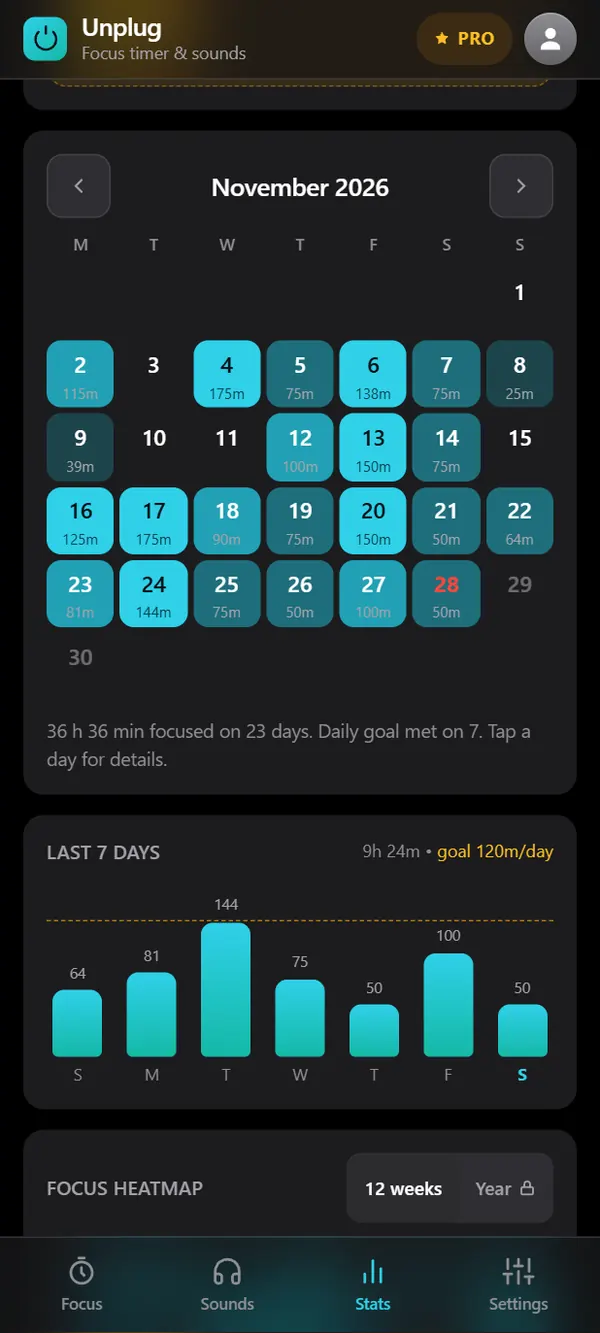
- Last 7 days and 12-week heatmap
- Bars for the last 7 days against your goal, and a heatmap of 12 weeks where the brightest days met the goal.
- Month calendar
- Each day shaded by focus time. Tap a day to see its sessions or add a session you forgot to time.
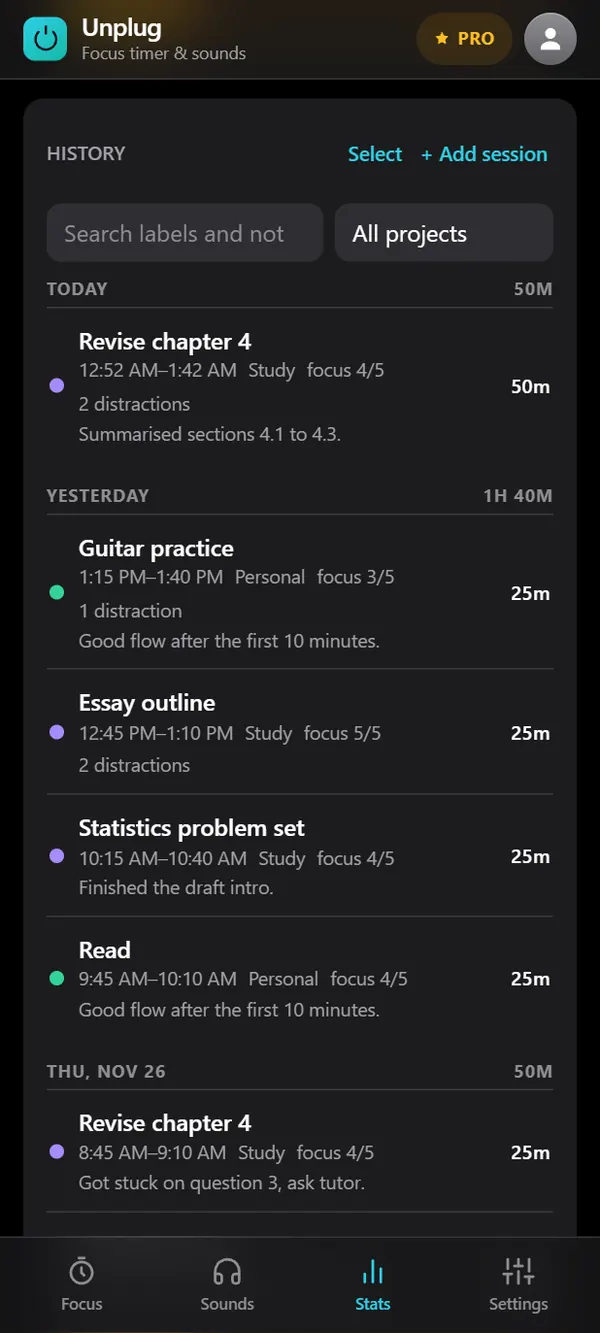
- History search, filter and bulk edit
- Search labels and notes, filter by project, and select sessions to move or delete them together, with Undo.
- Session notes
- Write what got done or what got in the way on any session; notes show in History and are searchable.
- Edit, delete or add sessions
- Change a session's project, label or rating, delete it, or add time by hand.
- Focus insights Pro
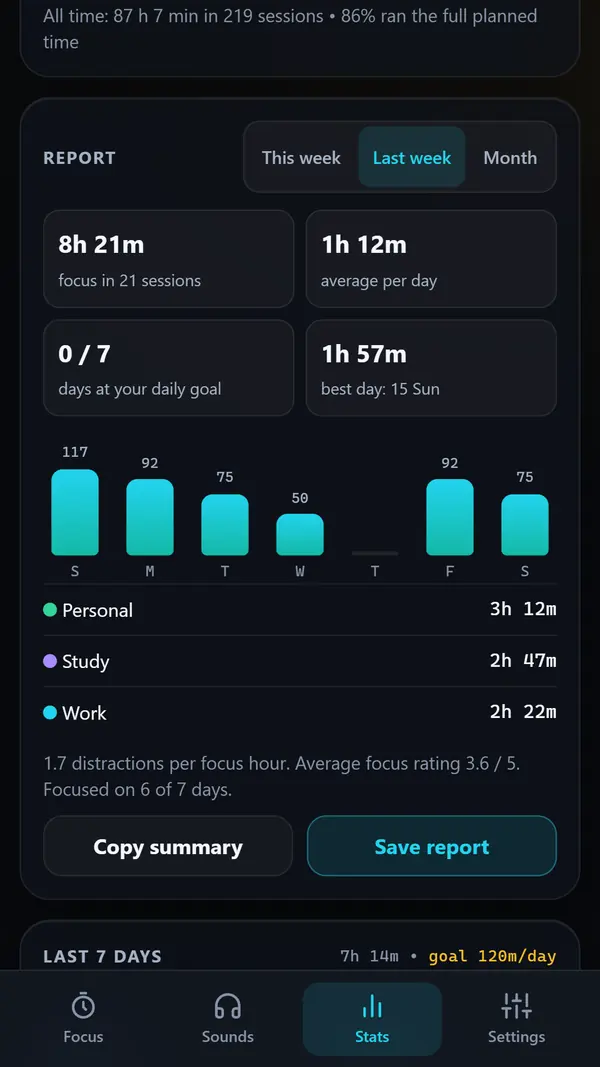
- Best time of day and weekday, focus rating by time and project, distractions per hour and task estimate accuracy.
- Weekly and monthly report Pro
- Daily totals, goal days, top projects and tasks, saved as a printable file.
- Full-year heatmap and longer project totals Pro
- A year heatmap and project totals for 30 days, a year or all time (free shows 7 days).
Background sounds
- Five sounds made on your phone
- Brown, pink and white noise, rain and a room fan, generated on the device so they work offline, each with its own volume.
- Mixes and sleep timer
- Three ready-made mixes, and a timer that stops sounds after 15 minutes up to 1 h 30.
- Sounds only while focusing
- Let the mixer start with a focus block and fade out at the end.
- More sounds and your own mixes Pro
- Ocean waves, wind, fireplace, stream and a warm drone, three extra mixes, and saving your own mixes.
Your data
- Backup, CSV export and restore
- Back up everything to a JSON file, export sessions as CSV, and restore a backup on a new phone.
- Light and dark themes
- Choose System, Dark or Light, and whether your week starts on Monday or Sunday.
- Private by design
- No account, no ads and no tracking. Your data stays on your phone unless you sign in to the optional Bright Loop account for backup.
Full store description
A timer you can trust
The timer runs on the clock, so it stays accurate when you lock the screen or switch apps, and a block that ended while you were away is saved with its real end time. Optional notifications tell you when a session ends.
Pomodoro or your own rhythm
25/5 Pomodoro, 50-minute deep work or any length from 1 to 240 minutes, with short and long breaks and optional auto-start. Switch timer profiles (Pomodoro, Deep work, Study, Quick sprint or your own) in one tap. Pause, finish early (the real time is saved) or skip a break. During breaks a short idea, like stretching or refilling your water, is shown.
Tasks, projects and goals
Plan your day as tasks and guess how many focus sessions each needs; every finished block counts towards the task you picked. Give sessions a project, set a daily and a weekly focus goal and keep your streak going. Tap "Got distracted" when your mind wanders, and rate how focused you were after a block.
Honest stats
The last 7 days against your goal, a 12-week heatmap, time per project and a full history. Edit or delete sessions (with undo) or add time you forgot to track; early finishes are labelled.
Background sounds, made on your phone
Mix brown, pink and white noise, rain and a room fan, each with its own volume. Sounds are generated on the device, so they work offline. Play them only while a focus block runs, or set a sleep timer. These are plain background sounds; Unplug makes no health claims about them.
How to use Unplug.
Step-by-step walkthroughs of the main tasks, with screens from the current version.
1Run a focus sessionPick a rhythm, start the timer and let each finished block count.
- Step 1
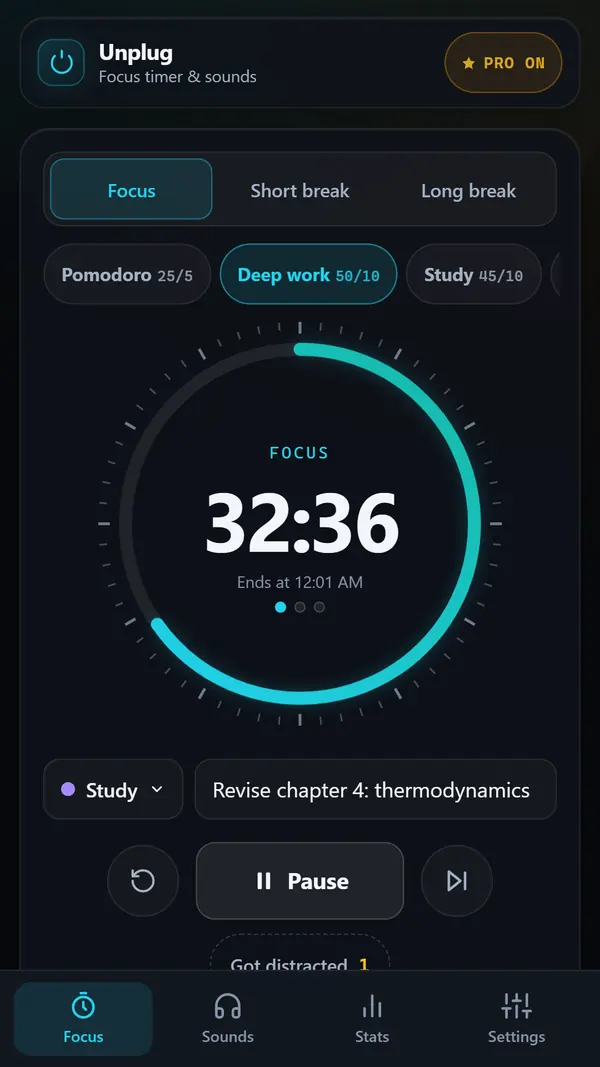
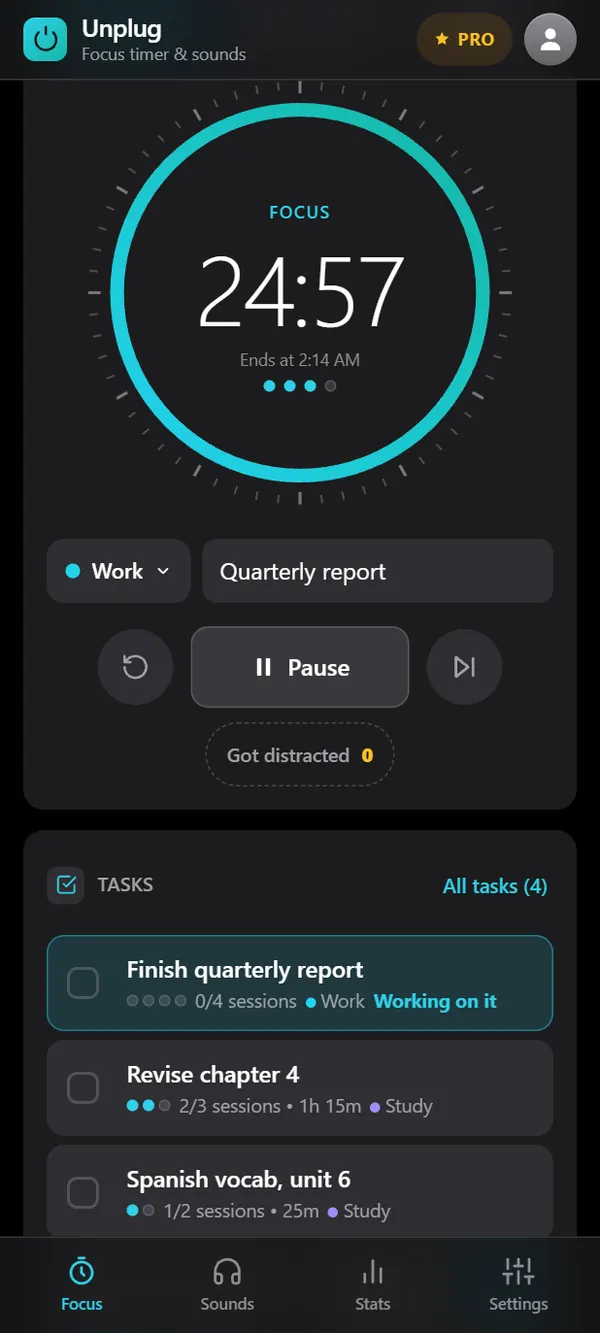
On Focus, pick a timer profile such as Pomodoro 25/5 or Deep work 50/10, or tap the time to set any length. Choose a project and type what you are working on.
- Step 2
Tap Start focus. The ring counts down and shows when the block ends. Tap Got distracted each time your mind wanders; Pause stops the clock.
- Step 3
When the block ends it is saved and counts towards today. Finish early with the button to the right of Start and the real time is saved, marked as ended early.
2Plan your day with tasksGuess how many sessions a task needs and watch the blocks add up.
- Step 1
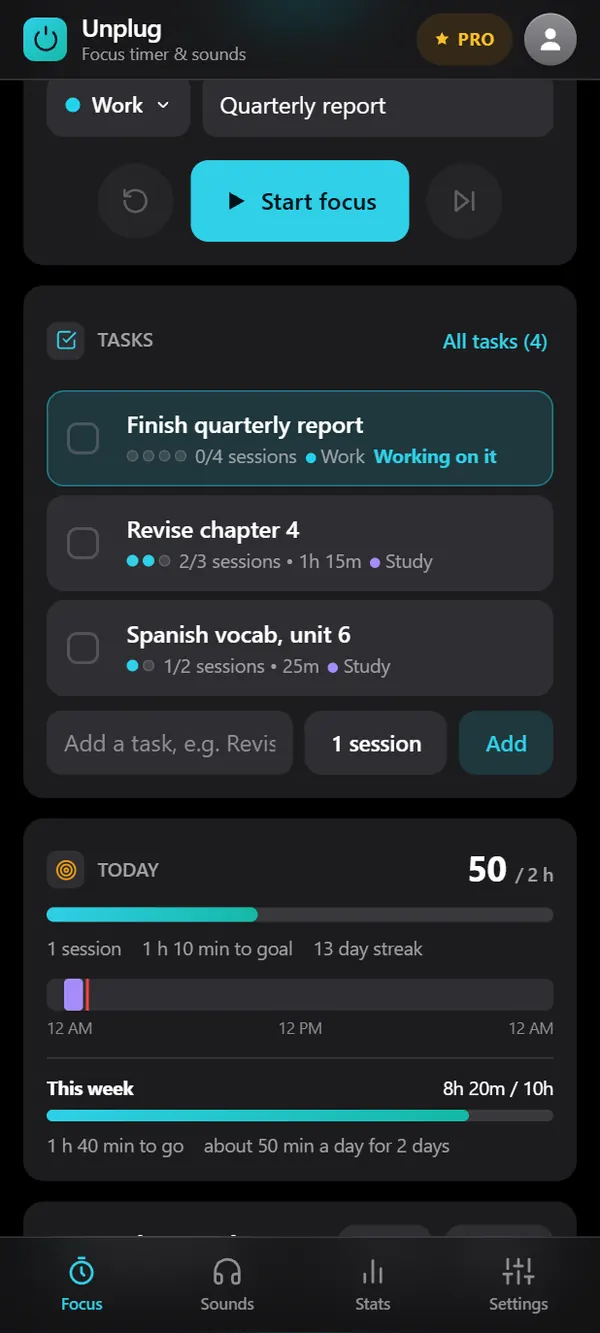
In Tasks on the Focus screen, type a task, tap the session button to set how many focus sessions you expect it to take, and tap Add.
- Step 2
Tap a task to work on it. It is marked Working on it, and every block you finish counts towards it, shown as dots and total time.
- Step 3
Under Today, see your minutes against the daily goal, your streak, a timeline of today's sessions and how your week is going against the weekly goal.
3Check your stats and add a forgotten sessionLook back on a calendar and fill in time you did not track.
- Step 1
Open Stats for today, the last 7 days, your current and best streak and all-time totals.
- Step 2
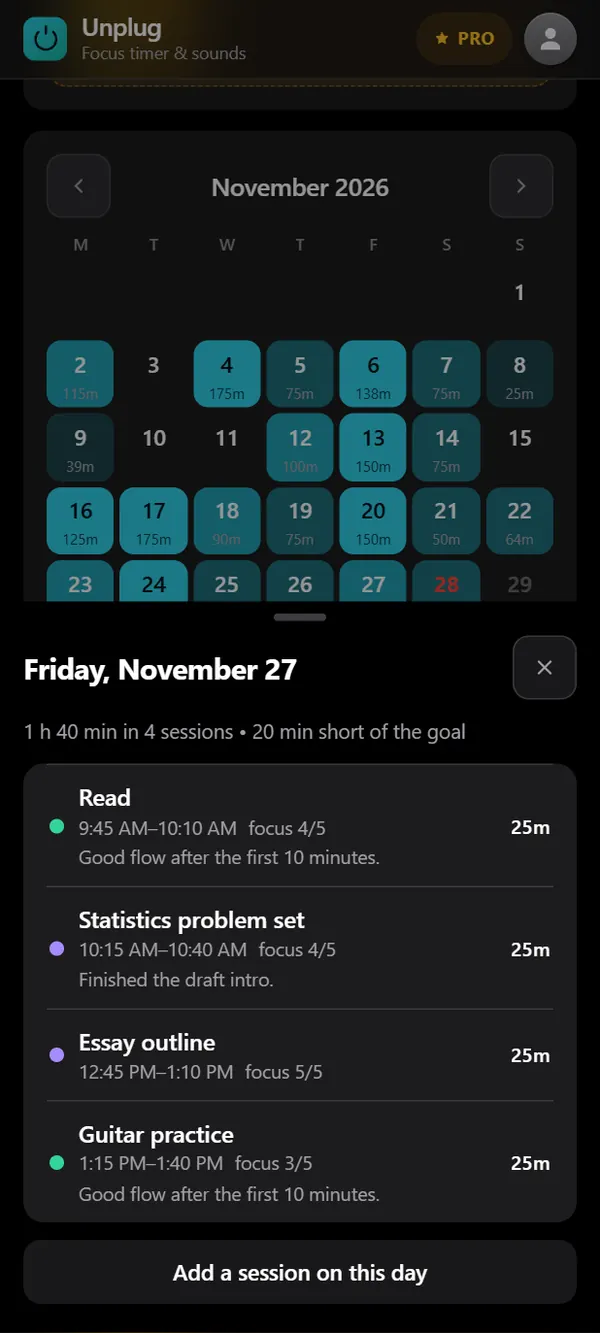
Scroll to the month calendar: each day is shaded by focus time. Use the arrows for earlier months.
- Step 3
Tap a day to see its sessions. Tap Add a session on this day to add time you forgot to track.
- Step 4
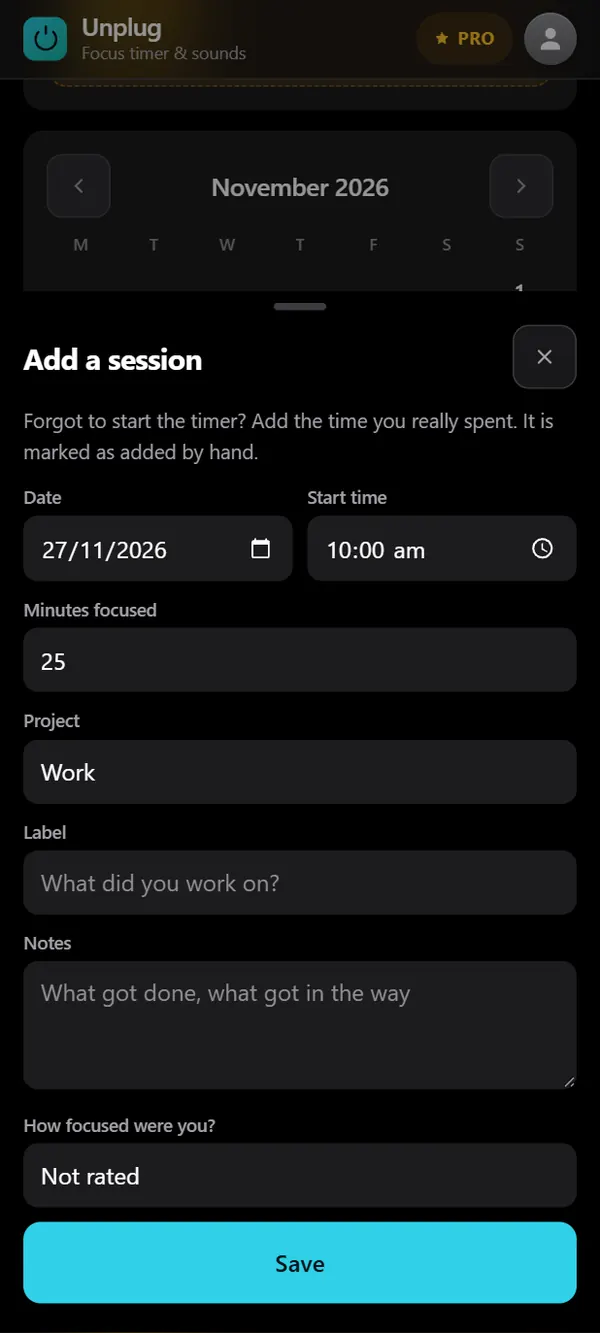
Set the start time, minutes focused, project, label, notes and rating, then tap Save. Sessions added by hand are marked as such.
4Search and tidy your historyFind sessions, add notes and fix the project of many sessions at once.
- Step 1
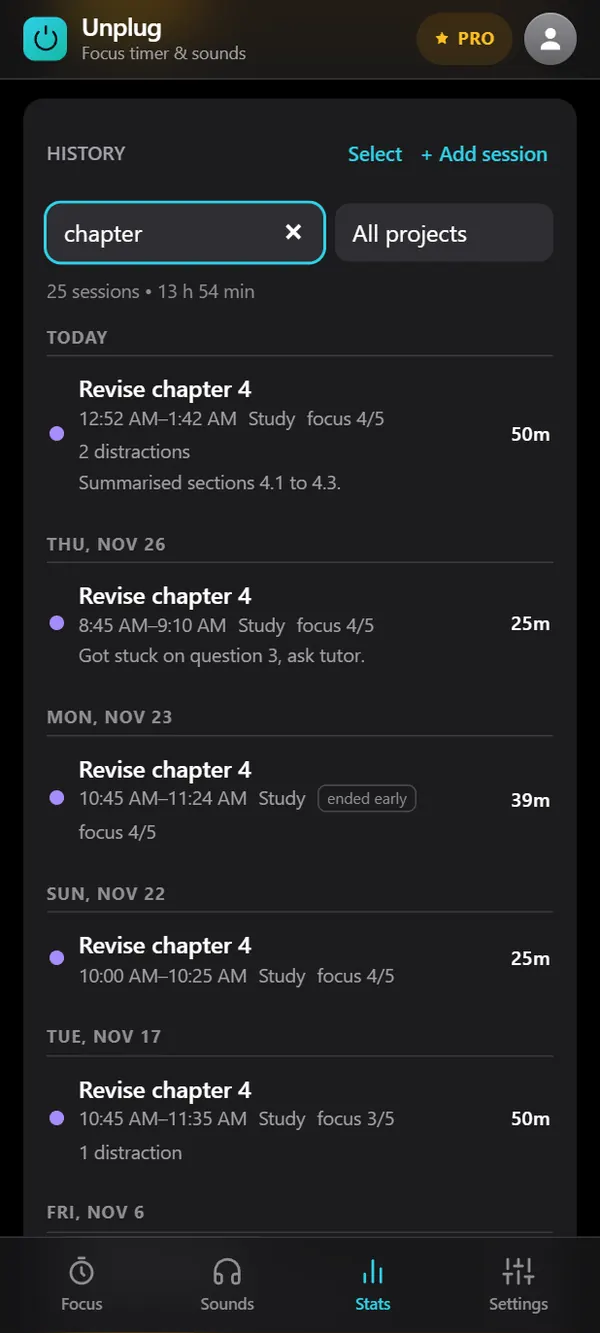
In Stats, scroll to History. Every session shows its time, project, distractions, focus rating and note.
- Step 2
Type in Search labels and notes or pick a project to filter. The number of matches and their total time are shown at the top.
- Step 3
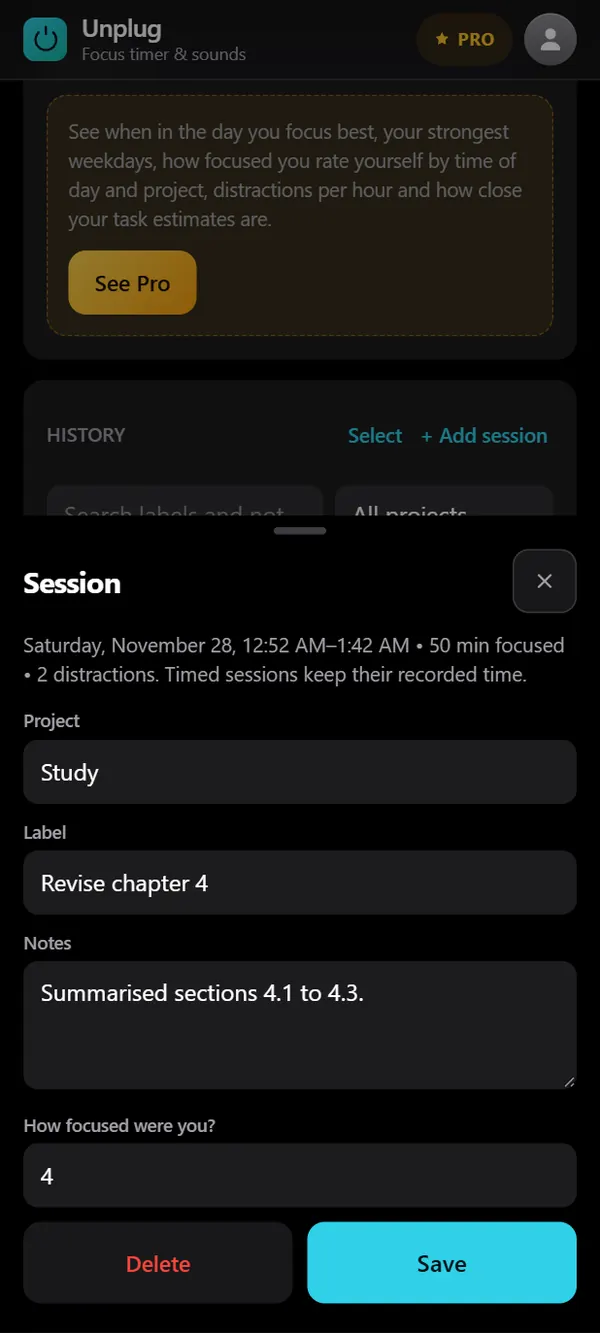
Tap a session to change its project, label or rating, or to write a note about what got done.
- Step 4
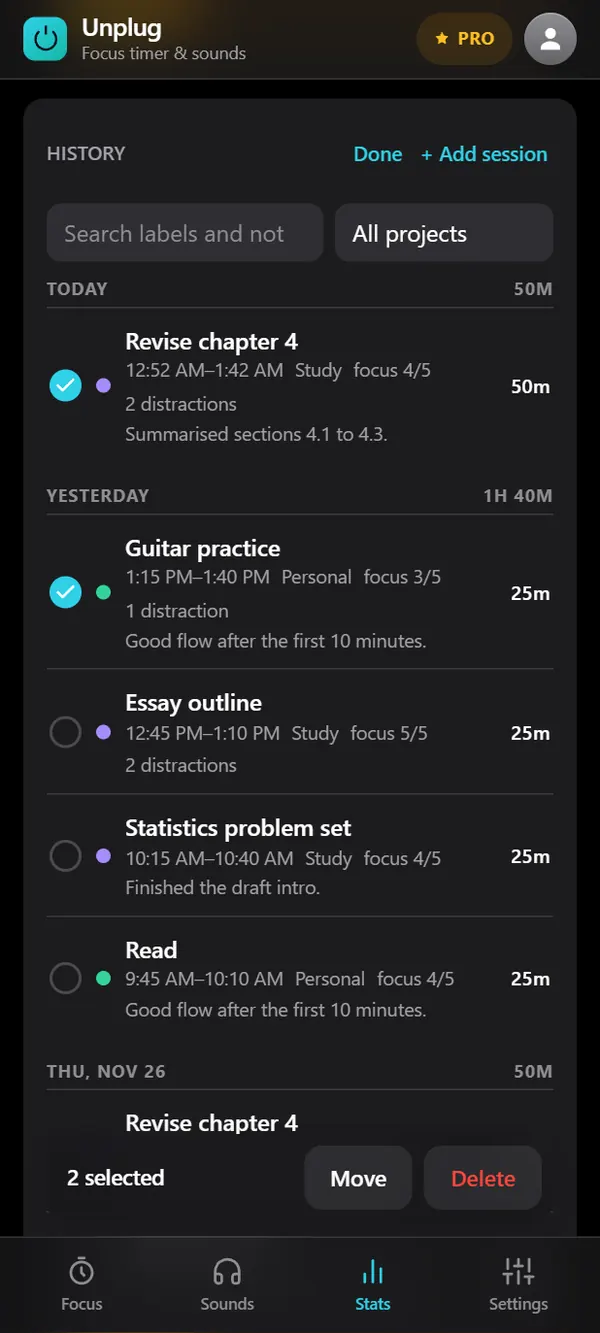
Tap Select, tick sessions, then Move them to another project or Delete them. Undo appears straight after.
5Set up background soundsMix background noise made on your phone.
- Step 1
Open Sounds. Tap Play, set the master volume, and choose Stop sounds after for a sleep timer.
- Step 2
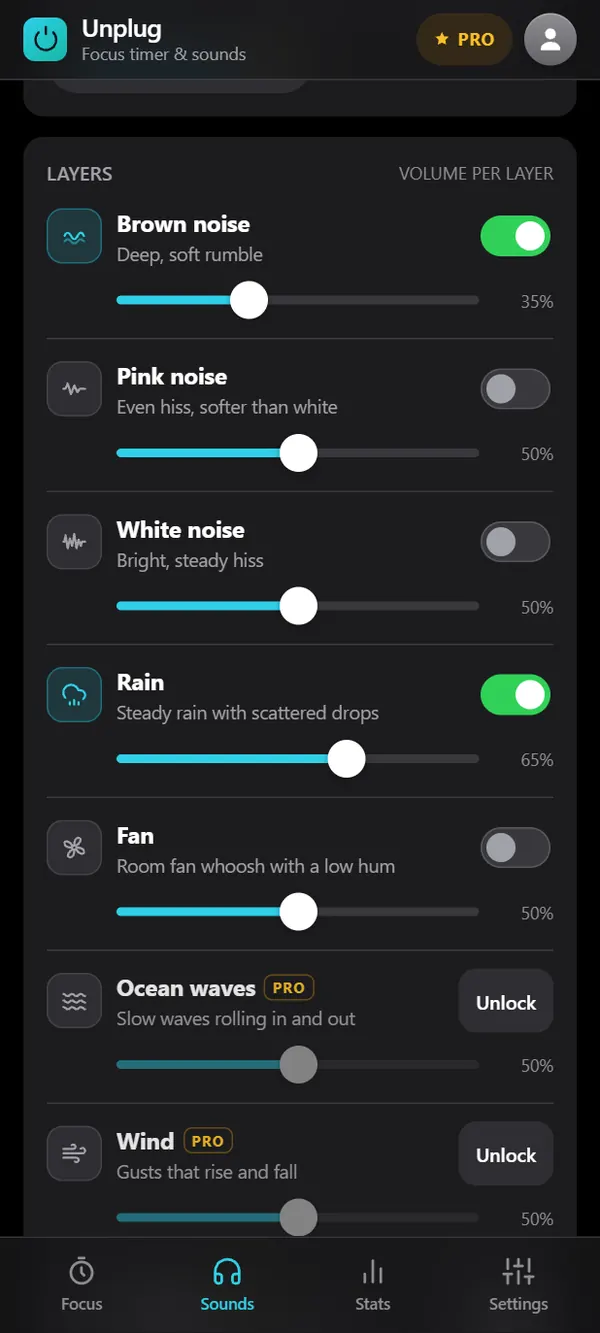
Pick a ready-made mix, or switch layers on and off and set each one's volume. Ocean waves, wind, fireplace, stream and warm drone are part of Pro.
- Step 3
To hear sounds only while you work, turn on Sounds only while focusing in Settings under Alerts & sounds: the mixer starts with a focus block and fades out at the end.
6Set goals and a daily reminderTune the timer, your goals and a nudge to start.
- Step 1
Open Settings. Under Timer, set focus and break lengths, when the long break comes, your Daily goal and Weekly goal.
- Step 2
Under Alerts & sounds, turn on Daily focus reminder, choose the time and the days, and optionally skip it once the goal is met. The reminder is a phone notification, so Android asks for permission.
- Step 3
Back on Focus, the Today card shows your minutes against the daily goal and how much per day you still need for the weekly goal.
Free, with optional Pro.
Download Unplug free. Pro is optional and billed by Google Play, which shows the price before you confirm.
Free
- Focus timer with Pomodoro, custom lengths, breaks and saved timer profiles
- Tasks with estimated sessions, distraction count and focus rating
- Projects (up to 3), labels, daily and weekly goals, streaks and break ideas
- 5 sounds with per-layer volume, 3 ready-made mixes and a sleep timer
- Last 7 days chart, 12-week heatmap, 7-day project totals, full history
- Chime, notifications, light and dark themes, backup and CSV export
Unplug Pro (optional subscription, monthly or yearly)
- 5 more sounds: ocean waves, wind, fireplace, stream and a warm drone
- Save your own sound mixes, plus 3 extra ready-made mixes
- Focus insights: best time of day and weekday, focus rating by time and project, distractions per hour, task estimate accuracy
- Weekly and monthly report with daily totals, goal days, top projects and tasks, saved as a printable file
- Full-year heatmap and project totals for 30 days, a year or all time
- Unlimited projects
Pro is billed through Google Play and renews until you cancel it in Google Play > Payments & subscriptions. Prices and any offers are shown by Google Play before you confirm.
Manage or cancel subscriptions in Google Play > Payments & subscriptions. Purchases and Restore purchases
Try it now.
Open Unplug right here in your browser, or download the Android app file directly.
Open in browser
The full Unplug app, running in a new tab. Nothing to install.
Some phone-only features, such as purchases, notifications, sharing and camera scanning, work only in the Android app. Anything you do in the browser is saved in that browser only, unless you sign in to the Bright Loop Account.
Download the APK
Install Unplug on an Android phone without Google Play.
- Version
- 1.5
- Size
- 4.0 MB
- SHA-256
8500dc9161b5d730163269082e305dfa7aca3b31143673d146fb6b373455b5ea
An APK installed from this website can't be updated from Google Play later. To switch to Google Play, uninstall it and install from Play. Your data only comes with you if you back it up with the Bright Loop Account first. How to install an APK
Requirements & details.
- Requires
- Android 7.0 or later
- Size
- 4.0 MB
- Version
- 1.5
- Price
- Free, optional Pro subscription
- Internet
- Not required
- Account
- Optional Bright Loop Account
- Ads
- None
- Category
- Productivity
- Developer
- Bright Loop (Google Play: Bright Loop Games)
- Availability
- Early access (Google Play closed testing)
- Web version
- Open in browser
How to get Unplug.
Unplug is in early access through Google Play closed testing. It takes about two minutes.
- Ask to join the tester listEarly access runs as a Google Play closed test, so your Google account must be on the tester list before the opt-in link works. Send us the Gmail address you use on Google Play and we'll add you.
- Open the opt-in linkOn your Android phone, signed in to the same Google account, open the Unplug early access link.
- Tap "Become a tester"Google Play confirms that you've joined the test.
- Install from Google PlayTap the "download it on Google Play" link on that page, or open the Google Play page, then tap Install. Updates arrive through Google Play like any other app.
- Tell us what you thinkEarly access means your feedback shapes the next update. Email rehman@mindum.dev any time.
Link not working? See Troubleshooting or the full early access guide.
Account & sync.
Optional. Unplug works fully without an account. Sign in to the free Bright Loop Account to back up your Unplug data and keep it in sync across your phones.
What syncs
- Focus sessions and session notes
- Tasks, projects and goals
- Settings
What stays on this phone
- Your Pro status (Google Play restores it)
- Background sounds, which are generated on the phone
Account & Sync is part of Unplug 1.5. Look for it at the top of Settings.
Privacy.
Unplug keeps your data on your phone. No ads and no analytics.
Private by design
No account needed, no ads, no tracking. Your data stays on your phone. Back up to a JSON file, export sessions as CSV, and restore a backup on a new phone.
If you sign in
The Bright Loop Account is optional. If you sign in, Unplug backs up the records listed under Account & sync to your account so you can restore them on another phone. Photos and files are never uploaded, and you can export or delete your cloud data at any time.
Read the full Privacy Policy.
Tips.
- Forgot to start the timer? Tap the day in the Stats calendar and add the session, so your streak and totals stay honest.
- Set an estimate on every task; with Pro, insights show how close your guesses were.
- Turn on "Sounds only while focusing" so the noise starts with each block and fades out at the end.
- Use a weekly goal if your days vary a lot; the Today card tells you how much per day you still need.
- Write a one-line note after a session; History search finds it later.
Troubleshooting.
No notification when a session ends or for the daily reminder
Turn on the notification switches in Settings, then allow notifications for Unplug in Android Settings.
Sounds do not play
Check the media volume and the master volume on the Sounds tab, and that at least one layer is switched on.
A session is in the wrong project
Tap it in History and pick another project, or use Select and Move for several sessions.
My streak broke on a day I worked
If you forgot to run the timer, add the session by hand from the Stats calendar or History.
I need my sessions on a new phone
Use Back up (JSON) in Settings > Your data on the old phone, then Restore backup on the new one.
Questions.
Does the timer keep running when I lock my phone?
Yes. The timer runs on the clock, so it stays right when the screen is locked or you switch apps, and a block that ended while you were away is saved with its real end time.
What happens if I finish a block early?
The time you really focused is saved and the session is labelled "ended early" in History.
Can I add time I forgot to track?
Yes. Tap + Add session in History, or tap a day in the Stats calendar and choose Add a session on this day. These sessions are marked as added by hand.
Do the background sounds need the internet?
No. Every sound is generated live on your phone, so it works offline.
How many projects can I have?
Free includes 3 projects. Pro removes the limit.
How does the daily focus reminder work?
Turn it on in Settings > Alerts & sounds, pick a time and the days, and Unplug sends a notification to start your first block. It can skip days on which you have already met your goal.
Can I move many sessions to another project at once?
Yes. In History tap Select, tick the sessions and tap Move. Undo is shown straight after.
Is Unplug free?
Yes. Unplug is free to download and use. Unplug Pro is an optional monthly or yearly subscription through Google Play that adds the extras listed under Free and Pro. Google Play shows the price, and any trial, before you confirm.
Why can't I find Unplug on Google Play?
Unplug is in early access (a Google Play closed test), so it only appears for people on the tester list. Follow the steps under How to get it. Once it becomes public, anyone can install it from Google Play.
Does Unplug work offline?
Yes. Unplug works without an internet connection. You only need a connection for optional things like Bright Loop Account sync and Google Play purchases.
Do I need an account?
No. Unplug works fully without one. The Bright Loop Account is optional and adds cloud backup and sync across your phones.
How do I move to a new phone?
Sign in to your Bright Loop Account on the new phone and choose "Use Cloud Data", or export a backup file on the old phone and restore it on the new one. Photos and files only move with a backup file. Pro comes back with Restore purchases. See Move to a new phone.
How do I restore a purchase?
Make sure your phone uses the same Google account you bought with, open Unplug and tap Restore purchases. Google Play checks your purchases and Unplug unlocks what you own. More about purchases.
Can I use Unplug in a browser?
Yes. Tap Open in browser to run it in a new tab. Some phone-only features, such as purchases, notifications, sharing and camera scanning, work only in the Android app, and anything you do there is saved in that browser.
Can I install it without Google Play?
Yes, with the APK on this page (version 1.5, 4.0 MB). An APK install can't be updated from Google Play later; see Install an APK on Android.
What do I need to run it?
Android 7.0 or later, or any modern browser for the web version.
Is it available on iPhone?
There's no iPhone app at the moment. Unplug is made for Android, but you can open the web version in Safari.
Get help with Unplug
Email rehman@mindum.dev. Include your phone model, Android version and what happened, and we'll take it from there.
Help Centre
Step-by-step guides for early access, sync, backups, purchases and moving phones. Visit the Help Centre
More apps you might like.
EchoNote
Talk or type your day. Tasks, due dates, ideas and mood are picked out for you.
SafeKeep
Passport, ID, insurance & warranty expiry reminders. Private, kept on your phone
DocClean
Scan documents, receipts and ID cards to PDF. Crop, straighten, clean. Offline.
RitualOS
Track habits and streaks, and run timed morning, evening and workout routines.