GlowOS
AM/PM skincare checklist, product shelf & wishlist, skin cycling, photo diary
Google Play pageDownload APK v1.3 · 3.9 MB
Early access on Google Play closed testing. You need to be on the tester list first: see how to join.
A closer look.
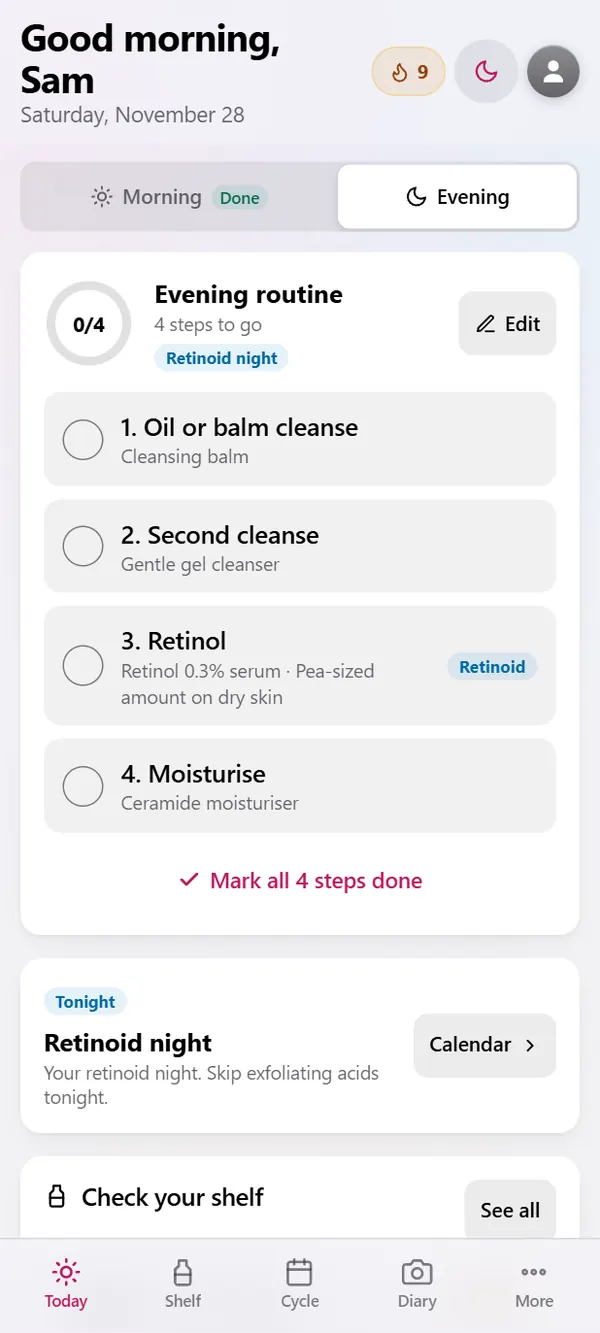
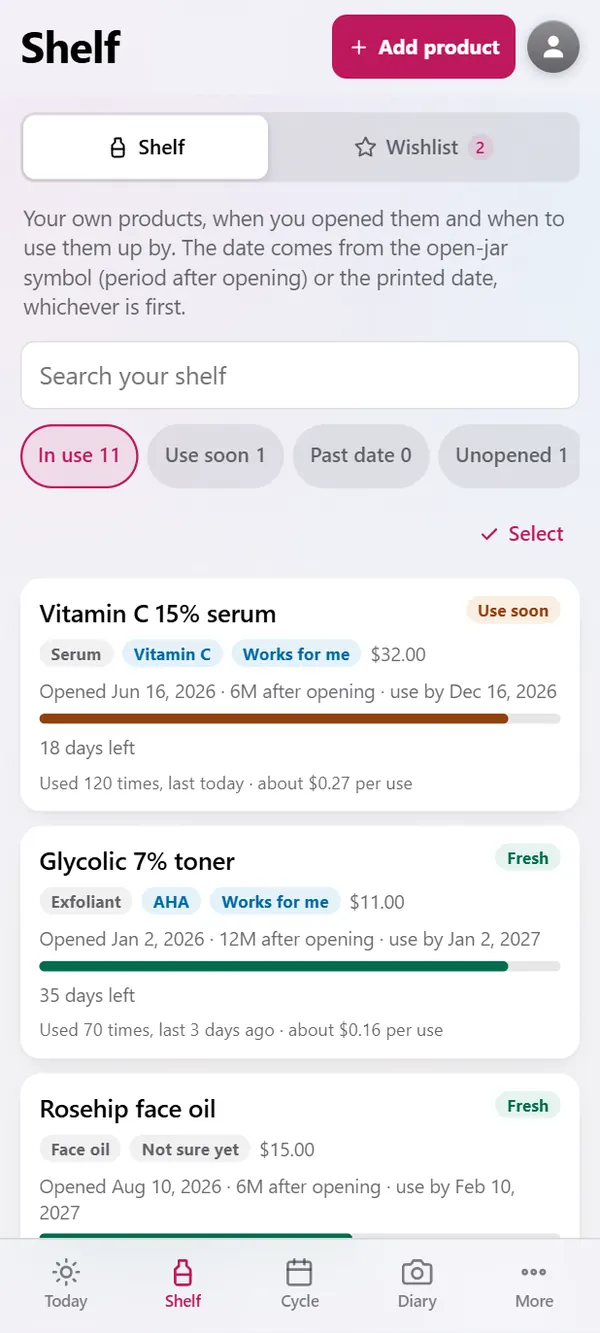
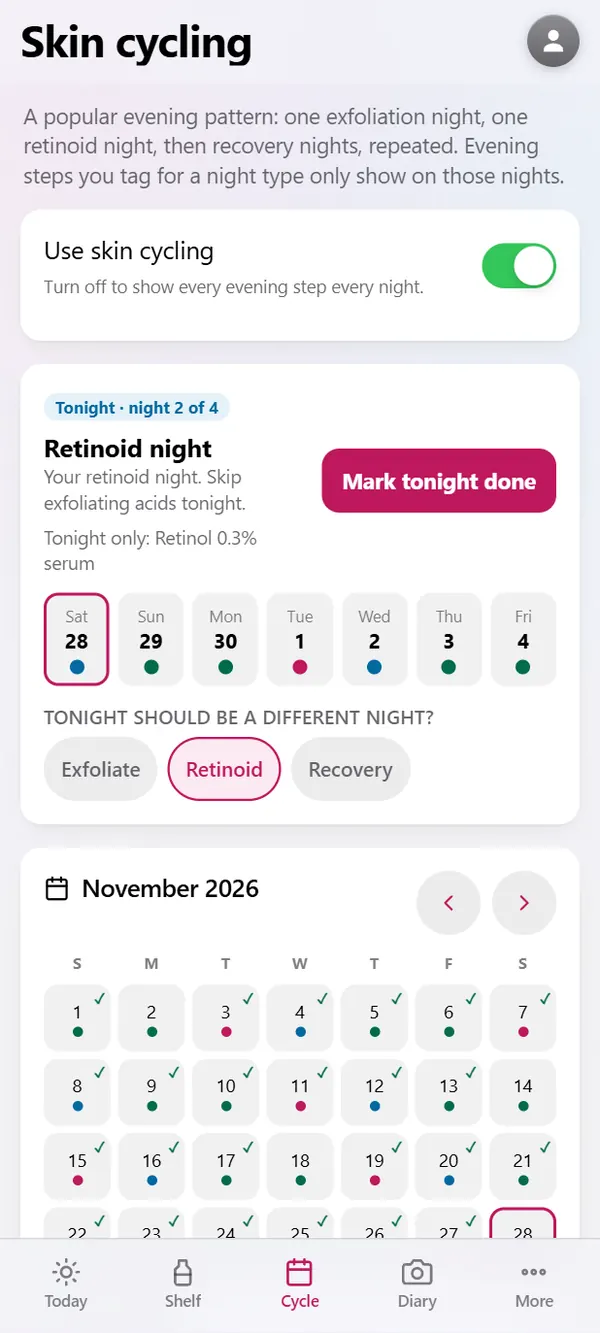
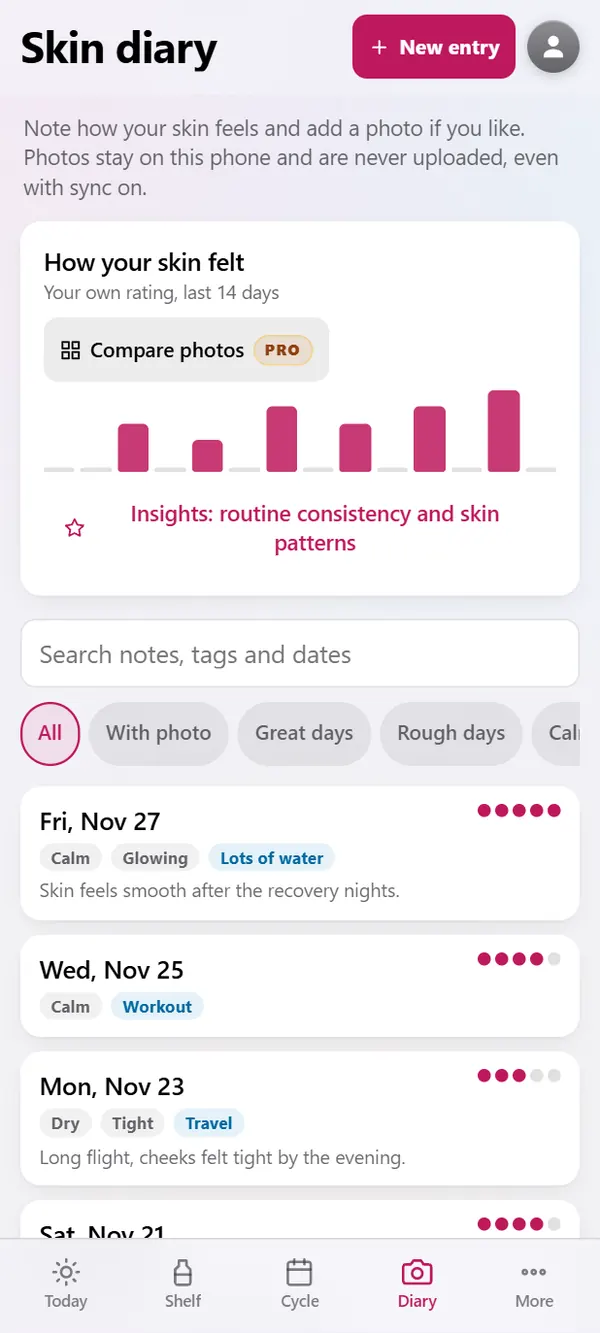
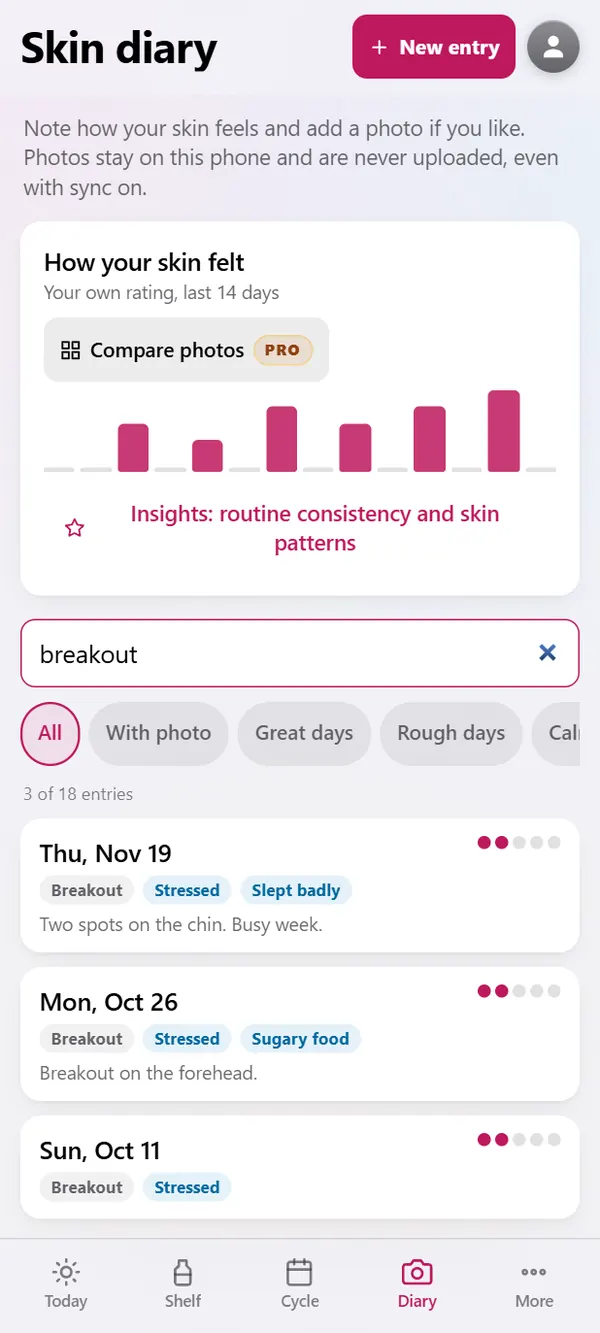
GlowOS is a calm, private skincare routine tracker. Tick off your morning and evening routine, keep a shelf of the products you own with the date you opened each one, follow a skin cycling calendar, and keep a skin diary with photos that never leave your phone. It works fully offline.
What's new in version 1.3
New in version 1.3, along with a refreshed design and the optional Bright Loop Account. Early-access testers get it through Google Play.
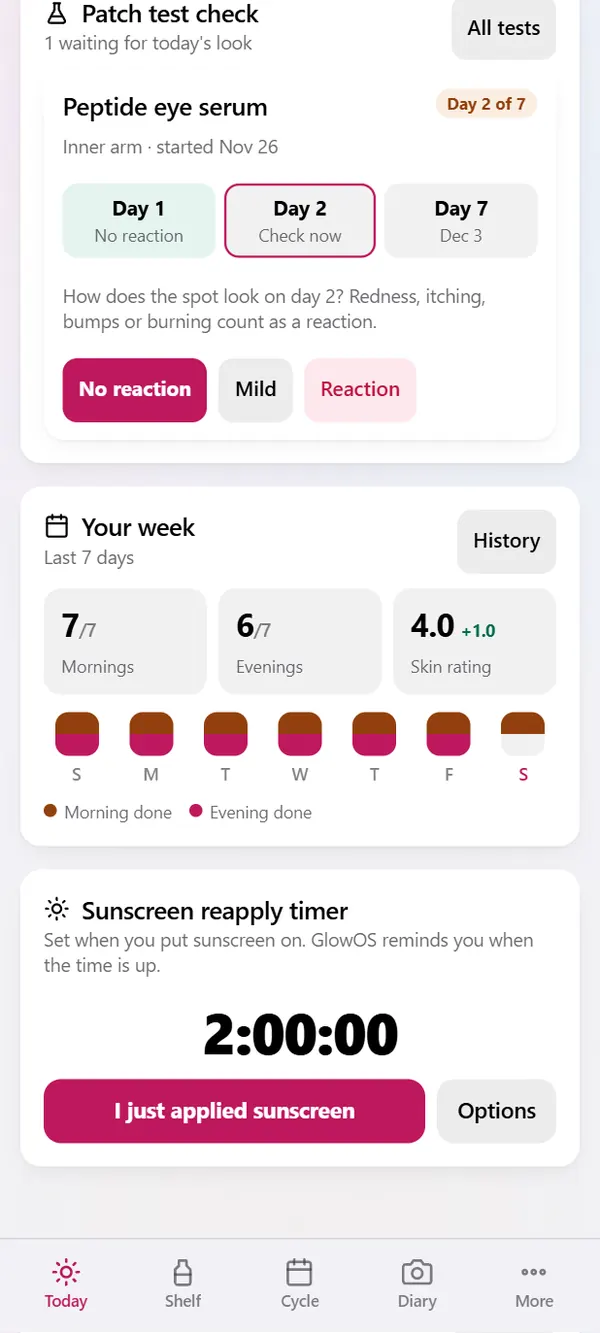
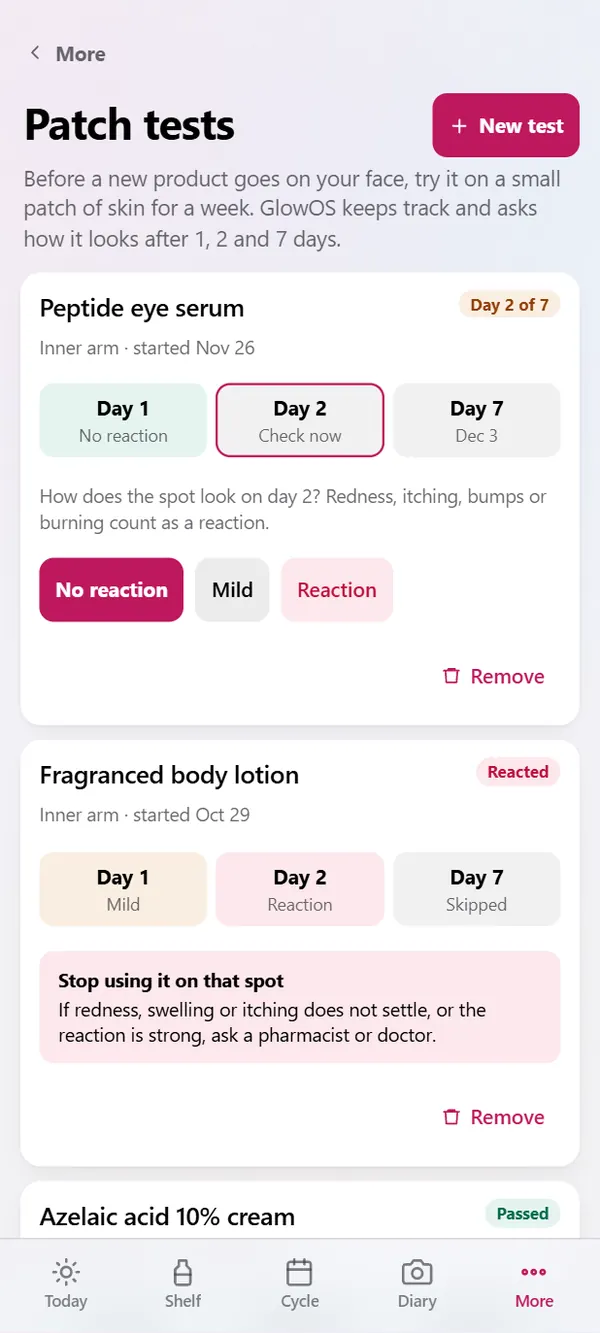
Patch-test tracker with day 1/2/7 checks
Your week summary
Diary search and filters
Feature tour.
Every feature in GlowOS, and what it does for you. Items marked Pro are part of the optional subscription.
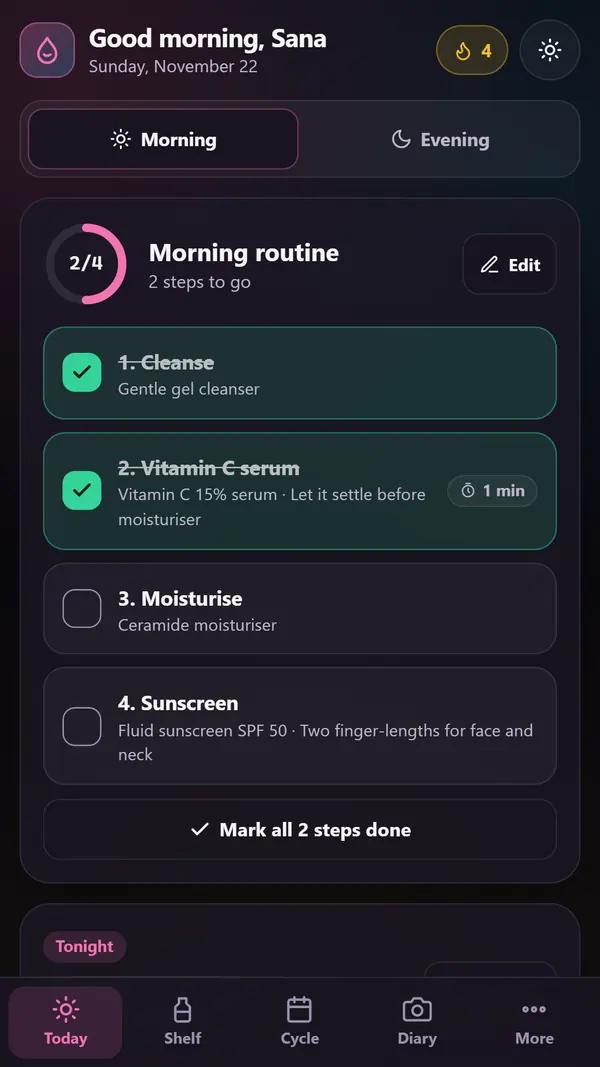
Morning and evening routine
- Your own steps, in your order
- Build a morning and an evening checklist with your own steps, each linked to a product from your shelf, with an optional note.
- Quick add
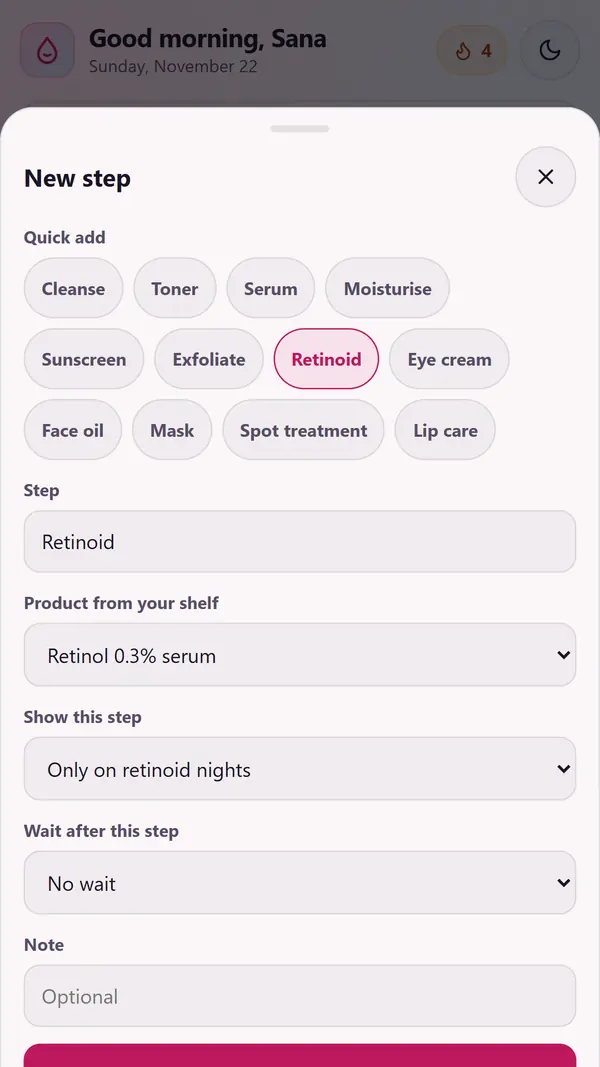
- Tap Cleanse, Serum, Sunscreen, Retinoid and other chips to add a step; GlowOS links the matching product from your shelf.
- Wait timer
- Set an optional wait after a step, for example a minute for a vitamin C serum to settle, and Today shows a countdown before the next step.
- Streaks and history
- A day counts toward your streak when both routines are finished. History and streaks shows a calendar of finished routines and your best streak.
- Routine reminders
- Optional daily notifications for your morning and evening routine at the times you choose (in the Android app).
- Extra routines Pro
- Add more routines, such as a weekly mask night or a body routine, shown on the days you choose.
Product shelf
- Open dates and use-by dates
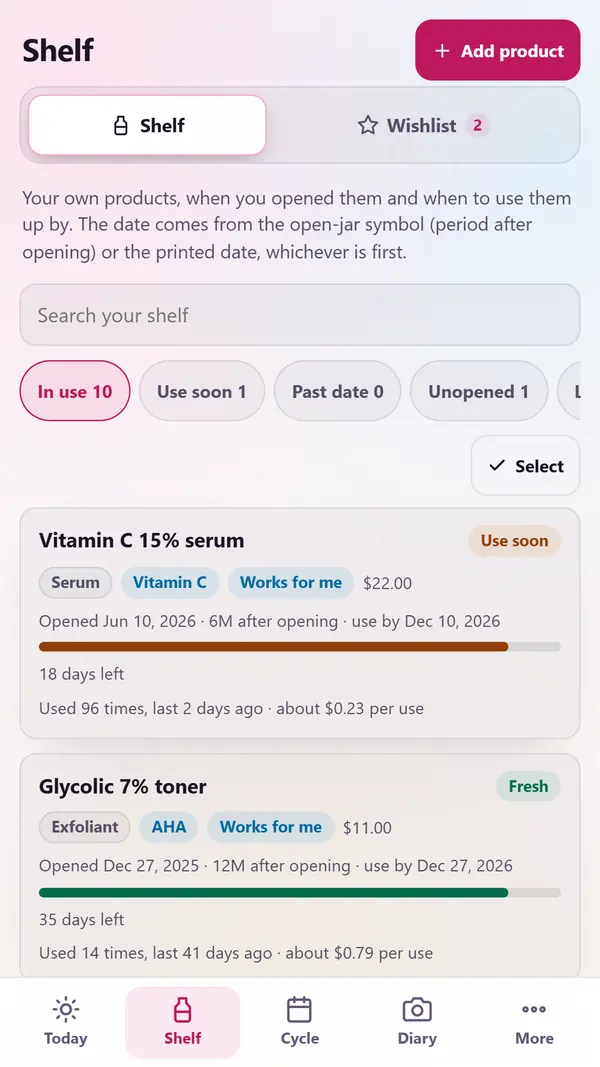
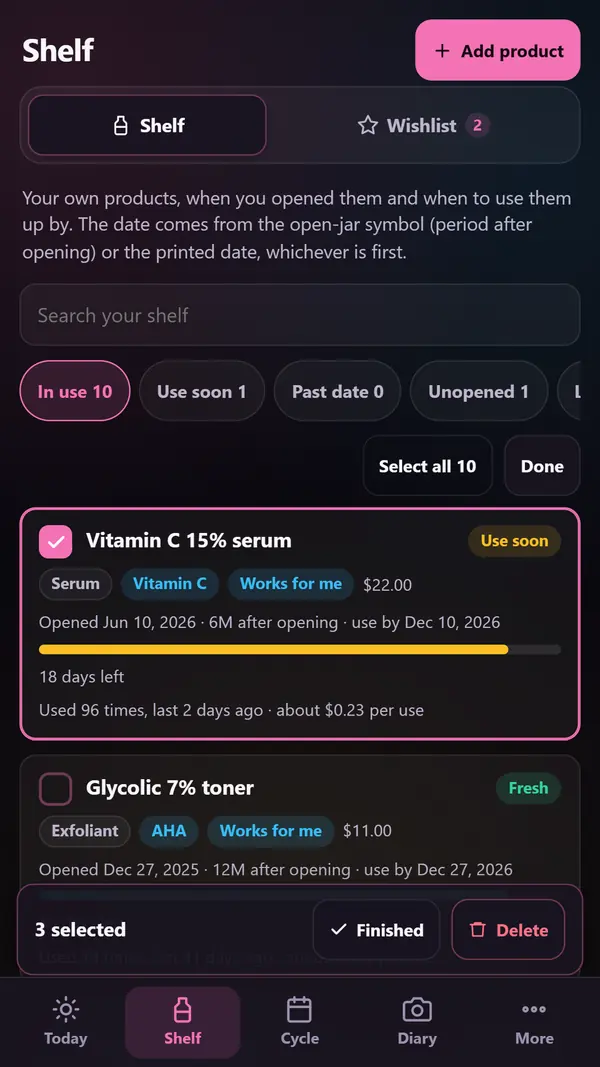
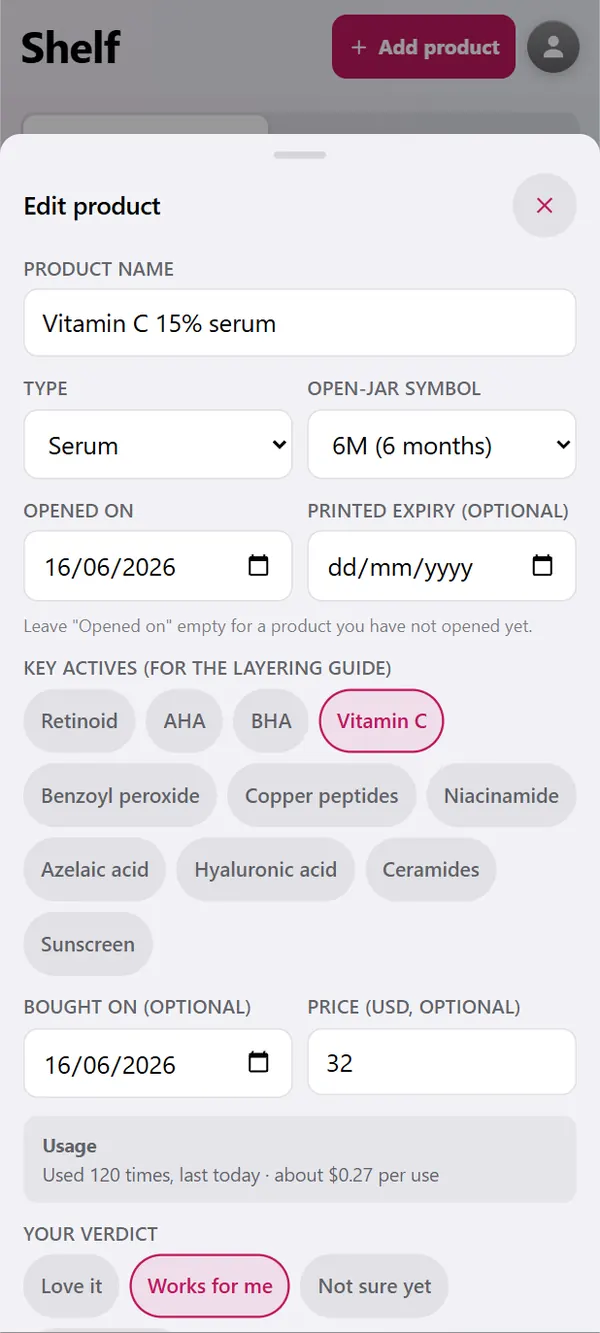
- Add products with type, key actives, open date and the open-jar symbol. GlowOS uses that or the printed expiry, whichever comes first, and shows how long each has left.
- Usage and cost per use
- Every ticked step counts a use, so each product shows how often you use it, when you last used it and, with a price, the cost per use.
- Not used lately
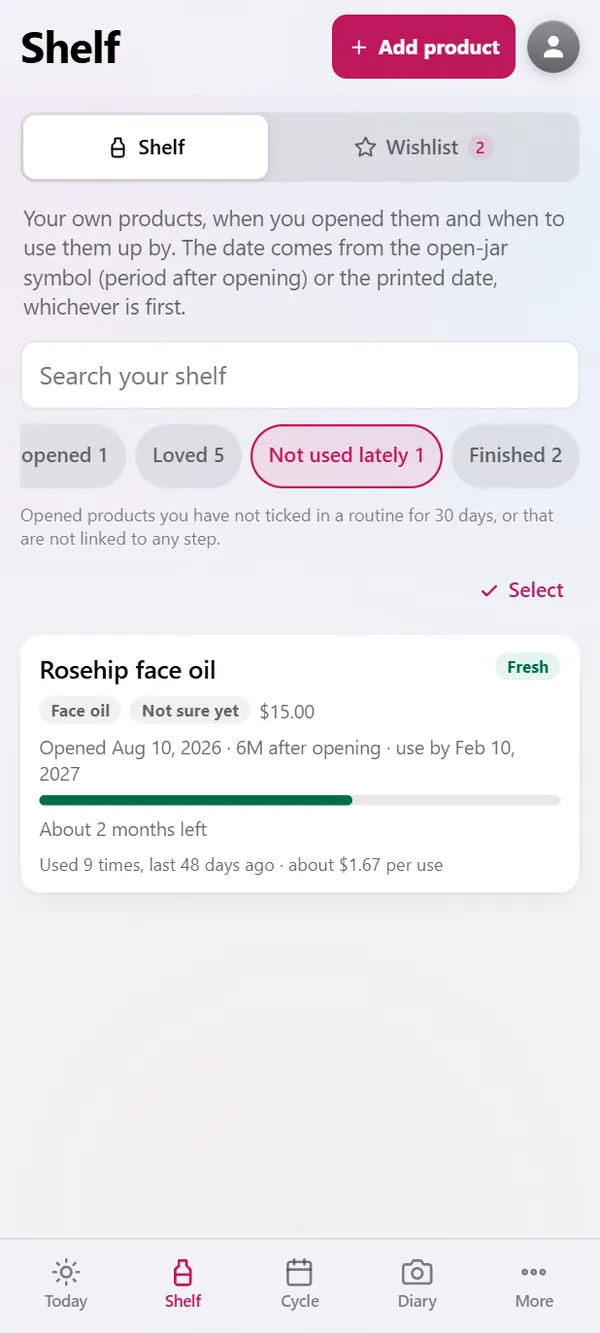
- A filter for opened products you have not ticked in a routine for 30 days, or that are not linked to any step.
- Use-by alerts
- An optional notification 3, 7, 14 or 30 days before a product reaches its use-by date (in the Android app).
- Select several products
- Tap Select to mark several products as finished or delete them at once, with undo.
- Verdicts, prices and wishlist
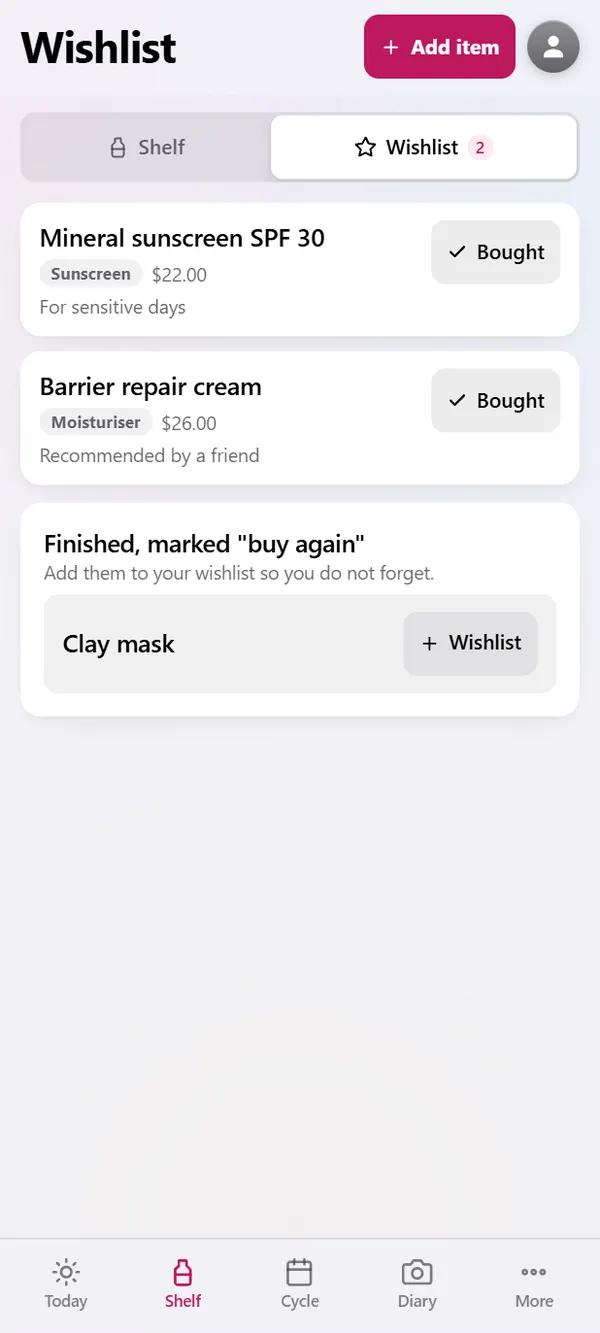
- Mark products Love it, Works for me, Not sure yet or Didn't suit me, add prices, and keep a wishlist of products to try or buy again.
- Unlimited products Pro
- The free plan holds 15 products in use; Pro has no limit.
Skin cycling
- Classic four-night rotation
- Exfoliation night, retinoid night, then two recovery nights. Evening steps tagged for a night type only show on those nights.
- Tonight and the calendar
- See tonight's night, the next 7 nights and a month calendar with ticks for the evenings you finished. You can switch tonight to a different night.
- Your own rotation Pro
- Customise the order and length of your rotation instead of the classic four nights.
Skin diary
- Ratings, tags and factors
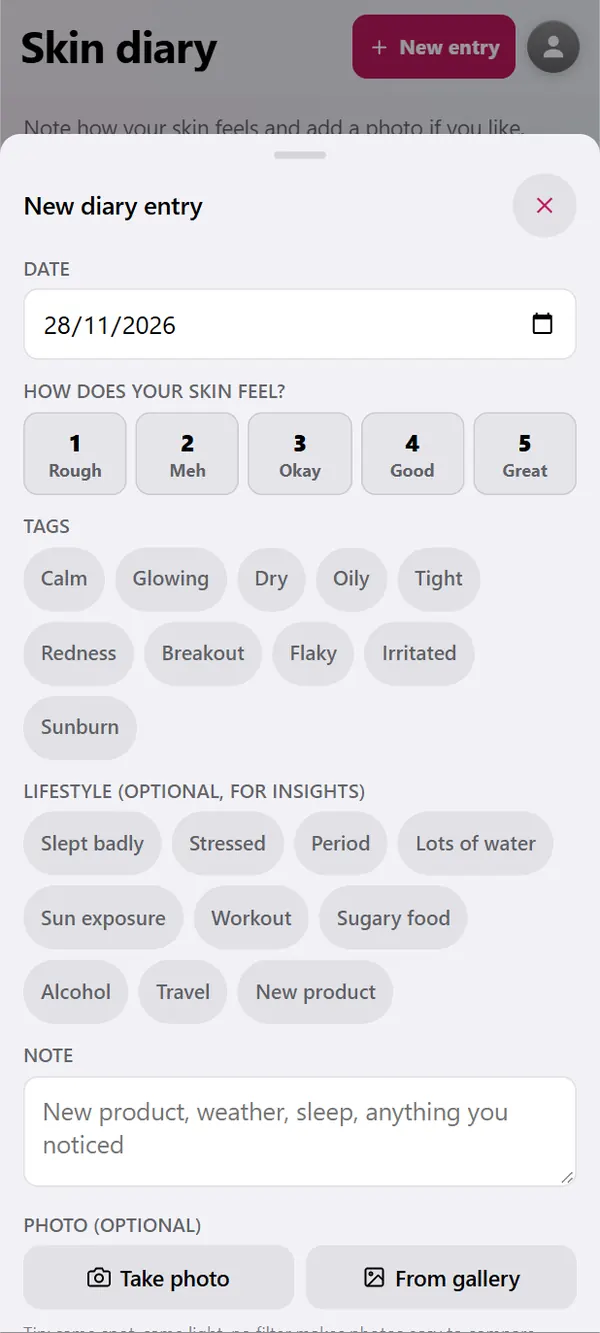
- Rate how your skin feels from Rough to Great, add tags like Calm or Breakout, lifestyle factors like Slept badly or Travel, and a note.
- Private photos
- Add a photo from the camera or gallery. Photos are stored only on your phone and never uploaded, even with sync on. The free plan keeps 12 photos; notes are unlimited.
- Diary search and filters
- Search notes, tags and dates, or filter by With photo, Great days, Rough days and your most used tags.
- Side-by-side photo compare Pro
- Pick two diary photos and see them next to each other. Pro also removes the photo limit.
Insights and your week
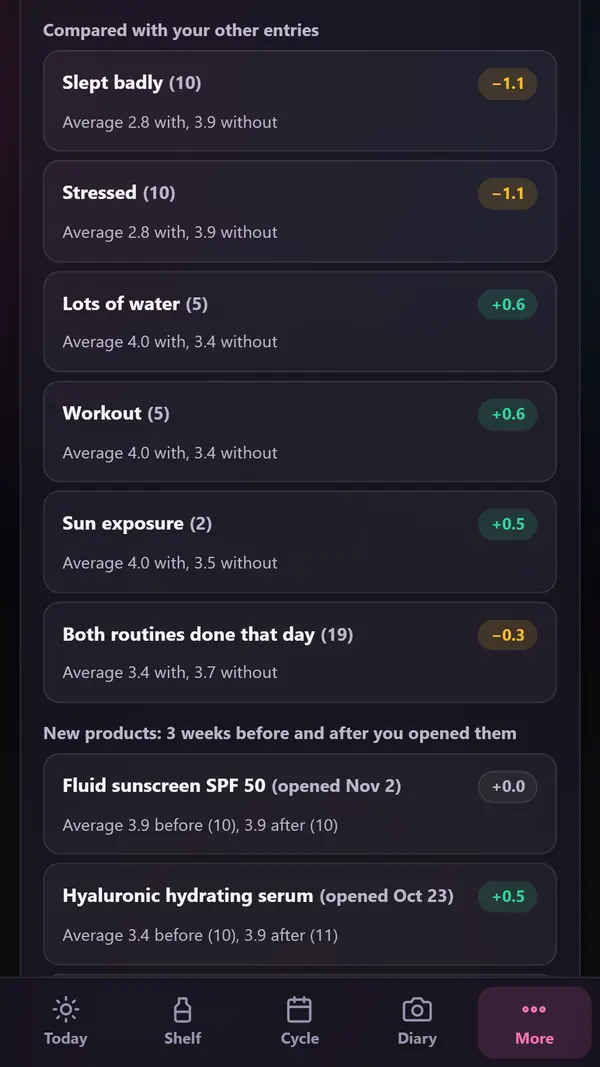
- Your week summary
- A card on Today with the mornings and evenings you finished in the last 7 days and your average skin rating compared with the week before.
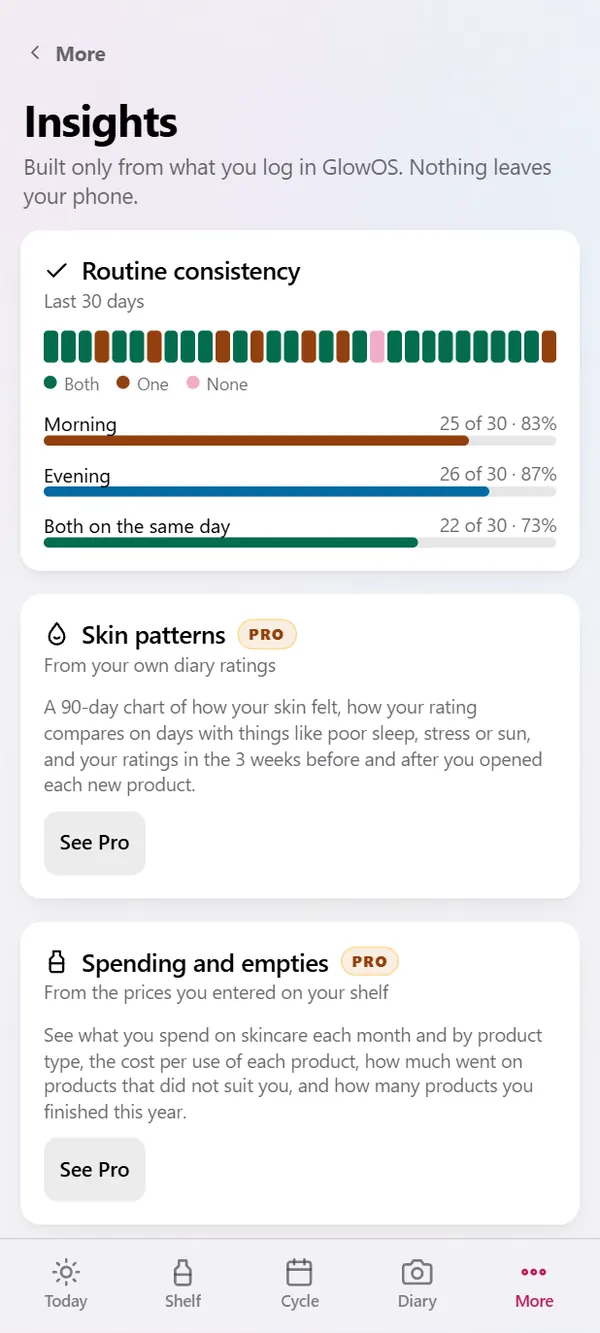
- Routine consistency
- The last 30 days of mornings, evenings and full days, plus the steps you skip most in the last 14 days.
- Skin patterns Pro
- A 90-day chart of your skin rating, how it compares on days with each lifestyle factor, and your ratings in the 3 weeks before and after you opened each new product.
- Spending and empties Pro
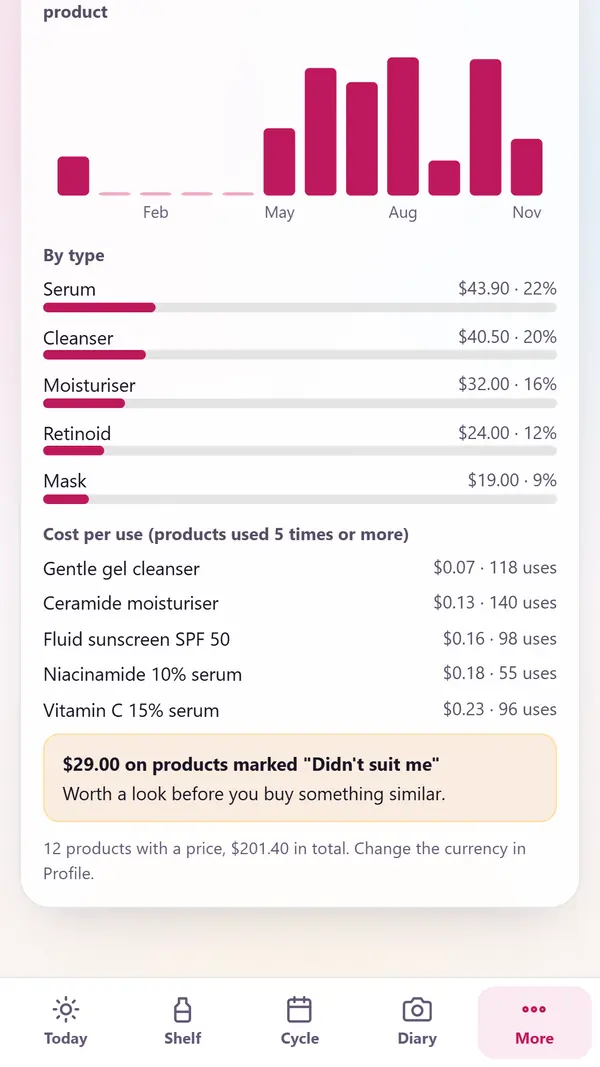
- What you spend by month and product type, cost per use, money spent on products that didn't suit you, and products finished this year.
- Full history calendar Pro
- The free plan shows this month and last month in History; Pro shows every month.
Safety tools
- Patch-test tracker
- Start a patch test for a new product and GlowOS asks how the spot looks on day 1, 2 and 7, with a check card on Today when one is due.
- Ingredient guide
- Pick two or more actives, or check your morning or tonight's routine, to see which common actives are usually kept apart or paired. A short general guide, not medical advice.
- Sunscreen reapply timer
- Start a timer when you apply sunscreen and get a notification when it is time to reapply. GlowOS does not measure UV.
Your data
- Backup and export
- Back up everything, including photos, as a JSON file and restore it on a new phone, or export your shelf or daily log as CSV.
- Optional Bright Loop Account
- Sign in from Account & Sync on More to back up and sync your routines, shelf, diary notes and settings. Photos always stay on the phone.
- Auto, Light or Dark appearance
- Choose Match phone, Dark or Light in Profile and appearance, or switch with the sun and moon button on Today.
Full store description
Morning and evening routine
- Your own steps in your own order, linked to products from your shelf, with optional daily reminders
- Quick add: tap Cleanse, Serum, Sunscreen or Retinoid and GlowOS links the matching product from your shelf
- Optional wait after a step, and streaks when both routines are finished
Product shelf, usage and expiry
- Add products with type, key actives, open date and the open-jar symbol (6M, 12M and so on) to see how long each has left
- Every ticked step counts a use: see how often you use each product, when you last used it and the cost per use
- "Not used lately" shows opened products you have stopped using
- Use-by alerts: an optional notification 3, 7, 14 or 30 days before a product reaches its date
- Select several products to mark them finished or delete them at once, with undo
- Verdicts, prices and a wishlist of products to try or buy again
Skin cycling calendar
- The classic four-night rotation: exfoliation, retinoid, two recovery nights
Skin diary with photos
- Rate how your skin feels, add tags, lifestyle factors and a note
- Add a photo; photos are stored only on your phone
Insights
- Routine consistency for the last 30 days and the steps you skip most
- Pro: a 90-day chart of your skin rating, how it compares on days with each factor, your ratings in the 3 weeks before and after you opened each new product, spending by month and type, and cost per use
Ingredient guide and sunscreen timer
- Which common actives are usually kept apart or paired; a short general guide
- A simple reapply timer with a notification. GlowOS does not measure UV
Backup and export
- Back up everything, including photos, and restore it on a new phone; export your shelf or daily log as CSV
How to use GlowOS.
Step-by-step walkthroughs of the main tasks, with screens from the current version.
1Tick off your morning and evening routineFollow your steps in order each day and build a streak when both routines are done.
- Step 1
Open Today and tap Morning or Evening at the top. On a skin cycling evening you only see the steps for tonight's night type.
- Step 2
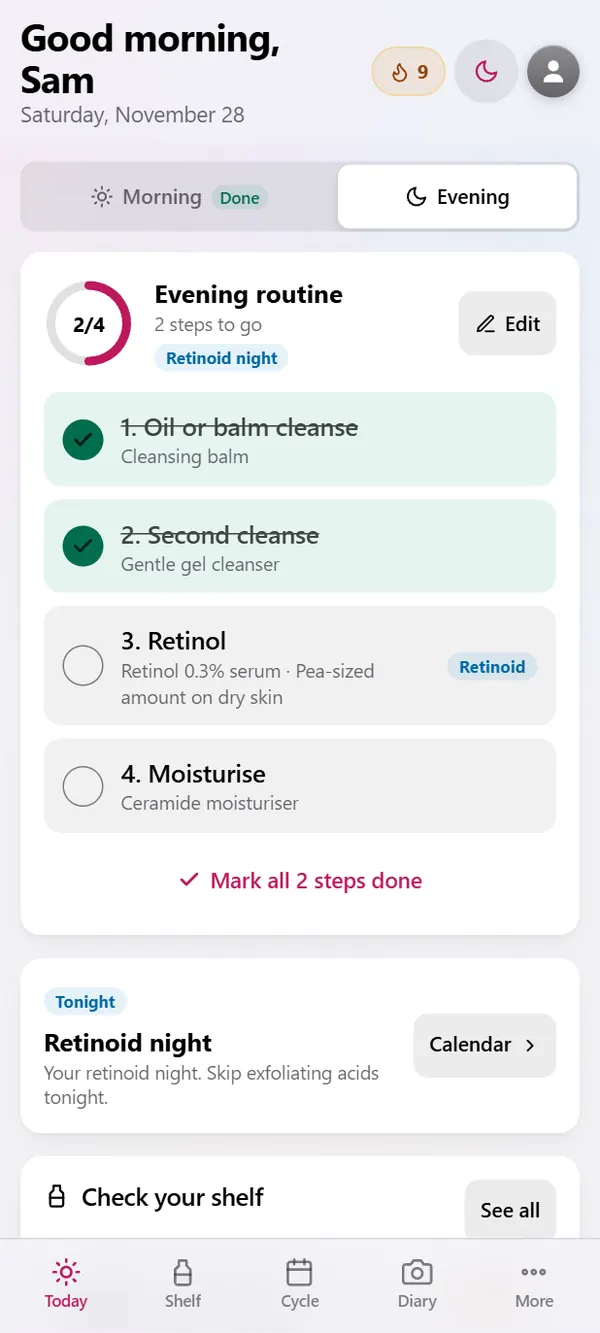
Tap each step as you do it. The ring fills up, and every tick counts a use of the product linked to that step.
- Step 3
Short on time? Tap Mark all steps done at the bottom of the list to finish the routine in one go. You can undo it from the message that appears.
- Step 4
Scroll down to Your week to see how many mornings and evenings you finished in the last 7 days. Tap History for the calendar and your best streak.
2Build your routine and link your productsSet up your own steps in your own order, each linked to a product from your shelf.
- Step 1
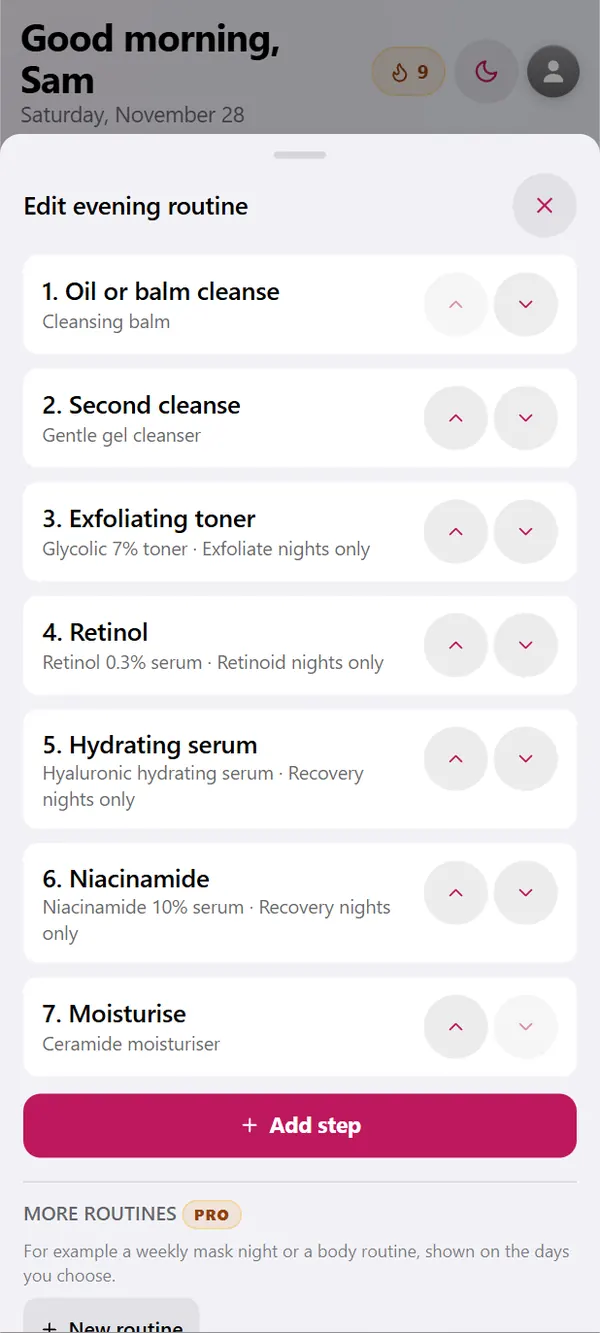
On Today, pick the routine and tap Edit. Use the arrows to move steps up or down, or tap a step to change it.
- Step 2
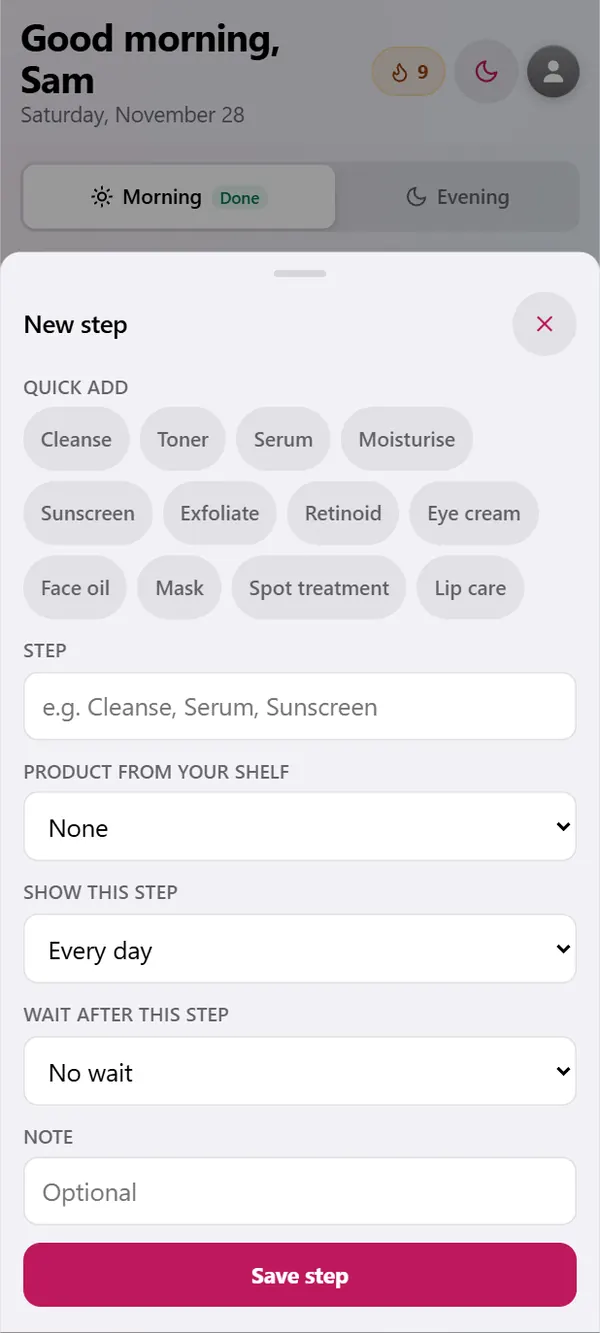
Tap Add step. Give it a name, pick a Product from your shelf, choose when to Show this step and an optional Wait after this step.
- Step 3
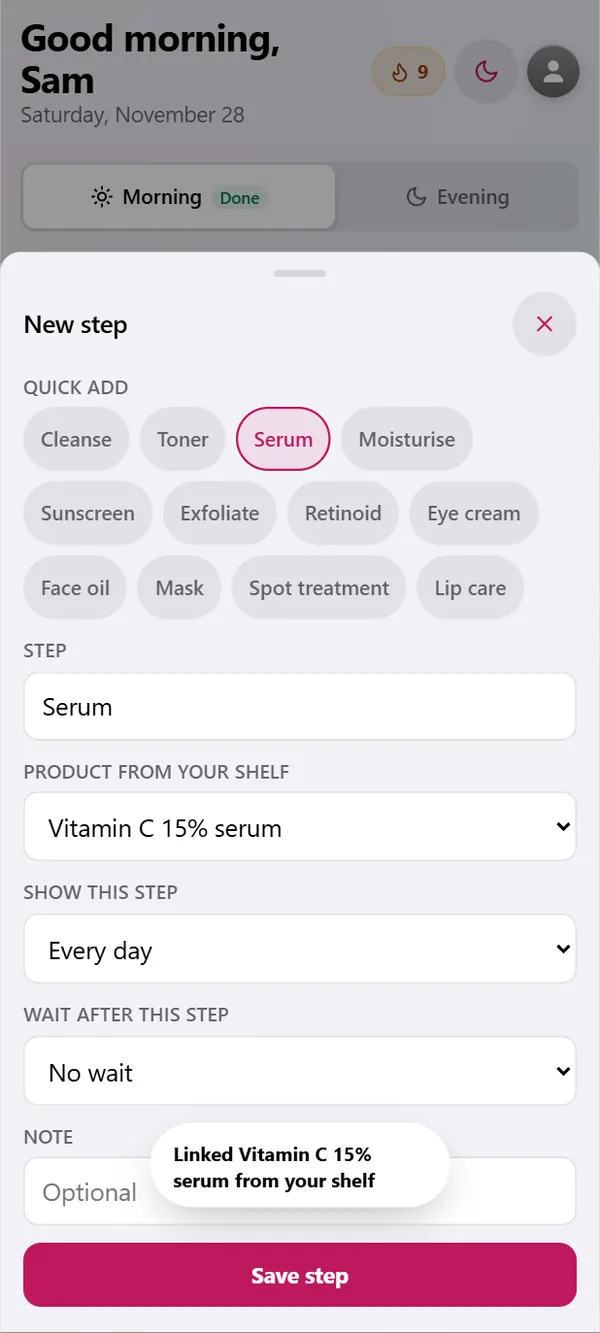
Faster: tap a Quick add chip such as Serum or Sunscreen. GlowOS fills in the name and links the matching product from your shelf.
- Step 4
Tap Save step. The step now shows on Today with its product and note.
3Keep track of your shelfKnow when you opened each product, when to use it up and how much you really use it.
- Step 1
Open the Shelf tab. Each product shows when you opened it, its use-by date, how many days are left, how often you used it and the cost per use.
- Step 2
Tap Add product or an existing product. Set the Type, the Open-jar symbol (6M, 12M and so on), Opened on, key actives, price and Your verdict.
- Step 3
Use the filters to find products: Use soon, Past date, Unopened, Loved, Not used lately and Finished.
- Step 4
Switch to Wishlist to keep products you want to try or buy again. Tap Bought when you get one to add it to your shelf.
4Follow a skin cycling rotationRotate exfoliation, retinoid and recovery nights so the right evening steps show on the right night.
- Step 1
Open the Cycle tab. It shows tonight's night type, the next 7 nights and a month calendar with the evenings you finished.
- Step 2
In Edit evening routine, set Show this step to exfoliation, retinoid or recovery nights for steps that should only appear on those nights.
- Step 3
On Today, the evening checklist now only shows tonight's steps, tagged with the night type. If tonight should be a different night, choose it under Tonight should be a different night? on the Cycle tab.
5Keep a skin diary and find past entriesRate how your skin feels, note what might affect it and search your history later.
- Step 1
Open the Diary tab and tap New entry.
- Step 2
Pick a rating from Rough to Great, add tags and lifestyle factors such as Slept badly or Lots of water, write a note and optionally add a photo. Tap Save entry.
- Step 3
To find past entries, type in Search notes, tags and dates, or tap a filter such as Great days, Rough days, With photo or one of your most used tags.
- Step 4
Open Insights (from the Diary card or More) to see your routine consistency for the last 30 days and the steps you skip most.
6Patch test a new productTry a new product on a small spot for a week before it goes on your face.
- Step 1
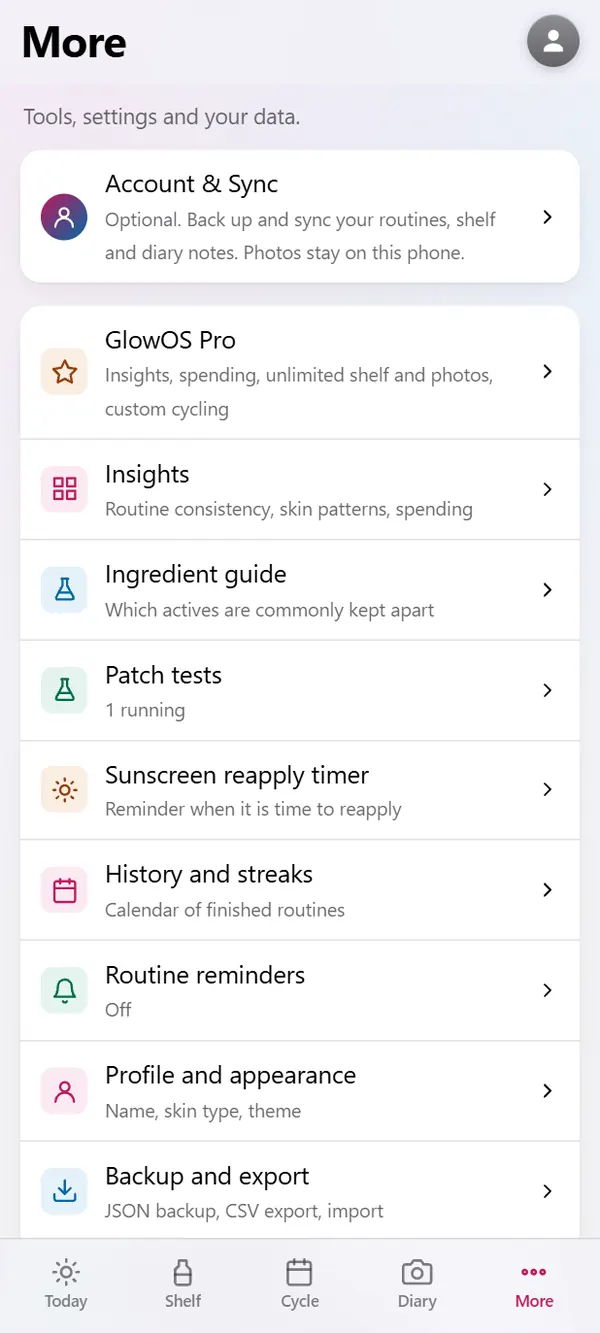
Go to More and tap Patch tests.
- Step 2
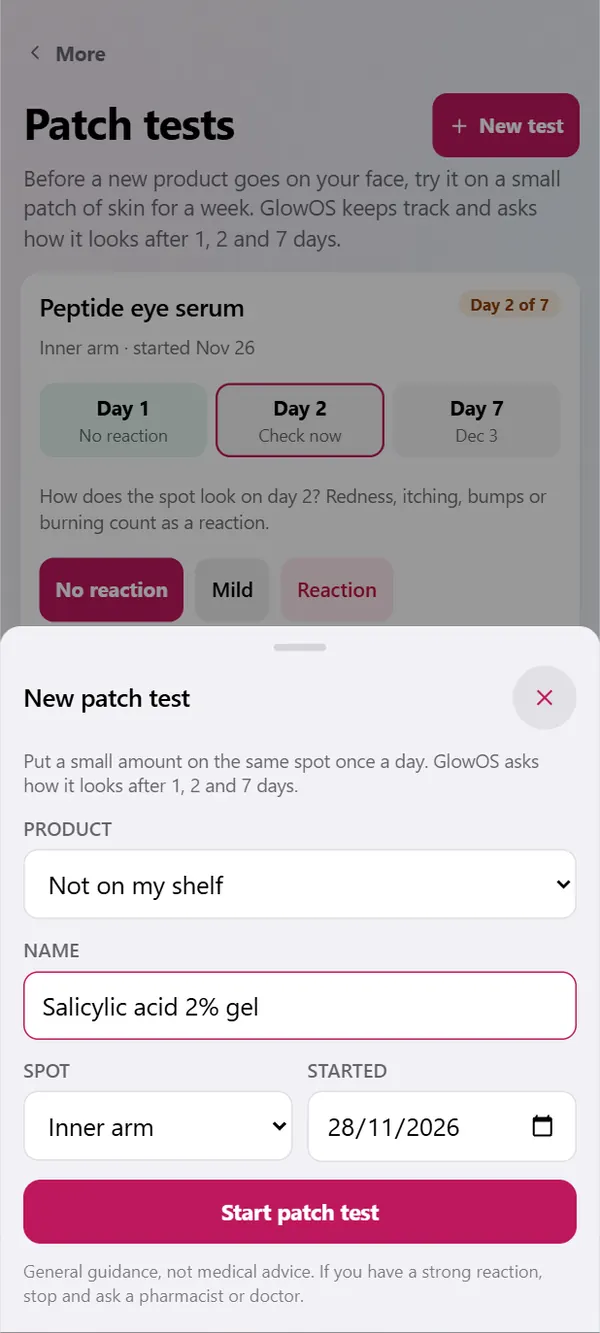
Tap New test, choose the product from your shelf or type its name, pick the spot and the start date, then tap Start patch test.
- Step 3
On day 1, 2 and 7 a Patch test check card appears on Today. Tap No reaction, Mild or Reaction for how the spot looks.
- Step 4
Patch tests lists every test as running, Passed or Reacted. A reaction tells you to stop using it on that spot.
Free, with optional Pro.
Download GlowOS free. Pro is optional and billed by Google Play, which shows the price before you confirm.
Free
- Routines with quick add
- Streaks
- Reminders and use-by alerts
- 15 products in use
- Usage counts
- Multi-select
- Verdicts
- Prices and wishlist
- Classic skin cycling
- 12 diary photos with unlimited notes
- Routine consistency
- The guide
- The sunscreen timer
- Two months of history
- Backup and export
GlowOS Pro (optional subscription, monthly or yearly)
- Skin patterns
- The new-product view
- Spending and cost-per-use insights
- Unlimited products
- Unlimited photos with side-by-side compare
- Your own skin cycling rotation
- Extra routines on the days you choose
- The full history calendar
Google Play shows the price before you subscribe; it renews until you cancel in Google Play.
Manage or cancel subscriptions in Google Play > Payments & subscriptions. Purchases and Restore purchases
Try it now.
Open GlowOS right here in your browser, or download the Android app file directly.
Open in browser
The full GlowOS app, running in a new tab. Nothing to install.
Some phone-only features, such as purchases, notifications, sharing and camera scanning, work only in the Android app. Anything you do in the browser is saved in that browser only, unless you sign in to the Bright Loop Account.
Download the APK
Install GlowOS on an Android phone without Google Play.
- Version
- 1.3
- Size
- 3.9 MB
- SHA-256
6dc08b0e6fe321819df37f0d84052b67b674e2483d1066840f331045cdba8e6d
An APK installed from this website can't be updated from Google Play later. To switch to Google Play, uninstall it and install from Play. Your data only comes with you if you back it up with the Bright Loop Account first. How to install an APK
Requirements & details.
- Requires
- Android 7.0 or later
- Size
- 3.9 MB
- Version
- 1.3
- Price
- Free, optional Pro subscription
- Internet
- Not required
- Account
- Optional Bright Loop Account
- Ads
- None
- Category
- Health & Fitness
- Developer
- Bright Loop (Google Play: Bright Loop Games)
- Availability
- Early access (Google Play closed testing)
- Web version
- Open in browser
How to get GlowOS.
GlowOS is in early access through Google Play closed testing. It takes about two minutes.
- Ask to join the tester listEarly access runs as a Google Play closed test, so your Google account must be on the tester list before the opt-in link works. Send us the Gmail address you use on Google Play and we'll add you.
- Open the opt-in linkOn your Android phone, signed in to the same Google account, open the GlowOS early access link.
- Tap "Become a tester"Google Play confirms that you've joined the test.
- Install from Google PlayTap the "download it on Google Play" link on that page, or open the Google Play page, then tap Install. Updates arrive through Google Play like any other app.
- Tell us what you thinkEarly access means your feedback shapes the next update. Email rehman@mindum.dev any time.
Link not working? See Troubleshooting or the full early access guide.
Account & sync.
Optional. GlowOS works fully without an account. Sign in to the free Bright Loop Account to back up your GlowOS data and keep it in sync across your phones.
What syncs
- Routines and check-offs
- Product shelf, wishlist and skin cycling plan
- Diary entries (text)
What stays on this phone
- Skin diary photos
- Your Pro status (Google Play restores it)
Account & Sync is part of GlowOS 1.3. Look for it at the top of Settings.
Privacy.
GlowOS keeps your data on your phone. No ads and no analytics.
Private by design
No account needed, no ads, no analytics, no network requests. Everything you enter, including photos, stays on your phone.
Not medical advice: GlowOS does not diagnose or treat skin conditions. For skin concerns or reactions, see a dermatologist.
If you sign in
The Bright Loop Account is optional. If you sign in, GlowOS backs up the records listed under Account & sync to your account so you can restore them on another phone. Photos and files are never uploaded, and you can export or delete your cloud data at any time.
Read the full Privacy Policy.
Tips.
- Link a shelf product to every step: each tick then counts a use, which powers usage counts, cost per use and the Not used lately filter.
- Enter the price when you add a product to see roughly what each use costs.
- Add a wait after a serum step if you like to let it settle; Today shows a countdown and you can tap Skip.
- Skipped your retinoid night? Pick the right night under Tonight should be a different night? on the Cycle tab and the rotation shifts from there.
- Add lifestyle factors to diary entries even on the free plan: your most used ones become filters you can tap to find similar days.
- Make a JSON backup in Backup and export before you change phones; it is the way to move your diary photos.
Troubleshooting.
A step is missing from tonight's evening routine.
It is probably set to show only on a certain cycle night. Edit the step and check Show this step, or look at the Cycle tab to see which night it is tonight.
A product I use shows up under Not used lately.
Uses only count when you tick a routine step linked to that product. Edit the step on Today and pick the product under Product from your shelf.
Routine reminders, use-by alerts or the sunscreen timer notification do not arrive.
These need the Android app and notification permission for GlowOS. A phone in battery saving mode can deliver them a few minutes late.
A diary photo shows On another device.
Photos stay on the phone where you added them and do not sync. To move them, make a JSON backup on the old phone and restore it on the new one.
I cannot add more products.
The free plan holds 15 products in use. Mark empties as finished (tap Select on the Shelf, pick them, tap Finished) or upgrade to Pro for no limit.
Questions.
How does GlowOS work out when to use a product by?
From the date you opened it plus its open-jar symbol (for example 12M means 12 months), or the printed expiry date if you enter one, whichever comes first. Leave Opened on empty for products you have not opened yet.
Why do some evening steps only show on certain nights?
With skin cycling on, a step set to show only on exfoliation, retinoid or recovery nights appears on those nights only. Turn off Use skin cycling on the Cycle tab to see every evening step every night.
What counts toward my streak?
A day counts when both your morning and evening routines are finished. The flame at the top of Today shows your current streak, and History and streaks shows your best one.
Are my diary photos uploaded anywhere?
No. Photos are stored only on your phone, even if you sign in to Bright Loop Account and turn sync on. A JSON backup from Backup and export includes them, so you can move them to a new phone yourself.
How does the patch-test tracker work?
Start a test from More, then Patch tests. GlowOS asks how the spot looks on day 1, 2 and 7. Any Reaction marks the test as Reacted; a day 7 check marks it Passed. It is general guidance, not medical advice.
How is cost per use calculated?
The price you entered divided by the number of times you ticked a routine step linked to that product.
Can GlowOS tell me if two ingredients are safe together?
The Ingredient guide shows which common actives are usually kept apart or commonly paired. It is a short general guide, not medical advice; follow each product's directions and ask a dermatologist or pharmacist about skin concerns.
What does the free plan include?
Routines with quick add, streaks, reminders and use-by alerts, 15 products in use, usage counts, multi-select, verdicts, prices and wishlist, classic skin cycling, 12 diary photos with unlimited notes, routine consistency, patch tests, the guide, the sunscreen timer, two months of history, backup and export.
Is GlowOS free?
Yes. GlowOS is free to download and use. GlowOS Pro is an optional monthly or yearly subscription through Google Play that adds the extras listed under Free and Pro. Google Play shows the price, and any trial, before you confirm.
Why can't I find GlowOS on Google Play?
GlowOS is in early access (a Google Play closed test), so it only appears for people on the tester list. Follow the steps under How to get it. Once it becomes public, anyone can install it from Google Play.
Does GlowOS work offline?
Yes. GlowOS works without an internet connection. You only need a connection for optional things like Bright Loop Account sync and Google Play purchases.
Do I need an account?
No. GlowOS works fully without one. The Bright Loop Account is optional and adds cloud backup and sync across your phones.
How do I move to a new phone?
Sign in to your Bright Loop Account on the new phone and choose "Use Cloud Data", or export a backup file on the old phone and restore it on the new one. Photos and files only move with a backup file. Pro comes back with Restore purchases. See Move to a new phone.
How do I restore a purchase?
Make sure your phone uses the same Google account you bought with, open GlowOS and tap Restore purchases. Google Play checks your purchases and GlowOS unlocks what you own. More about purchases.
Can I use GlowOS in a browser?
Yes. Tap Open in browser to run it in a new tab. Some phone-only features, such as purchases, notifications, sharing and camera scanning, work only in the Android app, and anything you do there is saved in that browser.
Can I install it without Google Play?
Yes, with the APK on this page (version 1.3, 3.9 MB). An APK install can't be updated from Google Play later; see Install an APK on Android.
What do I need to run it?
Android 7.0 or later, or any modern browser for the web version.
Is it available on iPhone?
There's no iPhone app at the moment. GlowOS is made for Android, but you can open the web version in Safari.
Get help with GlowOS
Email rehman@mindum.dev. Include your phone model, Android version and what happened, and we'll take it from there.
Help Centre
Step-by-step guides for early access, sync, backups, purchases and moving phones. Visit the Help Centre
More apps you might like.
SnapMacro
Calorie and macro counter with 600+ world foods, exercise log and fasting timer.
IronOS
Log sets fast, supersets, progression hints, rest timer, 1RM and body stats
Drift
Bedtime calculator, weekly sleep schedule, sleep sounds, sleep diary and trends
RitualOS
Track habits and streaks, and run timed morning, evening and workout routines.