KeyForge
2-step verification codes and strong password generator. Offline, PIN locked.
Google Play pageDownload APK v1.3 · 4.0 MB
Early access on Google Play closed testing. You need to be on the tester list first: see how to join.
A closer look.
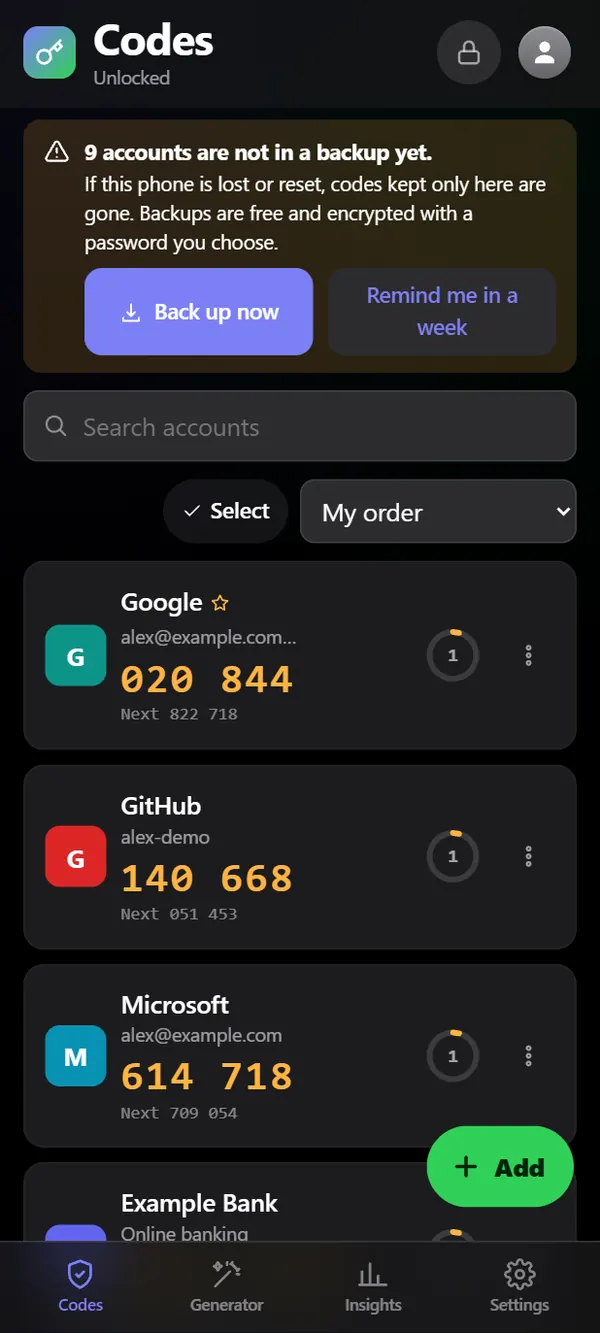
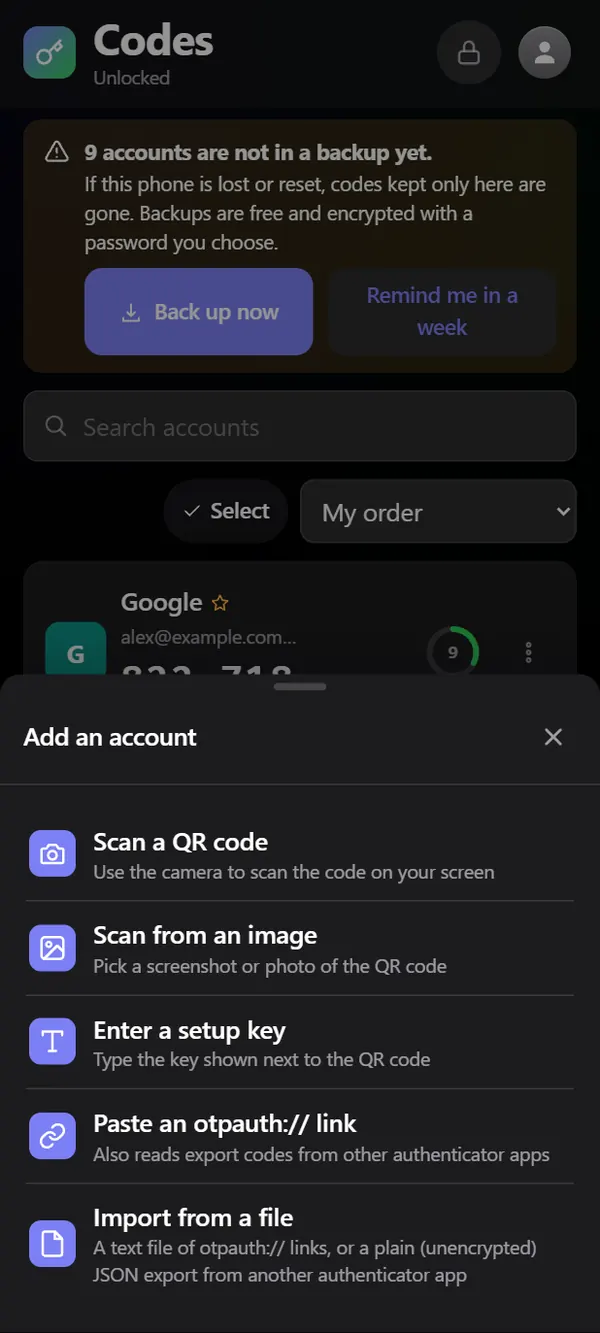
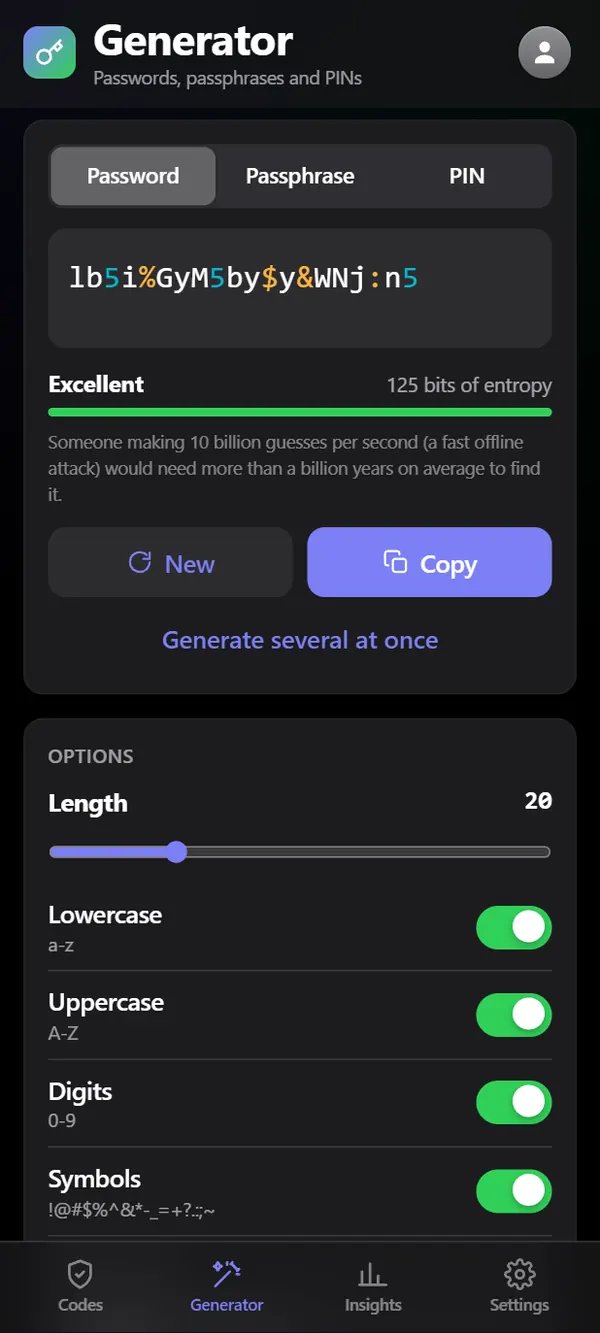
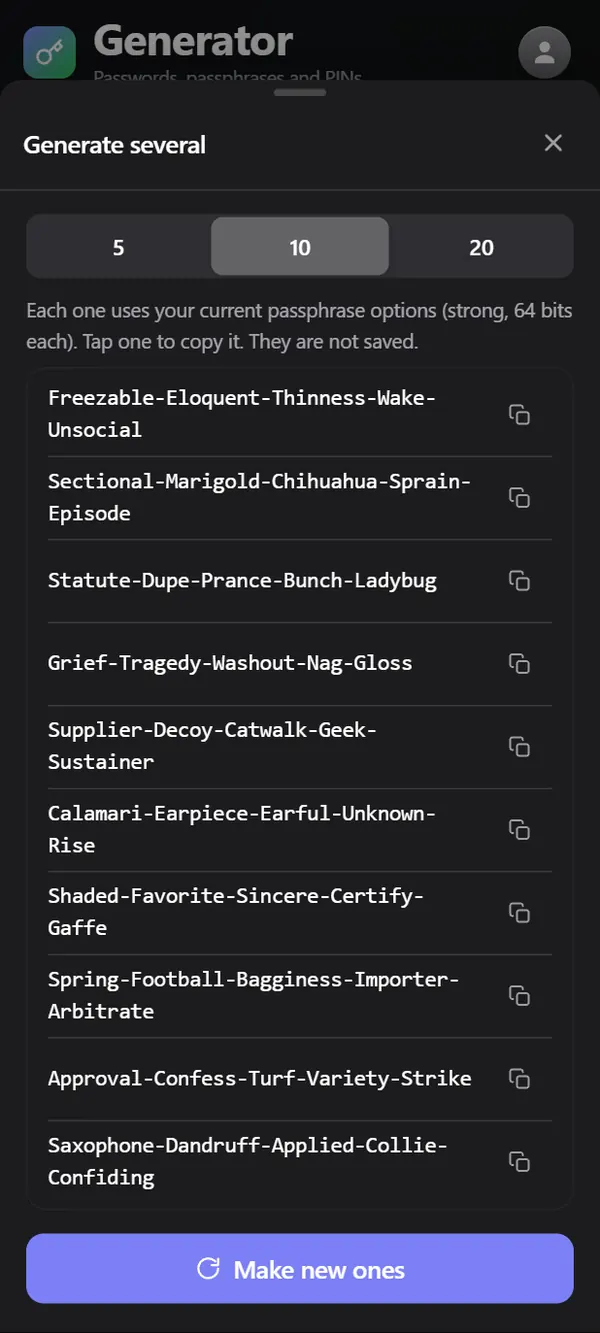
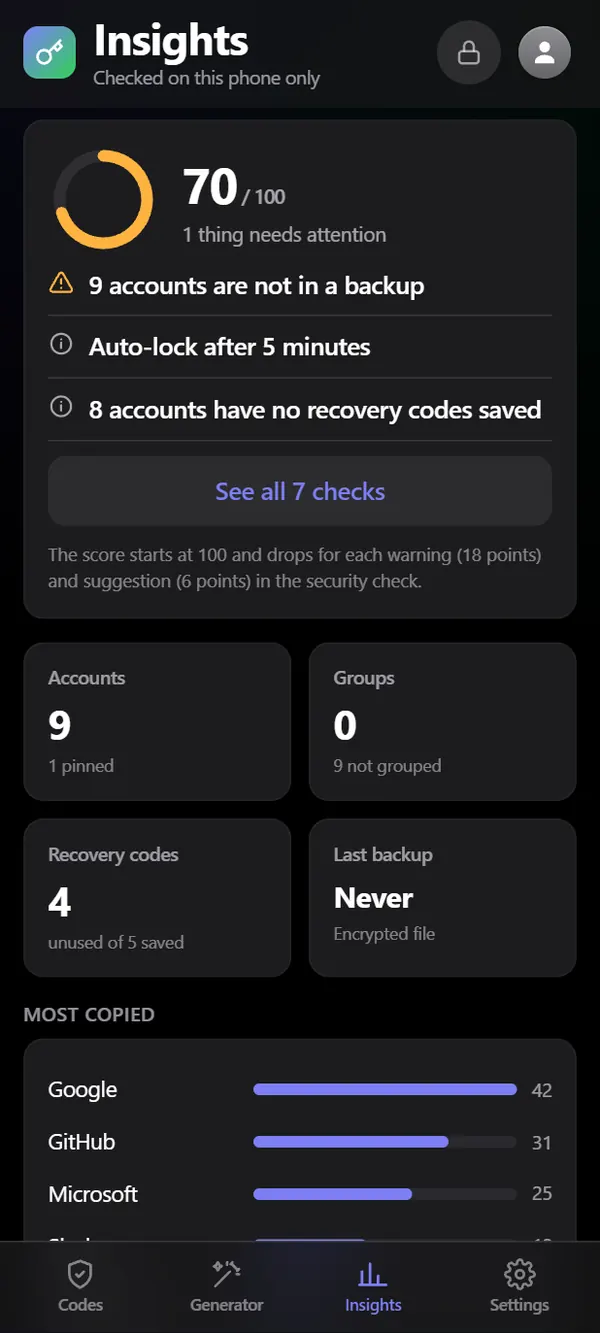
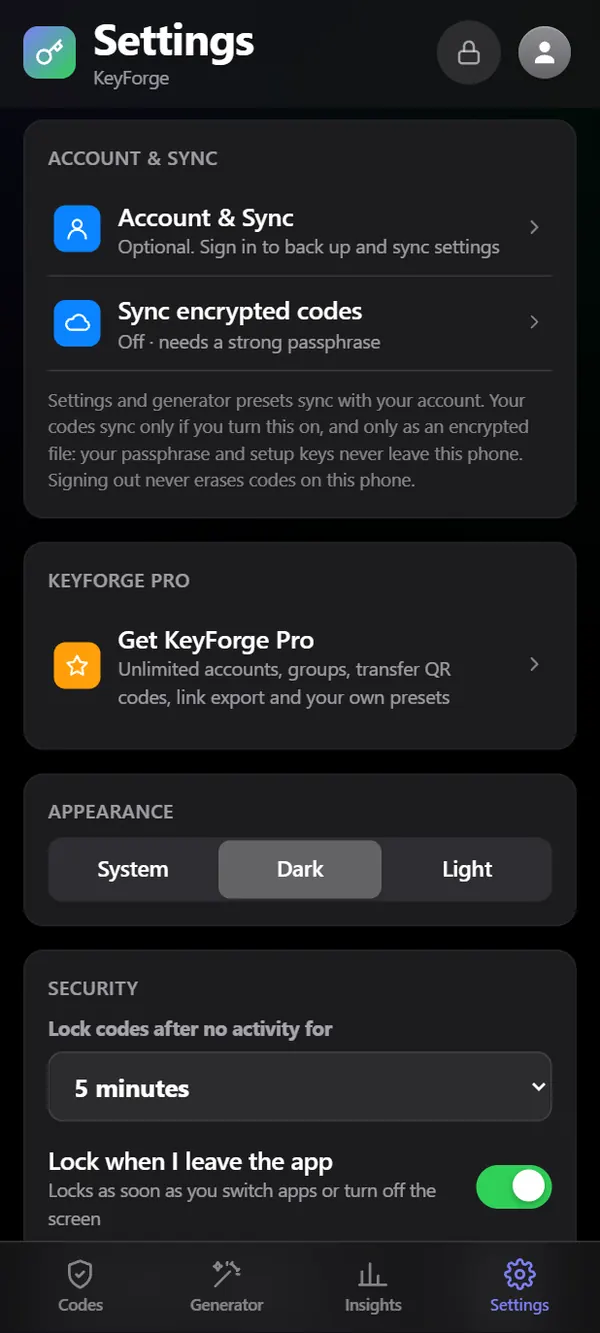
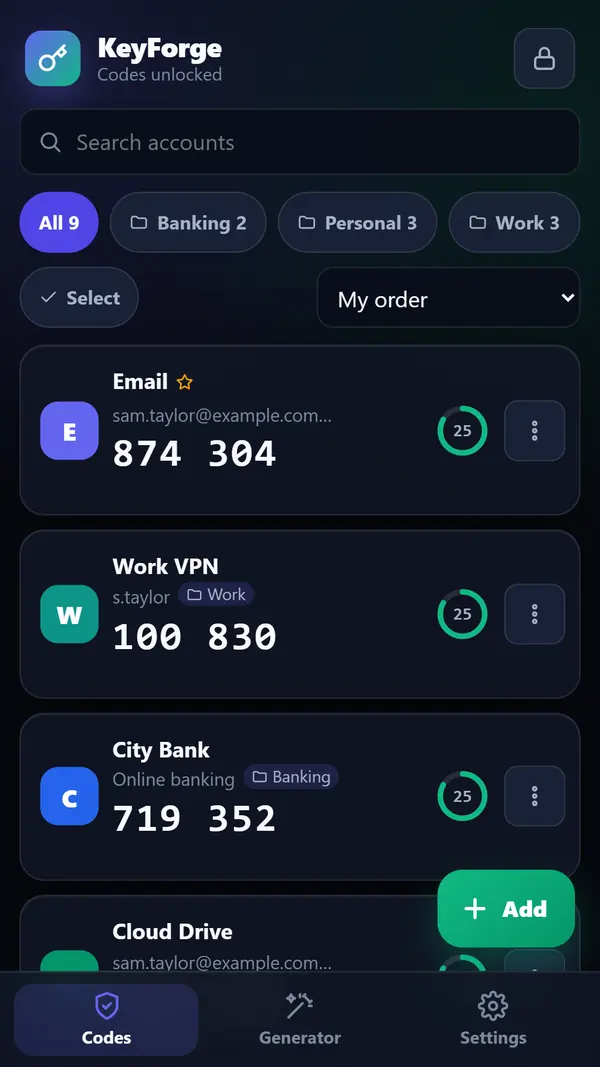
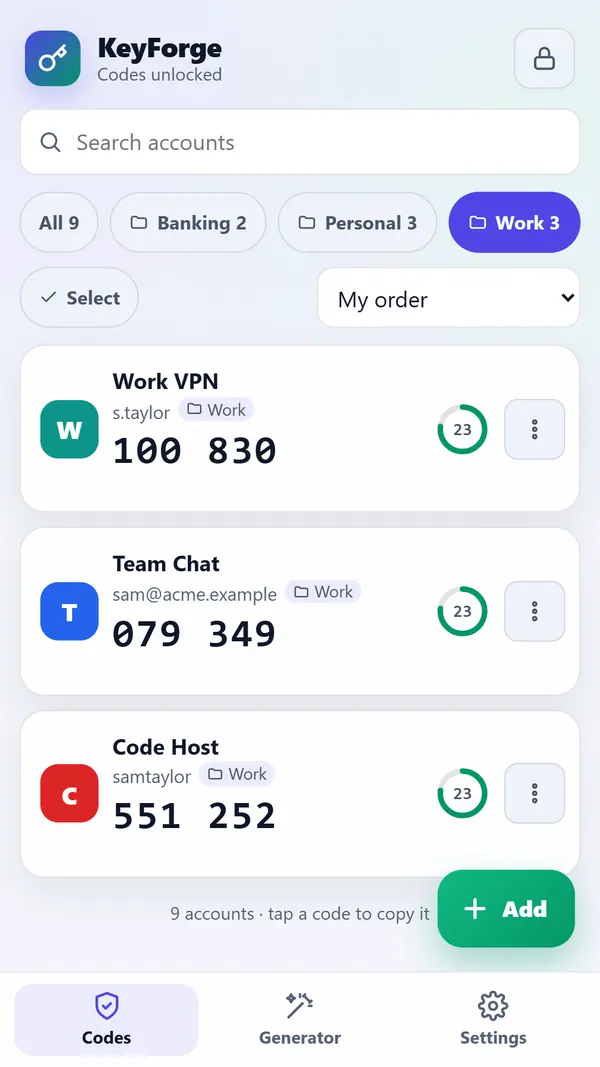
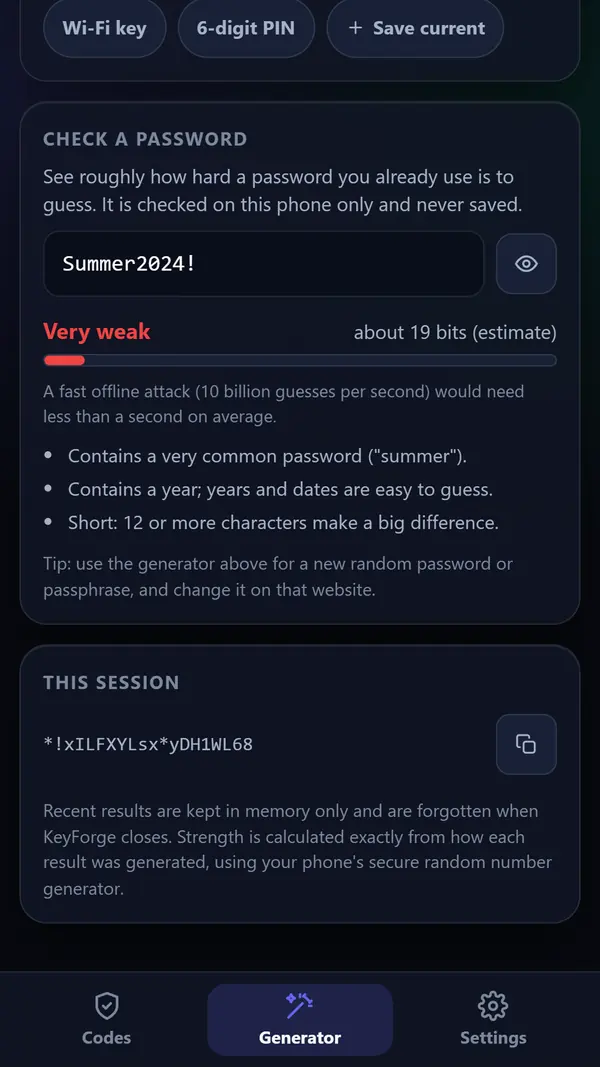
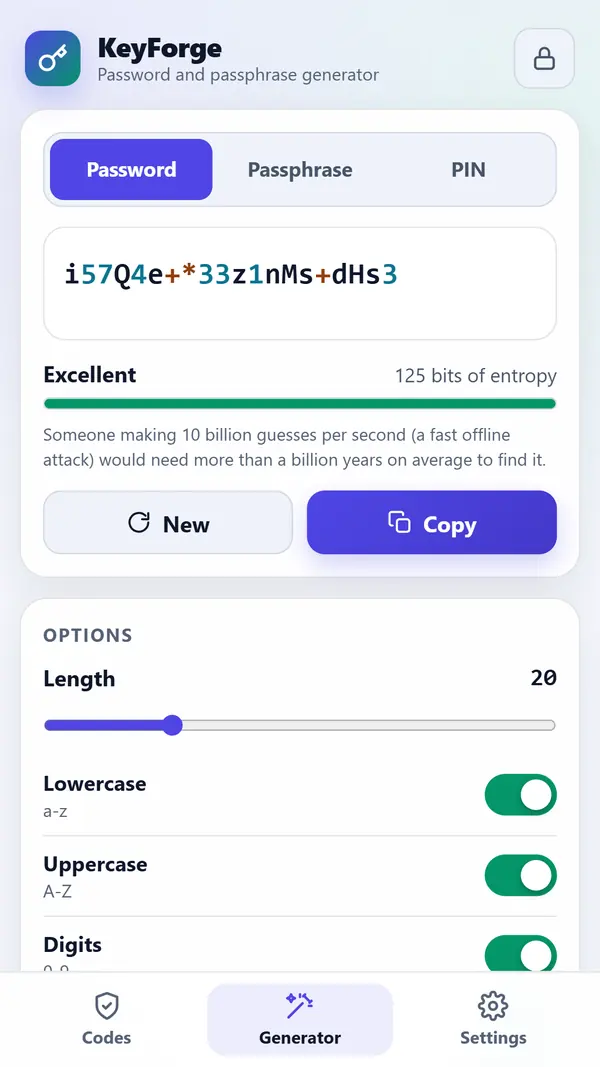
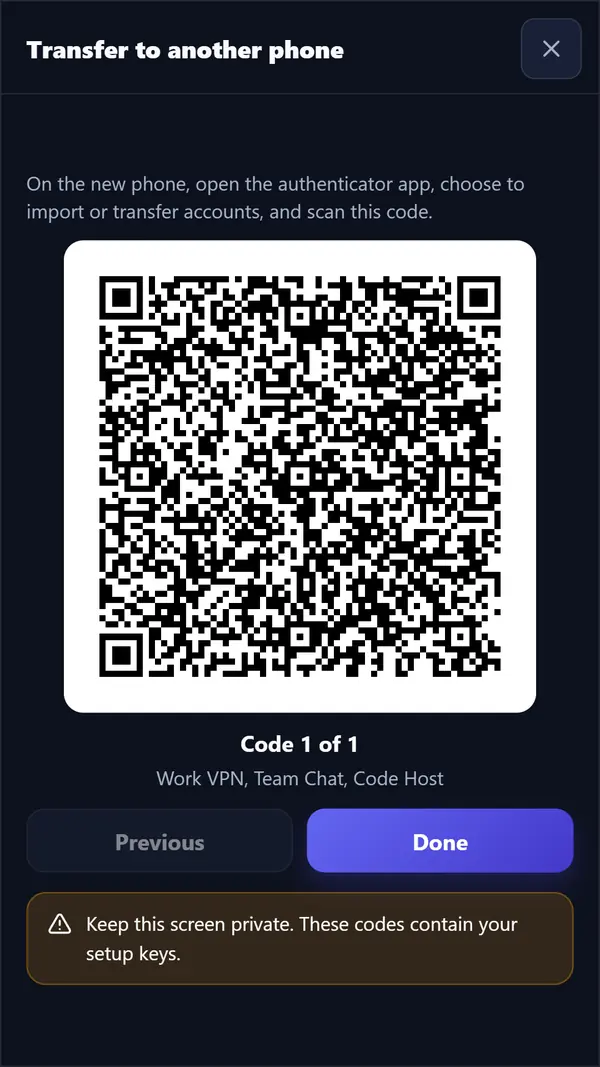
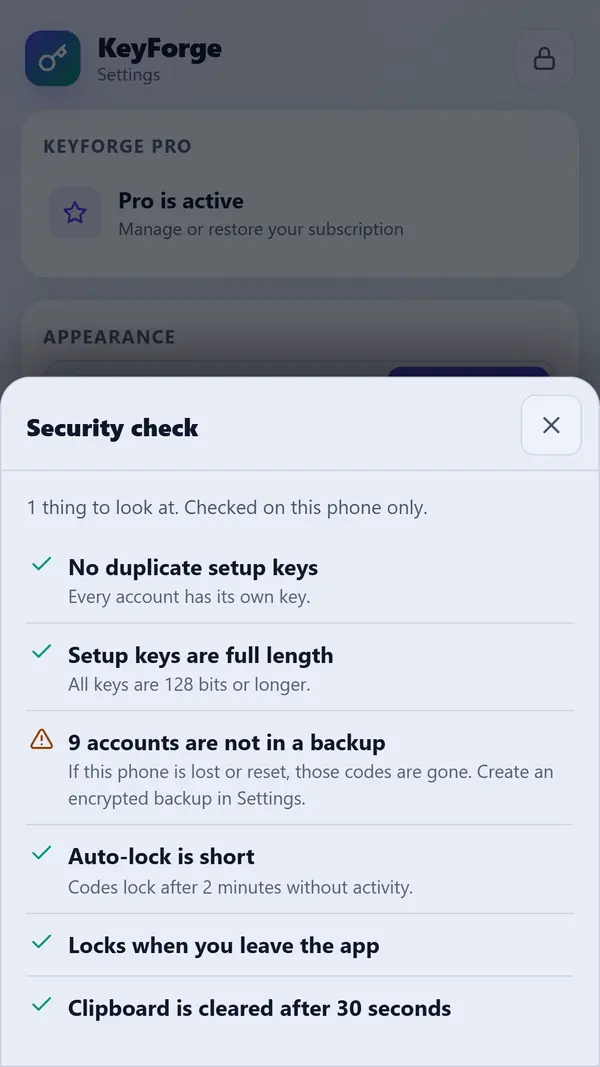
KeyForge is an authenticator app for 2-step verification codes and a strong password generator in one. It works fully offline, and your accounts are encrypted on your phone behind a PIN only you know.
What's new in version 1.3
New in version 1.3, along with a refreshed design and the optional Bright Loop Account. Early-access testers get it through Google Play.
Insights tab with security score
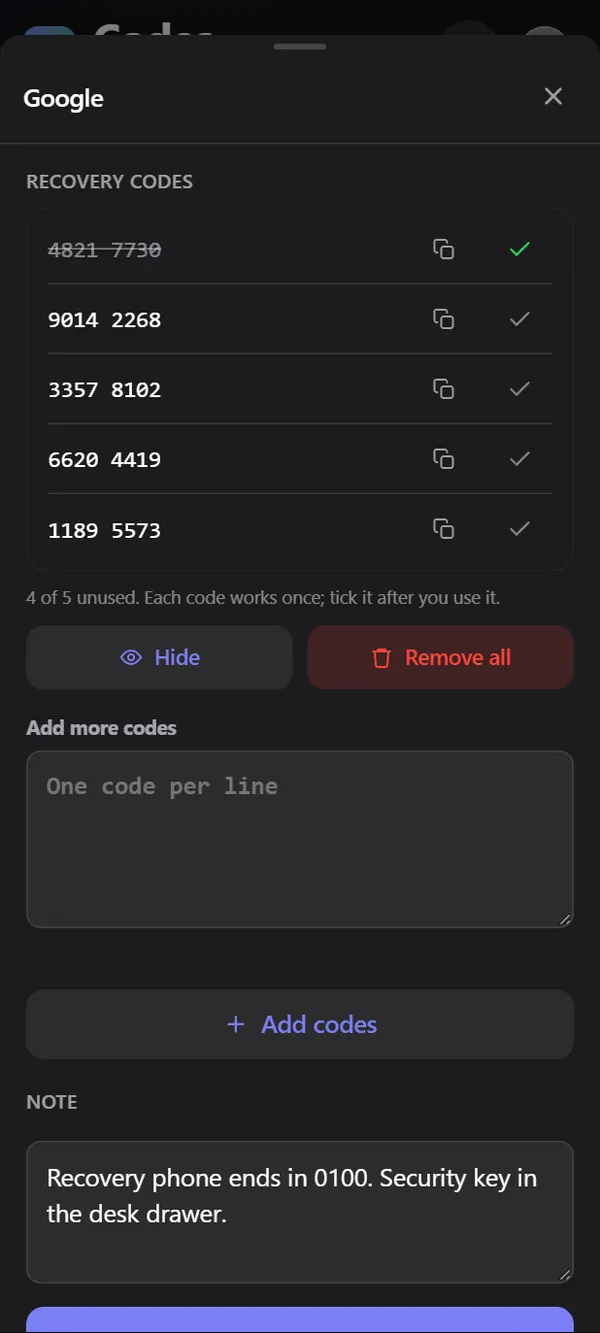
Encrypted notes and recovery codes per account
Generate many passwords at once
Optional end-to-end encrypted code sync
Feature tour.
Every feature in KeyForge, and what it does for you. Items marked Pro are part of the optional subscription.
Authenticator
- Time-based and counter-based codes
- TOTP and HOTP codes following RFC 6238 and RFC 4226, with SHA1, SHA256 or SHA512 and 6 to 8 digits.
- Many ways to add accounts
- Scan a QR code with the camera, scan a screenshot, type a setup key or paste an otpauth:// link. The camera is used only while scanning.
- Imports from other apps
- Reads the export QR codes other authenticator apps create, files of otpauth:// links and plain (unencrypted) JSON exports, with their groups.
- Copy, search and sort
- Tap a code to copy it. Search, pin, reorder, rename and delete with undo, and sort by most used, name or newest. Type to search and press Enter to copy.
- Select many at once
- Select several accounts to pin, delete, group or transfer them together.
- Setup key and QR code
- Show any account's setup key or QR code to move it to another app or phone.
- Up to 10 accounts free
- The free version holds 10 accounts; Pro removes the limit. Restoring a backup has no limit.
Notes and recovery codes
- Encrypted notes and recovery codes
- Keep a note and the one-time recovery codes for each account. They are encrypted with your accounts and included in encrypted backups.
- Mark codes as used
- Tick each recovery code after you use it; KeyForge warns when 2 or fewer are left.
Security
- PIN-encrypted vault
- Accounts are encrypted with AES-256-GCM using a key derived from your PIN or passphrase with PBKDF2-SHA-256 (600,000 iterations). The PIN itself is never stored, so a forgotten PIN cannot be recovered.
- Auto-lock
- Lock after 30 seconds to 10 minutes of no activity, and as soon as you leave the app.
- Hide codes and clear the clipboard
- Hide codes until tapped, and clear copied codes and passwords from the clipboard after 30 seconds.
- Attempt limit
- After 5 wrong PIN attempts KeyForge makes you wait, starting at 30 seconds and growing to 15 minutes.
Insights
- Insights tab with security score
- A score out of 100 from the security check, plus counts of accounts, groups and unused recovery codes and your last backup, worked out on the phone.
- Security check
- Duplicate setup keys, short keys, accounts not in a backup, auto-lock, clipboard settings and missing recovery codes.
- Usage
- Most copied accounts, accounts added per month, accounts not used in 90 days and the code types you use.
Password generator
- Passwords, passphrases and PINs
- Random passwords of 6 to 64 characters with your choice of symbols, passphrases of 3 to 10 words from 7,776 common English words, and random PINs, all from the phone's secure random number generator.
- Honest strength meter
- Entropy is calculated exactly from how the result was made, with an estimate of how long a fast offline attack would take.
- Generate many at once
- Make 5, 10 or 20 at once with the current options and tap one to copy it.
- Password checker
- Type a password you already use to see an estimate and the patterns that weaken it: common passwords, dictionary words, years, repeats and keyboard runs. Never saved.
- Session history in memory only
- Recent results are kept in memory and forgotten when KeyForge closes.
- Your own presets Pro
- Built-in presets are free; saving your own generator presets is part of Pro.
Backup, transfer and sync
- Encrypted backups, free
- Backup files encrypted with AES-256-GCM and a password you choose, with a reminder when accounts are not backed up yet.
- Optional end-to-end encrypted code sync
- With a Bright Loop Account and a strong passphrase, only the encrypted vault is uploaded and merged account by account on your other phones. Your passphrase and setup keys never leave the phone.
- Groups Pro
- Put accounts in groups such as Work, Banking or Family and filter with one tap. Accounts keep their groups if Pro ends.
- Transfer QR codes Pro
- Move many accounts at once with a few QR codes the other phone's authenticator app can scan.
- Export as otpauth links Pro
- An unencrypted text file with one otpauth:// link per account, for moving to another app.
- Dark and light themes
- System, Dark or Light under Appearance in Settings.
Full store description
Authenticator (2-step verification codes)
- Time-based codes (TOTP) and counter-based codes (HOTP), following the open standards RFC 6238 and RFC 4226
- Add accounts by camera, screenshot, setup key or otpauth:// link
- Reads the export QR codes that other authenticator apps create
- SHA1, SHA256, SHA512; 6 to 8 digits
- Tap a code to copy it. Search, pin, reorder, rename, delete with undo; sort by most used, name or newest
- Select several accounts to pin, delete or move them at once; type to search, Enter copies
- Security check: duplicate keys, backups, auto-lock and clipboard settings
- Groups such as Work, Banking or Family, with one-tap filters
- Import plain (unencrypted) JSON exports from other authenticator apps, with their groups
- Show any account's setup key or QR code; move many accounts with a few transfer QR codes
Security
- Accounts are encrypted with AES-256-GCM using a key derived from your PIN with PBKDF2-SHA-256 (600,000 iterations)
- Auto-lock after a time you choose, and lock as soon as you leave the app
- Hide codes until tapped
- Encrypted backup files (AES-256-GCM, password you choose) are free, with a reminder when accounts are not backed up yet
- Important: a forgotten PIN cannot be recovered by anyone. Keep the recovery codes each service gives you
Password generator
- Random passwords from 6 to 64 characters with lowercase, uppercase, digits and your choice of symbols
- Passphrases of 3 to 10 words from a list of 7,776 common English words
- Random PINs, from your phone's secure random number generator
- An honest strength meter: entropy calculated exactly from how the password was made
- Password checker: type a password you already use to see an estimate of how hard it is to guess, with the patterns that weaken it (common passwords, dictionary words, years, repeats, keyboard runs). Checked on your phone, never saved
- Recent results are kept in memory only and forgotten when you close the app
How to use KeyForge.
Step-by-step walkthroughs of the main tasks, with screens from the current version.
1Add your first accountSet up 2-step verification for a website or app so KeyForge shows its codes.
- Step 1
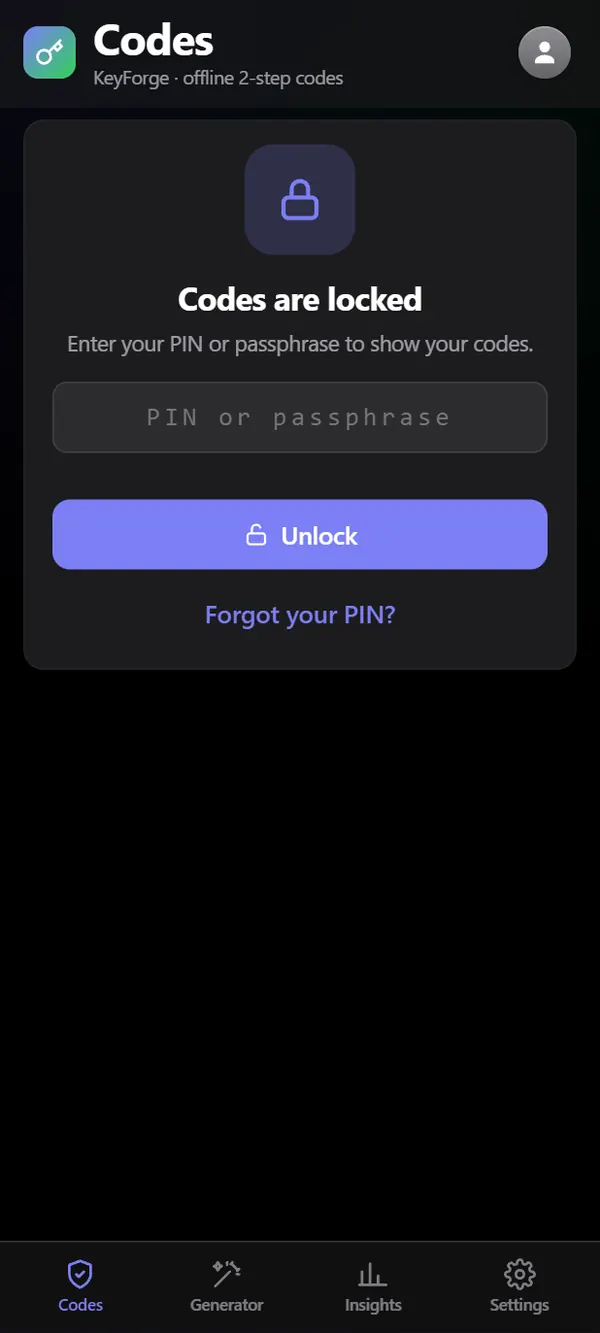
Unlock KeyForge with your PIN or passphrase. (The first time, tap Create a PIN on the Codes tab.)
- Step 2
On the website, turn on 2-step verification with an authenticator app. In KeyForge, tap Add.
- Step 3
Choose Scan a QR code to use the camera, Scan from an image for a screenshot, Enter a setup key, or Paste an otpauth:// link.
- Step 4
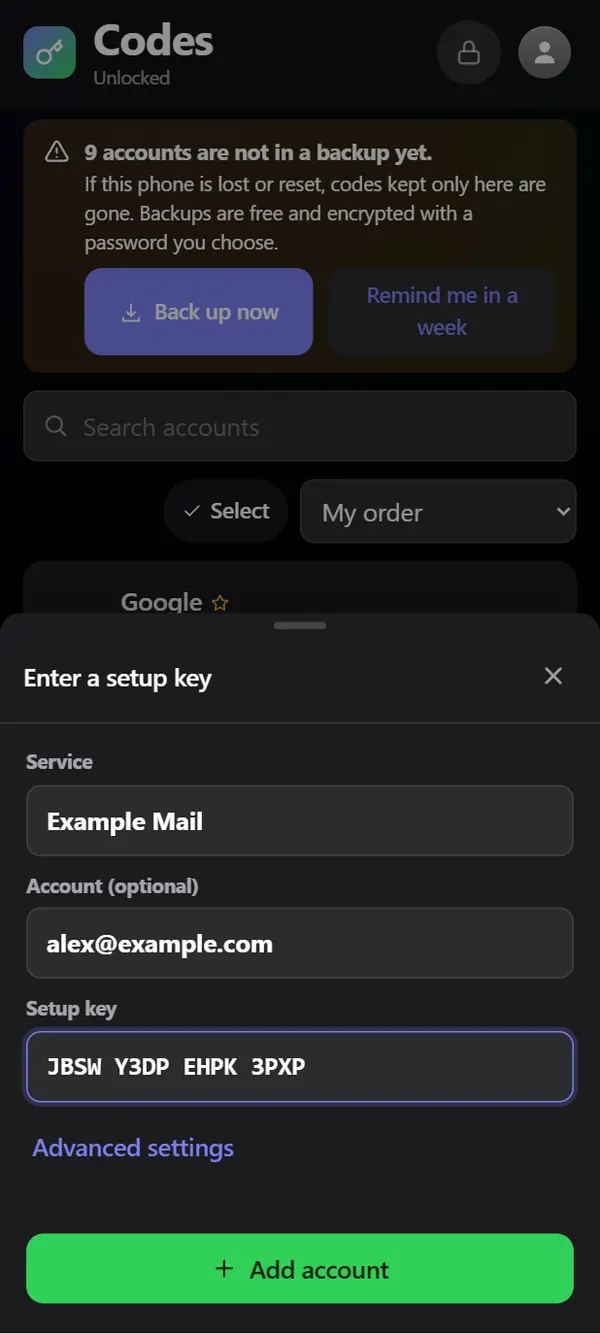
For a setup key, type the Service, the Account and the Setup key, then tap Add account. Leave Advanced settings alone unless the website says otherwise.
- Step 5
Type the 6-digit code KeyForge now shows into the website to finish. Tap a code any time to copy it.
2Save recovery codes and notesKeep the one-time recovery codes a service gives you, encrypted with your accounts.
- Step 1
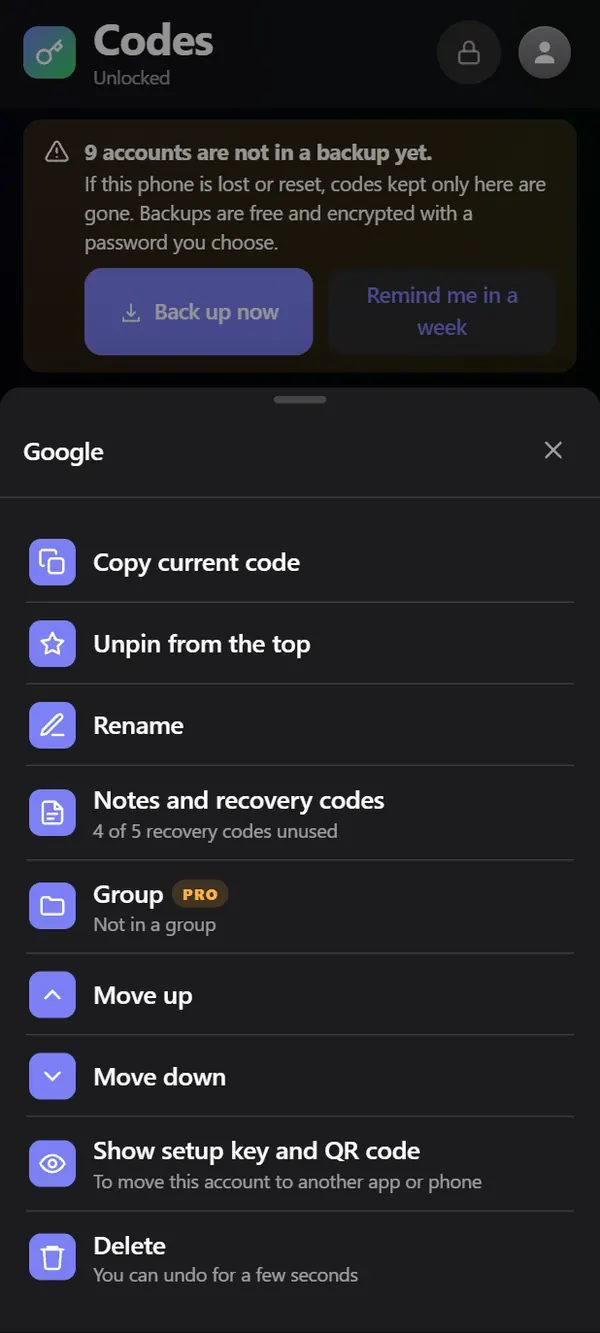
On the Codes tab, tap the three-dot button next to an account.
- Step 2
Tap Notes and recovery codes.
- Step 3
Paste the codes into the box, one per line, and tap Add codes. Add a note if you like and tap Save note. Tap Show or Hide to reveal the codes, and tick a code after you use it.
3Make a strong password or passphraseCreate random passwords, passphrases or PINs and check the ones you already use.
- Step 1
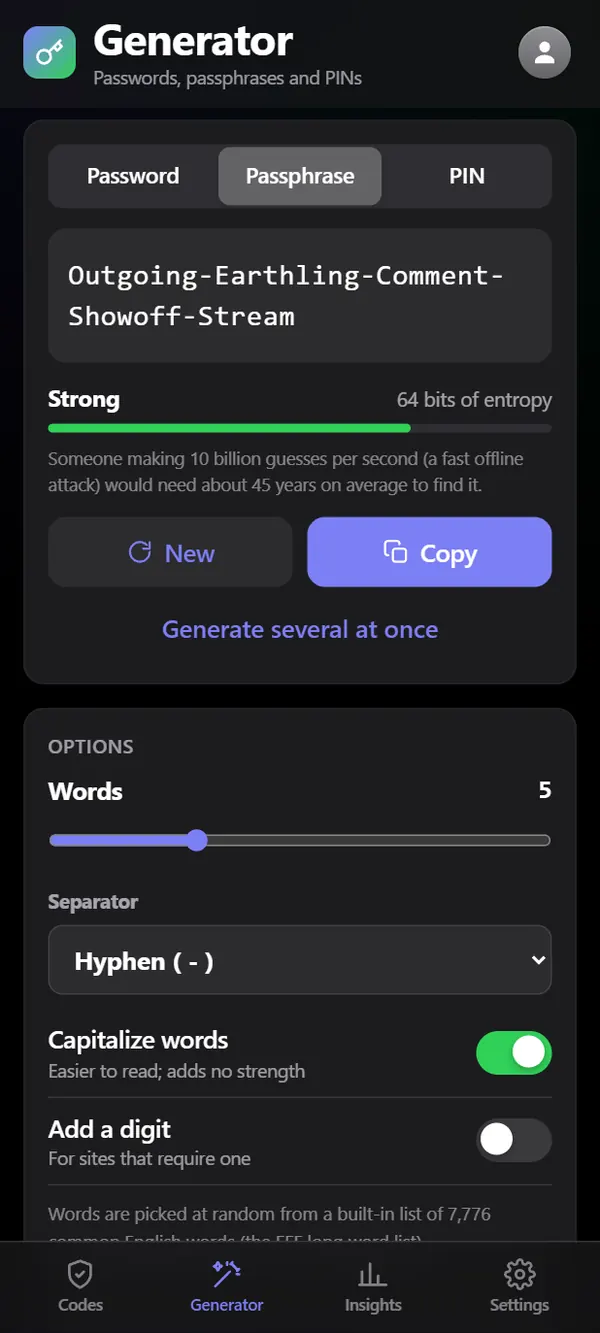
Open the Generator tab. Choose Password, Passphrase or PIN and set the options; the meter shows the exact entropy in bits.
- Step 2
For something easier to type, switch to Passphrase and pick the number of words and the separator.
- Step 3
Tap Generate several at once and pick 5, 10 or 20. Tap one to copy it; they are not saved.
- Step 4
Under Check a password, type a password you already use to see an estimate and what weakens it. It is checked on the phone and never saved.
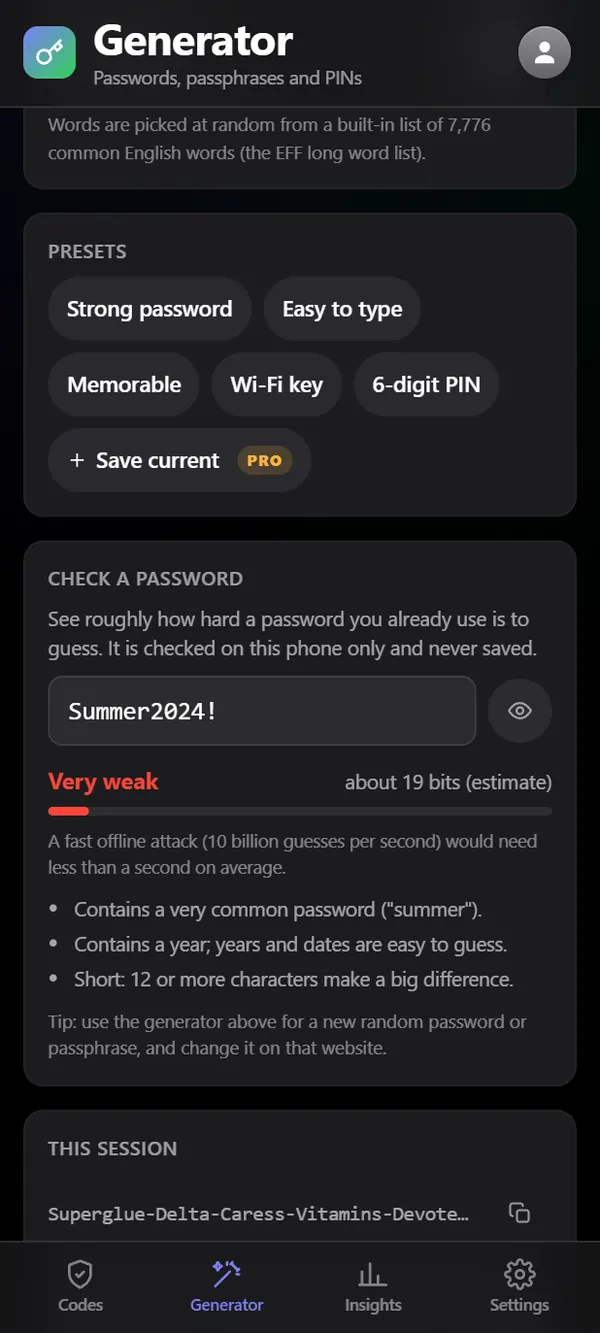
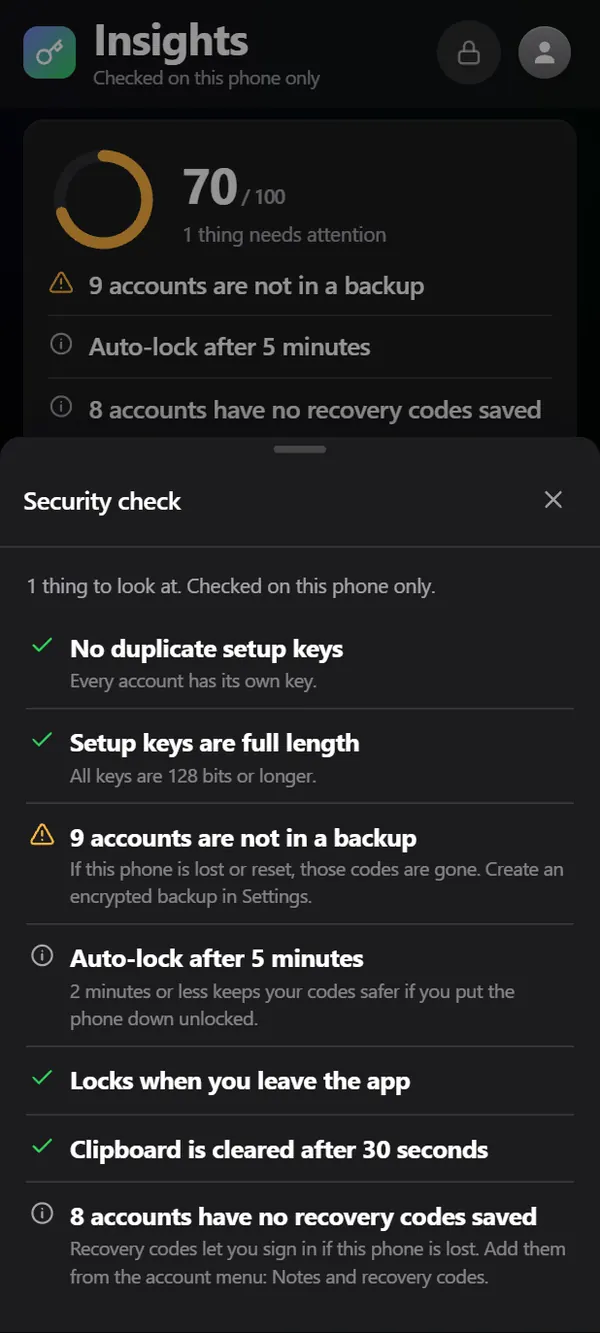
4Check your security scoreSee what to fix to keep your codes safe and recoverable.
- Step 1
Open the Insights tab. The score starts at 100 and drops for each warning and suggestion.
- Step 2
Tap See all checks to see duplicate setup keys, missing backups, auto-lock, clipboard and recovery-code status.
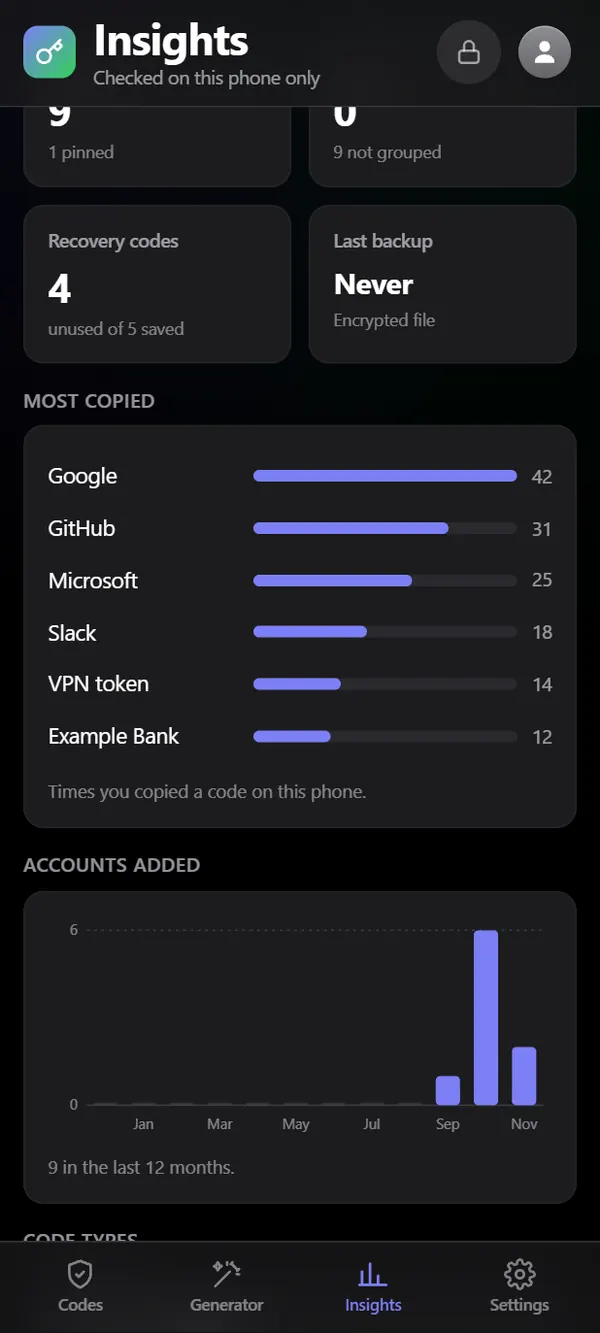
- Step 3
Scroll down for your most copied accounts, accounts added per month and accounts not used in 90 days.
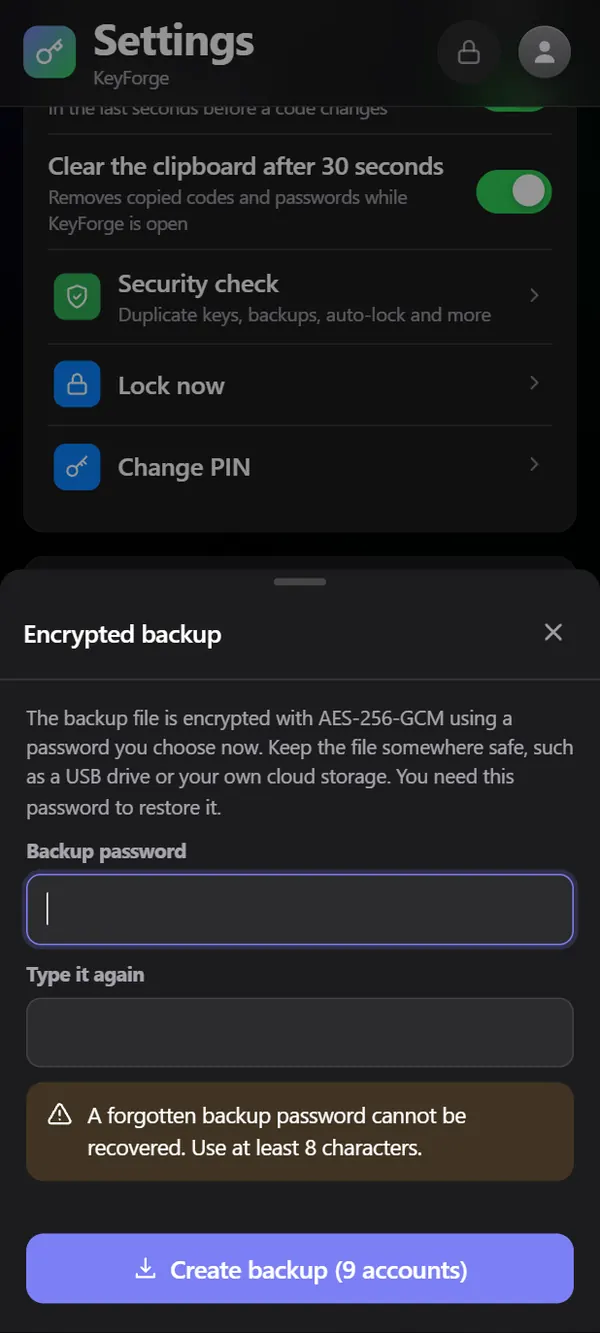
5Back up your accountsMake an encrypted backup file so you can restore your codes on a new phone.
- Step 1
Tap Back up now on the reminder, or go to Settings.
- Step 2
Under Backup and transfer, tap Create encrypted backup.
- Step 3
Choose a backup password (at least 8 characters), type it again and tap Create backup. Save the file somewhere safe, such as a USB drive. Restore it later with Restore from backup.
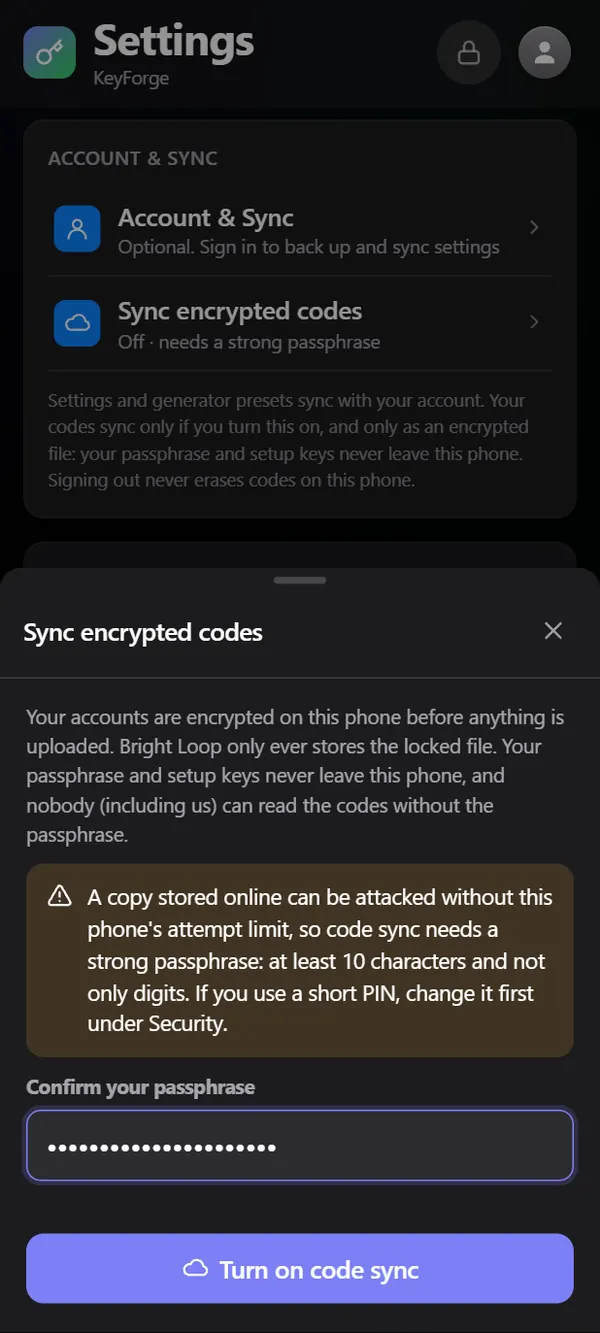
6Sync your codes with end-to-end encryptionOptionally keep an encrypted copy of your codes in your Bright Loop Account to use on another phone.
- Step 1
In Settings, under Account & Sync, tap Sync encrypted codes.
- Step 2
Enter your current passphrase and tap Turn on code sync. It must be at least 10 characters and not only digits; a short PIN is refused.
- Step 3
Tap Account & Sync to sign in to your Bright Loop Account. Only the encrypted vault is uploaded; your passphrase and setup keys never leave the phone.
Free, with optional Pro.
Download KeyForge free. Pro is optional and billed by Google Play, which shows the price before you confirm.
Free
- The full password generator and password checker
- The authenticator for up to 10 accounts
- QR code scanning
- All ways of adding and importing accounts
- Sorting
- Single-account QR codes
- The PIN lock and auto-lock
- Creating and restoring encrypted backups
- Dark and light themes
KeyForge Pro (optional subscription, monthly or yearly)
- Unlimited accounts
- Groups
- Transfer QR codes for moving many accounts at once
- Export of all accounts as otpauth links
- Your own saved generator presets
Prices and any trial come from Google Play. Renews until you cancel in Google Play; if Pro ends, your accounts keep working.
Manage or cancel subscriptions in Google Play > Payments & subscriptions. Purchases and Restore purchases
Try it now.
Open KeyForge right here in your browser, or download the Android app file directly.
Open in browser
The full KeyForge app, running in a new tab. Nothing to install.
Some phone-only features, such as purchases, notifications, sharing and camera scanning, work only in the Android app. Anything you do in the browser is saved in that browser only, unless you sign in to the Bright Loop Account.
Download the APK
Install KeyForge on an Android phone without Google Play.
- Version
- 1.3
- Size
- 4.0 MB
- SHA-256
01e584f4552f25d01c769781cc0f498150ff91cf3c487ba824f65f8b5b66ba64
An APK installed from this website can't be updated from Google Play later. To switch to Google Play, uninstall it and install from Play. Your data only comes with you if you back it up with the Bright Loop Account first. How to install an APK
Requirements & details.
- Requires
- Android 7.0 or later
- Size
- 4.0 MB
- Version
- 1.3
- Price
- Free, optional Pro subscription
- Internet
- Not required
- Account
- Optional Bright Loop Account
- Ads
- None
- Category
- Security
- Developer
- Bright Loop (Google Play: Bright Loop Games)
- Availability
- Early access (Google Play closed testing)
- Web version
- Open in browser
How to get KeyForge.
KeyForge is in early access through Google Play closed testing. It takes about two minutes.
- Ask to join the tester listEarly access runs as a Google Play closed test, so your Google account must be on the tester list before the opt-in link works. Send us the Gmail address you use on Google Play and we'll add you.
- Open the opt-in linkOn your Android phone, signed in to the same Google account, open the KeyForge early access link.
- Tap "Become a tester"Google Play confirms that you've joined the test.
- Install from Google PlayTap the "download it on Google Play" link on that page, or open the Google Play page, then tap Install. Updates arrive through Google Play like any other app.
- Tell us what you thinkEarly access means your feedback shapes the next update. Email rehman@mindum.dev any time.
Link not working? See Troubleshooting or the full early access guide.
Account & sync.
Optional. KeyForge works fully without an account. Sign in to the free Bright Loop Account to back up your KeyForge data and keep it in sync across your phones.
What syncs
- Settings
- Your authenticator accounts, only if you turn on code sync, as a file locked with your passphrase. Bright Loop only ever stores the locked file
What stays on this phone
- Your passphrase and setup keys: they never leave the phone
- Codes, unless you turn on encrypted code sync
Account & Sync is part of KeyForge 1.3. Look for it at the top of Settings.
Privacy.
KeyForge keeps your data on your phone. No ads and no analytics.
Private by design
No account needed, no ads or analytics, and no network connections of its own. Nothing leaves your phone unless you export it. The camera is used only while scanning.
If you sign in
The Bright Loop Account is optional. If you sign in, KeyForge backs up the records listed under Account & sync to your account so you can restore them on another phone. Photos and files are never uploaded, and you can export or delete your cloud data at any time.
Read the full Privacy Policy.
Tips.
- Save the recovery codes each service gives you under Notes and recovery codes; they are your way back in if you lose the phone.
- Make an encrypted backup after adding new accounts. The Insights tab tells you how many are not backed up yet.
- Turn on Hide codes until tapped if people can see your screen.
- Use a passphrase of four or more words as your unlock secret if you want code sync: a short numeric PIN is not allowed for a copy stored online.
- If a website rejects your codes, check that the phone's date and time are set automatically.
- Before deleting an account in KeyForge, turn off 2-step verification on that website or set it up somewhere else.
Troubleshooting.
A website says my code is wrong
Codes depend on the phone's clock. Turn on automatic date and time in Android Settings, then try the next code.
I have to wait before trying my PIN again
After 5 wrong attempts KeyForge waits 30 seconds, doubling up to 15 minutes. Wait and type carefully.
I can't add more accounts
The free version holds 10 accounts. Delete accounts you no longer use, or upgrade to Pro for unlimited accounts.
Code sync says the cloud copy needs your other passphrase
The cloud copy was locked with a different passphrase on another phone. Tap Sync encrypted codes and enter that passphrase to merge, or keep this phone's codes and replace the cloud copy.
My codes locked while I was using another app
Lock when I leave the app is on. Turn it off or lengthen Lock codes after no activity in Settings if you prefer.
Questions.
Where are my accounts stored?
On your phone, in a vault encrypted with AES-256-GCM using a key derived from your PIN or passphrase (PBKDF2-SHA-256, 600,000 iterations). Notes and recovery codes are inside the same encrypted vault.
What if I forget my PIN?
Nobody can recover it, because the PIN is never stored. Erase the vault, create a new PIN and restore an encrypted backup, or use each service's recovery codes to set up 2-step verification again.
Does KeyForge upload my codes?
Only if you turn on Sync encrypted codes and sign in to a Bright Loop Account. Then only the already-encrypted vault is uploaded. Settings and generator presets sync when you are signed in. Without that, nothing leaves the phone unless you export it.
Why does code sync refuse my PIN?
A copy stored online can be attacked without the phone's attempt limit, so sync needs a passphrase of at least 10 characters that is not only digits. Change it under Security first.
Can I move my accounts from another authenticator app?
Yes. Scan the export QR codes the other app shows, paste otpauth:// links, or import a file of links or a plain (unencrypted) JSON export.
Are generated passwords saved?
No. Recent results are kept in memory for the session only, and the password checker never saves what you type.
Are backups a Pro feature?
No. Creating and restoring encrypted backups is free, and restoring has no account limit.
Is KeyForge free?
Yes. KeyForge is free to download and use. KeyForge Pro is an optional monthly or yearly subscription through Google Play that adds the extras listed under Free and Pro. Google Play shows the price, and any trial, before you confirm.
Why can't I find KeyForge on Google Play?
KeyForge is in early access (a Google Play closed test), so it only appears for people on the tester list. Follow the steps under How to get it. Once it becomes public, anyone can install it from Google Play.
Does KeyForge work offline?
Yes. KeyForge works without an internet connection. You only need a connection for optional things like Bright Loop Account sync and Google Play purchases.
Do I need an account?
No. KeyForge works fully without one. The Bright Loop Account is optional and adds cloud backup and sync across your phones.
How do I move to a new phone?
Sign in to your Bright Loop Account on the new phone and choose "Use Cloud Data", or export a backup file on the old phone and restore it on the new one. Photos and files only move with a backup file. Pro comes back with Restore purchases. See Move to a new phone.
How do I restore a purchase?
Make sure your phone uses the same Google account you bought with, open KeyForge and tap Restore purchases. Google Play checks your purchases and KeyForge unlocks what you own. More about purchases.
Can I use KeyForge in a browser?
Yes. Tap Open in browser to run it in a new tab. Some phone-only features, such as purchases, notifications, sharing and camera scanning, work only in the Android app, and anything you do there is saved in that browser.
Can I install it without Google Play?
Yes, with the APK on this page (version 1.3, 4.0 MB). An APK install can't be updated from Google Play later; see Install an APK on Android.
What do I need to run it?
Android 7.0 or later, or any modern browser for the web version.
Is it available on iPhone?
There's no iPhone app at the moment. KeyForge is made for Android, but you can open the web version in Safari.
Get help with KeyForge
Email rehman@mindum.dev. Include your phone model, Android version and what happened, and we'll take it from there.
Help Centre
Step-by-step guides for early access, sync, backups, purchases and moving phones. Visit the Help Centre
More apps you might like.
SafeKeep
Passport, ID, insurance & warranty expiry reminders. Private, kept on your phone

Drift
Bedtime calculator, weekly sleep schedule, sleep sounds, sleep diary and trends
RitualOS
Track habits and streaks, and run timed morning, evening and workout routines.

TripPilot
Offline trip planner: itinerary, ideas, bookings, packing lists and budget.