
TripPilot
Offline trip planner: itinerary, ideas, bookings, packing lists and budget.
Google Play pageDownload APK v1.3 · 4.0 MB
Early access on Google Play closed testing. You need to be on the tester list first: see how to join.

A closer look.
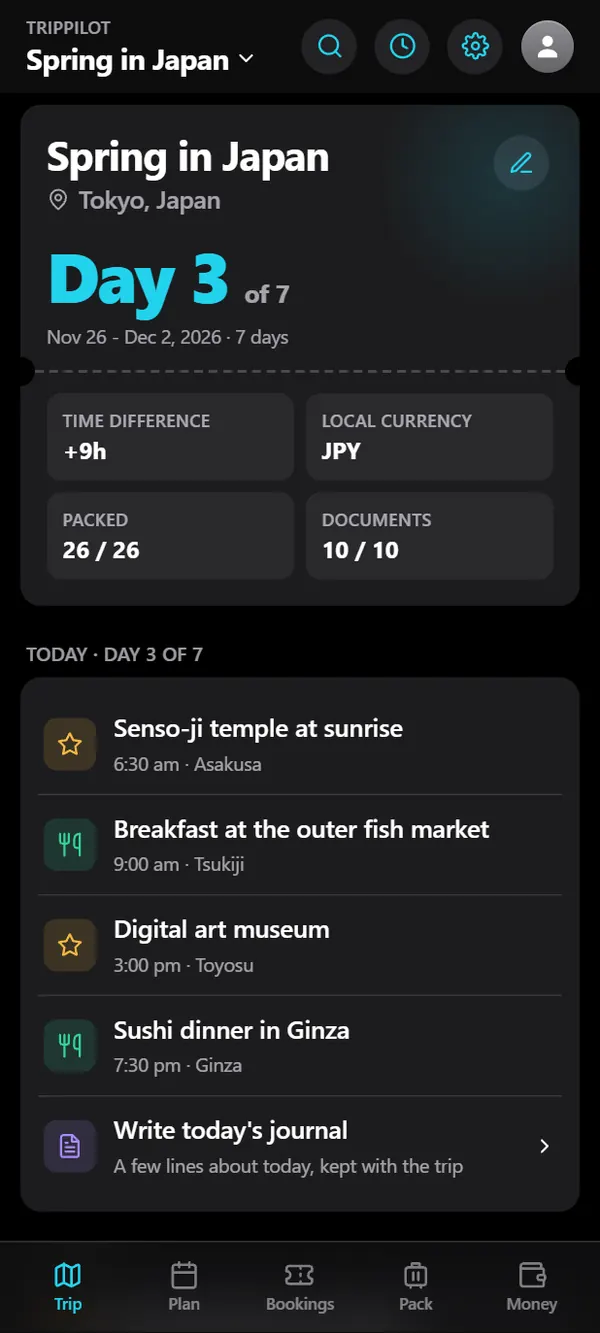
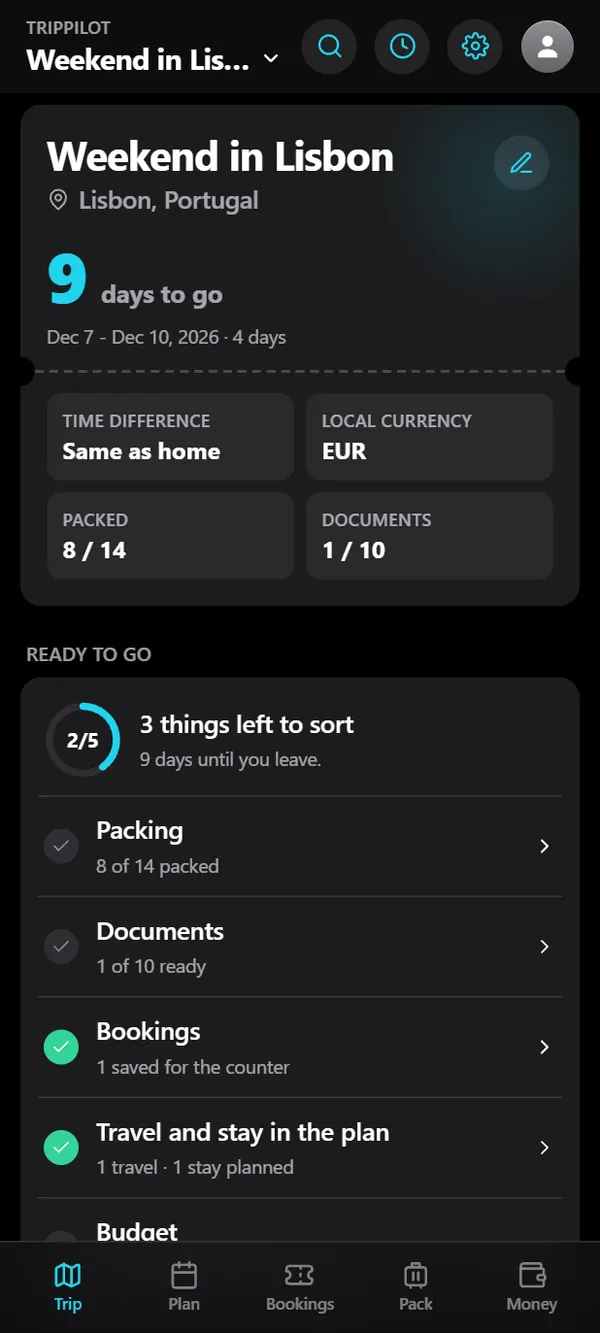
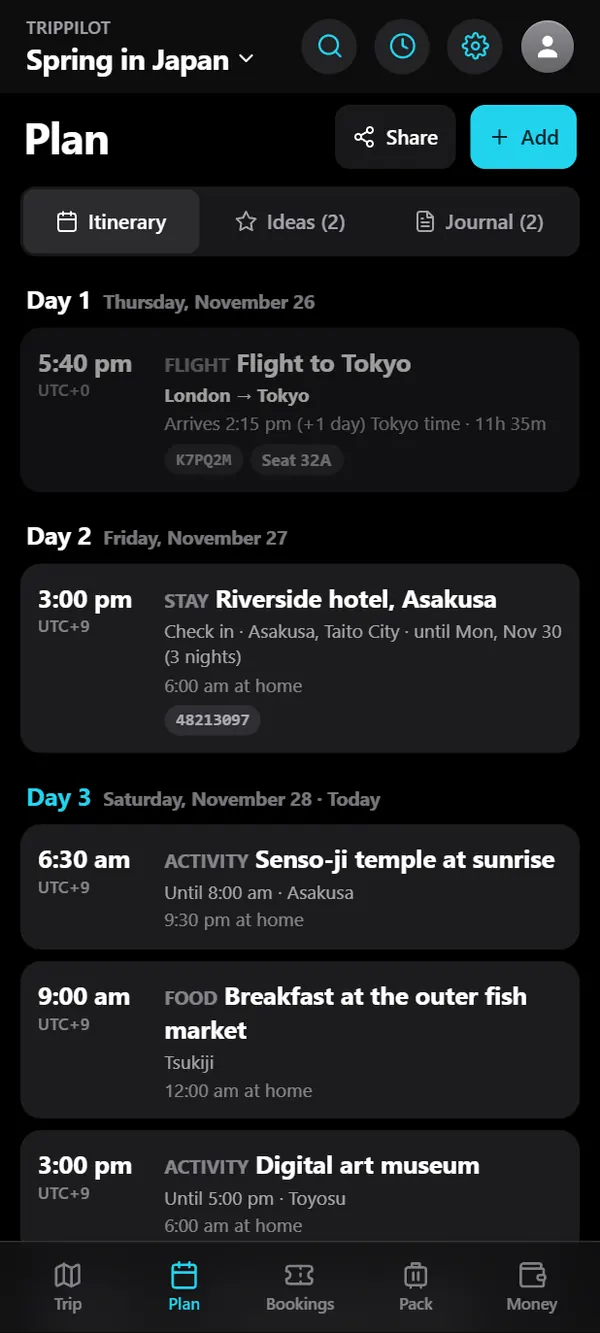
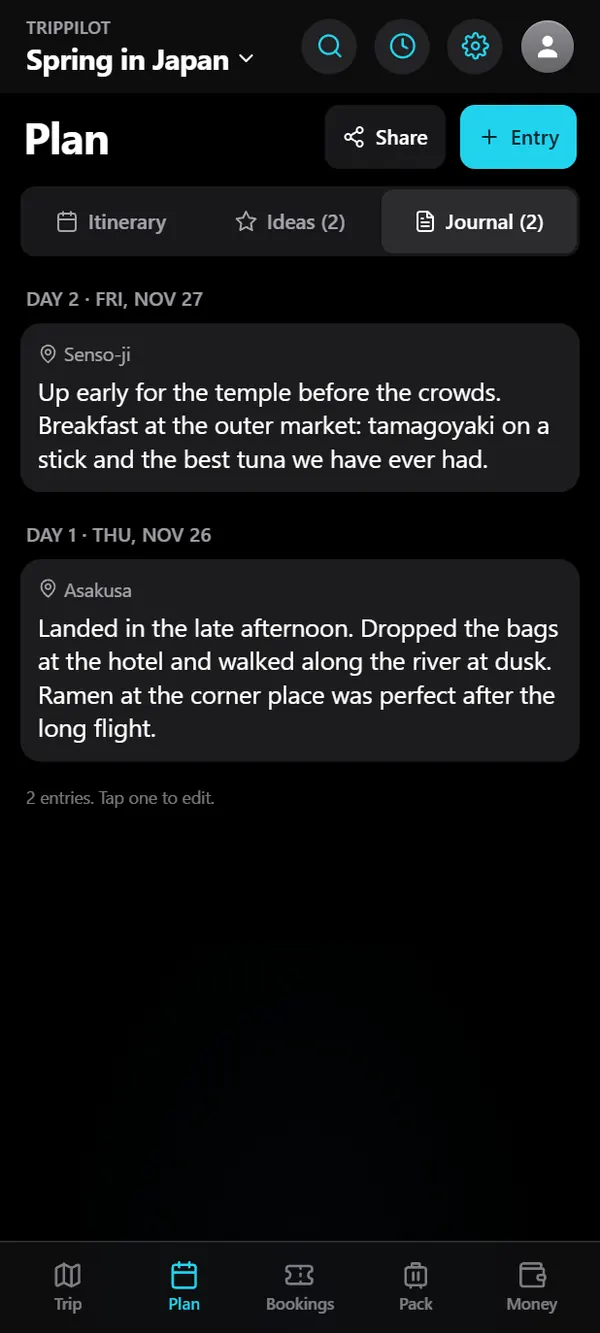
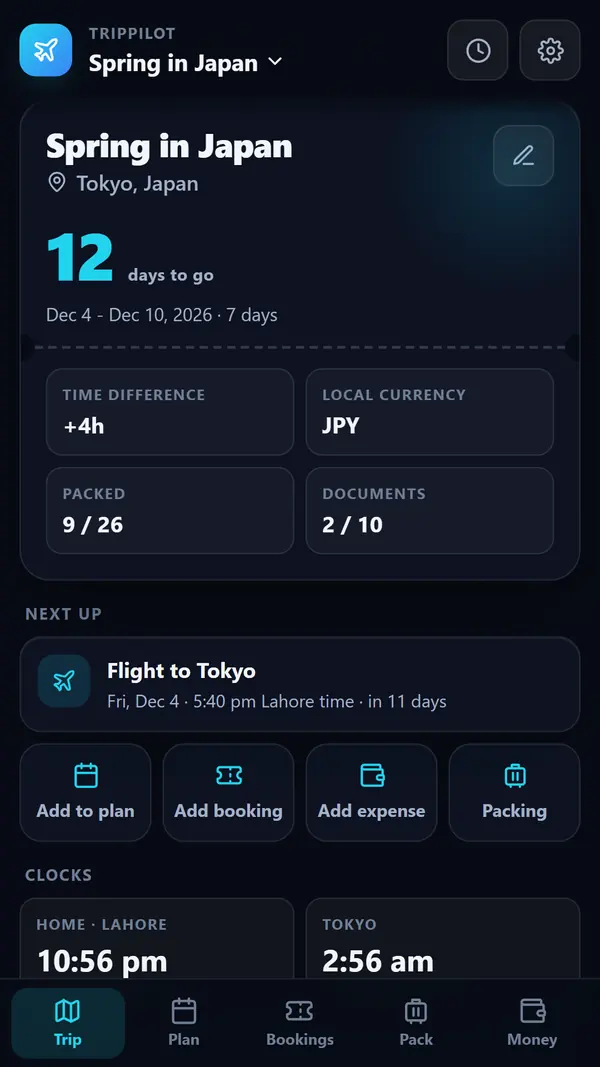
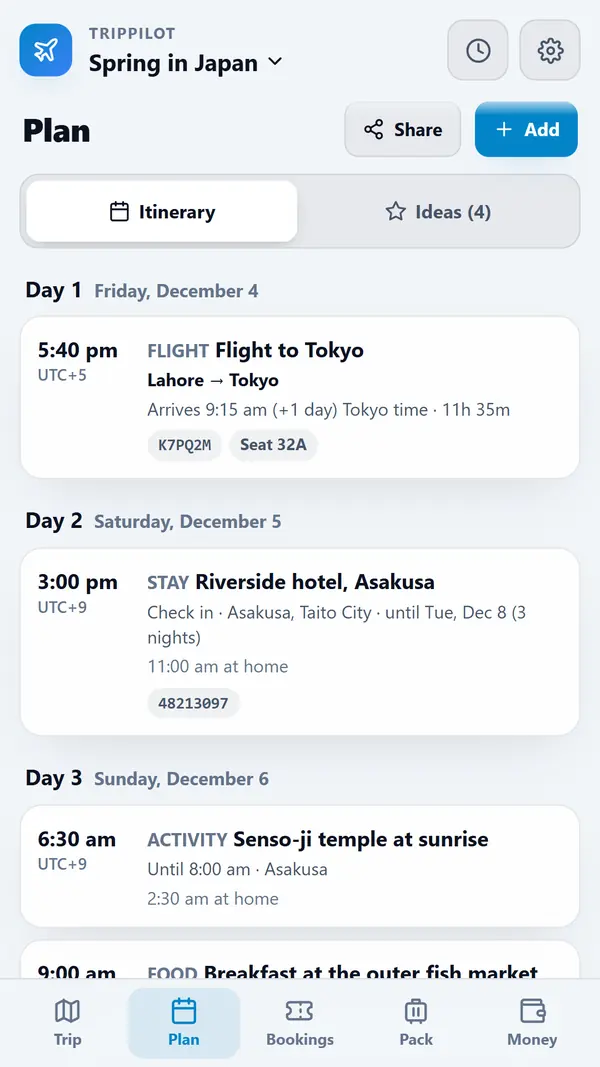
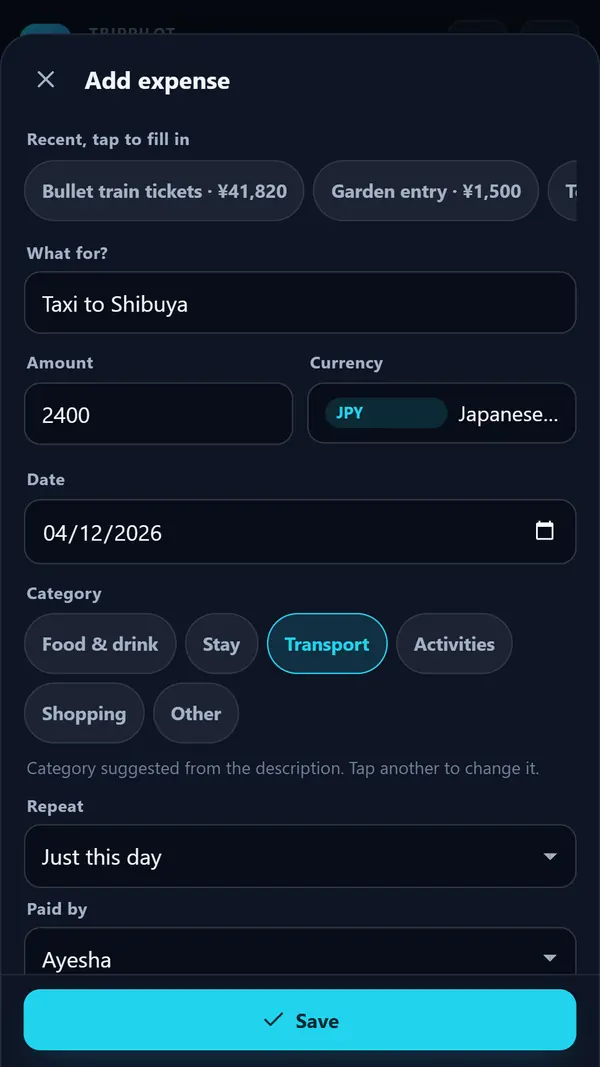
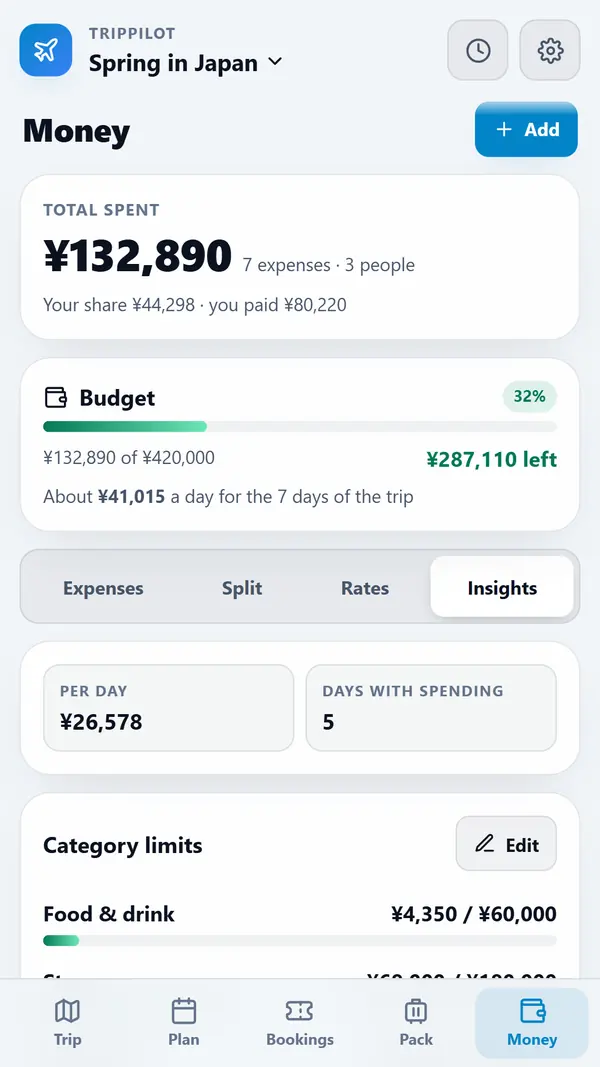
TripPilot is an offline trip organiser. Keep your day-by-day plan, ideas, booking references, ticket photos, packing list, budget and travel spending together on your phone, ready even when you have no signal.
What's new in version 1.3
New in version 1.3, along with a refreshed design and the optional Bright Loop Account. Early-access testers get it through Google Play.
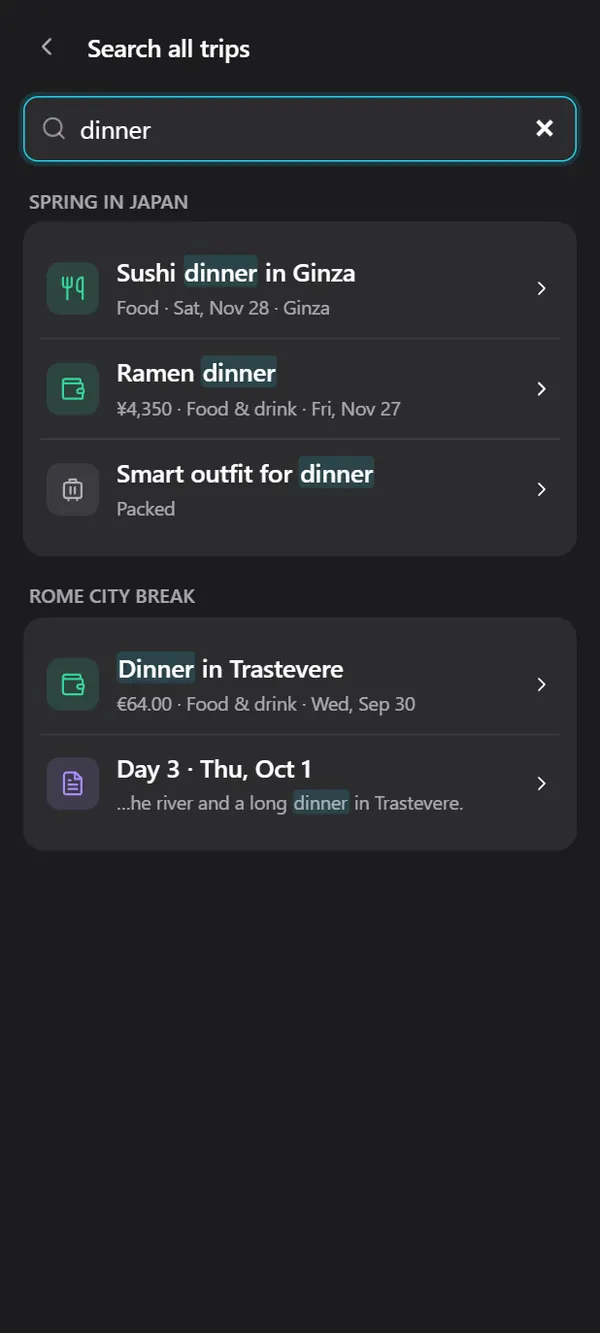
Search across every trip
Travel journal by day
Ready-to-go checklist, today agenda and trip overview cards
Feature tour.
Every feature in TripPilot, and what it does for you. Items marked Pro are part of the optional subscription.
Day-by-day planning
- Plan in the right time zone
- Add flights, stays, activities, meals, transport and notes. Enter times as they appear on your ticket; TripPilot uses each place's own time zone, works out journey times and shows "+1 day" arrivals.
- Time back home and countdowns
- Each item shows what time it is at home. The Trip tab counts down to your trip, then shows "Day 3 of 7".
- Ideas
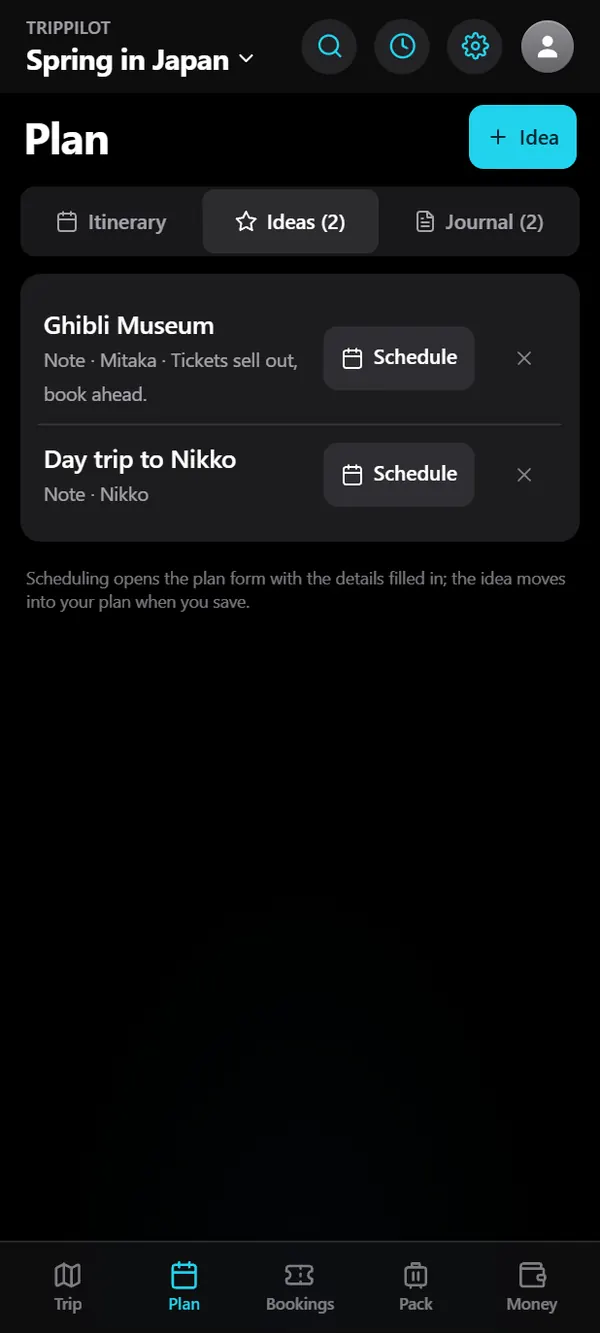
- Keep a list of places and ideas, then schedule one into a day when you know it.
- Clashes and free time
- Items that overlap are flagged, and free gaps of 3 hours or more are shown.
- Share the itinerary
- Share your plan as text to any chat app.
- Calendar export Pro
- Add your whole plan to your calendar app as an .ics file.
New in 2.0
- Ready to go checklist
- Before you leave, the Trip tab shows how ready you are: packing, documents, bookings, travel and stay, and budget.
- Today agenda
- During the trip, the Trip tab lists what is on today, with a shortcut to today's journal.
- Trip overview cards
- Time difference, local currency, packing and documents at a glance at the top of each trip.
- Travel journal
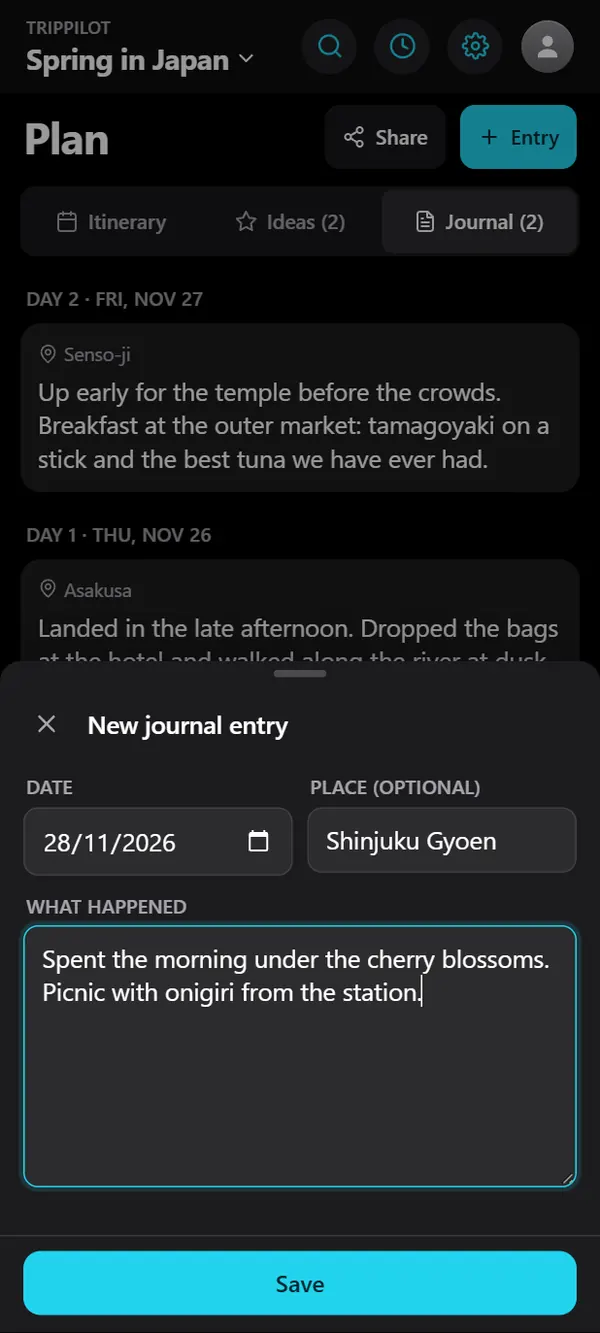
- Write a few lines each day with an optional place. Entries are grouped by trip day and can be shared as text.
- Search across every trip
- Find a booking reference, a restaurant, an expense, a packing item or a journal entry in all your trips at once.
Bookings and packing
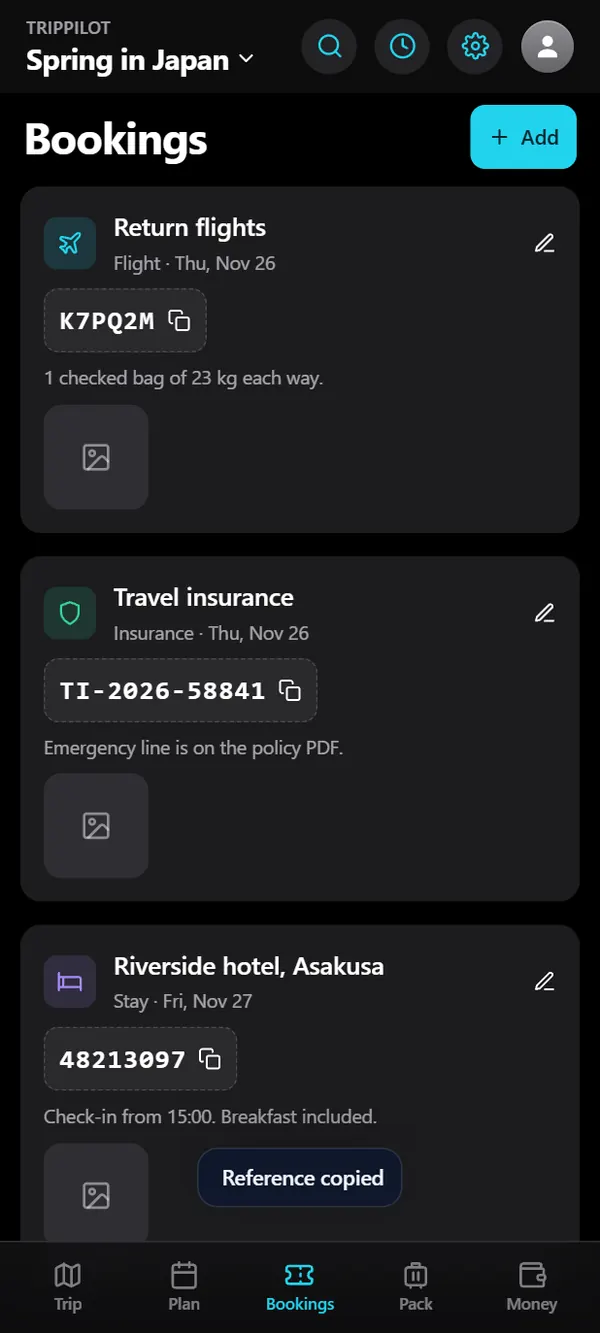
- Booking references
- Save references for flights, stays, trains, car hire, tours and insurance, and tap one to copy it at the counter.
- Ticket photos
- Add photos of tickets and confirmations from your gallery. They stay on your phone.
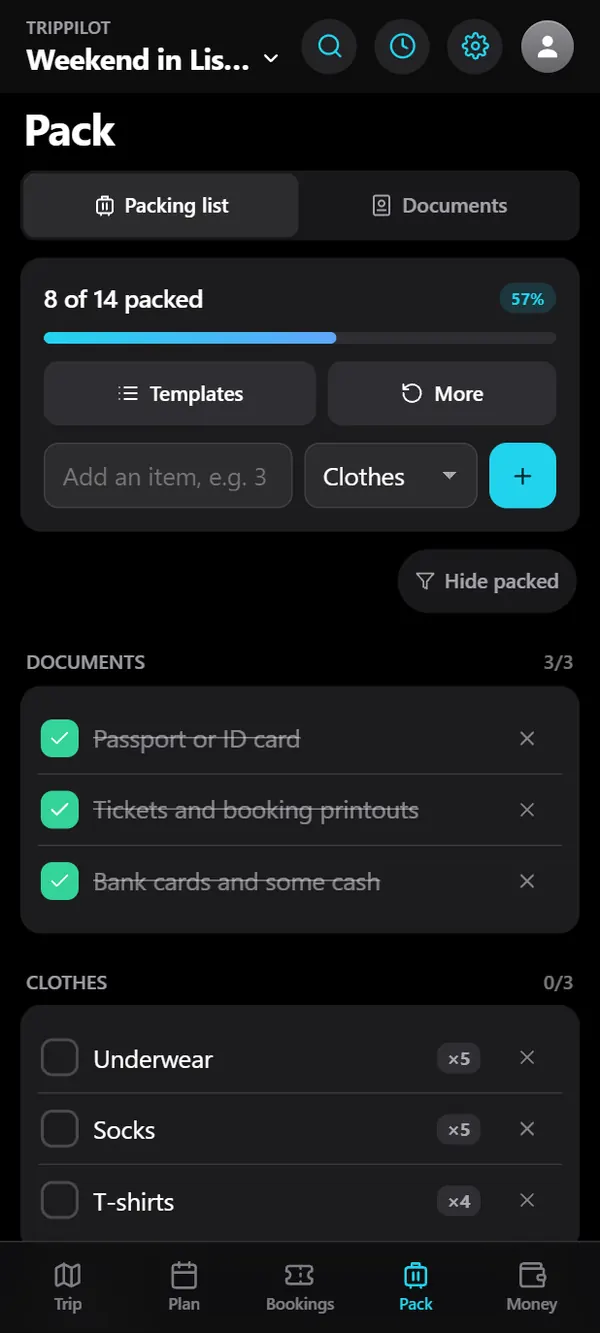
- Packing templates
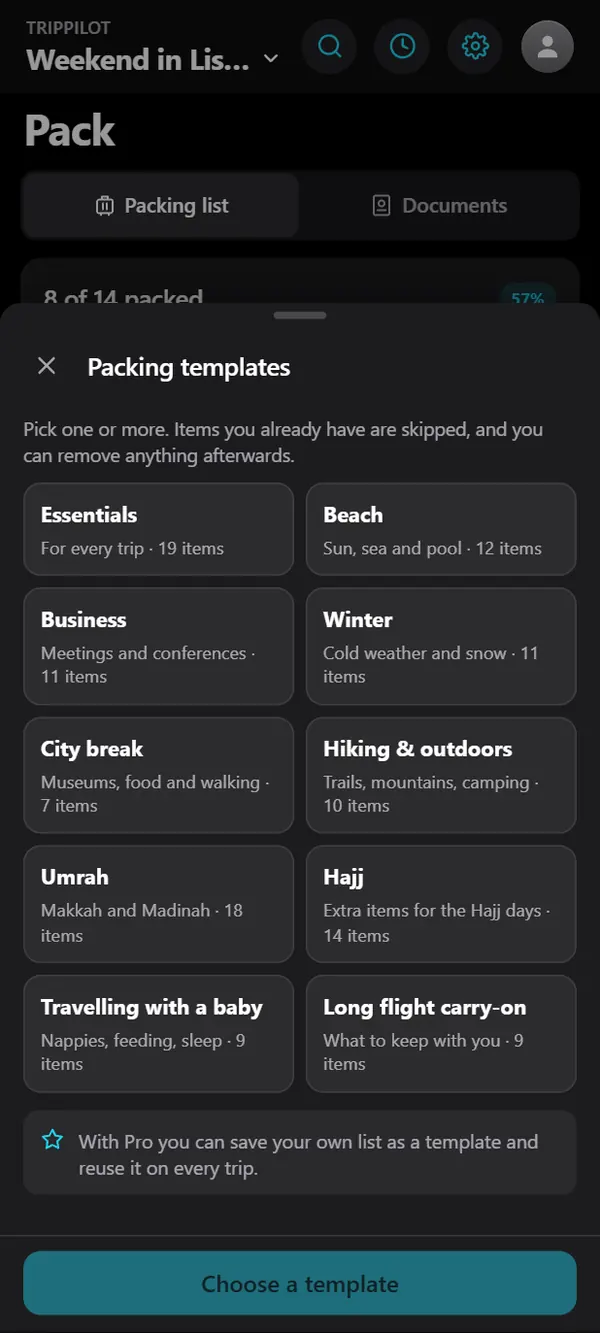
- Templates for essentials, beach, business, winter, city breaks, hiking, Umrah, Hajj, travelling with a baby and long flights. Tick items off, set quantities and hide what is packed.
- Documents checklist
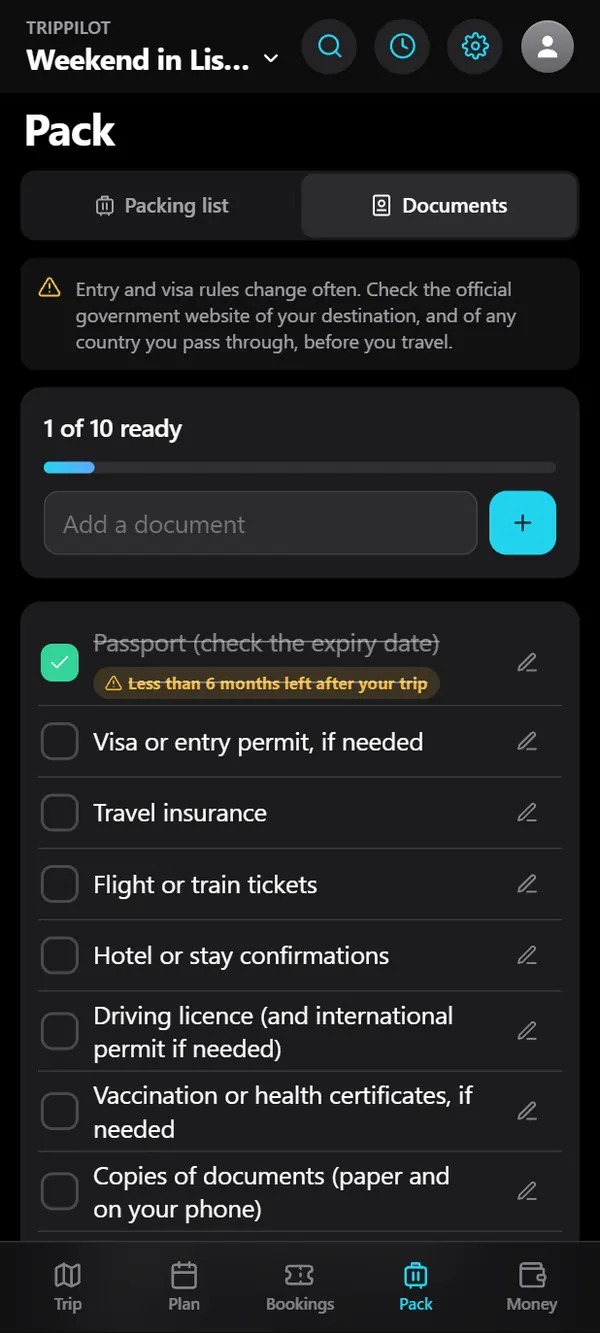
- Track your passport, visa, insurance and tickets, with warnings when a passport expires before or soon after your trip. Check entry rules on official government websites; TripPilot does not give visa advice.
- Your own templates and trip reuse Pro
- Save your own packing templates, and reuse a trip on new dates.
Budget and spending
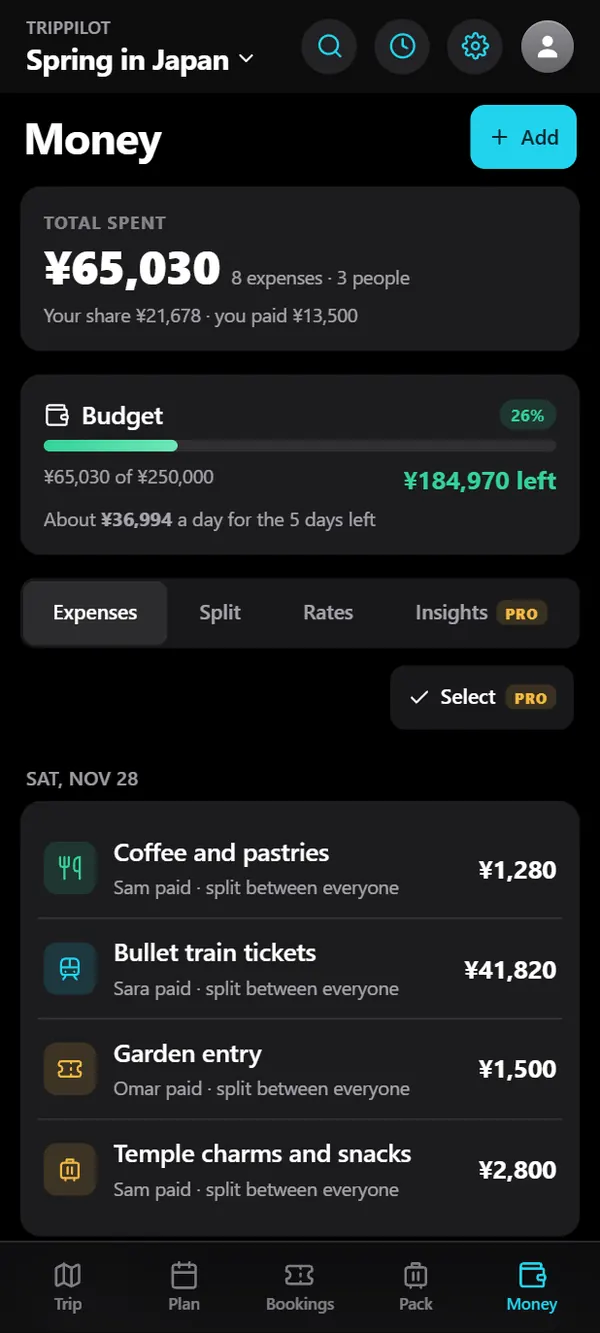
- Trip budget
- Set a budget and see what is left and about how much you can spend each day.
- Spending in any currency
- Log expenses in any currency with the exchange rates you actually got. TripPilot does not fetch rates.
- Quick fill and suggested categories
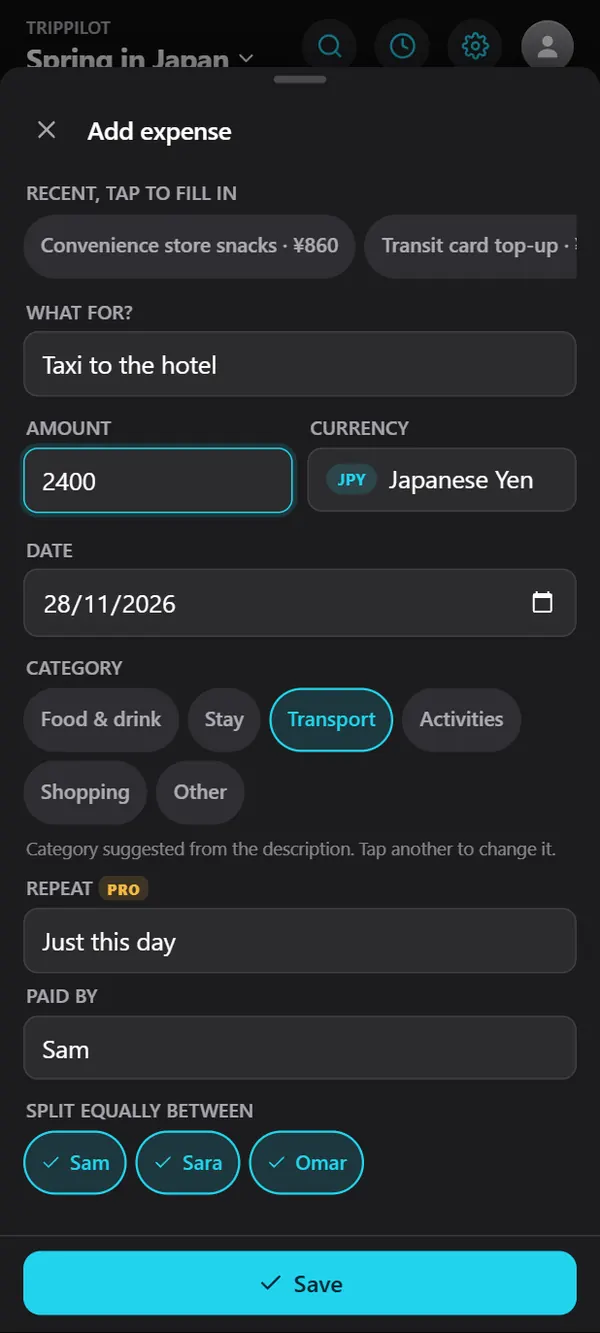
- Tap a recent expense to fill it in. A category is suggested from what you type and your past entries.
- Split with travel mates
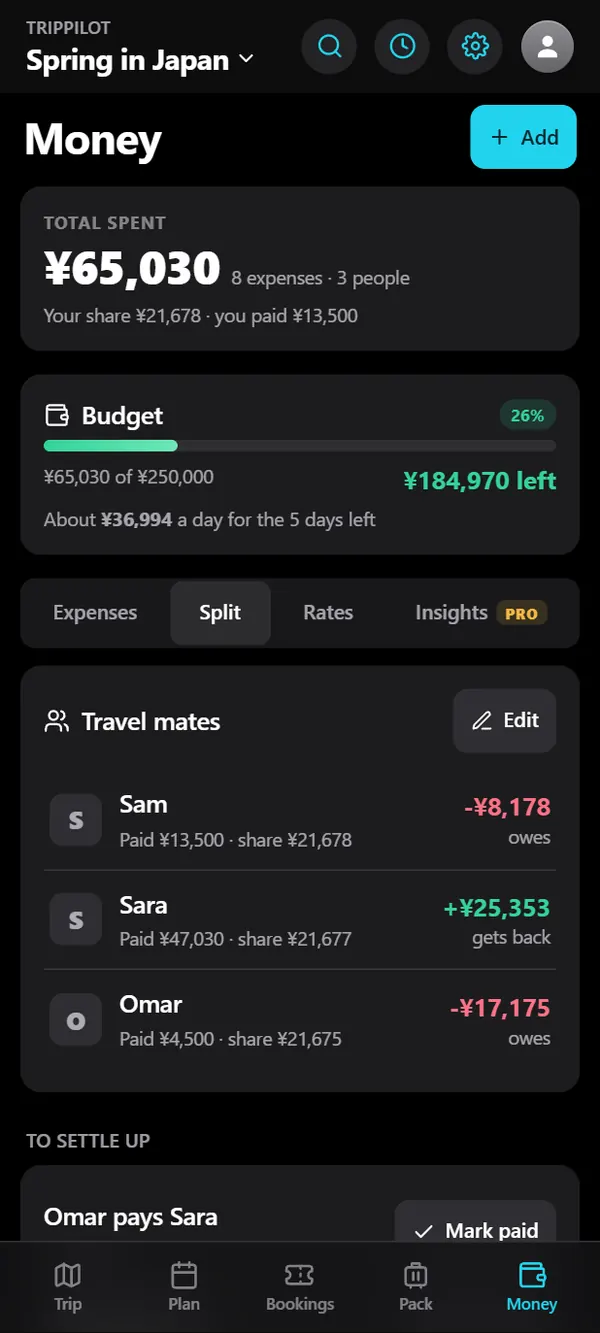
- See who owes whom and record payments. TripPilot only keeps track; it does not move money.
- Spending insights Pro
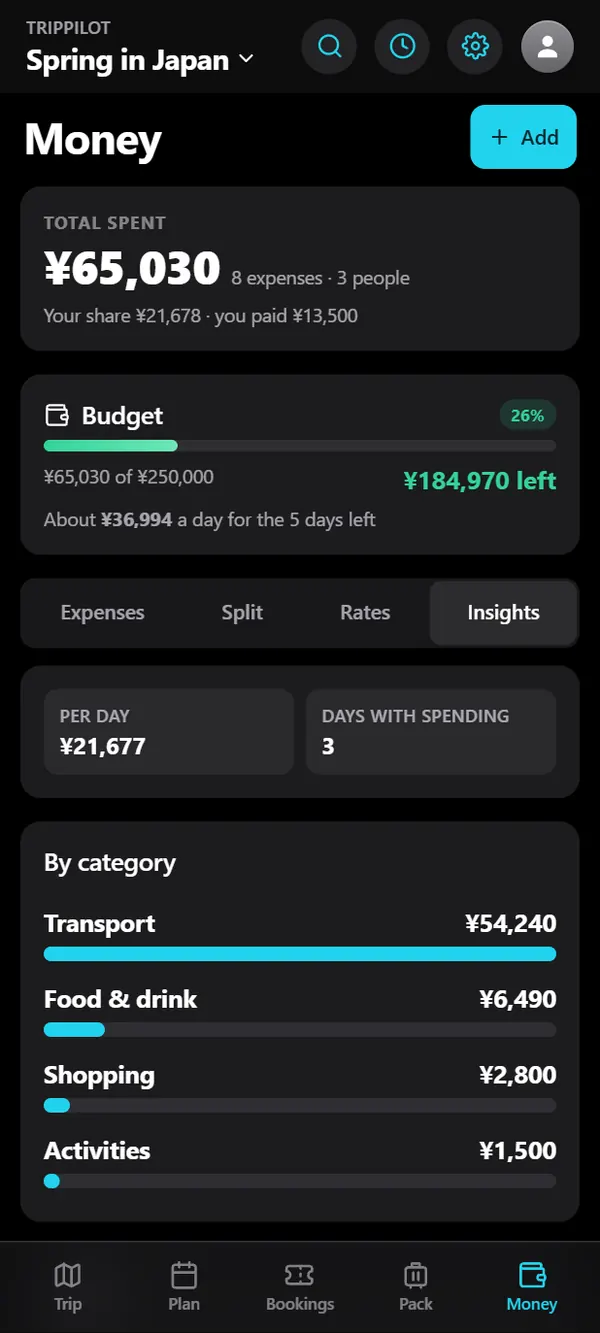
- Spending by category, by day and by person.
- Category budget limits Pro
- Set limits for food, stay, transport and more.
- Repeating expenses and bulk edits Pro
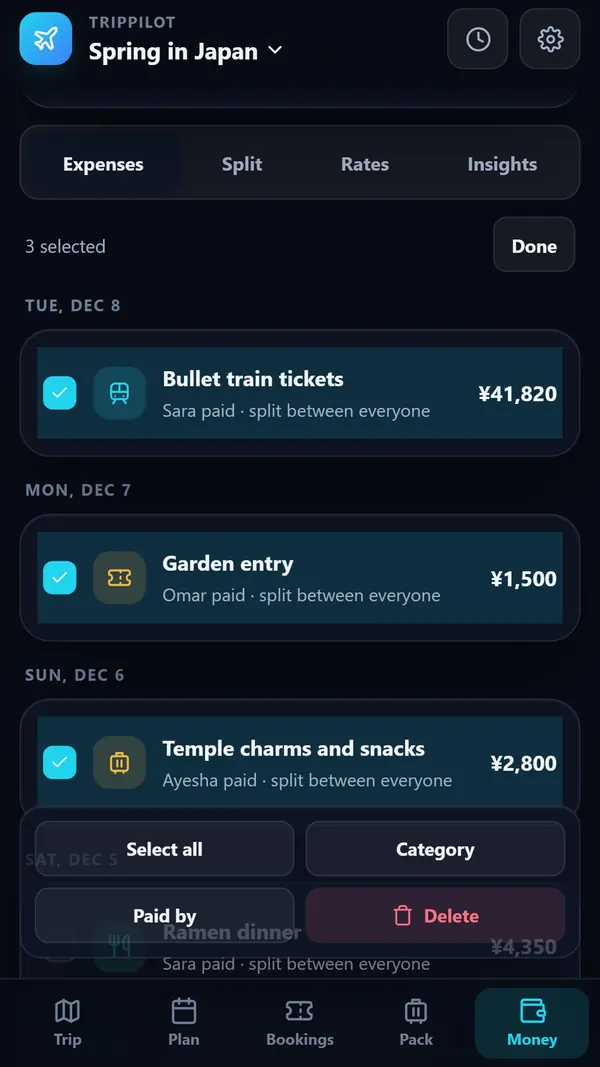
- Add a nightly room rate for every day at once, and select many expenses to change their category or payer, or delete them, with undo.
- Expenses CSV export Pro
- Export a trip's expenses as a CSV spreadsheet file.
Handy tools
- World clock and time converter
- Clocks for home and your trip, plus a converter for any time and place.
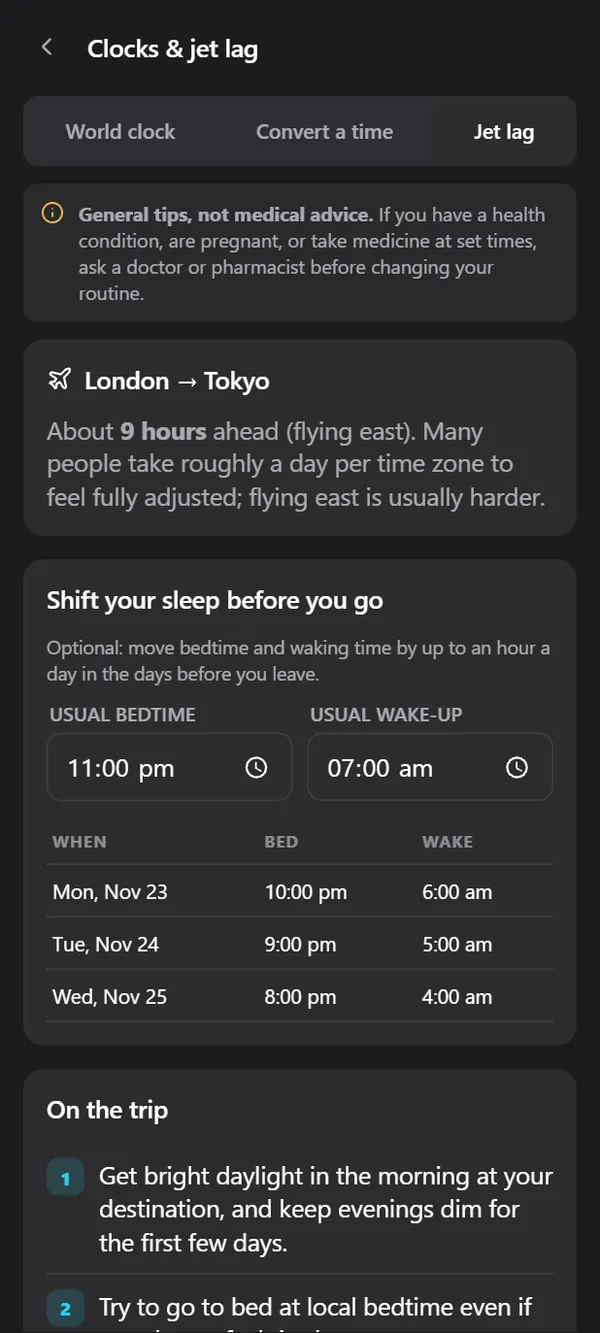
- Jet-lag helper
- General tips and an optional sleep shift for the days before you leave. Not medical advice.
- Reminders
- Optional notifications before plan items and the evening before you leave (Android app).
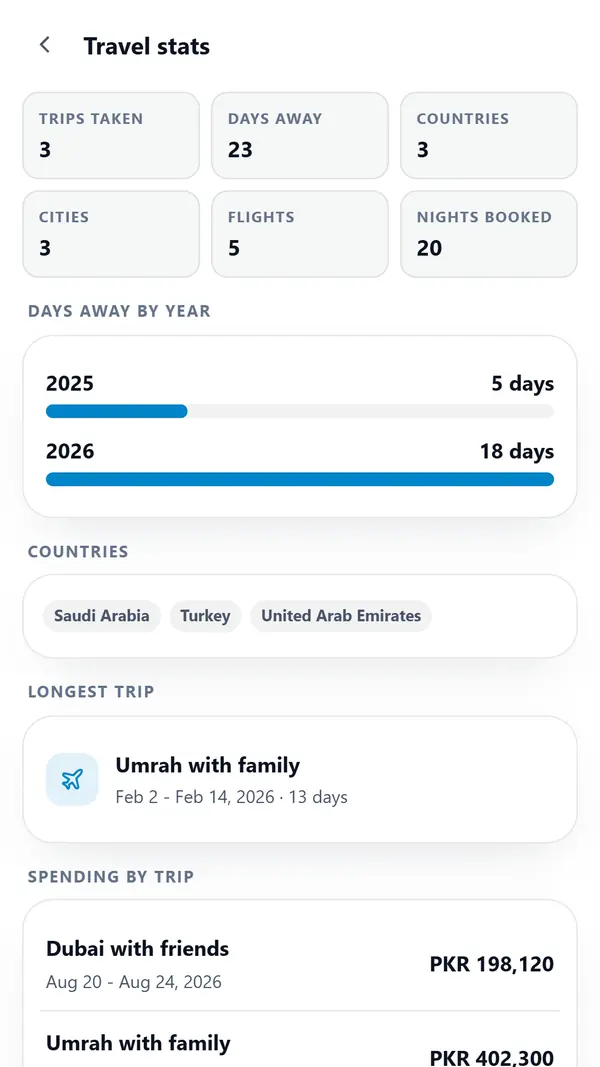
- Travel stats Pro
- Days away, countries, cities, flights and spending across your trips.
Private by design
- Works offline, no account needed
- No ads and no analytics. Trips, bookings and photos stay on your phone, and TripPilot never fetches flight status, weather or exchange rates.
- Backup and restore
- Back up all trips, bookings and ticket photos to a file and restore it on a new phone.
Full store description
Plan day by day, in the right time zone
- Add flights, stays, activities, meals, transport and notes to a day-by-day plan
- Enter times as they appear on your ticket. TripPilot uses each place's own time zone, works out journey times and shows "+1 day" arrivals
- See what each time is back home, a countdown to your trip, then "Day 3 of 7" and what is next up
- Keep a list of places and ideas, then schedule one into a day when you know it
- Spot clashes: items that overlap are flagged, and free gaps of 3 hours or more are shown
- Share the itinerary as text to any chat app
Bookings and ticket photos
- Save booking references and tap to copy one at the counter
- Add photos of tickets and confirmations from your gallery; they stay on your phone
Packing lists from templates
- Templates for beach, business, winter, city breaks, hiking, Umrah, Hajj, a baby and long flights
- Tick items off, set quantities and hide what is packed
- A documents checklist with passport expiry warnings. Check entry rules on official government websites; TripPilot does not give visa advice
Budget, spending and splitting
- Set a trip budget and see what is left and about how much you can spend each day
- Log spending in any currency, with the exchange rates you actually got. TripPilot does not fetch rates
- Quick fill from recent expenses, and a category suggested from what you type and your past entries
- Split costs with travel mates, see who owes whom and record payments. TripPilot only keeps track; it does not move money
Handy tools
- World clock, time converter and a jet-lag helper (general tips, not medical advice)
- Optional reminders before plan items and the evening before you leave
How to use TripPilot.
Step-by-step walkthroughs of the main tasks, with screens from the current version.
1Plan your trip day by dayBuild an itinerary with flights, stays and activities in each place's own time zone.
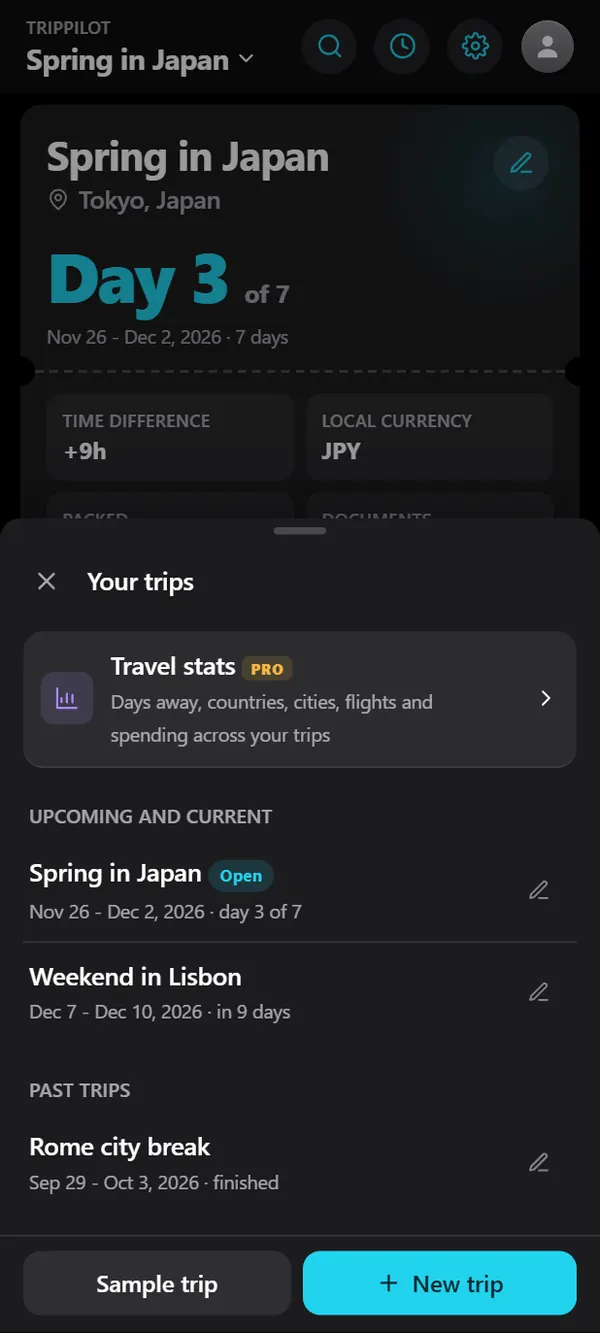
- Step 1
Tap the trip name at the top to open Your trips, then pick a trip or tap New trip.
- Step 2
Open the Plan tab. Each day lists its items with the local time, the time back home and "+1 day" arrivals.
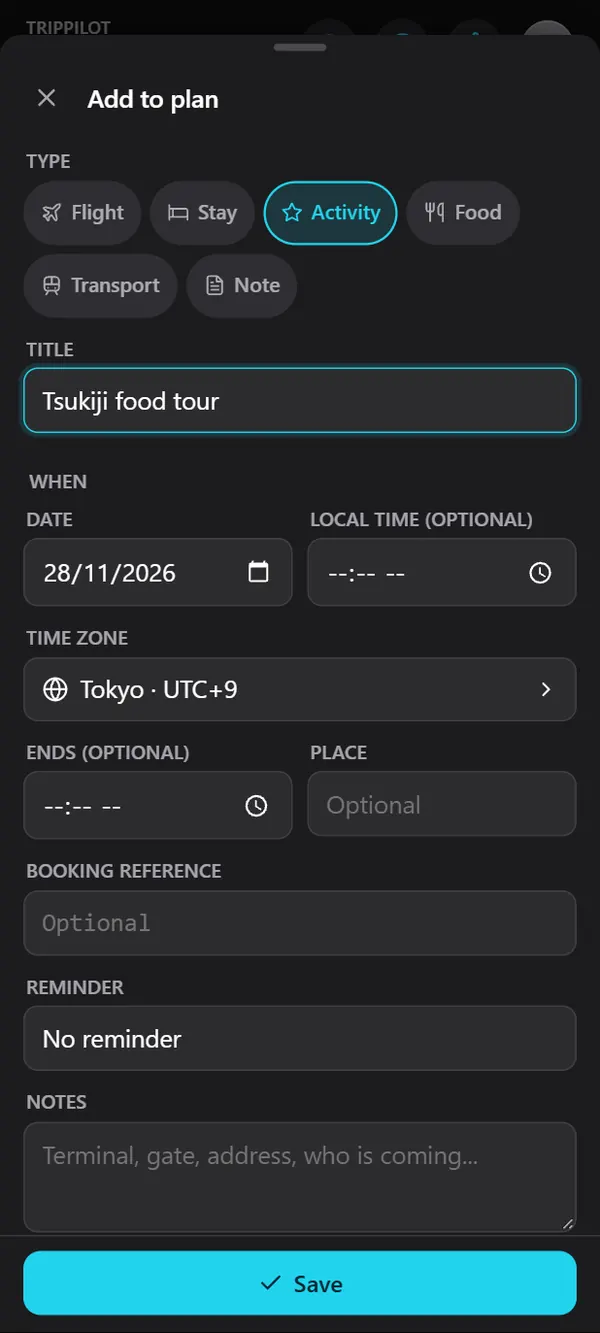
- Step 3
Tap Add, choose Flight, Stay, Activity, Food, Transport or Note, and enter the time exactly as it is on your ticket. Tap Save.
- Step 4
Not sure when yet? Keep it under Ideas and tap Schedule to move it into a day later.
2Get ready to goUse the Ready to go checklist, a packing template and the documents list before you leave.
- Step 1
Before the trip, the Trip tab shows Ready to go: packing, documents, bookings, travel and stay, and budget. Tap a row to sort it.
- Step 2
On the Pack tab, tap Templates and pick one or more lists, such as Essentials and City break. Items you already have are skipped.
- Step 3
Tick items off as they go in the bag. Hide packed shows only what is left.
- Step 4
Switch to Documents to tick off your passport, insurance and tickets. Add an expiry date to get a warning if it runs out too soon.
3Keep bookings at handSave booking references and copy one at the counter, even with no signal.
- Step 1
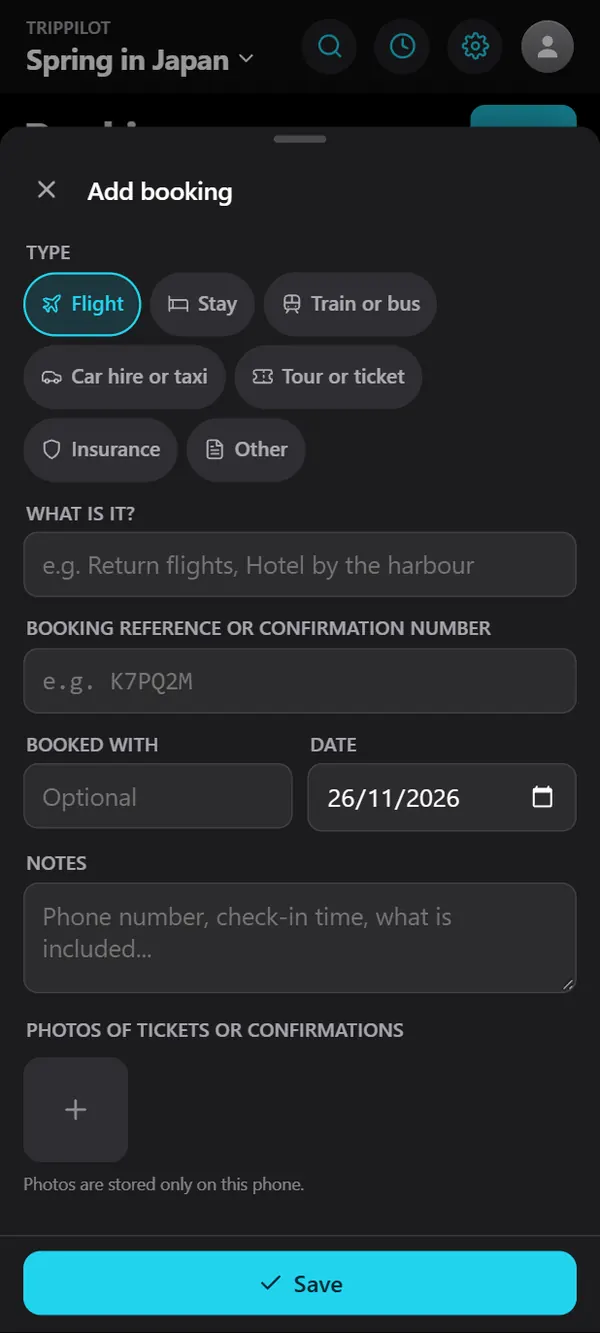
Open the Bookings tab and tap Add.
- Step 2
Pick the type, enter what it is, the booking reference and any notes, then tap Save. You can also add photos of tickets from your gallery.
- Step 3
At the counter, tap the reference to copy it.
4Track spending and split costsLog expenses in any currency, watch your budget and settle up with travel mates.
- Step 1
Open the Money tab to see the total spent, your share and what is left of your budget.
- Step 2
Tap Add, type what it was for and the amount. A category is suggested from the description, and recent expenses can be tapped to fill in.
- Step 3
Open Split to see who paid what, who owes whom, and tap Mark paid when someone settles up.
- Step 4
With Pro, Insights breaks spending down by category, by day and by person.
5Write a travel journalNote down each day of the trip and read it back later.
- Step 1
During a trip, the Trip tab shows today's plan and a Write today's journal row.
- Step 2
Write what happened, add a place if you like, and tap Save.
- Step 3
All entries appear under Plan > Journal, grouped by trip day. Tap Share to send the journal as text.
6Find anything across your tripsSearch plans, bookings, expenses, packing and journal entries in every trip at once.
- Step 1
Tap the magnifying glass at the top and type a word, a place or a booking reference. Results are grouped by trip.
- Step 2
For time zones, tap the clock icon: World clock, Convert a time and Jet lag tips for your trip.
Free, with optional Pro.
Download TripPilot free. Pro is optional and billed by Google Play, which shows the price before you confirm.
TripPilot Pro (optional subscription)
Everything above is free, with unlimited trips. Pro adds:
- Spending insights by category, by day and by person
- Category budget limits for food, stay, transport and more
- Calendar export: add your whole plan to your calendar app as an .ics file
- Travel stats across your trips: days away, countries, cities, flights and spending
- Export a trip's expenses as a CSV spreadsheet file
- Save your own packing templates and reuse a trip on new dates
- Repeating expenses, such as a nightly room rate, added for every day at once
- Select many expenses to change their category or payer, or delete them, with undo
Pro is a monthly or yearly subscription through Google Play; the price and any trial are shown before you subscribe. It renews until you cancel in Google Play > Payments & subscriptions.
Manage or cancel subscriptions in Google Play > Payments & subscriptions. Purchases and Restore purchases
Try it now.
Open TripPilot right here in your browser, or download the Android app file directly.
Open in browser
The full TripPilot app, running in a new tab. Nothing to install.
Some phone-only features, such as purchases, notifications, sharing and camera scanning, work only in the Android app. Anything you do in the browser is saved in that browser only, unless you sign in to the Bright Loop Account.
Download the APK
Install TripPilot on an Android phone without Google Play.
- Version
- 1.3
- Size
- 4.0 MB
- SHA-256
197188a5492a97343c5fe6fd5ff827da5980d4b75cd5f76df7c712e804eb53f0
An APK installed from this website can't be updated from Google Play later. To switch to Google Play, uninstall it and install from Play. Your data only comes with you if you back it up with the Bright Loop Account first. How to install an APK
Requirements & details.
- Requires
- Android 7.0 or later
- Size
- 4.0 MB
- Version
- 1.3
- Price
- Free, optional Pro subscription
- Internet
- Not required
- Account
- Optional Bright Loop Account
- Ads
- None
- Category
- Travel
- Developer
- Bright Loop (Google Play: Bright Loop Games)
- Availability
- Early access (Google Play closed testing)
- Web version
- Open in browser
How to get TripPilot.
TripPilot is in early access through Google Play closed testing. It takes about two minutes.
- Ask to join the tester listEarly access runs as a Google Play closed test, so your Google account must be on the tester list before the opt-in link works. Send us the Gmail address you use on Google Play and we'll add you.
- Open the opt-in linkOn your Android phone, signed in to the same Google account, open the TripPilot early access link.
- Tap "Become a tester"Google Play confirms that you've joined the test.
- Install from Google PlayTap the "download it on Google Play" link on that page, or open the Google Play page, then tap Install. Updates arrive through Google Play like any other app.
- Tell us what you thinkEarly access means your feedback shapes the next update. Email rehman@mindum.dev any time.
Link not working? See Troubleshooting or the full early access guide.
Account & sync.
Optional. TripPilot works fully without an account. Sign in to the free Bright Loop Account to back up your TripPilot data and keep it in sync across your phones.
What syncs
- Trips, itinerary, ideas and bookings
- Packing lists, budget and spending
What stays on this phone
- Ticket and booking photos
- Your Pro status (Google Play restores it)
Account & Sync is part of TripPilot 1.3. Look for it at the top of Settings.
Privacy.
TripPilot keeps your data on your phone. No ads and no analytics.
Private by design
No account needed, no ads, no analytics. Trips, bookings and photos stay on your phone. TripPilot never fetches flight status, weather or exchange rates; you see what you enter. Back up to a file and restore it on a new phone.
If you sign in
The Bright Loop Account is optional. If you sign in, TripPilot backs up the records listed under Account & sync to your account so you can restore them on another phone. Photos and files are never uploaded, and you can export or delete your cloud data at any time.
Read the full Privacy Policy.
Tips.
- Type times exactly as your ticket shows them and pick the right time zone; TripPilot works out journey times and "+1 day" arrivals for you.
- Use Try a sample trip to look around before entering your own plans. You can delete it from Edit trip.
- Enter the exchange rate you actually got under Money > Rates so totals and the budget match what you paid.
- Add your passport's expiry date in Documents to get a warning if it runs out before, or soon after, your trip.
- Turn on the Evening-before reminder on the Trip tab so you get a nudge to check documents and packing.
- Before you switch phones, use Back up to a file at the bottom of Settings.
Troubleshooting.
A flight arrives on the wrong day or at the wrong time.
Check the time zones on the item: the departure should use the departure city and the arrival the arrival city. Enter the times exactly as shown on the ticket.
Reminders do not arrive.
Reminders need notification permission. Turn on Trip reminders in Settings and allow notifications for TripPilot in Android settings. They may arrive a few minutes late.
Totals in another currency look wrong.
TripPilot does not fetch exchange rates. Enter the rate you got under Money > Rates.
My trips are missing on a new phone.
Restore the backup file with Settings > Restore from a file, or sign in to the same Bright Loop Account if you used sync. Restoring replaces what is on the phone.
Insights, calendar export or Select show a PRO tag.
Those are part of TripPilot Pro. Everything else, including unlimited trips, is free.
Questions.
Does TripPilot show live flight status or weather?
No. TripPilot never fetches flight status, weather or exchange rates. It shows the times, rates and details you enter, which is why it works with no signal.
How does it handle time zones?
Each plan item has its own time zone. Enter the time as printed on your ticket and TripPilot works out the journey time, shows "+1 day" arrivals and what time it is back home.
Can I plan a trip with friends and split costs?
Yes. Add travel mates under Money > Split, choose who paid and who each expense was for, and TripPilot shows who owes whom. It only keeps track; it does not move money.
Where are my ticket photos stored?
Only on your phone. They are included in a backup file, but they are not synced by the optional Bright Loop Account.
Does TripPilot tell me if I need a visa?
No. The documents checklist helps you track what you have, but entry rules change often. Check the official government websites of your destination and any country you pass through.
What do I get with Pro?
Spending insights, category budget limits, calendar export, travel stats across trips, expenses CSV export, your own packing templates, reusing a trip on new dates, repeating expenses and multi-select edits for expenses. Everything else is free, with unlimited trips.
Can I see all my trips in one place?
Tap the trip name at the top. Your trips are listed as upcoming and current, or past. The search icon looks through every trip at once.
Is TripPilot free?
Yes. TripPilot is free to download and use. TripPilot Pro is an optional monthly or yearly subscription through Google Play that adds the extras listed under Free and Pro. Google Play shows the price, and any trial, before you confirm.
Why can't I find TripPilot on Google Play?
TripPilot is in early access (a Google Play closed test), so it only appears for people on the tester list. Follow the steps under How to get it. Once it becomes public, anyone can install it from Google Play.
Does TripPilot work offline?
Yes. TripPilot works without an internet connection. You only need a connection for optional things like Bright Loop Account sync and Google Play purchases.
Do I need an account?
No. TripPilot works fully without one. The Bright Loop Account is optional and adds cloud backup and sync across your phones.
How do I move to a new phone?
Sign in to your Bright Loop Account on the new phone and choose "Use Cloud Data", or export a backup file on the old phone and restore it on the new one. Photos and files only move with a backup file. Pro comes back with Restore purchases. See Move to a new phone.
How do I restore a purchase?
Make sure your phone uses the same Google account you bought with, open TripPilot and tap Restore purchases. Google Play checks your purchases and TripPilot unlocks what you own. More about purchases.
Can I use TripPilot in a browser?
Yes. Tap Open in browser to run it in a new tab. Some phone-only features, such as purchases, notifications, sharing and camera scanning, work only in the Android app, and anything you do there is saved in that browser.
Can I install it without Google Play?
Yes, with the APK on this page (version 1.3, 4.0 MB). An APK install can't be updated from Google Play later; see Install an APK on Android.
What do I need to run it?
Android 7.0 or later, or any modern browser for the web version.
Is it available on iPhone?
There's no iPhone app at the moment. TripPilot is made for Android, but you can open the web version in Safari.
Get help with TripPilot
Email rehman@mindum.dev. Include your phone model, Android version and what happened, and we'll take it from there.
Help Centre
Step-by-step guides for early access, sync, backups, purchases and moving phones. Visit the Help Centre
More apps you might like.

GlowOS
AM/PM skincare checklist, product shelf & wishlist, skin cycling, photo diary

SnapMacro
Calorie and macro counter with 600+ world foods, exercise log and fasting timer.

SubZero
Track subscriptions, bills and EMIs: due reminders, calendar, savings, budgets.

EchoNote
Talk or type your day. Tasks, due dates, ideas and mood are picked out for you.