
NetPulse
Test download, upload, latency, jitter and bufferbloat. Track Wi-Fi over time.
NetPulse is finished and being prepared for Google Play. There's no download yet.
A closer look.
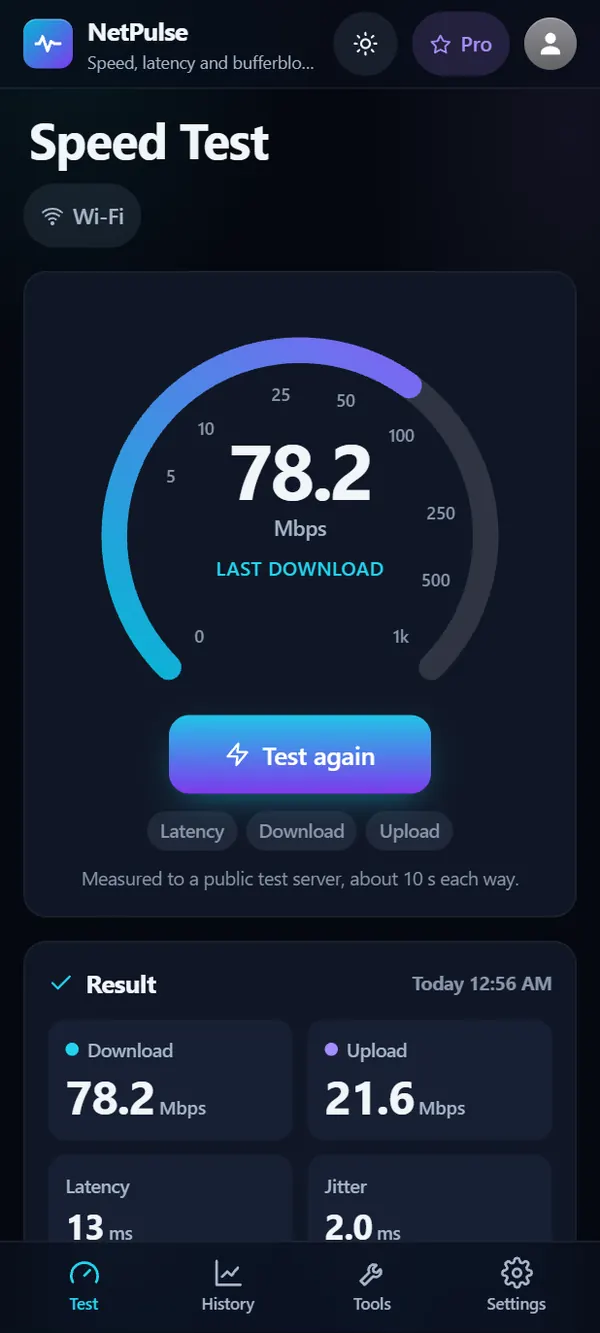
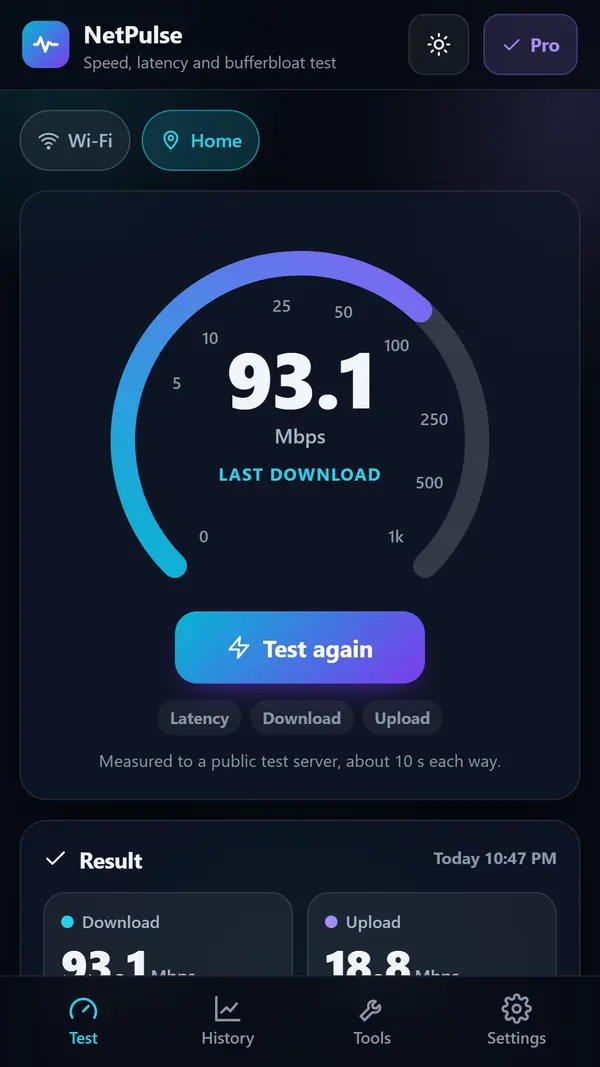
NetPulse is an internet speed test for Wi-Fi and mobile data. It measures download, upload, latency, jitter and bufferbloat with real data and shows how your connection changes over days and weeks.
What's new in version 1.2
New in version 1.2, along with a refreshed design and the optional Bright Loop Account. Early-access testers get it through Google Play.
What your connection can do (downloads, streams, calls)
Compared with your usual speed
Data used by tests
Share result as an image
Feature tour.
Every feature in NetPulse, and what it does for you. Items marked Pro are part of the optional subscription.
A real speed test
- Download and upload
- Measured over 4 connections at once, about 10 seconds each way, to a public test server.
- Latency and jitter
- From 15 small requests while the line is idle.
- Loaded latency and bufferbloat
- The same check while the line is busy downloading and uploading, with a bufferbloat grade from A+ to F, the usual reason calls and games lag when someone streams.
- Live gauge and chart
- Watch the speed as it is measured, with a chart of each direction.
- Compared with your usual speed
- Each result is compared with the median of your recent tests on the same kind of connection, for download, upload and latency.
- Longer 20-second tests Pro
- Choose a longer test in Settings for a steadier reading.
Wi-Fi and mobile data
- Knows your connection
- Shows whether you are on Wi-Fi or mobile data where your phone reports it, and compares them in History.
- Careful with mobile data
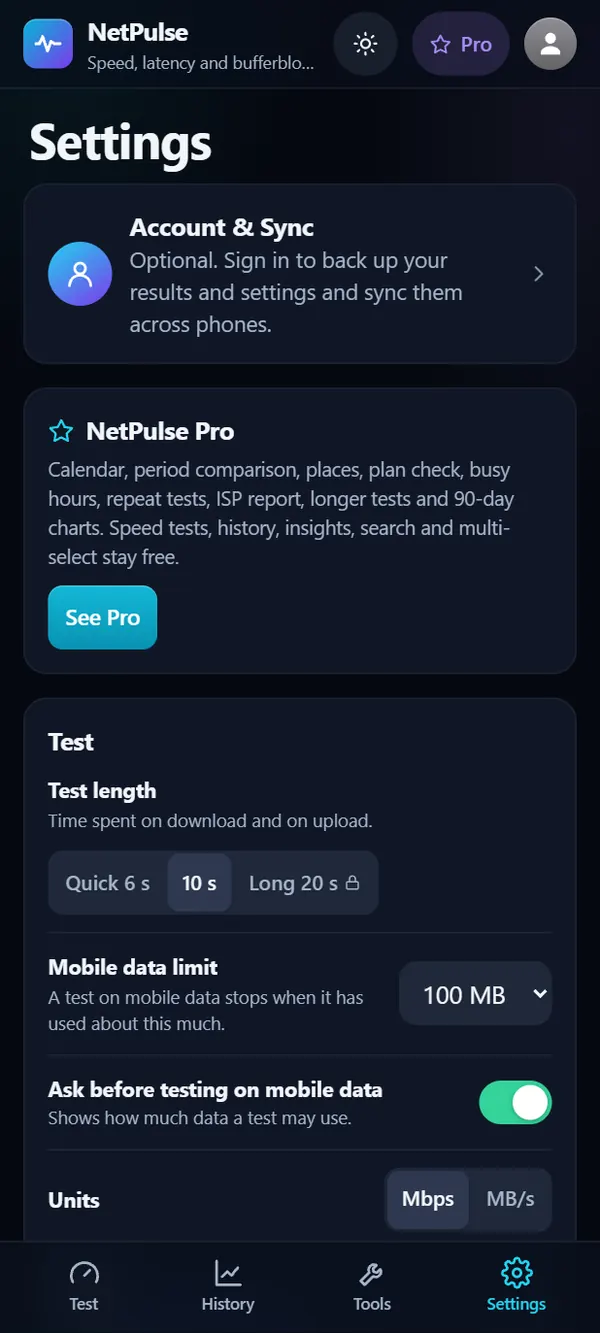
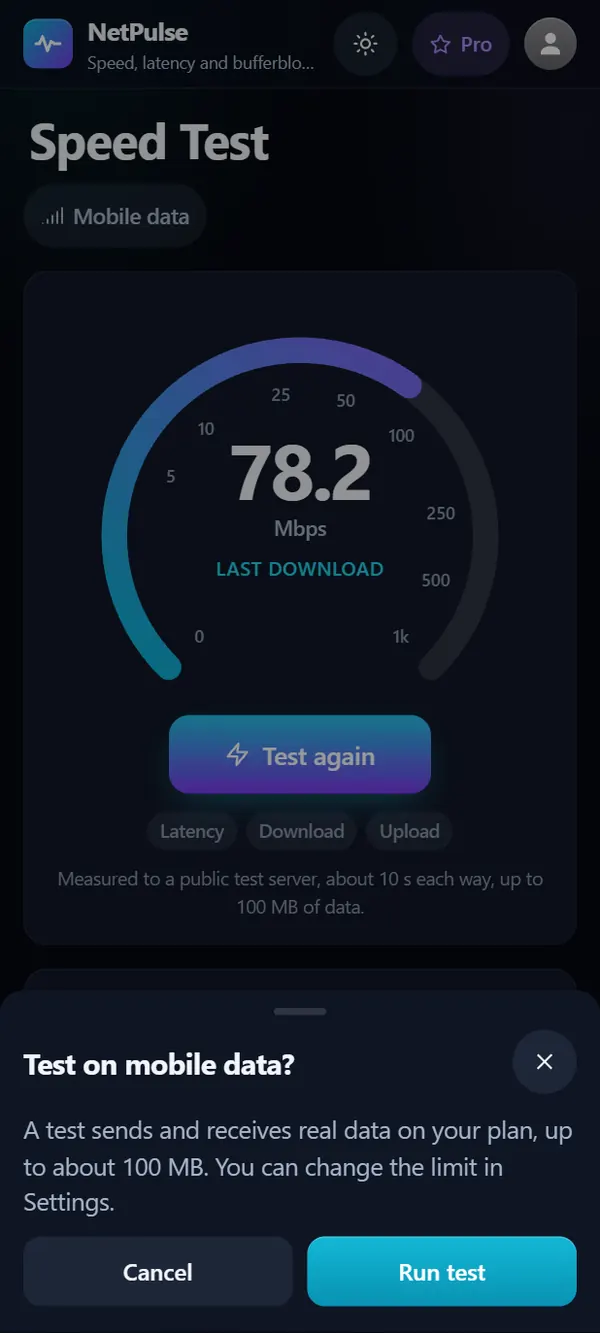
- Asks before testing on mobile data and stops at a data limit you choose, from 25 to 250 MB.
- Data used by tests
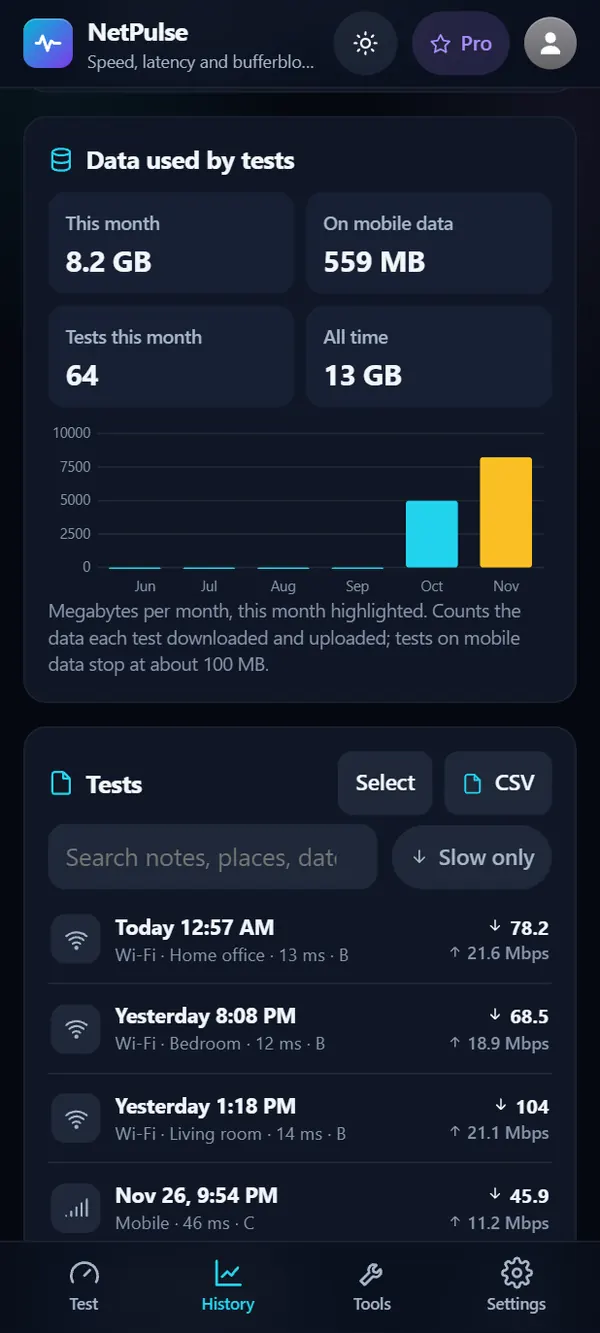
- This month, on mobile data, tests this month and all time, with a monthly chart.
Results you can use
- What your connection can do
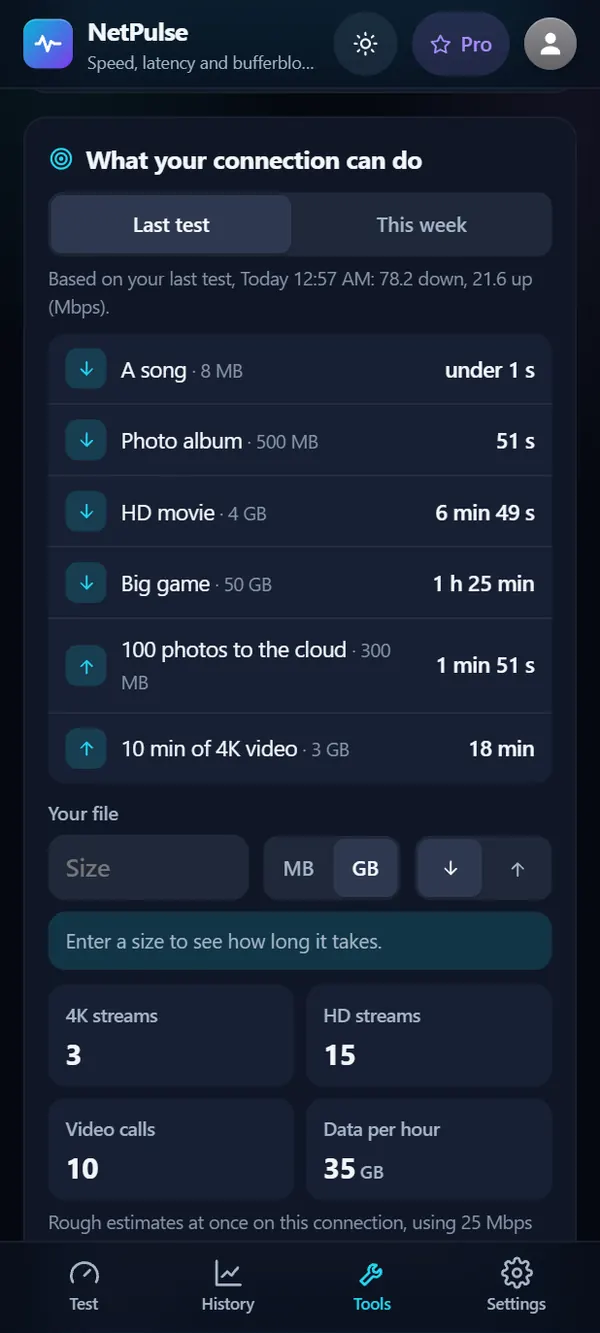
- How long common downloads and uploads take, how many 4K and HD streams and video calls the line carries, and data per hour.
- 7-day summary with suggestions
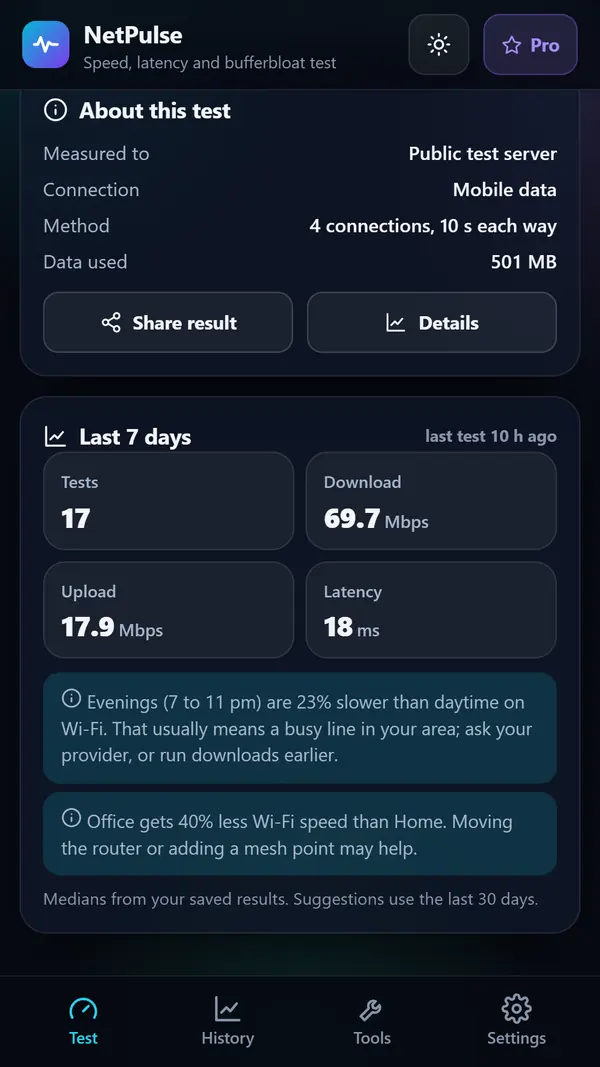
- Medians for the week on the Test tab, with suggestions from your own results such as slow evenings or high bufferbloat.
- Share as image or text
- Turn a result into a picture to share, or share it as text.
- Plan check Pro
- Each result as a percentage of the speed you pay for, with a plan line on the chart.
- Report for your provider Pro
- A plain-text report of your results to send to your internet provider.
History and insights
- Every test saved
- With date, connection type, place and notes, on your phone.
- Charts and insights
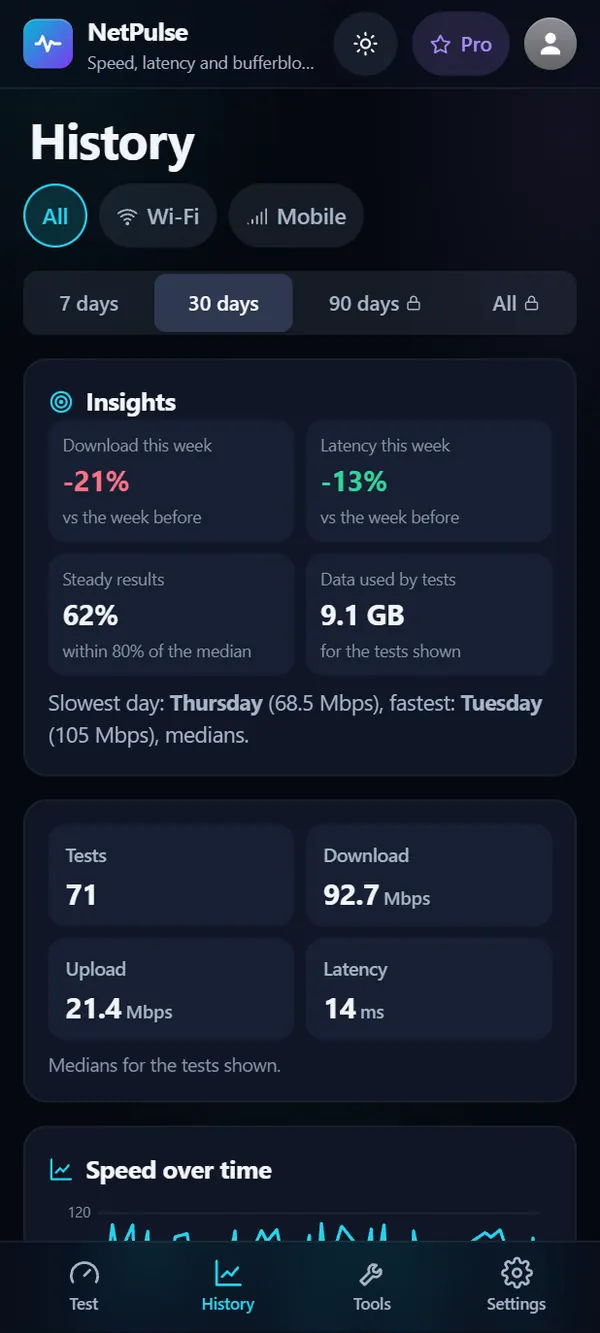
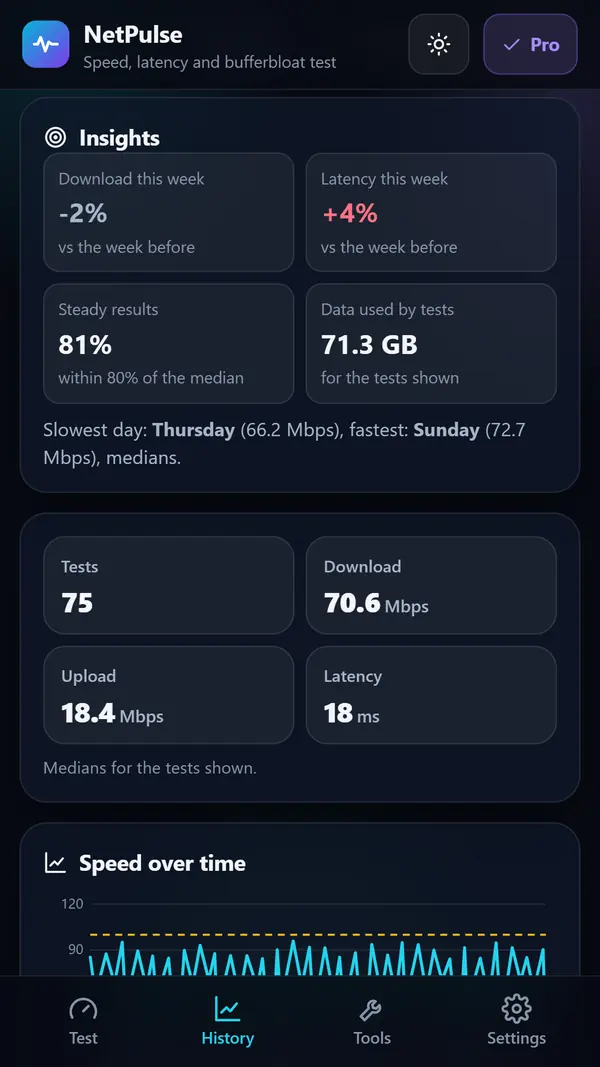
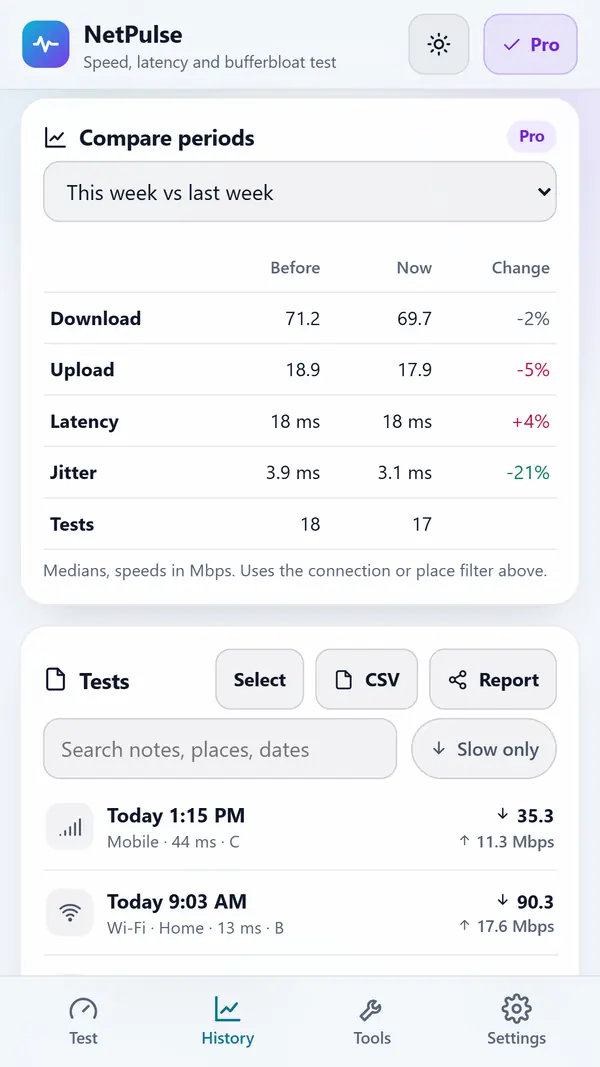
- Speed and latency charts for 7 or 30 days, this week vs last week, how steady your speed is, and the slowest and fastest weekday.
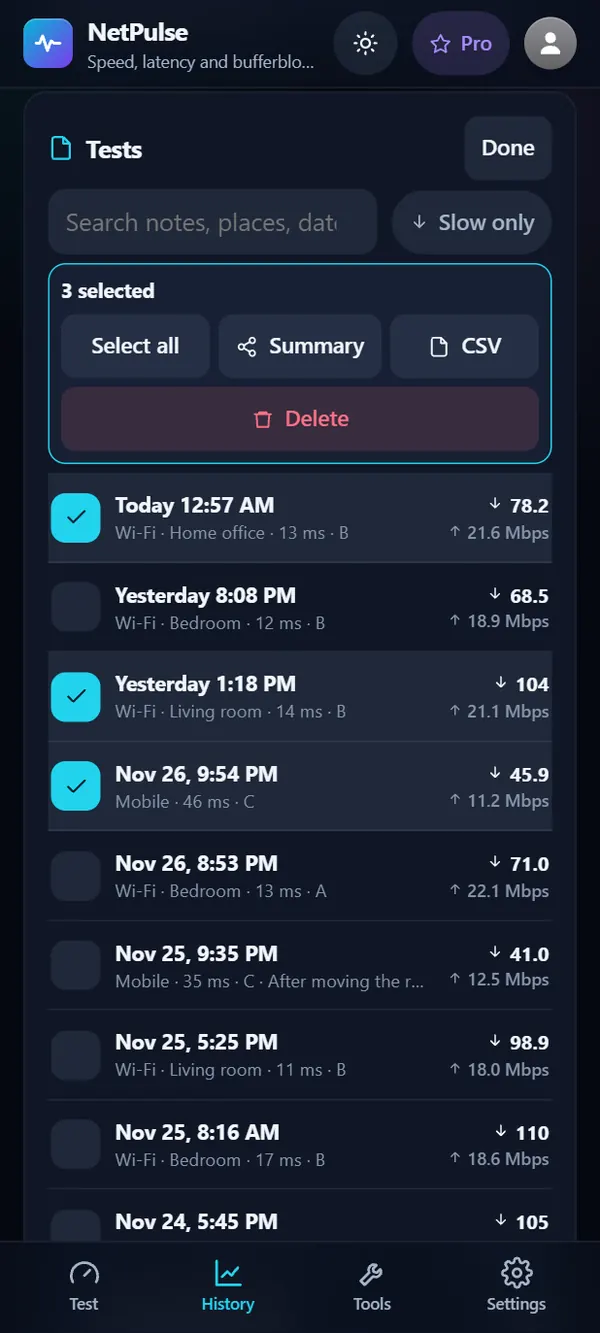
- Search and slow only
- Search tests by note, place or date, or show only slow tests.
- Select many
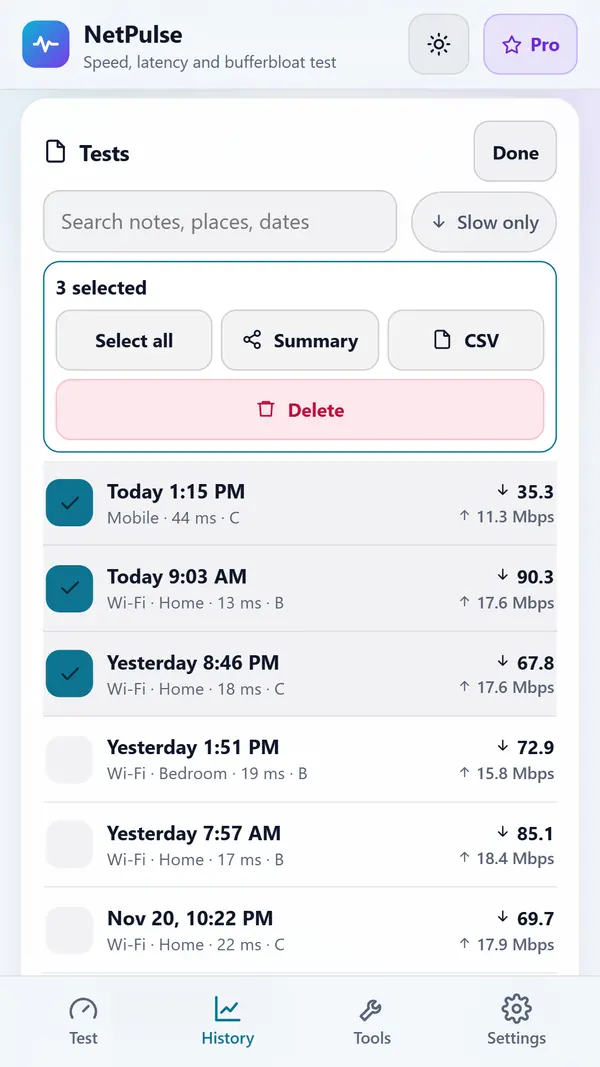
- Select several tests to delete (with undo), export as CSV or share a summary.
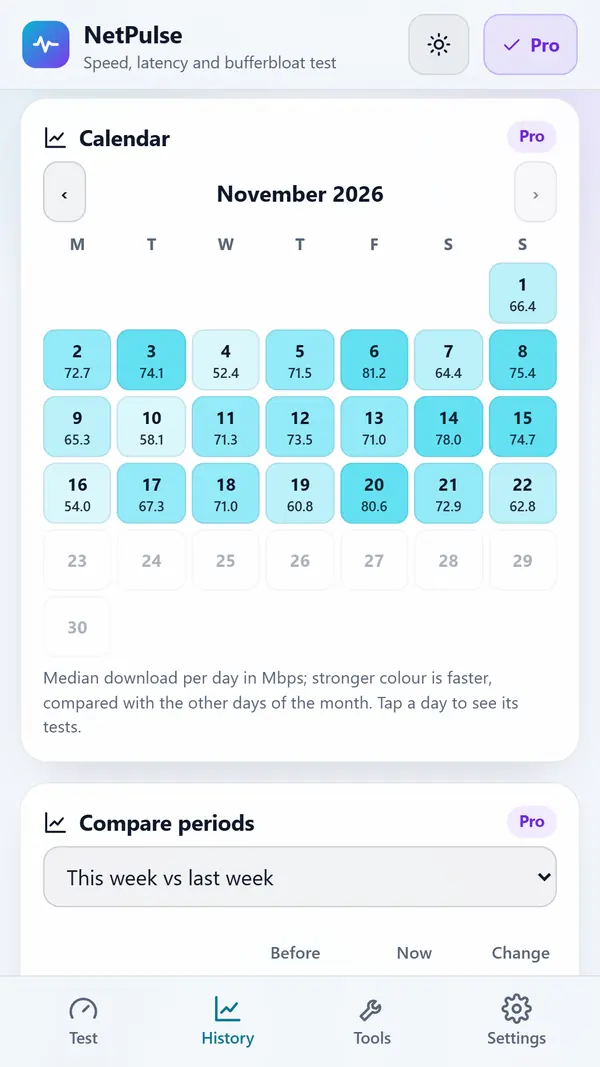
- Calendar and busy hours Pro
- A calendar of your daily median speed and the median speed for each hour of the day.
- Compare periods and places Pro
- Compare this week or month with the one before, and label tests as Home, Bedroom or Office to compare places.
- 90-day and all-time charts Pro
- Longer chart ranges in History.
Network tools
- Latency check
- 30 small requests, one every half second, to spot spikes and drop-outs without loading the line.
- Public IP address
- The address the internet sees for you, checked only when you tap Show my IP.
- Router settings helper
- Common router addresses such as 192.168.0.1 and 192.168.1.1, or type your own, plus tips for a slow connection.
- Repeat tests Pro
- Run a full test every 5 to 60 minutes while NetPulse stays open, to catch slowdowns at certain times.
Privacy and backup
- Private by design
- No account, no ads, no analytics. NetPulse talks only to a public speed-test server, which sees your IP address and the test traffic like any website. Your results stay on your phone.
- Export and backup
- Export all results as CSV, back up and restore as a file, or use the optional Bright Loop Account to sync.
- Dark and light themes
- Switch with the sun and moon button at the top, or in Settings.
Full store description
A real speed test
- Download and upload measured over 4 connections at once, about 10 seconds each way
- Latency (ping) and jitter from 15 small requests while the line is idle
- Loaded latency: the same check while the line is busy downloading and uploading
- Bufferbloat grade from A+ to F, the usual reason calls and games lag when someone streams or downloads
- Live gauge and speed chart
- Every number is measured to a public test server
Wi-Fi and mobile data
- Shows whether you are on Wi-Fi or mobile data (where your phone reports it) and compares them in History
- Asks before testing on mobile data and stops at a data limit you choose (25 to 250 MB)
History and charts
- Every test saved on your phone with date, connection type and notes
- Speed and latency charts for the last 7 or 30 days
- A 7-day summary on the Test screen with suggestions from your own results, such as slow evenings or high bufferbloat
- Insights from your own results: this week vs last week, how steady your speed is, the slowest and fastest weekday, and data used by tests
- Search tests by note, place or date, and a "slow only" filter
- Select several tests to delete (with undo), export as CSV or share a summary
- Export all results as CSV, back up and restore as a file
Network tools
- Latency check to spot spikes and drop-outs
- Your public IP address
- Router settings helper (192.168.0.1, 192.168.1.1 and more)
How to use NetPulse.
Step-by-step walkthroughs of the main tasks, with screens from the current version.
1Run a speed testMeasure download, upload, latency, jitter and bufferbloat on Wi-Fi or mobile data.
- Step 1
Open the Test tab. The chip at the top shows whether you are on Wi-Fi or Mobile data (where your phone reports it). Tap Start test (or Test again).
- Step 2
NetPulse checks Latency first, then Download and Upload over 4 connections, about 10 seconds each way, with a live gauge and speed chart. Tap Stop test to cancel; nothing is saved.
- Step 3
On mobile data NetPulse asks first and shows how much data the test may use. Tap Run test to go ahead, or Cancel.
- Step 4
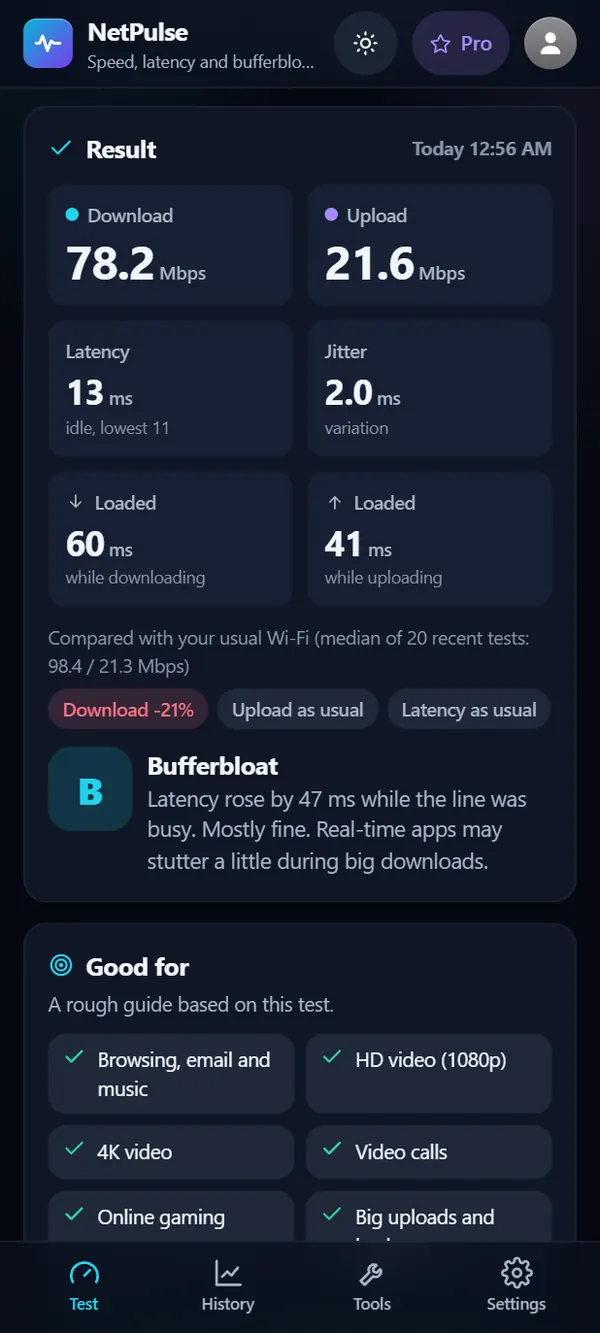
The Result shows download, upload, idle latency, jitter, loaded latency while downloading and uploading, and a Bufferbloat grade from A+ to F with what it means.
2Read your resultUnderstand how this test compares with your usual speed and what the connection is good for.
- Step 1
Under the numbers, Compared with your usual compares this test with the median of your recent tests on the same kind of connection, for download, upload and latency.
- Step 2
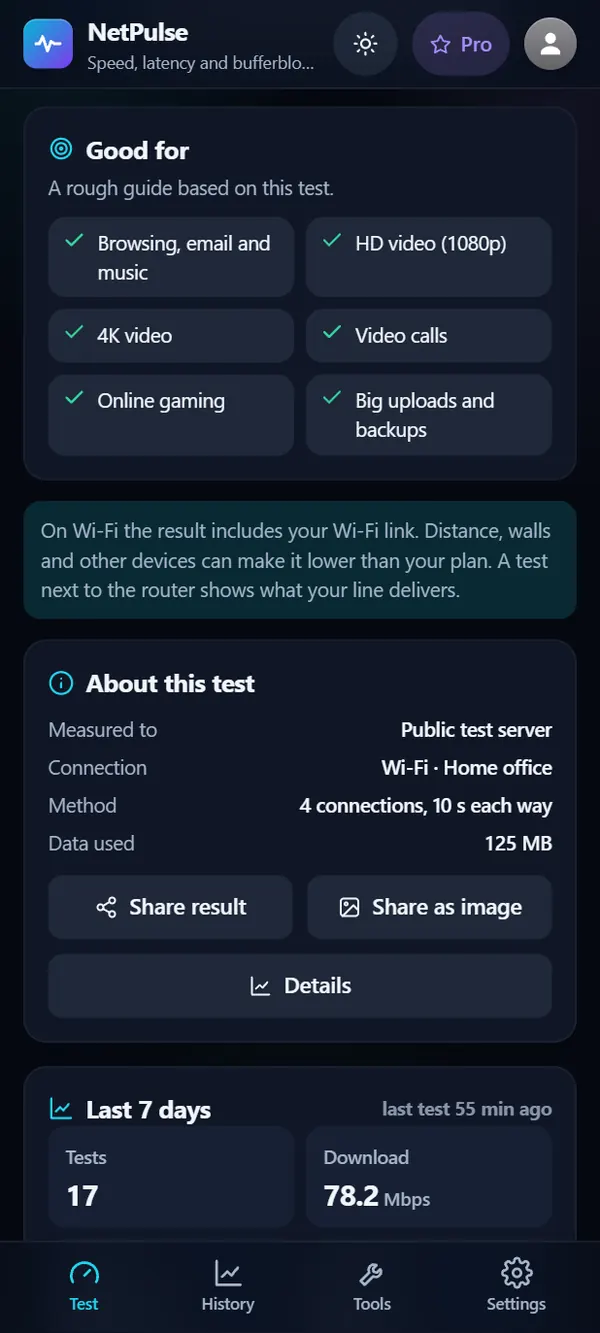
Good for is a rough guide to what this result handles, from browsing and HD video to gaming and big uploads. About this test shows how it was measured and the data it used.
- Step 3
Below that, Last 7 days gives your medians for the week and suggestions from your own results, such as slow evenings or high bufferbloat.
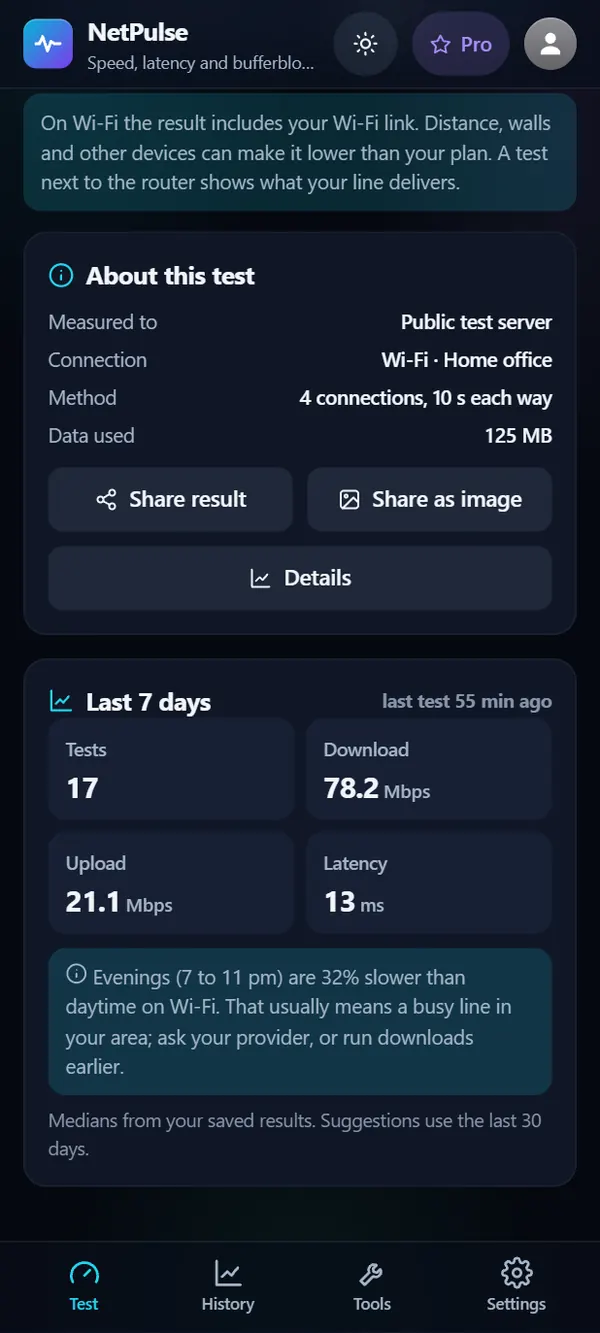
3See what your connection can doTurn your speed into everyday answers: how long downloads take and how many streams and calls your line can carry.
- Step 1
Open Tools. What your connection can do uses your Last test or the median of This week.
- Step 2
See how long a song, a photo album, an HD movie, a big game, 100 photos to the cloud or 10 minutes of 4K video would take. Enter Your file size to time your own download or upload.
- Step 3
At the bottom, see roughly how many 4K streams, HD streams and video calls the connection carries at once, and the data per hour.
4Share a result as an imageSend a clean picture of a result to a friend or your internet provider.
- Step 1
Under About this test on the Test tab, tap Share as image (or Image in any test’s details).
- Step 2
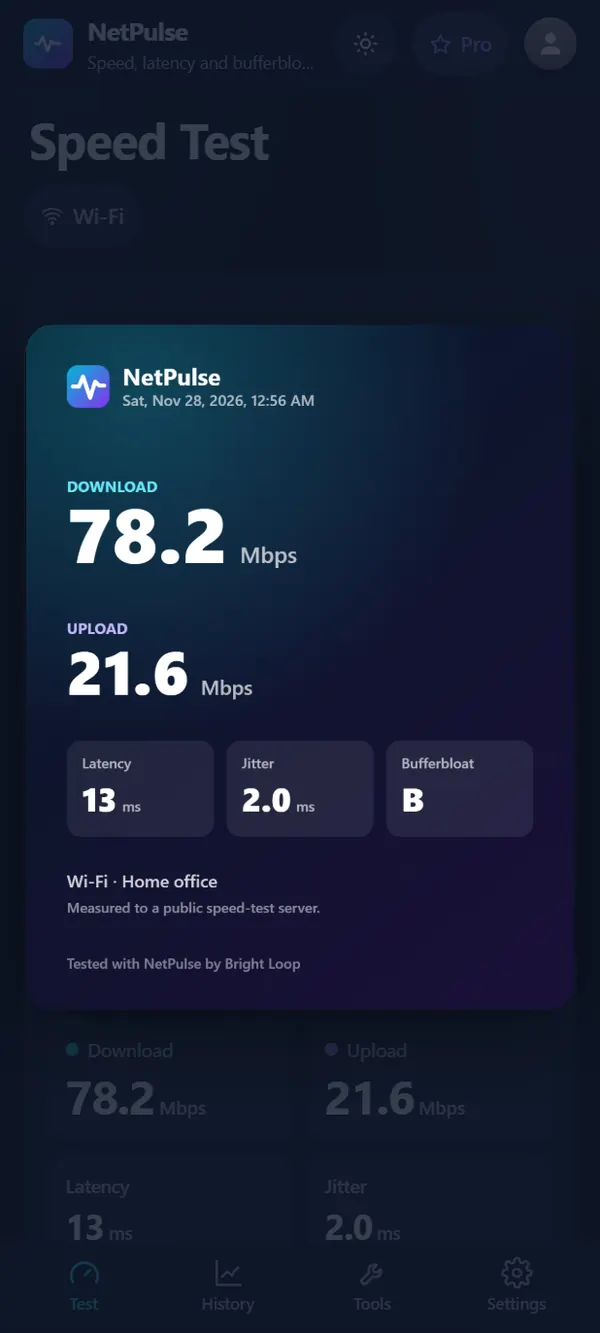
NetPulse draws a picture of the result with download, upload, latency, jitter, bufferbloat grade, connection and date, then opens your phone’s share menu. Share result sends the same result as text.
- Step 3
For an older test, open History, tap the test and use Image or Share in Test details.
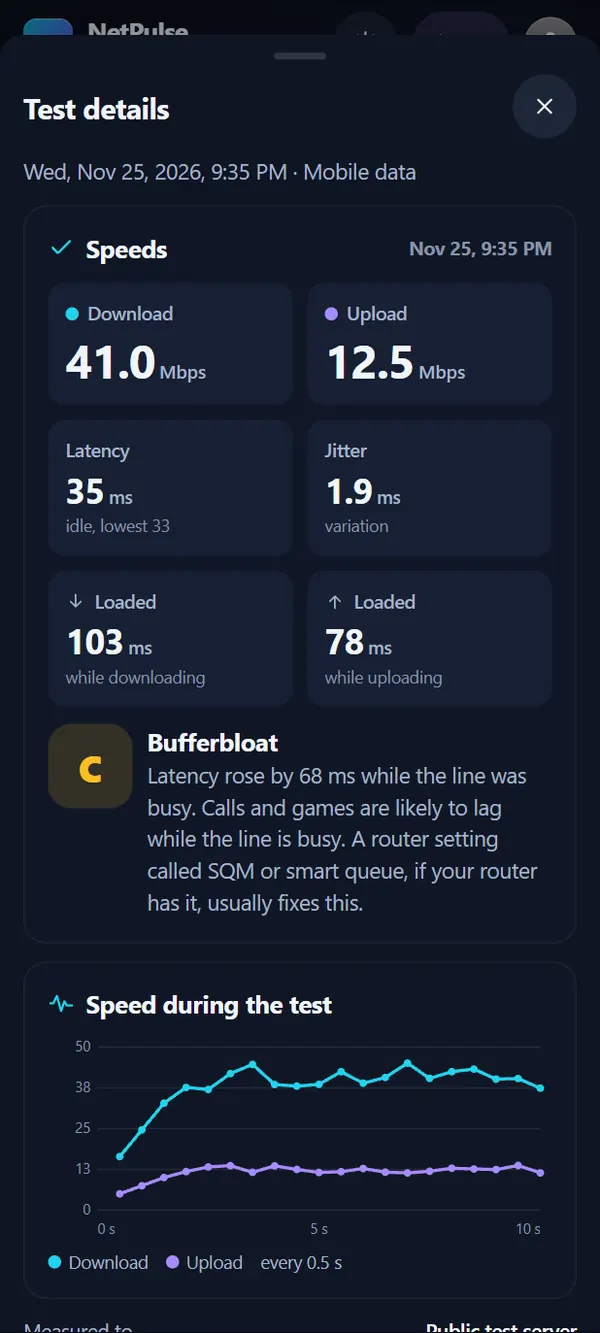
5Track your speed over timeUse History to see trends, insights, Wi-Fi vs mobile and the data your tests used.
- Step 1
Open History. Choose All, Wi-Fi or Mobile, and 7 days or 30 days.
- Step 2
Insights compare this week with the week before, show how steady your speed is, and name your slowest and fastest weekday. Charts show speed and latency over time.
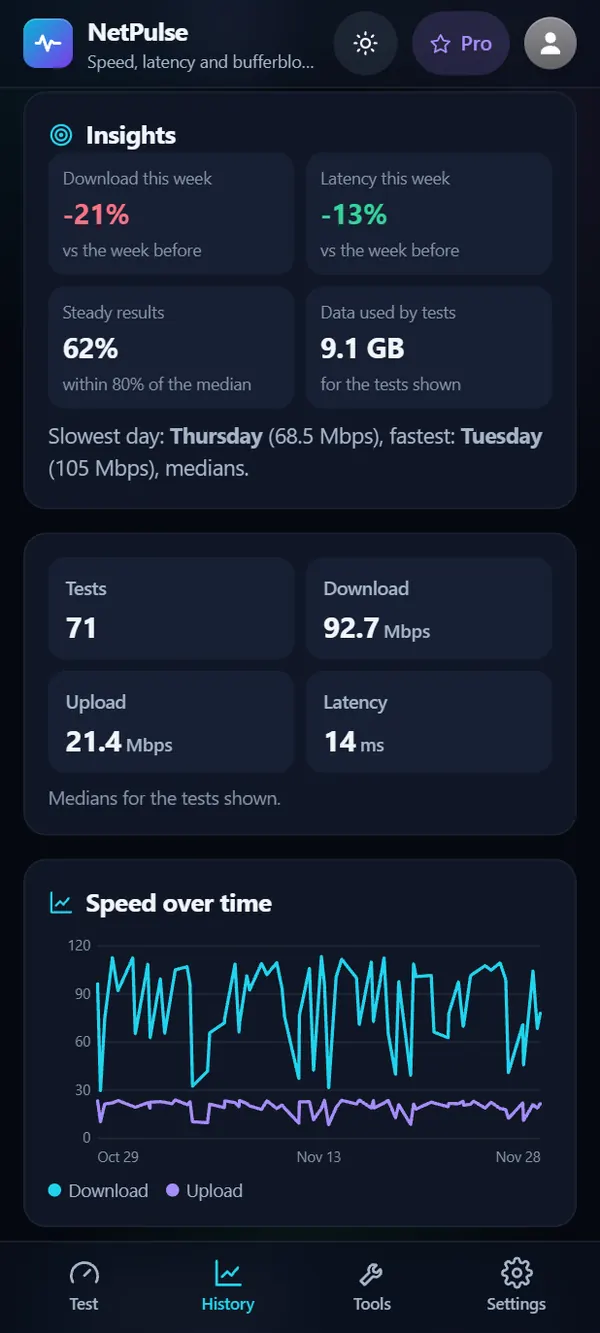
- Step 3
Wi-Fi vs mobile data compares the medians of both, and Data used by tests shows this month, mobile data, tests this month and all time, with a chart by month.
6Find, note and manage testsSearch your tests, add notes, and delete, export or share several at once.
- Step 1
In History, scroll to Tests. Search notes, places or dates, or tap Slow only to see tests well below your usual speed.
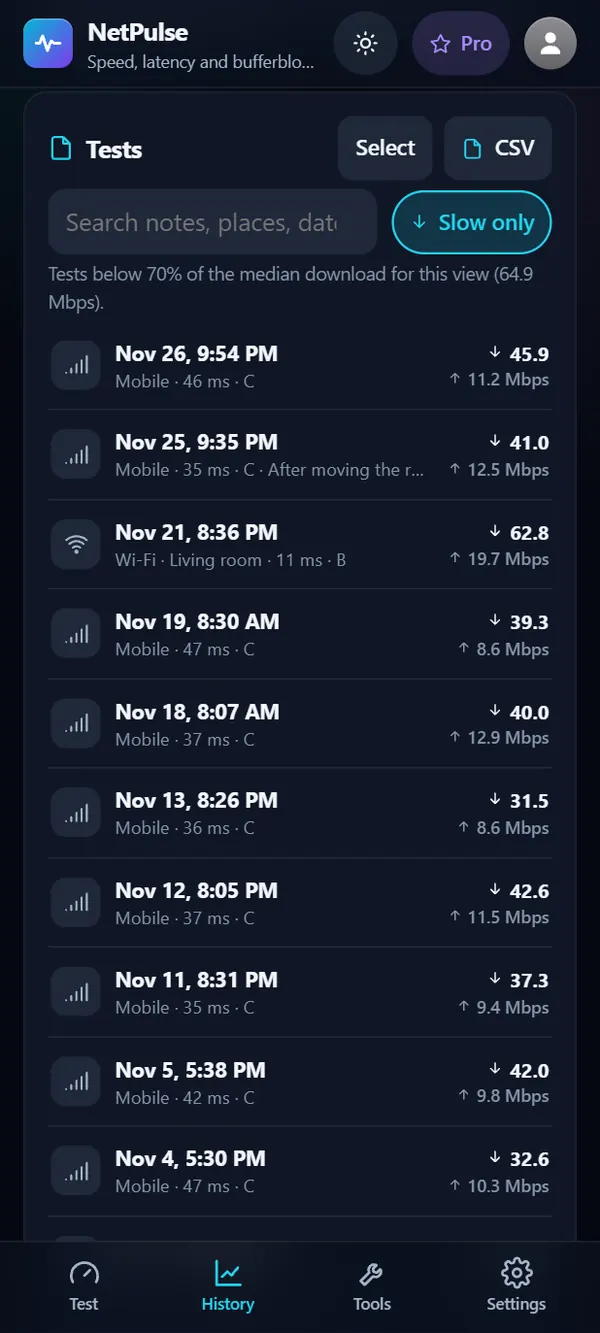
- Step 2
Tap a test to open Test details: the speed chart during the test, a Note field, and Share, Image and Delete (with undo).
- Step 3
Tap Select, tick several tests, then use Summary, CSV or Delete. CSV next to Select exports every test.
Free, with optional Pro.
Download NetPulse free. Pro is optional and billed by Google Play, which shows the price before you confirm.
Free
- Unlimited speed tests with download
- Upload
- Latency
- Jitter
- Loaded latency and bufferbloat grade; full history with 7 and 30-day charts
- Insights
- Search and multi-select; Wi-Fi vs mobile comparison; latency check; public IP; router helper; CSV export; backup and restore; dark and light themes
NetPulse Pro (optional subscription, monthly or yearly)
- A calendar of your daily median speed; compare this week or month with the one before; places (label tests as Home, Bedroom, Office and compare them); plan check (each result as a percentage of the speed you pay for, with a plan line on the chart); busy hours (median speed by hour of the day); repeat tests every 5 to 60 minutes while the app is open; a plain-text report of your results to send to your provider; 20-second tests; 90-day and all-time charts
Prices and any trial are shown by Google Play. Renews until you cancel in Google Play.
Manage or cancel subscriptions in Google Play > Payments & subscriptions. Purchases and Restore purchases
Try it now.
Open NetPulse right here in your browser, or download the Android app file directly.
Open in browser
The full NetPulse app, running in a new tab. Nothing to install.
Some phone-only features, such as purchases, notifications, sharing and camera scanning, work only in the Android app. Anything you do in the browser is saved in that browser only, unless you sign in to the Bright Loop Account.
Download the APK
Install NetPulse on an Android phone without Google Play.
- Version
- 1.2
- Size
- 3.9 MB
- SHA-256
5ef020d6a7af7067db474f83437514858de01ab2fe2f101b24d823e6ae314c40
An APK installed from this website can't be updated from Google Play later. To switch to Google Play, uninstall it and install from Play. Your data only comes with you if you back it up with the Bright Loop Account first. How to install an APK
Requirements & details.
- Requires
- Android 7.0 or later
- Size
- 3.9 MB
- Version
- 1.2
- Price
- Free, optional Pro subscription
- Internet
- Required for speed tests
- Account
- Optional Bright Loop Account
- Ads
- None
- Category
- Utilities
- Developer
- Bright Loop (Google Play: Bright Loop Games)
- Availability
- Coming soon to Google Play
- Web version
- Open in browser
How to get NetPulse.
NetPulse is not on Google Play yet. This page will show a download button as soon as it is.
- Not on Google Play yetThere's no download for NetPulse today, and no unofficial copies exist. Please don't install it from anywhere else.
- Want a heads-up?Email rehman@mindum.dev and we'll tell you when NetPulse lands. Meanwhile, explore the apps you can join today.
Account & sync.
Optional. NetPulse works fully without an account. Sign in to the free Bright Loop Account to back up your NetPulse data and keep it in sync across your phones.
What syncs
- Test history and notes
- Settings
What stays on this phone
- Your Pro status (Google Play restores it)
Account & Sync is part of NetPulse 1.2. Look for it at the top of Settings.
Privacy.
NetPulse keeps your data on your phone. No ads and no analytics.
Privacy
No account needed, no ads, no analytics. A speed test has to send and receive data: NetPulse talks only to a public speed-test server run by a third-party network provider, and that server sees your IP address and the test traffic, like any website. Your results stay on your phone.
If you sign in
The Bright Loop Account is optional. If you sign in, NetPulse backs up the records listed under Account & sync to your account so you can restore them on another phone. Photos and files are never uploaded, and you can export or delete your cloud data at any time.
Read the full Privacy Policy.
Tips.
- To see what your internet line itself delivers, test right next to the router. Tests further away include your Wi-Fi link.
- If calls or games lag when someone else is streaming, look at the bufferbloat grade. A router setting called SQM or smart queue, if your router has it, usually helps.
- Add a note to a test (for example “after moving the router”) so you can compare before and after in History.
- Use Slow only in History to find out whether slow results cluster at certain times or on mobile data.
- Set the mobile data limit in Settings before testing on a small data plan.
- Run tests at different times of day for a week; the 7-day summary and Insights become more useful with more results.
Troubleshooting.
“Could not reach the test server”
Check that you are online and try again in a moment. Some public or work Wi-Fi networks block speed tests.
Results vary a lot between tests
Other devices, distance from the router and busy hours all change results. Test in the same spot, close other apps that download, and look at medians in History rather than single tests.
A mobile test stopped early
It reached your mobile data limit. Raise the limit in Settings if your plan allows it; the result notes that the test ran for a shorter time.
My history is gone on a new phone
On the old phone use Settings > Back up, then Restore on the new phone, or sign in to the Bright Loop Account on both.
Questions.
Why is my result lower than the speed I pay for?
Results are measured from your phone to the test server, so they include your Wi-Fi link. Distance, walls and other devices can lower them. A test next to the router shows what your line delivers.
What is bufferbloat?
The extra delay when your line is busy. NetPulse measures latency while idle and again while downloading and uploading, and grades the increase from A+ to F. High bufferbloat makes calls and games lag while someone streams or downloads.
How much data does a test use?
It depends on your speed: a fast line moves more data in the same 10 seconds. Each result shows the data it used. On mobile data, NetPulse asks first and stops at the limit you set (25 to 250 MB).
What does “Compared with your usual” mean?
NetPulse takes the median of your recent tests on the same kind of connection (from the last 30 days) and shows whether this test was faster, slower or about the same.
Who can see my results?
Only you. Results stay on your phone. The test server sees your IP address and the test traffic, like any website you visit.
How does What your connection can do work?
It uses your last test or this week’s median and simple rules, such as 25 Mbps per 4K stream, to estimate download times and how many streams and calls your line carries. Real downloads also depend on the server you download from.
Why does it say “Connection type unknown”?
Some phones and browsers do not report whether you are on Wi-Fi or mobile data. The test still works; NetPulse just cannot label the connection or warn you about mobile data.
Is NetPulse free?
Yes. NetPulse is free to download and use. NetPulse Pro is an optional monthly or yearly subscription through Google Play that adds the extras listed under Free and Pro. Google Play shows the price, and any trial, before you confirm.
When will NetPulse be available?
NetPulse is being prepared for Google Play. This page will show a download button as soon as it's ready. Email rehman@mindum.dev if you'd like a note when it lands.
Does NetPulse need an internet connection?
Yes. A speed test has to send and receive real data, so NetPulse needs Wi-Fi or mobile data. A test on mobile data uses your plan's data.
Do I need an account?
No. NetPulse works fully without one. The Bright Loop Account is optional and adds cloud backup and sync across your phones.
How do I move to a new phone?
Sign in to your Bright Loop Account on the new phone and choose "Use Cloud Data", or export a backup file on the old phone and restore it on the new one. Photos and files only move with a backup file. Pro comes back with Restore purchases. See Move to a new phone.
How do I restore a purchase?
Make sure your phone uses the same Google account you bought with, open NetPulse and tap Restore purchases. Google Play checks your purchases and NetPulse unlocks what you own. More about purchases.
Can I use NetPulse in a browser?
Yes. Tap Open in browser to run it in a new tab. Some phone-only features, such as purchases, notifications, sharing and camera scanning, work only in the Android app, and anything you do there is saved in that browser.
Can I install it without Google Play?
Yes, with the APK on this page (version 1.2, 3.9 MB). An APK install can't be updated from Google Play later; see Install an APK on Android.
What do I need to run it?
Android 7.0 or later, or any modern browser for the web version.
Is it available on iPhone?
There's no iPhone app at the moment. NetPulse is made for Android, but you can open the web version in Safari.
Get help with NetPulse
Email rehman@mindum.dev. Include your phone model, Android version and what happened, and we'll take it from there.
Help Centre
Step-by-step guides for early access, sync, backups, purchases and moving phones. Visit the Help Centre
More apps you might like.

OmniCalc
Scientific calculator, unit converter, EMI, hours, GPA and your own formulas.
QRForge
Make QR codes for links, Wi-Fi, contacts and more, print stickers, scan codes.
Unplug
Pomodoro focus timer with offline background sounds, daily goals and a heatmap

SplitMate
Split bills with flatmates, trips and family in any currency. Settle up fast.