QRForge
Make QR codes for links, Wi-Fi, contacts and more, print stickers, scan codes.
Google Play pageDownload APK v1.3 · 4.0 MB
Early access on Google Play closed testing. You need to be on the tester list first: see how to join.
A closer look.
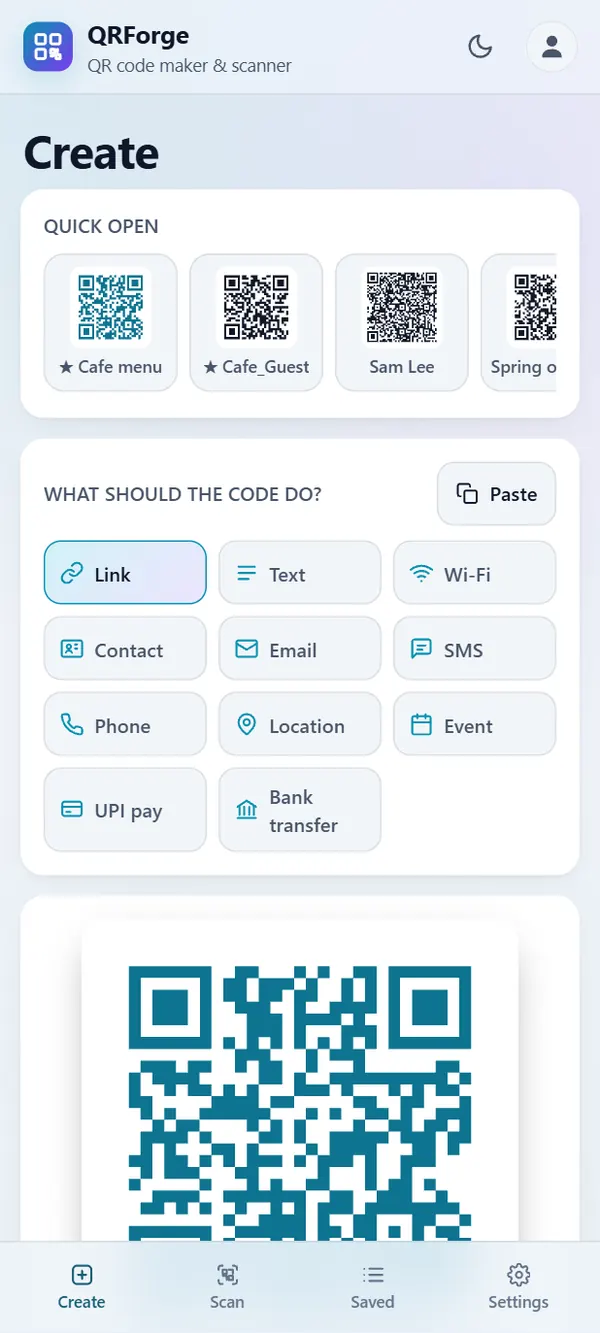
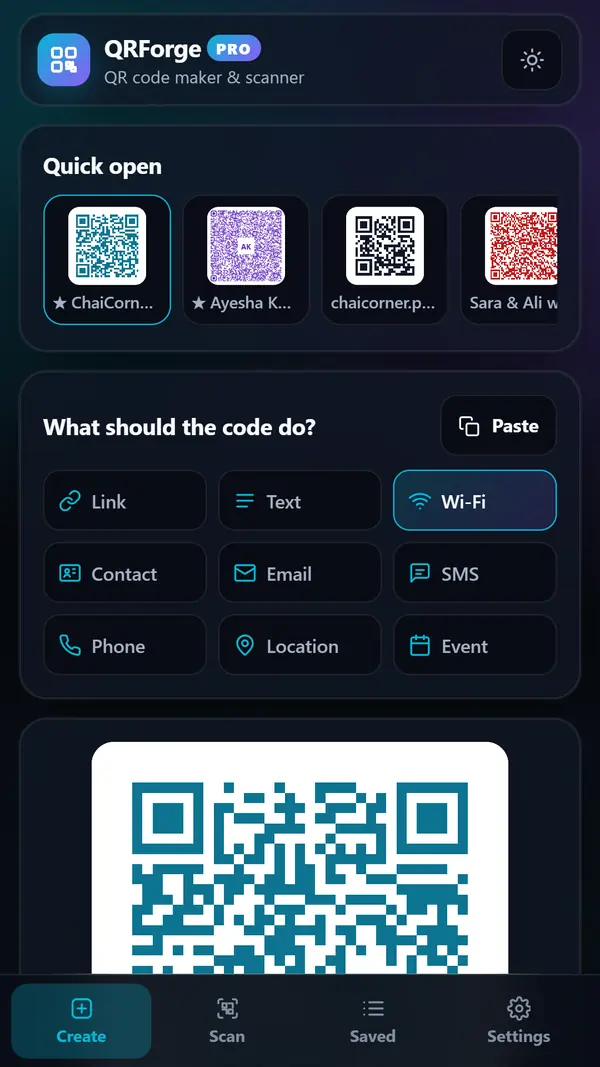
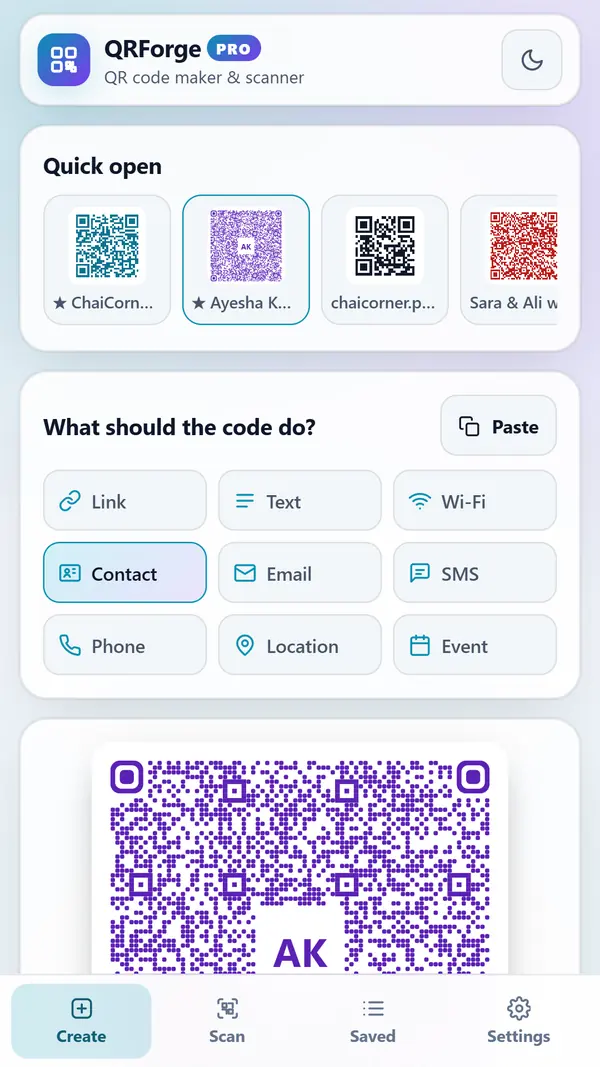
QRForge is a QR code generator and QR code reader that works offline. Pick what the code should do, or tap Paste and QRForge detects the type, fill in the details and the code appears as you type.
What's new in version 1.3
New in version 1.3, along with a refreshed design and the optional Bright Loop Account. Early-access testers get it through Google Play.
UPI payment QR codes
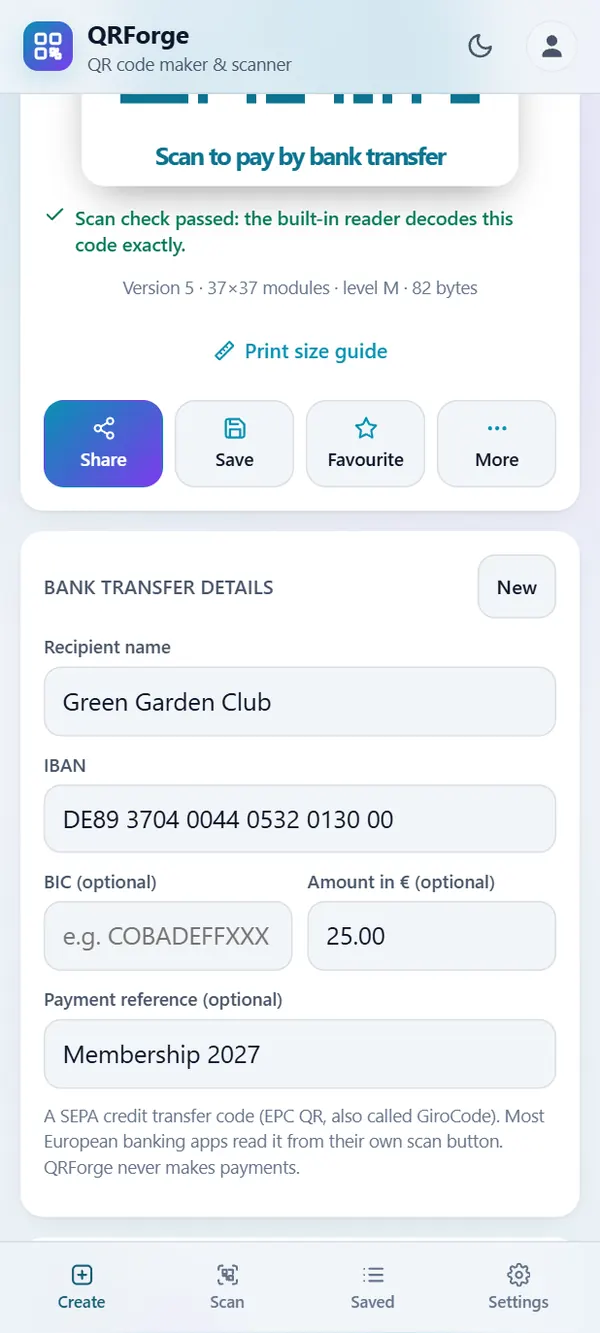
SEPA (EPC/GiroCode) bank-transfer QR codes
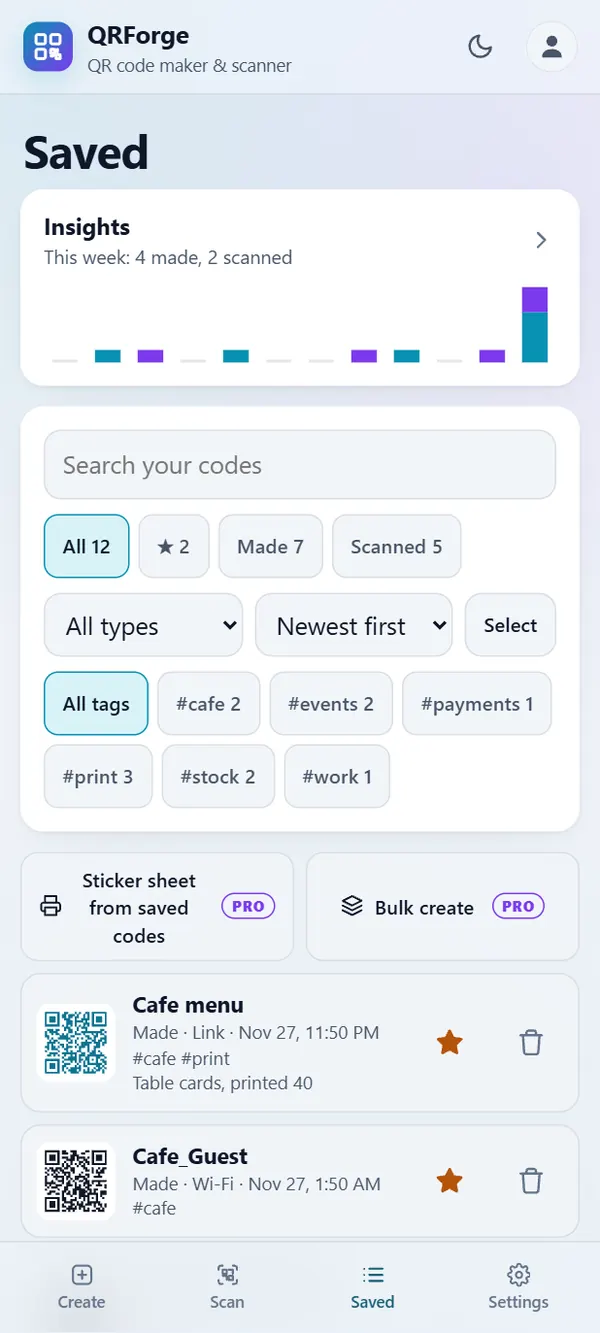
Insights: made vs scanned, top tags
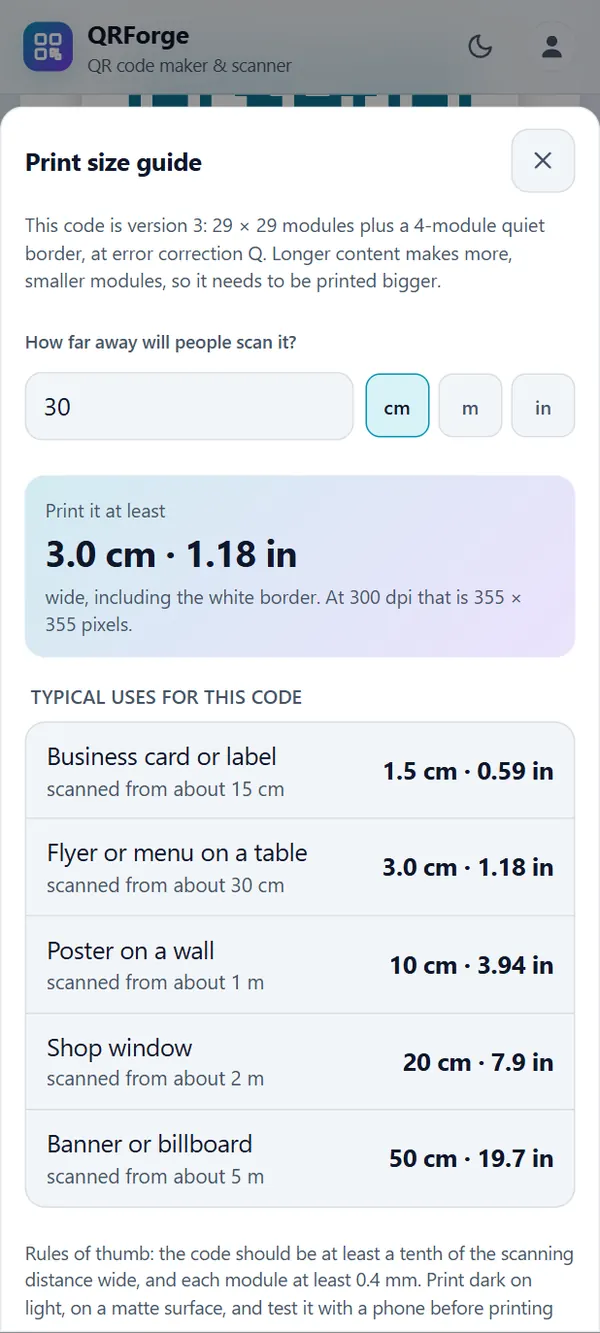
Print size guide
Feature tour.
Every feature in QRForge, and what it does for you. Items marked Pro are part of the optional subscription.
Create
- Real, standard QR codes
- Every code follows the international QR Code standard, so any phone camera can read it. After each change QRForge reads its own code back and tells you whether it scans.
- Codes for everyday jobs
- Link, Wi-Fi (guests join without typing the password), contact card (vCard), email, SMS, phone call, location, calendar event and plain text.
- Paste and detect
- Tap Paste and QRForge detects the type of what you copied and fills in the details.
- UPI payment codes
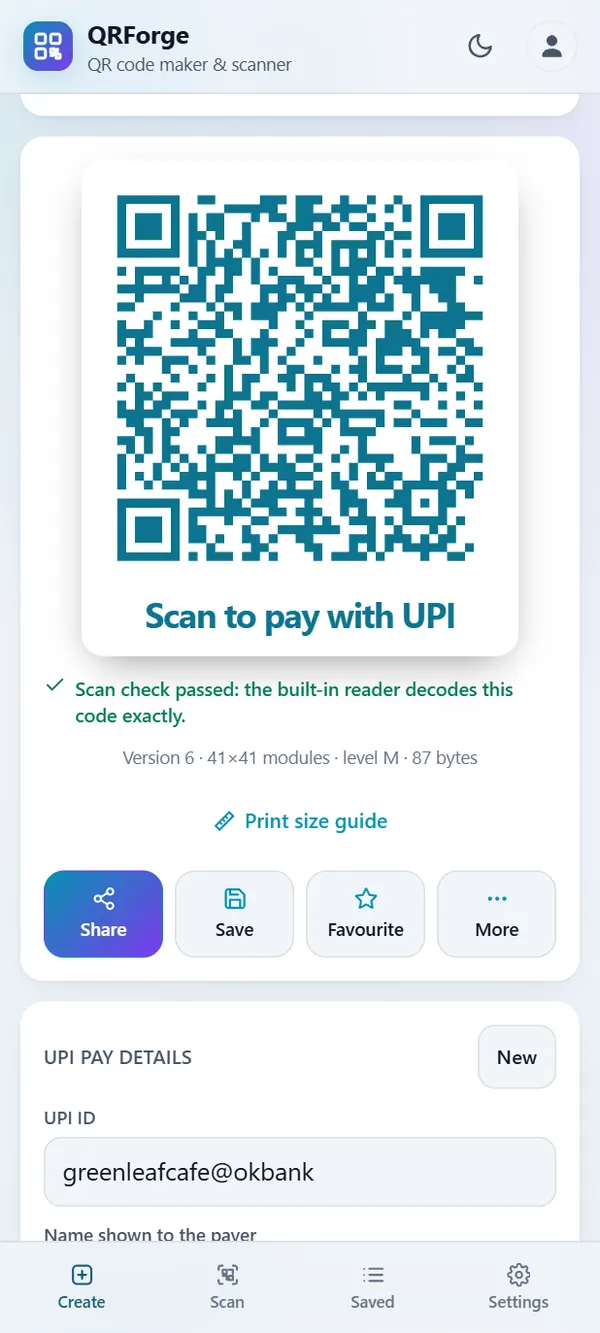
- A UPI code with your UPI ID, the name shown to the payer, and an optional amount in rupees and note.
- SEPA bank-transfer codes
- An EPC QR (GiroCode) with the recipient name and an IBAN that QRForge checks, plus optional BIC, amount in euros and reference. Most European banking apps read it.
Design and export
- Colours with a contrast check
- Any code and background colour. QRForge shows the contrast and warns when it is below 4:1.
- Caption and error correction
- A caption under the code, such as “Scan for our menu”, and error correction from L to H, or Auto.
- PNG for sharing and print
- Share or save as a PNG image, including a large size for printing.
- Print size guide
- Enter how far away people will scan the code and QRForge tells you the smallest size to print it, with typical sizes from business cards to banners.
- Sticker sheets
- One code repeated on A4 or Letter paper (6, 12, 20 or 35 per page) with cut lines, shared as a print-ready PDF.
- Logo and styles Pro
- Your own picture or initials in the centre with high error correction and an automatic scan check, plus rounded or dot modules and rounded or circle corners.
- SVG export and saved styles Pro
- SVG vector files for print shops and design apps, and your colours, logo and dots saved under a name and applied in one tap.
- Multi-code sticker sheets Pro
- Pick saved codes or paste a list to print many different codes on one sheet, for example one per table or room.
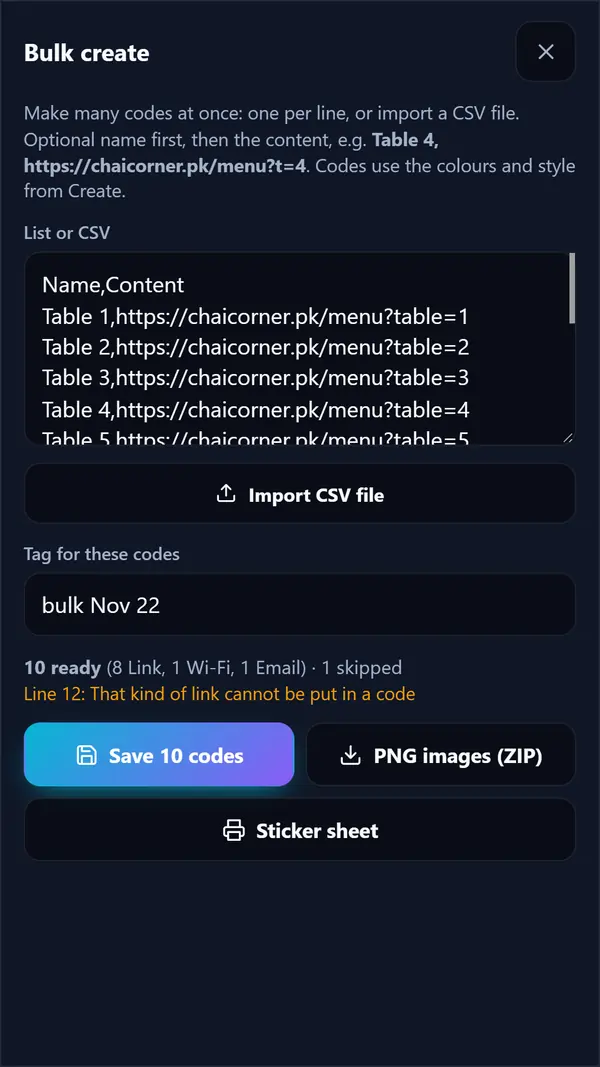
- Bulk create Pro
- Paste a list or import a CSV to make up to 500 codes at once, save them tagged, and download them as PNG images in one ZIP file.
Scan
- Camera or picture
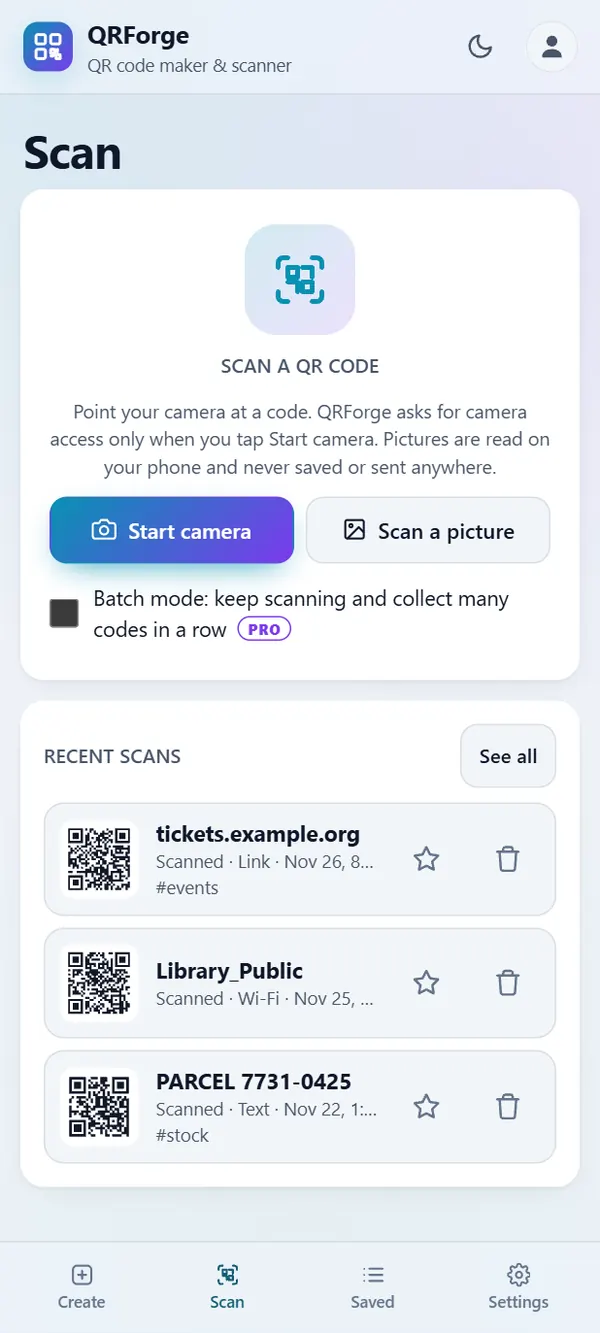
- Scan with the camera or from a picture. Pictures are read on your phone and never saved or sent.
- See before you act
- QRForge shows what is inside first: open a link, copy a Wi-Fi password, call, save a contact or add an event.
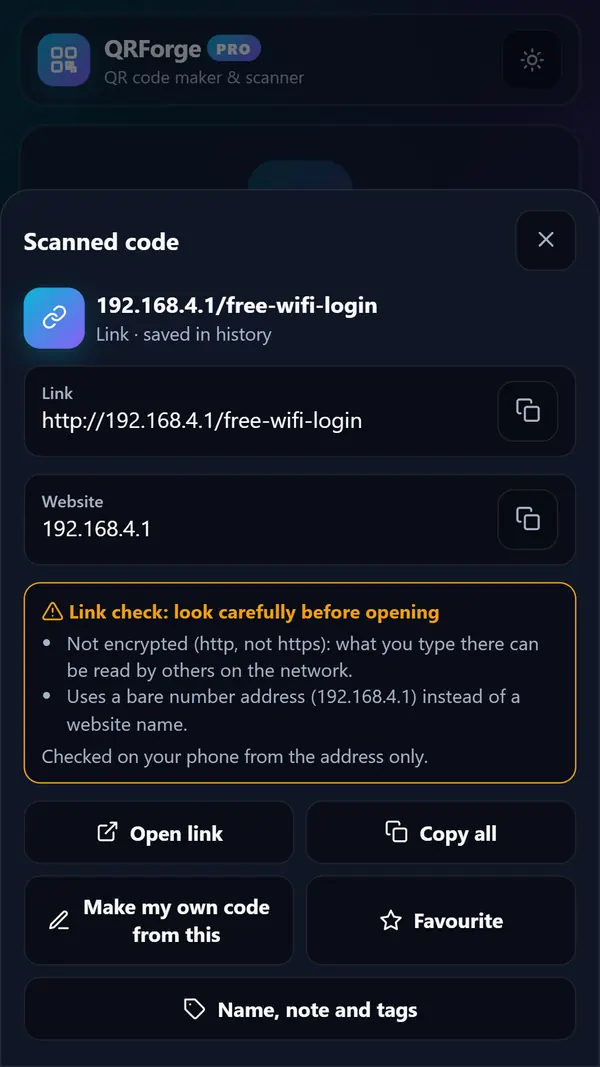
- Link check
- Before you open a scanned link, QRForge points out warning signs in the address, such as no encryption, a bare number address, look-alike letters or a program download.
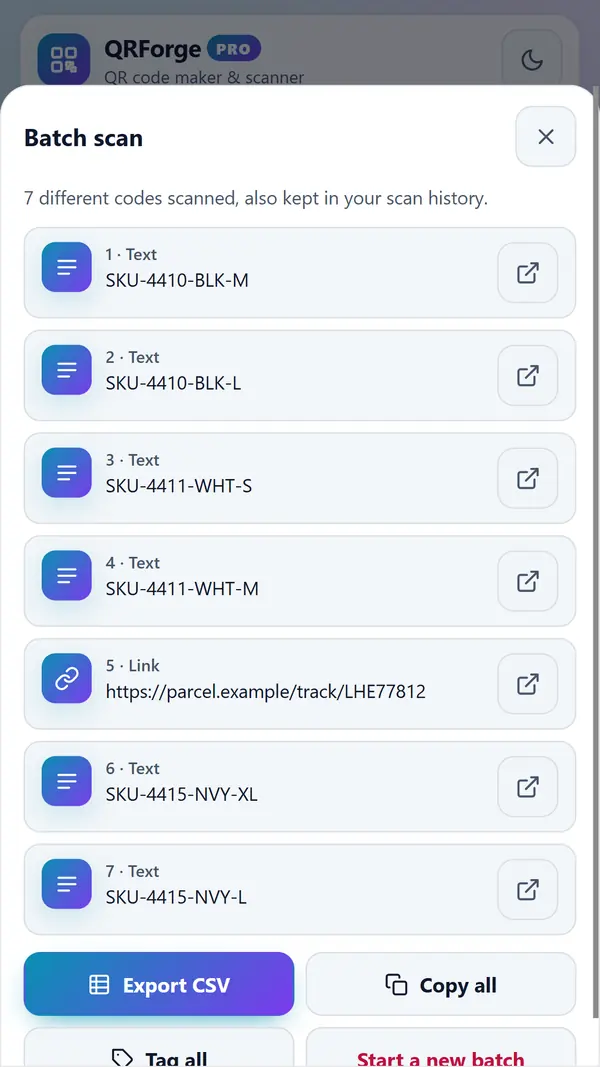
- Batch scanning Pro
- The camera keeps running and collects many codes in a row (stock counts, parcels, tickets); then export them as CSV or copy them all.
Saved codes and Insights
- History with names, notes and tags
- Every code you made and scanned, with names, notes, tags and favourites.
- Filter, sort and search
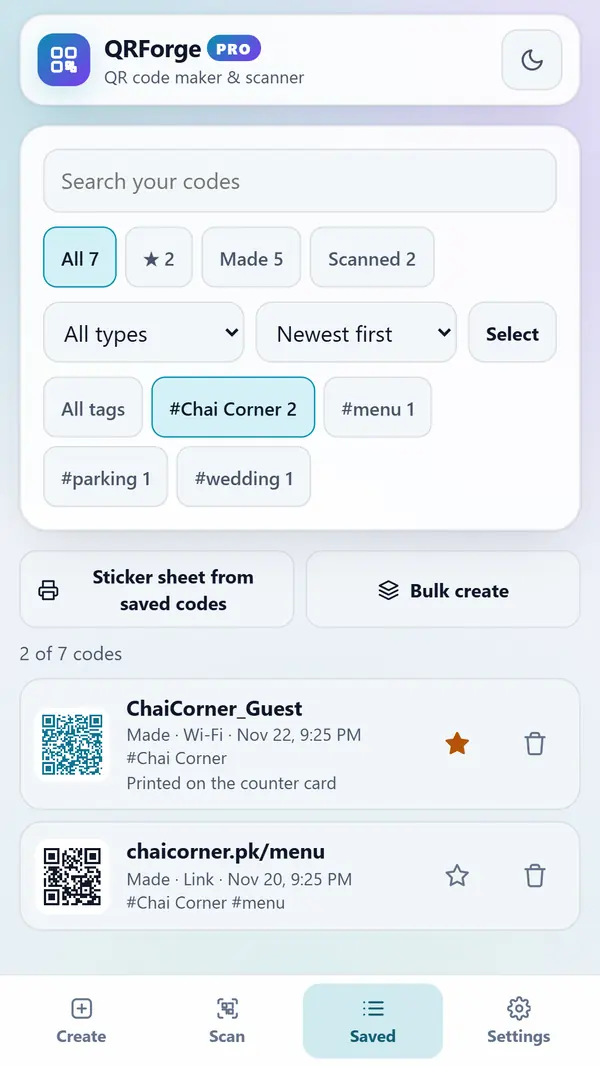
- Filter by tag, type, favourites, made or scanned, sort by date, name or type, and search across content, notes and tags.
- Select many
- Select codes to tag, favourite, export or delete them together, with undo.
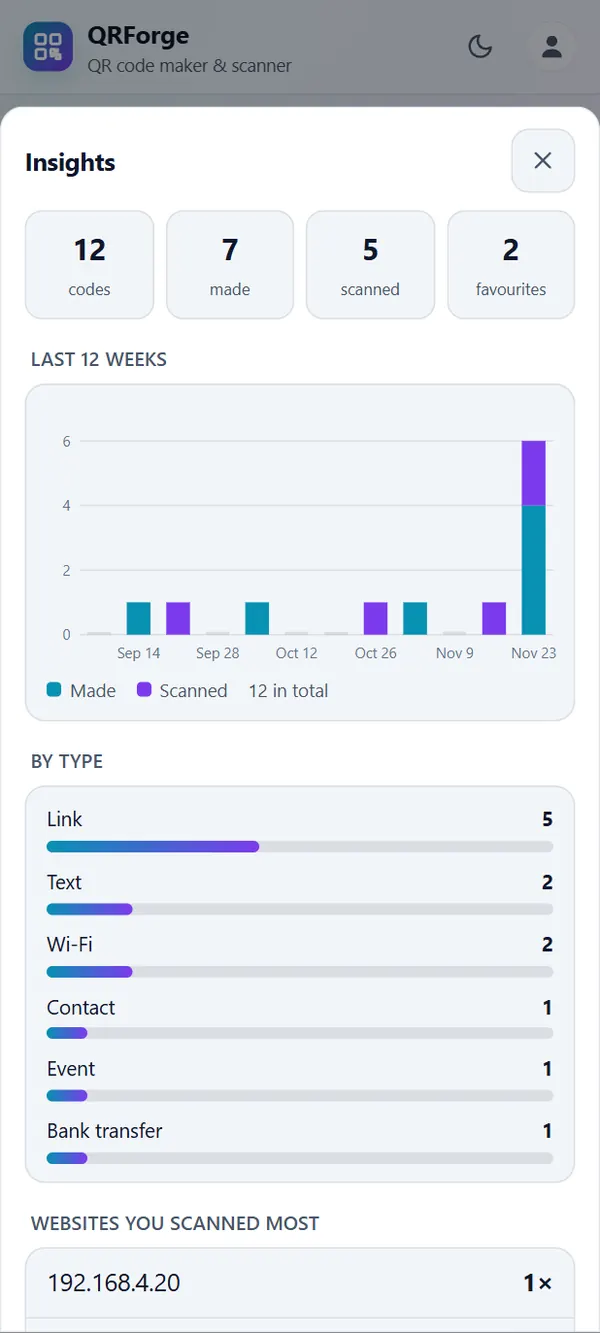
- Insights
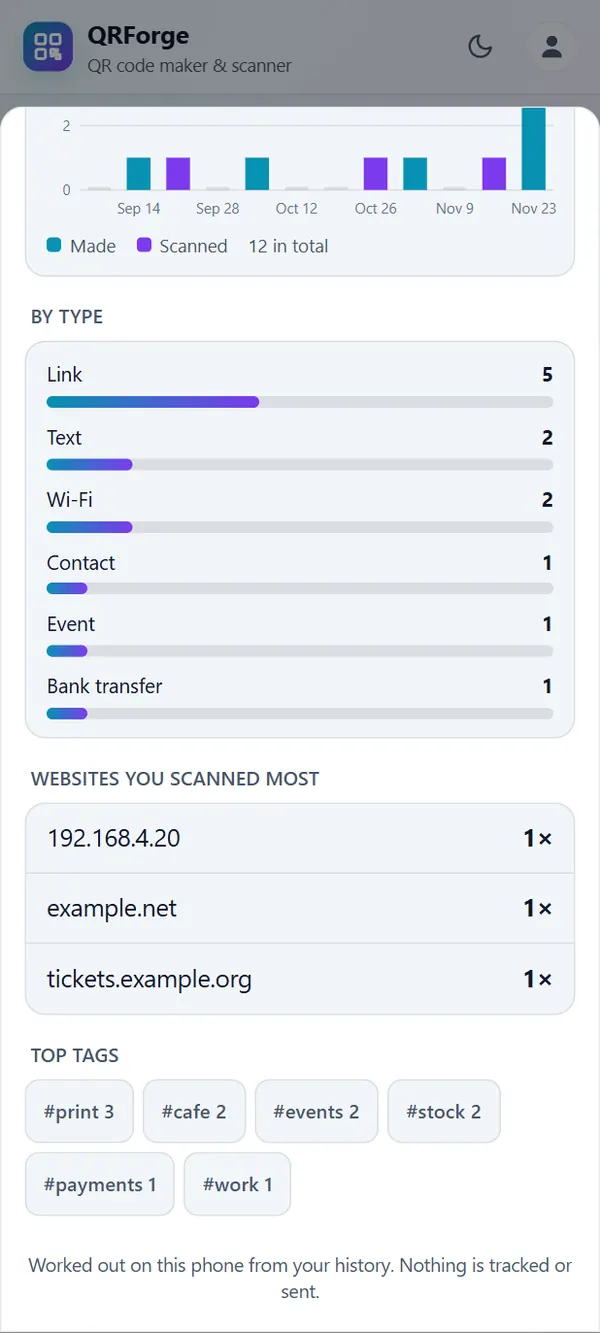
- Codes made vs scanned over the last 12 weeks, totals, a breakdown by type, the websites you scanned most and your top tags.
- Backup and export
- Back up and restore as JSON, and export your list to a spreadsheet (CSV).
Private by design
- No account, no tracking
- No ads and no analytics. Your codes stay on your phone unless you share or export them. An optional Bright Loop Account can back them up.
- Camera only while scanning
- The camera is used only while scanning; pictures are never saved or sent.
Full store description
Real, standard QR codes
Every code follows the international QR Code standard, so any phone camera can read it. After each change QRForge reads its own code back and tells you whether it scans.
What you can make (free)
- Link: a website, menu, form or online shop
- Wi-Fi: guests scan to join your network, no typing the password
- Contact card (vCard)
- Email, SMS and phone call codes
- Location: coordinates that open in the maps app
- Calendar event
- Plain text
Design and export (free)
- Any code and background colour, with a contrast check
- Caption under the code, such as "Scan for our menu"
- Error correction from L to H, or Auto
- Share or save as a PNG image, including a large size for printing
- Sticker sheet: one code repeated on A4 or Letter paper (6, 12, 20 or 35 per page) with cut lines, shared as a print-ready PDF
Scanner (free)
Scan with the camera or from a picture. QRForge shows what is inside before anything happens: open a link, copy a Wi-Fi password, call, save a contact or add an event.
Link check: before you open a scanned link, QRForge points out warning signs in the address, such as no encryption, a bare number address, look-alike letters or a program download. It checks the address only, not the website itself.
Saved codes (free)
History of codes you made and scanned with names, notes and tags. Filter by tag, type, favourites, made or scanned, sort by date, name or type, and search across content, notes and tags. Select many codes at once to tag, favourite, export or delete them, with undo. Backup and restore (JSON) and export to a spreadsheet (CSV).
How to use QRForge.
Step-by-step walkthroughs of the main tasks, with screens from the current version.
1Make a QR code for a linkCreate a standard QR code for a website, menu or shop, style it and check that it scans.
- Step 1
On Create, under What should the code do?, tap Link (or tap Paste and QRForge detects the type from what you copied).
- Step 2
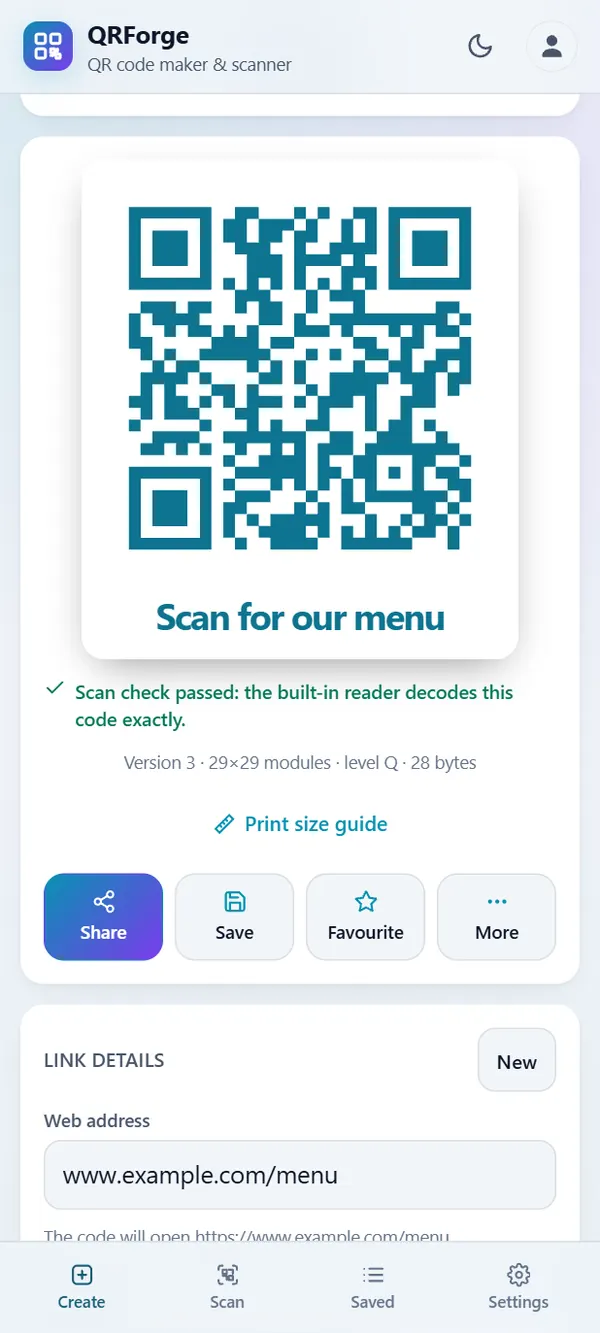
Type the Web address. The code appears as you type, and QRForge reads it back: Scan check passed means the built-in reader decodes it exactly.
- Step 3
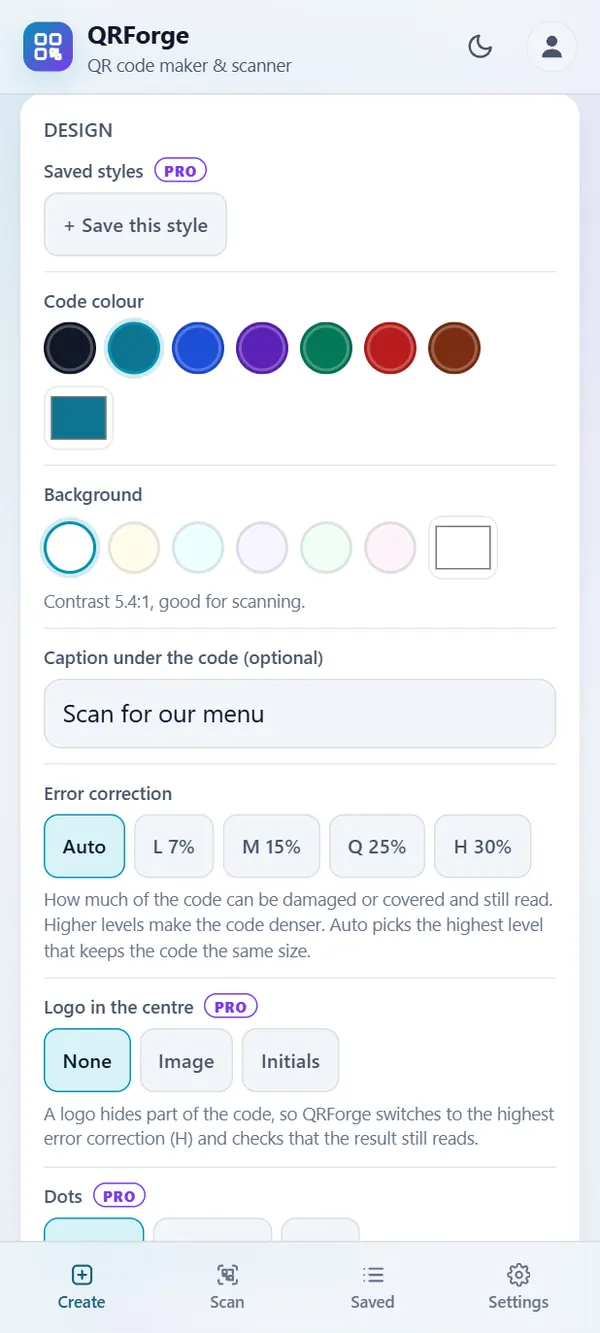
Under Design, pick the Code colour and Background (QRForge shows the contrast), add a Caption under the code and choose the Error correction level or leave it on Auto.
- Step 4
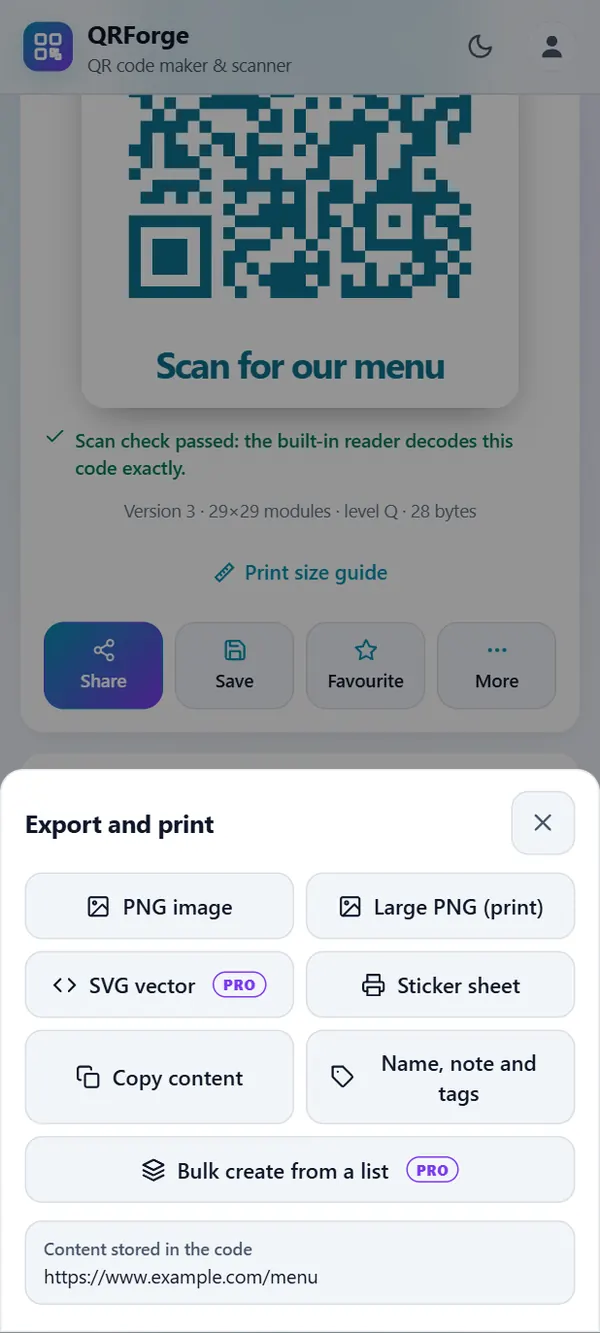
Tap Save to keep it in Saved, Share to send it as a PNG, or More for a PNG image, a Large PNG (print) or a Sticker sheet.
2Make a payment QR code (UPI or SEPA)Let people pay you by scanning: a UPI code for India or a SEPA bank-transfer code (EPC QR, also called GiroCode) for Europe.
- Step 1
On Create, tap UPI pay. Enter your UPI ID, the Name shown to the payer, and optionally an Amount in ₹ and a Note.
- Step 2
For a European bank transfer, tap Bank transfer and enter the Recipient name and IBAN. QRForge checks the IBAN check digits. BIC, Amount in € and Payment reference are optional.
- Step 3
Add a caption such as “Scan to pay”, check that the scan check passed, then Save or Share the code. QRForge only makes the code; it never makes or receives payments.
3Print your code at the right sizeFind out how big to print a code for the distance people scan from, and print a sheet of stickers.
- Step 1
Under the code on Create, tap Print size guide. Enter how far away people will scan it, in cm, m or in.
- Step 2
QRForge shows the smallest size to print (and the pixels at 300 dpi), plus typical sizes for a business card, a table menu, a wall poster, a shop window and a banner.
- Step 3
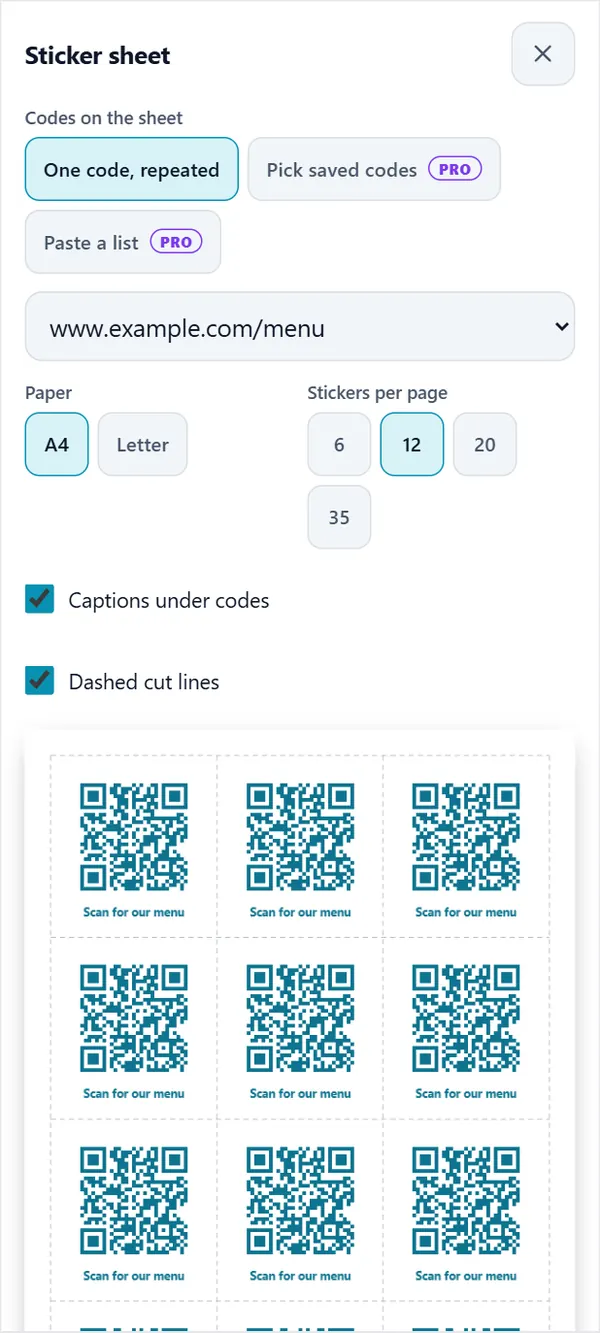
For stickers, tap More > Sticker sheet. Choose A4 or Letter, 6, 12, 20 or 35 per page, captions and Dashed cut lines, then share it as a print-ready PDF.
4Scan a code safelyRead any QR code with the camera or from a picture and see what is inside before anything happens.
- Step 1
Open Scan and tap Start camera, or Scan a picture to read a code from an image. Camera access is asked for only when you tap Start camera.
- Step 2
QRForge shows what the code contains first, with buttons such as Open link, Copy all, Make my own code from this and Favourite.
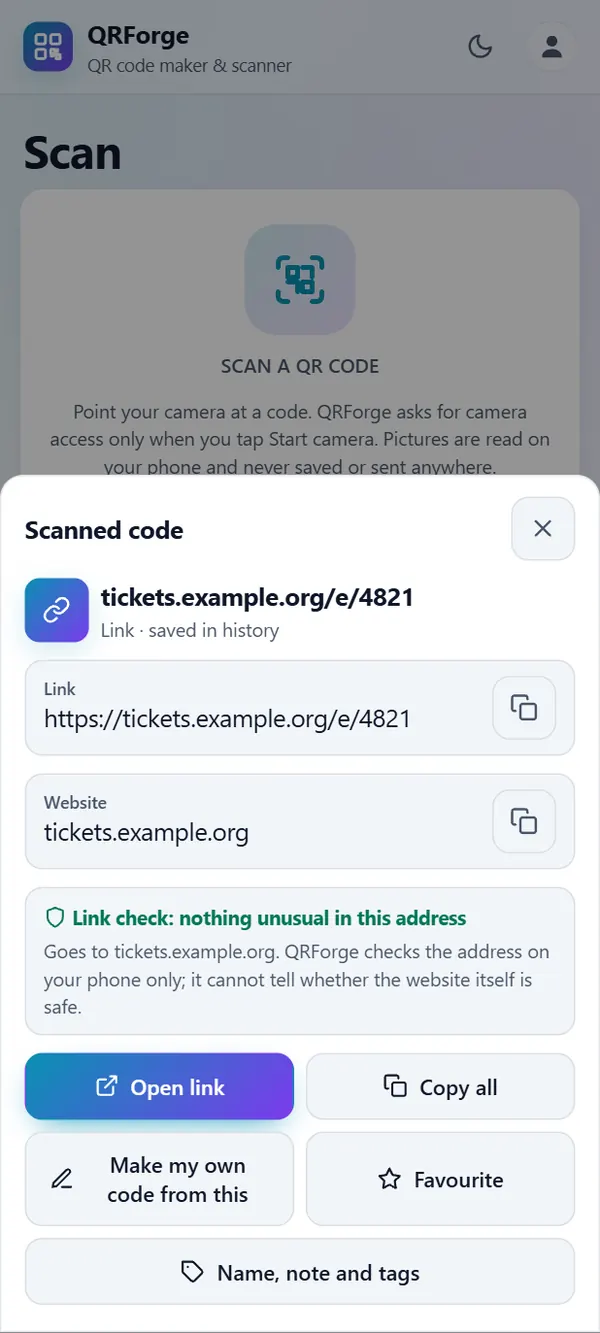
- Step 3
For links, Link check points out warning signs in the address, such as no encryption, a bare number address or a program download. It checks the address only, not the website itself.
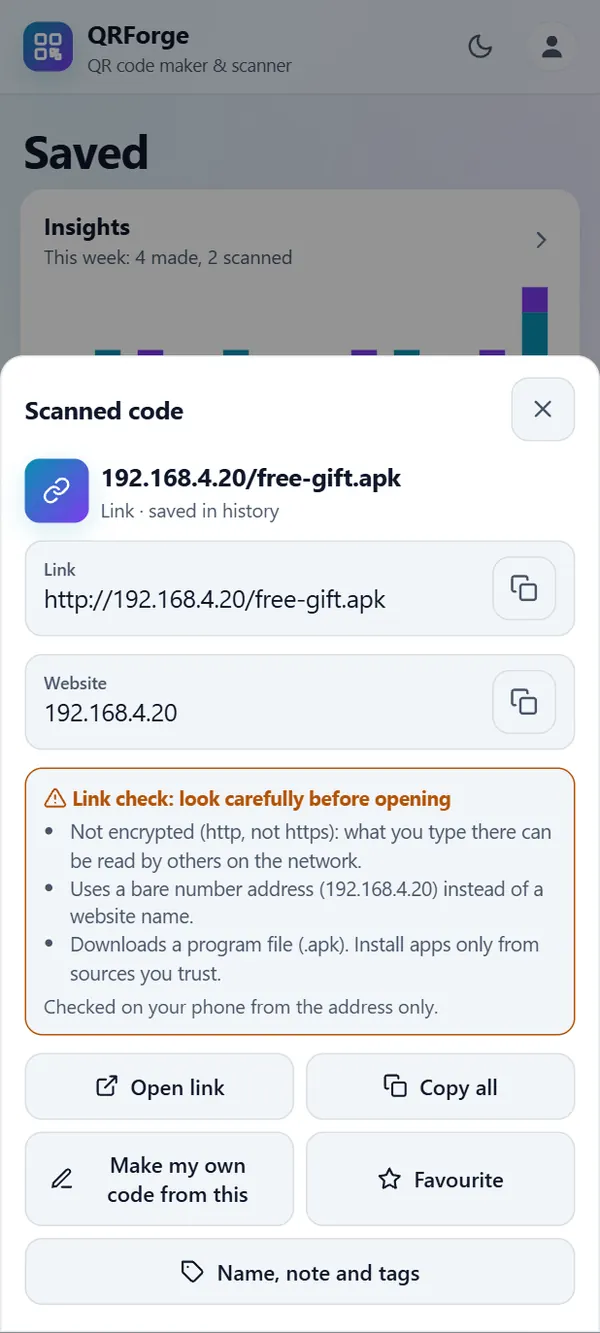
5Organise saved codesFind, filter, tag and manage everything you made and scanned.
- Step 1
Open Saved. Search your codes, or filter by All, favourites (★), Made or Scanned, by type and by tag, and sort them.
- Step 2
Tap a tag such as #print to see only those codes.
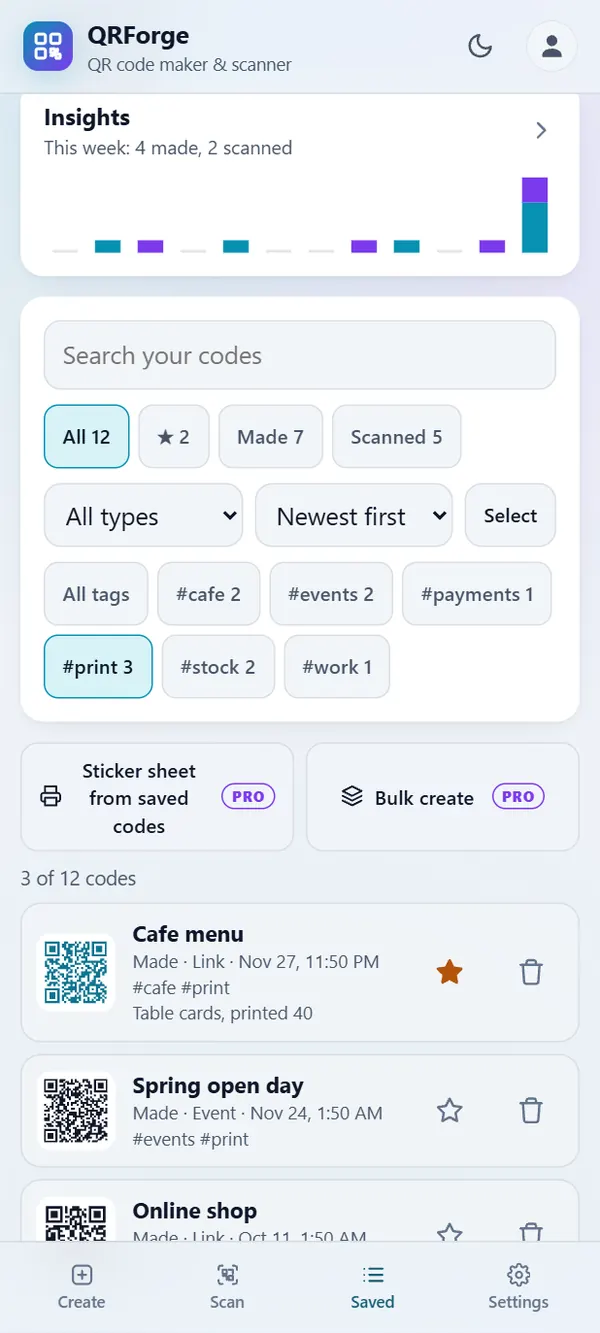
- Step 3
Tap Select, tap codes to select them, then Tag, Favourite, CSV or Delete. Deleting can be undone.
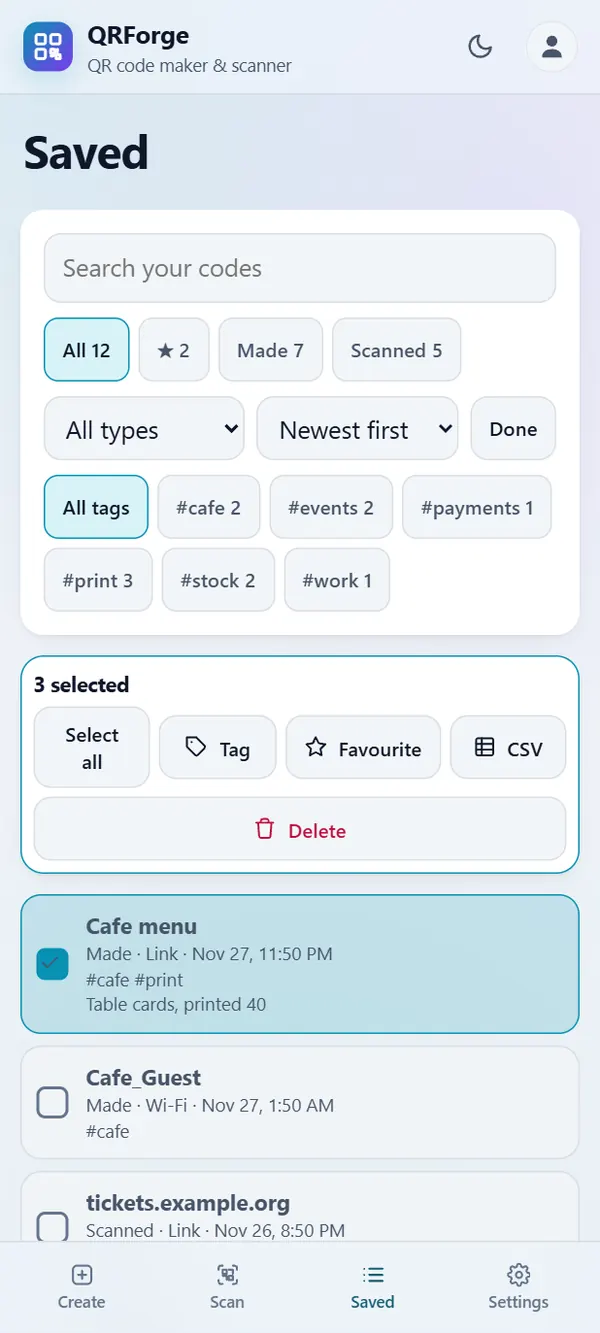
- Step 4
To name a code or add a note and tags, open it and tap Name, note and tags.
6See your InsightsA summary of the codes you made and scanned, worked out on your phone.
- Step 1
At the top of Saved, the Insights card shows this week’s made and scanned codes. Tap it.
- Step 2
See your total codes, made, scanned and favourites, a 12-week chart of made vs scanned, and a breakdown by type.
- Step 3
Scroll down for the websites you scanned most and your top tags. Tap a tag to filter Saved by it.
Free, with optional Pro.
Download QRForge free. Pro is optional and billed by Google Play, which shows the price before you confirm.
QRForge Pro (optional subscription)
- Logo in the centre: your own picture or initials, with high error correction and an automatic scan check
- Dot and corner styles (rounded, dots, circle corners)
- SVG vector export for print shops and design apps
- Sticker sheets with many different codes: pick saved codes or paste a list, for example one code per table or per room
- Batch scanning: the camera keeps running and collects many codes in a row (stock counts, parcels, tickets), then export them as CSV or copy them all
- Bulk create: paste a list or import a CSV file to make up to 500 codes at once, save them tagged, and download them as PNG images in one ZIP file
- Saved styles: your colours, logo and dots under a name, applied in one tap
Pro is a monthly or yearly subscription through Google Play. The price, and any trial offer, is shown in the app before you buy. It renews until you cancel in Google Play > Payments & subscriptions. Everything in the free lists stays free.
Manage or cancel subscriptions in Google Play > Payments & subscriptions. Purchases and Restore purchases
Try it now.
Open QRForge right here in your browser, or download the Android app file directly.
Open in browser
The full QRForge app, running in a new tab. Nothing to install.
Some phone-only features, such as purchases, notifications, sharing and camera scanning, work only in the Android app. Anything you do in the browser is saved in that browser only, unless you sign in to the Bright Loop Account.
Download the APK
Install QRForge on an Android phone without Google Play.
- Version
- 1.3
- Size
- 4.0 MB
- SHA-256
c72fb19fa8b7d09250c9f21ffd41a4fddfde06c7545bcff4d895e2b3e3518fbf
An APK installed from this website can't be updated from Google Play later. To switch to Google Play, uninstall it and install from Play. Your data only comes with you if you back it up with the Bright Loop Account first. How to install an APK
Requirements & details.
- Requires
- Android 7.0 or later
- Size
- 4.0 MB
- Version
- 1.3
- Price
- Free, optional Pro subscription
- Internet
- Not required
- Account
- Optional Bright Loop Account
- Ads
- None
- Category
- Utilities
- Developer
- Bright Loop (Google Play: Bright Loop Games)
- Availability
- Early access (Google Play closed testing)
- Web version
- Open in browser
How to get QRForge.
QRForge is in early access through Google Play closed testing. It takes about two minutes.
- Ask to join the tester listEarly access runs as a Google Play closed test, so your Google account must be on the tester list before the opt-in link works. Send us the Gmail address you use on Google Play and we'll add you.
- Open the opt-in linkOn your Android phone, signed in to the same Google account, open the QRForge early access link.
- Tap "Become a tester"Google Play confirms that you've joined the test.
- Install from Google PlayTap the "download it on Google Play" link on that page, or open the Google Play page, then tap Install. Updates arrive through Google Play like any other app.
- Tell us what you thinkEarly access means your feedback shapes the next update. Email rehman@mindum.dev any time.
Link not working? See Troubleshooting or the full early access guide.
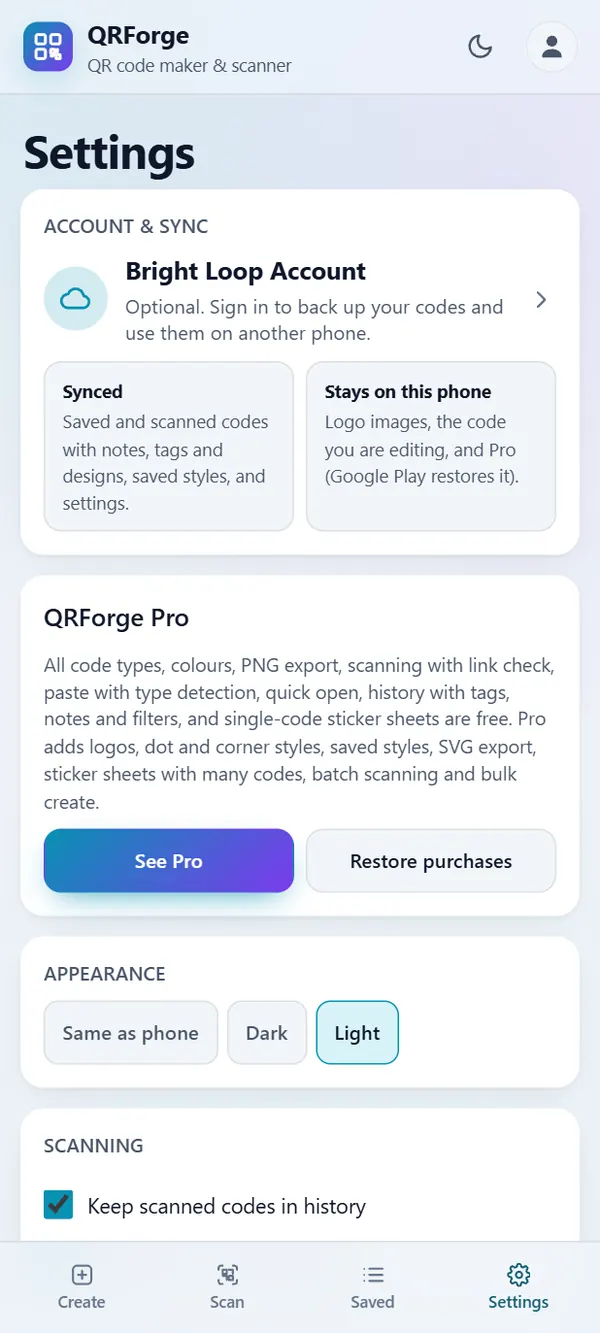
Account & sync.
Optional. QRForge works fully without an account. Sign in to the free Bright Loop Account to back up your QRForge data and keep it in sync across your phones.
What syncs
- Saved QR codes, tags and scan history
- Settings
What stays on this phone
- Logo images used in codes
- Your Pro status (Google Play restores it)
Account & Sync is part of QRForge 1.3. Look for it at the top of Settings.
Privacy.
QRForge keeps your data on your phone. No ads and no analytics.
Private by design
No account needed, no ads, no analytics. Your codes stay on your phone unless you share or export them. The camera is used only while scanning; pictures are never saved or sent.
If you sign in
The Bright Loop Account is optional. If you sign in, QRForge backs up the records listed under Account & sync to your account so you can restore them on another phone. Photos and files are never uploaded, and you can export or delete your cloud data at any time.
Read the full Privacy Policy.
Tips.
- Wait for “Scan check passed” under the code before you print or share it.
- Use the Print size guide before printing: a code on a wall poster needs to be much bigger than one on a table card.
- Keep the code dark and the background light. QRForge shows the contrast ratio as you pick colours.
- Add a caption such as “Scan for our menu” so people know what the code does before they scan it.
- Tag codes you print (for example #print or #cafe) so you can find and reprint them quickly from Saved.
- When Link check shows warnings for a scanned link, copy it instead of opening it until you are sure where it comes from.
Troubleshooting.
A phone will not scan my printed code
Print it larger (see Print size guide), use a dark code on a light, matte background, keep the white border around the code, and raise the error correction if it is printed small or on a curved surface.
The camera does not start
Tap Start camera and allow camera access when Android asks. If you said no before, allow the camera for QRForge in Android settings, or use Scan a picture.
The code does not appear
Fill in the required details for the type you picked. QRForge tells you what is missing, for example a valid IBAN or a Wi-Fi password.
My saved codes are gone on a new phone
On the old phone use Settings > Back up (JSON), then Restore backup on the new phone, or sign in to the Bright Loop Account on both.
Questions.
Will my codes work with any phone camera?
Yes. QRForge makes standard QR codes and checks each one with its built-in reader. The line under the code tells you whether it decodes exactly.
Does a UPI or SEPA code take payments?
No. QRForge only puts the payment details into the code. The payer’s own UPI or banking app makes the payment; QRForge never handles money.
Why does my IBAN show an error?
QRForge checks the IBAN check digits as you type. If they do not match, there is a typing mistake in the IBAN. Spaces are fine.
How big should I print my code?
Open the Print size guide under the code and enter the scanning distance. As a rule of thumb the code should be at least a tenth of the distance wide.
What does Link check look at?
Only the address: things like http instead of https, a bare number instead of a website name, look-alike letters or a program download. It cannot tell whether the website itself is safe.
Can I change a code after I print it?
No. A QR code stores its content directly, so a printed code always opens what it was made with. Make a new code if the address changes.
Are scanned pictures stored?
No. Pictures are read on your phone and never saved or sent. Only the decoded content is kept in Saved, and you can turn that off in Settings.
Is QRForge free?
Yes. QRForge is free to download and use. QRForge Pro is an optional monthly or yearly subscription through Google Play that adds the extras listed under Free and Pro. Google Play shows the price, and any trial, before you confirm.
Why can't I find QRForge on Google Play?
QRForge is in early access (a Google Play closed test), so it only appears for people on the tester list. Follow the steps under How to get it. Once it becomes public, anyone can install it from Google Play.
Does QRForge work offline?
Yes. QRForge works without an internet connection. You only need a connection for optional things like Bright Loop Account sync and Google Play purchases.
Do I need an account?
No. QRForge works fully without one. The Bright Loop Account is optional and adds cloud backup and sync across your phones.
How do I move to a new phone?
Sign in to your Bright Loop Account on the new phone and choose "Use Cloud Data", or export a backup file on the old phone and restore it on the new one. Photos and files only move with a backup file. Pro comes back with Restore purchases. See Move to a new phone.
How do I restore a purchase?
Make sure your phone uses the same Google account you bought with, open QRForge and tap Restore purchases. Google Play checks your purchases and QRForge unlocks what you own. More about purchases.
Can I use QRForge in a browser?
Yes. Tap Open in browser to run it in a new tab. Some phone-only features, such as purchases, notifications, sharing and camera scanning, work only in the Android app, and anything you do there is saved in that browser.
Can I install it without Google Play?
Yes, with the APK on this page (version 1.3, 4.0 MB). An APK install can't be updated from Google Play later; see Install an APK on Android.
What do I need to run it?
Android 7.0 or later, or any modern browser for the web version.
Is it available on iPhone?
There's no iPhone app at the moment. QRForge is made for Android, but you can open the web version in Safari.
Get help with QRForge
Email rehman@mindum.dev. Include your phone model, Android version and what happened, and we'll take it from there.
Help Centre
Step-by-step guides for early access, sync, backups, purchases and moving phones. Visit the Help Centre
More apps you might like.
OmniCalc
Scientific calculator, unit converter, EMI, hours, GPA and your own formulas.
DocClean
Scan documents, receipts and ID cards to PDF. Crop, straighten, clean. Offline.
Drift
Bedtime calculator, weekly sleep schedule, sleep sounds, sleep diary and trends
RitualOS
Track habits and streaks, and run timed morning, evening and workout routines.