
OmniCalc
Scientific calculator, unit converter, EMI, hours, GPA and your own formulas.
Google Play pageDownload APK v1.3 · 3.9 MB
Early access on Google Play closed testing. You need to be on the tester list first: see how to join.
A closer look.
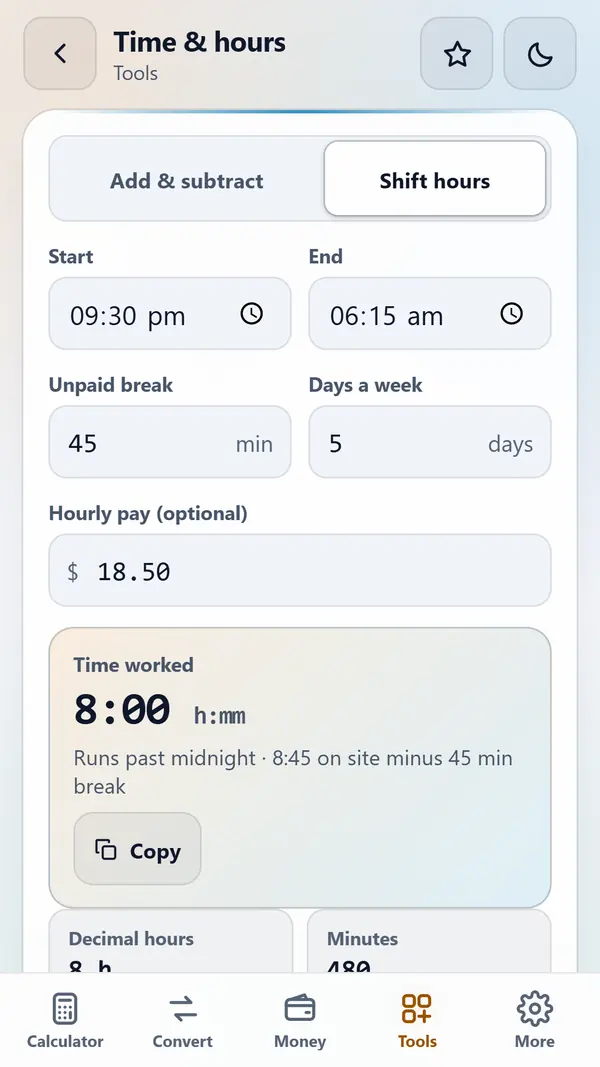
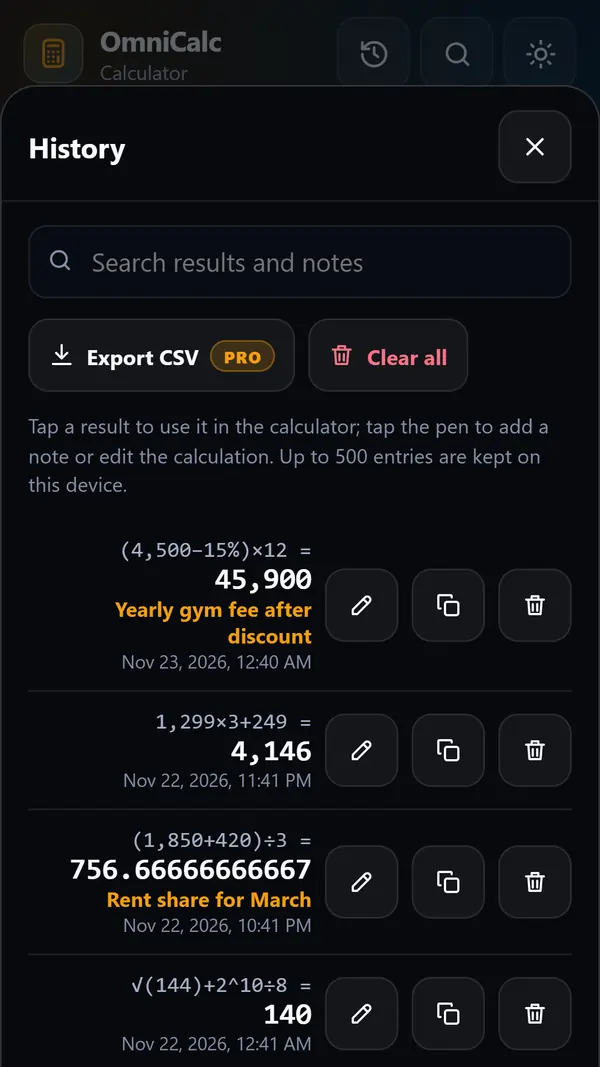
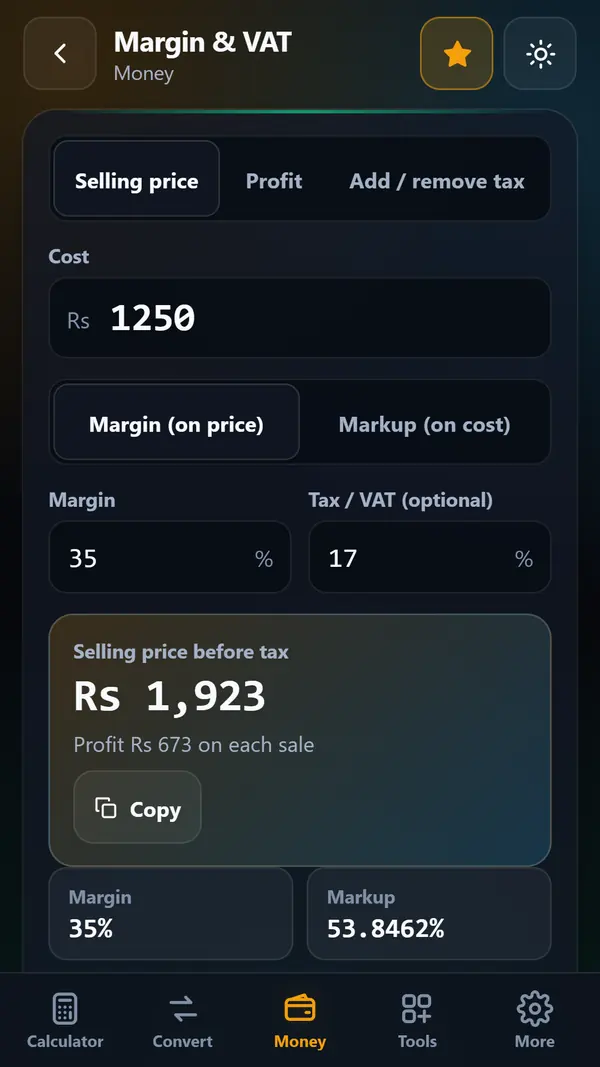
OmniCalc is an everyday calculator and unit converter with the money and life tools you reach for most. Everything works offline and stays on your phone.
What's new in version 1.3
New in version 1.3, along with a refreshed design and the optional Bright Loop Account. Early-access testers get it through Google Play.
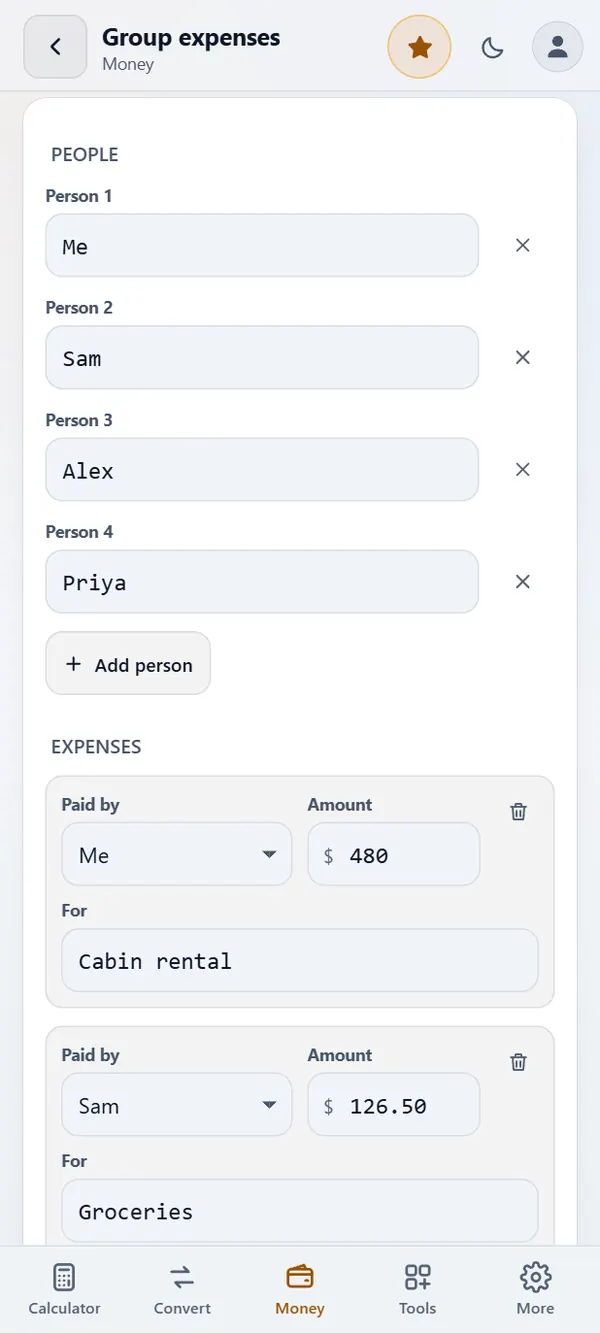
Group expenses splitter
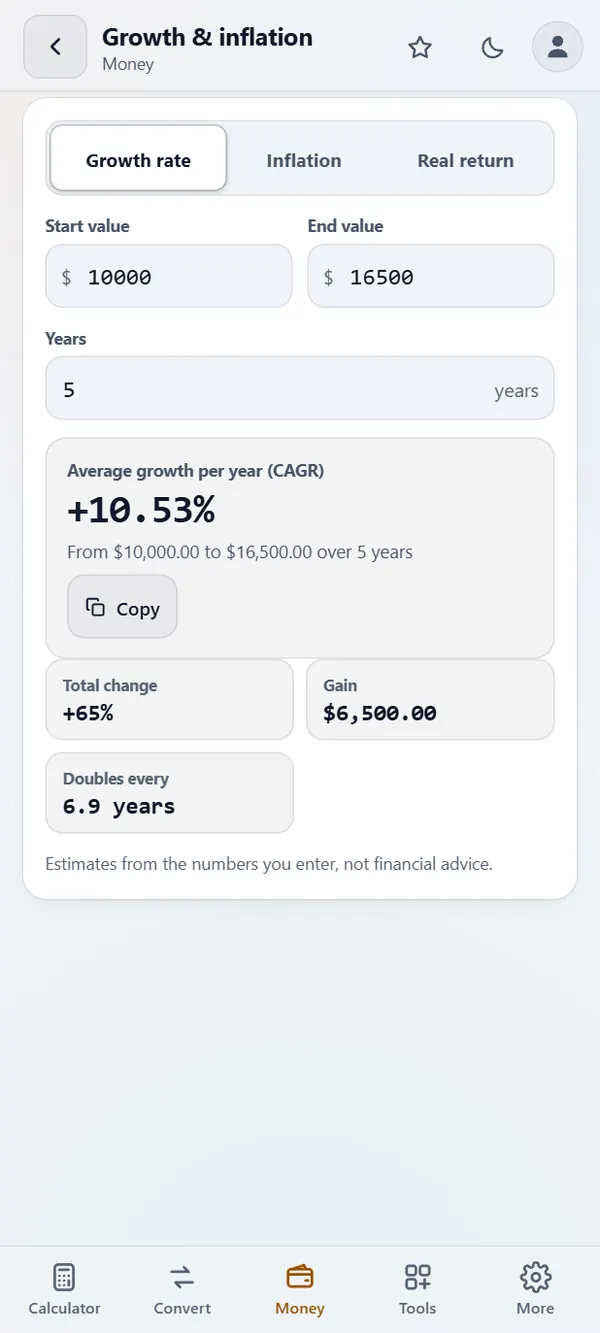
Growth & inflation calculator
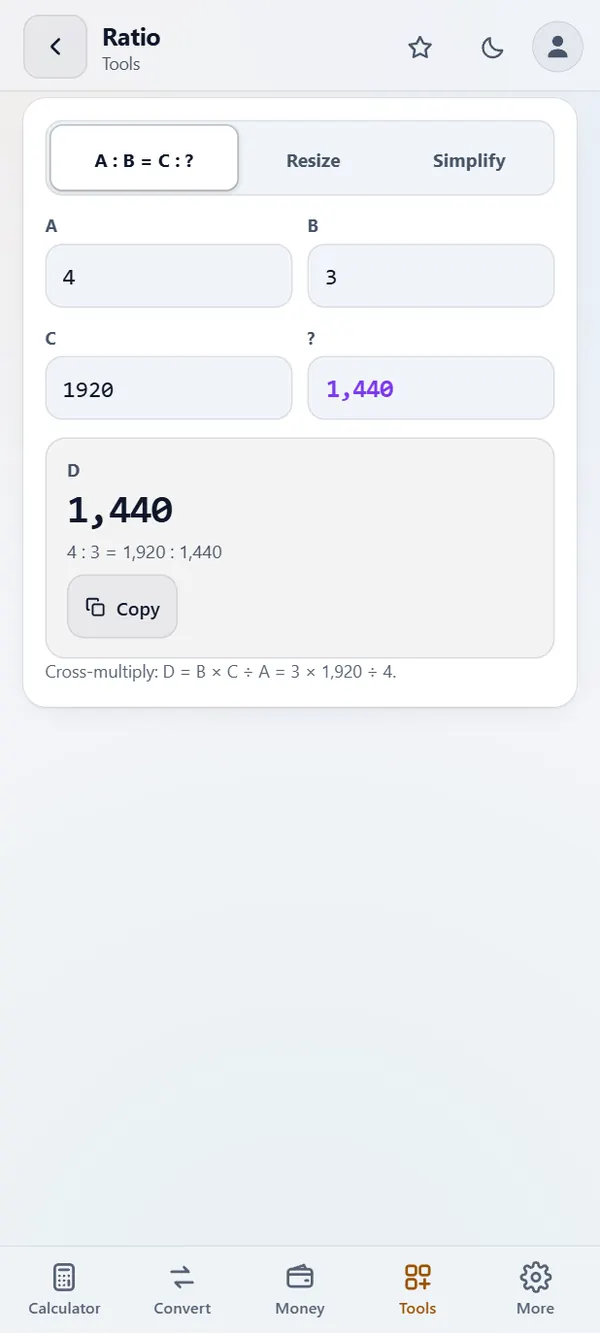
Ratio solver
Offline time-zone converter
Feature tour.
Every feature in OmniCalc, and what it does for you. Items marked Pro are part of the optional subscription.
Calculator
- Standard and scientific modes
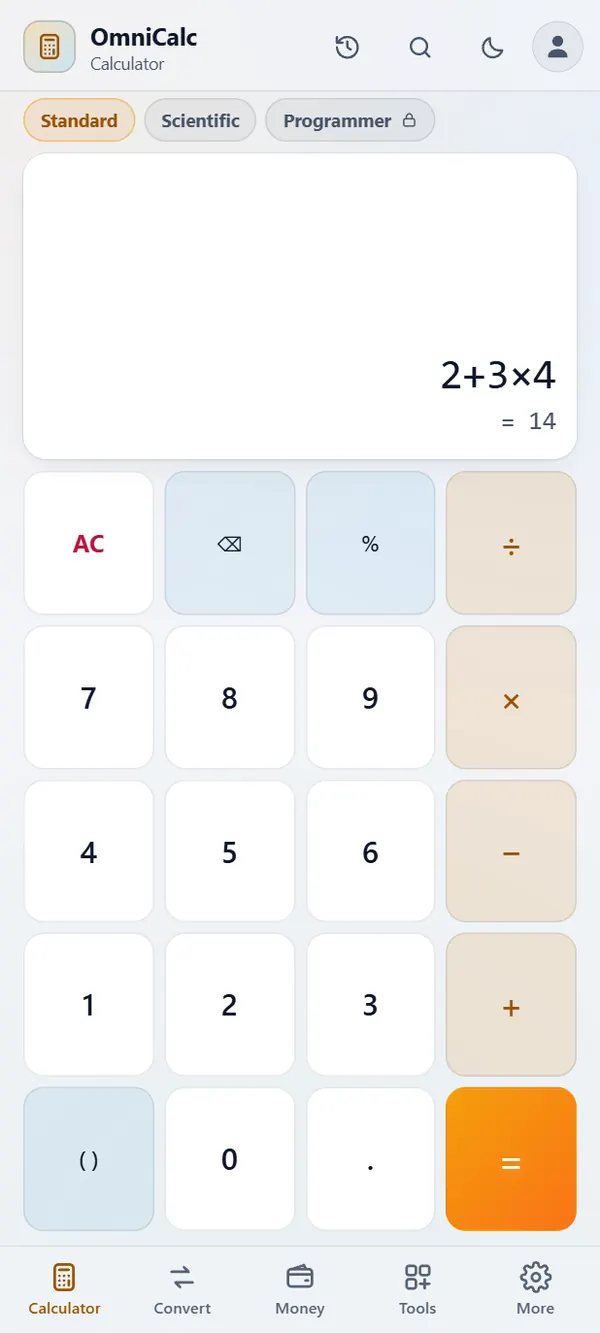
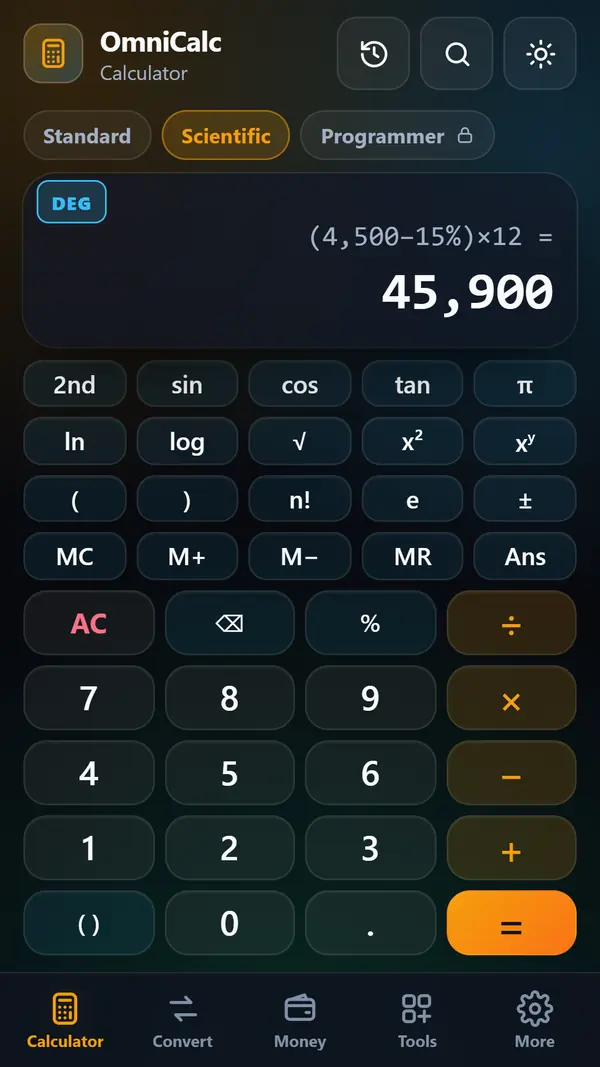
- Correct order of operations (2 + 3 × 4 = 14, −2² = −4) with a live answer as you type. Scientific adds powers, roots, trig and inverses, ln, log, factorial, nCr, nPr, degrees or radians, memory and Ans.
- Shop-style percentages
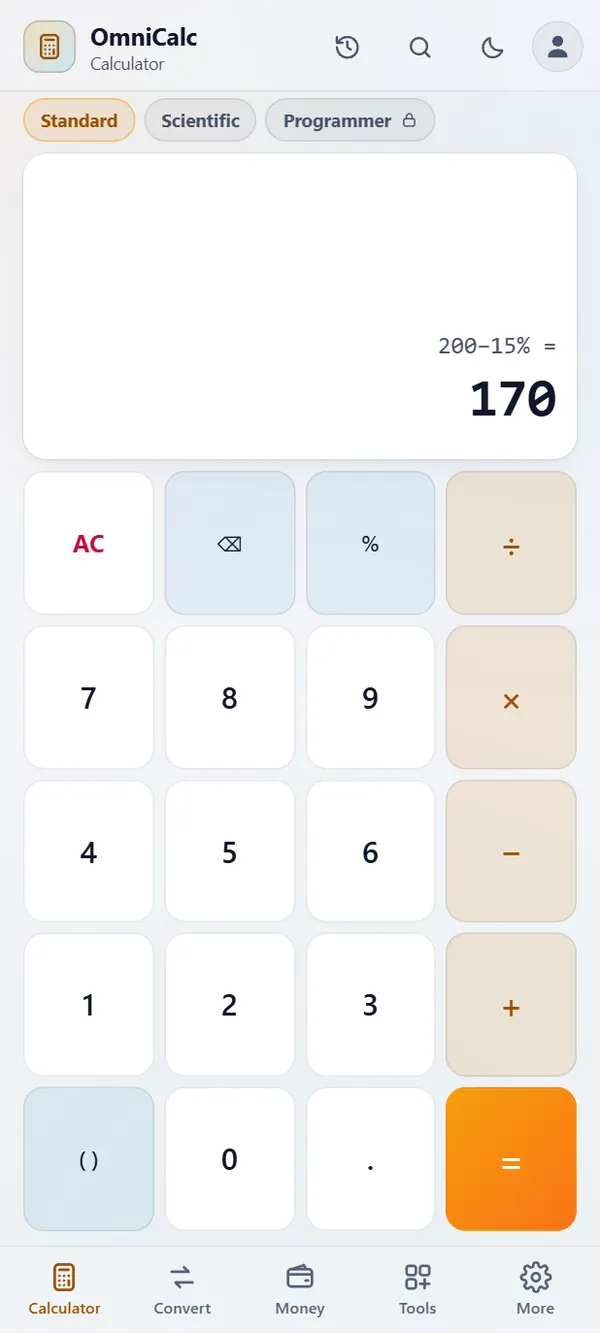
- 200 − 15% gives 170, the way a shop works it out.
- Exact decimals and grouping
- 0.1 + 0.2 shows 0.3, and you can choose the number format, including lakh and crore grouping.
- History of 500 calculations
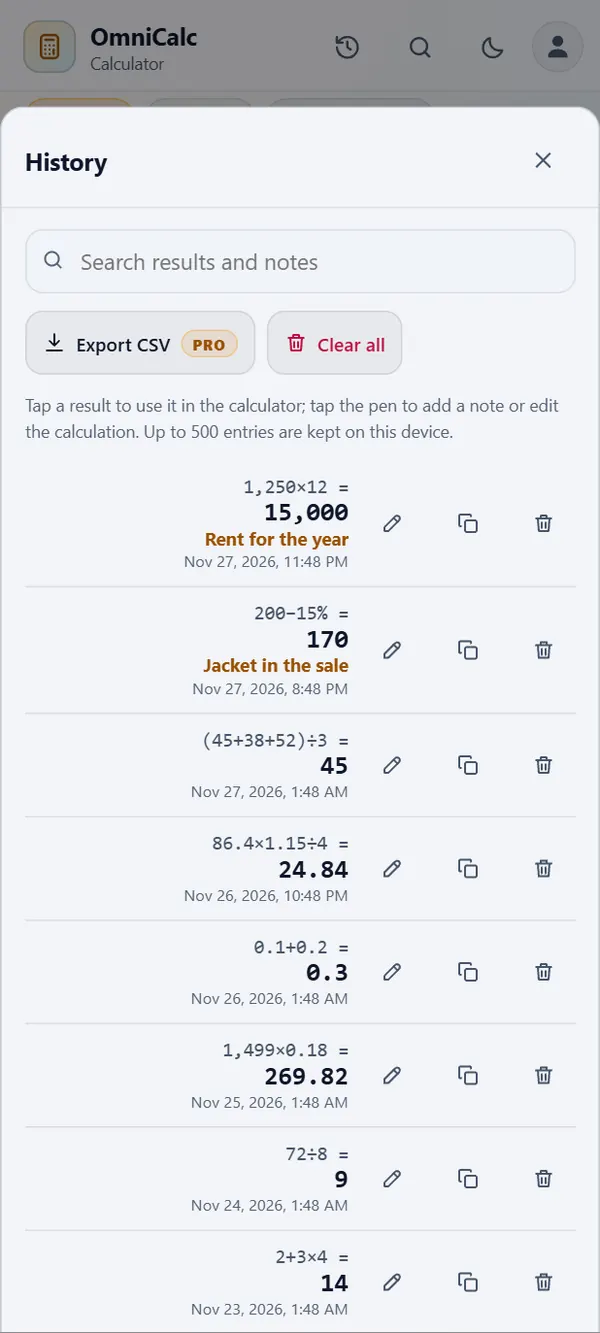
- Search it, add notes, reuse a result, or reopen a calculation to edit it.
- Programmer mode Pro
- HEX, DEC, OCT and BIN with bitwise operations in 8 to 64 bits.
Convert
- Units, offline
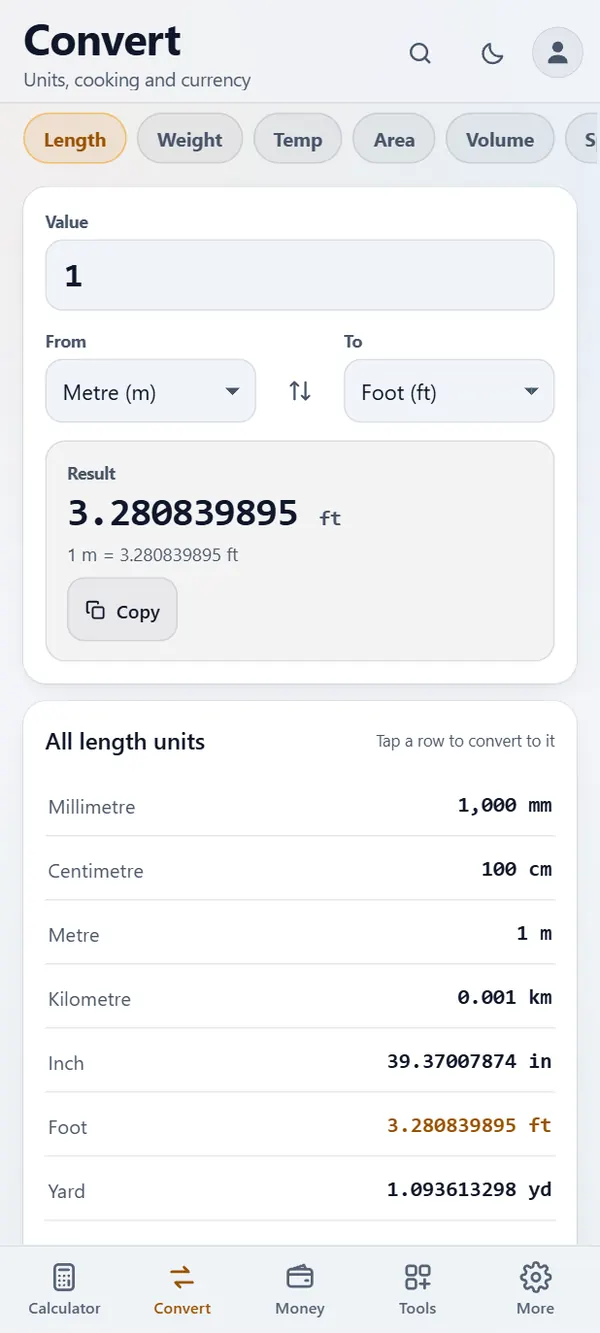
- Length, weight (including tola, masha and ratti), temperature, area (marla and kanal), volume, speed, data, time, pressure, energy, power and angle, with every unit in a category listed at once.
- Cooking
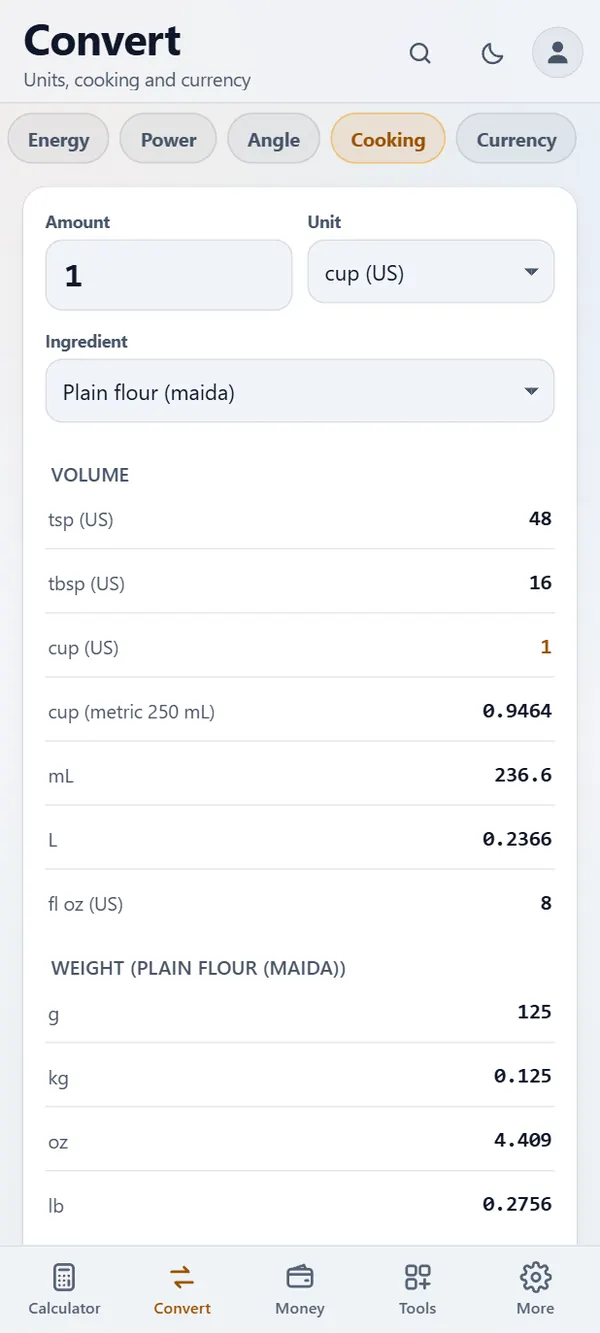
- Cups and spoons to grams for flour, atta, besan, sugar, rice, dal, ghee and more.
- Currency with your rates
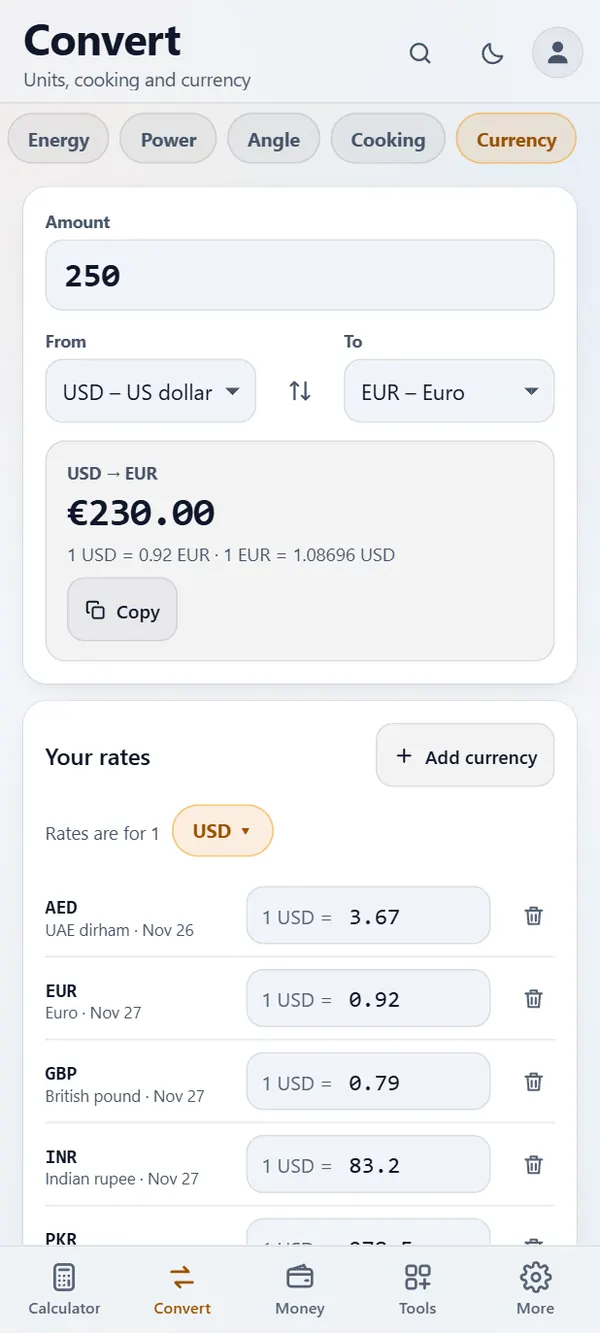
- Type the rates from your bank or exchange shop and convert between 150+ currencies. No rates are downloaded.
Money tools
- Loan / EMI
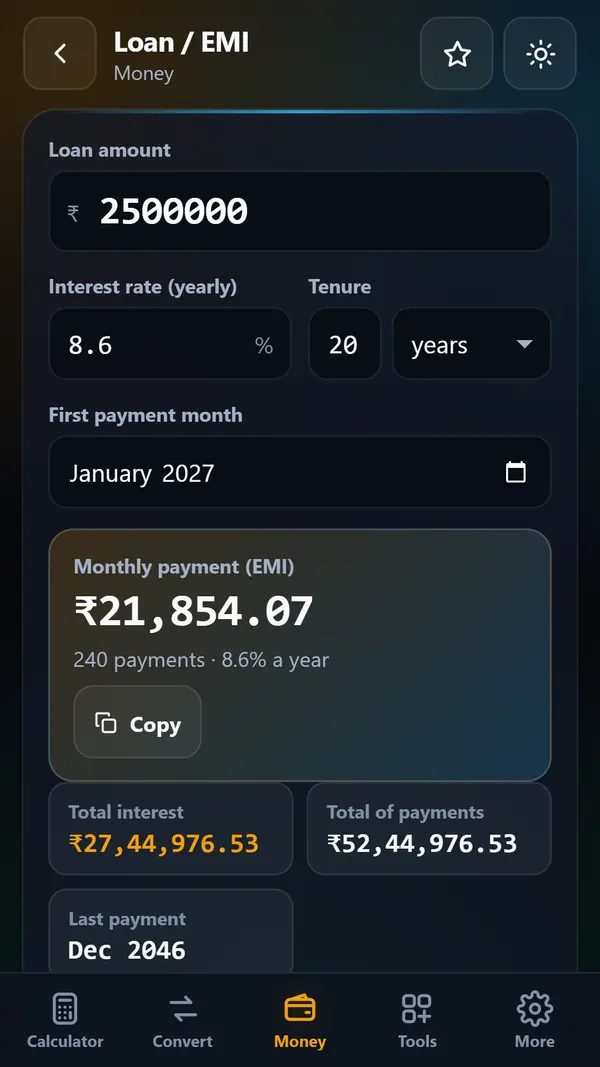
- Monthly payment, total interest and the full yearly or monthly schedule.
- Savings
- Compound interest with monthly deposits and a goal.
- Discount, percentage, tip and split
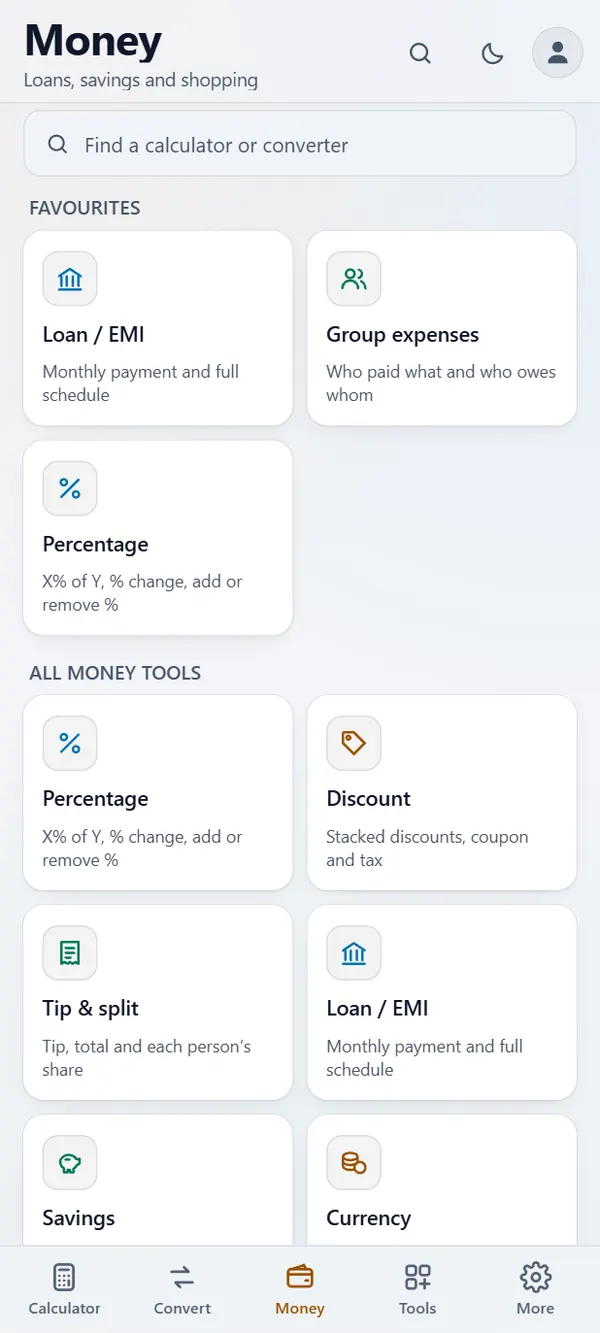
- Stacked discounts with coupon and tax, percentage tools, and a tip calculator that splits the bill.
- Unit price and pay converter
- See which pack or size is cheaper and convert pay between hourly, monthly and yearly.
- Group expenses
- Add people and who paid what for a trip or a shared house. OmniCalc shows each share, the balances and the fewest payments to settle up.
- Growth & inflation
- Average growth per year (CAGR), the effect of inflation on money, and real return after inflation.
- Margin & VAT Pro
- Selling price from cost and margin or markup, profit from your prices, and adding or removing VAT/GST.
- Loan extras Pro
- Prepayment savings, comparing two loan offers, and CSV export of schedules and history.
Everyday tools
- Time & hours
- Add durations such as 7:45 + 8:30, work out shift hours past midnight with a break, decimal hours and shift pay.
- Age, dates and working days
- Exact age and next birthday, days between dates, adding or subtracting days, and working days.
- GPA and grades
- GPA and CGPA on 4.0 or 10-point scales, and the score you need on a final.
- Fuel, fractions and BMI
- Trip fuel cost and economy, exact fractions, and BMI with WHO or Asian cut-offs (an estimate, not medical advice).
- Ratio solver
- Solve A : B = C : ?, resize while keeping the aspect ratio, or simplify a ratio.
- Offline time-zone converter
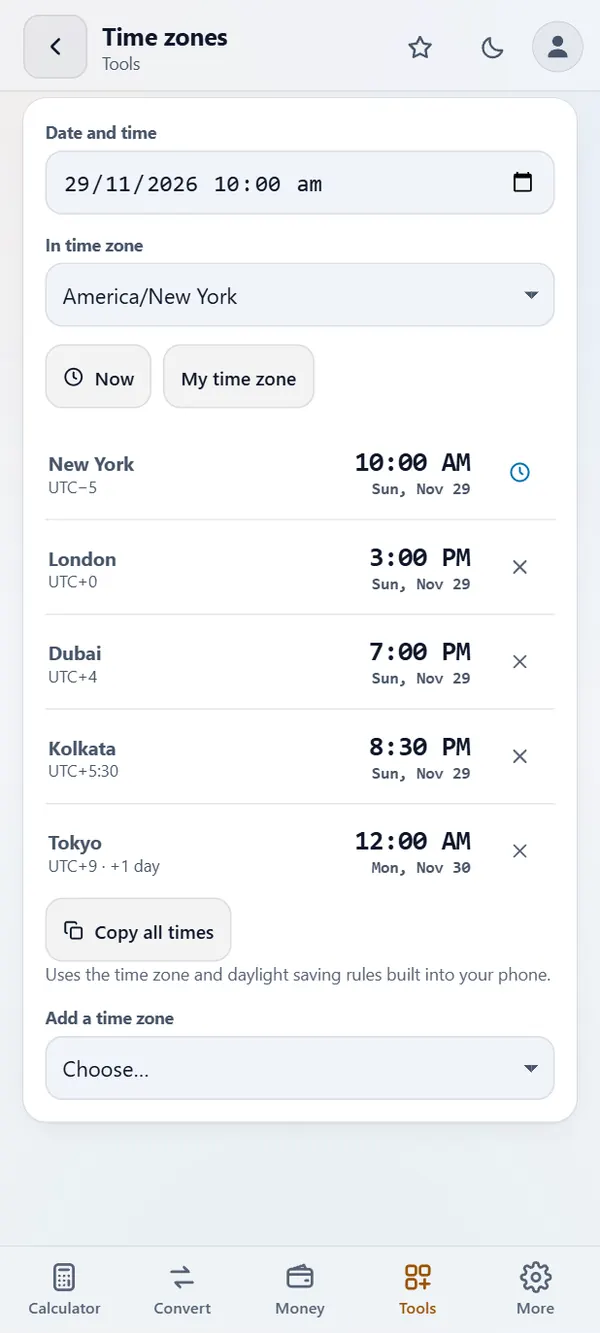
- Convert a date and time between cities using your phone’s built-in time-zone and daylight-saving rules, with no internet needed.
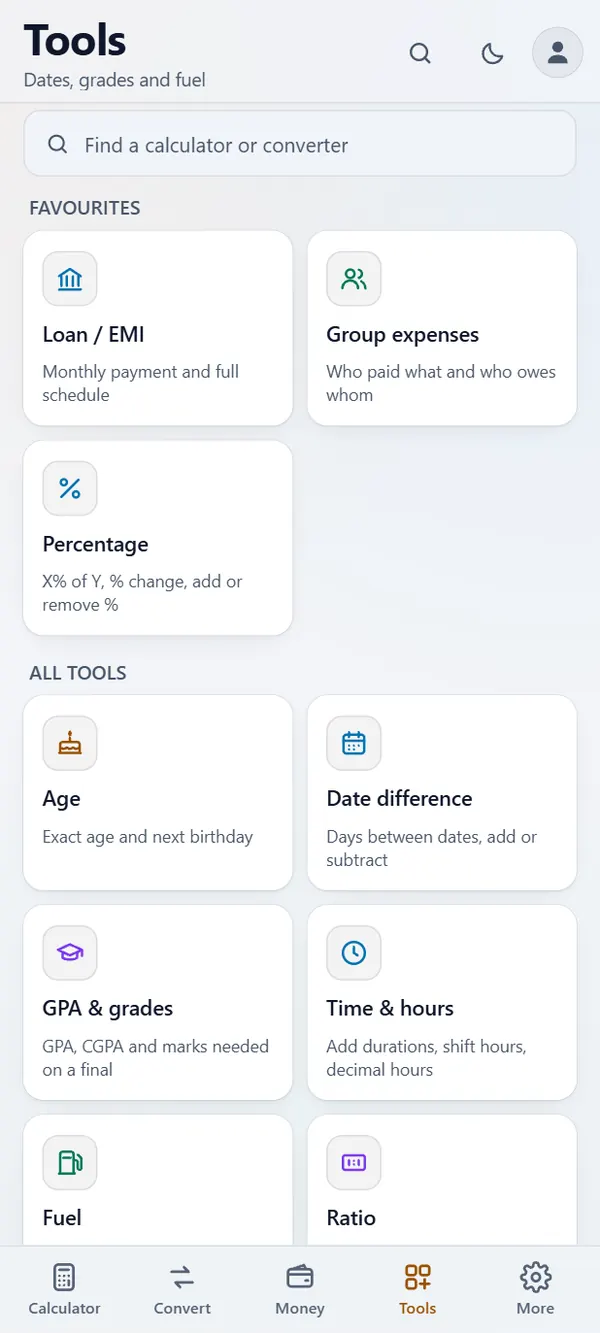
- Find any tool
- Type what you need, such as “mortgage” or “psi”, and star favourites to keep them on top.
Pro tools
- My formulas Pro
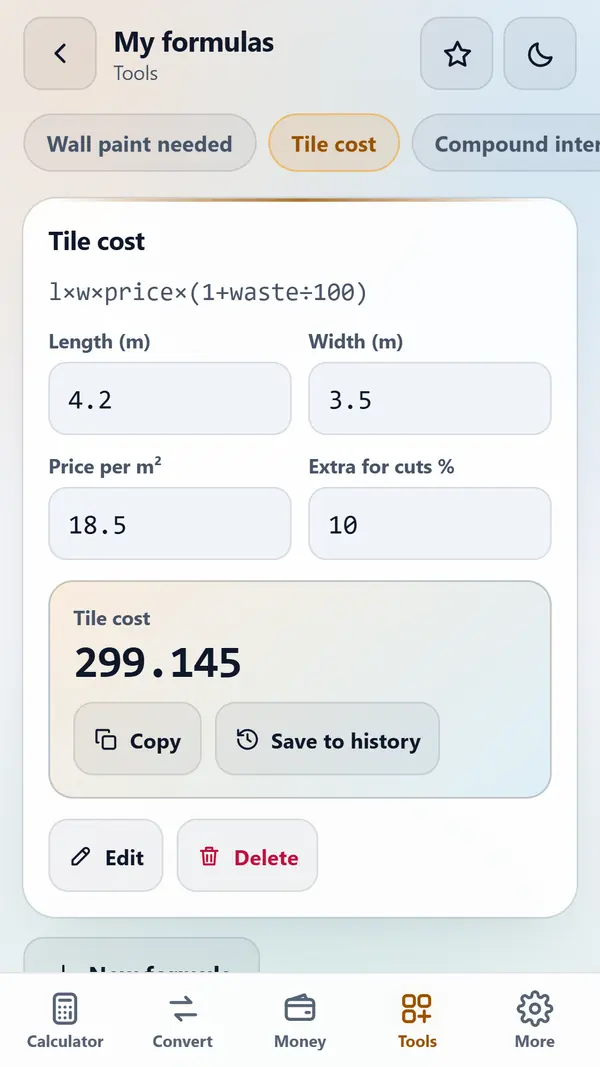
- Type a formula such as l*w*price, name its inputs and save it as your own calculator, or start from 8 templates. Saved formulas stay usable if Pro ends.
- Graph Pro
- Plot up to three functions, drag, pinch or use the buttons to zoom, and tap to read values.
- Statistics and equation solver Pro
- Mean, median, mode, standard deviation and quartiles, plus quadratics and equations with 2 or 3 unknowns.
Private by design
- Offline and private
- No account needed, no ads and no analytics. Your history, notes, formulas and rates stay on your phone.
- Backup and sync
- Back up to a JSON file and restore it on another phone, or sign in to the optional Bright Loop Account to sync.
- Dark and light themes
- Switch with the moon button, or choose System, Dark or Light under More.
Full store description
A calculator you can trust
- Standard and scientific modes with correct order of operations: 2 + 3 × 4 = 14 and −2² = −4
- Live answer as you type; powers, roots, trig and inverses, ln, log, factorial, nCr, nPr; degrees or radians, memory and Ans
- Shop-style percentages: 200 − 15% = 170
- 0.1 + 0.2 shows 0.3; lakh and crore grouping
- History of 500 calculations: search it, add notes, reuse a result or reopen a calculation to edit it
Convert anything, offline
- Length, weight (tola, masha, ratti), temperature, area (marla and kanal, 272.25 or 225 sq ft), volume, speed, data and time
- Pressure (bar, psi, kPa, atm, mmHg), energy (kWh, kcal, kJ, BTU), power (hp, kW, BTU/h, tons of AC) and angle (degrees, radians, gradians)
- Cooking: cups and spoons to grams for flour, atta, besan, sugar, rice, dal, ghee and more
- Currency: type the rates from your bank or exchange shop and convert between 150+ currencies. No rates are downloaded.
Money tools
- Loan / EMI with the full schedule; savings with compound interest and a goal
- Discount (stacked, coupon, tax) and percentage tools
- Tip and split, unit price and a pay converter
Money results are estimates for planning, not financial advice. OmniCalc never connects to a bank; you enter your own numbers.
Everyday tools
- Time and hours: add durations such as 7:45 + 8:30, shift hours past midnight with a break, decimal hours and shift pay
- Age, date difference and working days
- GPA and CGPA on 4.0 or 10-point scales, and the score you need on a final
- Fuel cost and economy, exact fractions, and BMI with WHO or Asian cut-offs (an estimate, not medical advice)
- Find any tool by typing what you need, such as "mortgage" or "psi", and star favourites to keep them on top
How to use OmniCalc.
Step-by-step walkthroughs of the main tasks, with screens from the current version.
1Calculate and reuse your historyWork out sums with the right order of operations, use shop-style percentages and pick up any earlier result.
- Step 1
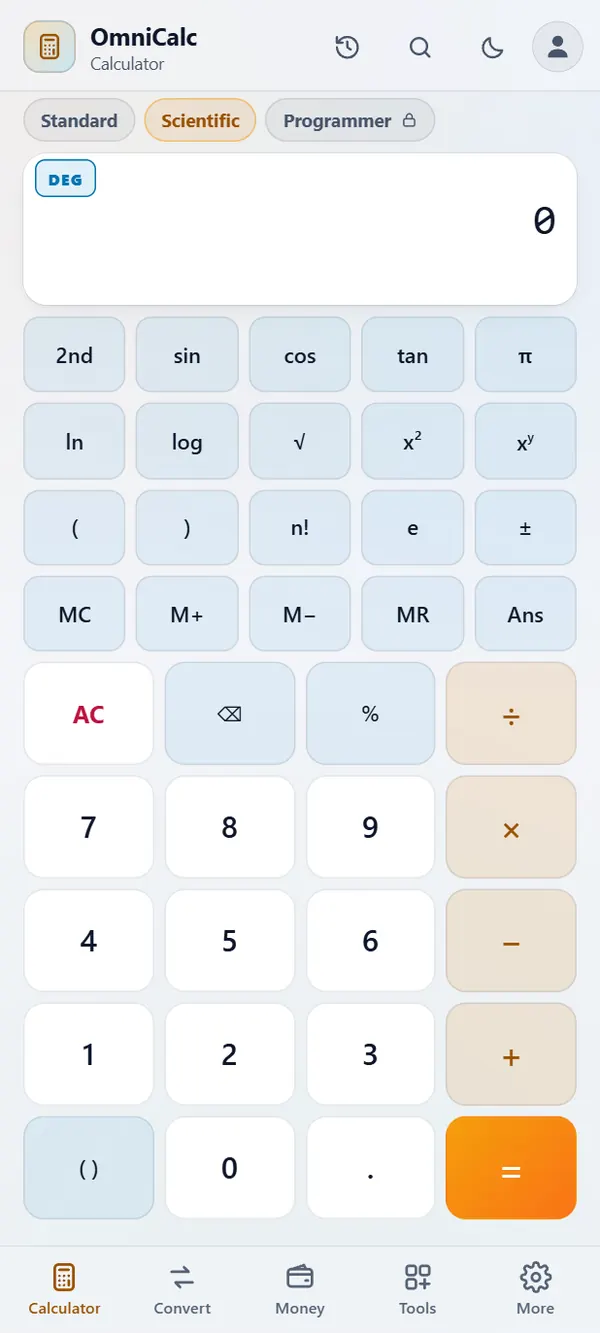
On the Calculator tab, type your sum. The answer appears live under it, and multiplication comes before addition: 2 + 3 × 4 shows 14.
- Step 2
For a discount, type the price, −, the percent and %, then =: 200 − 15% gives 170.
- Step 3
Need powers, roots, trig, logs, factorial or memory? Tap Scientific. The DEG badge shows whether angles are in degrees or radians.
- Step 4
Tap the clock button at the top to open History. Search results and notes, tap a result to use it again, or tap the pen to add a note or edit the calculation.
2Convert units, recipes and currencyConvert between units in 12 categories, turn cups into grams, and convert money with your own rates.
- Step 1
Open Convert, pick a category such as Length, Area or Pressure, type a Value and choose From and To. The list below shows every unit in that category; tap a row to convert to it.
- Step 2
Tap Cooking, enter an Amount and Unit, and choose an Ingredient to see it in spoons, cups, millilitres and grams.
- Step 3
Tap Currency. Under Your rates, tap Add currency and type the rate from your bank or exchange shop. Then enter an Amount and choose From and To. No rates are downloaded.
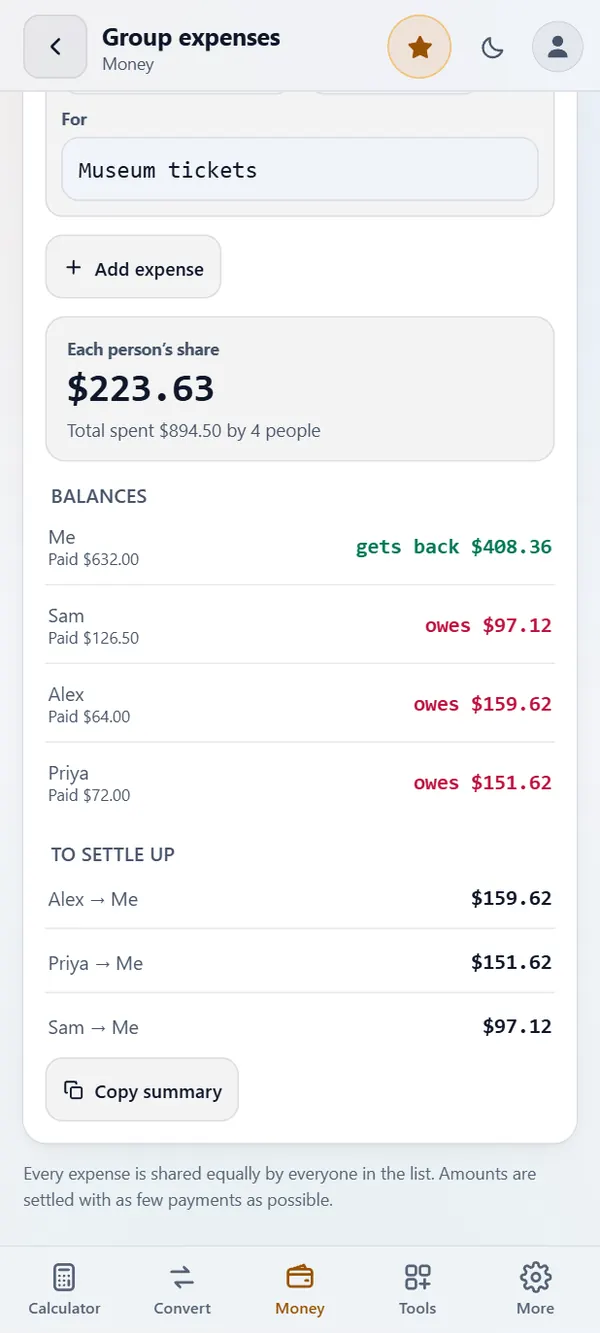
3Split group expensesAdd who was there and who paid what, and OmniCalc works out each share and the fewest payments to settle up.
- Step 1
Open Money and tap Group expenses. Type each person’s name under People, using Add person for more (up to 12).
- Step 2
Under Expenses, choose who paid in Paid by, type the Amount and what it was For. Tap Add expense for each one.
- Step 3
Scroll down to see Each person’s share, the Balances (who gets money back and who owes) and To settle up, the fewest payments that square everyone. Copy summary copies it as text.
4Check growth and inflationFind the average yearly growth of an investment, what inflation does to money, and your real return.
- Step 1
Open Money and tap Growth & inflation.
- Step 2
With Growth rate selected, enter the Start value, End value and Years. OmniCalc shows the average growth per year (CAGR), the total change, the gain and how often the value doubles.
- Step 3
Tap Inflation to see what inflation does to an amount over the years, or Real return to take inflation off a return. Results are estimates from your numbers, not financial advice.
5Solve ratios and convert time zonesUse the Ratio tool for proportions and image sizes, and the Time zones tool to plan across cities, all offline.
- Step 1
Open Tools and tap Ratio. In A : B = C : ?, enter A, B and C and the missing value appears, with the cross-multiplication shown. Resize keeps an aspect ratio and Simplify reduces a ratio.
- Step 2
In Tools, tap Time zones. Set the Date and time and In time zone, or tap Now or My time zone.
- Step 3
Each city in the list shows its local time, UTC offset and a note when it is already the next day (or still the previous one). Add cities with Add a time zone, remove them with the cross, and use Copy all times to share.
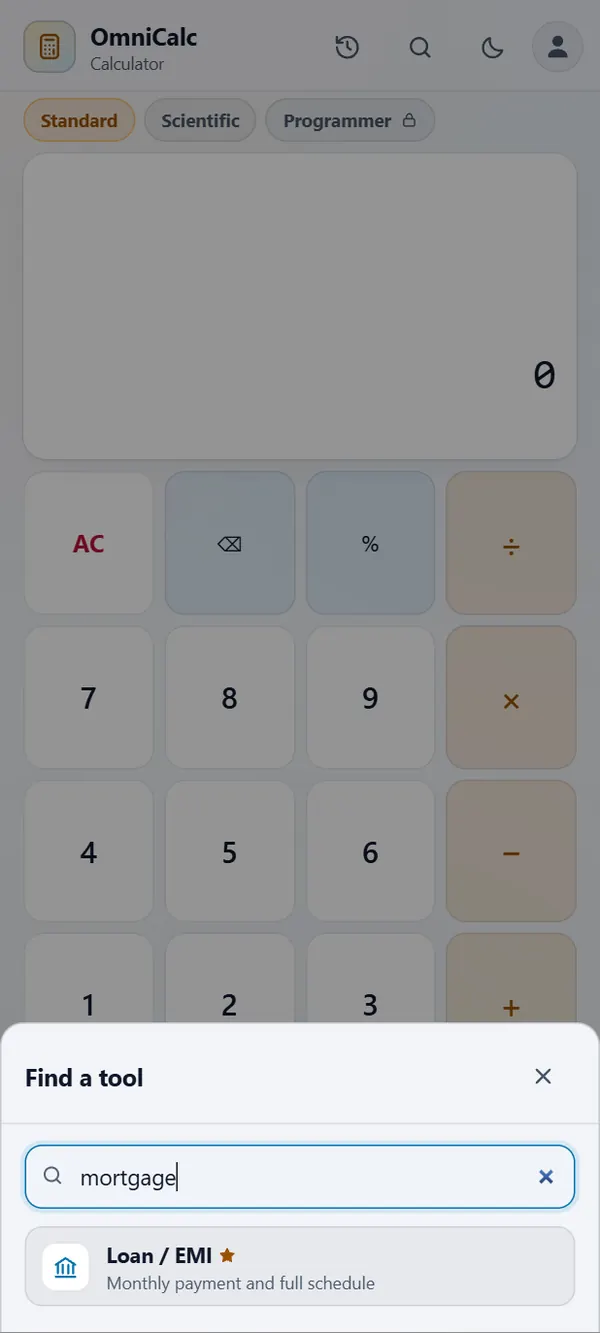
6Find tools fast and keep favouritesSearch for any tool by what you need and star the ones you use most.
- Step 1
Tap the magnifier at the top (or Find a calculator or converter on Money and Tools) and type what you need, such as “mortgage”, “psi” or “hours”.
- Step 2
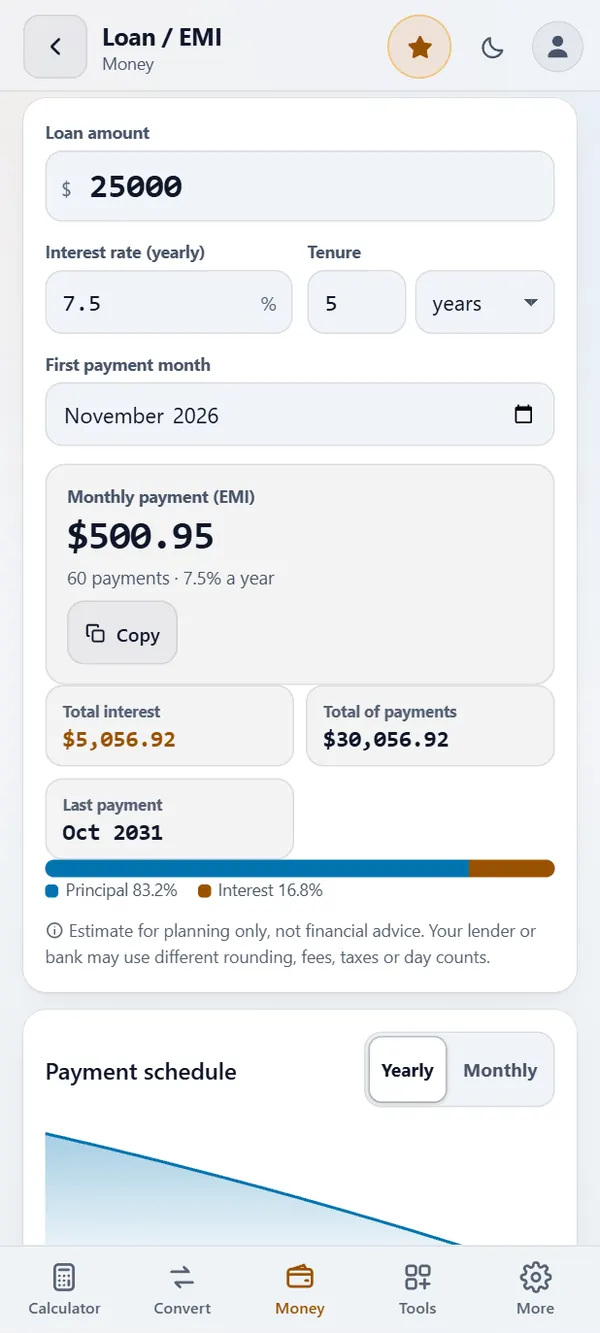
In any tool, tap the star at the top to add it to your favourites.
- Step 3
Favourites appear at the top of Money and Tools, and in the search sheet next to your recently used tools.
Free, with optional Pro.
Download OmniCalc free. Pro is optional and billed by Google Play, which shows the price before you confirm.
OmniCalc Pro (optional subscription)
- My formulas: type a formula such as l*w*price, name its inputs and save it as your own calculator, or start from 8 templates
- Margin & VAT: selling price from cost and margin or markup, profit from your prices, and adding or removing VAT/GST
- Graph: plot up to three functions, drag, pinch to zoom and tap to read values
- Statistics, and an equation solver for quadratics and 2 or 3 unknowns
- Programmer mode: HEX, DEC, OCT and BIN with bitwise operations in 8 to 64 bits
- Loan extras (prepayment savings, compare two offers) and CSV export of schedules and history
Pro is a monthly or yearly subscription through Google Play. The price, and any trial offer, is shown in the app before you buy. It renews until you cancel in Google Play > Payments & subscriptions. Everything in the lists above needs no subscription, and formulas you saved stay usable if Pro ends.
Manage or cancel subscriptions in Google Play > Payments & subscriptions. Purchases and Restore purchases
Try it now.
Open OmniCalc right here in your browser, or download the Android app file directly.
Open in browser
The full OmniCalc app, running in a new tab. Nothing to install.
Some phone-only features, such as purchases, notifications, sharing and camera scanning, work only in the Android app. Anything you do in the browser is saved in that browser only, unless you sign in to the Bright Loop Account.
Download the APK
Install OmniCalc on an Android phone without Google Play.
- Version
- 1.3
- Size
- 3.9 MB
- SHA-256
5ed356d870cc99ec82d31c9eaef568fe186c8108a403975bd7836bcd2b633de5
An APK installed from this website can't be updated from Google Play later. To switch to Google Play, uninstall it and install from Play. Your data only comes with you if you back it up with the Bright Loop Account first. How to install an APK
Requirements & details.
- Requires
- Android 7.0 or later
- Size
- 3.9 MB
- Version
- 1.3
- Price
- Free, optional Pro subscription
- Internet
- Not required
- Account
- Optional Bright Loop Account
- Ads
- None
- Category
- Utilities
- Developer
- Bright Loop (Google Play: Bright Loop Games)
- Availability
- Early access (Google Play closed testing)
- Web version
- Open in browser
How to get OmniCalc.
OmniCalc is in early access through Google Play closed testing. It takes about two minutes.
- Ask to join the tester listEarly access runs as a Google Play closed test, so your Google account must be on the tester list before the opt-in link works. Send us the Gmail address you use on Google Play and we'll add you.
- Open the opt-in linkOn your Android phone, signed in to the same Google account, open the OmniCalc early access link.
- Tap "Become a tester"Google Play confirms that you've joined the test.
- Install from Google PlayTap the "download it on Google Play" link on that page, or open the Google Play page, then tap Install. Updates arrive through Google Play like any other app.
- Tell us what you thinkEarly access means your feedback shapes the next update. Email rehman@mindum.dev any time.
Link not working? See Troubleshooting or the full early access guide.
Account & sync.
Optional. OmniCalc works fully without an account. Sign in to the free Bright Loop Account to back up your OmniCalc data and keep it in sync across your phones.
What syncs
- History, notes and saved formulas
- Your own exchange rates and settings
What stays on this phone
- Your Pro status (Google Play restores it)
Account & Sync is part of OmniCalc 1.3. Look for it at the top of Settings.
Privacy.
OmniCalc keeps your data on your phone. No ads and no analytics.
Private by design
No account needed, no ads, no analytics. Your history, notes, formulas and rates stay on your phone. Back up to a file and restore on another phone. Dark and light themes.
If you sign in
The Bright Loop Account is optional. If you sign in, OmniCalc backs up the records listed under Account & sync to your account so you can restore them on another phone. Photos and files are never uploaded, and you can export or delete your cloud data at any time.
Read the full Privacy Policy.
Tips.
- Can’t find a tool? Tap the magnifier and type what you want to work out, such as “vat”, “hours” or “mortgage”.
- Add a note to a result in History (the pen button) so you know later what the number was for.
- In the converter, tap any row in the list to make it the target unit.
- Currency rates are the ones you type, so update them from your bank or exchange shop before a big conversion.
- In Group expenses, list everyone who shares the costs under People, even if they paid nothing: every expense is shared equally by everyone in the list.
- Use the Ratio tool’s Resize mode to work out an image height for a new width without stretching it.
Troubleshooting.
A currency conversion looks wrong
Check the rate under Your rates and the currency the rates are for (Rates are for 1 …). Rates never update automatically, so type in today’s rate.
Trig results look strange
Check the DEG or RAD badge in Scientific mode. Degrees and radians give very different answers for sin, cos and tan.
A tool shows no result
Fill in every box the tool asks for. It shows a hint such as “Enter A, B and C” until it has enough to work with.
My history is gone on a new phone
On the old phone use More > Back up and restore > Back up (JSON), then Restore backup on the new phone, or sign in to the Bright Loop Account on both.
Questions.
Why does 2 + 3 × 4 give 14 and not 20?
OmniCalc follows the standard order of operations, so multiplication and division come before addition and subtraction. Use brackets if you want 20: (2 + 3) × 4.
How does 200 − 15% work?
OmniCalc uses shop-style percentages: a percent after + or − is a percent of the number before it, so 200 − 15% is 200 minus 30, which is 170.
Where do currency rates come from?
From you. Type the rates your bank or exchange shop gives you under Your rates. OmniCalc never downloads rates, so it works offline.
How does Group expenses decide who pays whom?
Every expense is shared equally by everyone in People. OmniCalc works out each person’s balance and then the fewest payments that settle everyone up.
Does the time-zone converter handle daylight saving?
Yes. It uses the time-zone and daylight-saving rules built into your phone, so it works offline for any date you choose.
How many calculations does History keep?
Up to 500 on your phone. You can search them, add notes, reuse a result or edit a calculation.
What happens to my formulas if Pro ends?
Formulas you saved stay usable. Creating new ones and the other Pro tools need an active subscription.
Is OmniCalc free?
Yes. OmniCalc is free to download and use. OmniCalc Pro is an optional monthly or yearly subscription through Google Play that adds the extras listed under Free and Pro. Google Play shows the price, and any trial, before you confirm.
Why can't I find OmniCalc on Google Play?
OmniCalc is in early access (a Google Play closed test), so it only appears for people on the tester list. Follow the steps under How to get it. Once it becomes public, anyone can install it from Google Play.
Does OmniCalc work offline?
Yes. OmniCalc works without an internet connection. You only need a connection for optional things like Bright Loop Account sync and Google Play purchases.
Do I need an account?
No. OmniCalc works fully without one. The Bright Loop Account is optional and adds cloud backup and sync across your phones.
How do I move to a new phone?
Sign in to your Bright Loop Account on the new phone and choose "Use Cloud Data", or export a backup file on the old phone and restore it on the new one. Photos and files only move with a backup file. Pro comes back with Restore purchases. See Move to a new phone.
How do I restore a purchase?
Make sure your phone uses the same Google account you bought with, open OmniCalc and tap Restore purchases. Google Play checks your purchases and OmniCalc unlocks what you own. More about purchases.
Can I use OmniCalc in a browser?
Yes. Tap Open in browser to run it in a new tab. Some phone-only features, such as purchases, notifications, sharing and camera scanning, work only in the Android app, and anything you do there is saved in that browser.
Can I install it without Google Play?
Yes, with the APK on this page (version 1.3, 3.9 MB). An APK install can't be updated from Google Play later; see Install an APK on Android.
What do I need to run it?
Android 7.0 or later, or any modern browser for the web version.
Is it available on iPhone?
There's no iPhone app at the moment. OmniCalc is made for Android, but you can open the web version in Safari.
Get help with OmniCalc
Email rehman@mindum.dev. Include your phone model, Android version and what happened, and we'll take it from there.
Help Centre
Step-by-step guides for early access, sync, backups, purchases and moving phones. Visit the Help Centre
More apps you might like.

QRForge
Make QR codes for links, Wi-Fi, contacts and more, print stickers, scan codes.

KeyForge
2-step verification codes and strong password generator. Offline, PIN locked.

DocClean
Scan documents, receipts and ID cards to PDF. Crop, straighten, clean. Offline.

Drift
Bedtime calculator, weekly sleep schedule, sleep sounds, sleep diary and trends