PulseRead
Read one word at a time, import TXT and EPUB, track streaks and practise pace.
PulseRead is finished and being prepared for Google Play. There's no download yet.
A closer look.
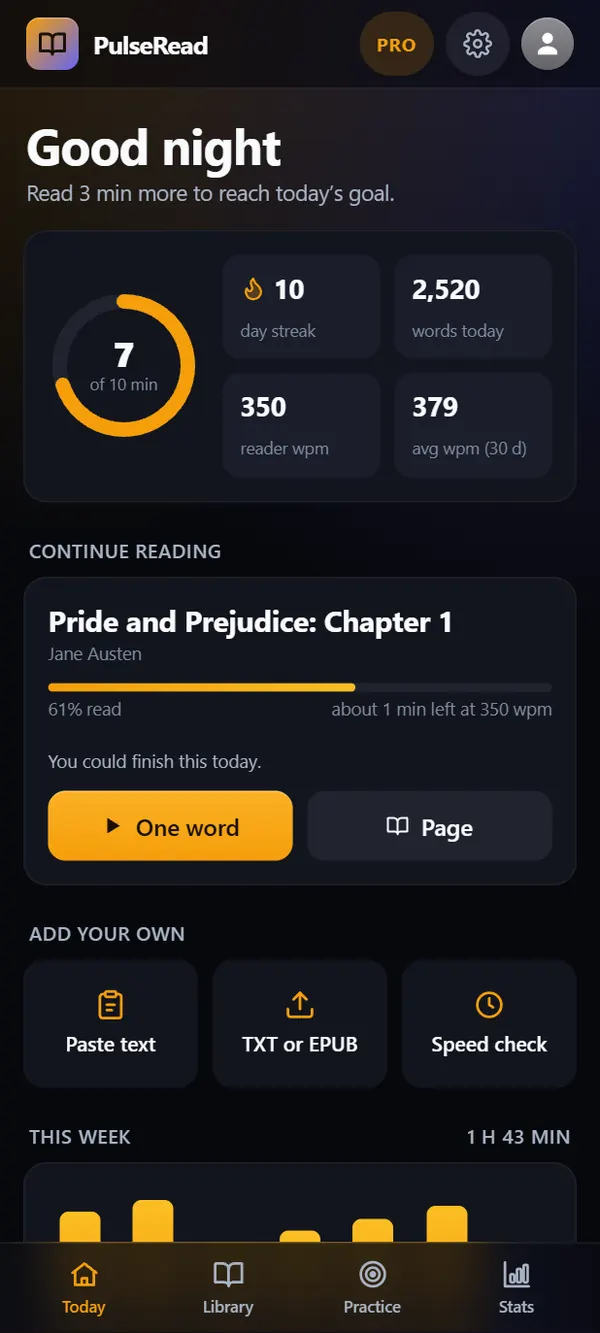
PulseRead is a speed reading trainer and reader for your own texts. Read one word at a time in a fixed spot, switch to a page view any time, and build a daily habit with goals, streaks and short drills.
What's new in version 1.2
New in version 1.2, along with a refreshed design and the optional Bright Loop Account. Early-access testers get it through Google Play.
Yearly reading challenge
Highlight of the day
Reading timer
Re-add a book's text on a new phone and keep your place
Feature tour.
Every feature in PulseRead, and what it does for you. Items marked Pro are part of the optional subscription.
Reading modes
- One word at a time (RSVP)
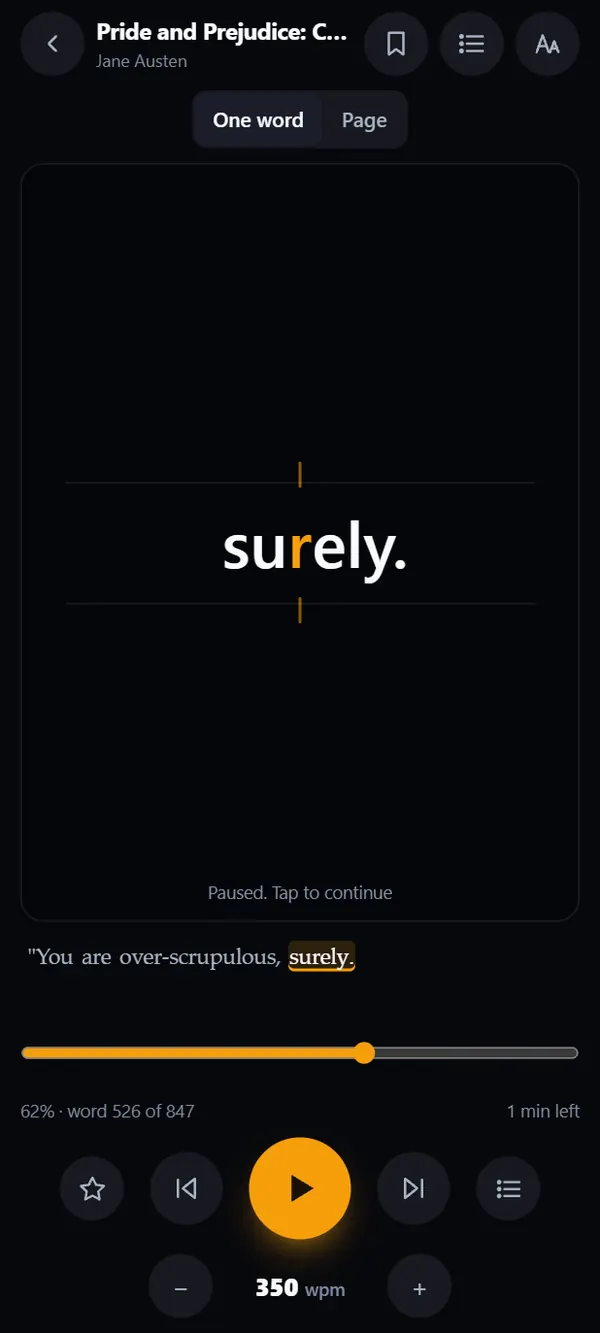
- Words appear in a fixed spot with one letter highlighted where your eye can rest, at 100 to 1,000 words per minute, with longer pauses at punctuation and long words.
- Sentence when paused
- Pause and the surrounding sentence appears underneath; tap a word to jump to it.
- Page view and pacer
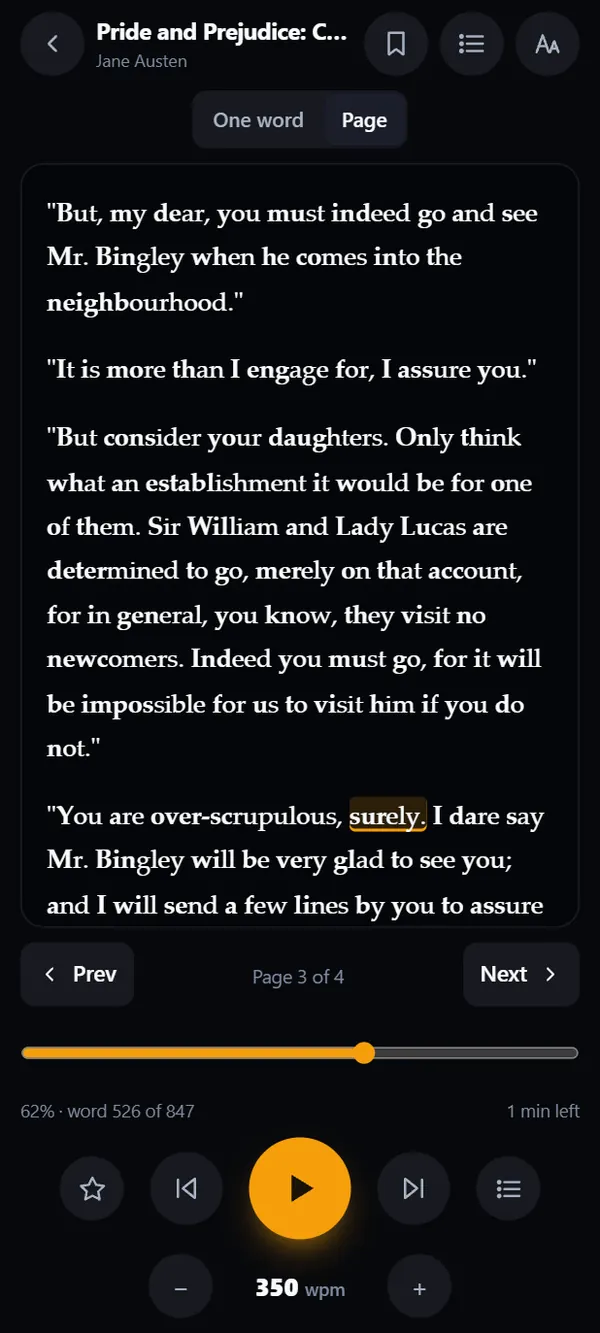
- Paragraphs with the first letters of each word in bold. Tap a word to continue from there, or start the pacer, which moves a highlight through the text at your speed.
- Reading options
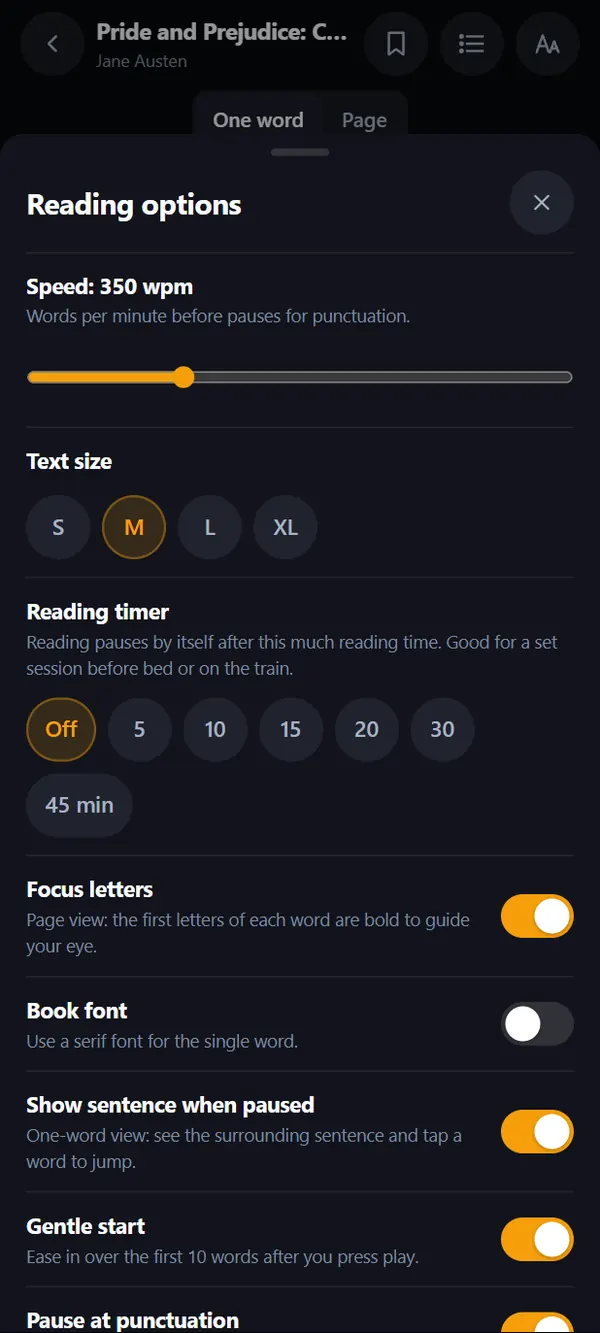
- Text size, focus letters, a book font, a gentle start and pauses at punctuation.
- 2 or 3 words per flash Pro
- Show more than one word at a time.
- Adjustable pauses and reading colours Pro
- Set pause lengths for commas, sentence ends and paragraphs, and use sepia, night or high-contrast colours.
Your texts and library
- Paste and import
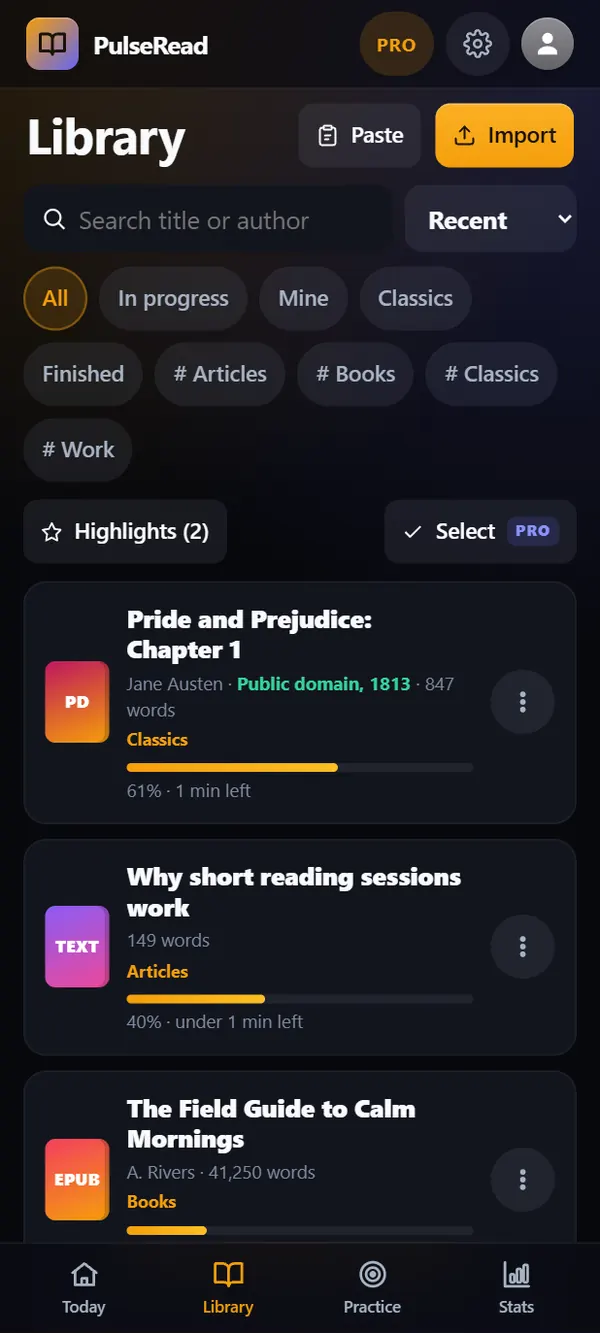
- Paste an article or notes, or import .txt, DRM-free .epub, Markdown and HTML files. EPUB chapters keep their titles. PDF is not supported; paste the text instead.
- Public-domain classics
- Seven public-domain excerpts to practise on, from Jane Austen to Rabindranath Tagore.
- Progress and finish estimates
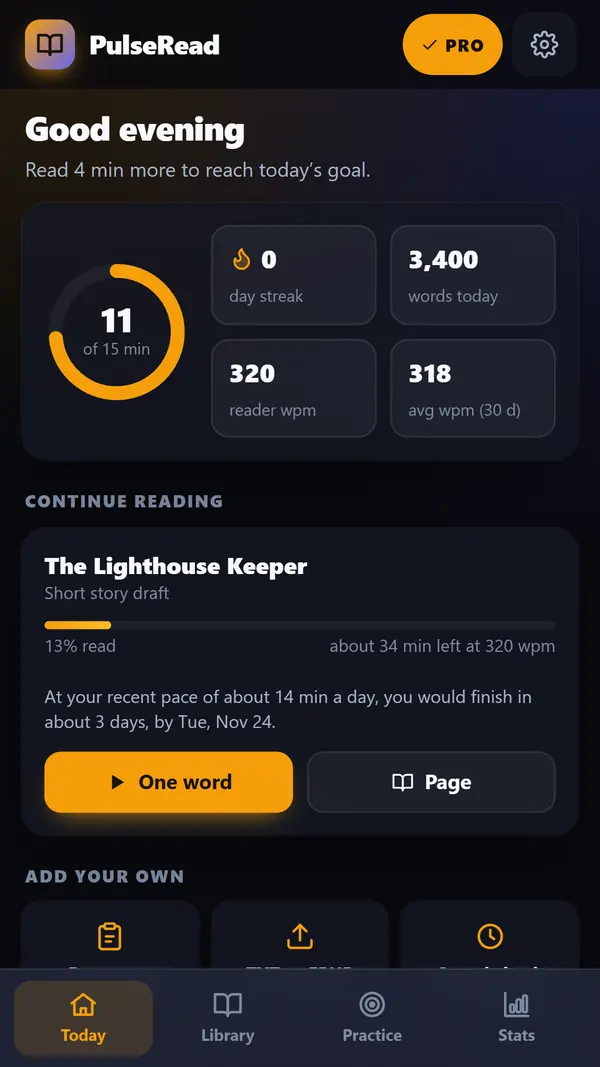
- Every text remembers your place and the time left, and estimates when you will finish at your recent daily pace.
- Bookmarks, highlights and find
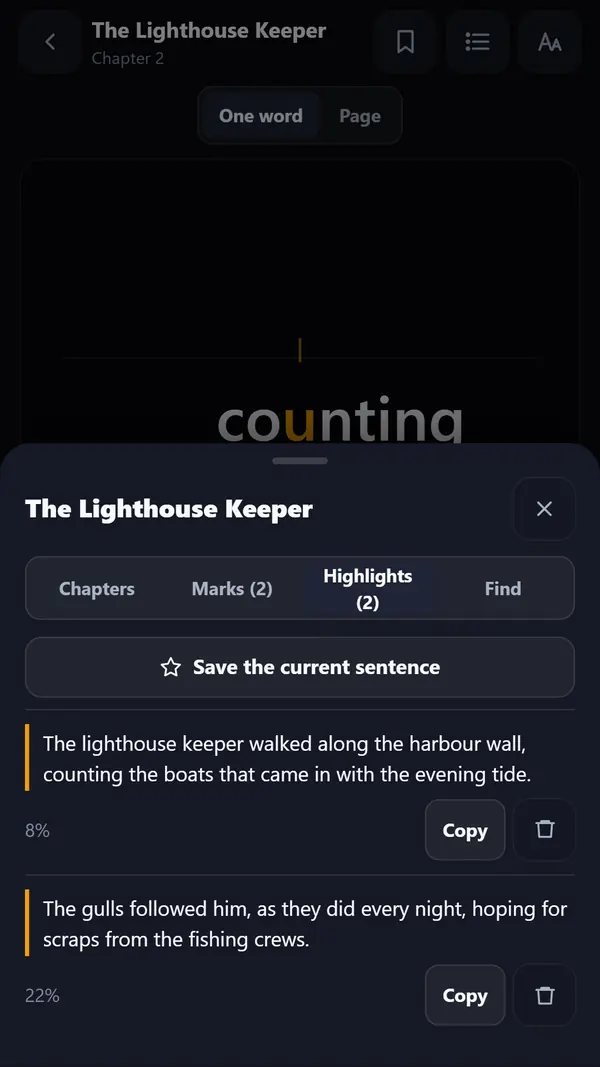
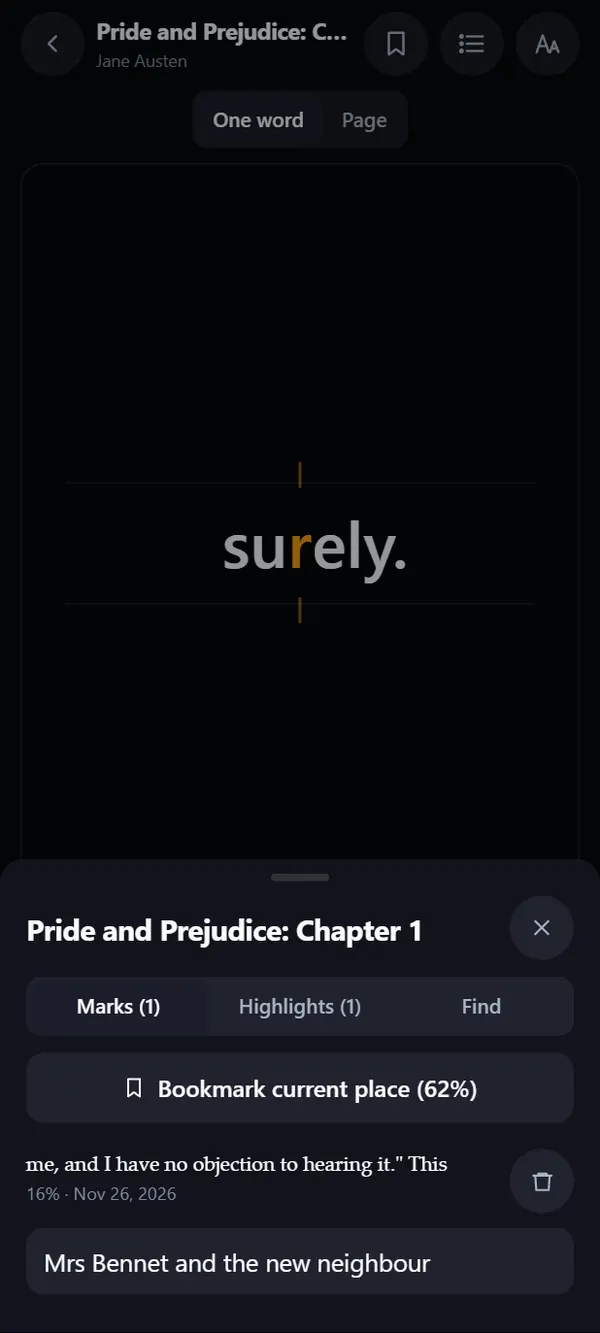
- Bookmark places with notes, save sentences as highlights, find words and browse chapters.
- Collections
- Group texts into collections such as Work and filter the library by them.
- Multi-select and highlight export Pro
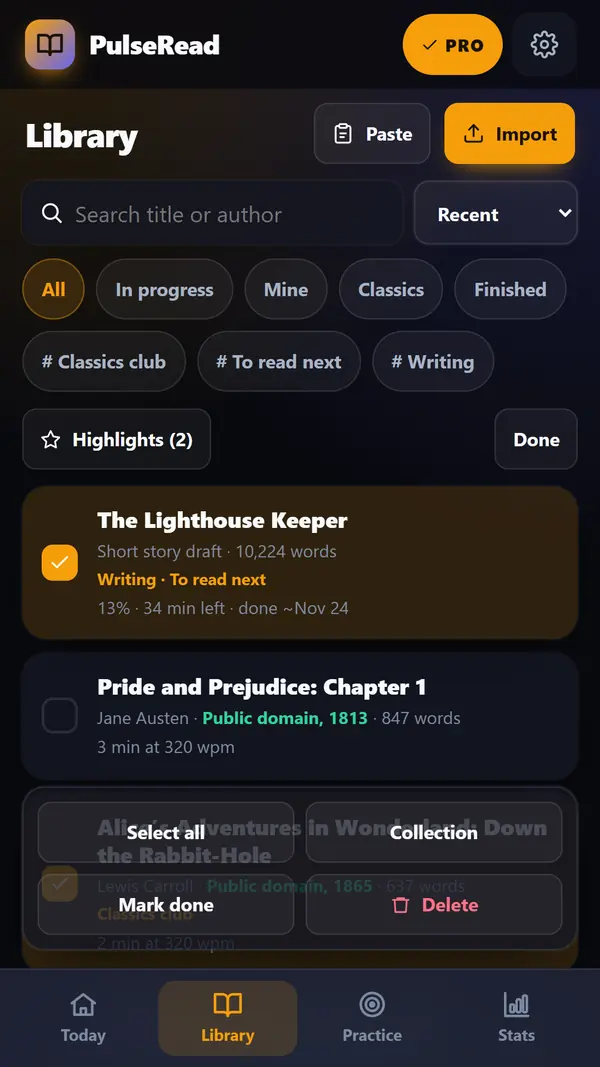
- Select many texts to add them to a collection, mark them done or delete them, and export all highlights as one Markdown text file.
New in 2.0
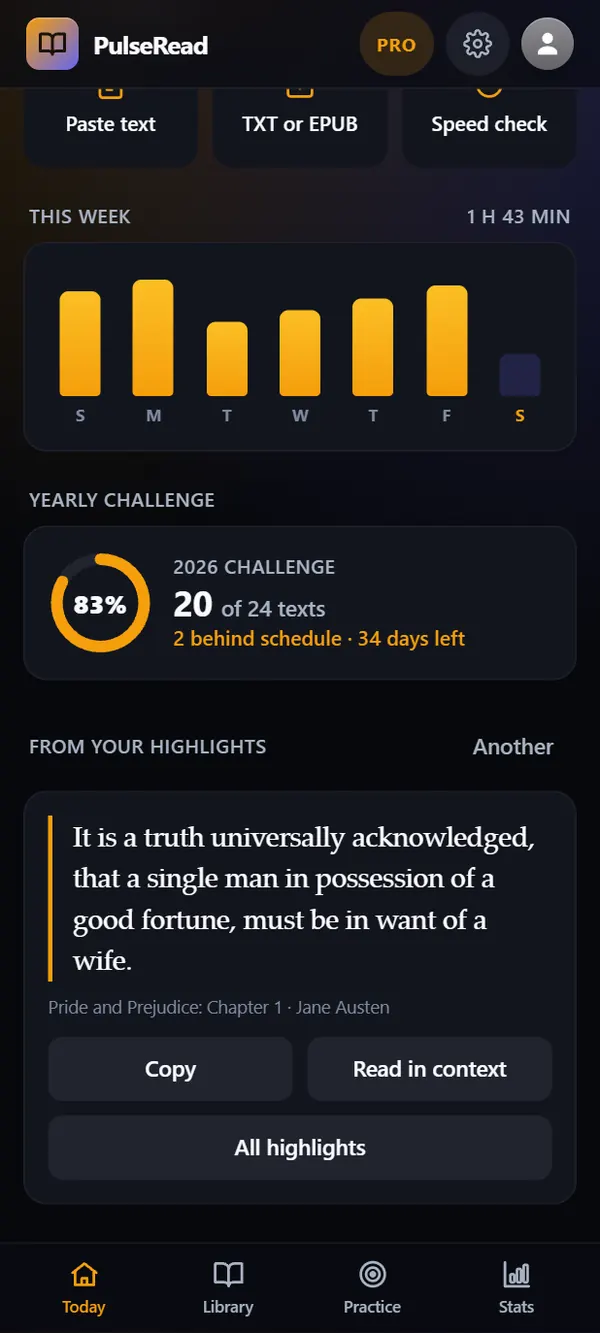
- Yearly reading challenge
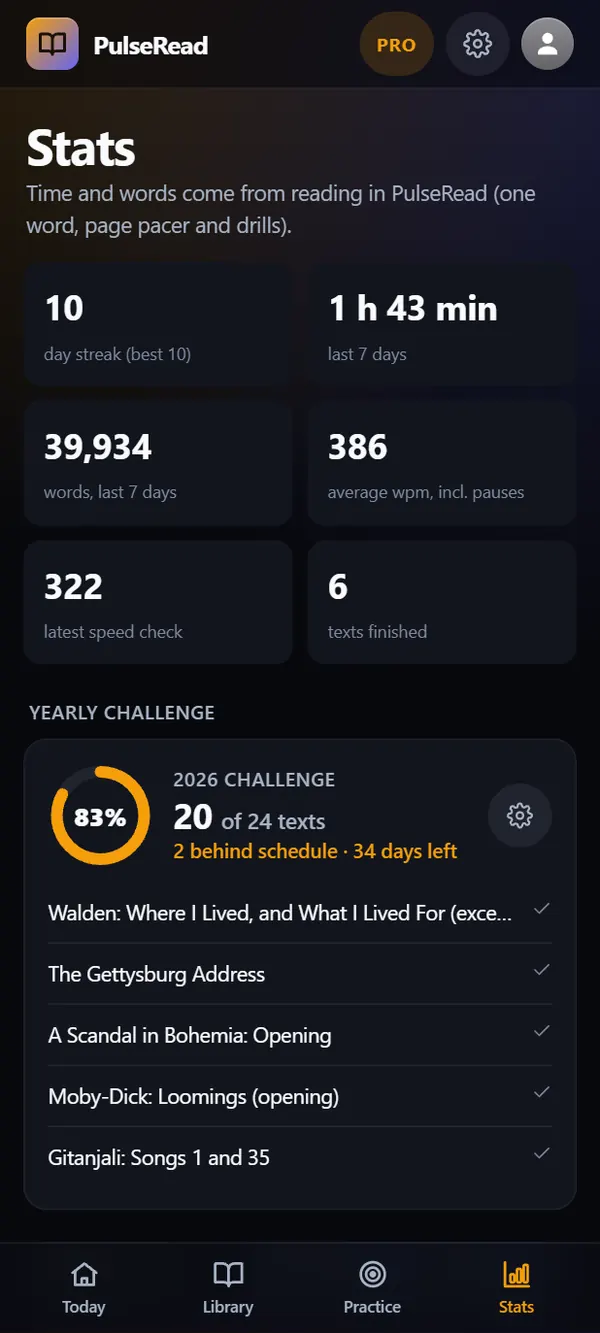
- Set how many texts you want to finish this year and see whether you are ahead or behind schedule, on Today and in Stats.
- Highlight of the day
- One of your saved sentences on the Today screen, with Copy, Read in context and Another.
- Reading timer
- Reading pauses by itself after 5 to 45 minutes. Good for a set session before bed or on the train.
- Re-add a text on a new phone
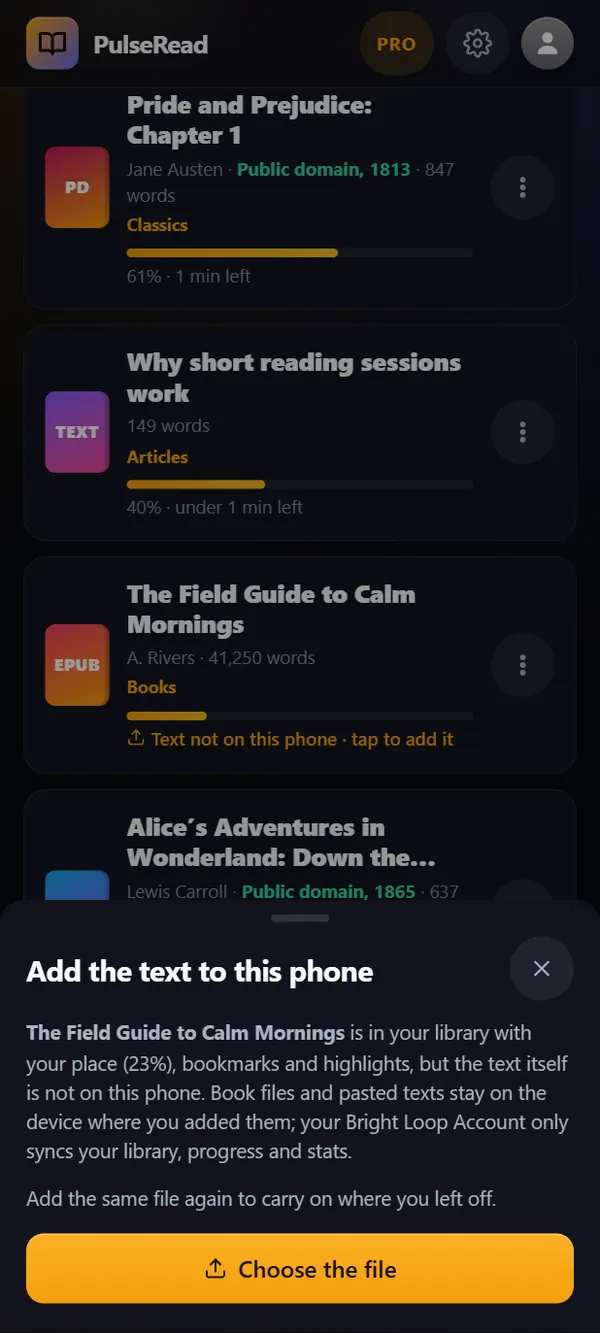
- Texts in your restored library that are not on this phone can be added again from the same file or text, keeping your place, bookmarks and highlights.
Goals and stats
- Daily goal and streak
- Set a daily goal in minutes and see your progress, streak, words read and a weekly chart. Time counts only while text is moving on screen.
- 7-day stats
- Streak, time, words and average speed for the last week, plus your latest speed check and texts finished.
- Longer charts and CSV export Pro
- 30- and 90-day charts, a speed check trend chart and CSV export of every reading session.
- Reading history Pro
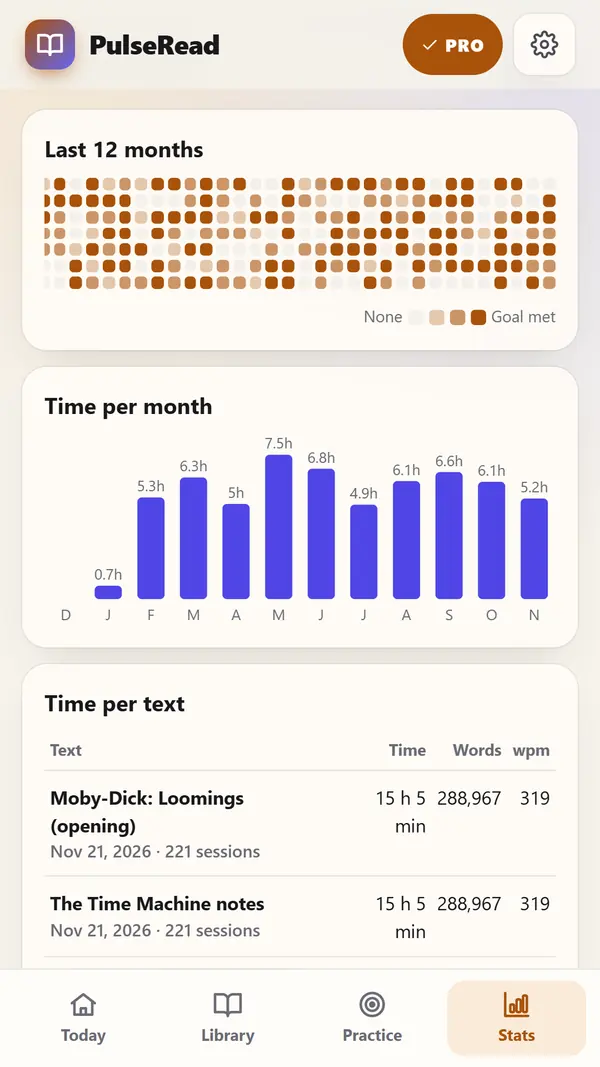
- A 12-month reading calendar, hours per month and time spent on each text.
Practice
- Speed check
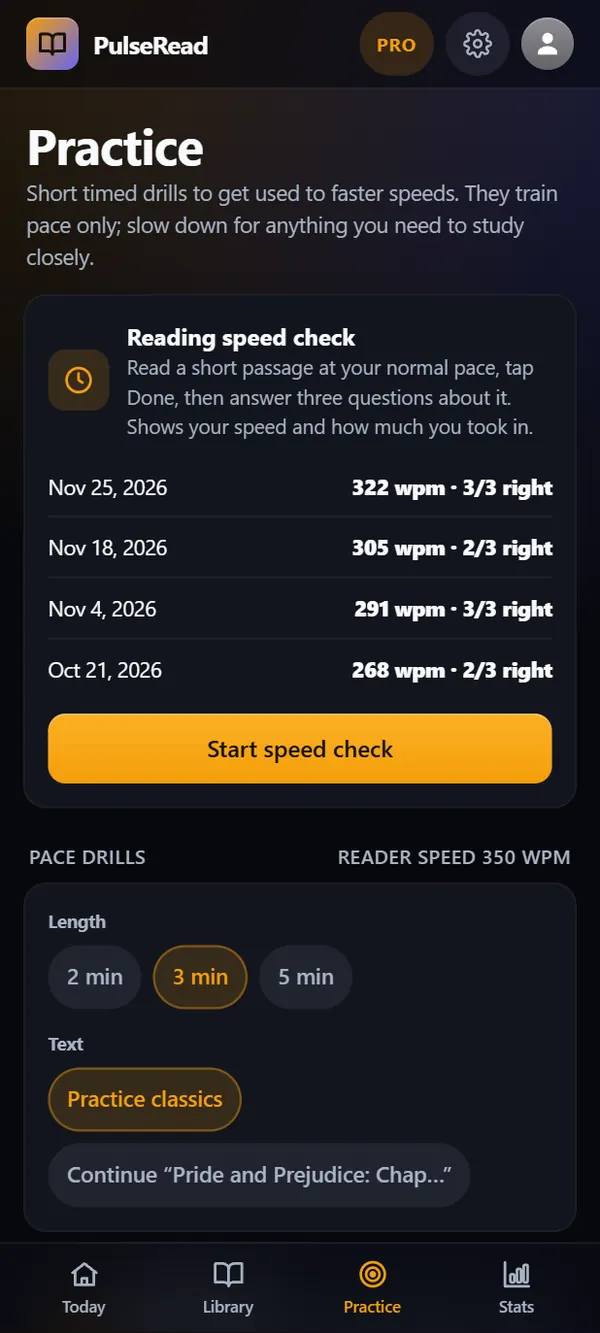
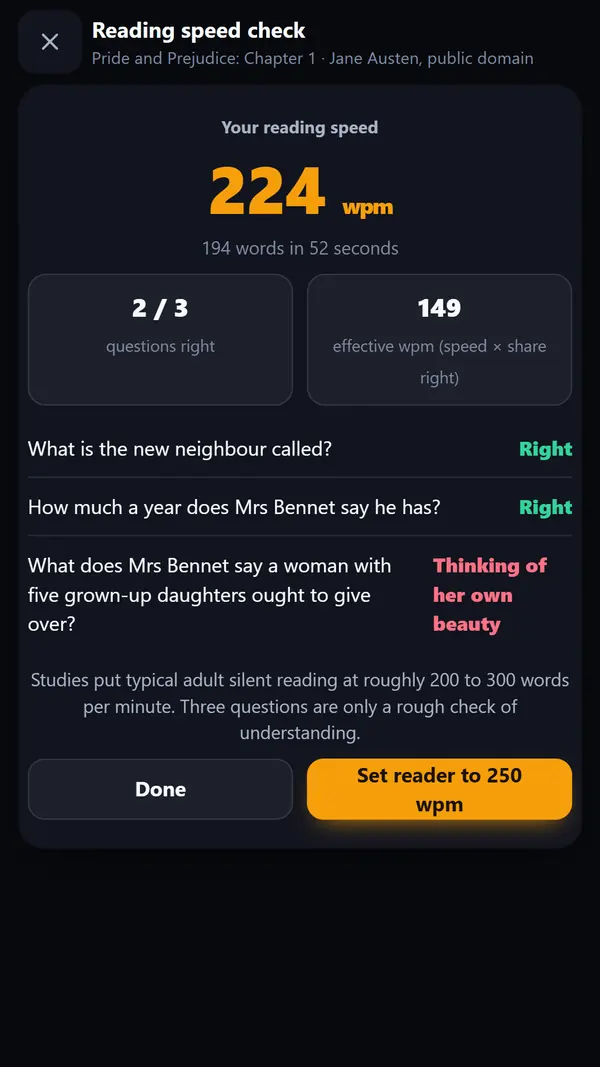
- A one-minute check of your everyday reading speed on a fresh passage, followed by three questions.
- Speed ladder drill
- A short drill that steps up from your speed, on a classic or the text you are reading.
- Number grid
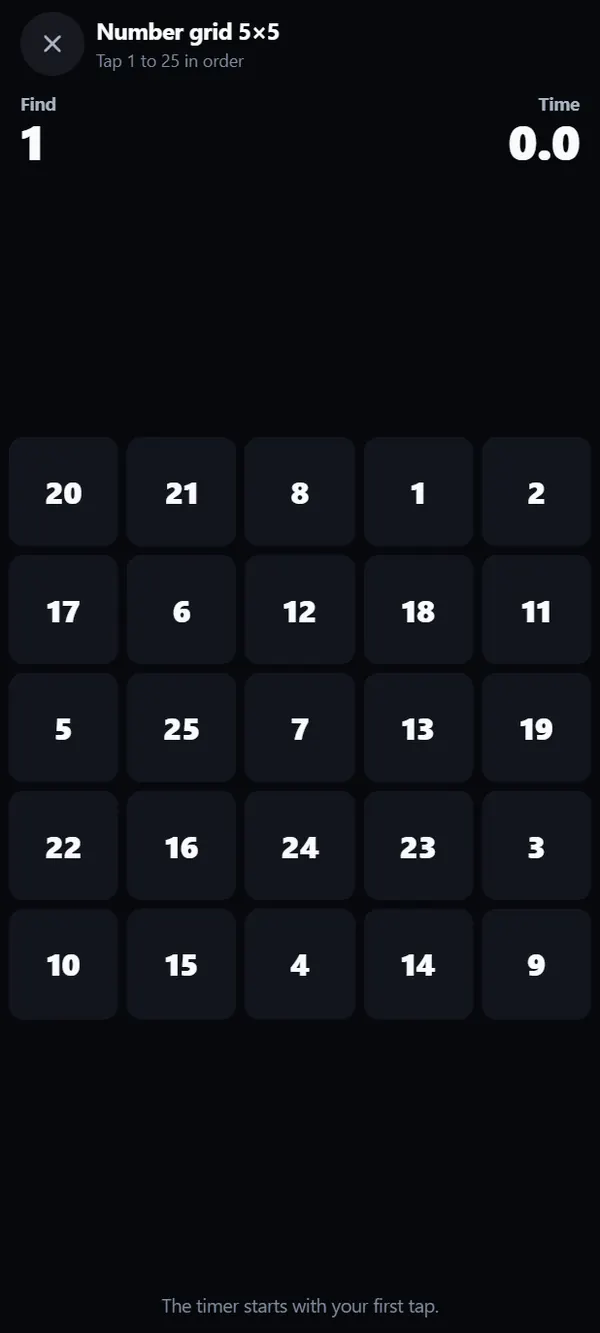
- A 5x5 Schulte table to train attention: eyes on the centre, tap the numbers in order. 6x6 and 7x7 grids are in Pro.
- Sprint and settle and custom drills Pro
- Two more drills, including one with your own start and end speed.
Private by design
- No account needed
- No ads and no analytics. Your texts and stats stay on your phone unless you export a backup.
- Backup and themes
- JSON backup and restore, plus dark and light themes.
Full store description
One word at a time (RSVP)
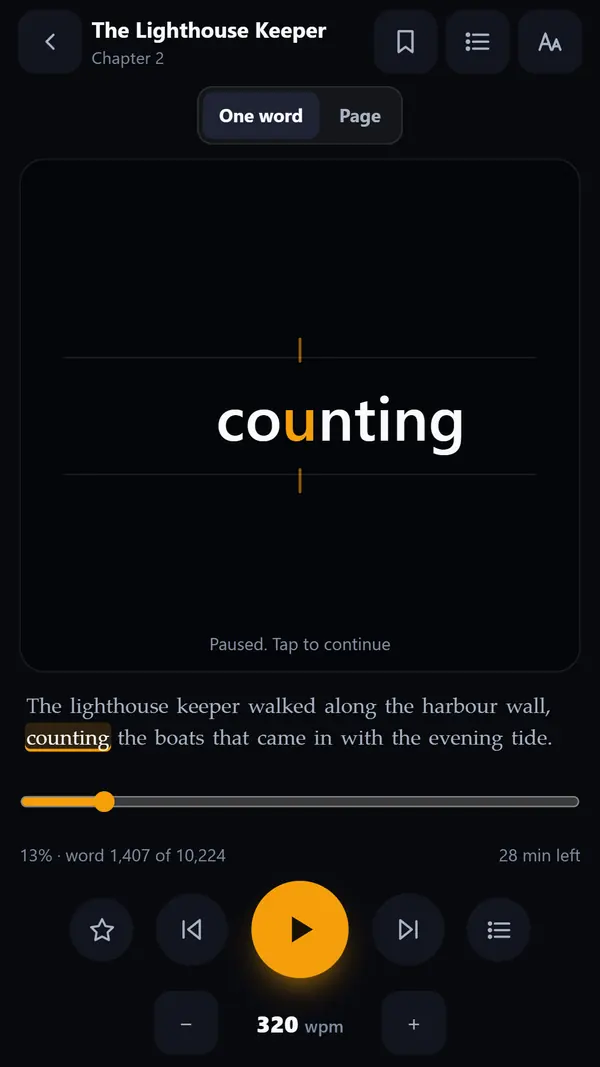
Words appear one after another in the same place, with one letter highlighted where your eye can rest. Choose 100 to 1,000 words per minute, with longer pauses at punctuation and long words. When you pause, the sentence appears underneath.
Page view with focus letters
Page view shows paragraphs with the first letters of each word in bold. Tap a word to continue from there, or start the pacer, which moves a highlight through the text at your speed.
Your own texts
Paste an article or notes, or import .txt, DRM-free .epub, Markdown and HTML files. EPUB chapters keep their titles. PDF is not supported; paste the text instead.
Public-domain classics to practise on
Seven public-domain excerpts, from Jane Austen to Rabindranath Tagore.
Library and progress
Every text remembers your place, the time left and when you will likely finish at your recent daily pace. Bookmark places with notes, save sentences as highlights, find words and browse chapters. Group texts into collections such as Work and filter by them.
Stats, goals and streaks
Set a daily goal in minutes and see your progress, streak, words read and a weekly chart. Time counts only while text is moving on screen.
Practice
A one-minute speed check measures your everyday reading speed on a fresh passage, then asks three questions. The number grid (Schulte table) trains attention: eyes on the centre, tap the numbers in order. The speed ladder drill steps up from your speed. Reading faster usually means less detail, so slow down for anything you need to study.
How to use PulseRead.
Step-by-step walkthroughs of the main tasks, with screens from the current version.
1Read one word at a timeOpen a text in the one-word reader and set a speed that suits you.
- Step 1
On Today, under Continue reading, tap One word. You can also open any text from the Library.
- Step 2
Tap play. Words appear one after another in the same spot, with one letter highlighted where your eye can rest. When you pause, the sentence appears underneath.
- Step 3
Use - and + to change the speed, or tap Aa for reading options such as text size, focus letters and pauses.
- Step 4
Switch to Page any time to see the full text with bold first letters. Tap a word to continue from there, or start the pacer.
2Add your own textPaste an article or import a TXT, EPUB, Markdown or HTML file.
- Step 1
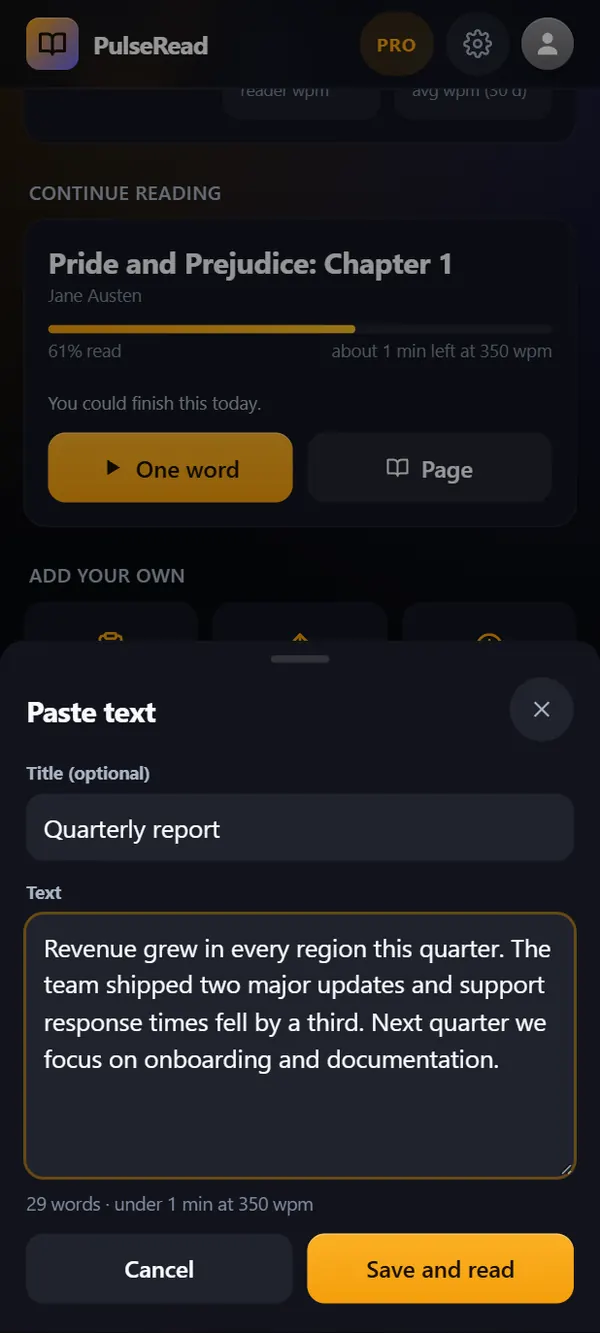
On Today, tap Paste text (or TXT or EPUB to pick a file).
- Step 2
Add an optional title, paste the text and tap Save and read. The word count and reading time appear as you paste.
- Step 3
Your texts appear in the Library with their progress. Use the filters and collections such as # Work to find them.
3Bookmark, highlight and findKeep your place, save sentences and search inside a text.
- Step 1
In the reader, tap the list icon at the top to open Marks, Highlights and Find. Tap Bookmark current place and add a note if you like.
- Step 2
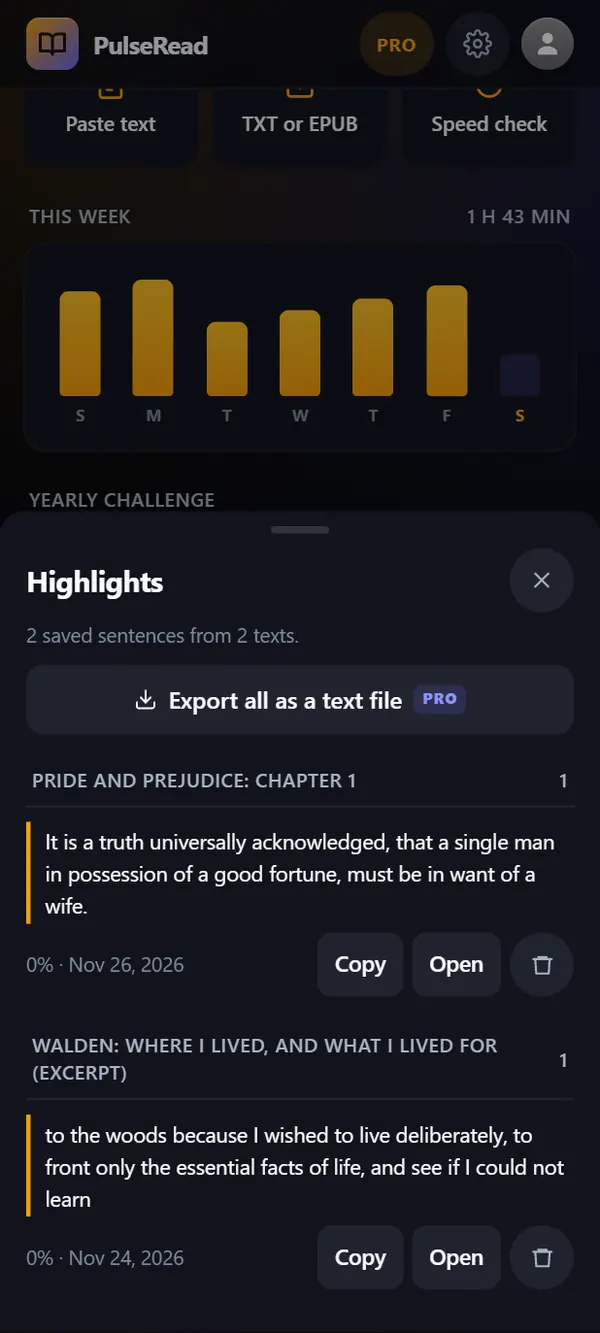
Saved sentences show up on Today as a highlight of the day, with Copy, Read in context and All highlights.
- Step 3
All highlights lists every saved sentence by text. Exporting them all as one file is part of Pro.
4Practise and check your speedMeasure your everyday reading speed and train with short drills.
- Step 1
Open Practice. Your past speed checks are listed with words per minute and answers right.
- Step 2
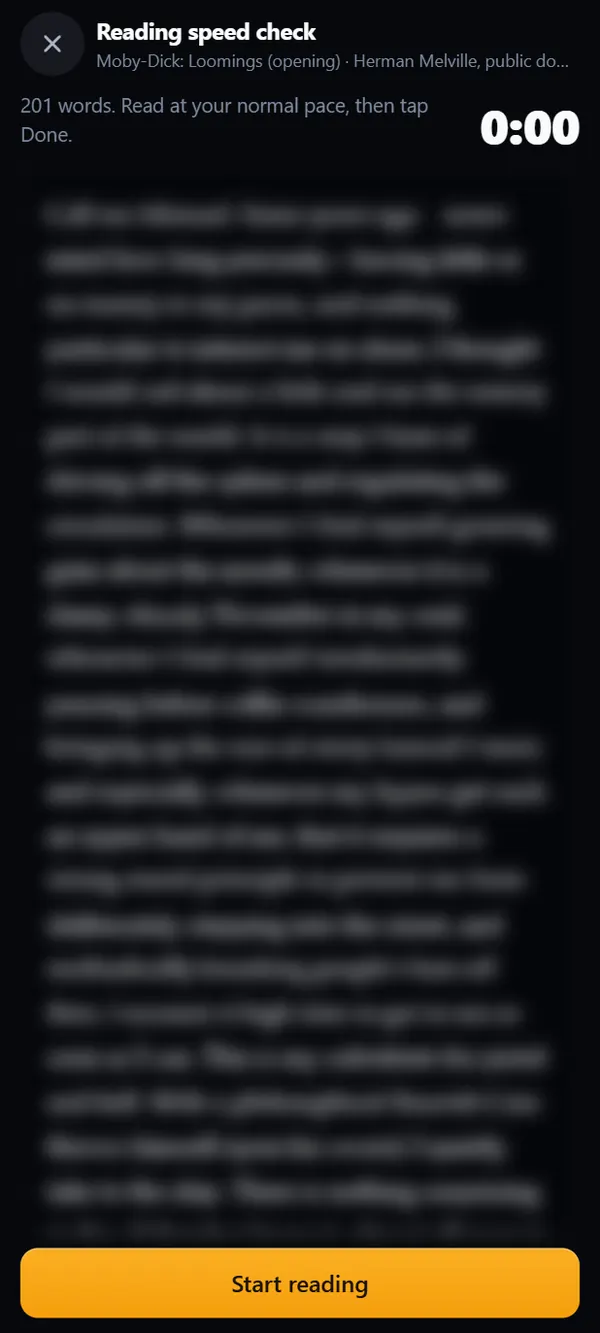
Tap Start speed check, then Start reading. Read the passage at your normal pace and tap Done; three questions follow.
- Step 3
Try the number grid: keep your eyes on the centre and tap 1 to 25 in order. The timer starts with your first tap.
5Set a yearly reading challengeChoose how many texts to finish this year and track whether you are on schedule.
- Step 1
Open Stats and find Yearly challenge. Tap Set a goal, or the gear to change it.
- Step 2
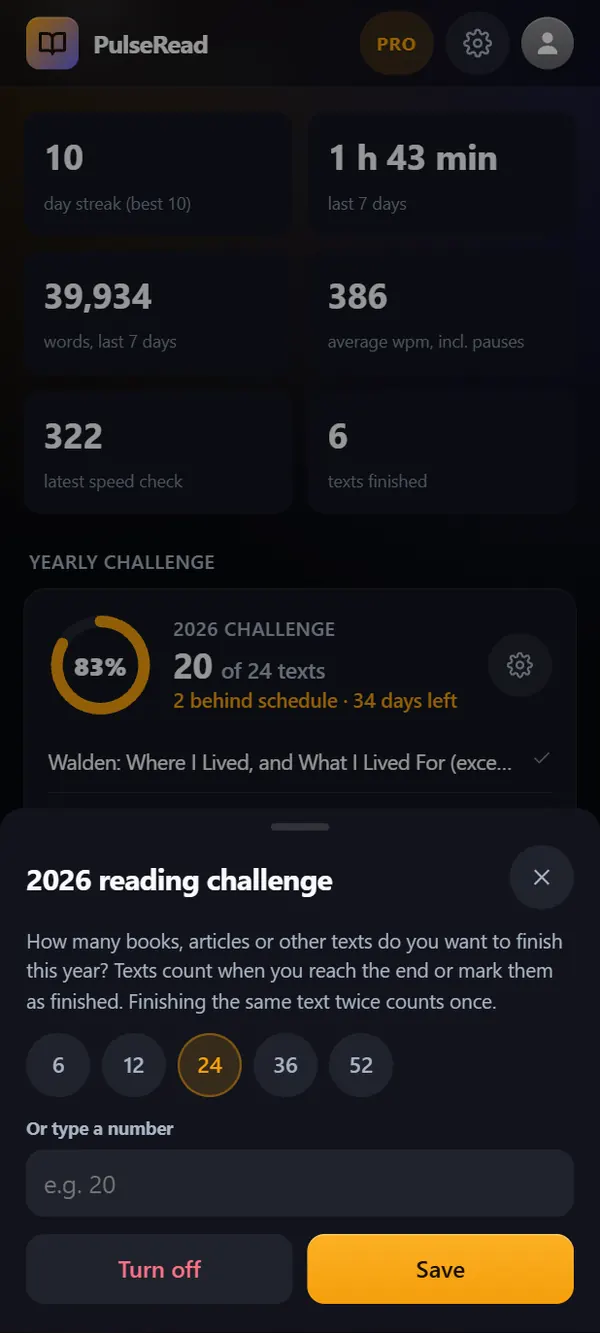
Pick a number such as 24, or type your own, and tap Save. Texts count when you reach the end or mark them finished.
- Step 3
The challenge also shows on Today, with how far ahead or behind schedule you are.
6Move to a new phone and keep your placeAdd a book's text again so you carry on with your progress, bookmarks and highlights.
- Step 1
After restoring your library on a new phone, texts that are not on that phone show Text not on this phone · tap to add it.
- Step 2
Tap it and choose the same file (or paste the same text). PulseRead puts it back with your place, bookmarks and highlights.
- Step 3
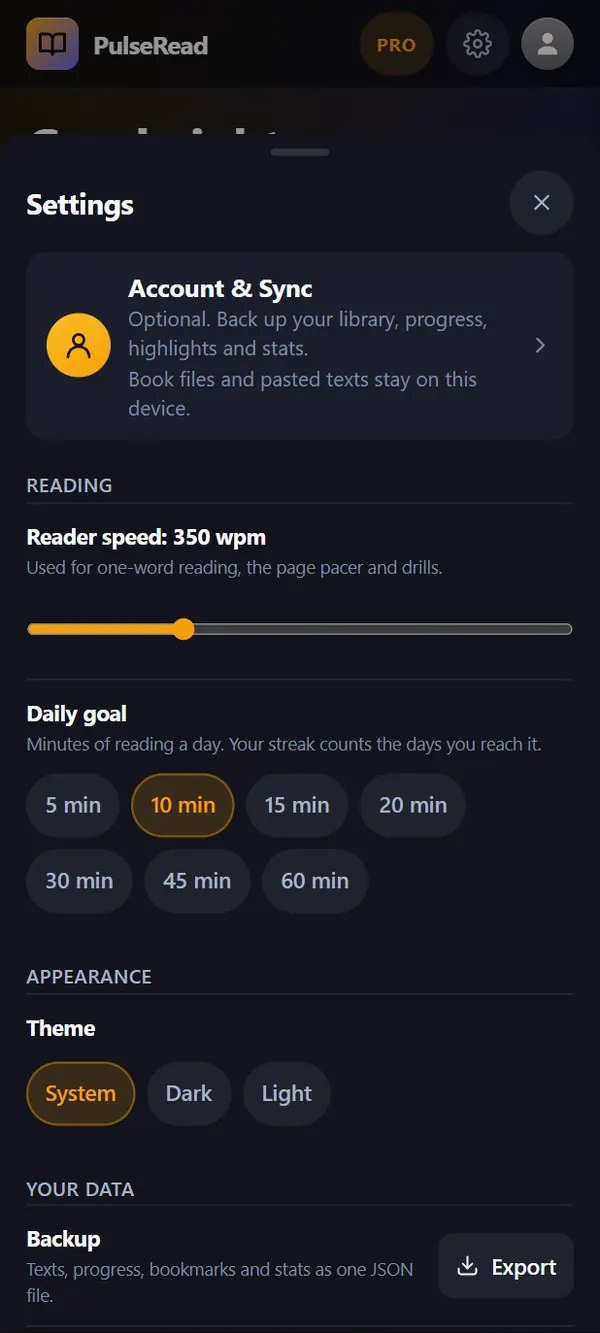
To move everything, use Backup in Settings and restore the file on the new phone.
Free, with optional Pro.
Download PulseRead free. Pro is optional and billed by Google Play, which shows the price before you confirm.
Free
One-word reader, page view with pacer, paste and file import, chapters, library with collections, bookmarks with notes, highlights, finish estimates, find in text, daily goal and streaks, 7-day stats, speed check with comprehension questions, speed ladder drill, 5x5 number grid, JSON backup and restore, dark and light themes.
PulseRead Pro (optional subscription)
- 2 or 3 words per flash
- Adjustable pause lengths for commas, sentence ends and paragraphs
- Sepia, night and high-contrast reading colours
- Two more drills: sprint and settle, and a custom drill with your own start and end speed
- 30- and 90-day charts, a speed check trend chart and CSV export of every reading session
- Reading history: a 12-month reading calendar, hours per month and time spent on each text
- 6x6 and 7x7 number grids
- Select many texts to add them to a collection, mark them done or delete them
- Export all highlights as one Markdown text file
Pro is monthly or yearly through Google Play; the price and any trial are shown before you buy. It renews until you cancel in Google Play > Payments & subscriptions.
Manage or cancel subscriptions in Google Play > Payments & subscriptions. Purchases and Restore purchases
Try it now.
Open PulseRead right here in your browser, or download the Android app file directly.
Open in browser
The full PulseRead app, running in a new tab. Nothing to install.
Some phone-only features, such as purchases, notifications, sharing and camera scanning, work only in the Android app. Anything you do in the browser is saved in that browser only, unless you sign in to the Bright Loop Account.
Download the APK
Install PulseRead on an Android phone without Google Play.
- Version
- 1.2
- Size
- 4.0 MB
- SHA-256
ab9830072cef012dcb367a38c5cbd53c6a5c6091459a5e29b770e72ad6e7277d
An APK installed from this website can't be updated from Google Play later. To switch to Google Play, uninstall it and install from Play. Your data only comes with you if you back it up with the Bright Loop Account first. How to install an APK
Requirements & details.
- Requires
- Android 7.0 or later
- Size
- 4.0 MB
- Version
- 1.2
- Price
- Free, optional Pro subscription
- Internet
- Only for optional sync and purchases
- Account
- Optional Bright Loop Account
- Ads
- None
- Category
- Learning
- Developer
- Bright Loop (Google Play: Bright Loop Games)
- Availability
- Coming soon to Google Play
- Web version
- Open in browser
How to get PulseRead.
PulseRead is not on Google Play yet. This page will show a download button as soon as it is.
- Not on Google Play yetThere's no download for PulseRead today, and no unofficial copies exist. Please don't install it from anywhere else.
- Want a heads-up?Email rehman@mindum.dev and we'll tell you when PulseRead lands. Meanwhile, explore the apps you can join today.
Account & sync.
Optional. PulseRead works fully without an account. Sign in to the free Bright Loop Account to back up your PulseRead data and keep it in sync across your phones.
What syncs
- Reading progress, goals and streaks
- Small book details such as chapter markers
What stays on this phone
- Book files and pasted texts: re-add a book's text on a new phone and keep your place
Account & Sync is part of PulseRead 1.2. Look for it at the top of Settings.
Privacy.
PulseRead keeps your data on your phone. No ads and no analytics.
Private by design
No account needed, no ads, no analytics. Your texts and stats stay on your phone unless you export a backup.
If you sign in
The Bright Loop Account is optional. If you sign in, PulseRead backs up the records listed under Account & sync to your account so you can restore them on another phone. Photos and files are never uploaded, and you can export or delete your cloud data at any time.
Read the full Privacy Policy.
Tips.
- Start at a speed that feels easy and raise it in small steps; reading faster usually means less detail, so slow down for anything you need to study.
- Turn on the Reading timer in reading options for a fixed session, such as 15 minutes before bed.
- Pause the one-word reader whenever you lose the thread: the sentence appears underneath and you can tap a word to jump back.
- For a PDF, copy the text and use Paste text; PDF files cannot be imported.
- Do a speed check every week or two to see your everyday speed change over time.
- Group texts into collections like Work or Books so the library stays easy to filter.
Troubleshooting.
My EPUB will not open.
Only DRM-free EPUB files can be imported. Books bought from some stores are locked; use a DRM-free copy or paste the text.
A text shows "Text not on this phone".
Tap it and choose the same file again, or paste the same text. Your place, bookmarks and highlights are kept.
Reading stopped by itself.
The reading timer may be on. Open reading options (Aa) and set Reading timer to Off.
My streak did not go up today.
The streak counts days on which you reach your daily goal. Only time with text moving on screen counts; lower the goal in Settings if it is too high.
I cannot import a PDF.
PDF is not supported. Copy the text from the PDF and use Paste text.
Questions.
What is RSVP reading?
Rapid serial visual presentation: words are shown one at a time in the same place, so your eyes do not have to move along the line. PulseRead highlights one letter in each word as a resting point.
Which files can I import?
Plain text (.txt), DRM-free EPUB, Markdown and HTML files. PDF is not supported; copy the text and paste it instead.
How is my reading time counted?
Only while text is moving on screen, in the one-word reader, the page pacer and drills. Time with the reader paused does not count.
How does the yearly challenge count texts?
A text counts when you reach the end or mark it finished. Finishing the same text twice counts once.
Why does a book say "Text not on this phone"?
Book files and pasted texts stay on the device where you added them; the optional Bright Loop Account only syncs your library, progress and stats. Tap the book and add the same file or text again to carry on.
What does the speed check measure?
Your everyday reading speed: you read a fresh passage at your normal pace, tap Done, and answer three questions so you can see how much you took in.
What is in Pro?
2 or 3 words per flash, adjustable pauses, sepia, night and high-contrast colours, two more drills, 30- and 90-day charts, a speed check trend, session CSV export, reading history, 6x6 and 7x7 grids, multi-select in the library and highlights export.
Is PulseRead free?
Yes. PulseRead is free to download and use. PulseRead Pro is an optional monthly or yearly subscription through Google Play that adds the extras listed under Free and Pro. Google Play shows the price, and any trial, before you confirm.
When will PulseRead be available?
PulseRead is being prepared for Google Play. This page will show a download button as soon as it's ready. Email rehman@mindum.dev if you'd like a note when it lands.
Do I need an account?
No. PulseRead works fully without one. The Bright Loop Account is optional and adds cloud backup and sync across your phones.
How do I move to a new phone?
Sign in to your Bright Loop Account on the new phone and choose "Use Cloud Data", or export a backup file on the old phone and restore it on the new one. Photos and files only move with a backup file. Pro comes back with Restore purchases. See Move to a new phone.
How do I restore a purchase?
Make sure your phone uses the same Google account you bought with, open PulseRead and tap Restore purchases. Google Play checks your purchases and PulseRead unlocks what you own. More about purchases.
Can I use PulseRead in a browser?
Yes. Tap Open in browser to run it in a new tab. Some phone-only features, such as purchases, notifications, sharing and camera scanning, work only in the Android app, and anything you do there is saved in that browser.
Can I install it without Google Play?
Yes, with the APK on this page (version 1.2, 4.0 MB). An APK install can't be updated from Google Play later; see Install an APK on Android.
What do I need to run it?
Android 7.0 or later, or any modern browser for the web version.
Is it available on iPhone?
There's no iPhone app at the moment. PulseRead is made for Android, but you can open the web version in Safari.
Get help with PulseRead
Email rehman@mindum.dev. Include your phone model, Android version and what happened, and we'll take it from there.
Help Centre
Step-by-step guides for early access, sync, backups, purchases and moving phones. Visit the Help Centre
More apps you might like.
EchoNote
Talk or type your day. Tasks, due dates, ideas and mood are picked out for you.
Unplug
Pomodoro focus timer with offline background sounds, daily goals and a heatmap

SplitMate
Split bills with flatmates, trips and family in any currency. Settle up fast.
PocketCFO
Track spending, budgets, bills and debts, and see what is safe to spend today.